
Seeing the "SIM Card Not Provisioned" error on your iPhone 17 can stop you from making calls or using data right when you need it. This message means your phone can't connect your SIM to your carrier's network. It's a common hiccup, and I'd start by checking if the SIM is activated.
Restart Your iPhone 17
A simple restart can clear out temporary software glitches that might be blocking the network connection. Just power your phone down completely, wait a minute, and turn it back on. This forces the modem and iOS 26 to re-establish communication with your carrier from scratch.
Check Your SIM Card Activation Status
This is the most frequent cause, especially with a new SIM card or a recently transferred number. Your carrier needs to fully activate and provision the SIM on their network. The quickest way to check is to give them a call from another phone or use their online chat support.
They can tell you in seconds if the activation is pending, complete, or if there's an issue with your account. Sometimes activations just get stuck and need a nudge from their end.
Toggle Airplane Mode On and Off
This trick quickly resets all the phone's radio connections. Swipe down from the top-right corner to open Control Center and tap the airplane icon. Wait about 15 seconds, then tap it again to turn it off.
You should see the cellular signal bars disappear and then reappear. This can kickstart the network registration process and clear the error if it was a temporary connection problem.
Reinsert the SIM Card
A SIM that isn't seated perfectly in the tray can cause this error. You'll need the SIM ejector tool that came with your iPhone 17. Gently push it into the small hole on the left side of the frame to pop out the tray.
Take out the SIM, give the gold contacts a quick look for any dust or damage, and then place it back in firmly. Make sure it's lying flat and the tray clicks securely into the phone when you reinsert it.
Check for a Carrier Settings Update
Your iPhone uses small files from your carrier to manage network connections. If these are outdated, it can cause provisioning errors. Go to Settings > General > About.
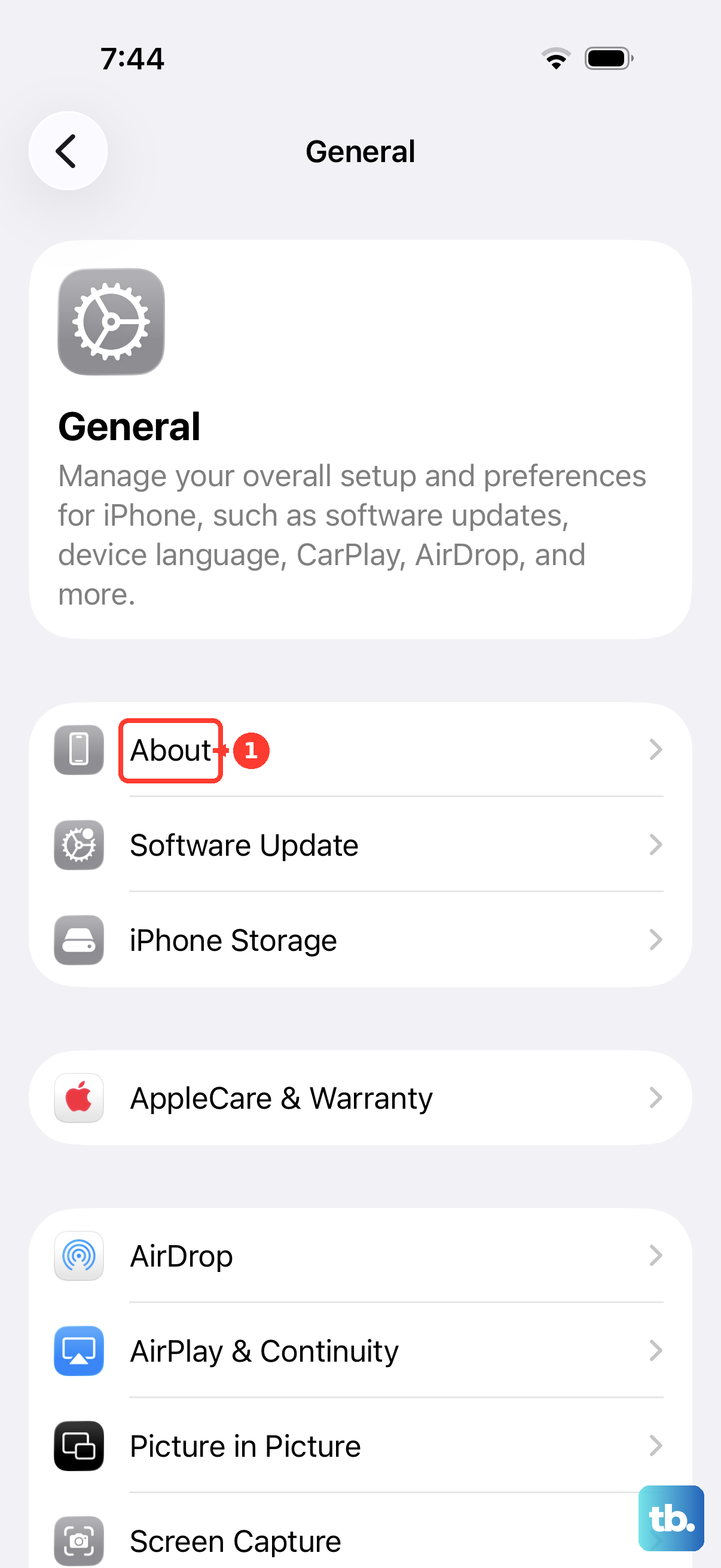
If an update is available, a prompt will appear on this screen. Just tap "Update" when it shows up. This process only takes a moment and doesn't require a full iOS update.
Verify Your Account and Service Status
If you're on a prepaid plan, make sure you have a positive balance. For postpaid accounts, check that your bill is paid and service hasn't been suspended. The easiest way is to log into your carrier's app or website.
Sometimes a payment issue or a plan change that didn't fully process on the network side can trigger this exact error message on your phone.
Manually Select Your Network Operator
Letting your iPhone automatically choose a network can sometimes fail. You can force it to search for and connect to your specific carrier. Open Settings > Cellular.
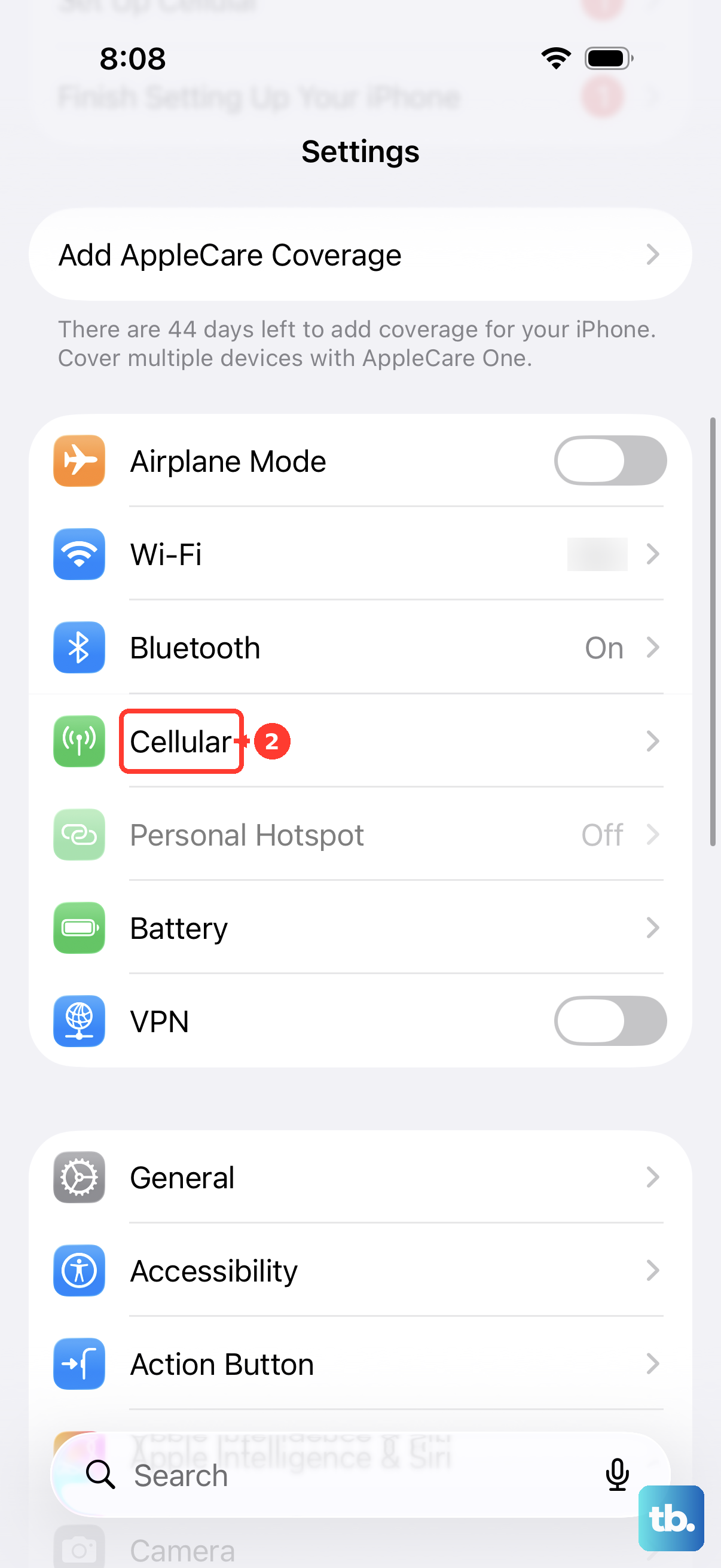
Tap Network Selection and turn off "Automatic." Your iPhone 17 will search for a minute and then display a list. Select your carrier's name from the options provided.
Reset All Network Settings on iOS 26
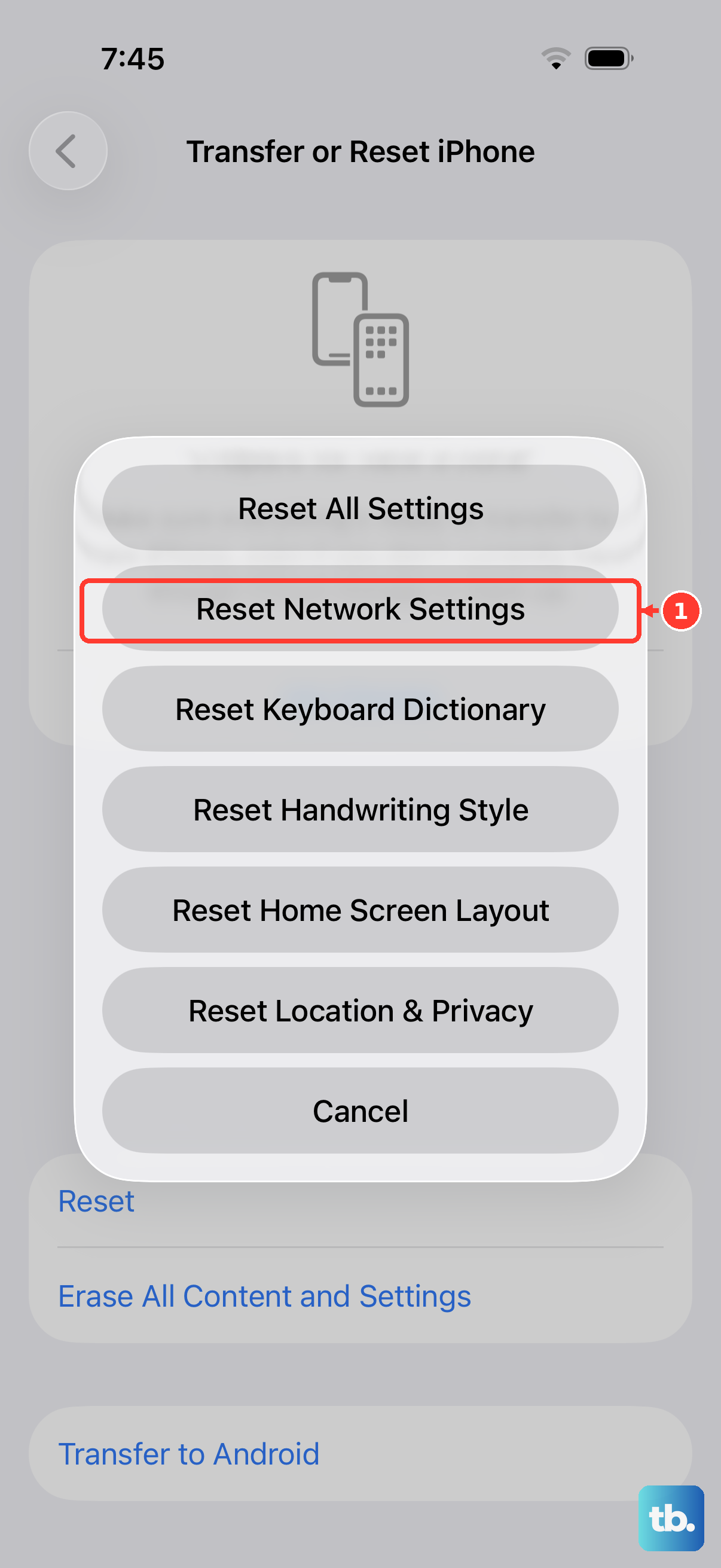
This is a more thorough step that clears all saved Wi-Fi passwords, Bluetooth pairings, and cellular network configurations. It often resolves persistent provisioning issues. Go to Settings > General > Transfer or Reset iPhone.
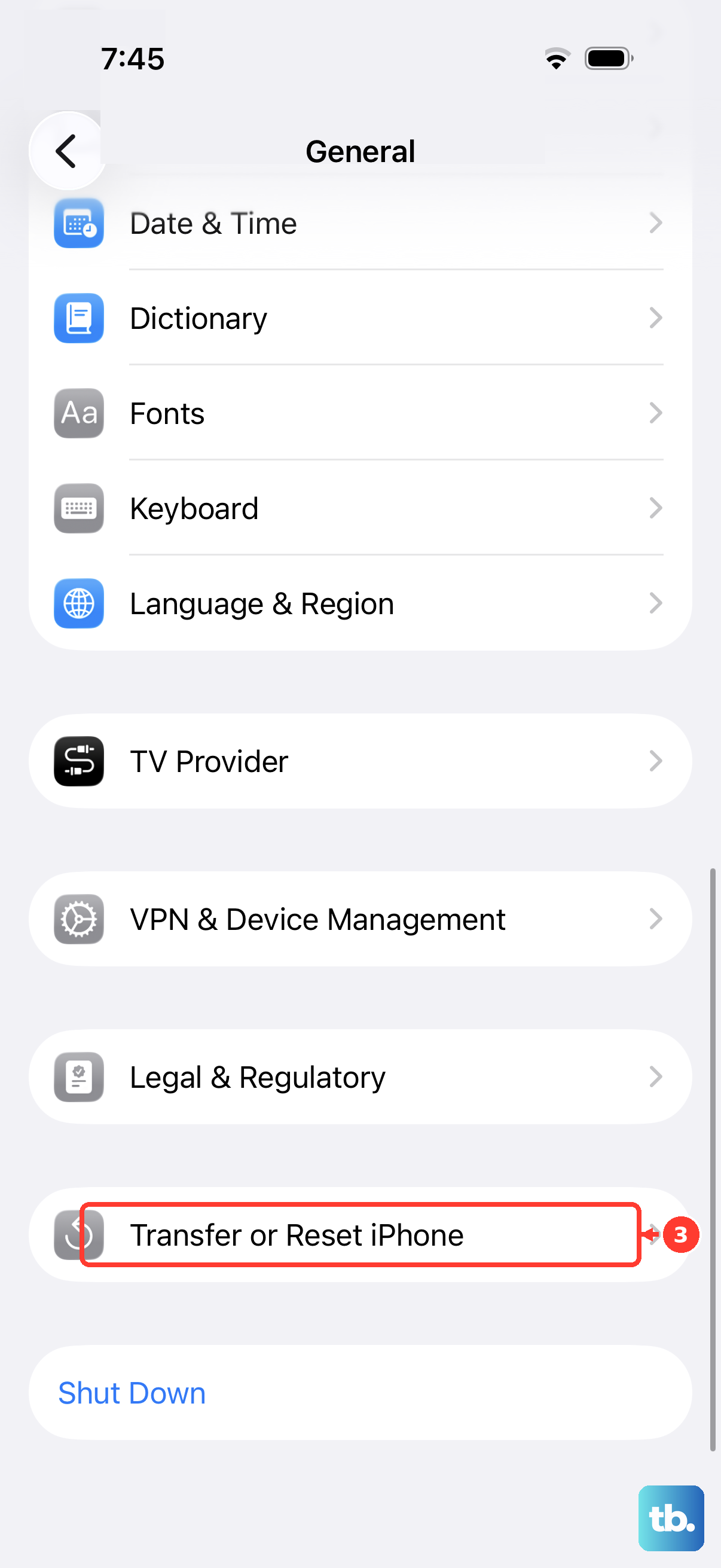
Tap Reset and then choose Reset Network Settings. You'll need to enter your passcode to confirm. Your phone will restart, and you'll have to reconnect to Wi-Fi and Bluetooth devices afterward.
Contact Your Mobile Carrier Directly
If you've tried the steps above and the error persists, it's time to call in the experts. Your carrier's support team can look deeper into your account and their network systems.
They can reprovision your SIM on their end, check for regional outages, or determine if the SIM card itself is faulty and needs to be replaced. They may send you a new SIM, which you can activate yourself or in a store.
Test the SIM Card in Another Phone
This test tells you where the problem lies. If you have access to another unlocked phone, power it off and insert your iPhone 17's SIM card. Turn that phone on and see if it gets service.
If the SIM works in the other phone, the issue is likely with your iPhone's hardware or software. If it also shows as "not provisioned" in the other device, then the problem is definitely with the SIM card or your carrier account.