
Slow internet on your iPhone 17 Pro can really put a damper on streaming, browsing, or getting work done. The good news is that with iOS 26, there are several specific settings you can adjust to get your connection back up to speed.
I'd start with the quickest fixes first, like toggling Airplane Mode or checking your cellular data mode, before moving on to more involved steps.
Toggle Airplane Mode and Restart
This is the simplest and often most effective first step. Toggling Airplane Mode off and on forces your iPhone 17 Pro to reconnect to the cellular network from scratch, which can clear up a temporary glitch.
Just swipe down from the top-right corner to open Control Center and tap the airplane icon. Wait about 10 seconds, then tap it again to turn it off. If that doesn't help, try a full restart. Press and quickly release the Volume Up button, then the Volume Down button, and finally press and hold the Side button until you see the Apple logo.
Check Your Cellular Data Mode
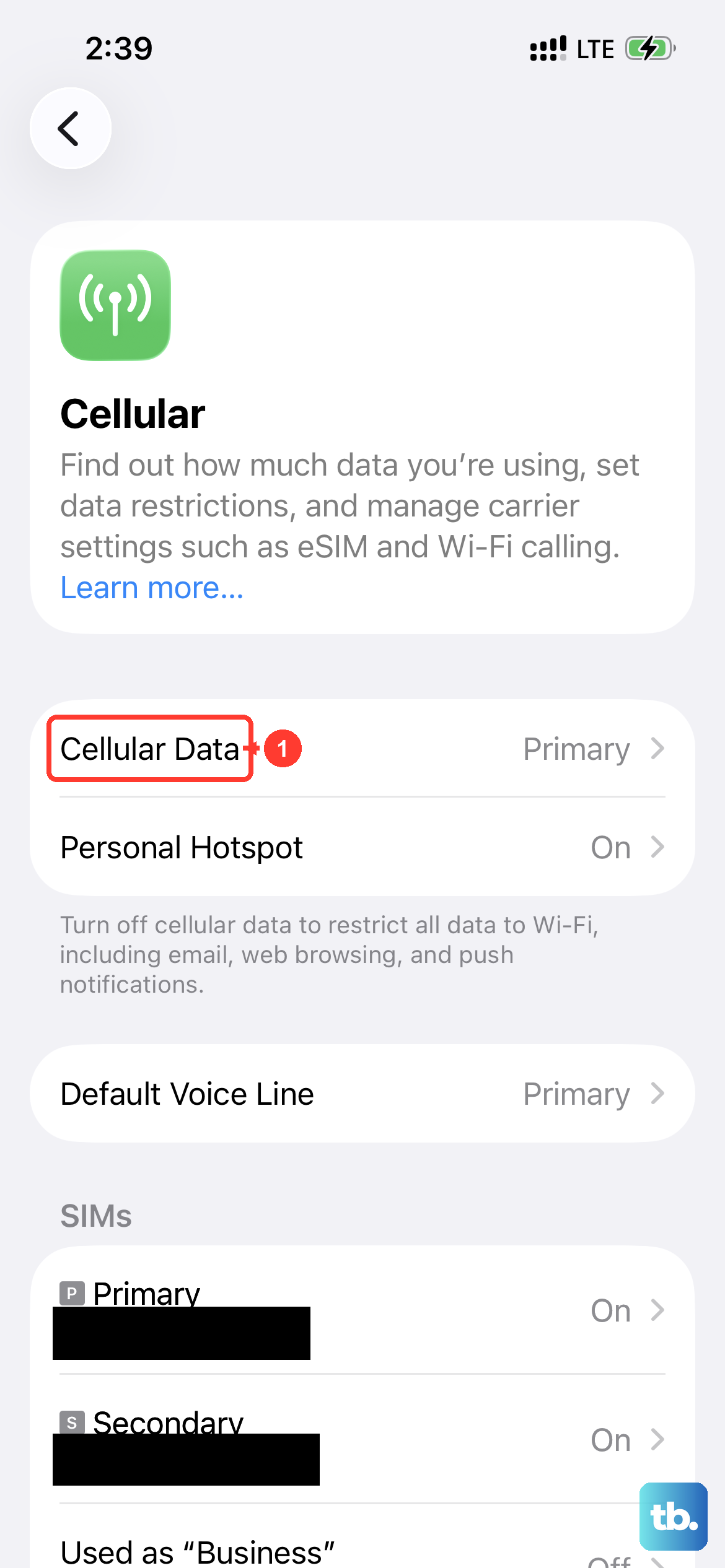
Your iPhone 17 Pro can prioritize battery life over speed, which might be slowing you down. Go to Settings > Cellular > Cellular Data Options > Voice & Data. For the fastest possible speeds, make sure 5G Auto or 5G On is selected.
If you're in an area with spotty 5G, switching to LTE can sometimes provide a more stable and consistent connection. Also in that menu, check that Data Mode is set to Standard and not Low Data Mode, which restricts background activity.
Enable and Use WiFi Assist
WiFi Assist is a great feature on the iPhone 17 Pro that automatically uses your cellular data when your WiFi connection becomes poor. This prevents you from being stuck on a barely-working WiFi signal.
To make sure it's on, go to Settings > Cellular and scroll all the way to the bottom. You should see the WiFi Assist toggle. Ensure it's switched on. This way, if your video is buffering on WiFi, your phone can seamlessly switch to 5G to keep it playing smoothly.
Clear Your Safari Cache and History
Over months of use, Safari can accumulate a lot of website data and history. A bloated cache can sometimes interfere with how pages load. Clearing it out is a good refresh for your browser.
Head to Settings > Apps > Safari. Scroll down and tap Clear History and Website Data. Confirm your choice. This will log you out of websites, so you'll need to sign in again, but it often helps with sluggish browsing performance.
Manage Background App Refresh
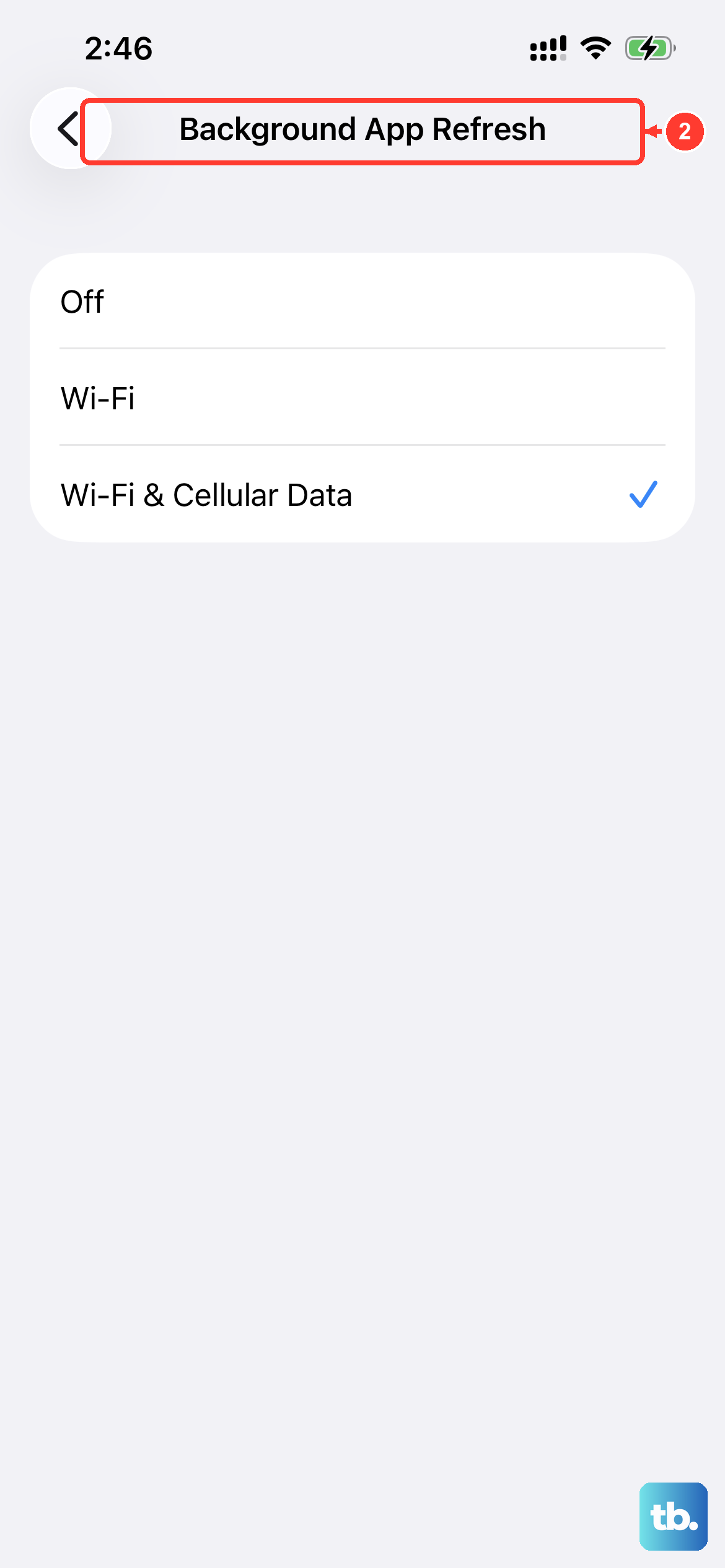
Apps refreshing in the background use data and can compete for bandwidth, even when you're not actively using them. You can control this globally or per-app.
Go to Settings > General > Background App Refresh. You can choose to turn it Off entirely, set it to WiFi only, or review the list below to disable it for specific apps you don't need updating constantly. This frees up your connection for the task at hand.
Update iOS and Carrier Settings
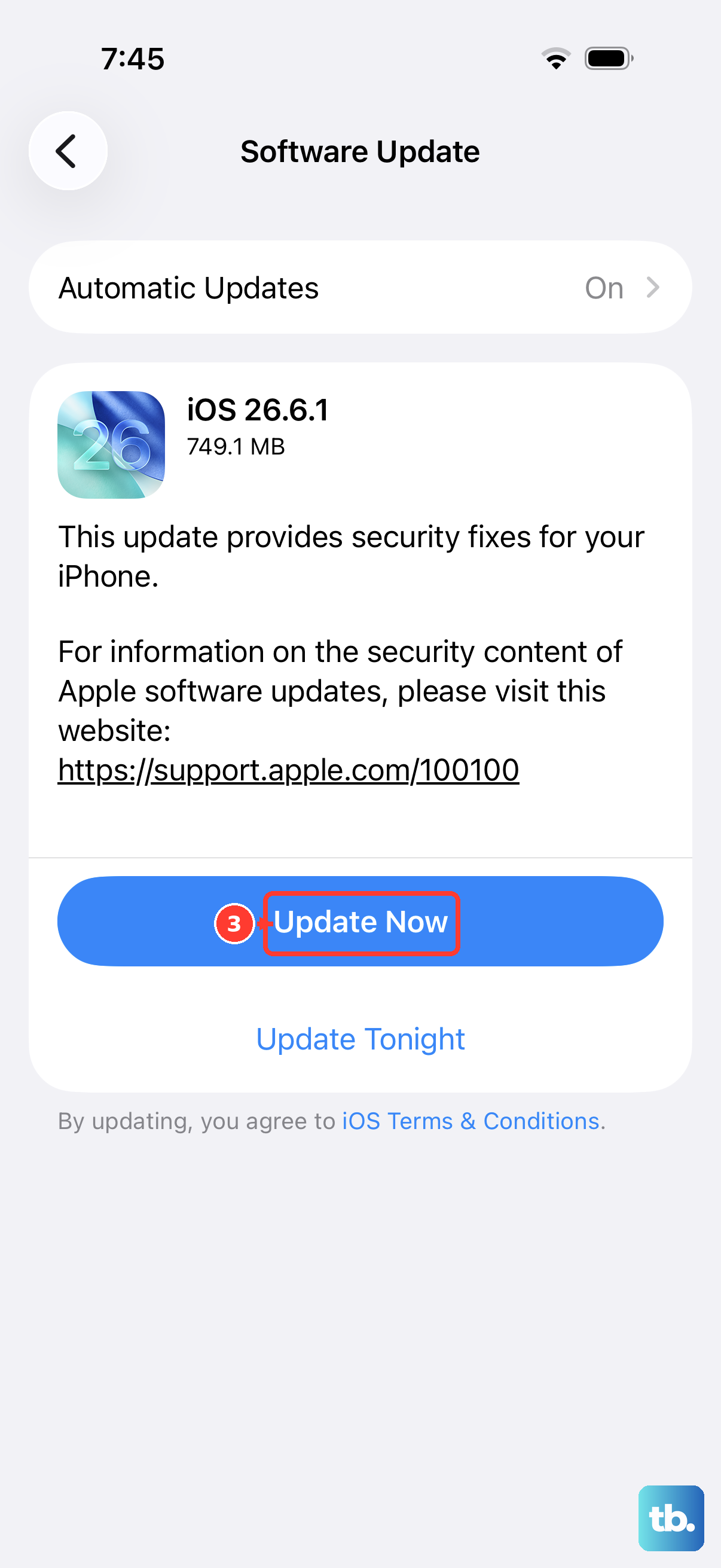
Apple and your cellular carrier frequently release updates that include improvements for network connectivity and performance. An outdated version could be the culprit.
First, check for a software update by going to Settings > General > Software Update. Install any available updates. Next, to update your carrier settings, go to Settings > General > About. If a carrier settings update is available, a prompt will appear on this screen.
Review and Disable VPN or Content Blockers
While essential for privacy, VPNs route your traffic through another server, which can significantly slow down your connection. Similarly, aggressive content or ad blockers can interfere with page loading.
If you're using a VPN, try temporarily disabling it in the app or via its profile in Settings > General > VPN & Device Management. For content blockers, go to Settings > Apps > Safari > Extensions and toggle them off one by one to see if your speed improves.
Reset Your Network Settings
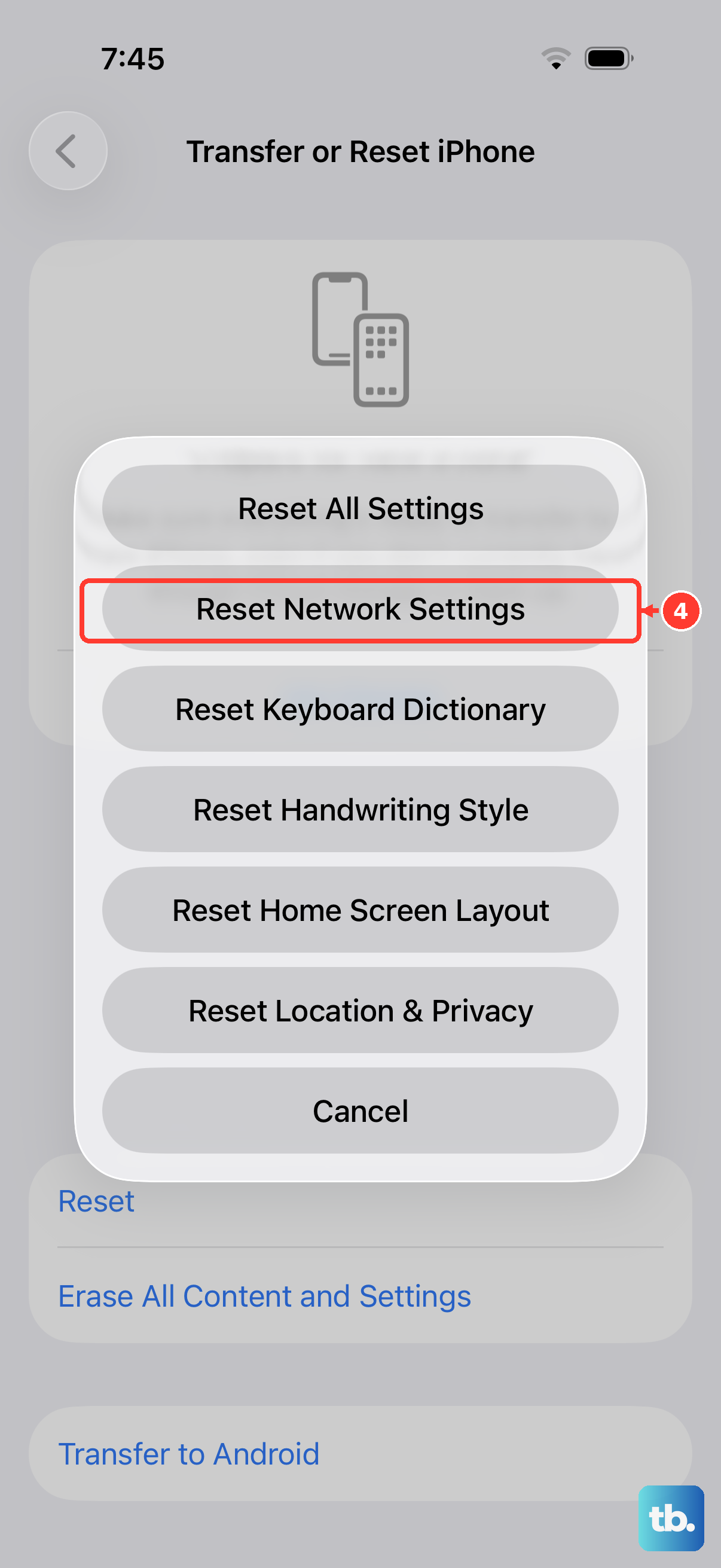
This is a more comprehensive step that resets all network-related configurations back to default. It will erase saved WiFi passwords, Bluetooth pairings, and your cellular network preferences.
Because it removes WiFi passwords, make sure you know them before proceeding. To do it, navigate to Settings > General > Transfer or Reset iPhone > Reset. Then, tap Reset Network Settings and enter your passcode to confirm. Your iPhone 17 Pro will restart and you'll need to reconnect to WiFi and Bluetooth devices.
Check for Service Outages and Use Field Test
Sometimes the issue is with your carrier's network, not your phone. Check your carrier's website or app for any reported service outages in your area.
You can also use the Field Test mode to get a more precise look at your cellular signal strength. Dial *3001#12345#* and press call. Look for the "rsrp0" or "rsrp1" values; a number closer to 0 (like -85) indicates a very strong signal, while a number closer to -120 indicates a very weak one.
Optimize Your WiFi Connection
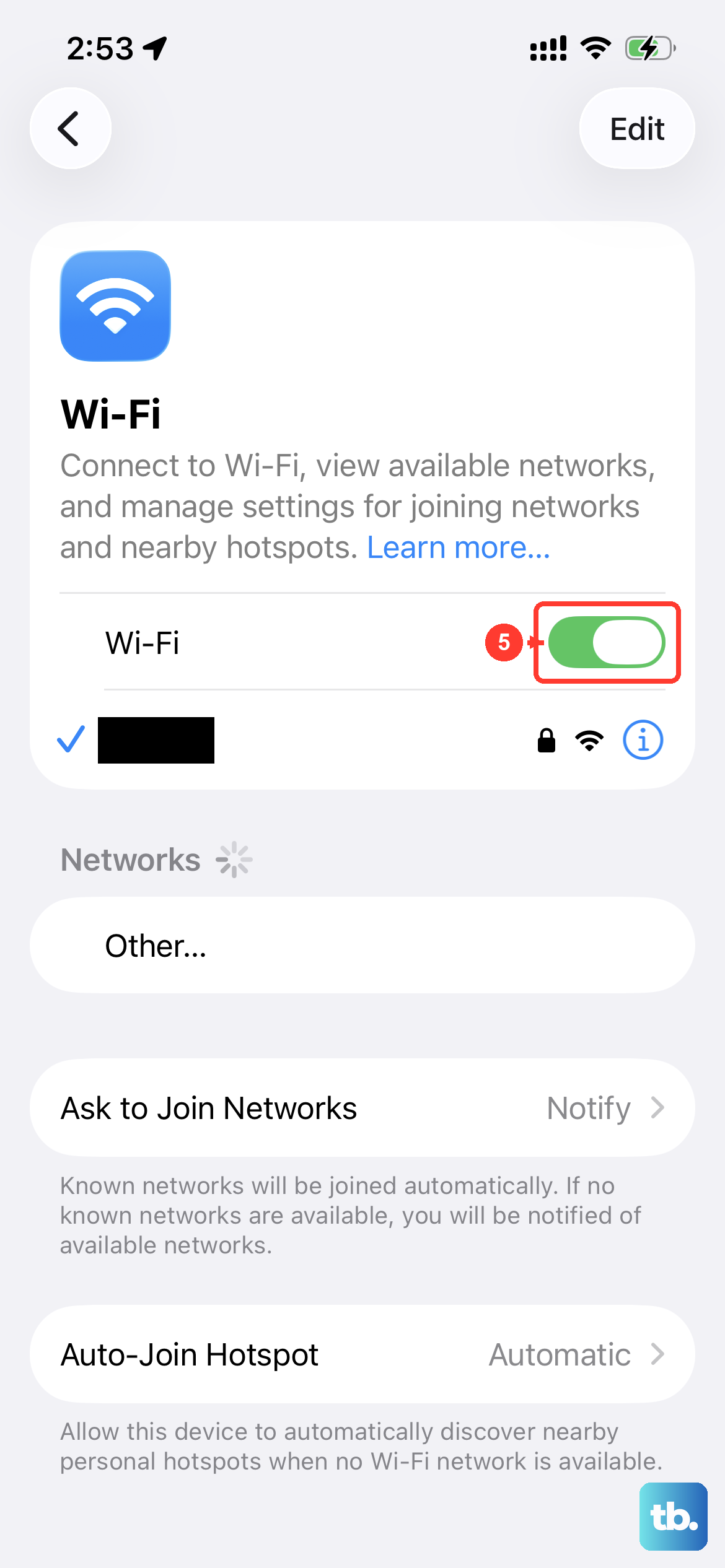
If the slowdown is specifically on WiFi, try forgetting the network and reconnecting. Go to Settings > WiFi, tap the i icon next to your network, and select Forget This Network. Then, rejoin it by entering the password again.
Also, ensure your router is using the least congested channel, especially if you're on a 2.4GHz band. For the fastest speeds on your iPhone 17 Pro, connect to the 5GHz band if your router supports it, as it's typically less crowded and offers higher throughput.