
If your iPhone 17 Pro is refusing to send photos or videos, it's almost always a quick settings or connection issue. The most common fix is toggling your mobile data off and back on, as MMS requires a cellular data connection, not Wi-Fi.
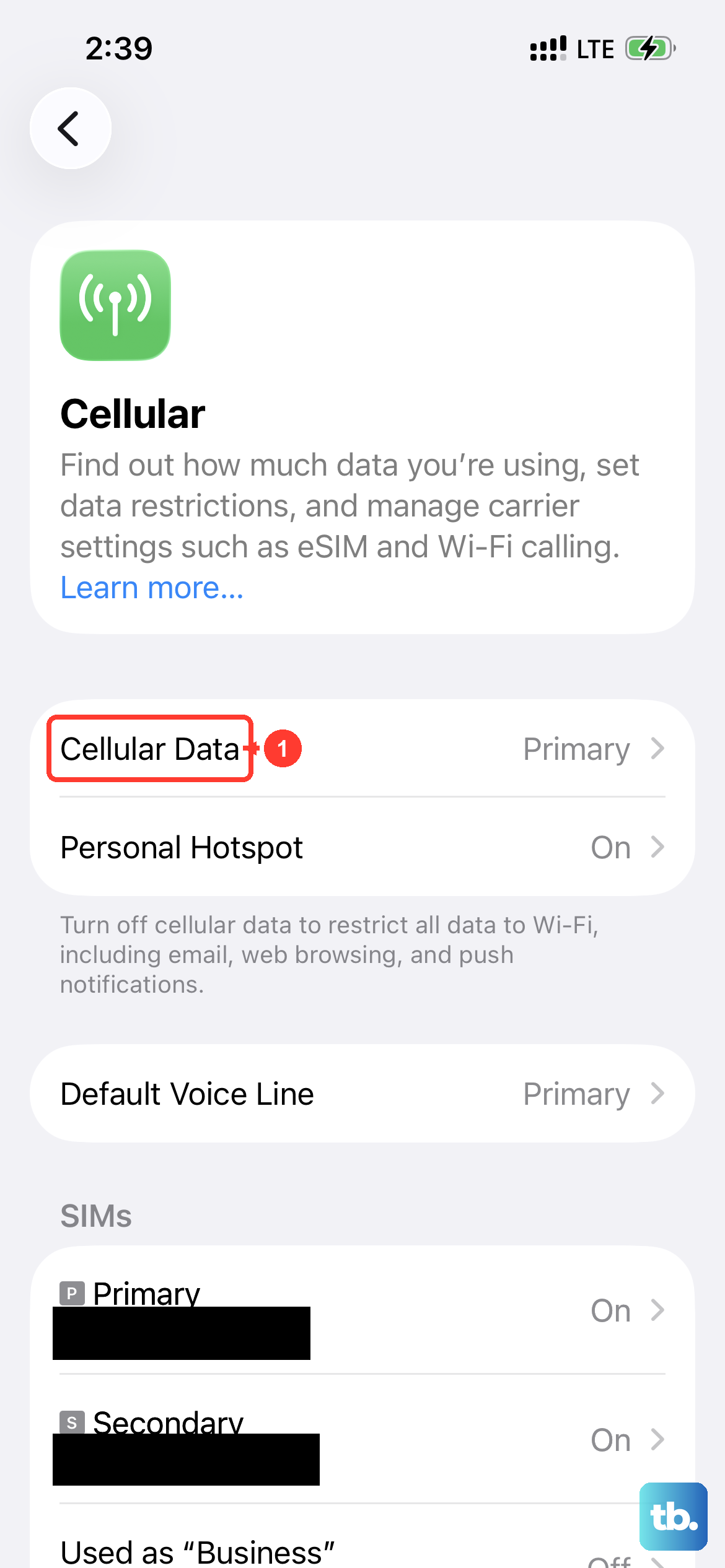
Head to Settings > Cellular and tap the toggle next to Cellular Data to turn it off. Wait about ten seconds, then turn it back on. Try sending your stuck message again. I've found this resets the data session and often gets things moving immediately.
Check Your MMS and Data Settings
Open Settings and scroll down to Messages. First, make sure the switch for MMS Messaging is turned on. Right below that, also ensure Send as SMS is enabled. This lets your phone fall back to a standard text if iMessage isn't available for a recipient.
While you're in the Cellular settings, it's worth checking if you have any data restrictions for the Messages app. Tap Cellular, then scroll down to find Messages in the app list. Make sure it's set to use both Wi-Fi and cellular data, and that it hasn't been accidentally restricted.
Ensure iMessage Isn't Interfering
Since your iPhone 17 Pro defaults to iMessage for other Apple users, a glitch there can sometimes stall outgoing media. Go to Settings > Apps > Messages and toggle the iMessage switch off. Wait for it to fully deactivate, which may take a minute.
After it's off, restart your phone using the force restart method for the iPhone 17 Pro: quickly press and release the Volume Up button, then quickly press and release the Volume Down button. Finally, press and hold the Side button until you see the Apple logo appear.
Once your phone boots back up, go back to Settings > Apps > Messages and turn iMessage back on. This fresh activation can clear up any backend errors that were preventing message sending.
Review Your Carrier Settings and Network
Carrier settings updates are small files that help your iPhone 17 Pro communicate properly with your cellular network. To check for one, make sure you're connected to Wi-Fi or have a strong cellular signal, then go to Settings > General > About.
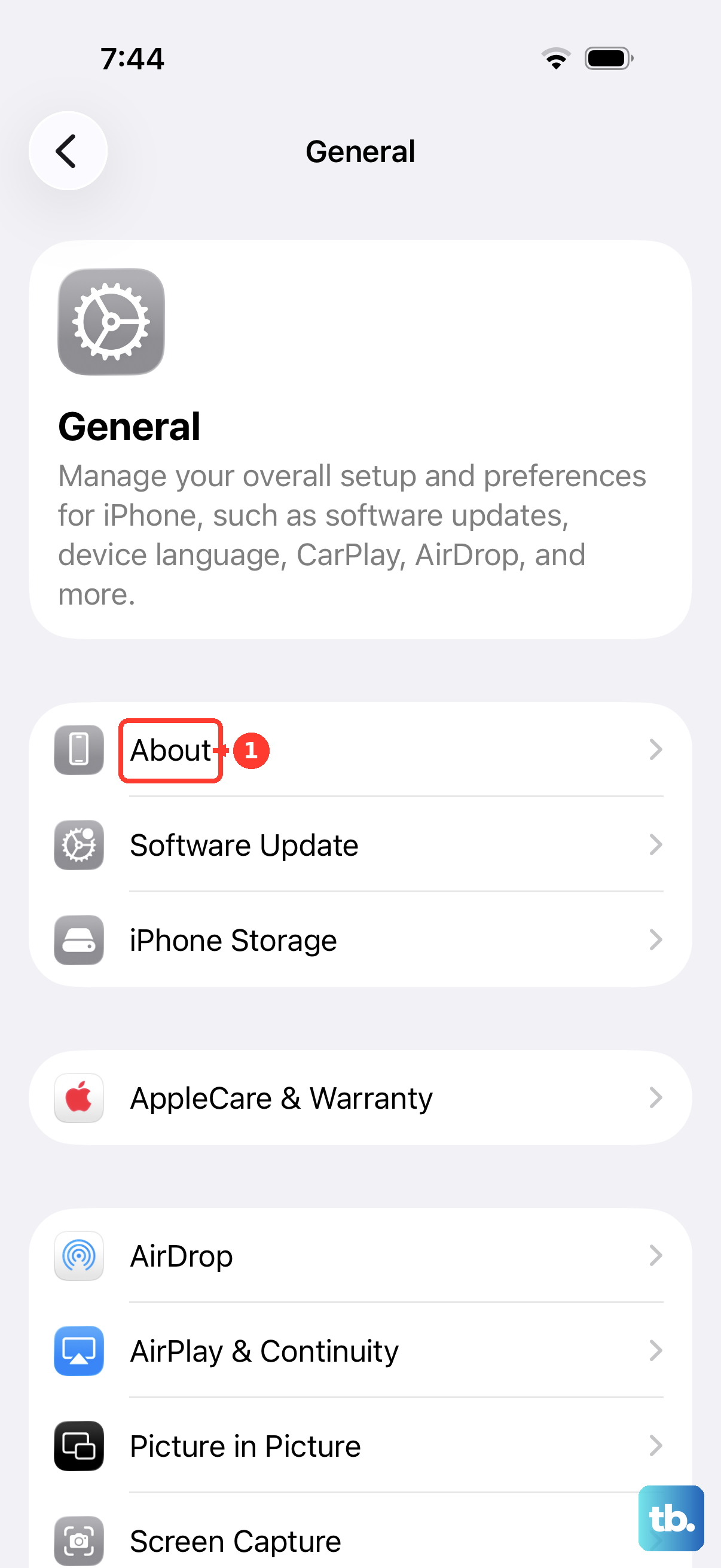
If an update is available, a prompt will appear. Installing it takes just a moment and doesn't affect your personal data. These updates often fix MMS and network connectivity bugs introduced by carrier changes.
If you're connected to Wi-Fi, try disabling it temporarily. Some public or corporate Wi-Fi networks have firewalls that block the ports used for MMS. Sending over cellular data instead is a good way to rule this out.
Update iOS and Reset Network Settings
Running an outdated version of iOS 26 can lead to messaging bugs. Open Settings > General > Software Update to download and install any available updates. It's a good practice to plug your phone into power using your 40W Dynamic Power Adapter or a compatible USB-C charger before starting the update.
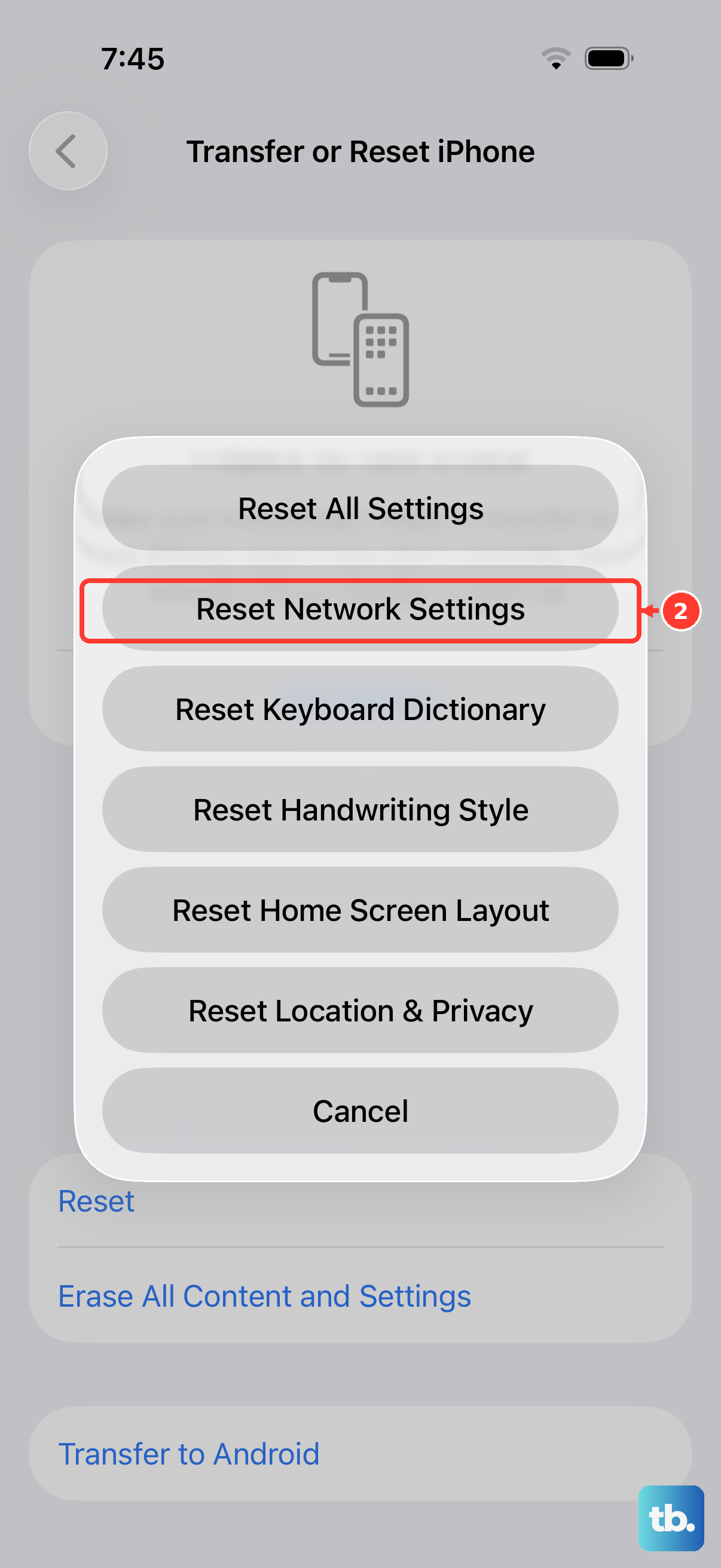
If updating doesn't help, the next step is to reset your network settings. This will erase all saved Wi-Fi passwords, Bluetooth pairings, and VPN configurations, so be prepared to re-enter those. Go to Settings > General > Transfer or Reset iPhone.
Tap Reset, then choose Reset Network Settings. Enter your passcode when prompted and confirm. Your iPhone 17 Pro will restart, and you'll need to reconnect to your Wi-Fi and cellular network. This clears any corrupted network configurations that could be blocking MMS.
Check for Storage Space and Message Details
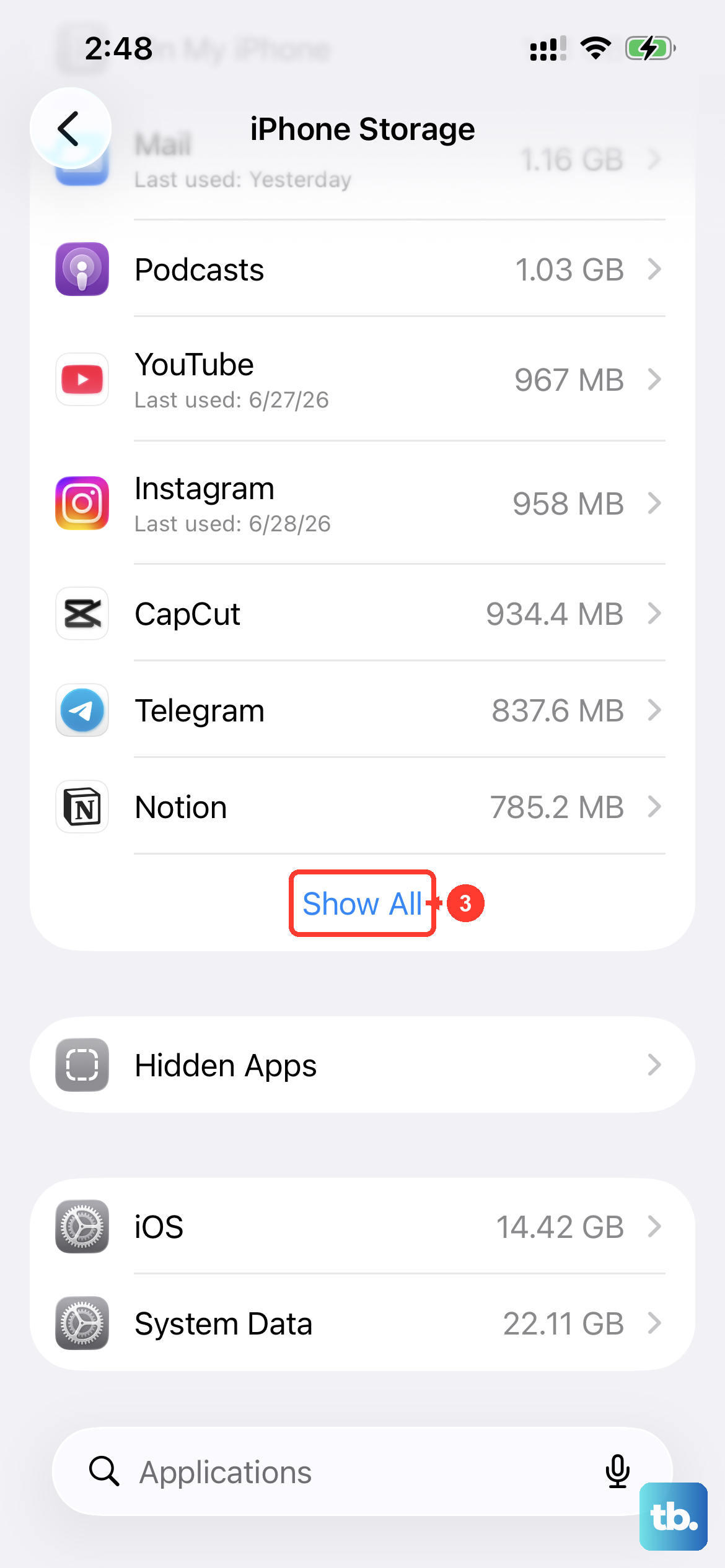
Your phone needs a bit of free space to process and send media. Open Settings > General > iPhone Storage to see if you're critically low. If you are, offloading some unused apps or old message threads with large attachments can help.
Also, take a look at the specific message that's failing. Extremely large video files, especially those shot in high-resolution modes on the iPhone 17 Pro, can exceed carrier size limits for MMS. If the file is very large, try sending a shorter clip or a compressed photo instead.
Finally, if you're trying to send to a group message that includes both iPhone and Android users, these chats can sometimes get stuck. Try creating a new message thread with the same recipients, or send the media to individuals first to test.