
When your iPhone 17 Pro Max stops responding to "Hey Siri" or "Hey Google," it feels like a step backwards. You're left tapping and typing when you should just be talking. Let's get your voice assistant listening again.
Confirm Your Voice Assistant is Enabled
This might seem obvious, but it's the most common fix. Head to Settings > Siri & Search. Make sure "Listen for 'Hey Siri'" is turned on. If you use Google Assistant, open the Google Assistant app and check its voice match settings are active.
Also, ensure "Allow Siri When Locked" is enabled. If it's off, Siri won't respond unless your phone is unlocked and awake, which defeats the hands-free purpose.
Check for Audio Feature Conflicts
iOS 26 has several features that can inadvertently silence your assistant. The main culprit is Sound Recognition in the Accessibility menu.
Go to Settings > Accessibility > Sound Recognition. If this is on, it will automatically disable "Hey Siri" to avoid conflicts. Toggle it off and test your voice command again.
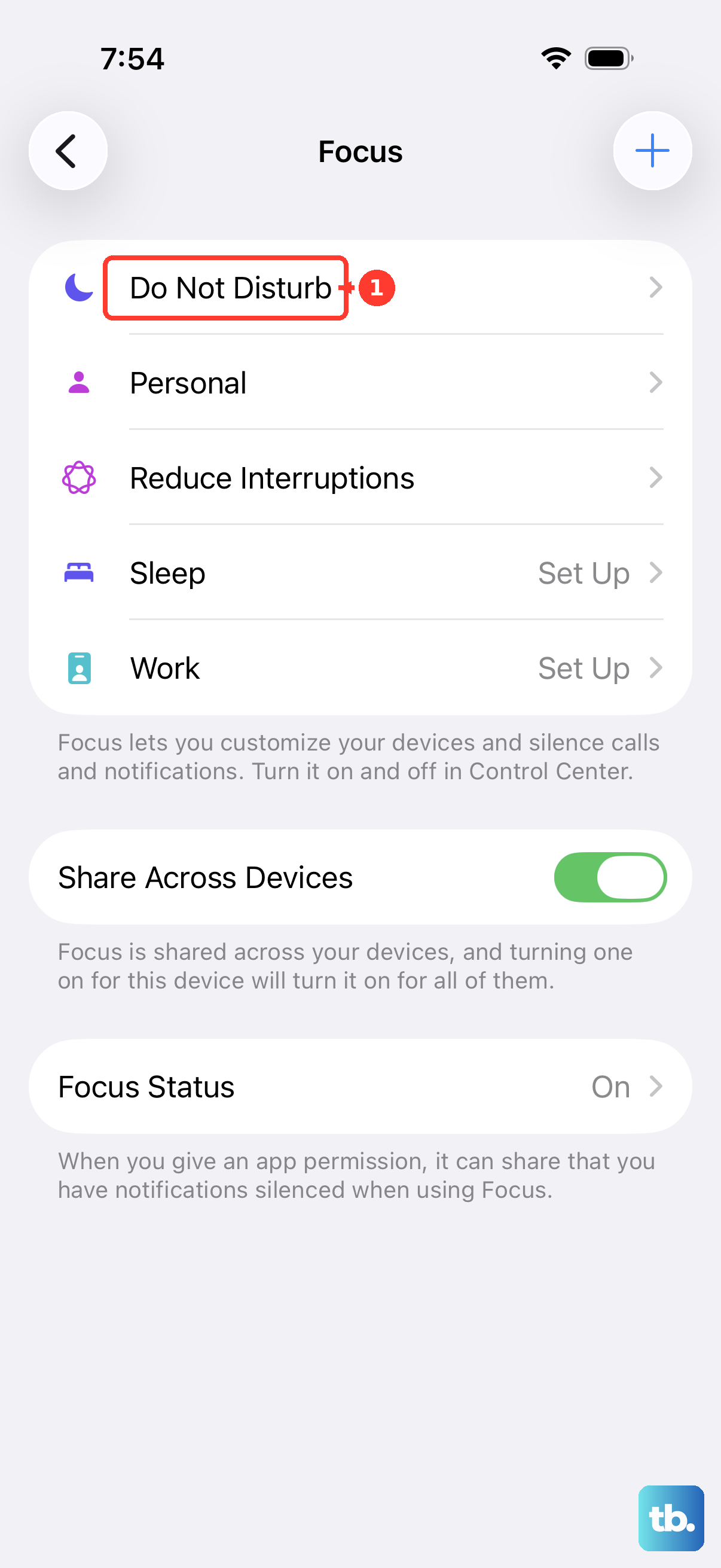
Also, check if a Focus mode like Do Not Disturb or Sleep is active. While they shouldn't block Siri entirely, some users find toggling the Focus off and back on can clear a temporary glitch.
Inspect Your Microphones and Speakers
The iPhone 17 Pro Max has multiple microphones. If they're blocked, neither Siri nor Google Assistant can hear you. Check the microphone ports at the bottom, top, and near the rear cameras for lint or case obstruction.
For Siri, also check you can hear her. Press and hold the Side button to activate Siri manually. If you see her respond on screen but hear nothing, Silent mode might be turned on via the Action button, or your media volume could be all the way down. Use the volume buttons to turn it up.
You can also force Siri to speak even in silent mode. Go to Settings > Siri & Search > Siri Responses and select "Always."
Retrain Siri to Your Voice
Background noise, a slight cold, or just the natural evolution of your voice can throw off the recognition. Retraining Siri is quick and often solves the problem.
Go to Settings > Siri & Search and turn "Listen for 'Hey Siri'" off. Wait a moment, then turn it back on. You'll be guided through the setup process again, saying a few phrases so Siri can learn your current voice pattern.
For Google Assistant, open the app, tap your profile picture, go to Assistant settings > Voice Match, and follow the prompts to retrain the model.
Disconnect and Reconnect Bluetooth Devices
If you have AirPods, a smartwatch, or a car stereo connected, your phone might be routing the microphone input there. Even if the accessory is out of range or off, it can cause a conflict.
Go to Settings > Bluetooth, tap the info icon (i) next to any connected audio device, and select "Disconnect." Try "Hey Siri" again with Bluetooth completely off. You can always reconnect your devices after.
Restart Your iPhone 17 Pro Max
A simple restart clears out temporary software bugs that can affect the microphone and voice processing systems. It takes less than a minute.
Press and quickly release the Volume Up button. Press and quickly release the Volume Down button. Then, press and hold the Side button until you see the Apple logo appear, then let go. This is the force restart sequence for your model.
Update to the Latest iOS 26 Version
Apple and Google frequently release updates that improve voice recognition accuracy and fix bugs. An outdated OS version could be the root of your problem.
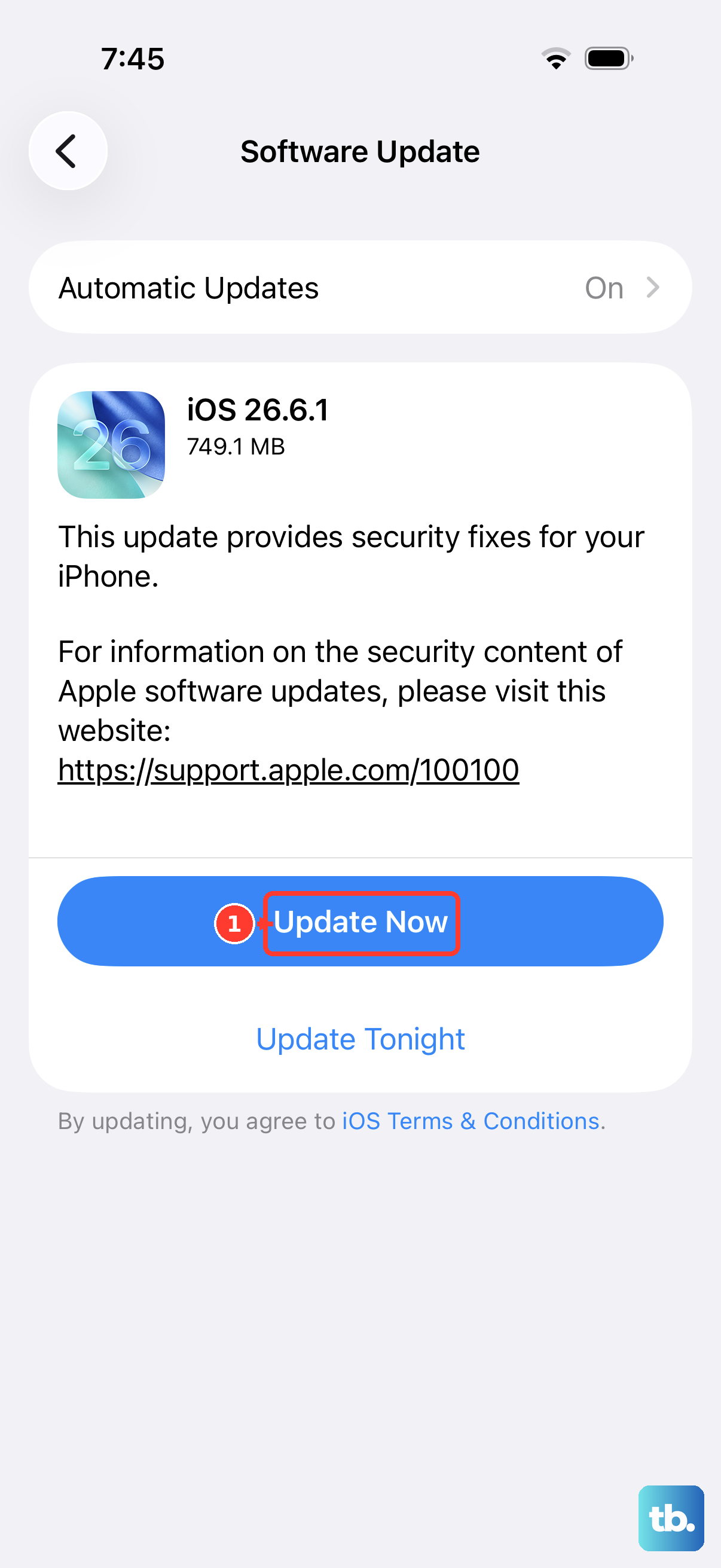
Open Settings, go to General, and tap Software Update. If an update is available, download and install it. Make sure your phone is connected to Wi-Fi and has at least 50% battery or is plugged into a charger.
I'd start with this one if the problem began after a recent update, as a subsequent patch often provides the fix.
Check Your Internet Connection
While basic "Hey Siri" detection happens on-device, many commands require an internet connection to process. If you have a weak cellular signal or Wi-Fi, Siri might activate but then fail to complete your request.
Google Assistant relies even more heavily on a data connection. Try toggling Airplane Mode on for 10 seconds, then off again to reset your network radios. Then, ensure you're on a stable connection before testing.
Reset All Settings
This is a more thorough step if the simpler ones haven't worked. It will reset all your preferences, like Wi-Fi passwords, wallpaper, and privacy settings, back to default without erasing any of your personal data or apps.
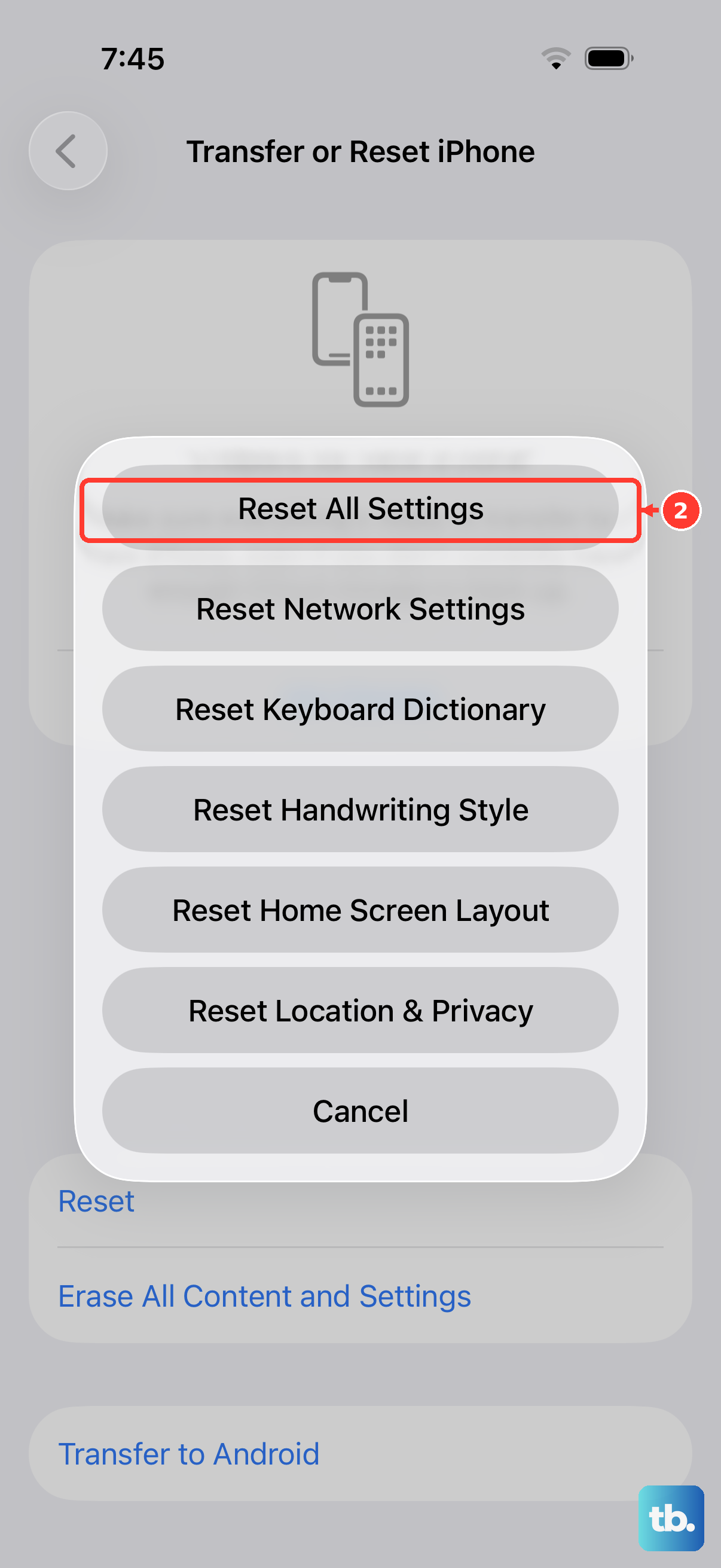
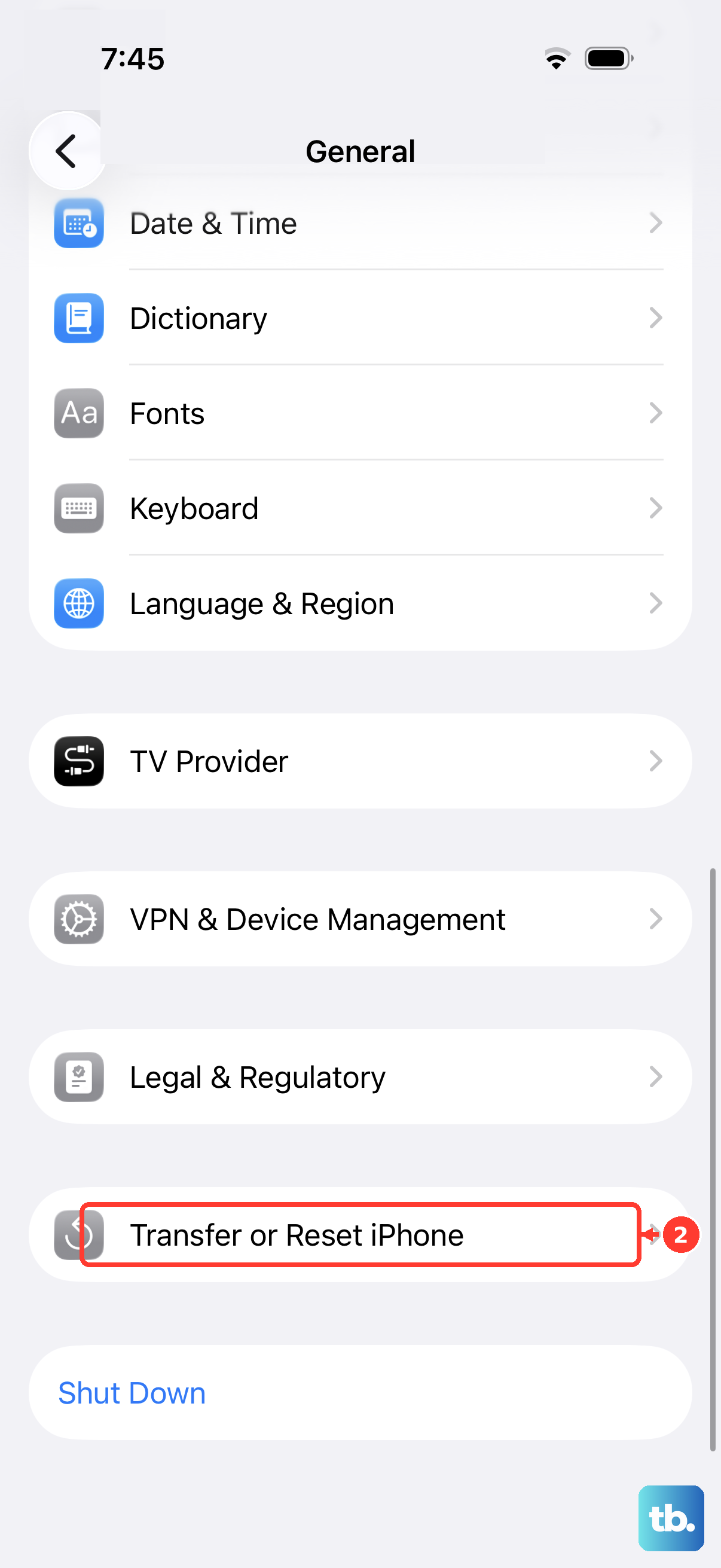
Go to Settings > General > Transfer or Reset iPhone. Tap Reset, then choose Reset All Settings. You'll need to enter your passcode to confirm. After the phone reboots, you'll need to re-enable "Hey Siri" and retrain it, as those settings will be cleared.
Ensure the Microphone Has App Permission
This is crucial for Google Assistant and any third-party assistant apps. If microphone access was accidentally revoked, the app can't hear you.
Go to Settings > Privacy & Security > Microphone. Look for "Google" or "Google Assistant" in the list and make sure the toggle is switched on. For Siri, this system-level permission is managed differently, but it's worth checking here if you suspect a broader mic issue.