
Missing important calls on your iPhone 17 Pro Max is a real problem, especially when you see the missed call notification pop up in the Dynamic Island but never heard a sound. The phone is right there, but it stayed completely silent. Let's go through the fixes that work for iOS 26 on this specific model.
The most common reason is usually the simplest one to check. On the iPhone 17 Pro Max, the physical ring/silent switch is gone. Instead, you use the Action Button on the left side. Press and hold it to toggle between ring and silent modes.
When you switch modes, you'll get a clear haptic feedback and a visual confirmation in the Dynamic Island. If you've customized your Action Button for another function, like the Camera or Flashlight, then silent mode is controlled through software.
You can check and change this by going to Settings > Action Button. Swipe left or right to select the Silent Mode function if it's not already set.
Turn Off Focus and Do Not Disturb
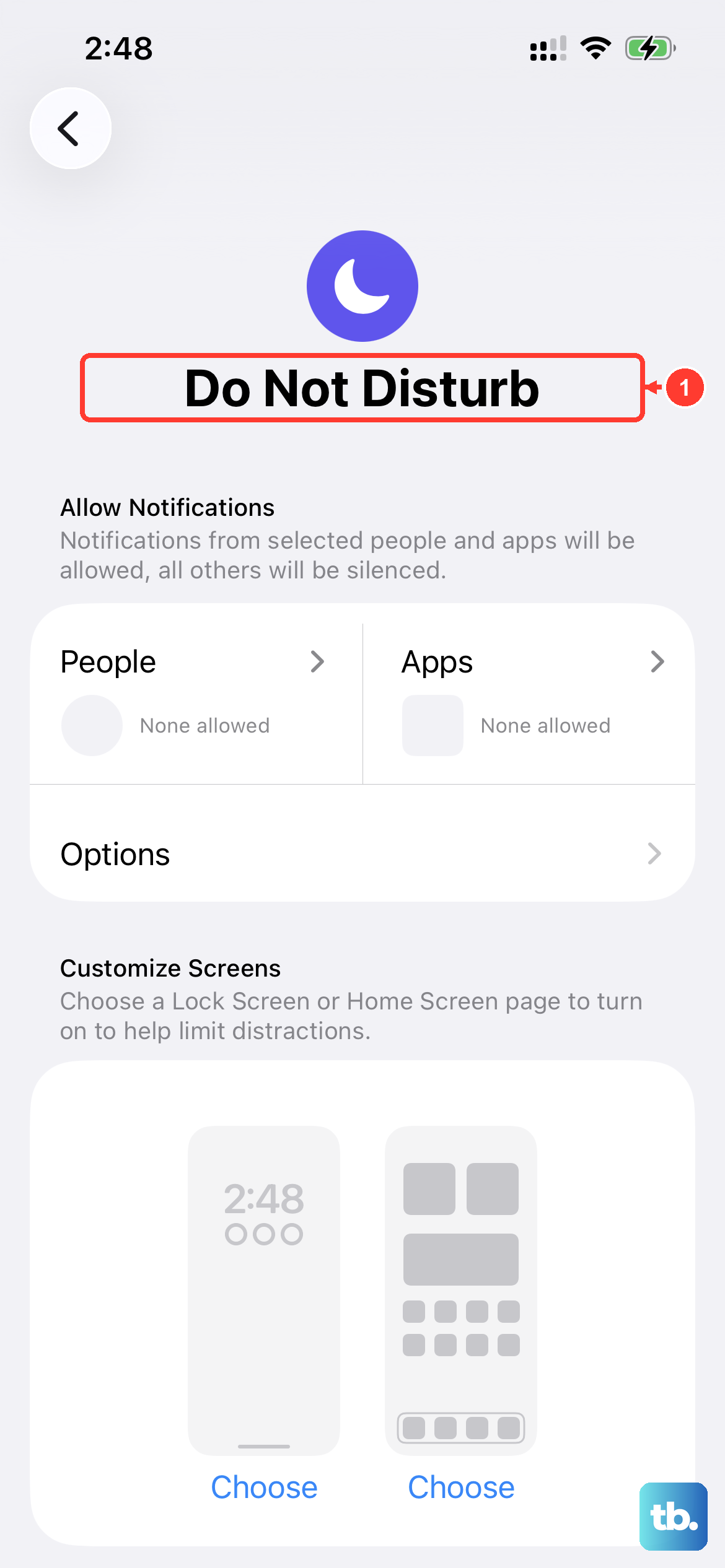
Focus modes in iOS 26 are powerful for managing notifications, but they can easily silence your calls if you forget they're on. This includes the standard Do Not Disturb, Sleep, Work, or Personal Focus profiles.
To check, swipe down from the top-right corner to open Control Center. Look for the Focus icon, it might be a moon, a bed, or another symbol. If it's highlighted, a Focus is active. Just tap it to turn it off.
You should also check the schedules. Go to Settings > Focus. Look at each profile and make sure "Turn On Automatically" doesn't have a schedule that's activating when you don't want it to.
Check Your Ringer Volume
Even if silent mode is off, your ringer volume might be turned all the way down. Unlock your phone first, then press the volume up button on the side a few times.
You'll see the volume indicator appear. Make sure it's set to a level you can hear. For more precise control, go to Settings > Sounds & Haptics and adjust the "Ringer and Alerts" slider.
Disconnect From Bluetooth Accessories
If your iPhone 17 Pro Max is connected to a Bluetooth device like AirPods, a speaker, or your car, incoming call audio is often routed there automatically. Your phone itself won't ring.
The quickest fix is to turn off Bluetooth temporarily. You can do this from Control Center by tapping the Bluetooth icon, or go to Settings > Bluetooth and toggle it off. Try a test call after disconnecting.
Review Your Blocked and Unknown Caller Settings
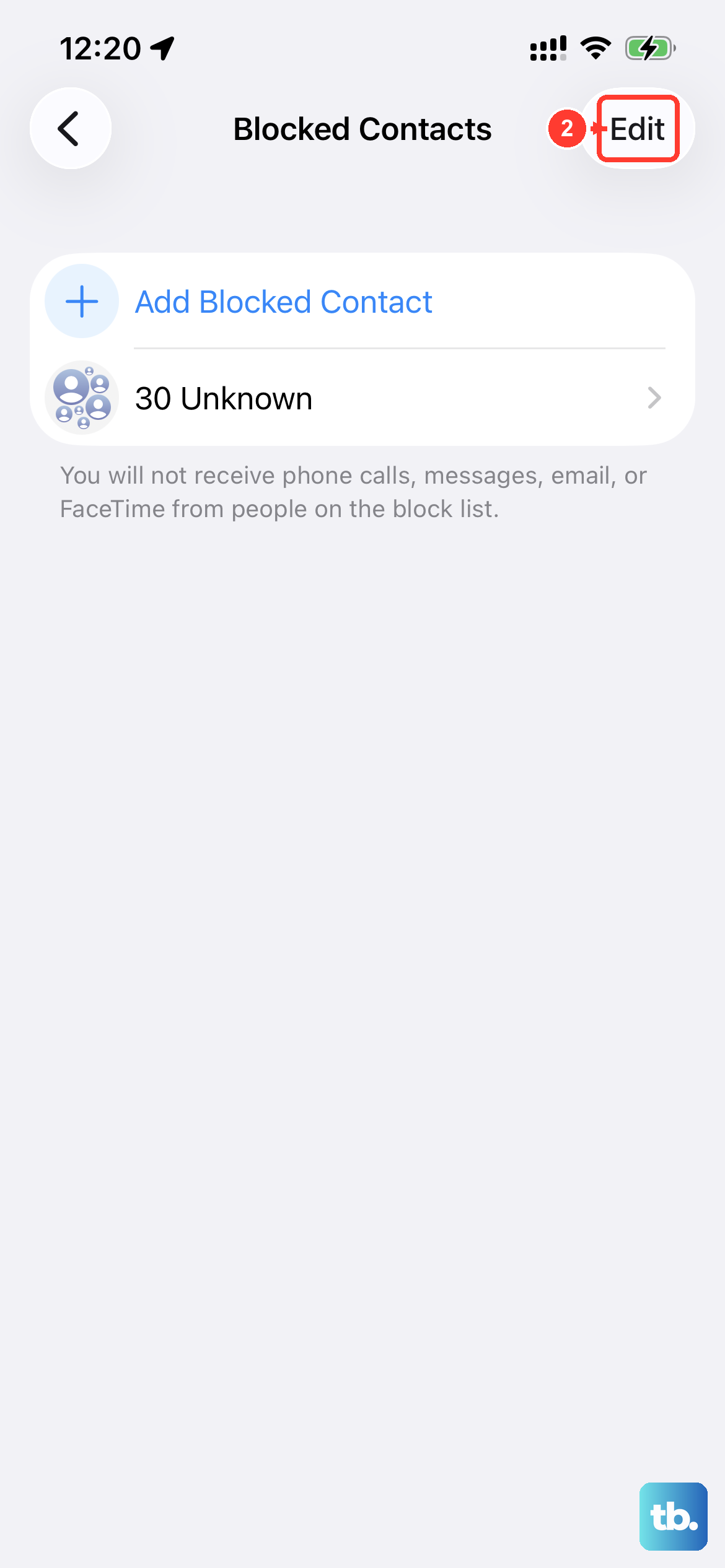
Two settings can send calls directly to voicemail without a ring. First, check if you've accidentally blocked the person calling you. Go to Settings > Apps > Phone > Blocked Contacts to review the list.
Second, the "Silence Unknown Callers" feature is great for stopping spam, but it will also silence any call from a number not in your contacts, saved messages, or recent outgoing calls. You can find this in Settings > Apps > Phone. Make sure it's turned off if you're expecting calls from new numbers.
Change Your Ringtone
Sometimes a specific ringtone file can become corrupted or cause a software hiccup. Switching to a different one can clear this up. It only takes a moment to test.
Go to Settings > Sounds & Haptics > Ringtone. Pick a different default tone, like "Reflection" or "Stargaze," and then have a friend call you to see if it works.
Disable Call Forwarding
If call forwarding is active on your line, calls are being redirected to another number before your iPhone ever gets a chance to ring. This is a carrier feature, but you can check it on your phone.
Go to Settings > Apps > Phone > Call Forwarding. Ensure the switch is set to OFF. If it was on and you turn it off, give it a minute for the change to register with your carrier.
Force Restart Your iPhone 17 Pro Max
A simple force restart can clear out temporary glitches in iOS 26 that might be affecting the ringer. It doesn't delete any data. The process for the iPhone 17 Pro Max is specific.
Quickly press and release the Volume Up button. Quickly press and release the Volume Down button. Then, press and hold the Side button. Keep holding it until you see the Apple logo appear on the screen, then let go.
Check for a Software Update
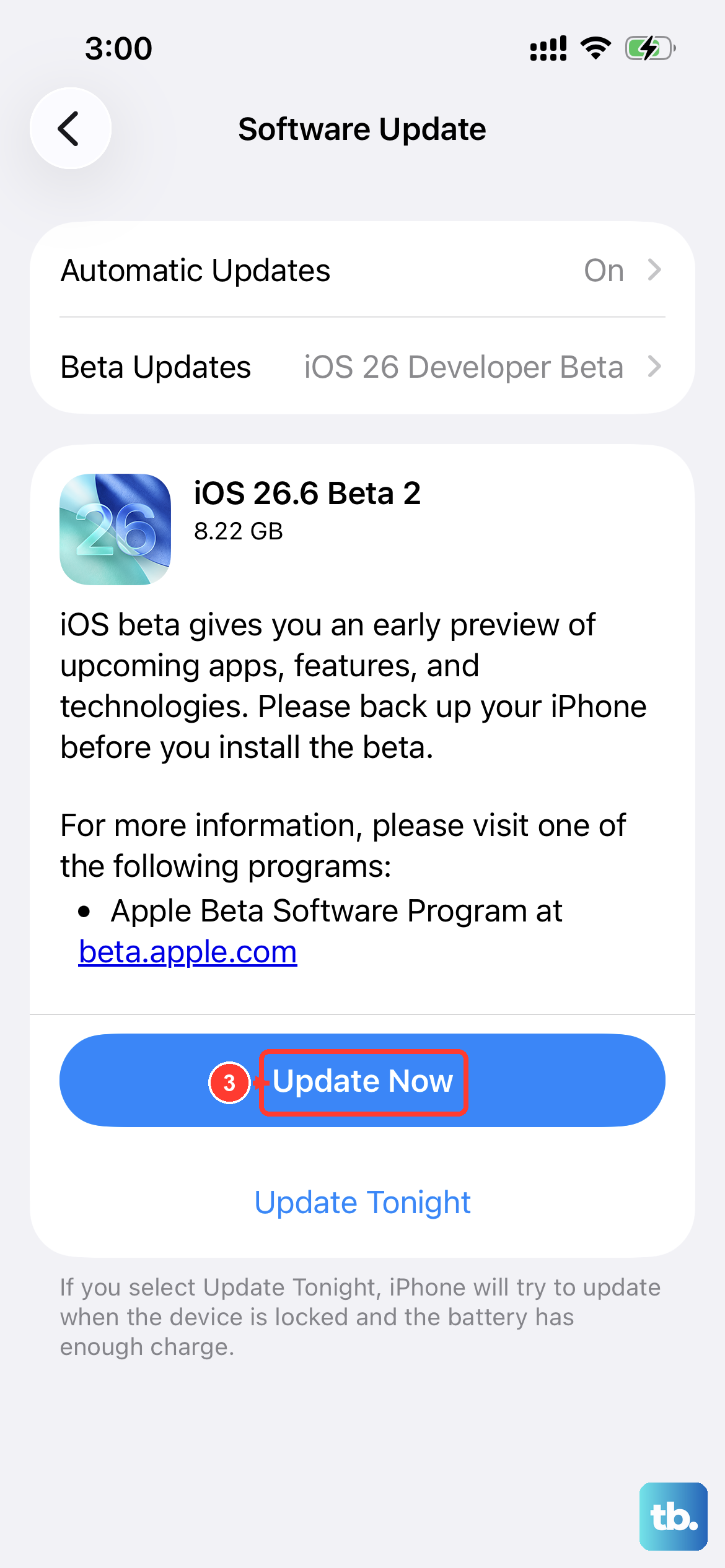
Apple releases iOS updates to fix bugs, including ones that might affect call audio and notifications. It's always a good idea to make sure you're on the latest version of iOS 26.
Connect to Wi-Fi and plug in your phone. Go to Settings > General > Software Update. If an update is available, tap "Download and Install."
Reset All Settings
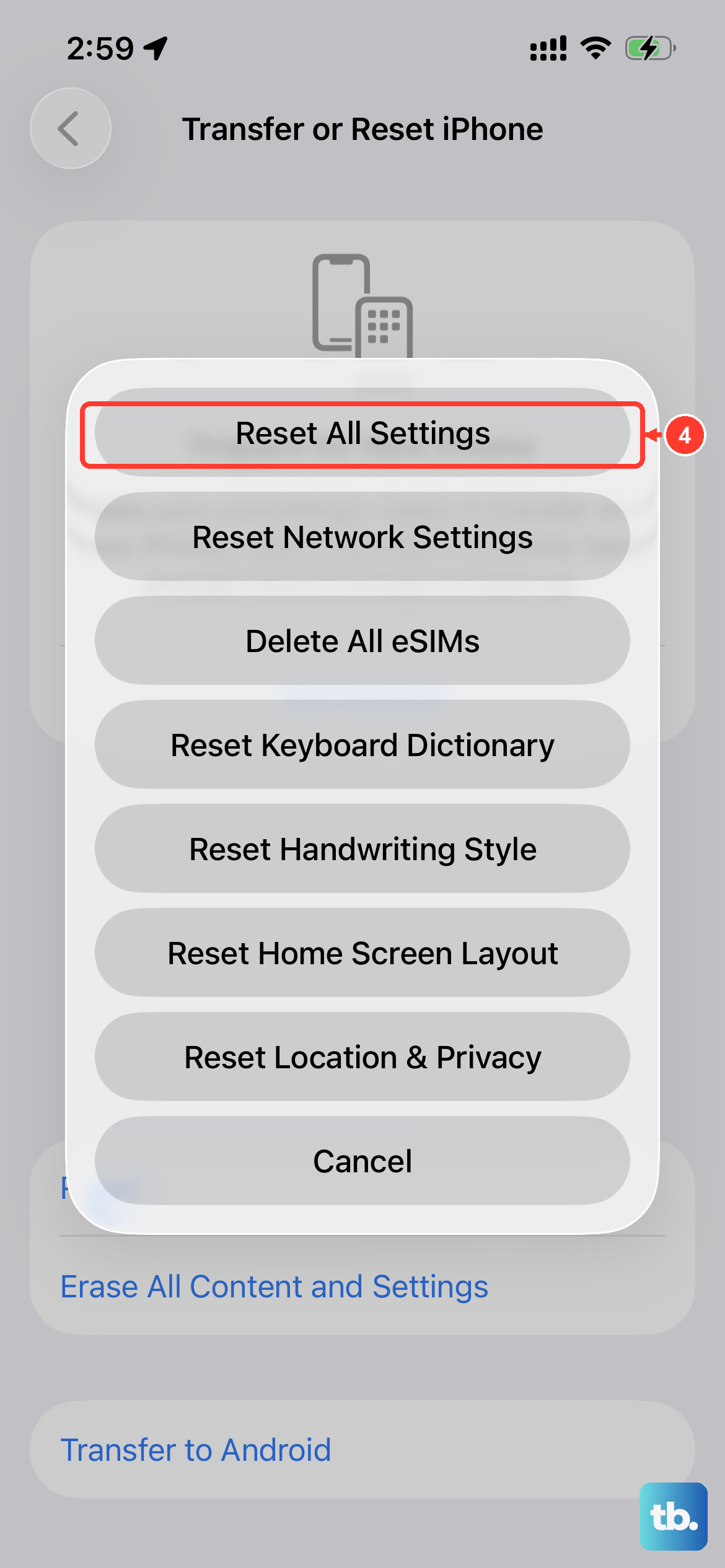
This is a more thorough step that resets every system setting on your phone back to factory defaults. Your personal data, photos, and apps are safe, but you'll need to reconfigure things like Wi-Fi passwords, wallpaper, and privacy permissions.
Go to Settings > General > Transfer or Reset iPhone > Reset. Tap "Reset All Settings" and enter your passcode to confirm.
Reset Network Settings
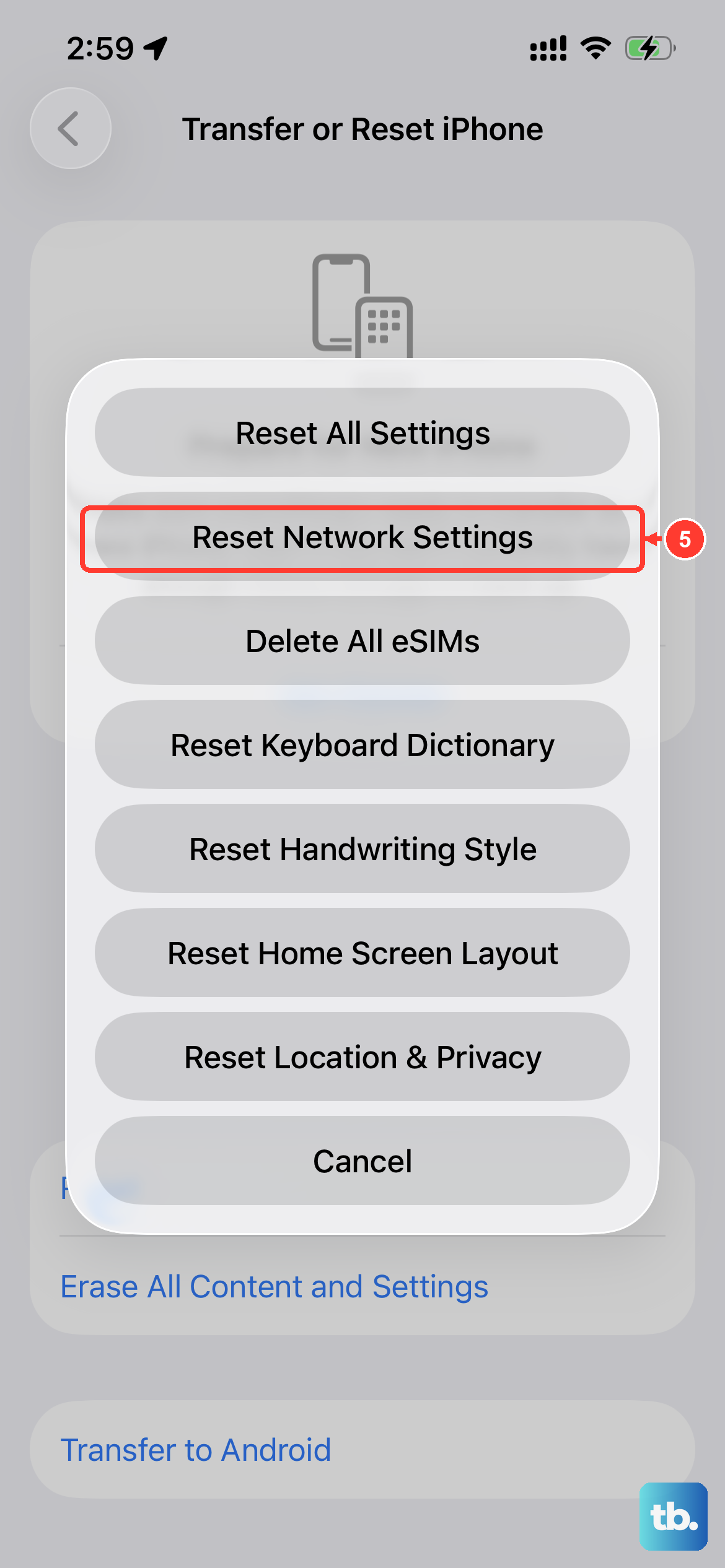
If you're having issues with calls from internet-based apps like WhatsApp, FaceTime Audio, or Skype not ringing, this can help. It resets Wi-Fi networks, cellular settings, and VPN configurations.
You'll find this option in the same menu: Settings > General > Transfer or Reset iPhone > Reset. Choose "Reset Network Settings" and confirm.
Check App-Specific Notifications
For calls that come through third-party apps, the problem might be with that app's permissions, not your phone's main ringer. First, make sure the app is updated from the App Store.
Then, go to Settings and scroll down to find the app in question (like WhatsApp or Zoom). Tap it, then tap Notifications. Ensure notifications are allowed and that the sound setting is turned on.
Erase All Content and Settings
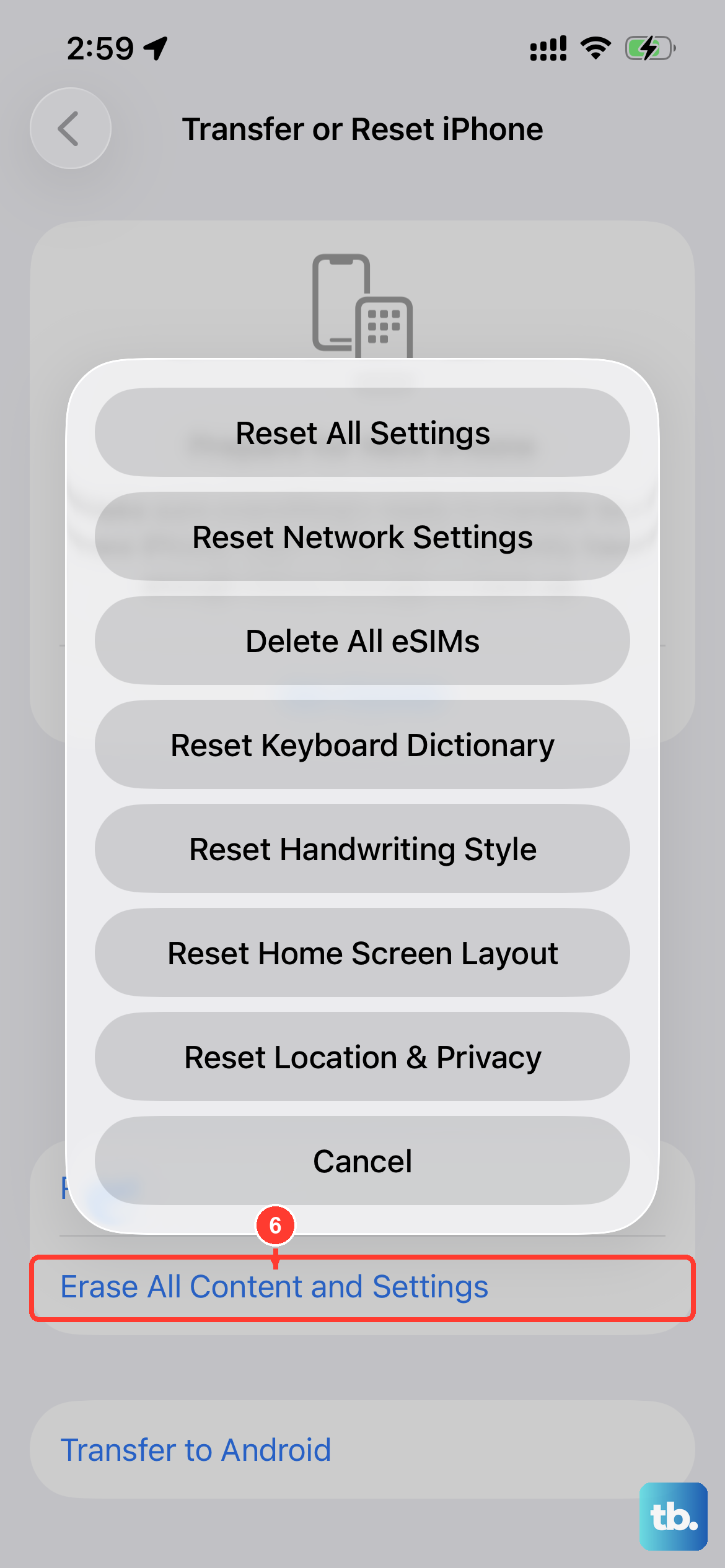
This is a last resort. It will wipe your iPhone 17 Pro Max completely and reinstall a fresh copy of iOS 26. You must create a full backup in iCloud or on your computer before proceeding.
To back up, go to Settings > [Your Name] > iCloud > iCloud Backup and tap "Back Up Now." Once that's done, you can go to Settings > General > Transfer or Reset iPhone > Erase All Content and Settings.
Restore via Computer
If the problem persists even after a full erase, the next step is to restore the device using a Mac or PC. This installs a completely clean version of the operating system.
Connect your iPhone 17 Pro Max to your computer with a USB-C cable. On a Mac with macOS or a PC with iTunes, find your device and select the option to "Restore iPhone." This process will take some time and will erase everything, so ensure your backup is current.