
Seeing "No Service" or "Searching..." in the status bar of your iPhone 17 Pro Max is a real headache. It cuts you off from calls, texts, and mobile data right when you need them most. The good news is this is usually a temporary glitch you can fix yourself.
Start with Apple's basic reconnect step. Open Settings, turn Airplane Mode on for at least 15 seconds, then turn it off again. You can also use Control Center, but the important part is toggling Airplane Mode on and back off, not only checking whether it was already enabled.
If that doesn't work, the next step is to toggle Cellular Data. Go to Settings > Cellular and tap the switch next to "Cellular Data" to turn it off. Wait a few seconds, then tap it again to turn it back on. This forces the modem to re-establish a fresh connection with the tower.
Restart Your iPhone 17 Pro Max
If reconnecting through Airplane Mode does not help, restart the iPhone. Apple recommends a normal restart for No Service or Searching; use a force restart only if the iPhone is frozen or will not respond.
Press and hold either volume button and the Side button until the power-off slider appears. Drag the slider, wait 30 seconds for the iPhone to turn off, then hold the Side button again until the Apple logo appears.
Check for a Carrier Settings Update
Your carrier occasionally sends small configuration files to your phone to optimize network performance. These updates happen automatically, but sometimes they need a nudge. Make sure you're connected to Wi-Fi first.
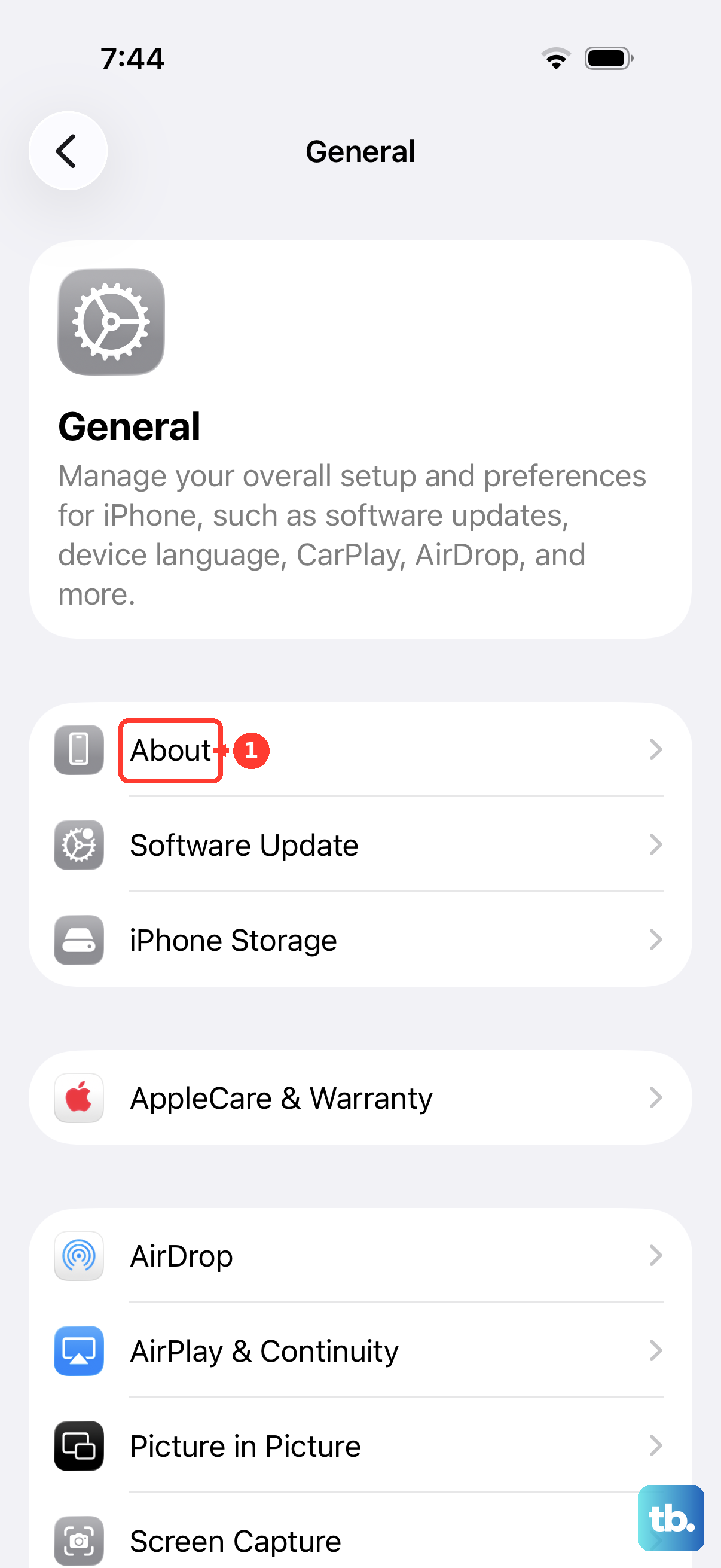
Then, open Settings > General > About. If an update is pending, a prompt will appear on this screen after a few moments. Tap "Update" if you see it. This process only takes a moment and doesn't require a restart.
Check Your eSIM Line
The iPhone 17 Pro Max is eSIM-only and is not compatible with physical SIM cards, so there is no SIM tray to remove and reseat. Instead, open Settings > Cellular and tap the cellular line you use.
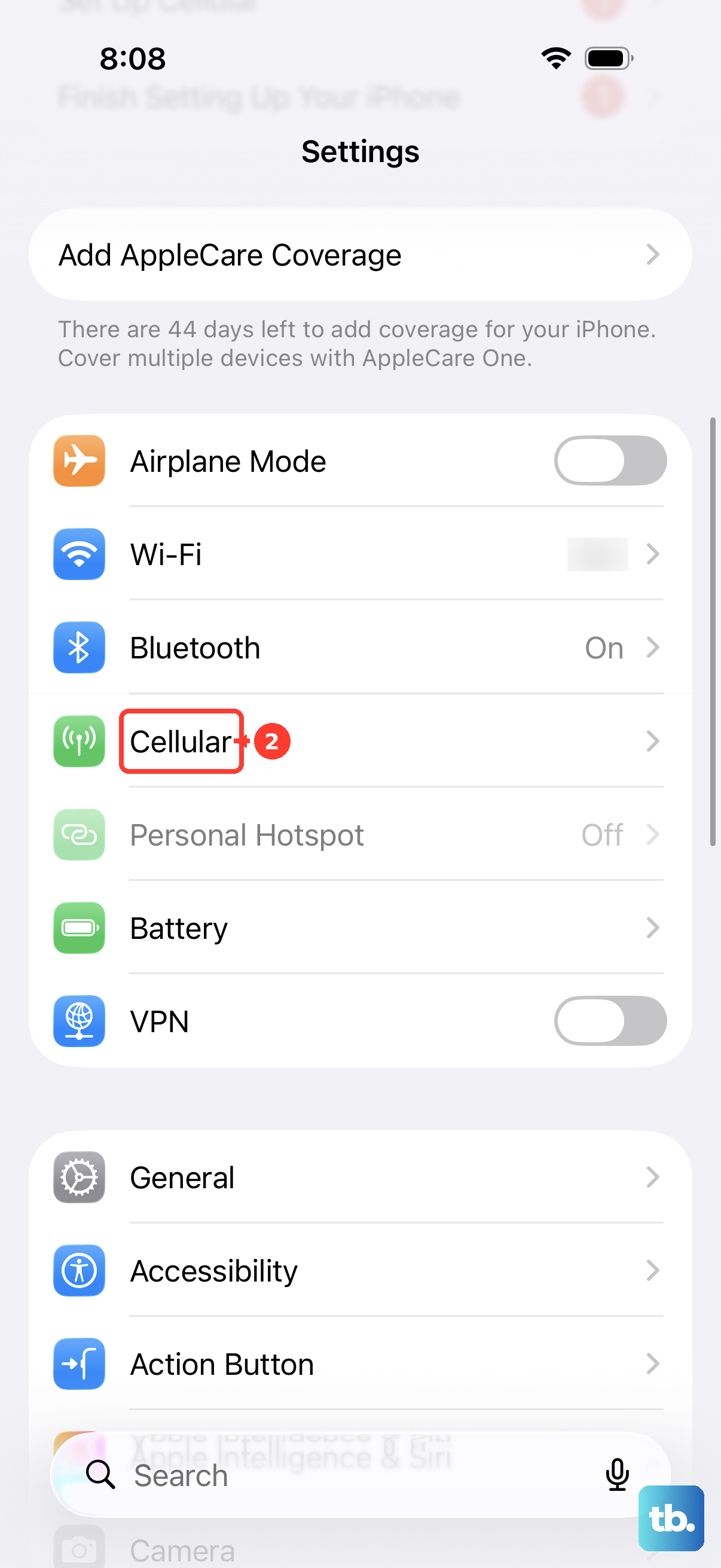
Make sure the line is turned on. If the line is off, tap Turn On This Line and check whether service returns. If you do not see your cellular line at all, contact your carrier to set up or reissue the eSIM.
Reset Your Network Settings
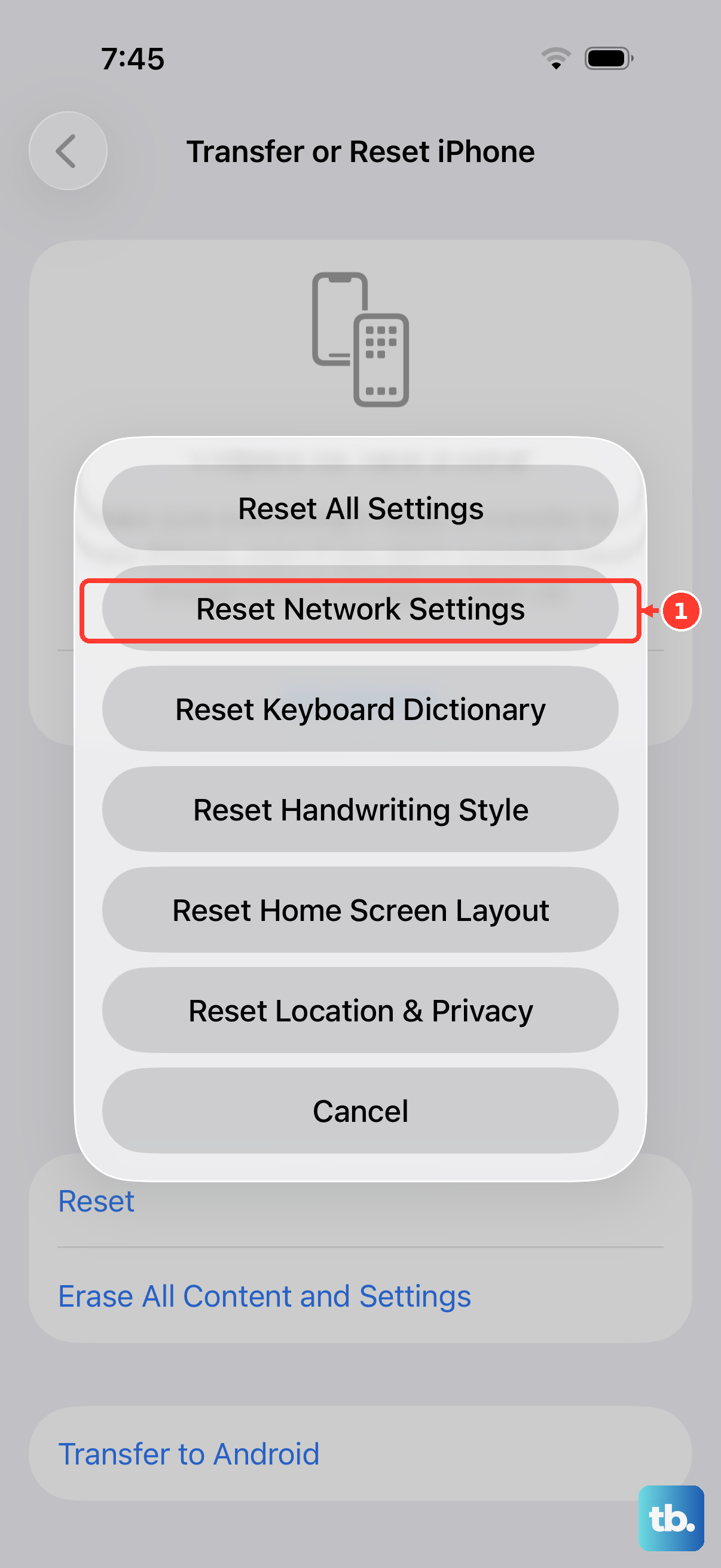
This is a more thorough step that removes network settings. Apple says Reset Network Settings removes saved Wi-Fi networks and passwords, cellular settings, and VPN and APN settings you've used before. It also resets the device name to "iPhone," may turn off cellular data roaming, and turns Wi-Fi off and back on. Your content is not erased.
To do this, go to Settings > General > Transfer or Reset iPhone. Tap Reset, then select Reset Network Settings. You'll need to enter your passcode to confirm. Afterward, rejoin your Wi-Fi networks and recheck any carrier or VPN settings you rely on.
Manually Select Your Network Carrier
Sometimes your iPhone gets stuck trying to connect to a weak or unavailable network. You can force it to look for your specific carrier. Go to Settings > Cellular and tap "Network Selection."
Turn off "Automatic." Your phone will search for available networks in your area. When the list populates, select your carrier's name from it. Wait a minute to see if service returns. If it doesn't, go back and turn "Automatic" back on.
Update iOS to the Latest Version
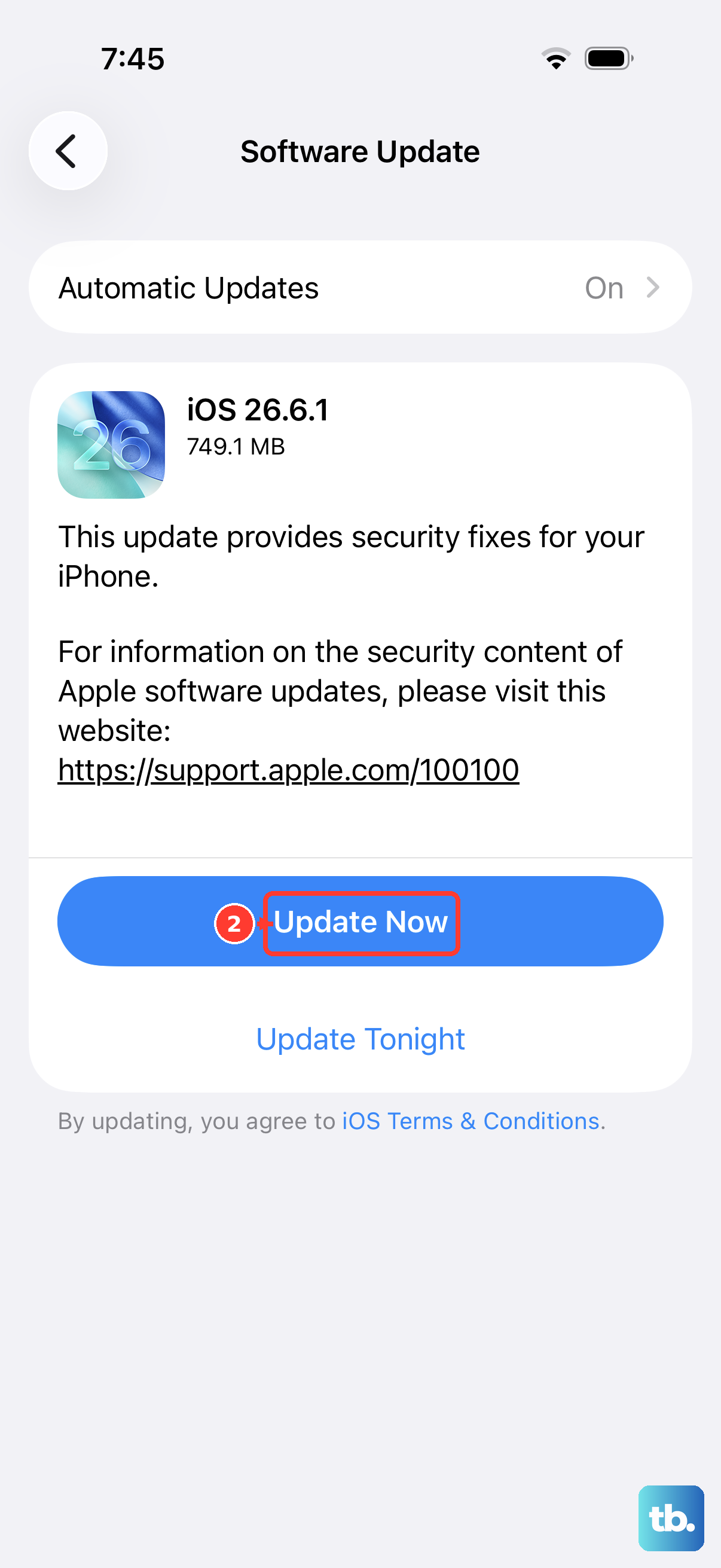
Apple regularly releases iOS updates that include bug fixes for connectivity issues. It's worth checking if you're running an older version of iOS 26. Connect to Wi-Fi and plug your phone into power.
Then, open Settings > General > Software Update. If an update is available, tap "Download and Install." I've seen updates specifically mention "fixes for cellular connectivity" in their notes, so this can be a direct solution.
Check for a Service Outage
Before assuming the problem is with your phone, it's smart to check if it's a wider issue. Service outages can happen due to tower maintenance, weather, or technical problems on your carrier's end.
You can quickly check by visiting your carrier's official website or their support account on social media. Another easy test is to see if a friend or family member on the same network in your immediate area also has no service.
Check Whether the eSIM or Account Is the Issue
You cannot move a physical SIM from an iPhone 17 Pro Max into another phone, because Apple lists this model as eSIM-only. Instead, check whether another device on the same carrier has service in your immediate area.
If other devices on the same carrier work but your eSIM line still shows No Service, contact your carrier and ask them to verify that the eSIM is active, your account is in good standing, and the device is set up with the right plan.
Contact Your Carrier for Support
If you've worked through all these steps and still have no signal, your carrier's support team is the next logical step. They can run diagnostics on your line and check for account issues from their end.
They might also determine that your eSIM needs to be reissued or reactivated. For the iPhone 17 Pro Max, use eSIM setup rather than a physical nano-SIM. Depending on your carrier, they can assign an eSIM directly to the iPhone, provide a QR code, support eSIM Quick Transfer, or activate service through the carrier app. The Apple path starts at Settings > Cellular > Set Up Cellular or Add eSIM.