You plugged your iPhone 17 Pro Max into the wall expecting that quick top-up, but the battery is crawling upward instead of racing toward 50% in 20 minutes. Maybe it stalls around 80%, throws a "Liquid Detected" warning, or barely registers a charge at all. The good news is that fast charging on this model is well documented, and most stalls trace back to the adapter, the cable, the port, or a software setting you can correct in a few minutes.
Work through the fixes below in order, starting with the safest checks before moving to the official reset and service paths.
Start With the Right Adapter and Cable
The most common reason an iPhone 17 Pro Max charges slowly is the power brick, not the phone. Apple's tech specs confirm this model fast-charges to about 50% in roughly 20 minutes, but only with a 40W adapter or higher paired with a USB-C charging cable.
The retail box includes only the USB-C Charge Cable (1 m) and documentation, with no power adapter at all, so the charger you are using almost certainly came from somewhere else.
Check the wattage of your adapter. A 5W brick, or even the 20W brick that shipped with older iPhones, will charge this device slowly.
Switch to an Apple 40W-or-greater USB-C adapter, or a comparable third-party adapter that supports USB Power Delivery (USB-PD).
Pair it with a USB-C cable like the one included in the box.
Plug in and confirm the charge rate picks up; reaching about 50% in 20 minutes is the expected fast-charge behavior.
If you do not own a high-wattage USB-PD adapter, that is the single fix most likely to restore full charging speed. Everything else below assumes the right adapter is in place.
Inspect the Cable, Brick, and Outlet for Faults
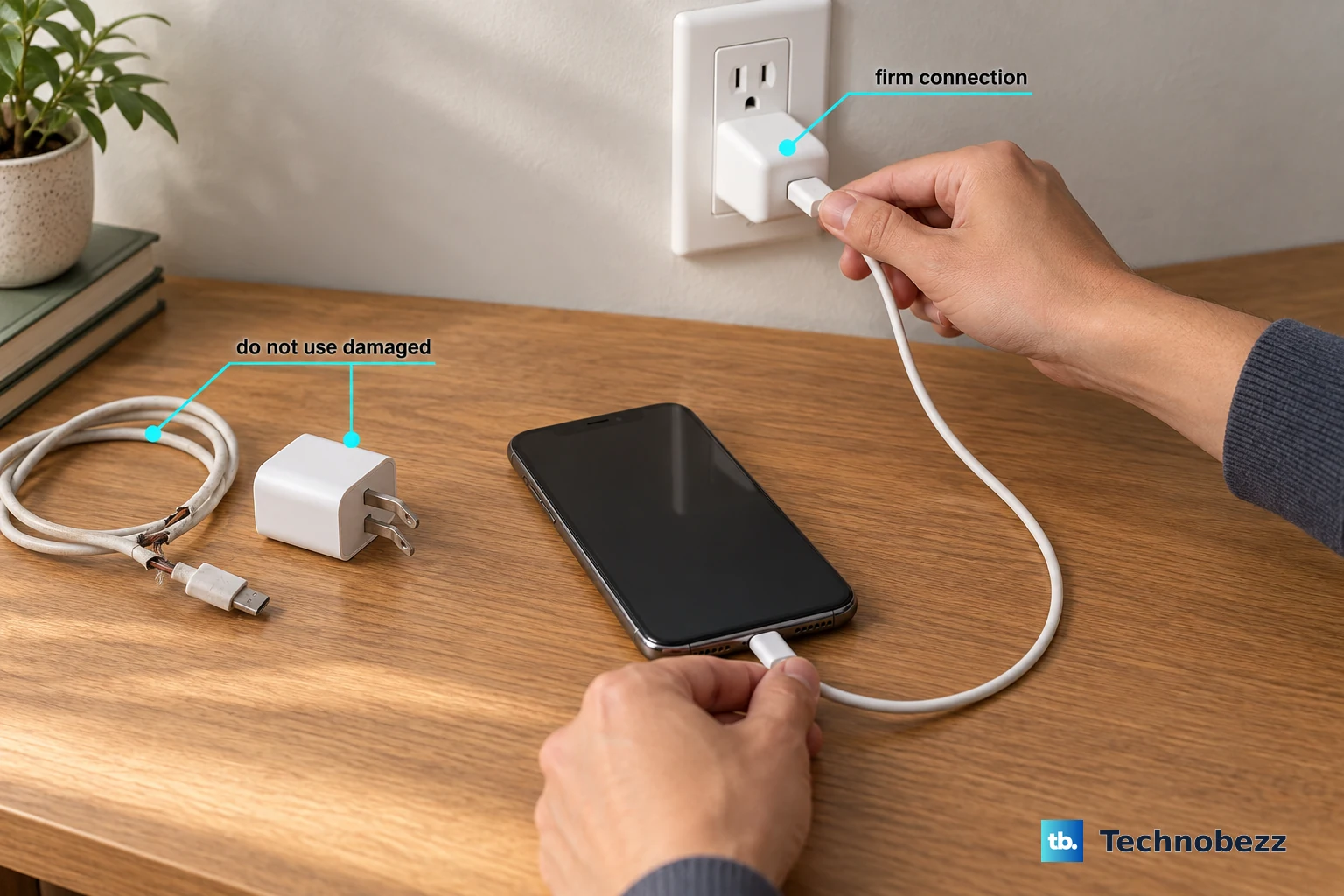
Even the correct adapter cannot deliver power through a damaged accessory or a flaky outlet. The official support guidance is to check your charging cable and USB adapter for signs of damage, like breakage or bent prongs, and to avoid using anything that looks compromised.
Examine the cable along its full length and the adapter prongs for breakage, fraying, or bending.
Next, use a wall power outlet rather than a low-power source, and make sure the cable, USB wall adapter, and outlet are all firmly connected.
Try a different wall outlet to rule out a dead socket.
Then swap in a different USB cable or charger to confirm whether a single accessory is the culprit.
If charging speeds return the moment you change one accessory, you have found the faulty part. Damaged cables and adapters should be retired rather than reused.
Clear Debris Out of the USB-C Port
Lint and pocket grit collect inside the charging port and quietly block a solid connection, which can stop fast charging even when your adapter and cable are perfect. The official guidance is to remove any debris from the charging port on the bottom of your device, then firmly plug your charging cable back in.
After cleaning the port, plug the phone in and let your device charge for half an hour to see whether the connection holds. A port that was only loosely seated before will often charge normally once the obstruction is gone.
Watch the Temperature
Fast charging is sensitive to extremes. Apple states that fast charging might not work in conditions that are too cold or too hot, so a phone left in a hot car or brought in from freezing weather may refuse to draw power quickly.
If your iPhone or its surroundings feel very warm or very cold, move it to a normal room temperature, let it settle, and try charging again. Once the device returns to a comfortable range, fast charging should resume on its own.
Resolve a Liquid Detection Alert First
If you see "Charging not available" or "Liquid Detected in USB-C Connector," charging and accessory connection over the cable are blocked until the connector, cable ends, and accessory are completely dry. This is a protective measure, not a malfunction, and forcing the issue can damage the phone.
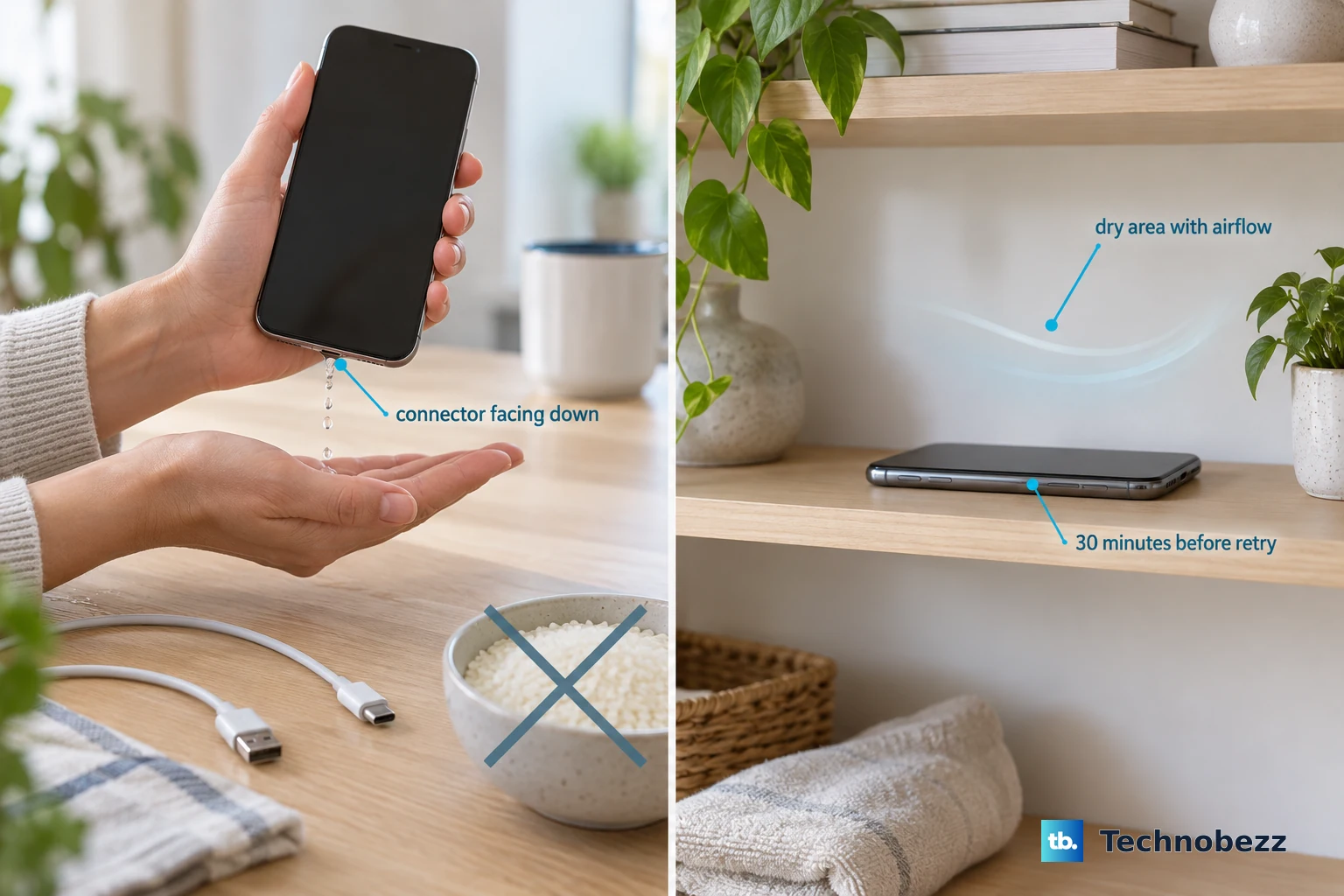
Tap the iPhone gently with the connector facing down to remove excess liquid.
Leave it in a dry area with airflow for at least 30 minutes before charging again; allow up to 24 hours if the alert keeps reappearing.
If the back of the iPhone is dry, you can use a wireless charger in the meantime to keep the battery up.
Do not use external heat, compressed air, cotton swabs, or rice to speed up drying, as these can cause further damage. Patience is the only safe approach here.
Check Whether It Is Pausing at 80% on Purpose
If your iPhone stops or pauses at around 80%, that is usually expected behavior rather than a fault. Two settings can cap charging on this model, and both live in the same place.
Open the Settings app, then tap Battery, then tap Charging. Optimized Battery Charging delays charging past 80 percent in certain situations to reduce battery wear, finishing the charge closer to when you normally unplug.
A Charge Limit can also cap charging anywhere between 80% and 100% in 5% increments.
If you want the phone to charge fully every time, adjust the Charge Limit upward or turn off Optimized Battery Charging from this screen. Keep in mind that these features exist to protect long-term battery health, so leaving them on is reasonable if the 80% pause is the only "problem."
Force Restart a Frozen Phone
Sometimes the phone is not failing to charge so much as frozen, displaying a static screen that makes charging look broken. A force restart clears that state without erasing your data.
Use this exact sequence: press and quickly release the volume up button, press and quickly release the volume down button, then press and hold the side button.
When the Apple logo appears, release the side button.
Once the phone restarts, reconnect the charger and let it charge for a while. A responsive phone will typically report its charge status correctly again.
Install the Latest iOS 26 Update
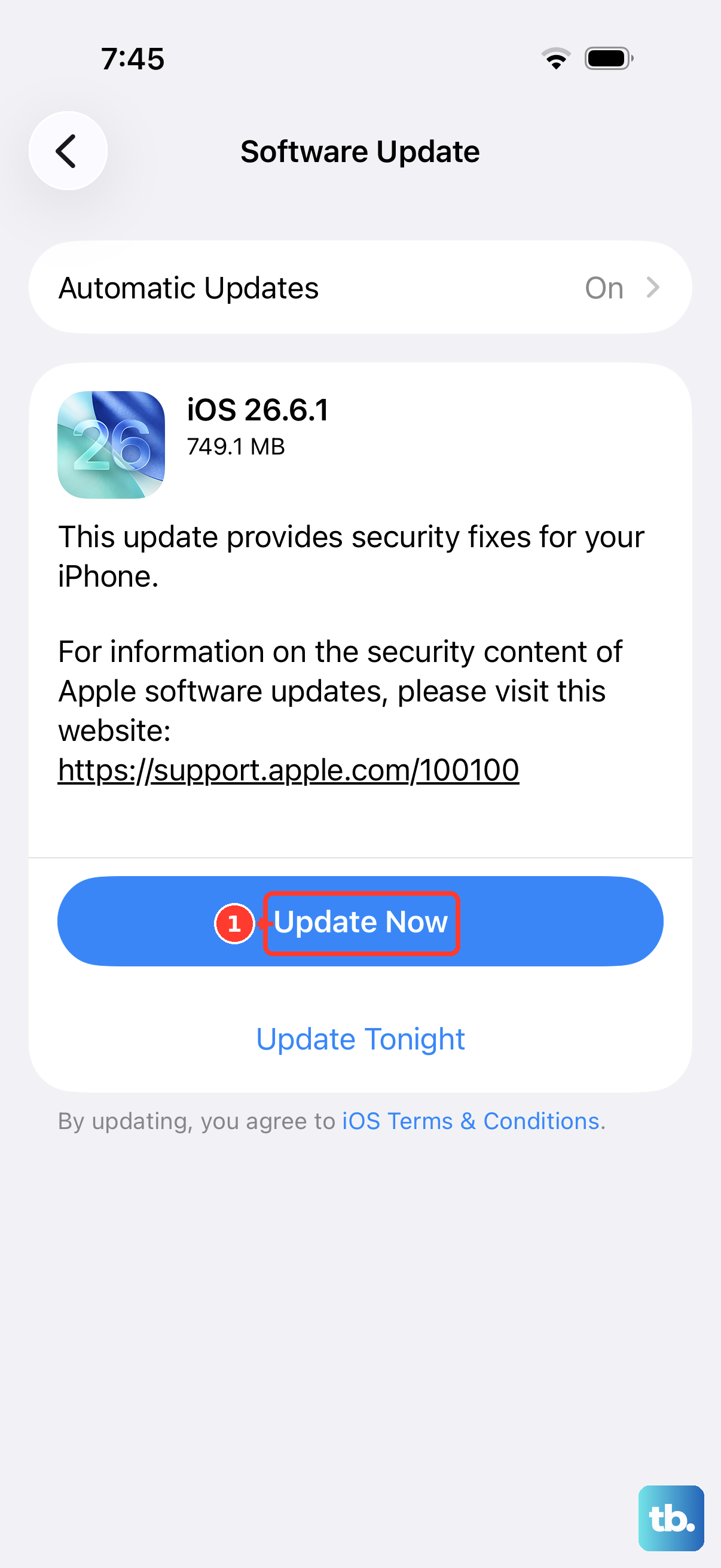
Charging-related bugs are sometimes fixed in software, so running the newest version of iOS 26 is worth doing before you consider anything drastic. Updating does not change your data and settings.
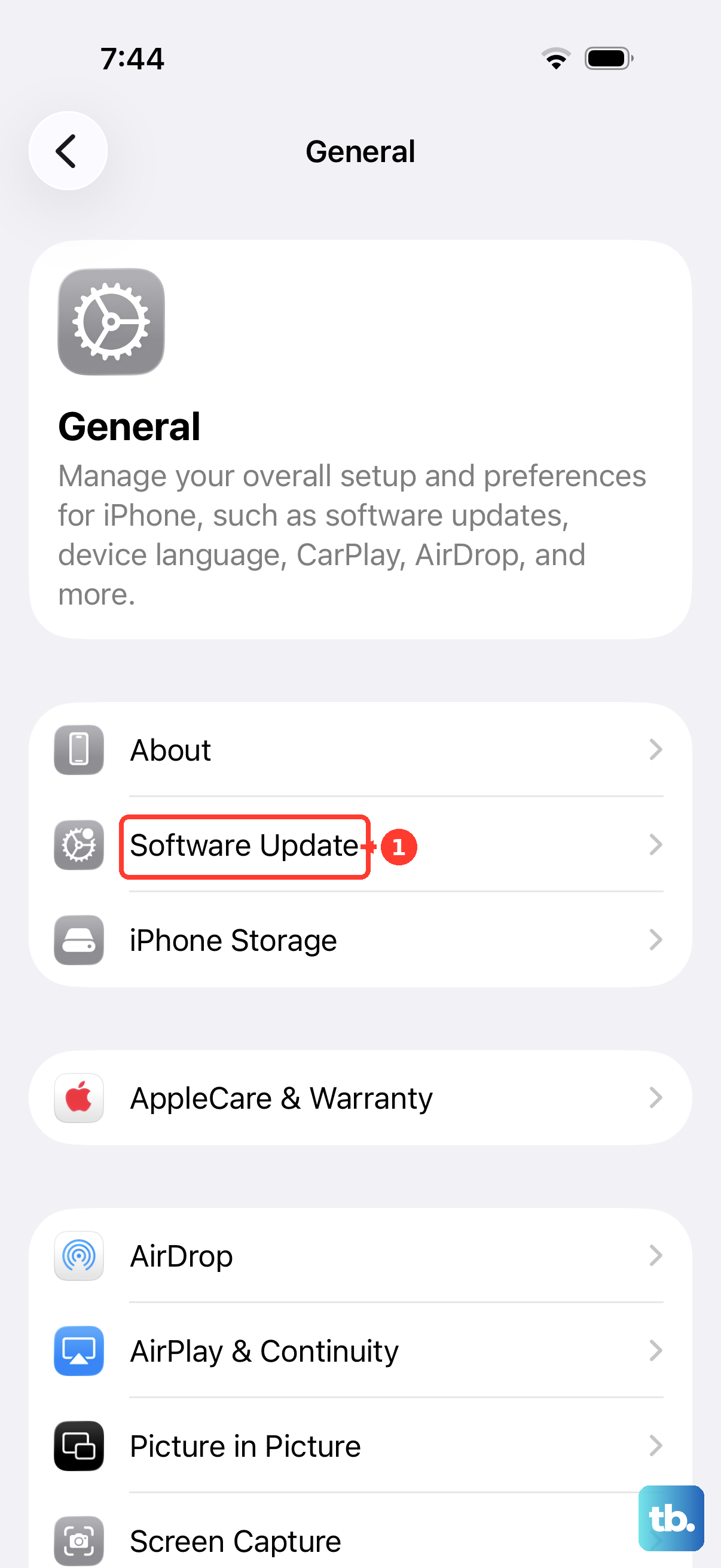
Go to Settings > General > Software Update, then tap Download and Install.
Keep the device connected to power and Wi-Fi throughout the update so it does not interrupt.
After the update completes, test charging again to see whether the new build resolved the issue. This step is quick and risk-free, which makes it a sensible checkpoint before the heavier options below.
Erase All Content and Settings as a Last Resort
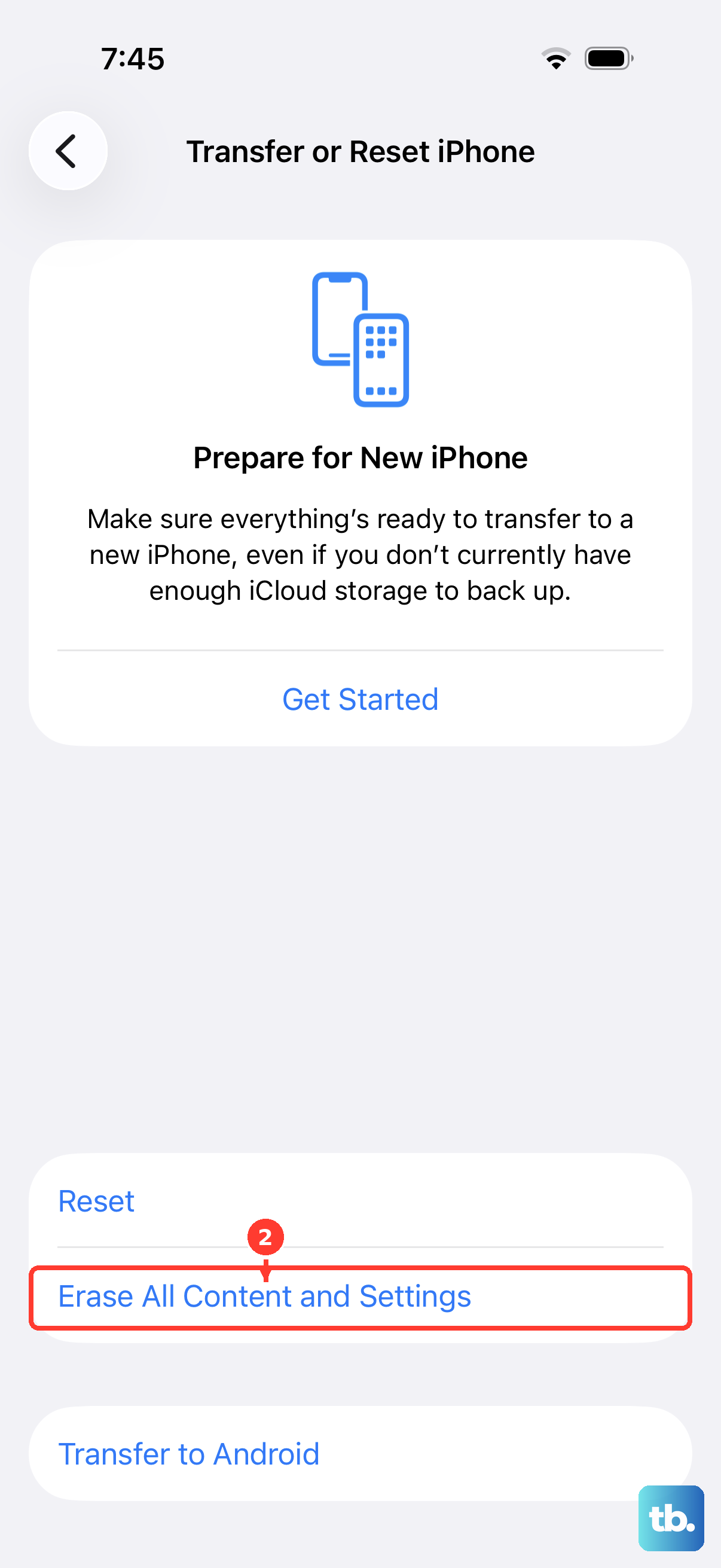
If you suspect a software problem and nothing above has worked, erasing the device returns it to a clean state. This is destructive, so treat it as a final software step before service.
Warning: this securely erases your personal information, content, and settings and restores the iPhone to factory settings. Back up first so you can restore everything afterward.
- 1.Create a current backup of your iPhone.
- 2.Go to Settings > General > Transfer or Reset [iPhone] > Erase All Content and Settings > Continue.
- 3.Enter your device passcode and Apple Account password when prompted.
- 4.Once the phone is wiped and set up again, test charging on a clean system.
If a clean software state still does not fix the charge speed, the issue is likely hardware rather than settings, which points you to the service step below.
Get Your iPhone Serviced
If your device still will not charge after every step above, the problem may be a hardware fault with the port or the battery, and those are not fixable from the settings menu. At that point, service is the right call.
Contact Apple Support or set up a repair to have the charging hardware diagnosed. Reaching this stage is not a failure on your part; some charging faults are physical and genuinely require a technician.
Frequently Asked Questions
Why is my iPhone 17 Pro Max charging so slowly?
The most likely reason is the adapter. Full-speed fast charging requires a 40W adapter or higher that supports USB Power Delivery, paired with a USB-C cable, which reaches about 50% in 20 minutes. The box includes only a USB-C cable and no power adapter, so a low-watt brick from an older phone will charge the device slowly.
Does the iPhone 17 Pro Max come with a charger in the box?
No. The box includes only a USB-C Charge Cable (1 m) and documentation. You need to supply your own 40W-or-higher USB-PD adapter to reach the advertised fast-charge times.
Why does my iPhone stop charging at 80%?
That is usually intentional. Optimized Battery Charging delays charging past 80 percent in certain situations to reduce battery wear, and a Charge Limit can cap charging between 80% and 100%. You can adjust both under Settings > Battery > Charging if you want it to charge fully every time.
What should I do if I see a Liquid Detected warning?
Charging over the cable is blocked until the connector and cable are dry. Tap the phone gently with the connector facing down, then leave it in a dry area with airflow for at least 30 minutes, up to 24 hours if the alert persists. You can use a wireless charger meanwhile if the back is dry. Do not use heat, compressed air, cotton swabs, or rice.
Can the iPhone 17 Pro Max charge wirelessly?
Yes. It supports MagSafe and Qi2 wireless charging up to 25W, reaching about 50% in 30 minutes via MagSafe with a 30W adapter or higher. This is a useful fallback while the USB-C port dries out after a liquid alert, as long as the back of the phone is dry.