
A frozen iPhone 17 Pro that won't respond to your taps or swipes is incredibly frustrating. The screen might be stuck on an app, the lock screen, or just a black display. In my experience, this is almost always a temporary software hiccup that you can fix yourself without losing any photos or messages.
Force Restart Your iPhone 17 Pro
This is the first thing you should try, and it solves the vast majority of touch screen freezes. The process is specific to your model. Quickly press and release the Volume Up button, then quickly press and release the Volume Down button. Immediately after, press and hold the Side button.
Keep holding it until you see the Apple logo appear, which can take 15-20 seconds. Your phone will restart, and you won't lose any data. I've found this works even when the screen is completely black and unresponsive.
Give It a Moment to Process
Sometimes your iPhone 17 Pro isn't truly frozen, it's just working very hard on something in the background. This could be processing a large video file, indexing photos after an update, or installing a major iOS 26 update.
If the back of the phone feels warm, that's a good sign it's still active. Set it down and wait 5 to 10 minutes before attempting a force restart. It might just sort itself out.
Plug It Into a Charger
A battery that's completely drained can cause the phone to become unresponsive. Plug your iPhone 17 Pro into a charger using its USB-C port and leave it for at least 15 minutes. If you were using it right up until it died, the system might need a little reserve power to boot up properly.
For the fastest charge, use the Apple 40W Dynamic Power Adapter (Model A3351) to get the full 60W speed. Standard USB-C PD chargers will be limited to around 30W, which is still plenty to get it going again.
Close the Problem App
If your home screen and other apps work, but one specific app is frozen, you can force it to close. Swipe up from the very bottom of the screen and pause in the middle to bring up the App Switcher. Find the frozen app's preview and swipe it up and off the top of the screen to close it.
Then, tap the app icon again to reopen it. If the same app keeps freezing, check the App Store for an update. As a last resort, delete and reinstall the app to clear its data.
Check Your Available Storage
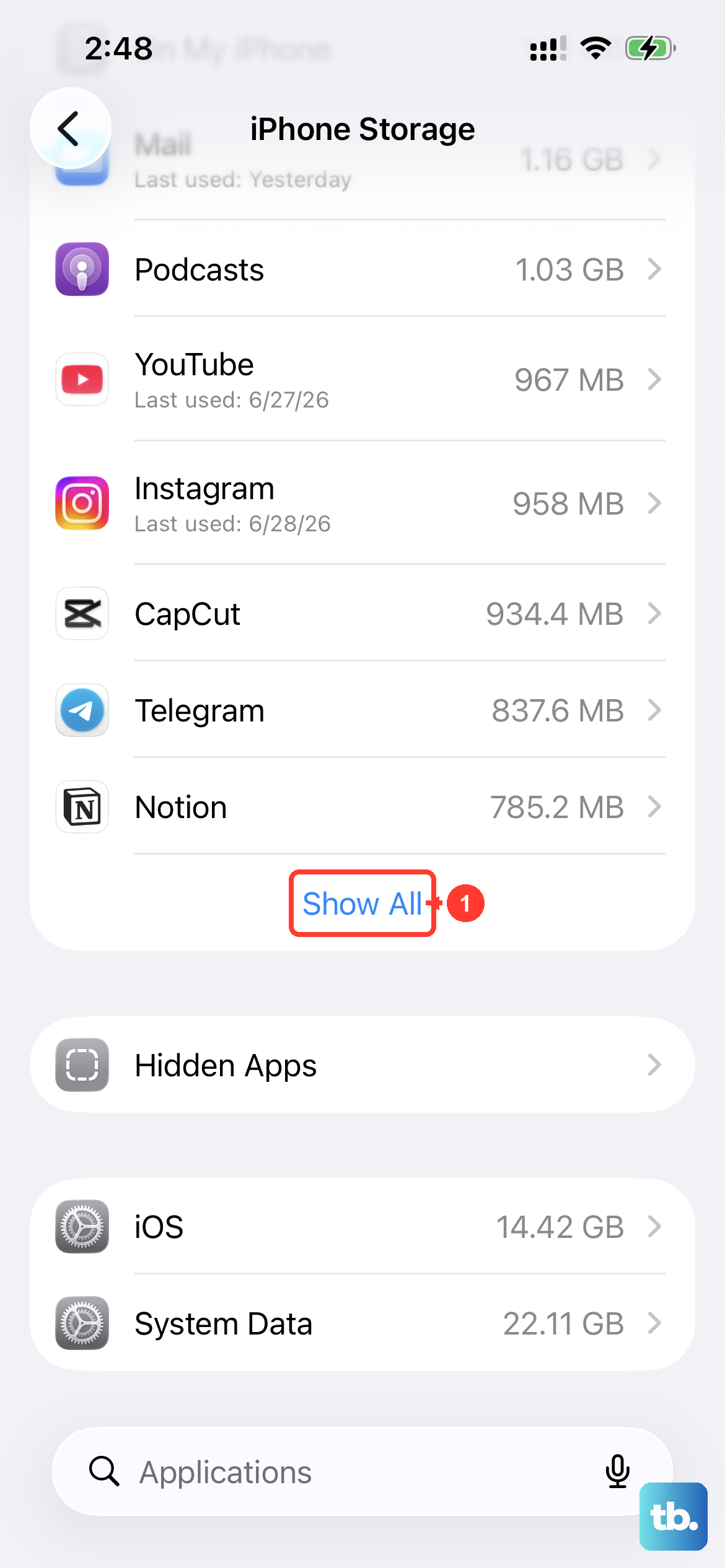
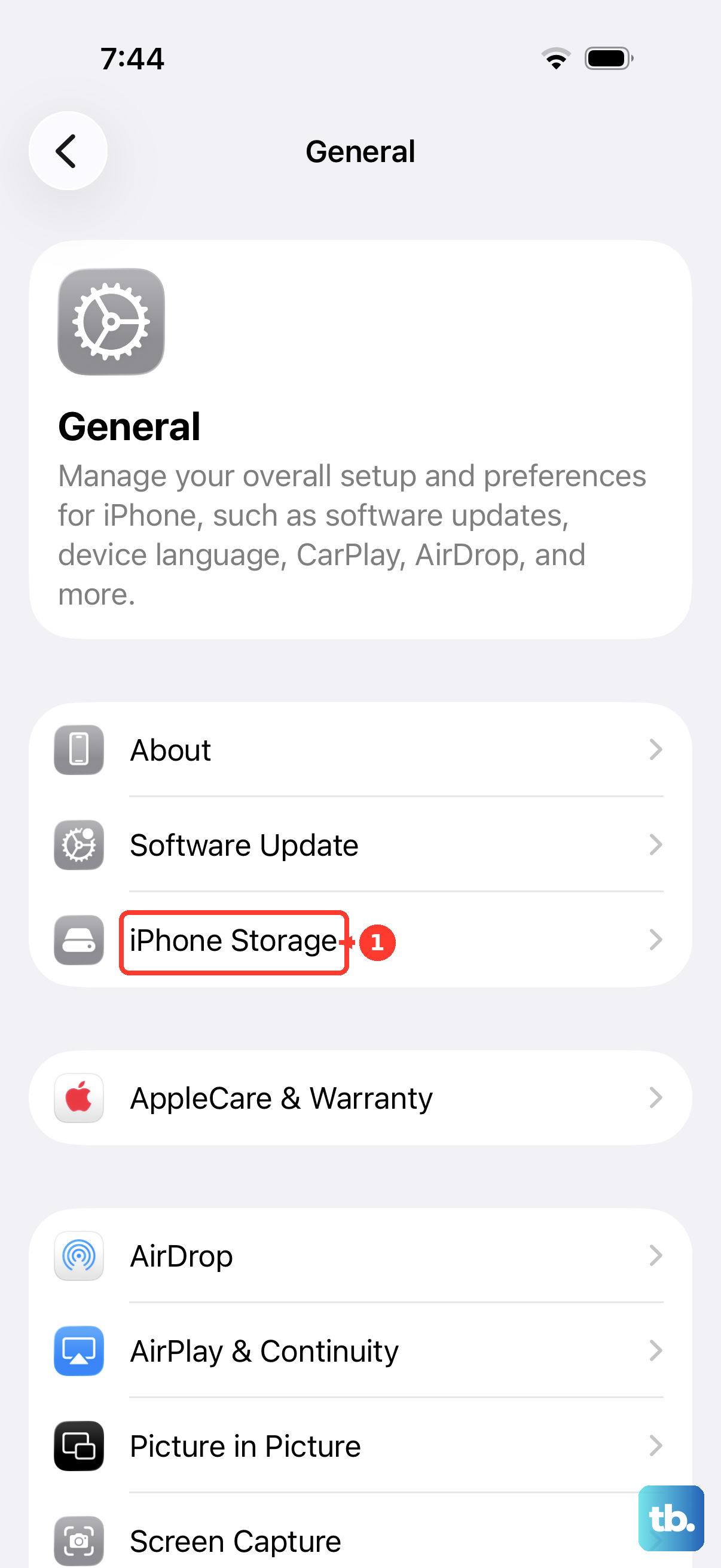
When your iPhone's storage is critically full, the operating system has no room to create temporary files it needs to run smoothly, which can lead to freezing. If you can get into Settings, go to Settings > General > iPhone Storage.
Look for the "Recommendations" at the top or review your largest apps. Deleting old messages, offloading unused apps, or clearing your browser cache can free up crucial space. Aim to keep at least 5-10 GB free on your iPhone 17 Pro to prevent issues.
Install the Latest iOS Update
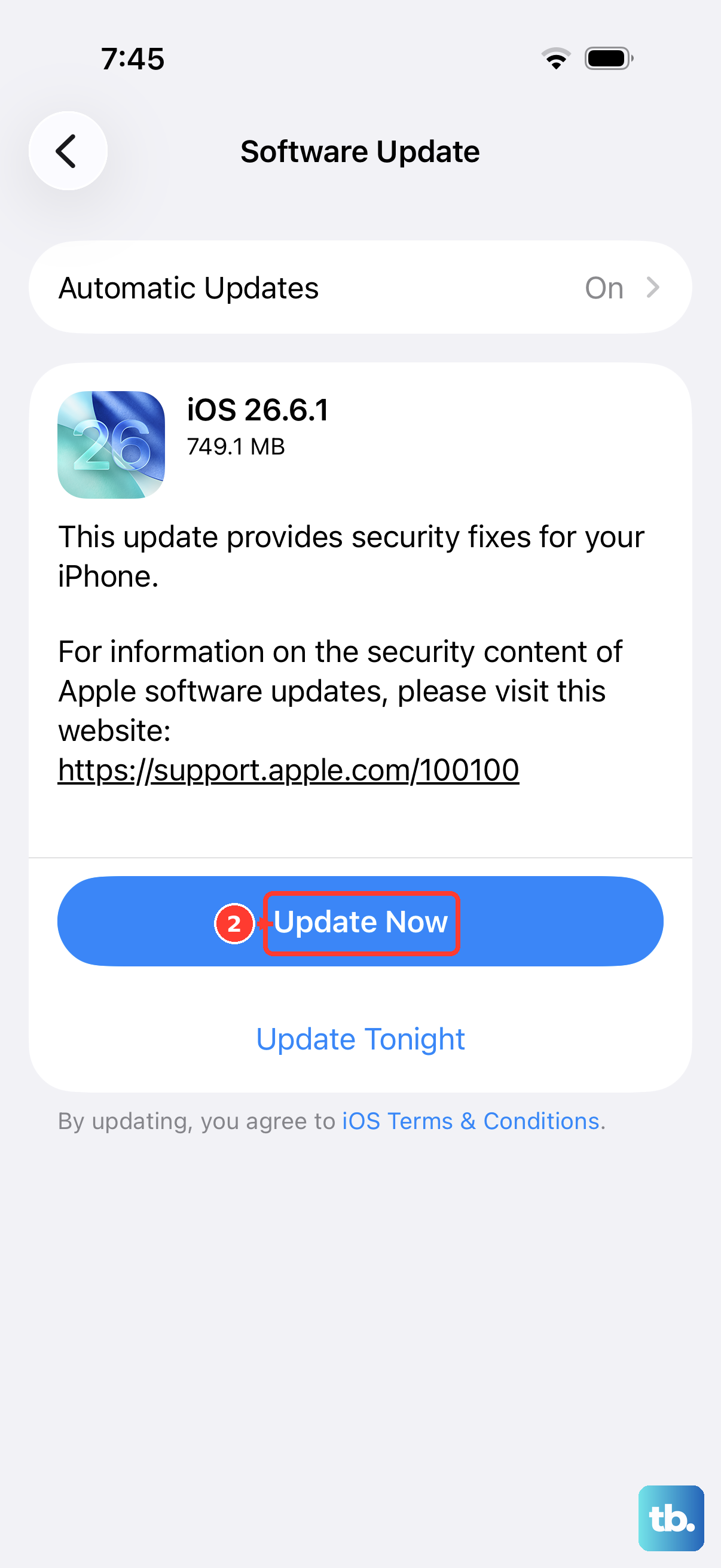
Software bugs in older versions of iOS 26 can cause instability and screen freezes. Once your phone is responsive again, go to Settings > General > Software Update and install any available update.
These updates often contain patches for known issues. If your phone freezes during the update process itself, you'll need to use a computer to restore it, which is the next step.
Reset All Settings
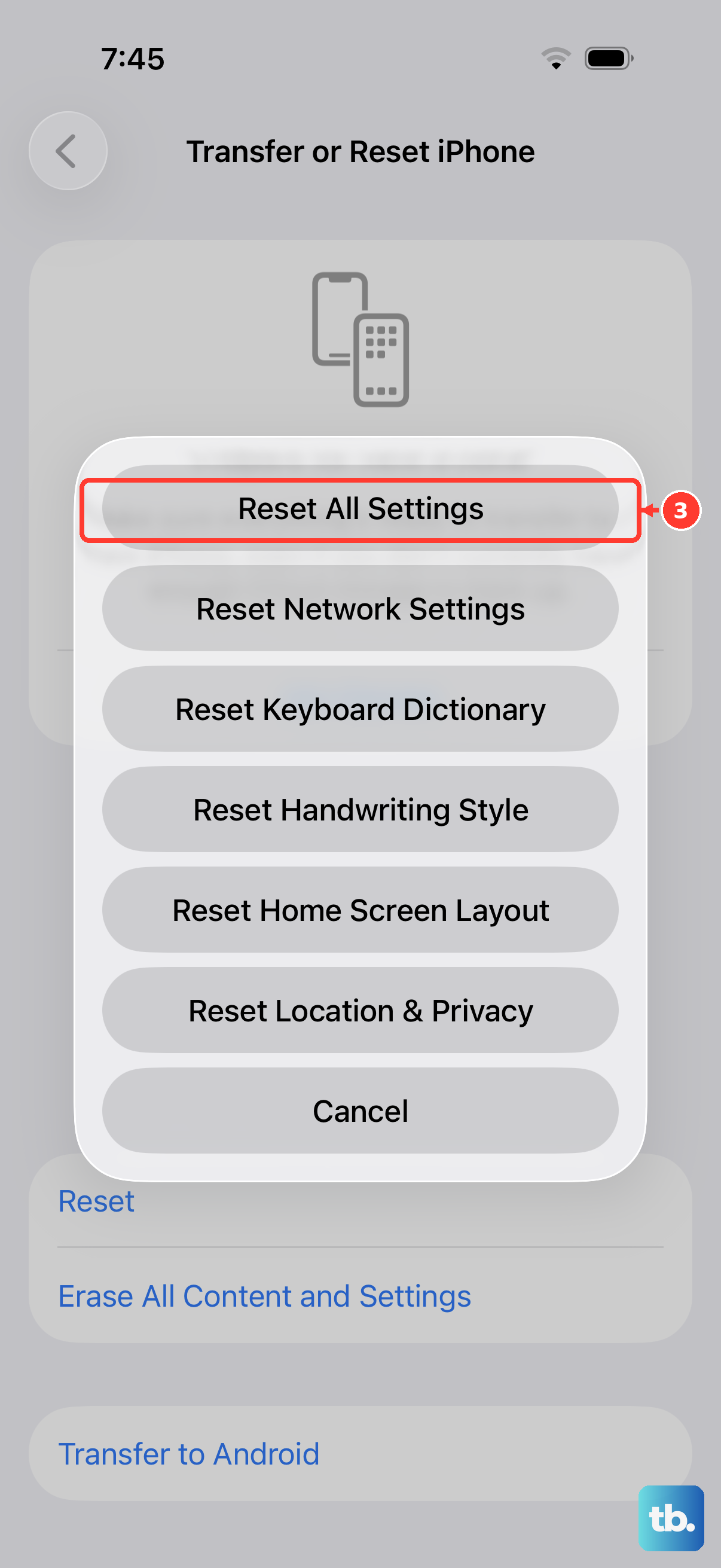
If freezing is a recurring problem after multiple restarts, a system setting might have become corrupted. You can fix this without erasing your personal data. Go to Settings > General > Transfer or Reset iPhone > Reset > Reset All Settings.
This will return your wallpaper, network settings, privacy permissions, and keyboard dictionary back to their defaults. It's a deeper fix than a simple restart and often resolves persistent weird behavior.
Restore Using a Mac or PC
For a phone that is permanently unresponsive and won't force restart, you'll need to connect it to a computer. First, put your iPhone 17 Pro into recovery mode. Quickly press Volume Up, then Volume Down, then press and hold the Side button until you see the recovery mode screen (a cable pointing to a computer icon).
On a Mac with macOS or a PC with iTunes, you'll be prompted to Update or Restore. Always choose Update first. This reinstalls iOS 26 without deleting your data. If the update fails or isn't available, you may have to choose Restore, which will erase the phone.
Let an Overheated Phone Cool Down
The iPhone 17 Pro can get warm during intensive tasks or 60W fast charging. If it gets too hot, the system will intentionally freeze or dim the display to protect the internal components. If the phone is hot to the touch, take it out of its case and move it away from direct sunlight.
Let it cool down for 15-20 minutes before trying to turn it on again. Also, check your Settings > Battery > Charging options. Optimized Battery Charging is on by default and can sometimes cause confusion if the phone is intentionally holding at 80%.