
When your iPhone 17 Pro gets stuck and won't download apps from the App Store, it can bring your day to a halt. You tap the download button, see the spinning circle, and then nothing happens. This is a common hiccup, especially after a major iOS update like iOS 26, and it's almost always something you can fix yourself.
Let's go through the most effective fixes, starting with the quickest ones you should try first.
Check Your Internet Connection
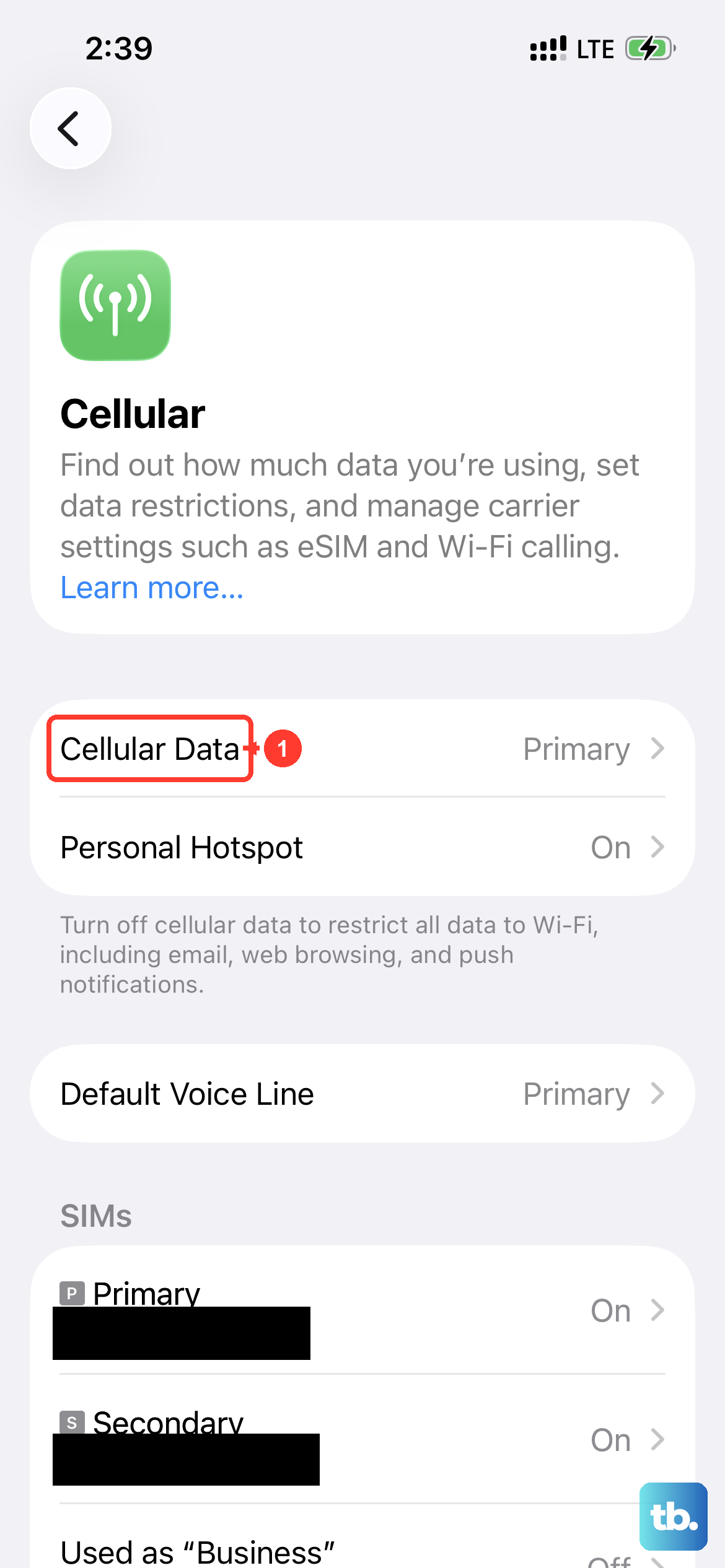
This is the most frequent culprit. The App Store needs a stable, working internet connection to download anything. First, try loading a webpage in Safari to see if your connection is actually live.
If you're on Wi-Fi, try toggling it off and on. Swipe into Control Center, tap the Wi-Fi icon to turn it off, wait a few seconds, and tap it again. If that doesn't work, try switching to your 5G or LTE cellular data temporarily to see if the problem is with your specific Wi-Fi network.
Force Restart Your iPhone 17 Pro
A simple restart clears out temporary software glitches that can freeze the App Store. For the iPhone 17 Pro, the force restart sequence is quick. Press and quickly release the Volume Up button, then press and quickly release the Volume Down button.
Finally, press and hold the Side button. Keep holding it until you see the Apple logo appear on the screen, then let go. This doesn't erase any data, it just gives the system a fresh start.
Sign Out and Back Into the App Store
Sometimes your account session with Apple's servers gets out of sync. Signing out and back in can refresh this connection. Open the Settings app and tap your name at the top to go to your Apple ID settings.
Scroll down and tap Media & Purchases. Tap Sign Out at the bottom of that menu. Wait a moment, then sign back in with your Apple ID password. Head back to the App Store and try your download again.
Check Your Date & Time Settings
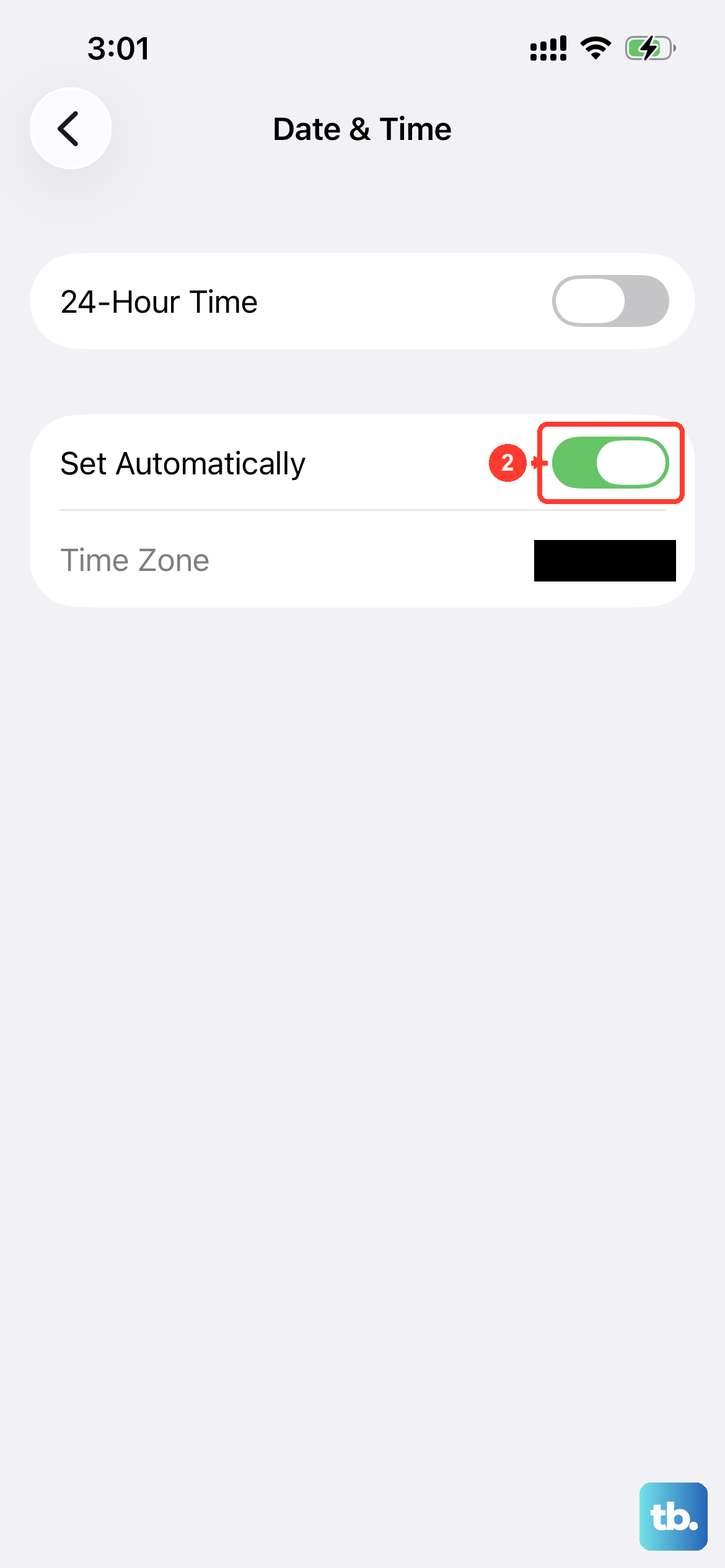
This one sounds odd, but it's important. The App Store's security certificates rely on your phone having the correct date and time. If your settings are off, downloads can fail silently.
Go to Settings > General > Date & Time. Make sure the switch for Set Automatically is turned on. If it's already on, try turning it off for a second, then immediately turn it back on to force a refresh.
Check Your Available Storage
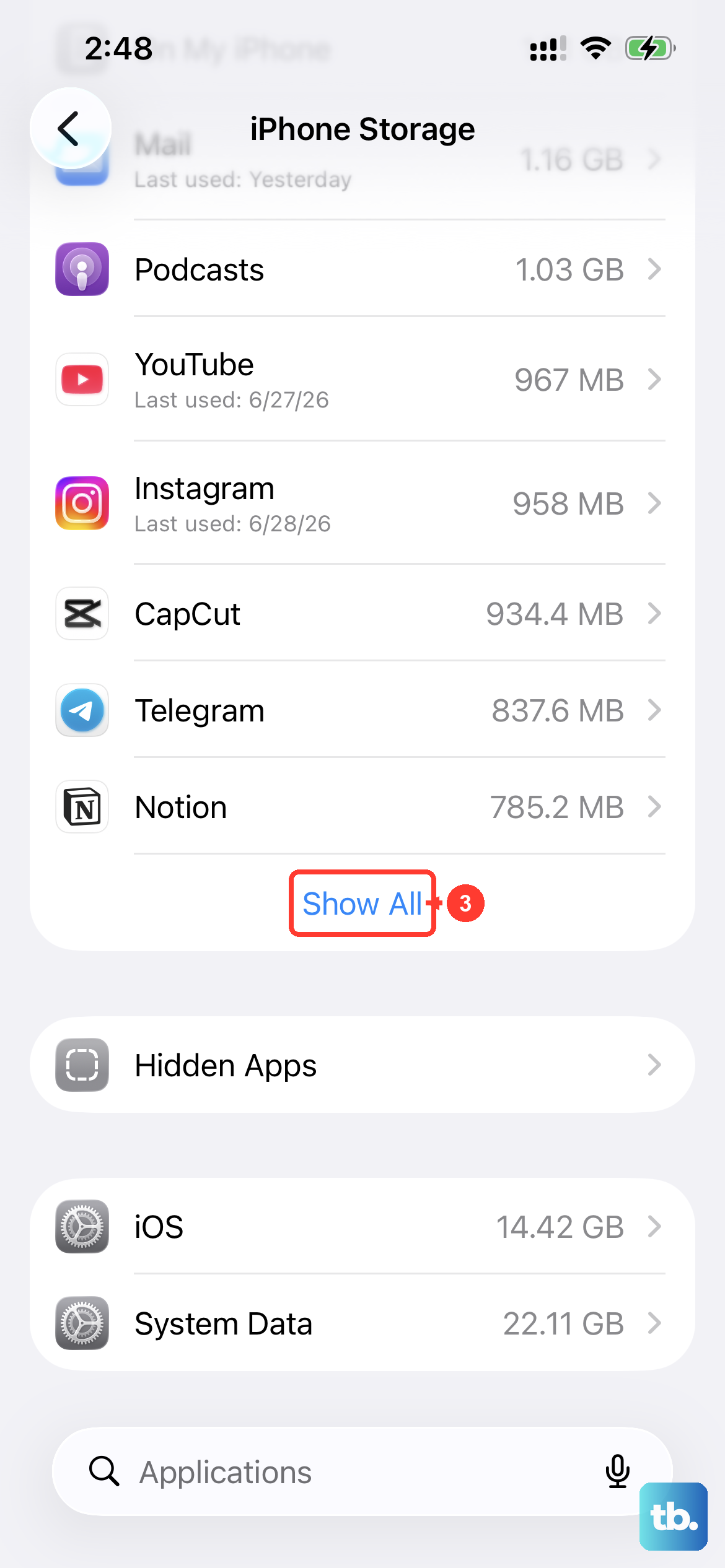
Your iPhone 17 Pro might not be giving you a clear "Storage Full" warning. It's worth checking manually. Go to Settings > General > iPhone Storage.
Look at the top of the screen to see how much free space you have. If you're critically low, the download process can't even start. You may need to offload some unused apps or clear out old messages and photos to make room.
Update iOS to the Latest Version
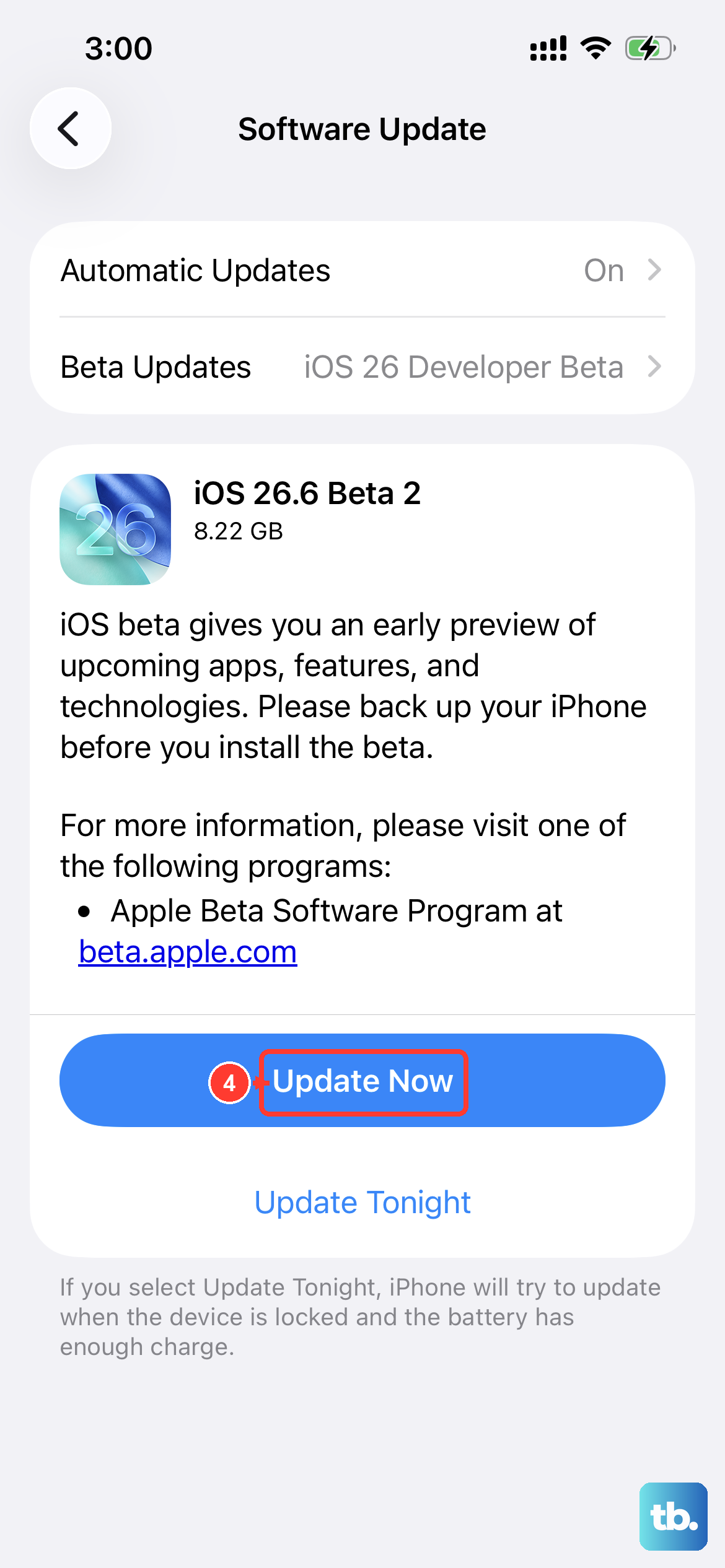
Running an outdated version of iOS 26 can cause compatibility issues with the App Store. Apple frequently releases patches for bugs like this. Connect your phone to Wi-Fi and plug it into power.
Then, go to Settings > General > Software Update. If an update is available, tap Download and Install. I've seen this resolve download issues more times than I can count, especially after a new phone model release.
Reset Your Network Settings
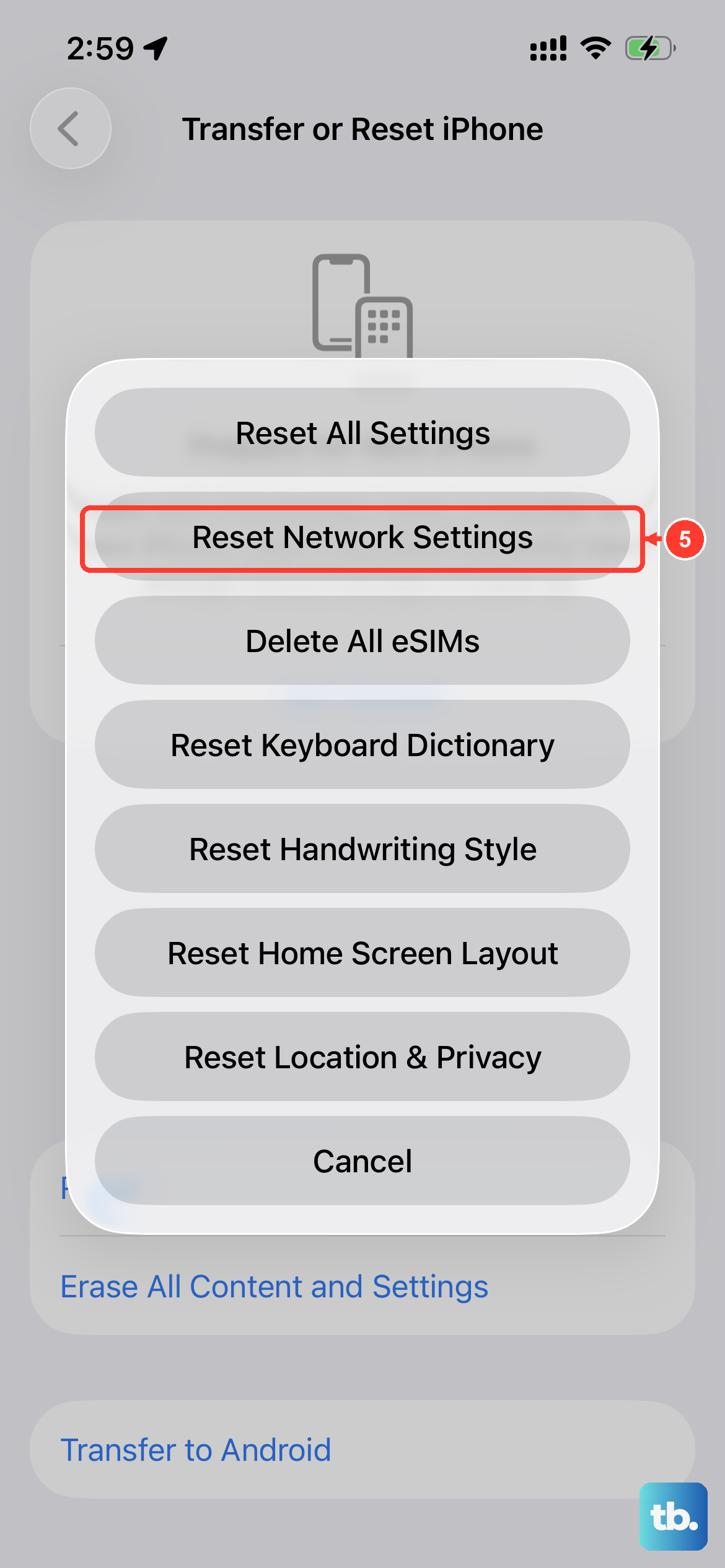
This step clears all your saved Wi-Fi passwords, cellular settings, and VPN configurations. It's a deeper fix for persistent connection problems that might be blocking the App Store.
Go to Settings > General > Transfer or Reset iPhone. Tap Reset at the bottom, and then choose Reset Network Settings. You'll need to re-join your Wi-Fi networks afterward, but it often clears the path for downloads to work.
Check Screen Time & Content Restrictions
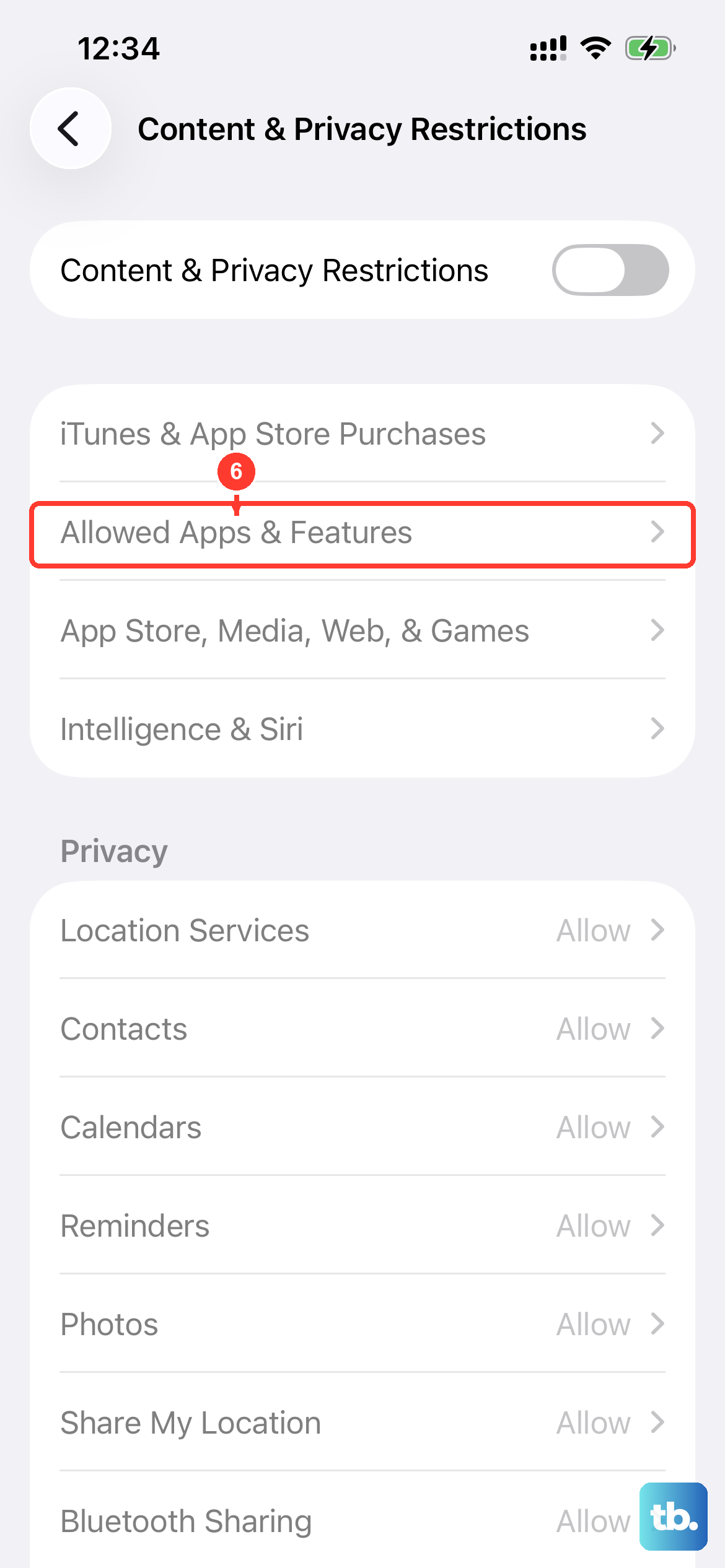
If you have Screen Time enabled, a restriction might be blocking app downloads and installations, even if you didn't set it yourself. Go to Settings > Screen Time.
Tap Content & Privacy Restrictions. If it's on, enter your Screen Time passcode. Then, tap iTunes & App Store Purchases. Make sure Installing Apps is set to Allow.
Force Quit and Relaunch the App Store
Don't just switch away from the App Store, force it to fully close. On your iPhone 17 Pro, swipe up from the bottom of the screen and hold in the middle until you see your app switcher.
Swipe right to find the App Store card and swipe it all the way up to close it. Wait a few seconds, then tap the App Store icon on your Home Screen to relaunch it fresh. This can clear a stuck download queue.
Update Your Payment Method
An issue with your payment information on file can block all downloads, including free apps. The App Store needs valid payment details to verify your account, even for $0 transactions.
Open the App Store and tap your profile icon in the top right. Tap Manage Payments. If your card is expired, update it. If you want to remove it, you can add a valid payment method later, but having none can sometimes cause issues.