
When your iPhone 17's keyboard predictions start suggesting nonsense or stop working entirely, it can really slow you down. The feature is supposed to learn from you, but sometimes it gets stuck or confused. Here are the most effective ways to get it back on track, starting with the quickest fix.
Toggle Predictive Text Off and On
This is the digital equivalent of turning it off and on again, and it works surprisingly often. Open any app that uses the keyboard, like Messages or Notes. Tap in a text field to bring up the keyboard.
Look for the predictive text bar above the keys. If you don't see it, press and hold the emoji or globe icon in the bottom left. From the menu that pops up, tap Keyboard Settings.
Inside settings, find the toggle for Predictive Text and switch it off. Wait a second, then switch it right back on. This forces the system to reload the feature and can clear up a temporary glitch.
Check Your Text Replacement List
Your iPhone uses a custom dictionary that includes words you've added and your text replacement shortcuts. If something is corrupted here, it can throw off predictions. Go to Settings > General > Keyboard > Text Replacement.
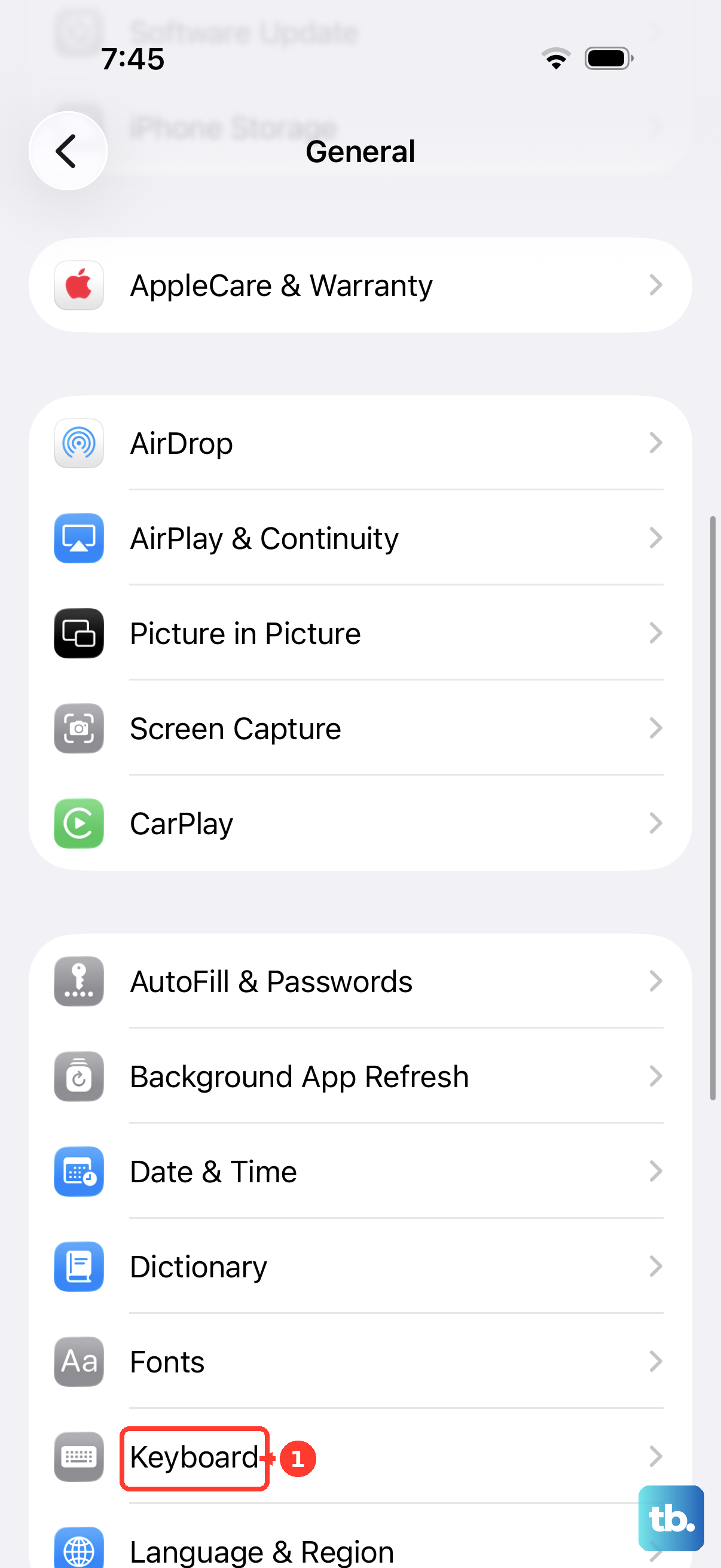
Scroll through your list. Look for any shortcuts or phrases that seem odd or that you don't remember creating. You can swipe left on any entry to delete it. I've seen cases where an old, weird shortcut from years ago was causing conflicts with new predictions.
Reset the Keyboard Dictionary
This is a more thorough step that wipes your personal learned words and resets the dictionary to its factory state. It will forget slang, names, and quirky spellings you've taught it, so it's a fresh start.
Navigate to Settings > General > Transfer or Reset iPhone. Tap Reset. On the reset menu, select Reset Keyboard Dictionary. You'll need to enter your passcode to confirm.
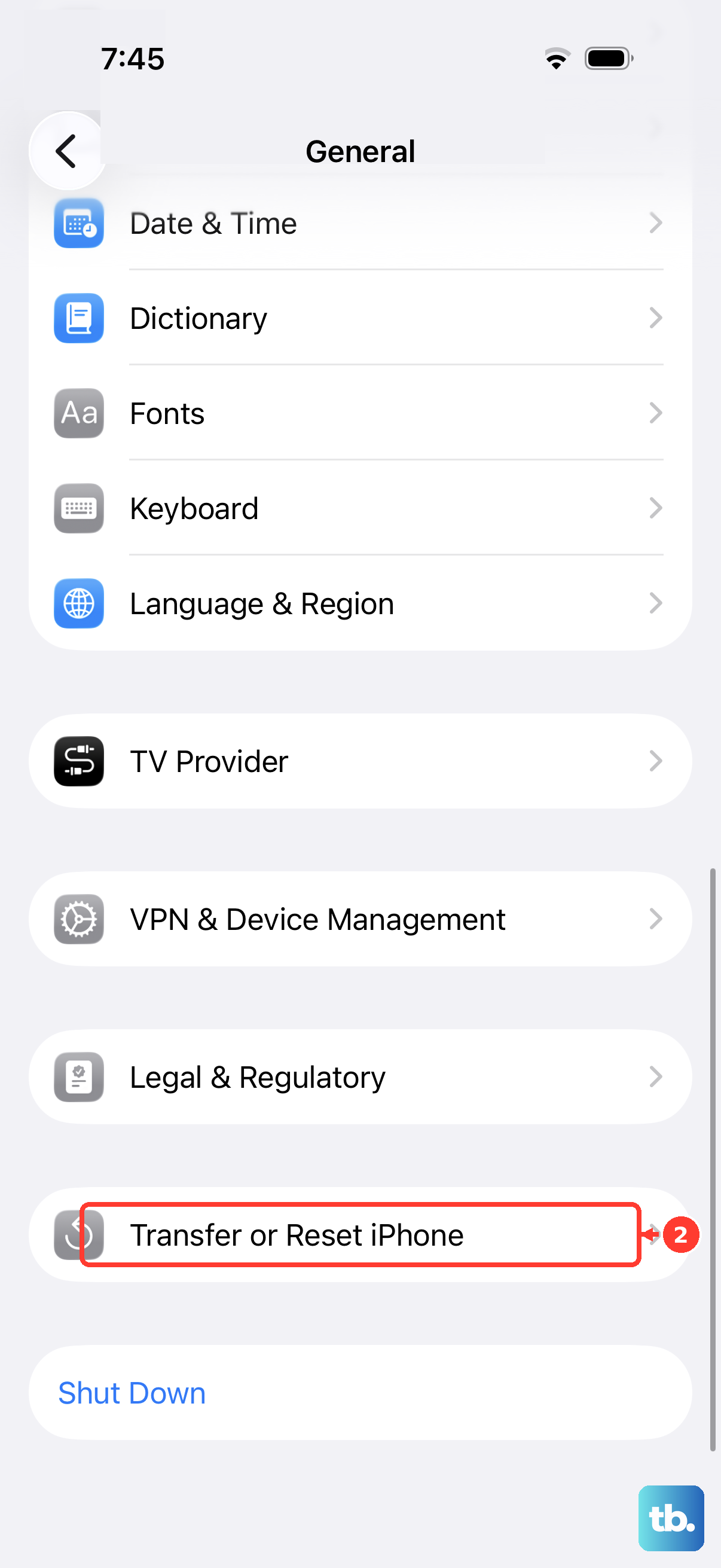
After the reset, the keyboard will begin learning your typing habits again from scratch. It might be less accurate for a day or two as it rebuilds its model.
Update iOS to the Latest Version
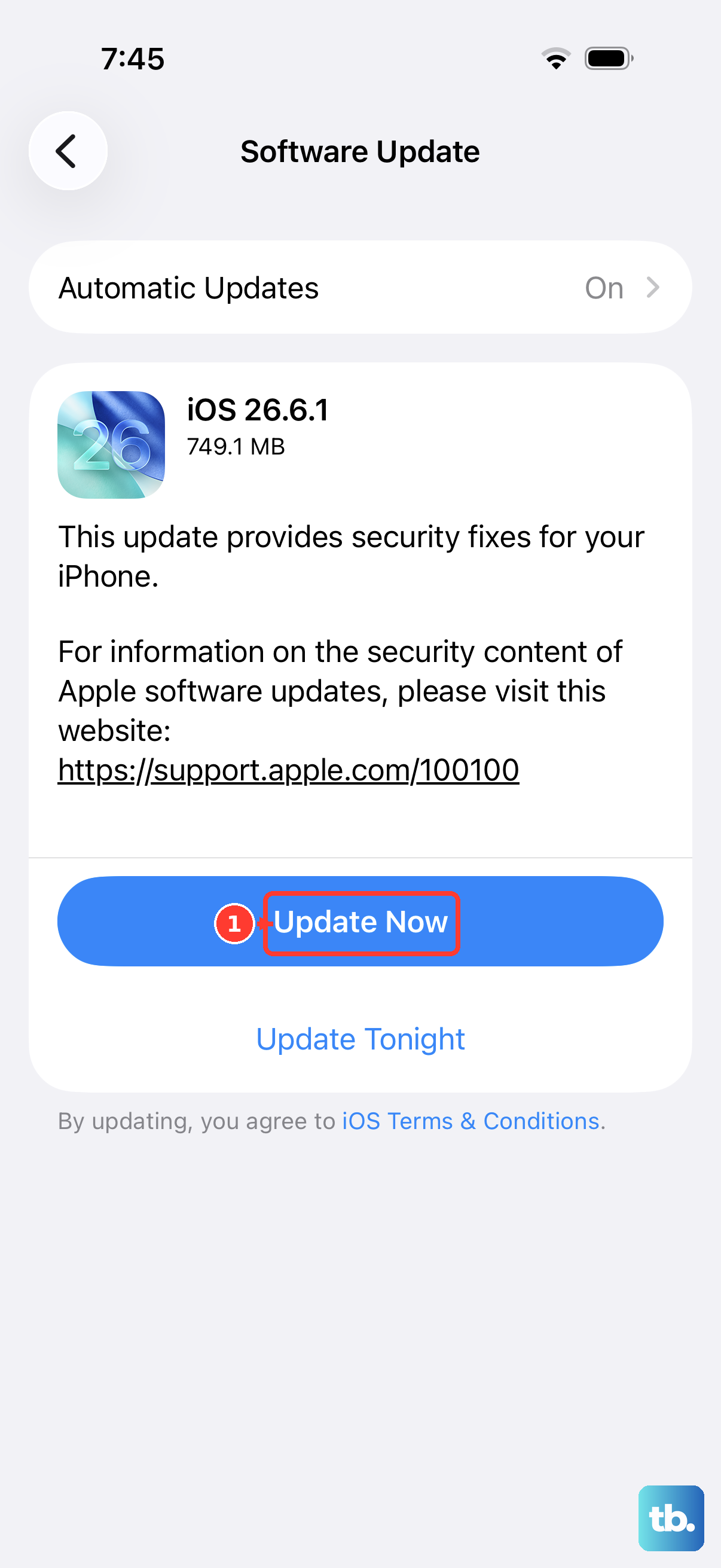
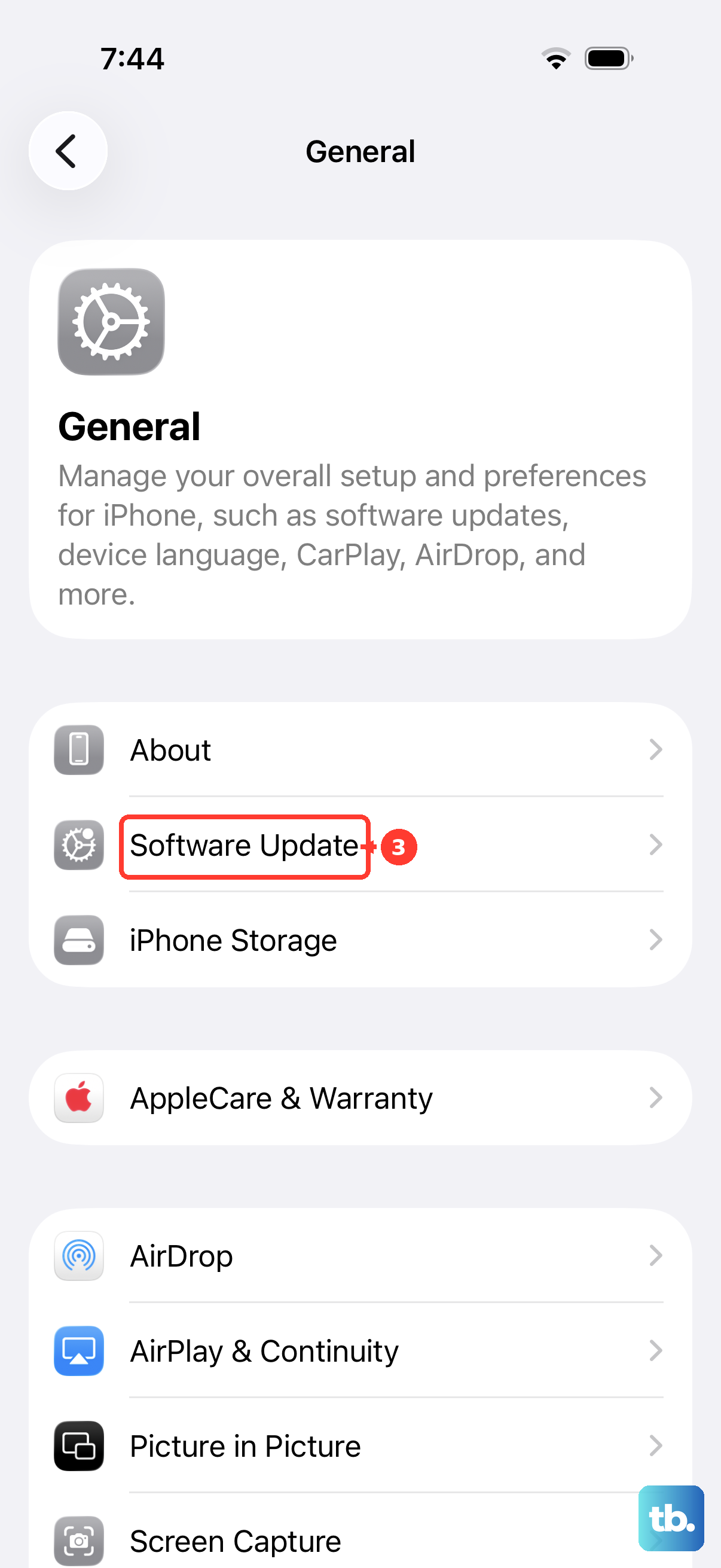
Since you're on iOS 26, Apple is still actively refining the software. A bug affecting keyboard predictions could have been identified and fixed in a recent point update. Go to Settings > General > Software Update.
If an update is available, install it. It's a good idea to plug your iPhone 17 into power using a 30W USB-C charger or place it on a MagSafe charger first. Major iOS updates can sometimes temporarily affect system behavior, including keyboard learning, so staying current is key.
Ensure You're Using the Correct System Language
Predictive text is heavily tied to your system language setting. If you have multiple languages enabled, the keyboard might be getting confused about which dictionary to pull from. Go to Settings > General > Language & Region.
Make sure your preferred language is at the top of the list under "Preferred Languages." You can also tap iPhone Language to set it directly. Then, go back to Keyboard settings and verify the same language is active and listed first for your keyboards.
Perform a Force Restart
A force restart clears the device's active memory (RAM) without deleting any data. It can fix deeper system hiccups that a standard power off won't touch. On the iPhone 17, press and quickly release the Volume Up button, then quickly press and release the Volume Down button.
Immediately after, press and hold the Side button. Keep holding it even when the power off slider appears. Continue holding until you see the Apple logo, then release. Once your phone boots back up, try the keyboard again.