You went to share your iPhone 17's internet with a laptop or tablet, only to watch the connection fail, drop, or never appear at all. Personal Hotspot turns your phone into a portable Wi-Fi source, and when it stops cooperating, you are left stranded right when you need a backup connection most. The good news is that the iPhone 17 fully supports Personal Hotspot over Wi-Fi, Bluetooth, and USB, so the problem is almost always a setting, a plan limitation, or a temporary glitch you can clear yourself.
The fixes below are ordered from the simplest, safest checks to the more involved resets, so start at the top and work down only as far as you need. Most hotspot failures resolve within the first few steps.
Make Sure Personal Hotspot Is Actually On
Before anything else, confirm the feature is switched on. Open Settings and tap Personal Hotspot (you can also reach it at Settings > Cellular > Personal Hotspot), then turn on Allow Others to Join. Because Personal Hotspot shares your iPhone's cellular connection, cellular data also needs to be on for the hotspot to have anything to share.
If you have never used the feature on this phone, you need to set it up first. Go to Settings > Cellular > Set Up Personal Hotspot and follow the onscreen instructions to create a Wi-Fi password. The password must be at least eight characters long and use only ASCII characters.
Confirm Your Carrier and Plan Allow Tethering
The iPhone 17 has the hardware for hotspot use, but the feature still depends on your wireless service. Apple states that Personal Hotspot requires a wireless carrier that supports it, and that additional fees may apply. In other words, capable hardware is not enough if your plan does not permit tethering.
If the Personal Hotspot option is missing entirely or appears greyed out, that is a strong sign your plan does not include tethering. Contact your wireless carrier to confirm the feature is enabled on your account and that your current plan supports it.
Restart Both Devices
Apple's first recommended hotspot fix is to restart both the iPhone providing the hotspot and the device trying to connect. A simple power cycle clears the temporary states that often block a connection from forming.
To restart the iPhone 17, press and hold either volume button and the side button until the power-off slider appears. Drag the slider, then wait 30 seconds for the iPhone to turn off completely before pressing the side button again to turn it back on. Restart the connecting laptop, tablet, or phone as well, then try again.
Toggle Wi-Fi on the Connecting Device and Rejoin
When you are connecting over Wi-Fi, a stale network list on the other device is a common culprit. Keep the iPhone on its Personal Hotspot screen with Allow Others to Join switched on while you do this, because staying on that screen keeps the hotspot active and discoverable.
On the device that needs internet, turn Wi-Fi off and then back on, then select the network that matches your iPhone's name; it appears with a hotspot icon next to it. If you see a password error, go back and re-check the exact Wi-Fi password shown in the iPhone's Personal Hotspot settings and re-enter it carefully.
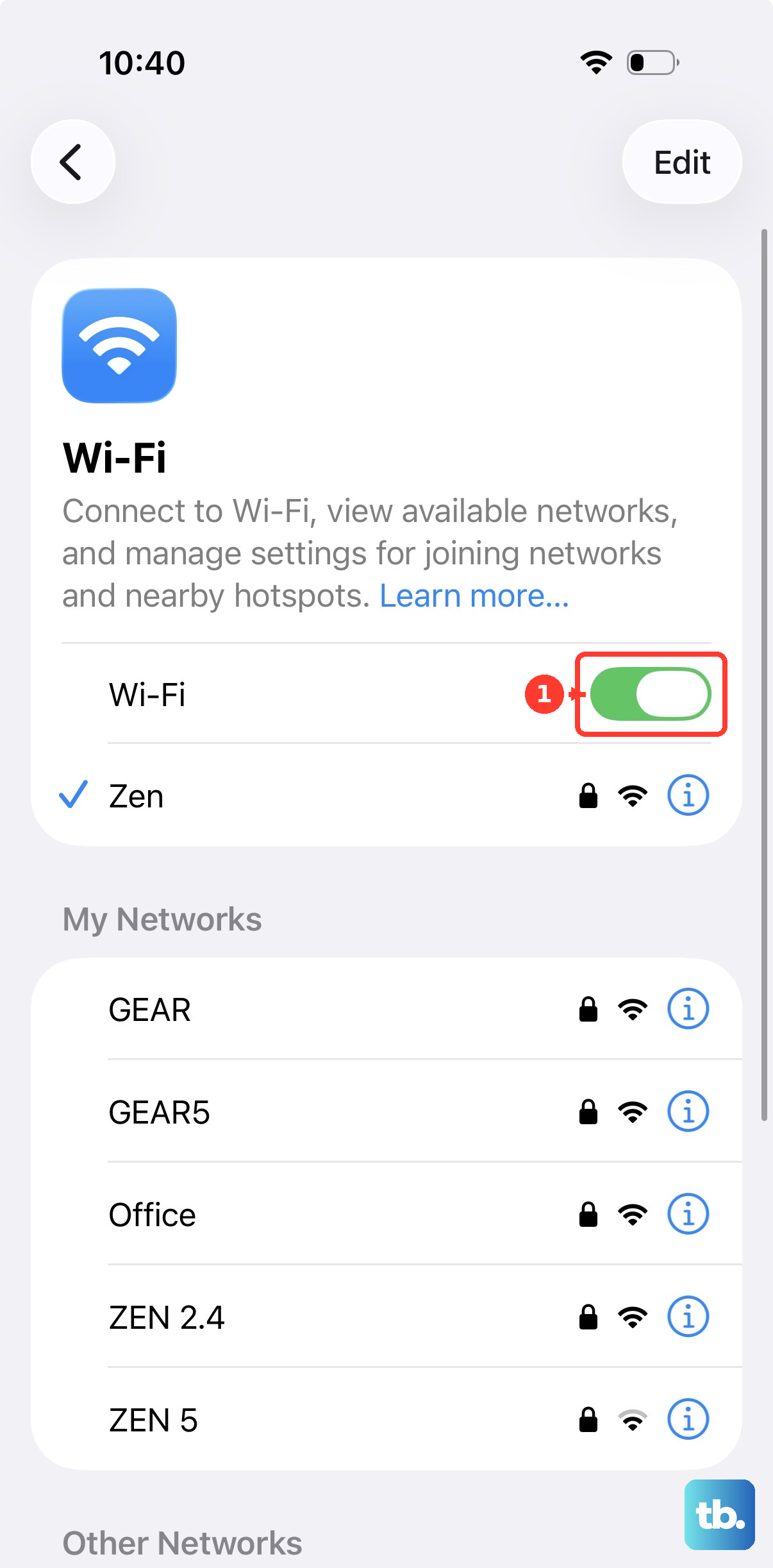
Switch On Maximize Compatibility
Some devices, especially older laptops and tablets, struggle to join the iPhone's default hotspot configuration. Apple provides a setting for exactly this situation. In the iPhone's Personal Hotspot settings, turn on Maximize Compatibility, then try connecting your devices again.
Be aware of the trade-off before you leave it on. Apple warns that when Maximize Compatibility is turned on, internet performance and Wi-Fi security might be reduced for devices connected to the hotspot, so use it when you need broader compatibility rather than as a permanent default.
Install the Latest iOS Update
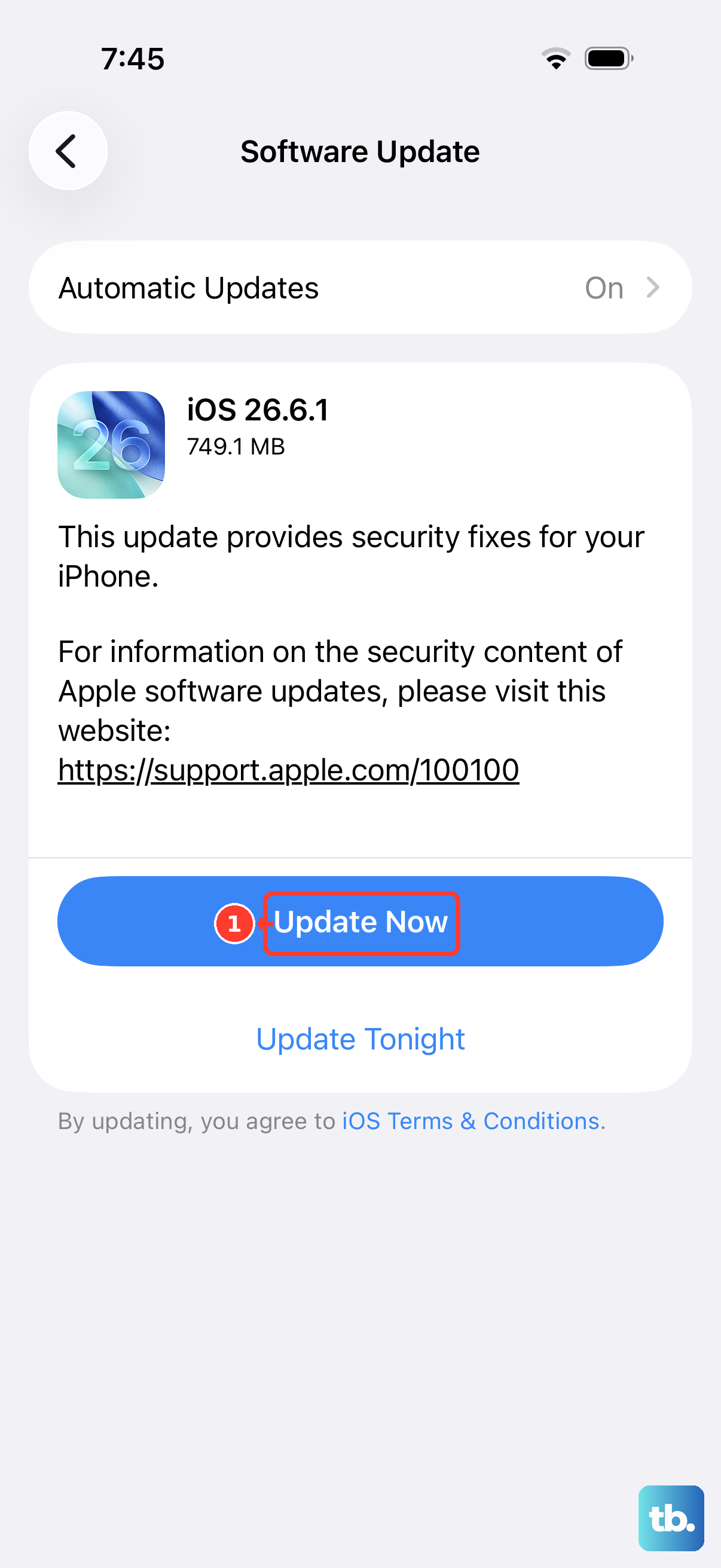
Running the current software version is part of Apple's recommended troubleshooting, since updates frequently address connectivity issues. Go to Settings > General > Software Update, then tap Download and Install if an update is available.
Let the update finish completely and the phone restart before testing the hotspot again. An interrupted or pending update can leave wireless features behaving unpredictably.
Look for a Carrier Settings Update
Separate from iOS itself, your carrier periodically pushes small settings updates that can improve cellular connectivity and add support for features like tethering. First connect the iPhone to a Wi-Fi network, then go to Settings > General > About.
If a carrier settings update is available, you will see an option to update next to the Carrier entry. Apply it, then try your hotspot connection again. If no prompt appears, your carrier settings are already current.
Connect by USB or Bluetooth Instead of Wi-Fi
If Wi-Fi tethering keeps failing, the iPhone 17 also shares its connection over USB and Bluetooth, and switching methods often gets you online while you sort out the Wi-Fi issue. For a USB connection, connect the iPhone to the computer with a cable and trust the device if you are prompted to. Make sure the computer has the current software it needs to recognize an iPhone before you try again.
For a Bluetooth connection, pair the two devices and confirm that the pairing codes shown on each device match. Once paired, the connecting device can use the iPhone's hotspot over Bluetooth.
Force Restart a Frozen iPhone
If your iPhone 17 has become unresponsive and a normal restart is not possible, a force restart can recover it. This sequence must be performed in the exact order shown.
- 1.Press and quickly release the volume up button.
- 2.Press and quickly release the volume down button.
- 3.Press and hold the side button until you see the Apple logo.
Hold the side button through that final step even though it may take longer than 10 seconds. Once the Apple logo appears, release the button and let the phone start up, then try the hotspot again.
Reset Network Settings
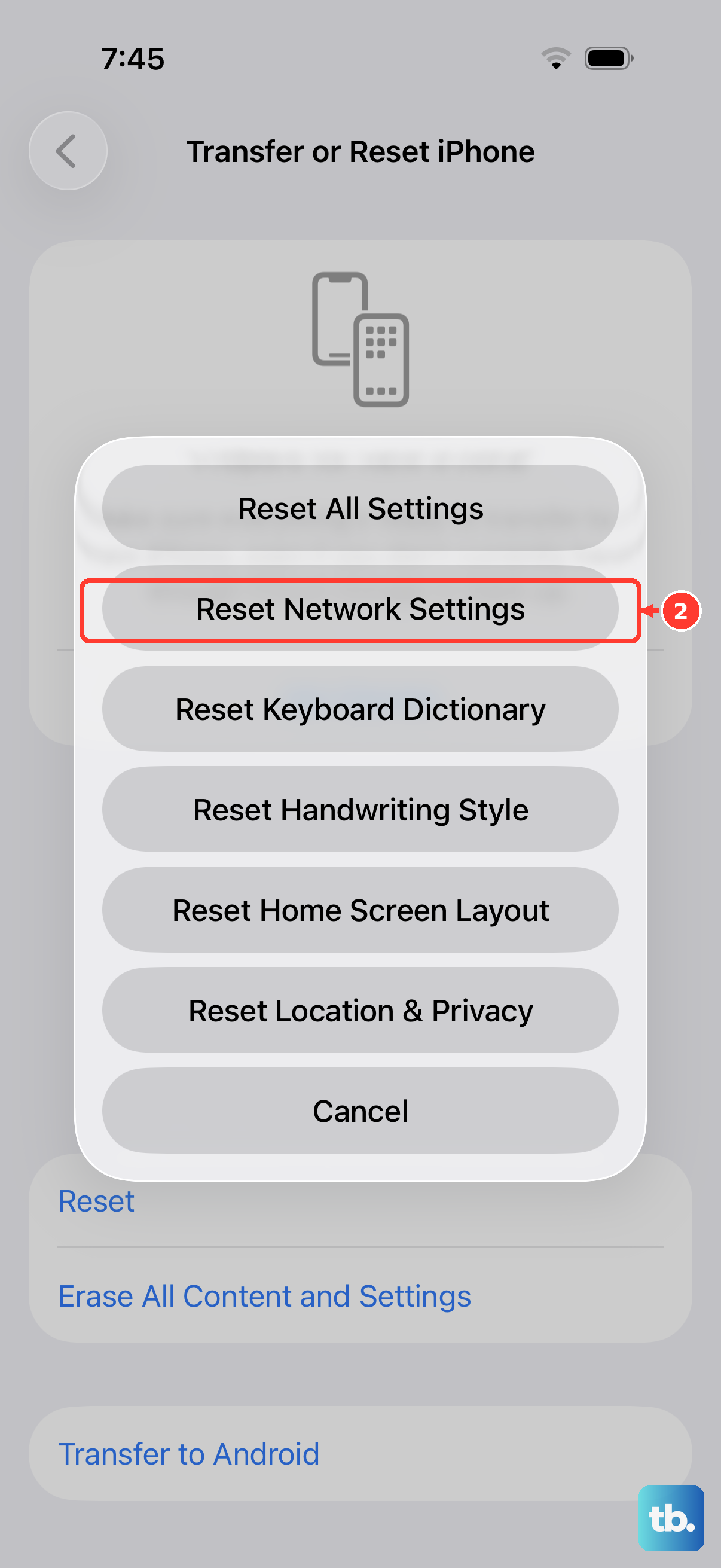
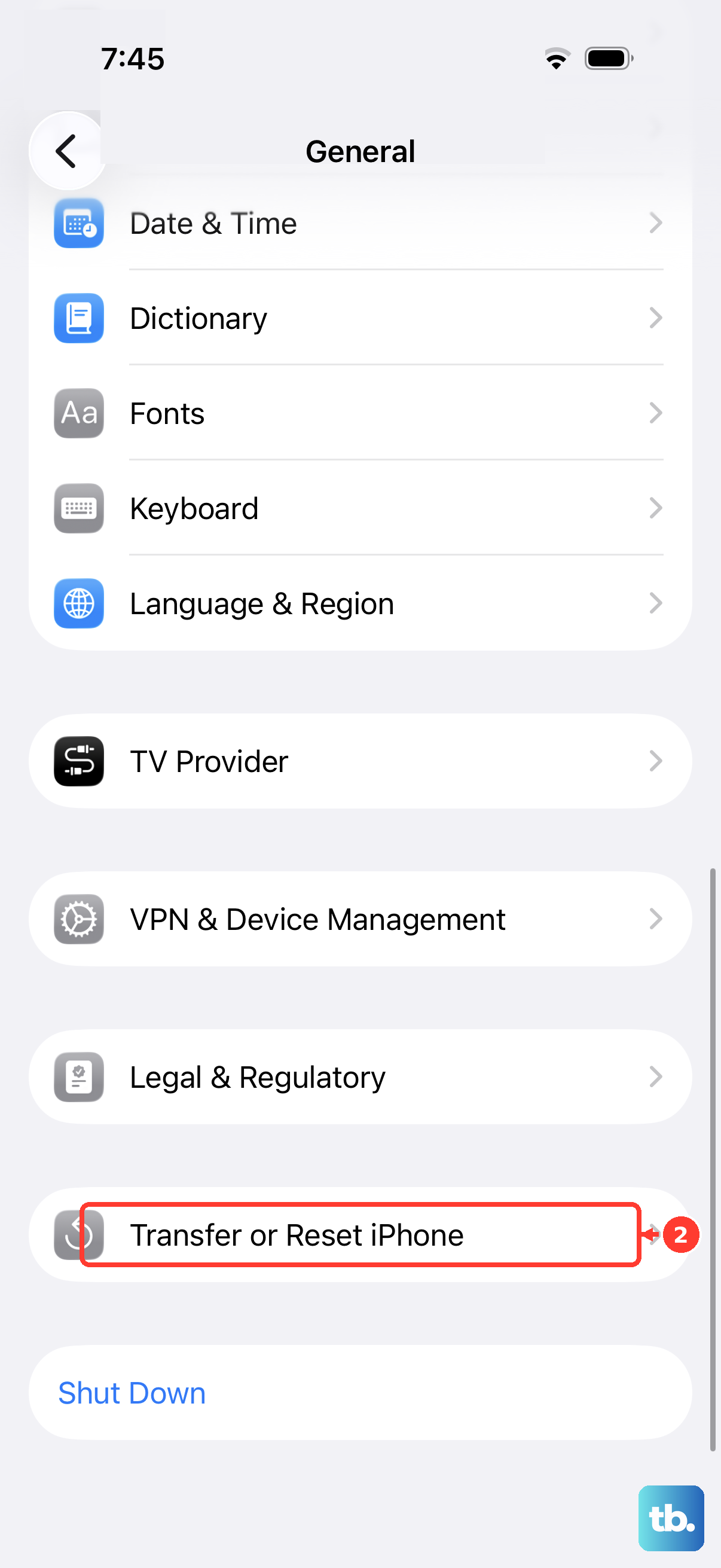
When connections still will not hold, clearing your network configuration gives the hotspot a clean slate. Go to Settings > General > Transfer or Reset iPhone > Reset > Reset Network Settings.
Know what this clears before you confirm. Apple notes that this also resets Wi-Fi networks and passwords, cellular settings, and VPN and APN settings that you have used before, so you will need to rejoin your saved Wi-Fi networks afterward. Your photos, apps, and other personal data are not affected.
When to contact support or erase as a last resort
If the hotspot still fails after everything above, the issue may be at the account level or a deeper software problem. Contact your wireless carrier for plan and tethering issues, and reach out to Apple Support for help with the device itself.
As a true last resort, you can erase the iPhone and set it up fresh, but only after backing up because it removes your data. Back up your iPhone first, then go to Settings > General > Transfer or Reset iPhone > Erase All Content and Settings. This restores the iPhone to factory settings and removes your content and settings, so the backup is essential. You will enter your passcode and Apple Account password to complete it, and you can choose whether to keep or delete your eSIM.
Frequently Asked Questions
Why is the Personal Hotspot option greyed out or missing on my iPhone 17?
This usually means your wireless plan does not include tethering. Apple notes that Personal Hotspot requires a carrier that supports it and that additional fees may apply, so contact your carrier to confirm the feature is enabled on your account and that your plan supports it.
Does the iPhone 17 support Personal Hotspot at all?
Yes. The iPhone 17 has cellular connectivity and supports Personal Hotspot, which shares its cellular internet over Wi-Fi, Bluetooth, or USB. Whether it works in practice still depends on your carrier and plan allowing tethering.
Will resetting network settings delete my photos or apps?
No. Reset Network Settings clears Wi-Fi networks and passwords, cellular settings, and VPN and APN settings you have used before, but it does not remove your personal content. You will simply need to rejoin your saved Wi-Fi networks afterward.
My older laptop cannot connect to the hotspot. What should I try?
Turn on Maximize Compatibility in the iPhone's Personal Hotspot settings, then try connecting again. Keep in mind that Apple warns this setting may reduce internet performance and Wi-Fi security for connected devices, so use it when you need the broader compatibility.
What if my iPhone 17 is frozen while trying to use the hotspot?
Force restart it by pressing and quickly releasing the volume up button, pressing and quickly releasing the volume down button, then pressing and holding the side button until the Apple logo appears. This may take longer than 10 seconds, so keep holding until the logo shows.