
When "Hey Siri" stops responding on your iPhone Air, it can be a real pain. The voice assistant you rely on for calls, reminders, and quick queries suddenly goes mute. Here's how to troubleshoot and fix voice assistant problems on the iPhone Air running iOS 26.
Start With the Basics: Siri Settings
First, make sure Siri is actually enabled. Sometimes it's the simple stuff that gets overlooked.
Check Siri & Search: Go to Settings > Siri & Search. Make sure Listen for "Hey Siri" and Allow Siri When Locked are both turned on. If they're off, toggle them on and test again.
Sound Recognition and Do Not Disturb Interference
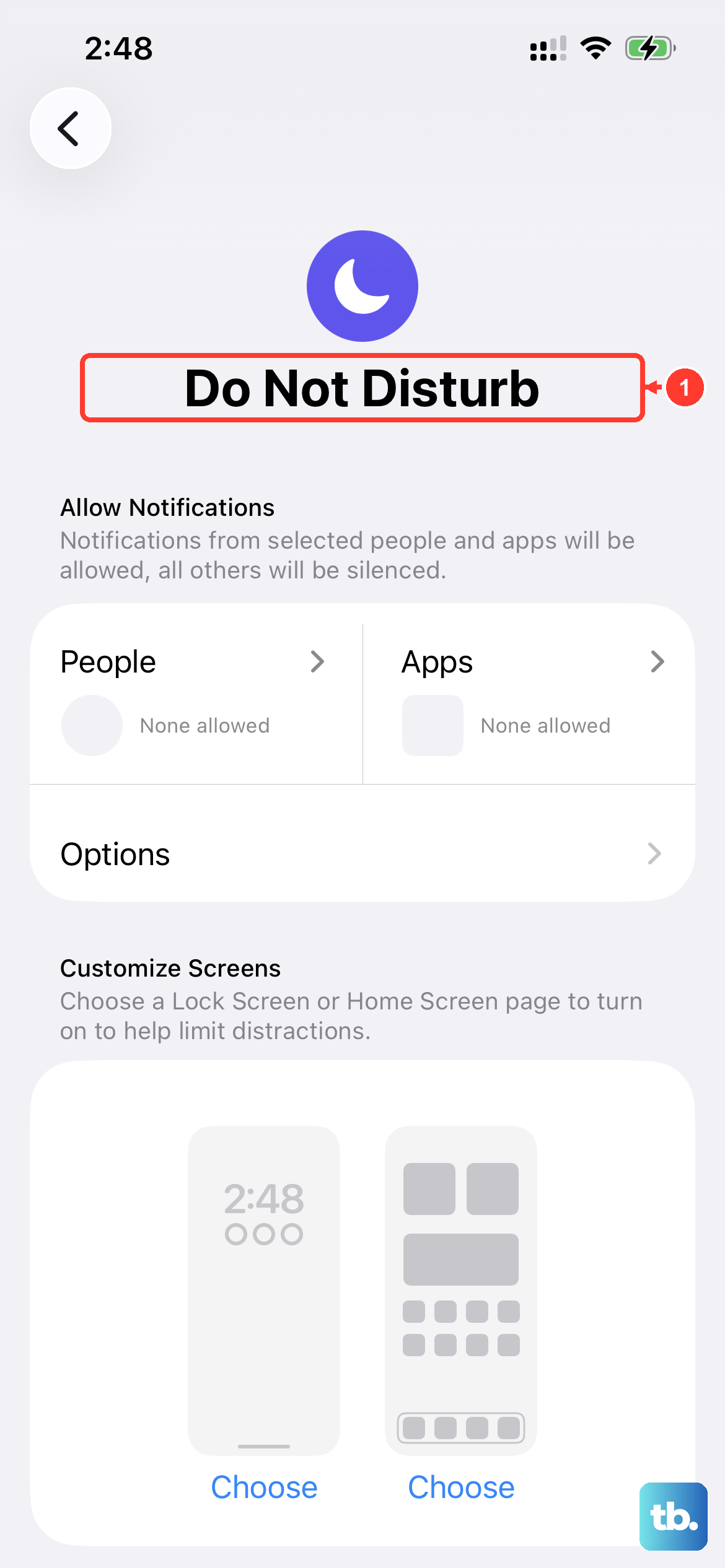
A few iOS 26 features can quietly block Siri from listening. Sound Recognition (found in Settings > Accessibility > Sound Recognition) will automatically disable "Hey Siri" when it's active. Turn it off completely.
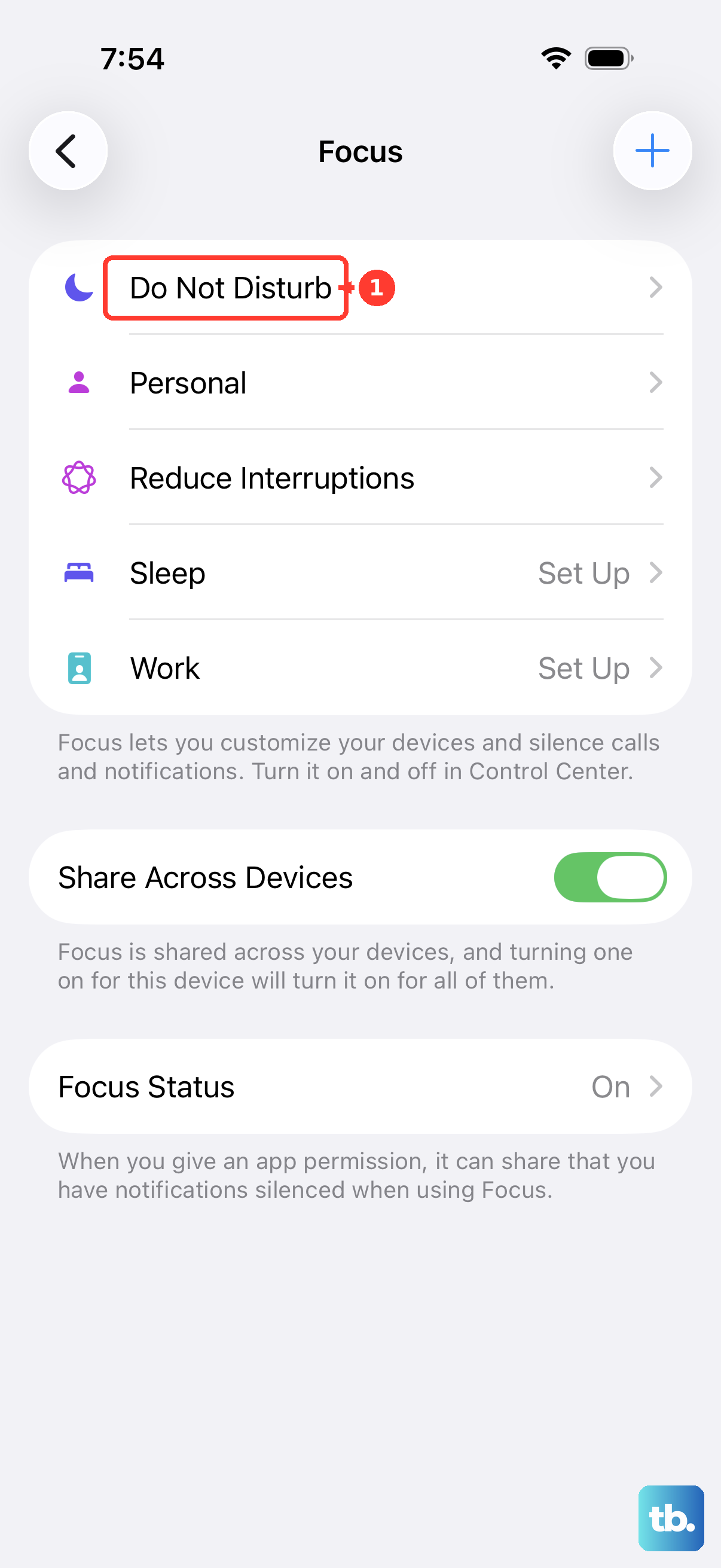
Do Not Disturb and other Focus modes can also prevent Siri from responding. Swipe open Control Center and check if any Focus mode is on. Turn it off temporarily to see if that fixes it.
Bluetooth accessories like AirPods or car kits sometimes interfere with voice pickup. Disconnect any paired Bluetooth devices and test Siri again.
Check Volume and Audio Settings
If Siri hears you but you can't hear her, or if she doesn't respond at all, look at your audio setup. Make sure your iPhone Air is not in Silent mode; on models with an Action button, you can check Silent mode in Settings > Sounds & Haptics or configure the Action button to toggle it. Then raise the volume using the buttons while Siri is active.
You can force Siri to speak even when the phone is in silent mode. Go to Settings > Siri & Search > Siri Responses and choose Always.
Device Position and Microphone Access
The iPhone Air has a built-in sensor that prevents Siri from responding when the phone is face down or covered. To override this, go to Settings > Accessibility > Siri and turn on Always Listen for "Hey Siri".
Also check your microphones. Gunk, dust, or a case blocking the bottom microphone (near the USB-C port) can kill voice recognition. Inspect the area around the USB-C port and the receiver grille at the top. Use a soft dry toothbrush or compressed air to clean gently, no sharp objects.
Retrain Siri to Recognise Your Voice
If Siri still can't pick up your voice, retraining the voice model often helps. Go to Settings > Siri & Search, turn off Listen for "Hey Siri", wait a few seconds, then turn it back on. Follow the on-screen prompts and speak each command clearly. This resets the voice profile and can fix recognition problems.
Update iOS and Check for Firmware Issues
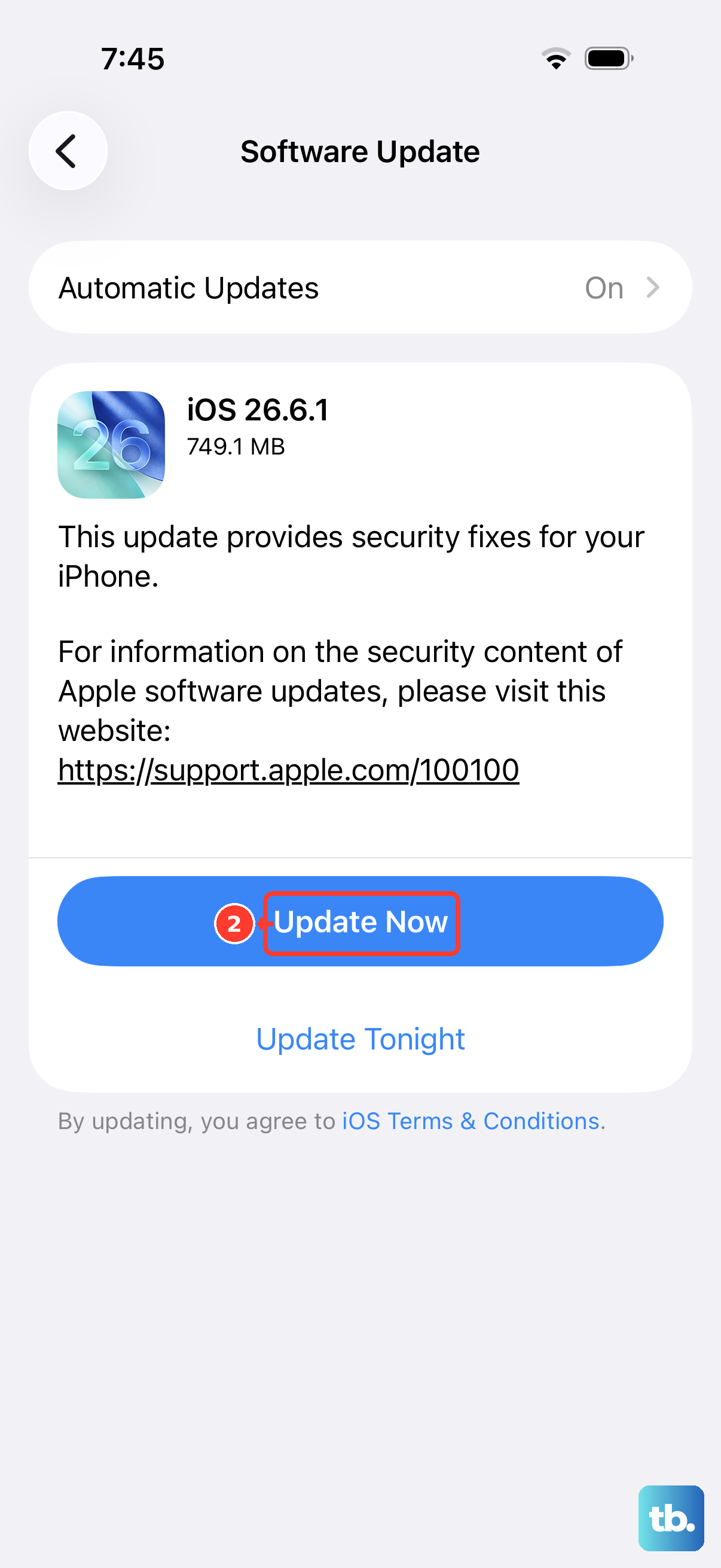
Apple released iOS 26.4.2, but some users have reported a firmware glitch that intermittently disables the voice assistant. Check for a newer update: Settings > General > Software Update. If there's a pending update, download and install it. Apple may have already patched the bug in a later release.
Restart or Force Restart the iPhone Air
A simple restart can clear temporary software glitches that break Siri. Press and hold the Side button with either volume button until you see the power off slider, then swipe to turn off. Wait 30 seconds and press the Side button to turn it back on.
If the phone is completely unresponsive, which can happen after the battery drains to zero, use a magnetic battery pack (like a MagSafe pack) attached to the back of the iPhone Air to wake it up. Then try a force restart. Force restart steps: Quickly press and release Volume Up button, then quickly press and release Volume Down button, then press and hold Side button until the Apple logo appears. This can revive Siri even after charging anomalies.
Reset All Settings (Without Erasing Data)
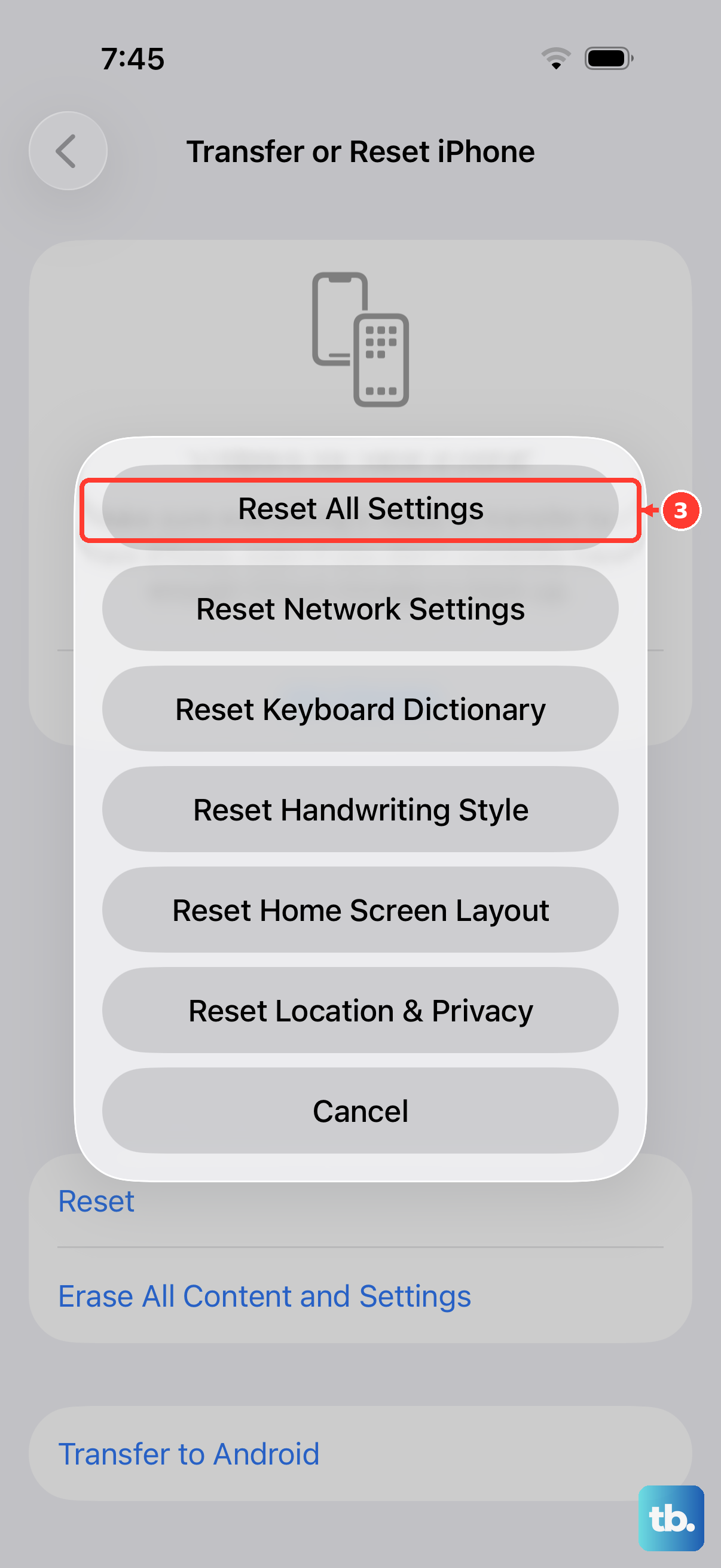
If nothing else works, a settings reset often resolves deeper configuration problems without deleting your photos or apps. Go to Settings > General > Transfer or Reset iPhone > Reset > Reset All Settings. You'll need to re-enter Wi-Fi passwords and reconfigure preferences, but your data stays intact.
Most Siri problems on the iPhone Air are fixable with these steps. Start with the settings checks, then move through the audio and microphone checks, and finish with a force restart if needed. The known firmware issue in iOS 26 should be resolved by updating, but if not, Apple will likely patch it soon.