
MMS messages are how you get photos, videos, and other media through the Messages app on your iPhone Air. When they just refuse to download, it's usually a network glitch, a misconfigured setting, or a temporary software hiccup. Here are the fixes that actually work.
Start with the quickest solution, it often does the trick before you need to dig into settings.
Force Restart Your iPhone Air
A force restart clears minor software issues that can block MMS downloads without erasing any data. On the iPhone Air, do this: quickly press and release the Volume Up button, then quickly press and release the Volume Down button, then press and hold the Side button until you see the Apple logo. Let go once the logo appears.
This takes about 10 seconds. After your phone boots back up, try downloading the MMS again.
Check Your Cellular Data Connection
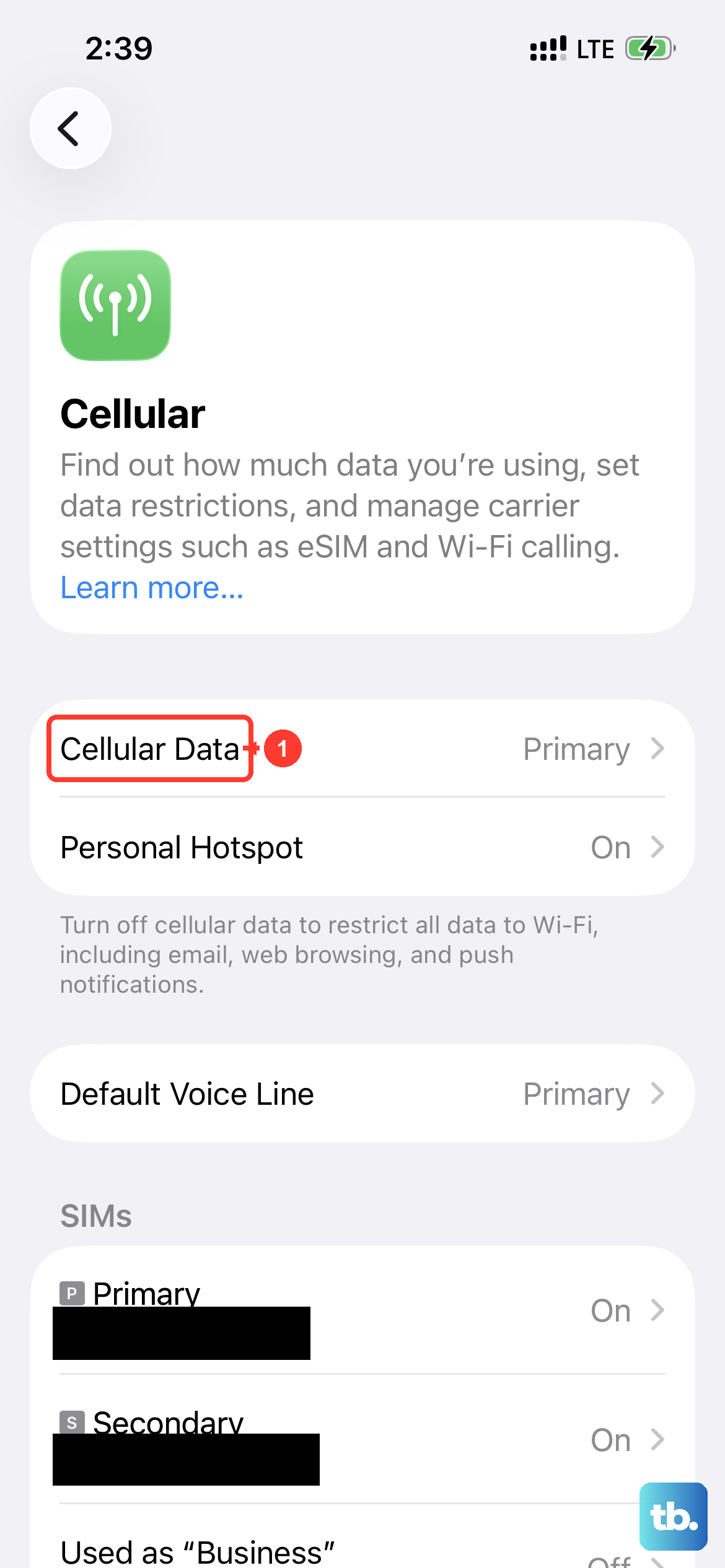
MMS needs a working mobile data connection to download media. Wi‑Fi alone won't do it. Open Settings > Cellular and make sure Cellular Data is toggled on. If you're on a trip or in a low-coverage area, toggle Airplane Mode on for a few seconds, then off again to force a fresh network connection.
Also check your signal strength. If you see fewer than two bars, move to a spot with better reception, MMS downloads can time out with a weak signal.
Turn On MMS Messaging in Settings
Your iPhone has a dedicated MMS toggle that can accidentally get switched off. Go to Settings > Apps > Messages and verify that MMS Messaging is turned on. If it's already green, toggle it off, wait a few seconds, and toggle it back on. This can re‑register the service with your carrier.
While you're there, also check Send as SMS, keeping that enabled ensures messages fall back to SMS/MMS when iMessage isn't available.
Enable MMS While Roaming
If you're outside your home network or in a roaming area, MMS downloads may be blocked by default. In Settings > Cellular > Cellular Data Options, turn on Data Roaming. Then go back to Settings > Apps > Messages and make sure MMS Messaging is still on.
This setting is essential for travelers. Without it, your iPhone won't attempt to download the MMS at all.
Free Up Storage Space
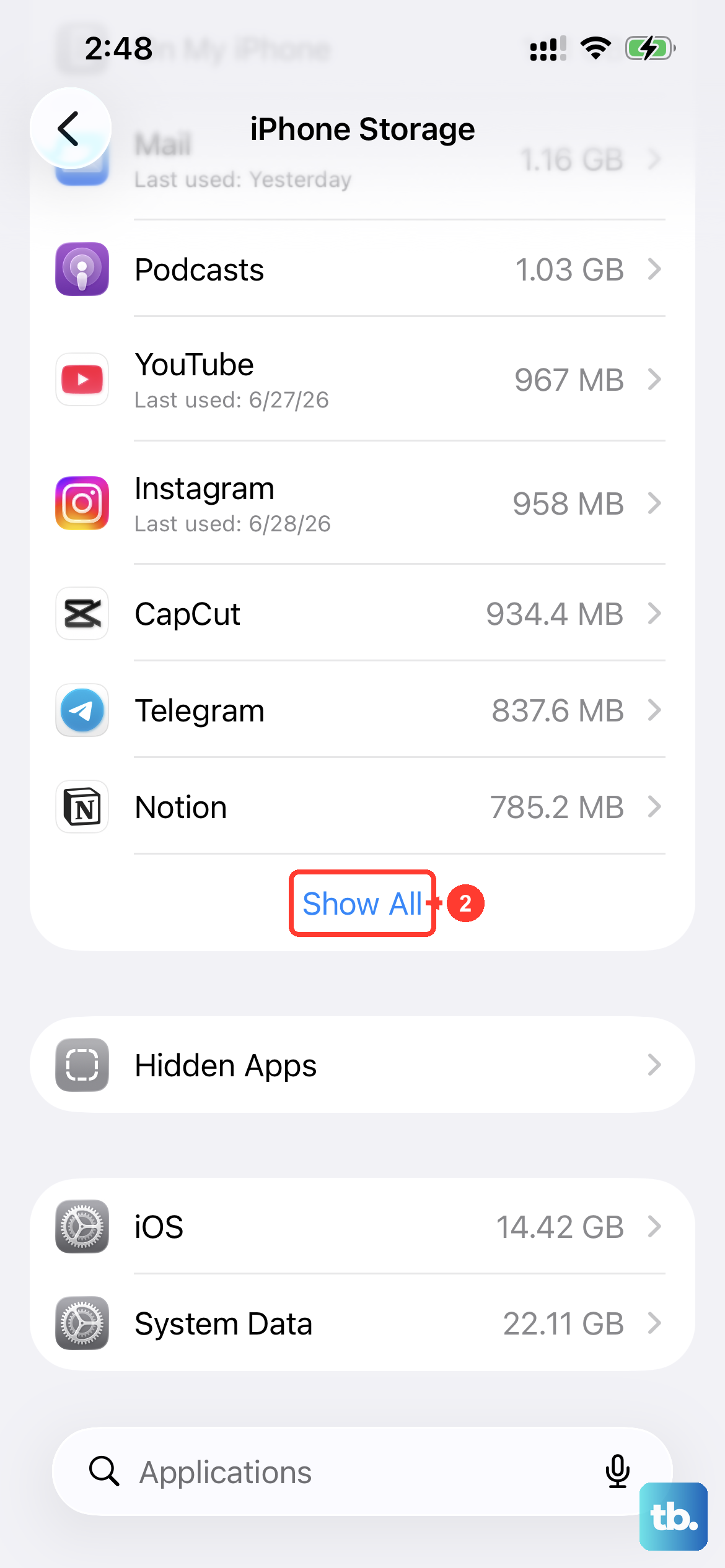
Low storage can prevent new media from downloading. Go to Settings > General > iPhone Storage and check how much space you have. If it's less than 1GB, you'll need to clear out some old photos, videos, or large message threads.
You can quickly delete old conversations in Messages by swiping left on a thread and tapping Delete. Or go to Settings > Apps > Messages and turn on Keep Messages set to 30 days or 1 year to auto‑clean older chats.
Toggle iMessage Off and Back On
Sometimes the iMessage service just needs a reset. Open Settings > Apps > Messages and flip the iMessage toggle off. Wait about 30 seconds, then turn it back on. Your iPhone will re‑register with Apple's servers and may resolve any hiccup blocking MMS downloads.
This fix is particularly helpful if you've recently switched carriers or SIM cards.
Update Your Carrier Settings
Carriers push out small configuration updates that affect MMS behavior. To check for one, make sure your iPhone is connected to Wi‑Fi, then go to Settings > General > About. If an update is available, you'll see a prompt to install it after a few seconds.
You can also tap Carrier on that screen to see the version number. If it's been a while, a carrier settings update can fix MMS download failures caused by outdated network parameters.
Reset Network Settings
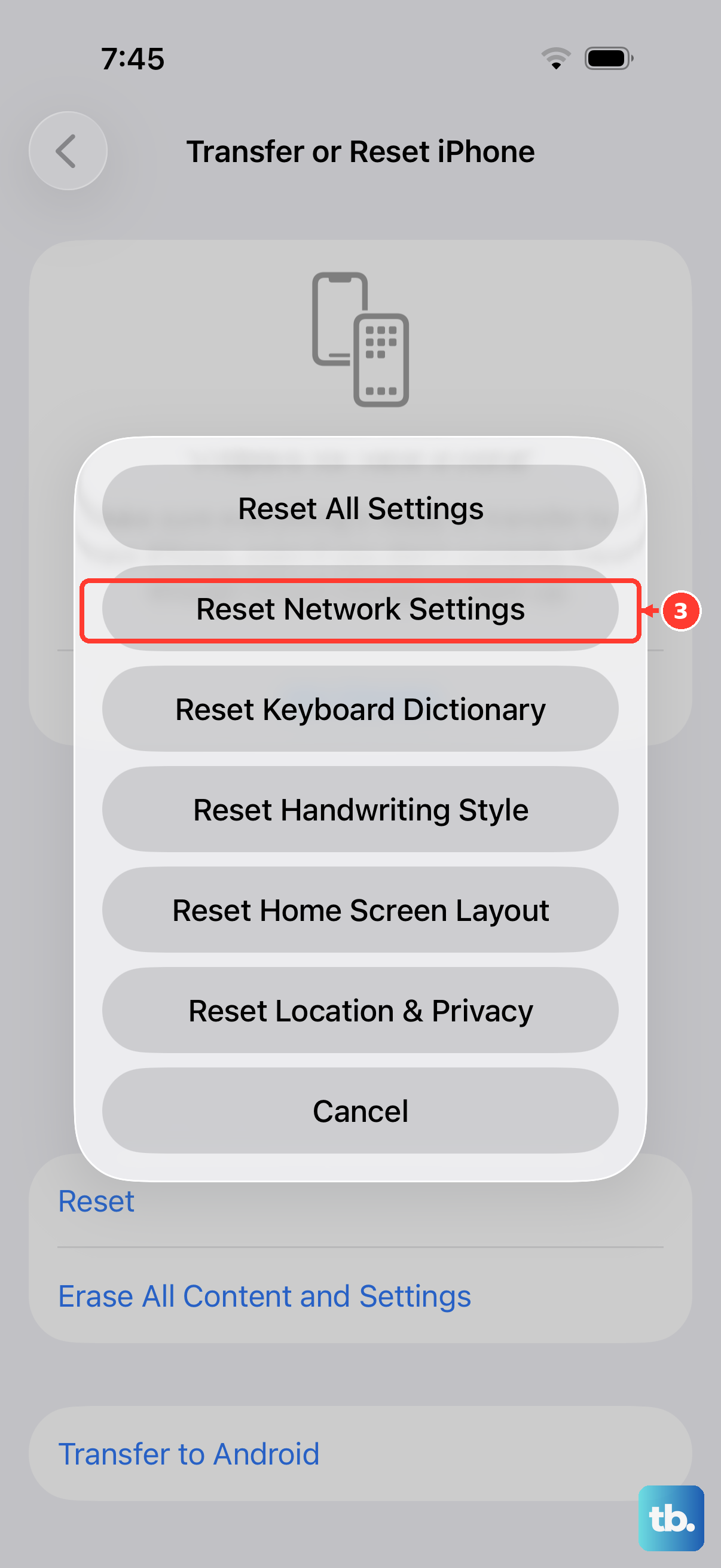
This clears saved Wi‑Fi passwords, Bluetooth connections, and cellular settings, but it doesn't touch your personal data. It's a safe step when MMS issues persist. Go to Settings > General > Transfer or Reset iPhone > Reset > Reset Network Settings.
Your iPhone will restart. Afterward, you'll need to reconnect to Wi‑Fi networks, but MMS downloads often start working again right away.
Update to the Latest iOS 26 Version
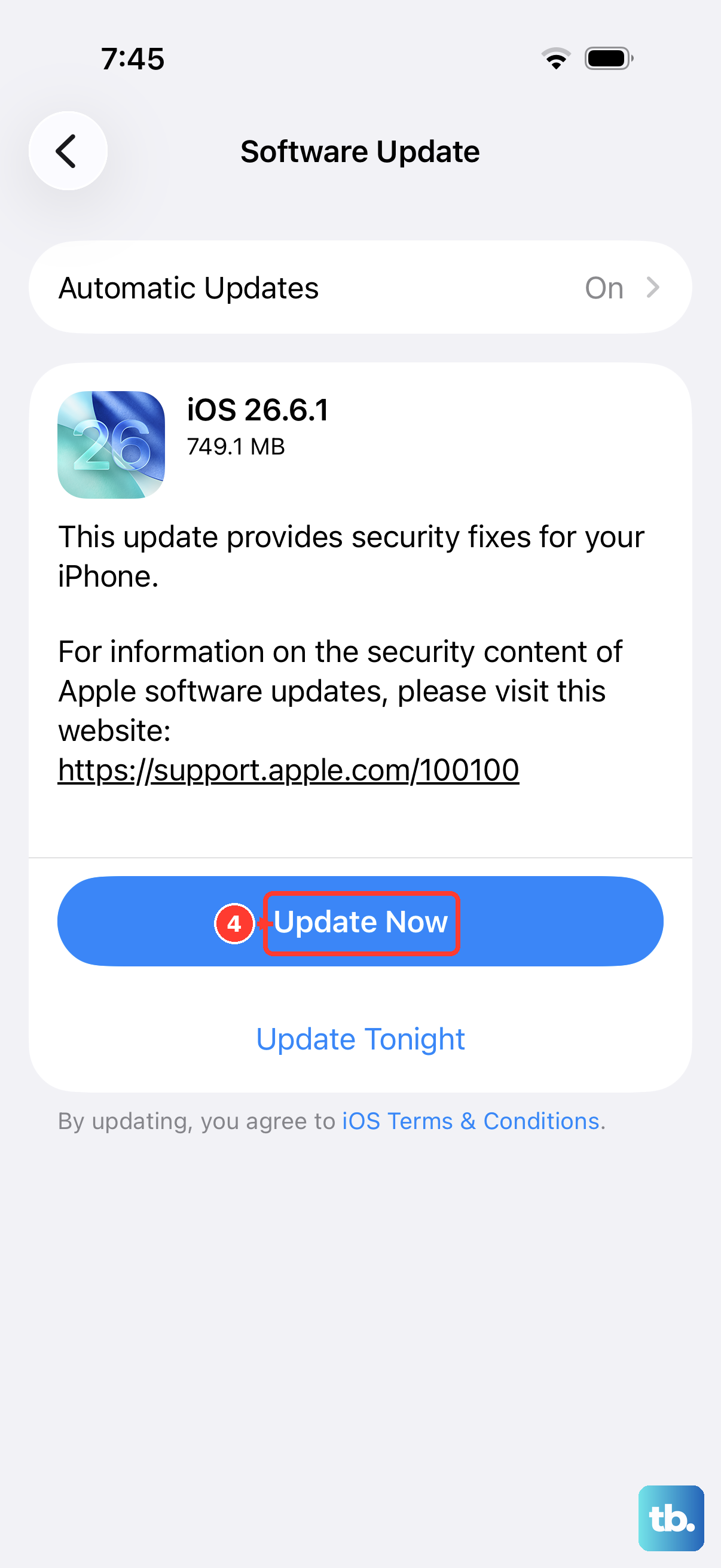
iOS updates include bug fixes that can resolve MMS problems. Go to Settings > General > Software Update and download any available update. The iPhone Air runs iOS 26, and if you're on an older build, the update may specifically address MMS download issues.
Make sure to plug in your charger or have at least 50% battery before starting the update.
Check Your Message Blocking & Contact Settings
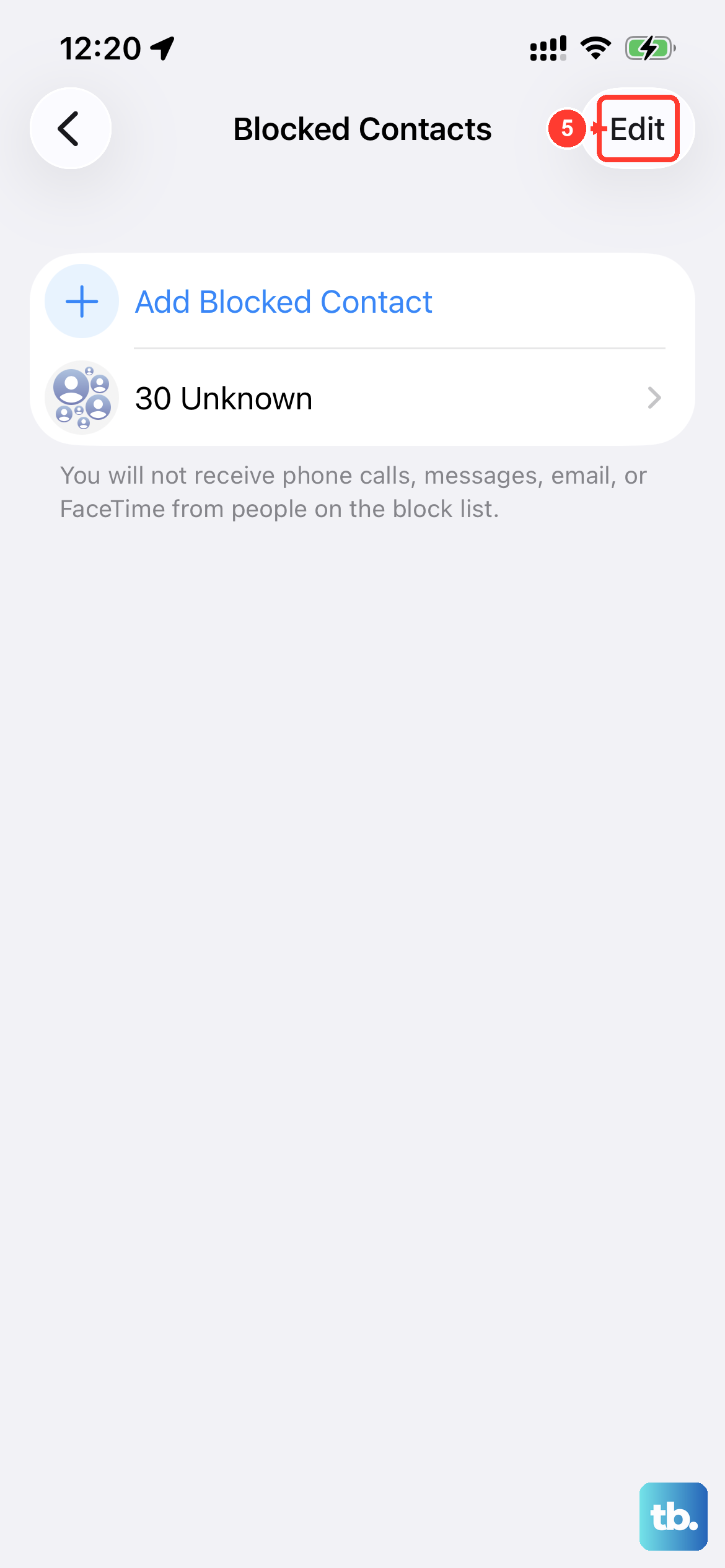
If you've blocked the sender or if their number isn't saved correctly, the MMS may never download. Open Settings > Apps > Messages > Blocked Contacts and see if the sender is listed. If so, unblock them.
Also ensure the sender's phone number is saved in your contacts with the correct country code. A missing +1 (for US numbers) can sometimes cause MMS routing issues.
If none of these steps work, the problem might be on your carrier's end, contact them to confirm that MMS isn't blocked on your account or that there isn't an outage in your area. But in my experience, one of the first seven fixes here usually gets MMS downloading again on the iPhone Air.