You went to use your iPhone 16 and it just sits there, the Apple logo glowing on a black screen while nothing else happens. Maybe it followed an iOS update, a low battery, or seemingly nothing at all, but now the phone won't finish booting and you can't reach the Home Screen. The good news is that a stuck-on-logo iPhone is usually recoverable without a trip to a repair counter, and most of the fixes below cost you nothing but a little patience.
Your iPhone 16, iPhone 16 Plus, iPhone 16 Pro, and iPhone 16 Pro Max are all Face ID models with a Side button and Volume Up and Volume Down buttons, with no Home button. That matters here, because the force-restart and recovery-mode sequences depend on which buttons your phone has. The steps below are ordered so you start with the safest, data-preserving options and only reach the data-erasing ones if nothing else works.
Give the Boot Process Time Before You Touch Anything
Before you assume the phone is truly frozen, watch the screen for a while. If the Apple logo or a progress bar is showing, the phone may simply be partway through a slow update or restore, and interrupting it can make things worse.
The official guidance is to make sure the progress bar on your iPhone screen hasn't moved for at least one hour before you go any further. A long update or data restore can legitimately take time, so patience here can save you from unnecessary steps. Only move on if the bar is genuinely stuck and showing no progress.
Force Restart the iPhone 16
This is the safest first fix, and it does not erase any of your data. A force restart clears a frozen state and lets the phone attempt a clean boot. Because the iPhone 16 line has no Home button, it uses the iPhone 8 and later button sequence.
- 1.Press and quickly release the Volume Up button.
- 2.Press and quickly release the Volume Down button.
- 3.Press and hold the Side button until you see the Apple logo, then release. This might take longer than 10 seconds.
The key detail is the order and the quick release on the volume buttons, followed by a long hold on the Side button. If the logo appears and the phone boots normally afterward, you're done. If it gets stuck at the logo again, keep going.
Charge for an Hour, Then Try Again
A drained battery or a faulty cable can mimic a boot loop, so power is worth ruling out next. If the phone still won't get past the logo or won't respond at all, connect it to power using a known-good cable and adapter.
Charge it for one hour, then try the force restart again. If you see a low-battery charging icon on the screen, charge for 30 minutes or until it starts. Swapping in a different cable or adapter during this step also helps confirm the accessory isn't the problem.
Install Any Pending iOS Update If the Phone Boots Briefly
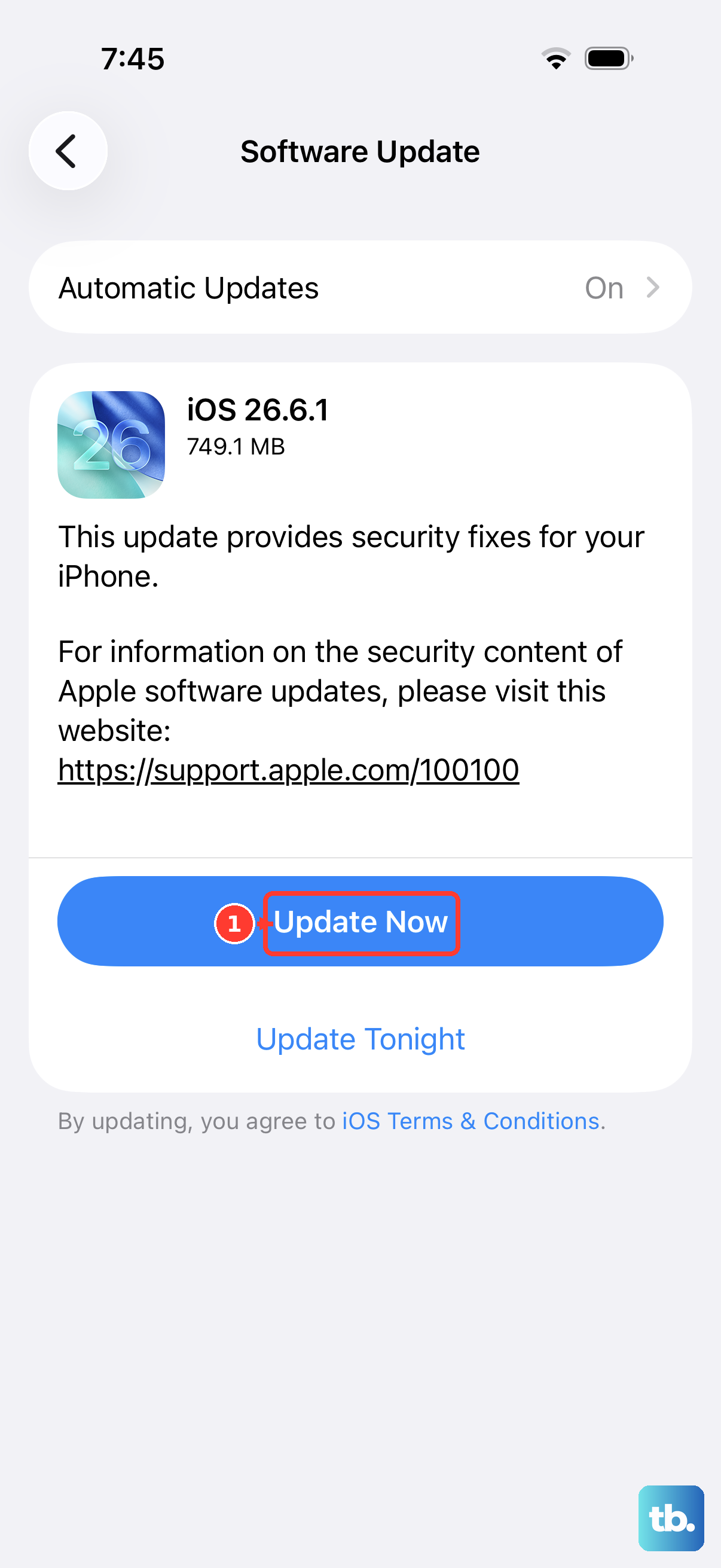
Sometimes the phone manages to reach the Home Screen for a moment between attempts, and that window is your chance to clear a software bug that may be causing the boot problem. Installing a pending iOS update can resolve issues that prevent a clean startup. The iPhone 16 line is supported by current iOS, which is iOS 26.
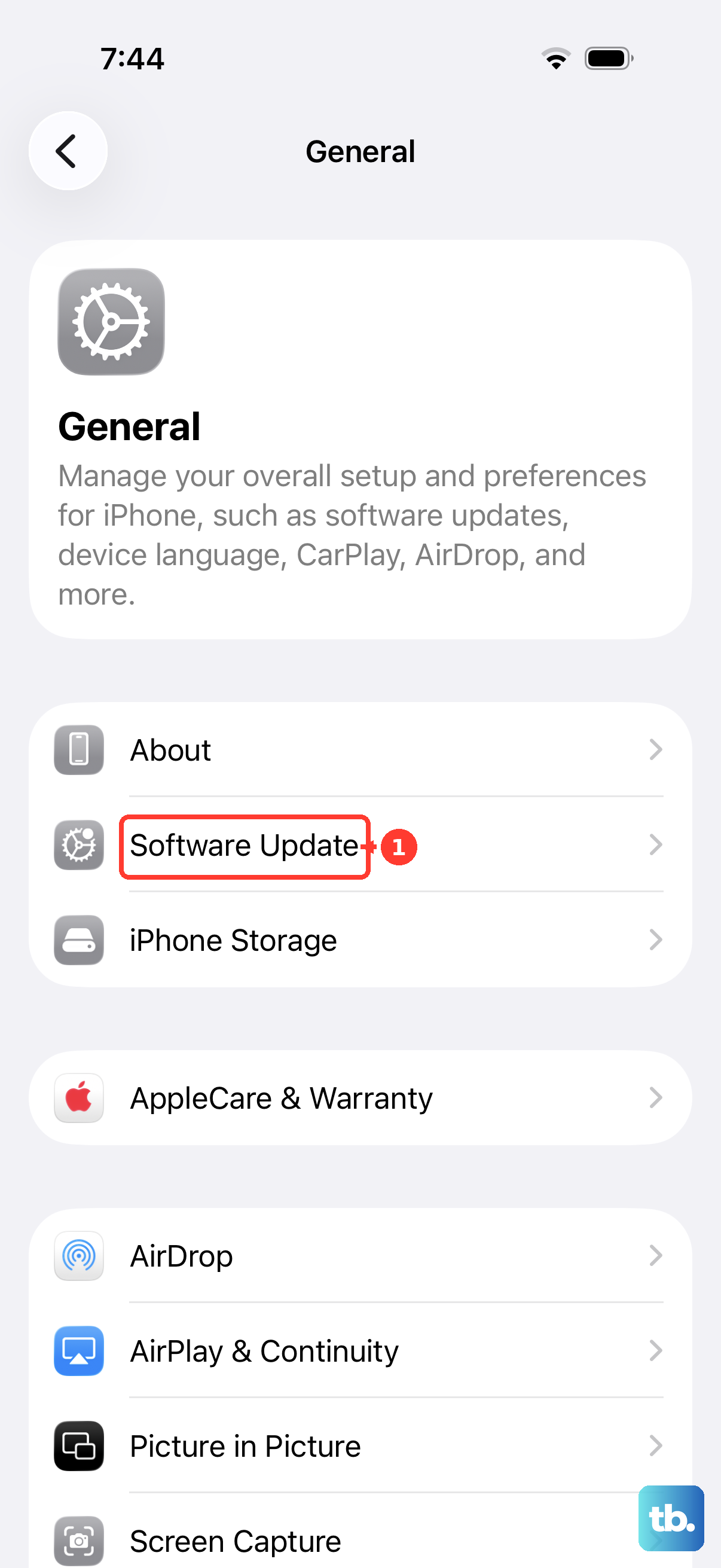
If you can reach the Home Screen, back up first, then keep the phone connected to power and on Wi-Fi. Go to Settings > General, then tap Software Update, and tap Install Now (or Download and Install if the update needs to download first). Let it complete without interruption while it stays on power.
Connect to a Computer and Choose Update in Recovery Mode
If the phone stays stuck no matter what you try on the device itself, the next step is recovery mode with a computer. This lets you reinstall iOS without erasing your data, which is exactly why it comes before any restore option. First, get the right software ready on your computer.
On a Mac with macOS Catalina 10.15 or later, you'll use Finder. On a Windows PC, use the Apple Devices app. On an older Mac (macOS Mojave 10.14 or earlier) or a PC without the Apple Devices app, use iTunes.
Connect the iPhone to the computer first, then put the iPhone 16 into recovery mode.
- 1.Press and release the Volume Up button.
- 2.Press and release the Volume Down button.
- 3.Press and hold the Side button. Keep holding it until you see the recovery mode screen, which is the Connect to computer screen. Do not let go when the Apple logo appears; keep holding until the recovery screen shows.
When your computer asks whether to update or restore, choose Update. This updates your device to the latest version of iOS and, importantly, keeps your data intact. Give it time to finish, and if the download takes a long time and the phone exits recovery mode, repeat the steps and let it complete.
Restore the iPhone When Update Doesn't Help
If choosing Update did not fix the boot loop, the next option is to restore the device, but understand the trade-off first. Restore reinstalls iOS and erases all your data. The official guidance is clear that you should only do this after trying Update, which is why it sits this far down the list.
To restore, repeat the recovery mode steps above (Volume Up, Volume Down, then hold the Side button until the Connect to computer screen appears), then choose Restore when prompted. If you have a backup in iCloud or on your computer, you can restore your data afterward during the setup process. Without a backup, the data on the phone cannot be recovered after a Restore, so weigh this carefully.
Erase All Content and Settings as a Last Software Resort
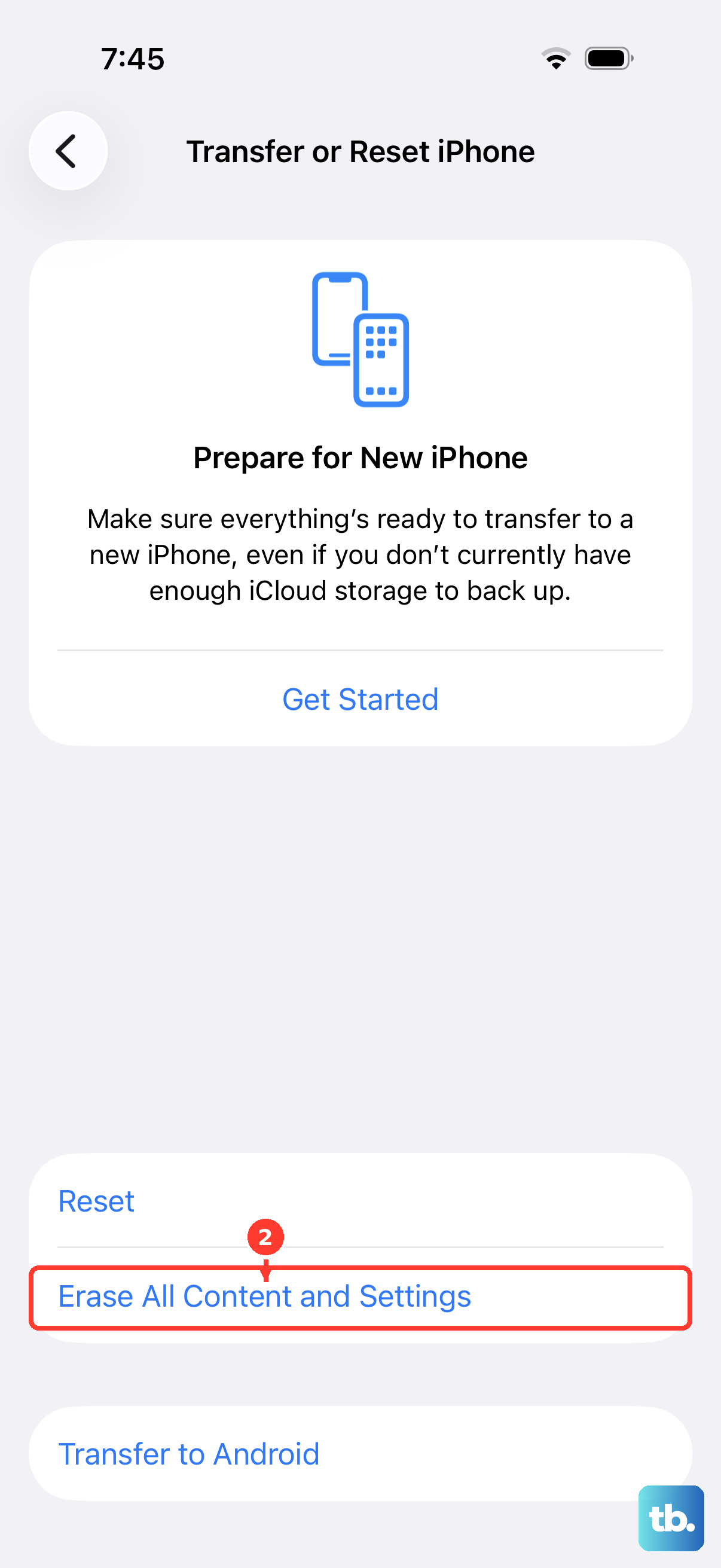
This step applies only if your iPhone is actually usable and can reach the Settings app, but keeps misbehaving with repeated boot trouble. A full reset can clear corrupted settings that survive a normal restart. Because it wipes the device, treat it as a last software option.
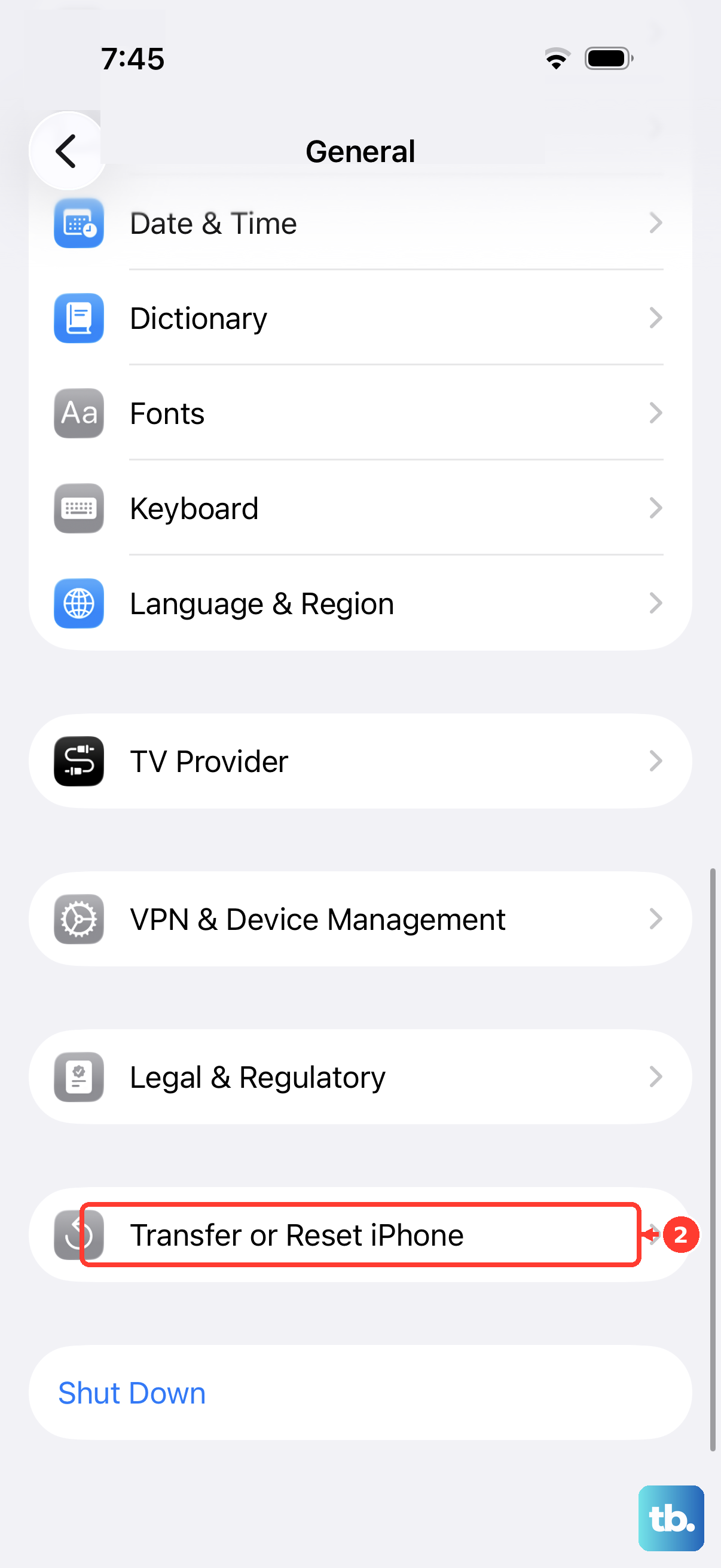
Back up first, then go to Settings > General > Transfer or Reset iPhone > Erase All Content and Settings. This securely erases your personal information, content, and settings and restores the device to factory settings, ending at the Hello setup screen. Make sure your backup is complete and accessible before you start, since everything on the phone will be gone.
Reach Apple Support or Arrange Service
If none of the steps above gets your iPhone 16 past the logo, the problem may be one that software fixes can't solve, and the phone may need service. At that point, the right move is to get help through official Apple Support rather than continue cycling through resets.
Official Apple Support can offer further suggestions or schedule service for an iPhone that still won't turn on or can't be restored. Have your backup status and a quick summary of what you've already tried ready, since that helps speed up the conversation.
Frequently Asked Questions
How long should I wait before deciding my iPhone 16 is really stuck?
Make sure the progress bar on the screen hasn't moved for at least one hour before taking further action. A slow update or restore can legitimately take a long time, and interrupting it partway through can cause more problems, so give it that full window first.
Will force restarting my iPhone 16 delete my data?
No. A force restart simply reboots a frozen phone and does not erase any data, which is why it's the safest first fix. For the iPhone 16 you press and quickly release Volume Up, press and quickly release Volume Down, then press and hold the Side button until the Apple logo appears, which can take longer than 10 seconds.
What's the difference between Update and Restore in recovery mode?
Update reinstalls iOS and keeps your data, so try it first. Restore reinstalls iOS but erases all your data, so only choose it if Update doesn't fix the problem and ideally only when you have a recent backup to restore from afterward during setup.
My iPhone 16 won't turn on at all after the logo, not even to charge. What now?
Connect it to power with a known-good cable and adapter and charge for one hour, then try the force restart again. If a low-battery charging icon appears, charge for 30 minutes or until it starts; a drained battery or bad cable can imitate a boot loop.
What software do I need on my computer to fix this?
On a Mac running macOS Catalina 10.15 or later you'll use Finder. On a Windows PC you'll use the Apple Devices app, and on an older Mac (macOS Mojave 10.14 or earlier) or a PC without that app you'll use iTunes. No separate companion app is needed on the phone itself.