
Press and release the Volume Up button, then press and release the Volume Down button. Immediately press and hold the Side button until you see the Apple logo appear. This force restart is the most effective first step for a frozen touchscreen on the iPhone 16.
If touches seem to go missing, run an online touch screen test first. The grid fills in wherever the screen registers contact, so gaps stand out immediately.
It clears the device's temporary memory without erasing any of your data. I'd start with this one every time, as it resolves most temporary software glitches causing the freeze.
Charge Your iPhone 16
Plug your iPhone into a known-good USB-C cable and a power adapter that supports at least 27W. Let it charge for at least 30 minutes. An extremely low battery can cause the device to become unresponsive or appear frozen.
If you're using MagSafe, ensure the charger is properly aligned on the back of the phone. Thick cases can prevent a good connection, so try removing the case first. The iPhone 16 supports both MagSafe and the newer Qi2 standard for wireless charging.
Update to the Latest iOS Version
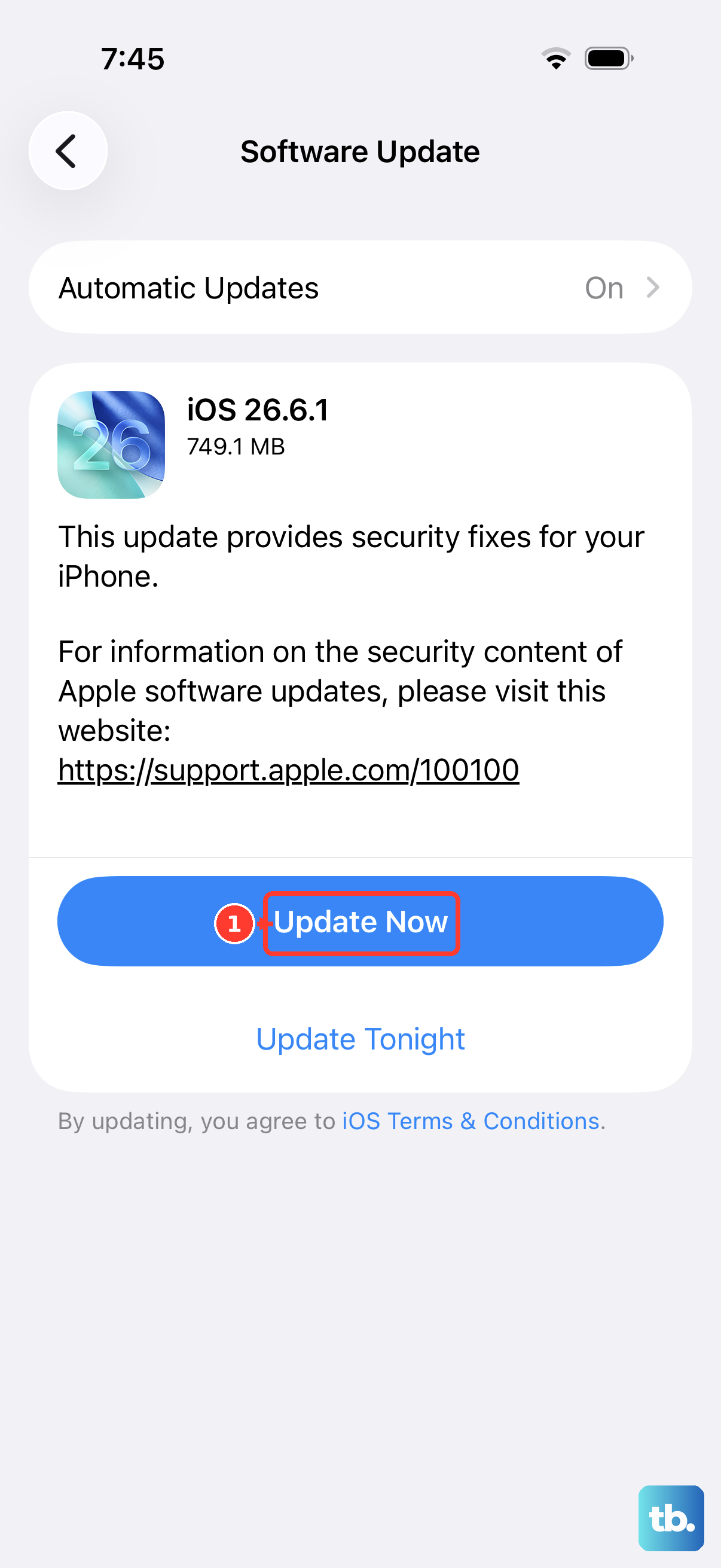
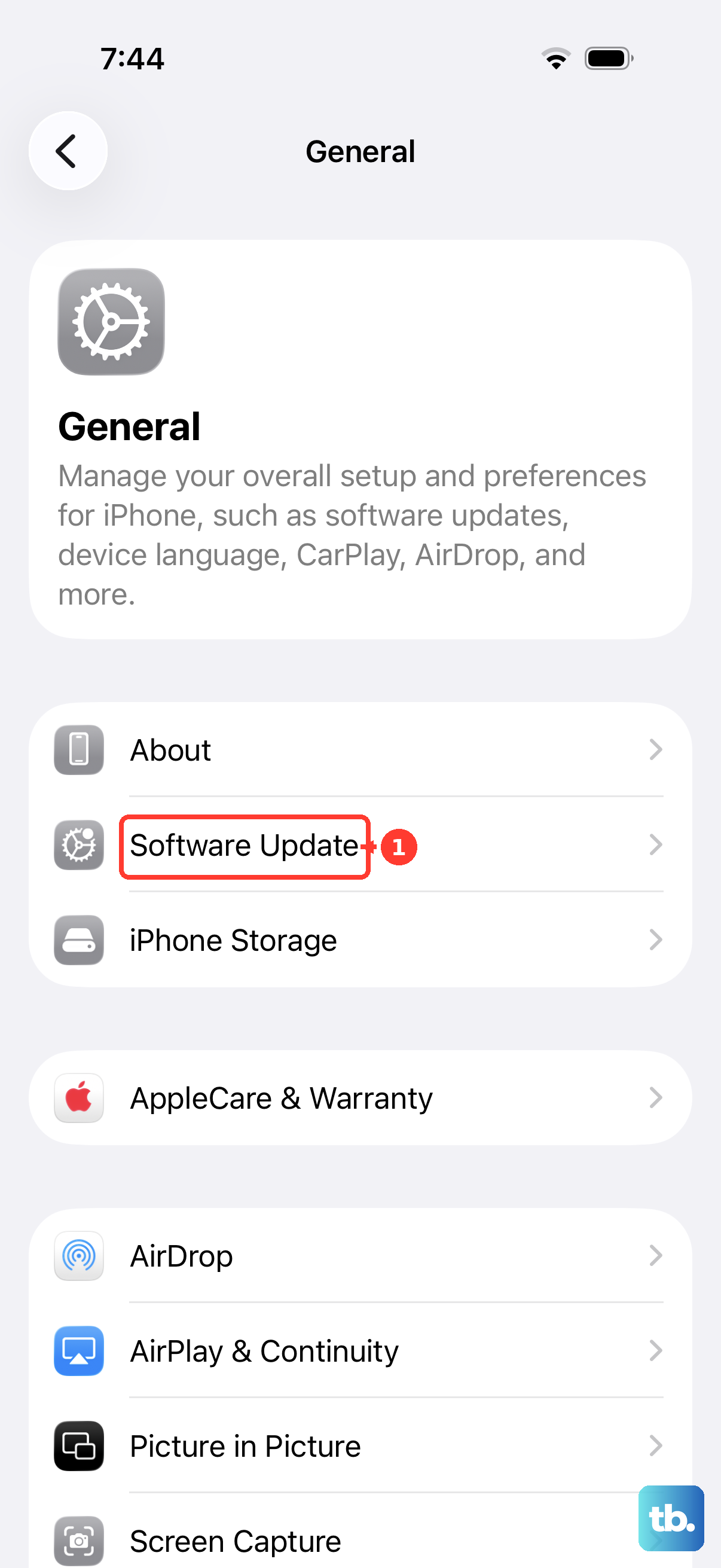
Go to Settings > General > Software Update. If an update is available, tap Download and Install. Make sure your iPhone is connected to Wi-Fi and has sufficient battery or is plugged in.
Software bugs that cause touchscreen freezes are often patched in subsequent updates. Since you're on iOS 26, Apple is likely still releasing stability improvements for this version.
Check for a Stuck Button or Case Interference
Inspect the Side button and both volume buttons. Make sure none of them are physically stuck in a pressed position. A stuck button can confuse the system and make the screen seem frozen.
Also, remove your iPhone from its case. Sometimes a case can put pressure on the screen edges or buttons, which might interfere with touch sensitivity. Test the touchscreen with the case off to see if it responds.
Close All Apps and Restart Normally
If you can still access the App Switcher, try swiping up on any open apps to close them. After that, restart your iPhone normally by going to Settings > General > Shut Down.
Slide the power off slider, wait a full minute, then press the Side button again to turn it back on. This is a cleaner restart than a force restart and can help if a specific app is causing the system to hang.
Reset All Settings
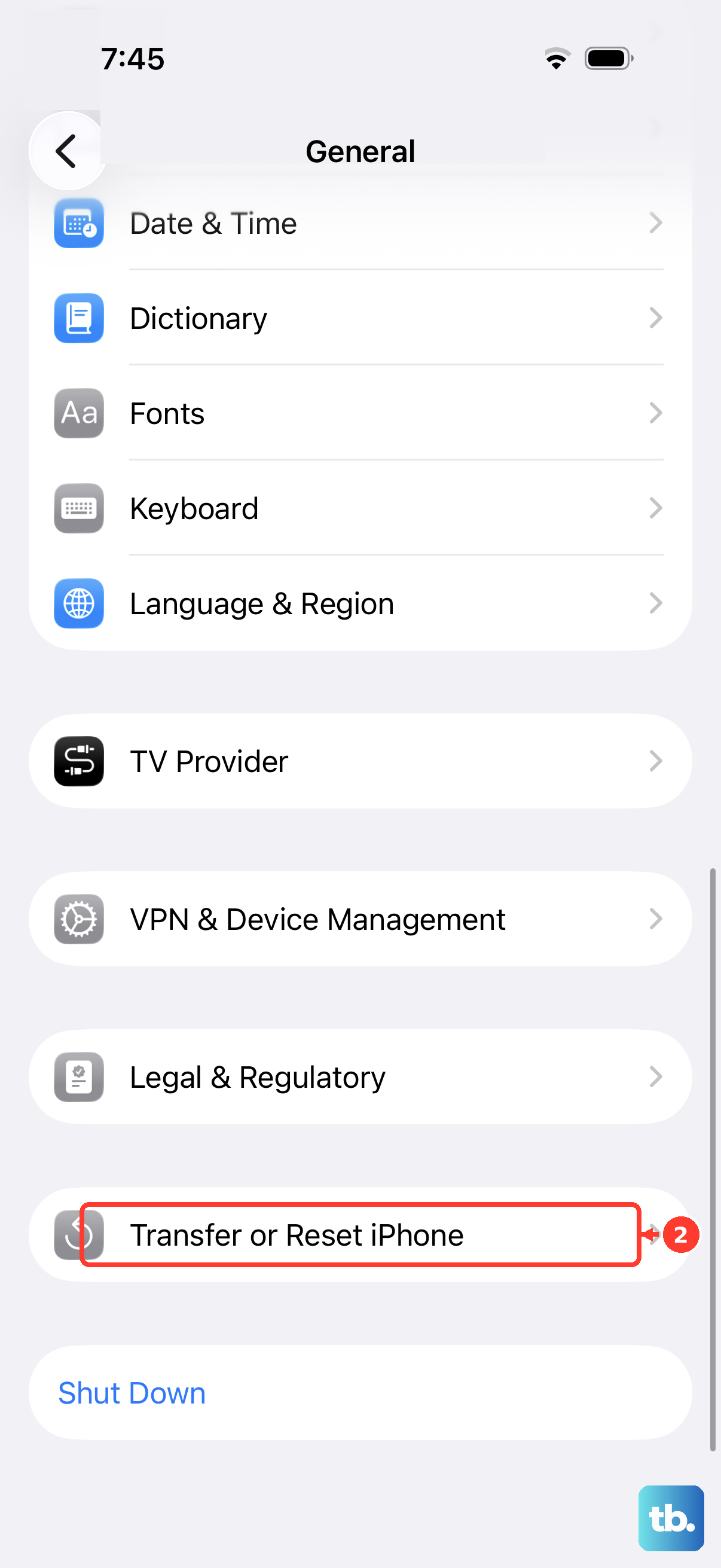
This will reset your network, keyboard, and privacy settings back to default, but it won't delete your photos or apps. Go to Settings > General > Transfer or Reset iPhone > Reset.
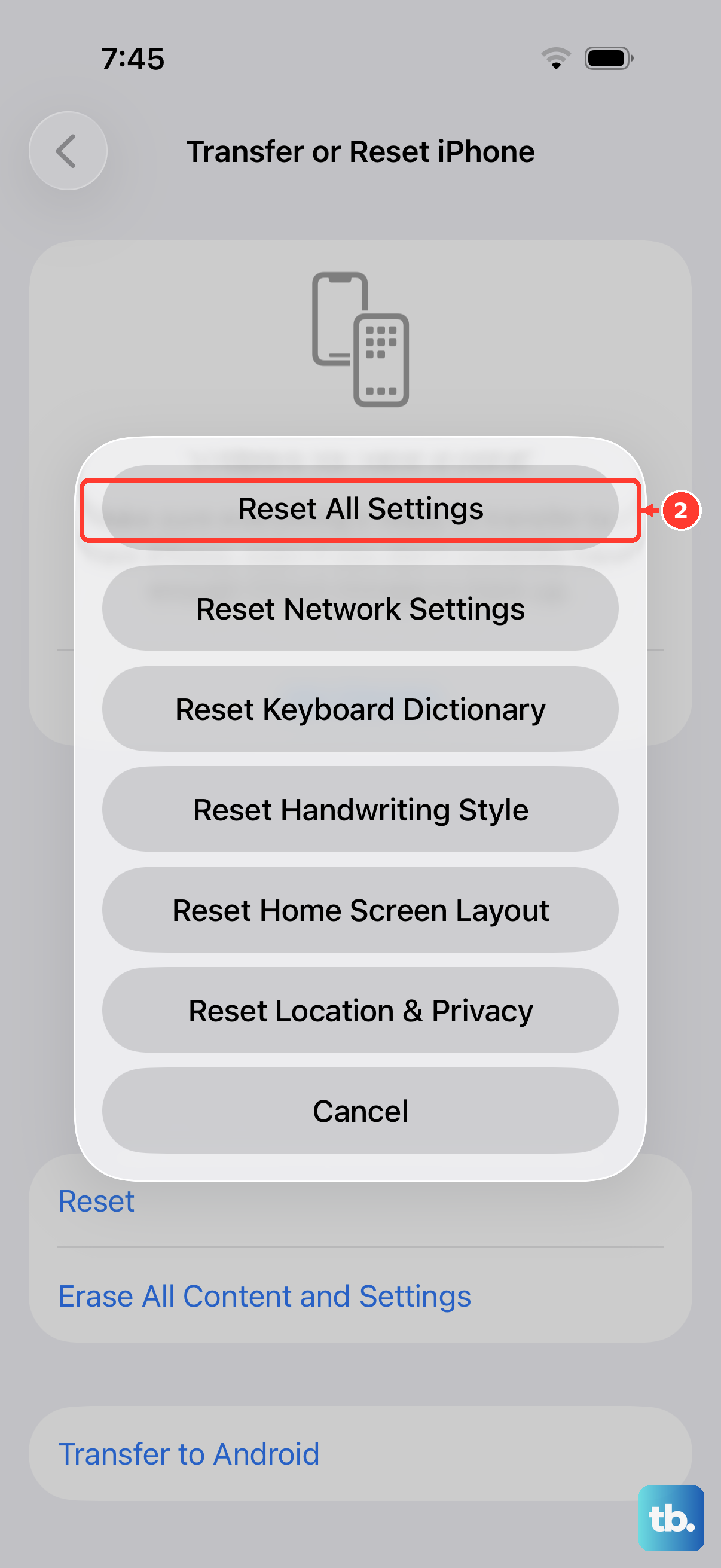
Tap Reset All Settings and enter your passcode. This can fix deeper configuration conflicts that might be causing the touchscreen to freeze. You'll need to reconnect to Wi-Fi networks afterward.
Check for Physical Screen Damage
Look closely at your iPhone 16's screen under a bright light. Check for any new cracks, deep scratches, or spots that look discolored. Even hairline cracks can damage the delicate digitizer layer underneath the glass.
If you see damage, or if the screen is unresponsive only in certain areas, the issue is likely physical. Gently clean the screen with a microfiber cloth to rule out any conductive residue from fingers or lotion.
Restore Your iPhone via a Computer
Connect your iPhone 16 to a Mac or PC using a USB-C cable. On a Mac with macOS Catalina or later, or a PC with iTunes, you can put the device into recovery mode and restore it.
First, perform a force restart, but keep holding the Side button until you see the recovery mode screen. From here, you can choose to update (which tries to reinstall iOS without erasing data) or restore (which erases everything and installs a fresh copy of iOS). This is the most comprehensive software fix available.