You open Settings to grab the newest iOS 26 release on your iPhone 16 Pro, and instead of installing, the update spins forever, throws an error, or never shows up at all. It is a frustrating spot to be in, especially on a current Pro model that Apple fully supports for iOS 26. The good news is that a stalled iPhone update almost always comes down to power, storage, network, or a stuck download file, and every one of those has a clean fix.
Apple lists both the iPhone 16 Pro and iPhone 16 Pro Max as compatible with iOS 26, so the software update should be available to you. The fixes below are ordered from the easiest and safest to the most involved, so start at the top and stop as soon as the update goes through. Only the final step touches your data, and it carries the proper backup warning.
Confirm your iPhone 16 Pro has everything an update needs
Before changing any settings, make sure the basics are covered. Apple says you need a compatible device, a power source, an internet connection, and enough available storage to install an update. Your iPhone 16 Pro is on the compatible list for iOS 26, so the model itself is never the problem.
Run through those four requirements one at a time. Confirm the phone is plugged in or has a strong charge, that it is on a working internet connection, and that there is room to store the download. Getting all four in place first often resolves the issue before you have to dig any deeper.
Plug into power, join Wi-Fi, and try the update again
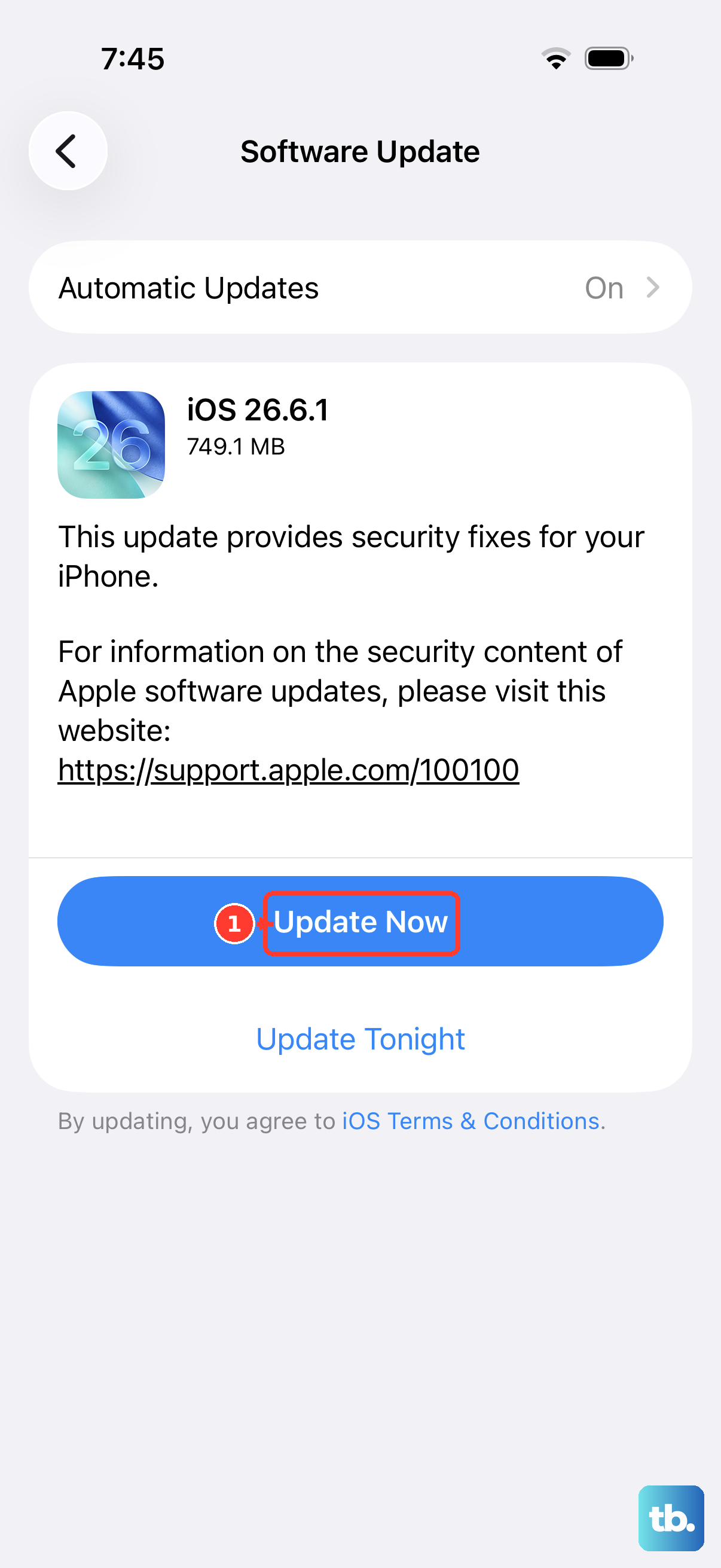
Most over-the-air update failures clear up once the phone has steady power and a solid Wi-Fi connection. Apple advises you to plug your device into power, connect to the internet with Wi-Fi, and keep the device connected to a power source while the update runs.
Connect your iPhone 16 Pro to a power source.
Join a Wi-Fi network.
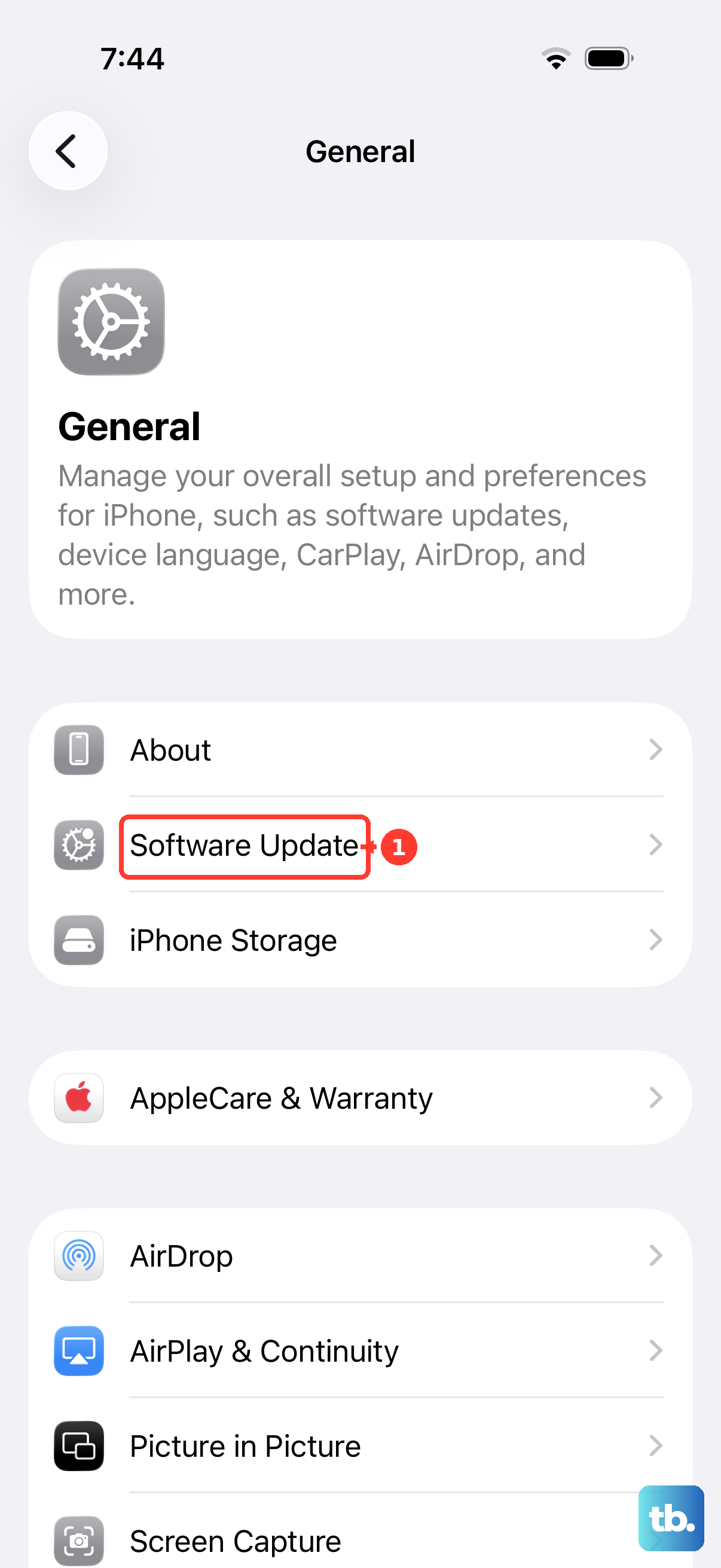
Go to Settings > General > Software Update.
Tap "Download and Install" (or "Install Now").
If the device happens to run out of power partway through, do not panic. Reconnect it to power and turn it back on, and the update will pick back up and complete on its own.
Free up storage so the update can download and install
An update will refuse to download or install if there is not enough free space to hold it. Clearing room is one of the most common cures for an update that simply will not move.
Go to Settings > General > [Device] Storage.
Tap Enable next to Offload Unused Apps, which clears app data while keeping your documents.
Alternatively, manually delete apps you no longer need to make room.
Return to Settings > General > Software Update and try again.
Offloading is the gentler option because it keeps your files and lets the apps reinstall later, so try that before deleting anything outright.
Switch networks if you hit a connection or download error
Sometimes the trouble is the network, not the phone. You may see messages such as "Unable to Check for Update," "Unable to Download. This update is not available because you are not connected to the internet," or "Unable to Download. This update requires a Wi-Fi network connection to download."
When that happens, try updating again on the same network first. If it still fails, switch to another network or update using a computer instead. A different Wi-Fi network, such as one at home versus one at work, frequently gets the download flowing where the first one stalled.
Delete the stuck update file and download a fresh copy
A partially downloaded or corrupted update file can jam the whole process. Removing it forces your iPhone 16 Pro to grab a clean copy, which clears most genuinely stuck updates.
Go to Settings > General > [Device] Storage.
Find the update in the list of apps.
Tap the update, then tap "Delete Update".
Go to Settings > General > Software Update and download the latest update again.
This is a safe step that touches only the downloaded installer, not your photos, apps, or personal data, so there is no risk in trying it.
Force restart the iPhone 16 Pro if it freezes mid-update
If the screen locks up during the update, a force restart will jolt the phone back to life without erasing anything. The iPhone 16 Pro uses Face ID and has no Home button, so it follows the Face ID sequence exactly as written below.
- 1.Press and quickly release the volume up button.
- 2.Press and quickly release the volume down button.
- 3.Press and hold the side button.
- 4.When the Apple logo appears, release the side button.
Follow that order precisely. The two quick taps come first, then the long hold on the side button. After the phone restarts, head back to Settings > General > Software Update and try the update once more.
Update with a computer when over-the-air keeps failing
When the wireless update will not cooperate no matter what, a cable and a computer give you a more reliable path. Back up your iPhone first before you go this route.
Connect the iPhone to the computer with a cable.
On a Mac with macOS Catalina or later, open Finder.
Select your device in the Finder sidebar.
Click General, then click "Check for Update".
Click "Download and Update" and follow the onscreen instructions; enter your passcode if prompted.
On a Mac running macOS Mojave or earlier, or on a Windows PC, use iTunes instead of Finder to perform the same update. There is no separate phone app to install, because Finder and iTunes are the official tools for updating over a cable.
Get your computer talking to Apple's update servers
If you connected the phone to a computer but it cannot reach the software update server, the holdup is on the computer's side, not the iPhone. The connection between your computer and Apple's servers is being blocked or misread somewhere.
Apple's separate guidance for this situation walks you through checking your security software, your internet connection, and your computer's date and time settings so the machine can actually reach the update servers. Correcting an off date or a blocking firewall is often all it takes to let the download through.
Back up, then erase all content and settings as a last resort
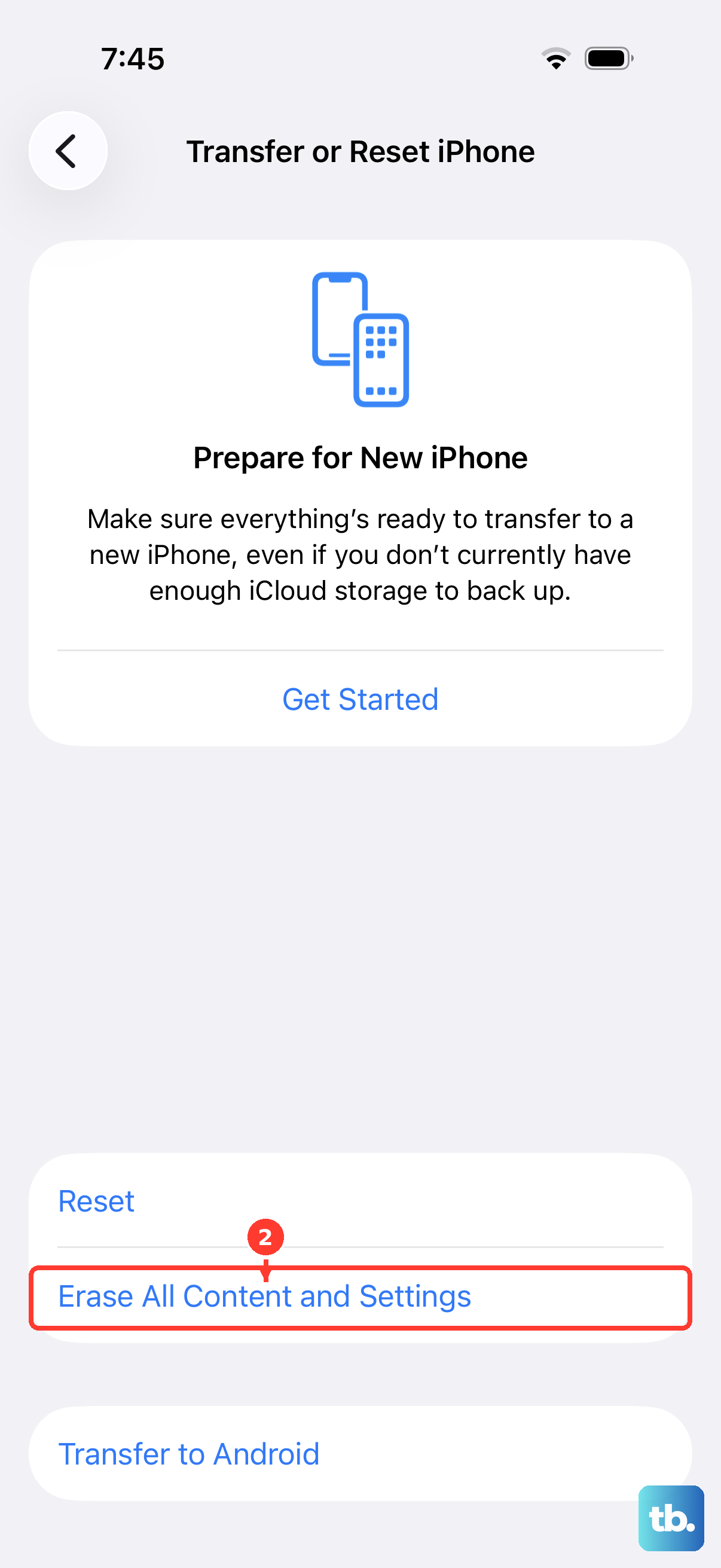
If every step above has failed, a full erase and restore is the final option. This step deletes your personal information, content, and settings and returns the iPhone 16 Pro to factory settings, so a current backup is essential before you begin. Do not skip the backup.
Back up your iPhone first.
Go to Settings > General > Transfer or Reset iPhone > Erase All Content and Settings.
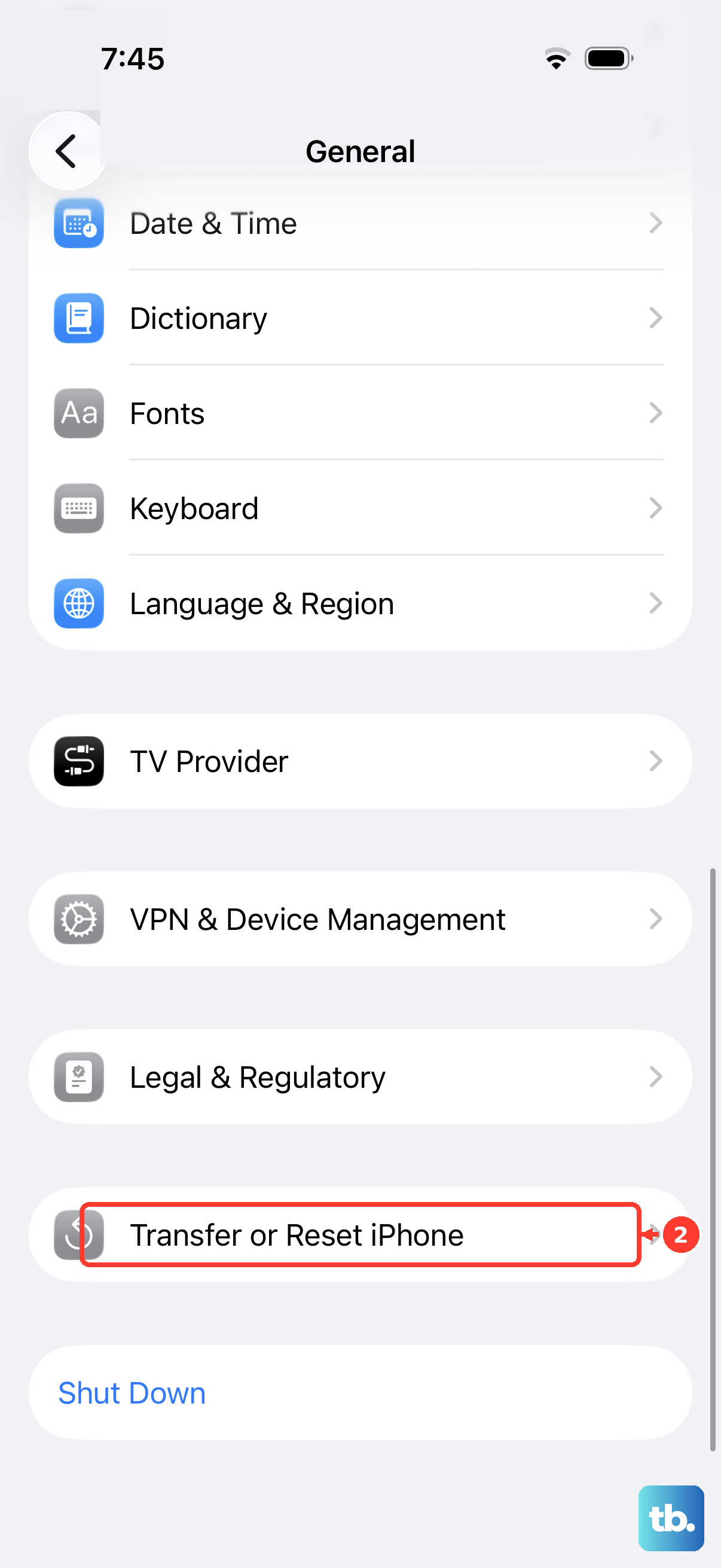
Tap Continue.
Choose Keep eSIM and Erase Data or Delete eSIM and Erase Data.
Enter your device passcode, then enter your Apple Account password.
If you choose Delete eSIM and Erase Data, you will need to contact your carrier afterward to reactivate cellular service, so Keep eSIM and Erase Data is usually the safer pick. After the erase finishes and you restore from your backup, try the update again. If you still cannot update, contact Apple Support.
Frequently Asked Questions
Is the iPhone 16 Pro compatible with iOS 26?
Yes. Apple's official compatibility list confirms that both the iPhone 16 Pro and iPhone 16 Pro Max support iOS 26, so the update should be available to you through Settings > General > Software Update.
How do I update my iPhone 16 Pro over the air?
Connect to power and Wi-Fi, then go to Settings > General > Software Update and tap "Download and Install" (or "Install Now"). Keep the phone plugged into a power source while the update runs.
Can I make my iPhone 16 Pro update on its own?
Yes. Go to Settings > General > Software Update > Automatic Updates, then turn on "Automatically Install" so updates download and install overnight while the phone is charging and connected to Wi-Fi. You can also turn on "Automatically Download."
What is the correct force restart for the iPhone 16 Pro?
Because it is a Face ID iPhone with no Home button, you press and quickly release the volume up button, press and quickly release the volume down button, then press and hold the side button until the Apple logo appears, at which point you release the side button.
Will erasing my iPhone delete my data?
Yes. Erase All Content and Settings removes your personal information, content, and settings and restores the iPhone to factory settings, which is why you must make a current backup before using it as a last resort.