
Seeing that "Not Delivered" alert when you try to send a photo from your iPhone 16 Pro is a real headache. The picture just sits there, stuck in a sending loop, and you're left wondering what's wrong. I'd start with the quick fixes below, as they resolve the majority of these issues.
Check Your Internet Connection First
This is almost always the culprit. If you're on Wi-Fi, look for the Wi-Fi icon in your status bar. If it's not there, head to Settings > Wi-Fi and reconnect.
For cellular data, ensure the signal is strong. Sometimes moving to a different spot or toggling Airplane Mode on and off from the Control Center can kickstart the connection. A weak signal will definitely stall a photo upload.
Restart Your iPhone 16 Pro
A simple restart clears out temporary software glitches that can hang up the Messages app. Press and hold the Side button and either volume button, then slide to power off.
Wait about 30 seconds before turning it back on. This takes less than a minute and often does the trick.
Verify iMessage is Active and Working
If your messages are green, you're sending via SMS/MMS, not iMessage. Blue bubbles mean iMessage is working. Go to Settings > Apps > Messages and make sure iMessage is toggled on.
Try turning it off, waiting a moment, and turning it back on. This refreshes the connection to Apple's servers. Also, check Settings > Apps > Messages > Send & Receive to ensure your phone number is selected.
Enable MMS Messaging for Text (SMS)
If you're texting someone without an iPhone, the photo sends as an MMS. This setting needs to be enabled. Navigate to Settings > Apps > Messages.
Scroll down and ensure MMS Messaging is switched on. If you don't see it, also check that Send as SMS is enabled as a fallback.
Check Your Cellular Data Settings
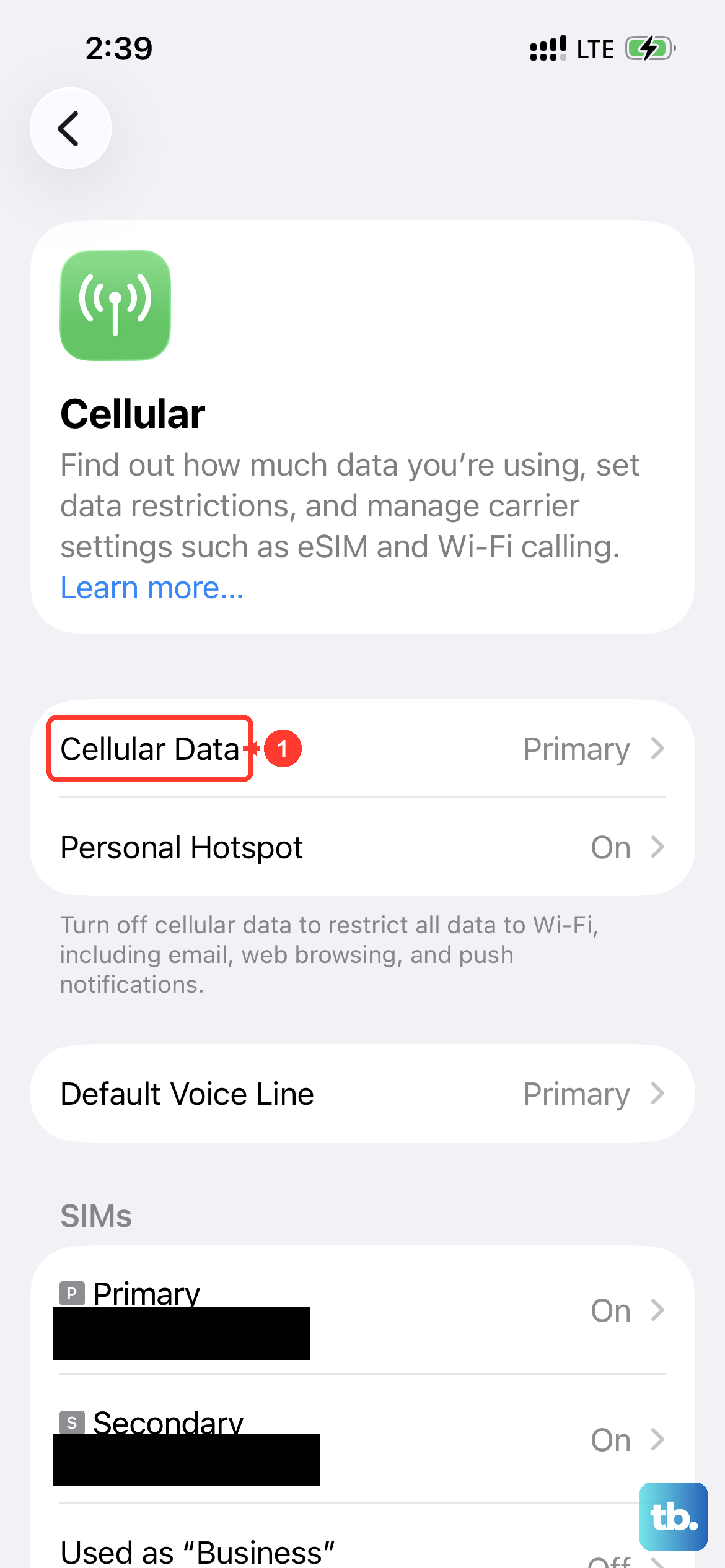
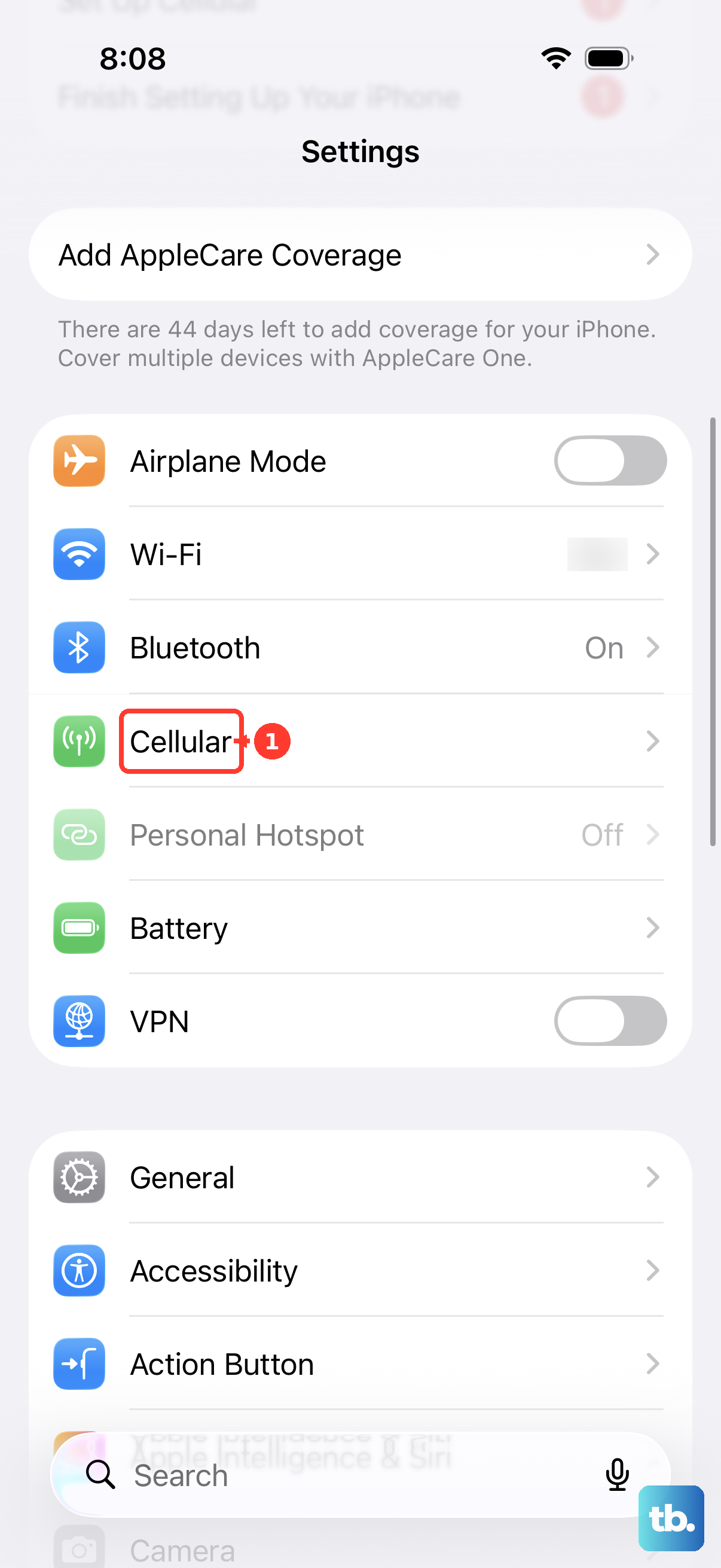
If you're not on Wi-Fi, your phone needs cellular data permission to send messages. Open Settings > Cellular (or Mobile Data in some regions).
Make sure the main Cellular Data toggle is green. Also, scroll down to ensure the toggle for Messages is enabled under the list of apps using cellular data.
Disable Low Data Mode
Low Data Mode on iOS 26 restricts background network activity to save your data plan, which can prevent photos from sending. You'll need to turn this off.
Go to Settings > Cellular > Cellular Data Options. Tap on your primary cellular plan and make sure Low Data Mode is turned off. Do the same under Settings > Wi-Fi if you're connected to a network.
Force Quit and Reopen the Messages App
Sometimes the app itself gets stuck. To close it fully, swipe up from the bottom of the home screen and pause in the middle to enter the app switcher.
Find the Messages app card and swipe it up and off the top of the screen to close it. Then, tap the Messages icon to reopen it and try sending the photo again.
Update Your Carrier Settings
Your carrier occasionally releases small updates that improve network connectivity. To check, make sure your iPhone 16 Pro is connected to the internet.
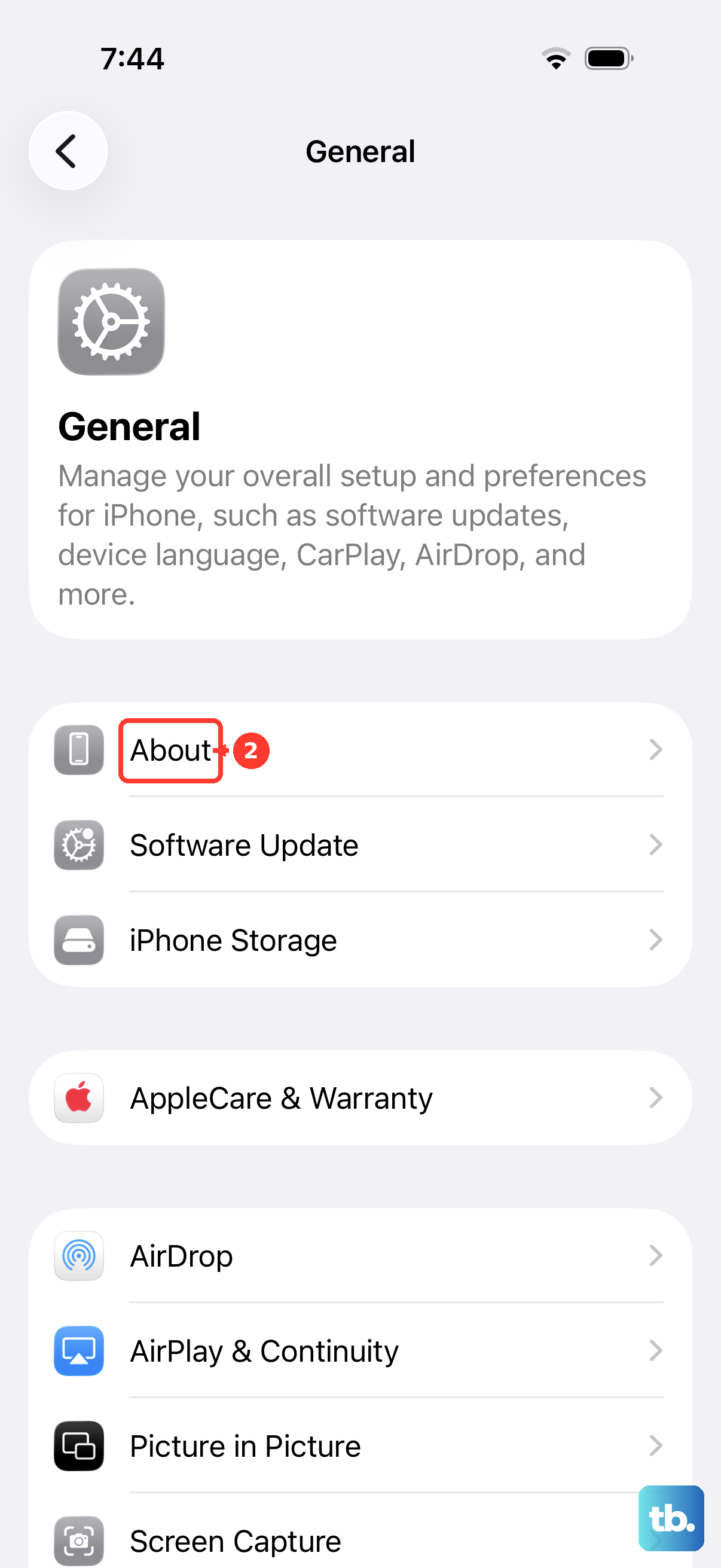
Then, go to Settings > General > About. If an update is available, a prompt will appear on this screen. Just follow the instructions to install it.
Sign Out and Back Into Your Apple ID
This refreshes your iMessage registration, which can solve persistent sending problems. First, go to Settings > [Your Name] at the very top.
Scroll all the way down and tap Sign Out. You'll need your Apple ID password. Restart your phone, then sign back in through Settings. This can take a few minutes to fully re-sync.
Reset Network Settings
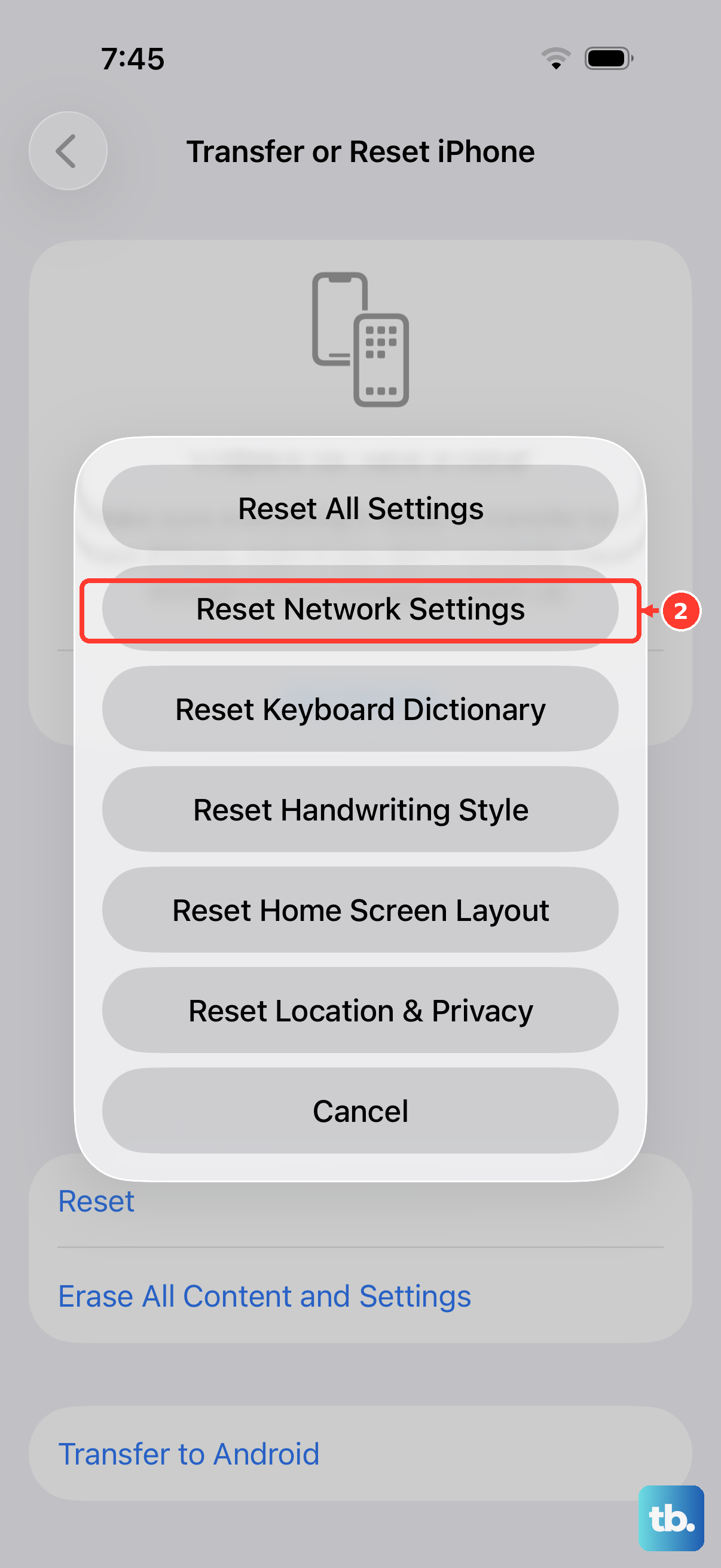
If you're still having trouble, this step clears all network-related configurations. It will erase saved Wi-Fi passwords, so be ready to re-enter them.
Go to Settings > General > Transfer or Reset iPhone > Reset. Choose Reset Network Settings and enter your passcode to confirm. Your iPhone 16 Pro will reboot and you can test the photo send again.