Your iPhone 16 Pro takes stunning ProRAW shots and 4K video, but all that quality fills storage fast, and a "Storage Almost Full" warning can stop you from snapping the next photo or installing an app. Because the iPhone 16 Pro ships in fixed capacities (128GB, 256GB, 512GB, or 1TB) with no microSD card or expansion slot, the only way to reclaim room is through the built-in iOS storage tools and iCloud.
The good news is that iOS gives you everything you need to see what is eating your space and clear it safely. The fixes below are ordered from the easiest and safest first to the official reset path last, so you can stop at the point where your storage is comfortable again.
See exactly what is filling your iPhone before you delete anything
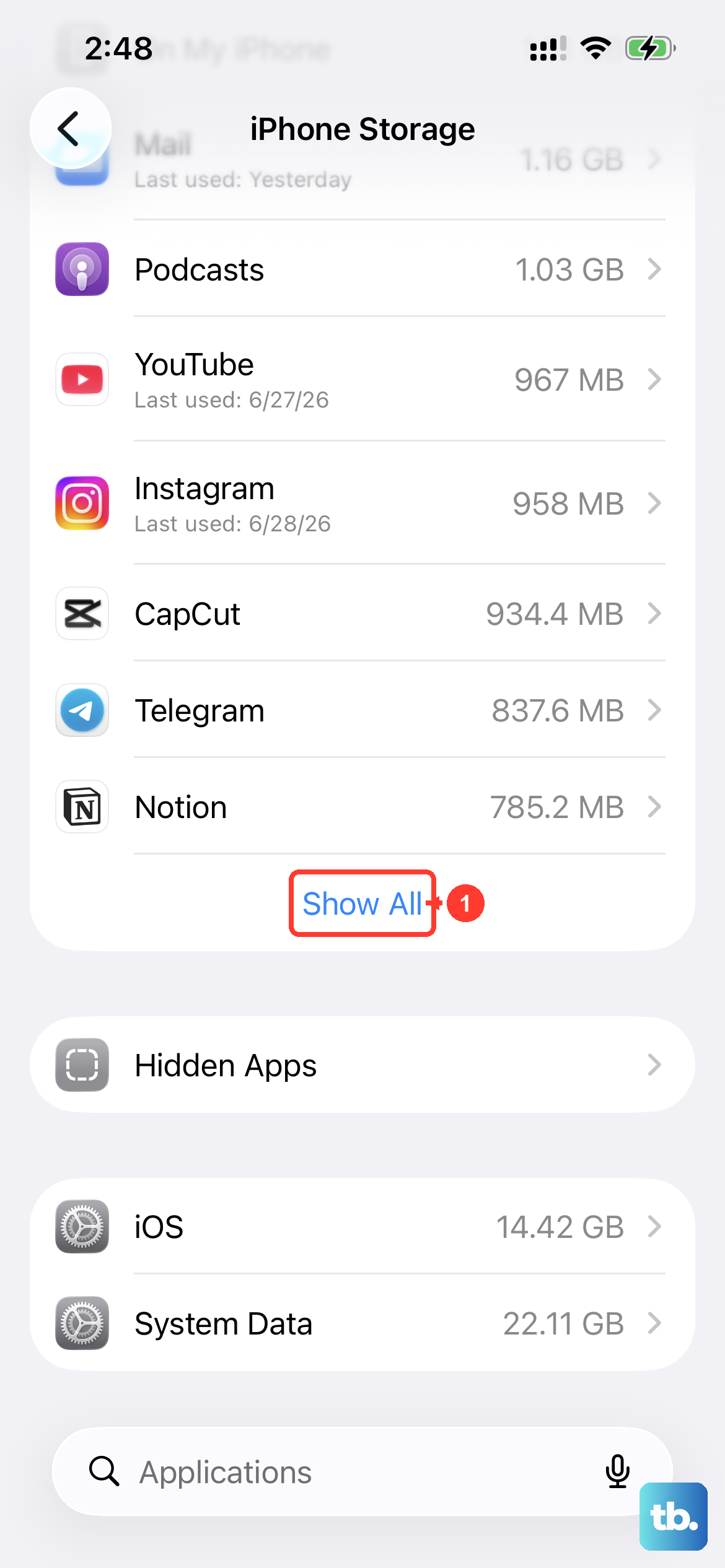
Before removing a single photo or app, find out where your space actually went. This screen is the safe starting point and often makes the rest of the cleanup obvious.
- 1.Open Settings and tap General.
- 2.Tap iPhone Storage.
- 3.Look at the colored bar at the top, which shows how much storage your content uses, divided by content type.
- 4.Scroll down to the list of apps sorted by size to spot the biggest offenders.
Apple may also show storage recommendations near the top of this screen, such as Offload Unused Apps. Tap any item to see more detail. Reviewing this first prevents you from deleting something you actually need.
Offload or delete the apps you are not using
Large apps and their caches can quietly consume gigabytes. From the iPhone Storage list, tap any app and you will see two choices, each described in plain terms by iOS.
The first option is to "Offload the app, which frees up storage used by the app, but keeps its documents and data." The app icon stays on your Home Screen with a small cloud symbol and re-downloads when you tap it, so this is the safer first choice because it preserves your data.
The second option is to "Delete the app, which removes the app and its related data," which is the right call only for apps you no longer want at all. To do either one, go to Settings > General > iPhone Storage, tap the app you want to clear, then tap Offload App or Delete App.
Let your iPhone reclaim space automatically with Offload Unused Apps
If you would rather not manage apps one by one, iOS can handle it for you. When you are low on storage, this feature automatically removes apps you do not use while keeping their documents and data.
Open Settings and tap Apps. Then tap App Store. Turn on Offload Unused Apps.
An offloaded app keeps a cloud icon on the Home Screen, and you can reinstall any app at any time if it is still available in the App Store. Because your documents and data stay put, turning this on is a low-risk way to keep storage from filling up again.
Move your photo library to iCloud with Optimize iPhone Storage
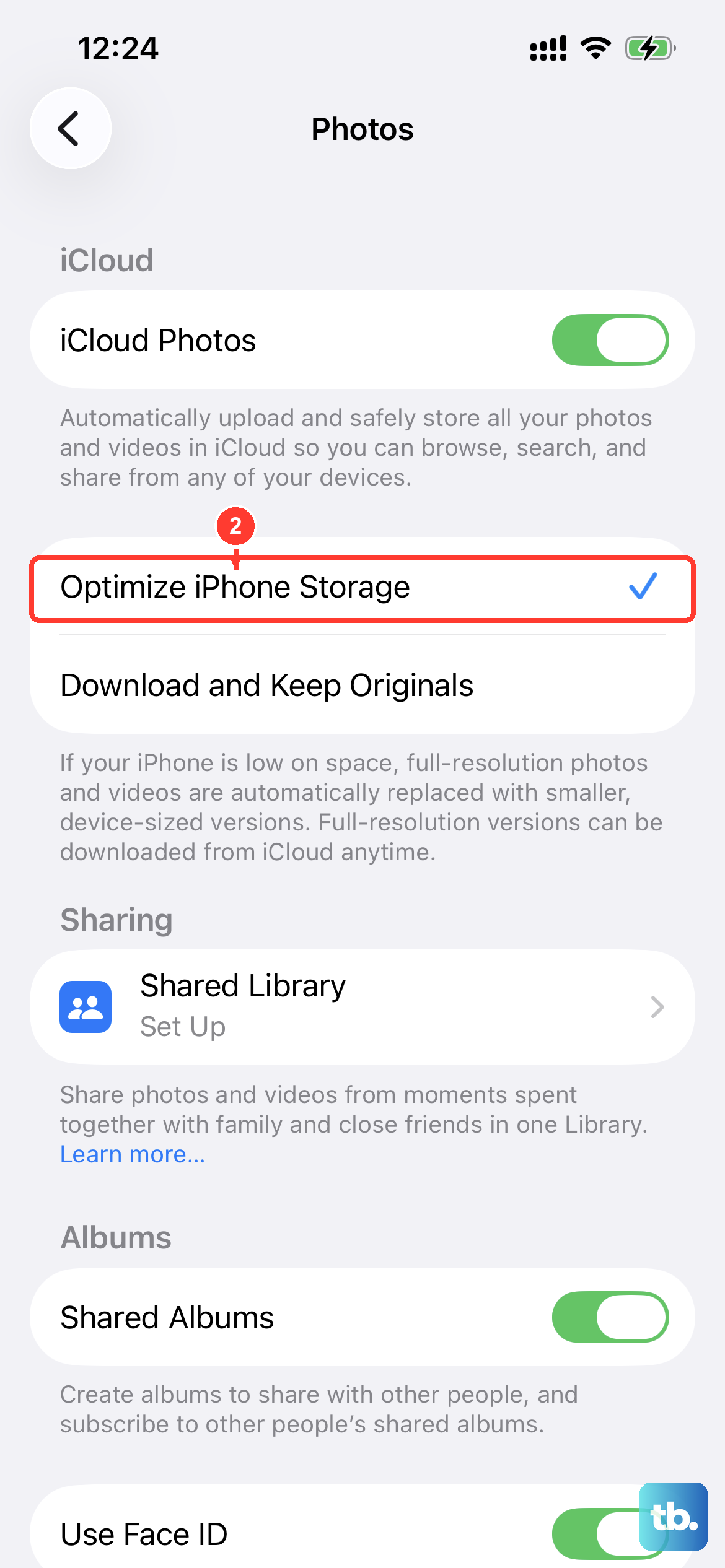
On a camera-focused phone like the iPhone 16 Pro, photos and videos are often the single biggest space user, so this step frees the most room for most people. Optimize iPhone Storage keeps your full-resolution media in iCloud and leaves space-saving copies on the device.
Open Settings and tap your name at the top. Next, tap iCloud. Tap Photos. Turn on Optimize iPhone Storage.
With this turned on, full-resolution photos and videos are stored in iCloud while your device holds smaller copies, and your library automatically optimizes when you need space, starting with the photos and videos you access least. Note that this may require enough iCloud storage to hold your full library.
Clear out old Messages and large attachments
Texts pile up, but the real space hogs are the photos, videos, and files shared inside conversations. You can have iOS remove older messages and their attachments automatically.
Open Settings and tap Apps. After that, tap Messages. Below Message History, tap Keep Messages. Choose 30 Days or 1 Year.
Any option other than Forever automatically removes older conversations and their attachments, and this removal is permanent, so pick a window you are comfortable losing. To target specific items instead, open a conversation and delete the individual messages or attachments you no longer need.
Install the latest iOS update
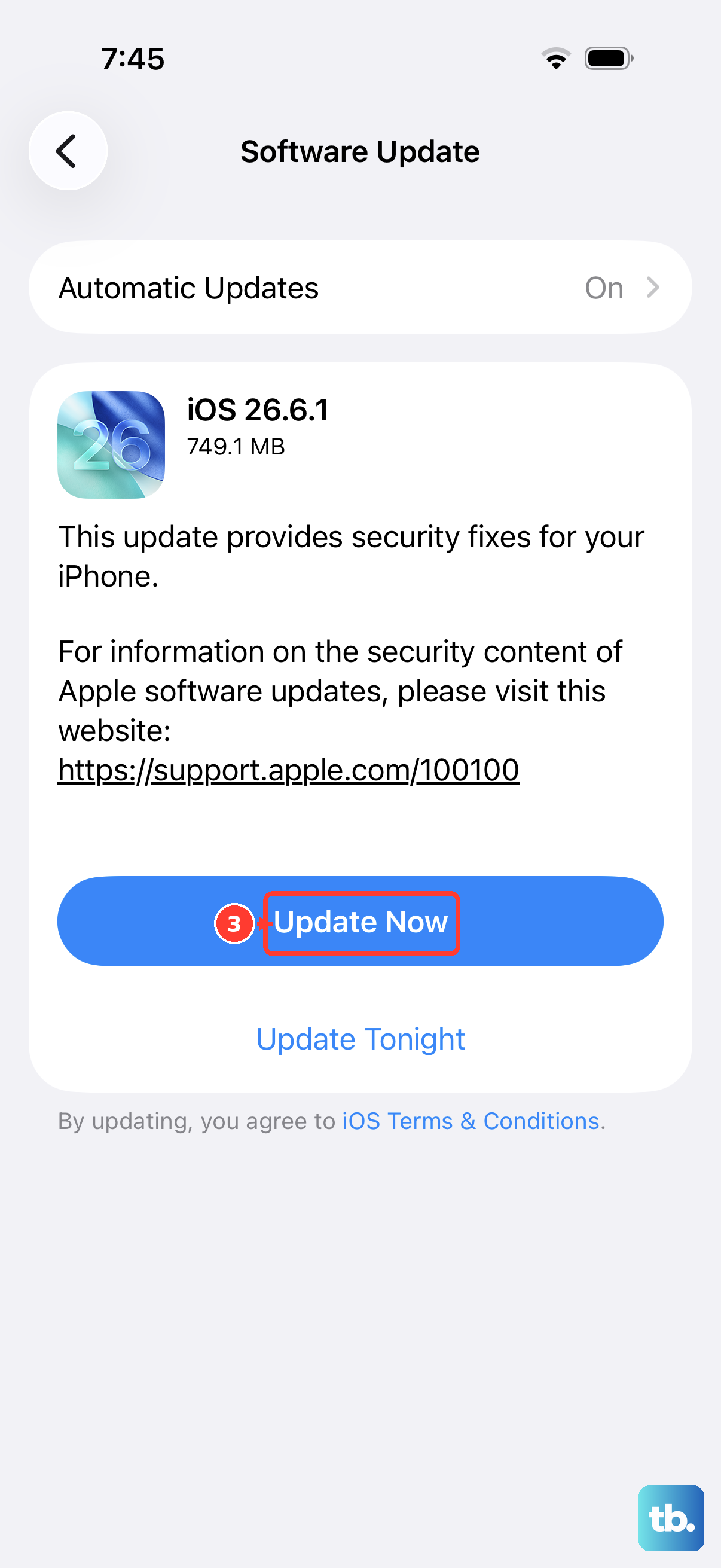
Software updates can change how much space is available and fix bugs that affect storage behavior, so it is worth checking for one during a cleanup.
Open Settings and tap General. Tap Software Update. If an update is available, tap Download and Install and follow the onscreen instructions.
The screen shows your currently installed version and whether an update is available. If you cannot update wirelessly because space is too tight, you can connect to a trusted computer and update from there instead.
Force restart if your iPhone freezes mid-cleanup
Deleting large amounts of data or installing an update can occasionally leave the phone unresponsive. If your iPhone 16 Pro freezes while you are managing storage, a force restart clears the hang without erasing any data.
Press and quickly release the volume up button. Now press and quickly release the volume down button. Press and hold the side button until you see the Apple logo (this might take longer than 10 seconds).
This does not erase any of your content, so it is safe to do whenever the screen stops responding.
The last resort when nothing else clears the space
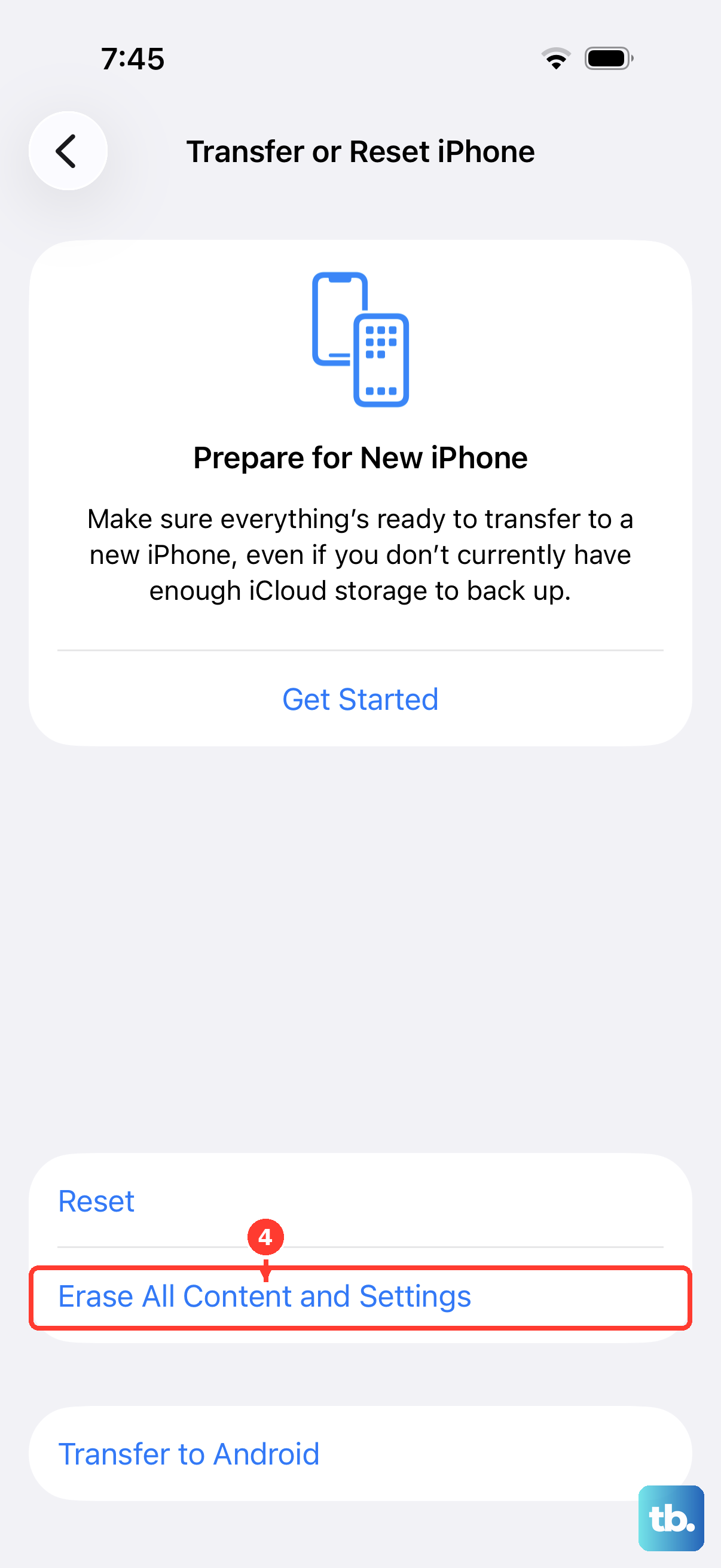
If storage problems persist after every step above, you can erase the iPhone and set it up fresh. This is the most thorough option, but it permanently removes everything, so the backup step is not optional.
First, back up your iPhone, because this process permanently erases your data otherwise. Once your backup is complete, follow the official erase procedure.
Open Settings and tap General. From there, tap Transfer or Reset iPhone. Tap Erase All Content and Settings. If asked, enter your passcode or Apple Account password and tap Continue.
This securely erases your personal information, content, and settings and restores the iPhone to factory settings. Because everything is wiped, back up beforehand so you can restore your data afterward.
Frequently Asked Questions
Can I add a memory card to expand my iPhone 16 Pro storage?
No. The iPhone 16 Pro uses fixed internal flash storage (128GB, 256GB, 512GB, or 1TB) and has no microSD or expandable-storage slot. You free up space using the built-in iOS storage tools and iCloud, not external media.
Does offloading an app delete my data?
No. Offloading frees up the storage used by the app but keeps its documents and data, and the app re-downloads when you tap its cloud-marked icon. Choosing Delete instead removes the app and its related data.
Where do I see what is using my storage?
Go to Settings > General > iPhone Storage. You will see a bar divided by content type, a list of apps sorted by size, and storage recommendations such as Offload Unused Apps.
Will turning on Optimize iPhone Storage cost me anything?
The feature itself stores full-resolution photos and videos in iCloud while keeping space-saving copies on your device. It may require enough iCloud storage to hold your library, so you might need additional iCloud space depending on how large your photo and video collection is.
Does a force restart erase my iPhone?
No. Pressing and quickly releasing volume up, then volume down, then holding the side button until the Apple logo appears simply restarts the phone and does not erase any data. Only Erase All Content and Settings wipes your device.