
That "No SIM" or "Invalid SIM" alert on your iPhone 16 Pro is a real roadblock. You can't call, text, or use mobile data. The good news is this is usually a simple software hiccup or a minor hardware issue you can fix yourself in a few minutes.
I'd start with the simplest fix first. Toggle Airplane Mode on and off. Swipe down from the top-right corner to open Control Center and tap the airplane icon. Wait about ten seconds, then tap it again to turn it off. This forces your phone to re-establish a fresh connection to the cellular network and often clears up the error right away.
Restart Your iPhone 16 Pro
If Airplane Mode didn't do the trick, a restart is your next best move. It clears out any temporary software glitches that might be confusing the modem. For the iPhone 16 Pro, you'll use the standard force restart sequence. Press and quickly release the Volume Up button, then press and quickly release the Volume Down button. Finally, press and hold the Side button until you see the Apple logo appear on the screen.
Let the phone boot up completely. Once it's back on, check the status bar in the top-left corner. You should see your carrier name instead of the "No SIM" message.
Check and Reinsert the SIM Card
A loose or dirty SIM card is a very common culprit. You'll need the SIM ejector tool that came in the box with your iPhone. If you can't find it, a small, unwound paperclip will work in a pinch.
Turn your iPhone off completely before you start. Locate the SIM tray on the left side of the phone and gently insert the tool into the small hole. The tray should pop out. Carefully remove the SIM card and take a close look at the gold contacts.
If you see any dust, lint, or discoloration, gently wipe the contacts with a clean, dry, lint-free cloth. You can also lightly blow into the SIM tray slot to dislodge any debris. Align the SIM card correctly in the tray and push it firmly back into the phone until it clicks into place. Power your iPhone back on.
Test the SIM Card in Another Device
This step tells you if the problem is with your SIM card or with the iPhone itself. Find another phone, it doesn't have to be an iPhone, and insert your SIM card into it. If the other phone also shows a "No SIM" error, then the SIM card itself is likely faulty or deactivated.
In that case, you'll need to contact your carrier. They can check the status of your line and send you a replacement SIM card, which usually solves the problem. If the SIM works perfectly in the other phone, then the issue is with your iPhone 16 Pro's hardware or software.
Update iOS to the Latest Version
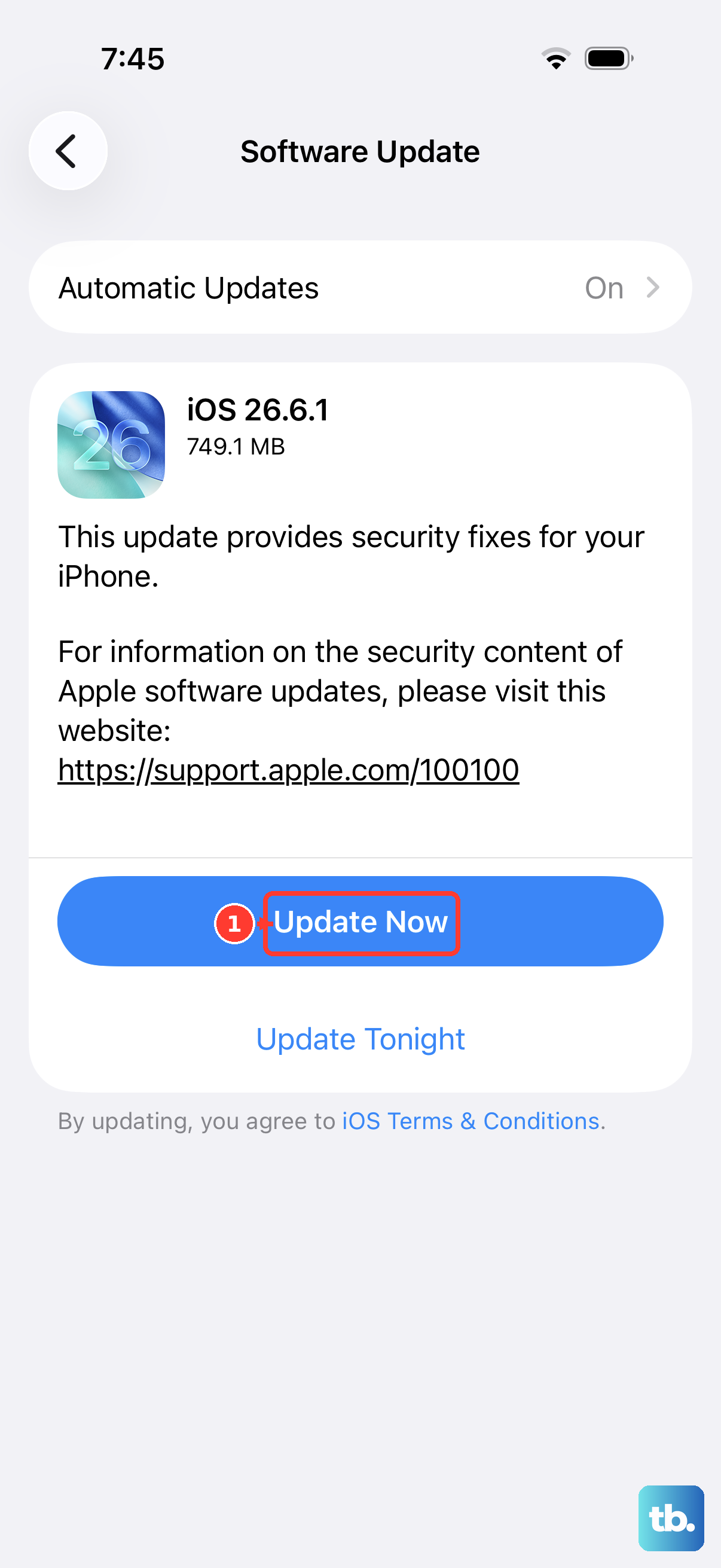
Apple frequently releases iOS updates that include bug fixes for cellular connectivity. A software bug in iOS 26 could be causing the modem to lose communication with the SIM card. Making sure you're on the latest version is crucial.
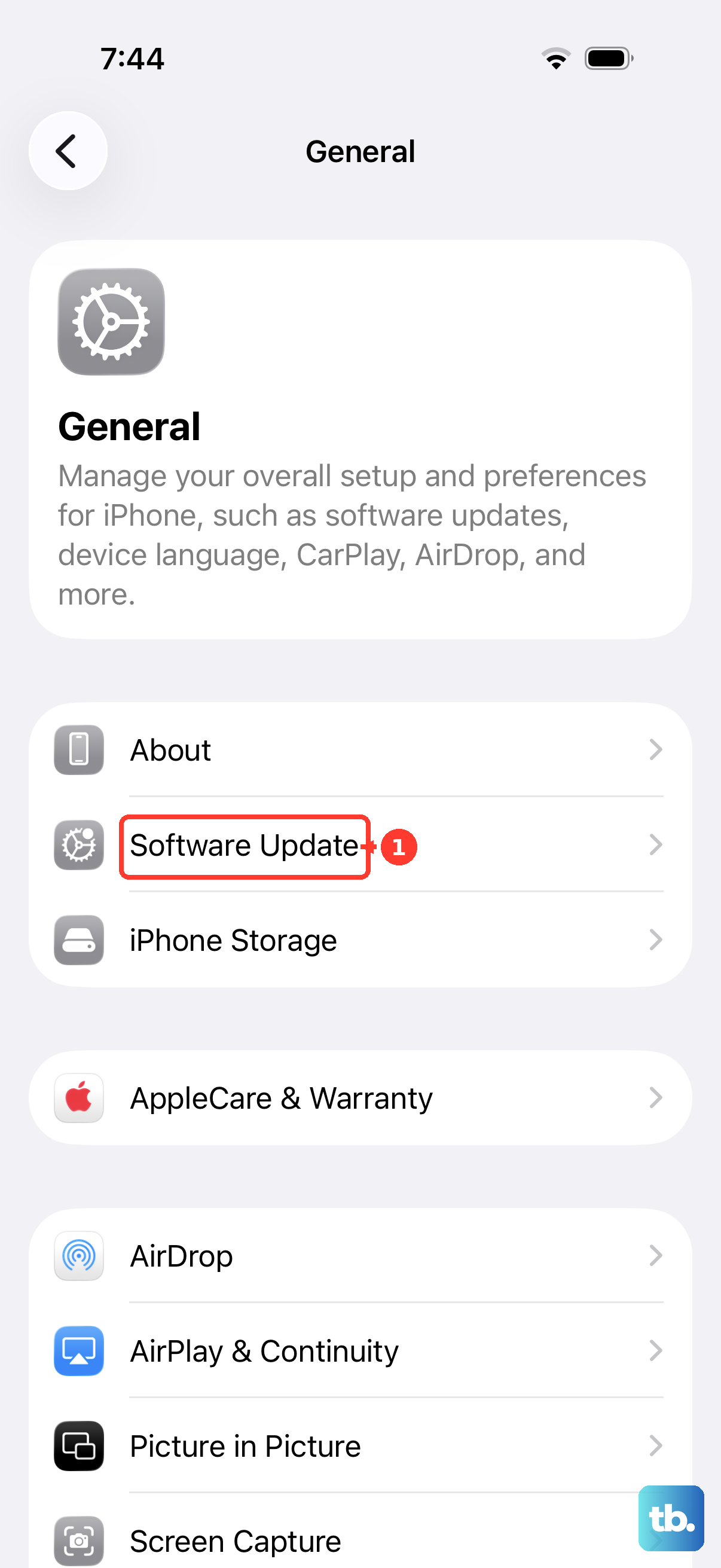
Go to Settings > General > Software Update. Your iPhone will check for updates. If one is available, tap "Download and Install." Make sure your phone is connected to Wi-Fi and has sufficient battery life, or plug it into a charger using a certified USB-C cable. After the update installs and your phone restarts, check if the SIM is detected.
Reset All Network Settings
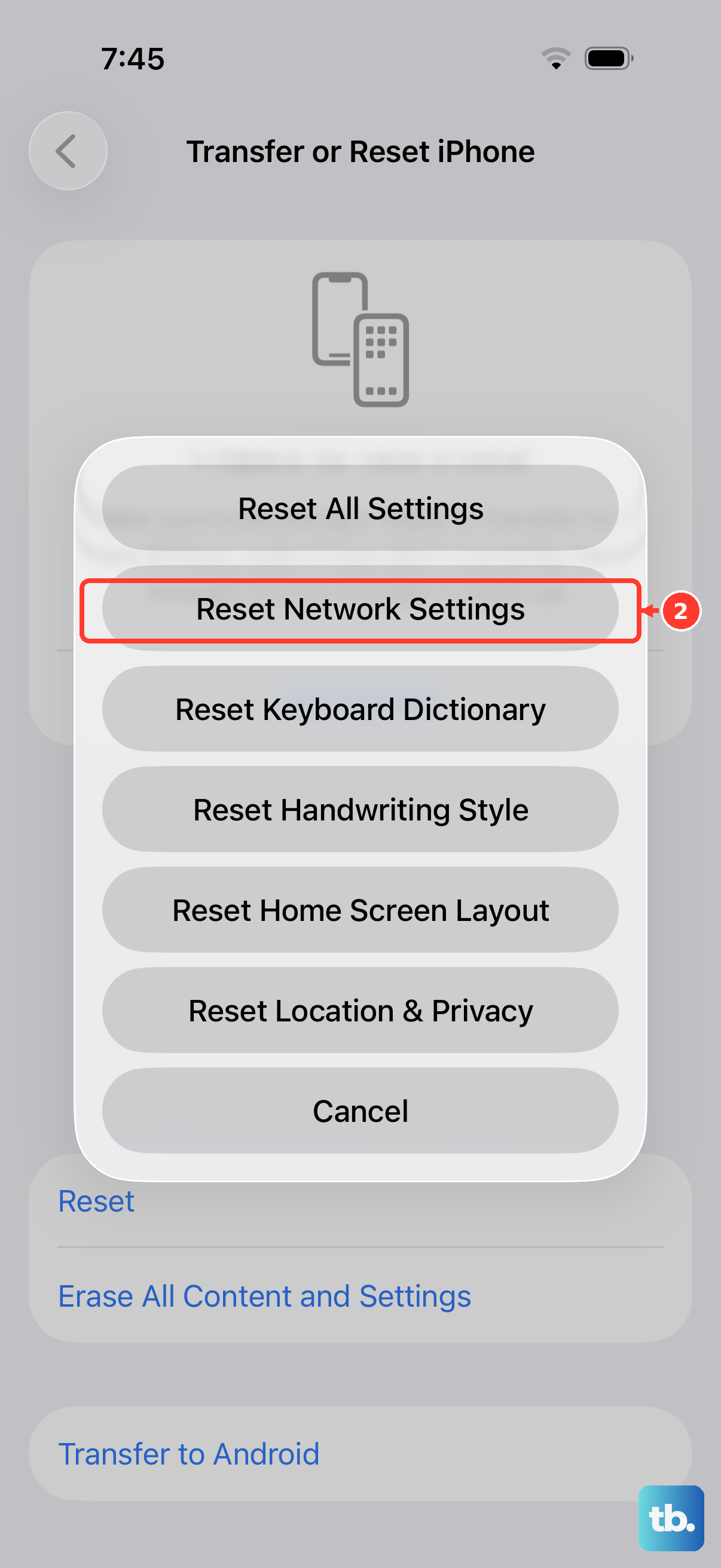
This is a more thorough step that clears out all your network-related configurations without touching your personal data. It will erase saved Wi-Fi passwords, Bluetooth pairings, and VPN settings, so you'll need to re-enter those later.
To do this, open Settings, tap General, and scroll down to Transfer or Reset iPhone. Tap on Reset and then select Reset Network Settings. You'll need to enter your passcode to confirm. Your iPhone will restart, and when it comes back on, it will have fresh network configurations.
Check for a Carrier Settings Update
Sometimes your mobile carrier pushes small configuration files to your phone to improve network performance. These updates can happen automatically, but it's worth checking manually.
Go to Settings > General > About. If a carrier settings update is available, a pop-up notification will appear on this screen. Just follow the prompts to install it. This process only takes a moment and doesn't require a restart.
Try Manual Network Selection
By default, your iPhone automatically connects to your carrier's network. If there's a glitch in that process, you can try selecting the network yourself. First, make sure you're in an area with good coverage from your provider.
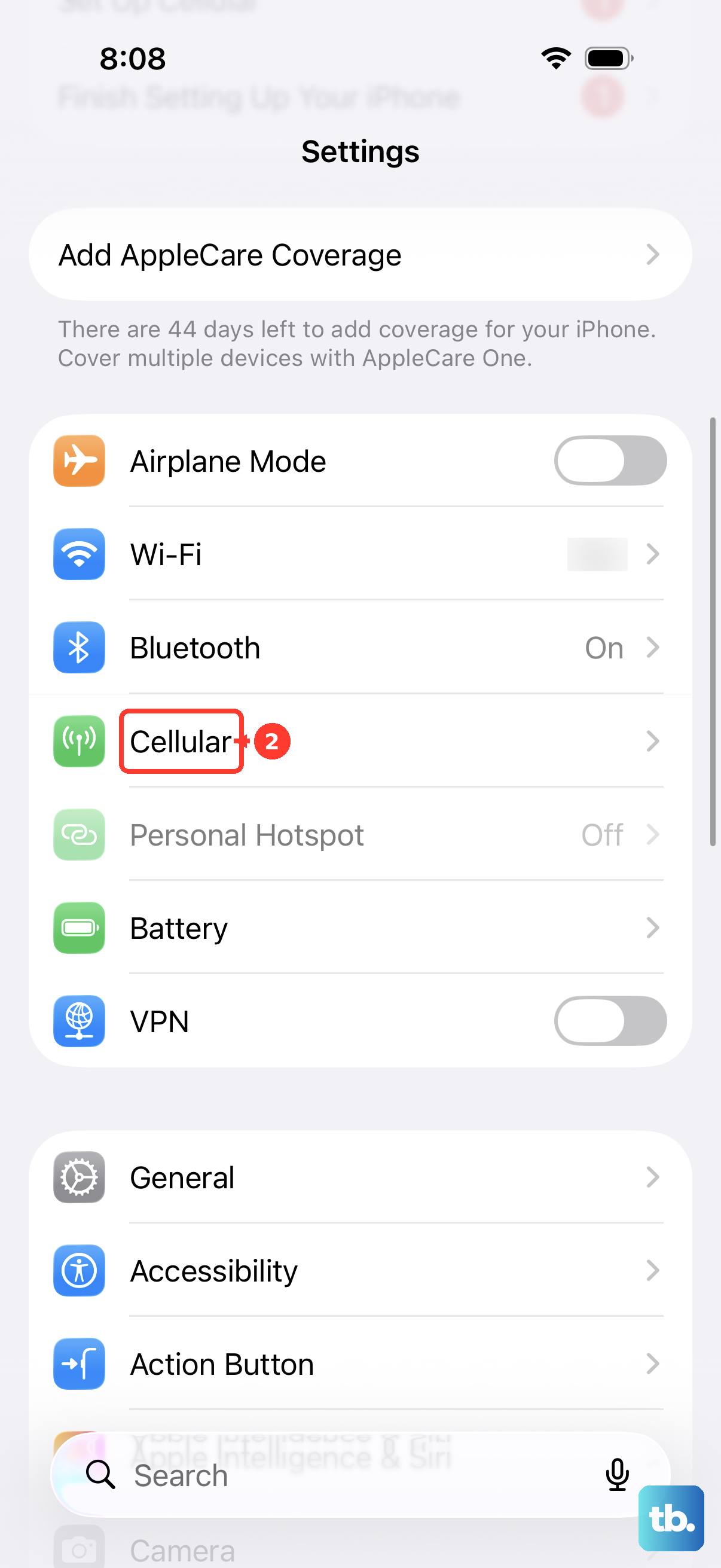
Navigate to Settings > Cellular. Tap Network Selection and turn off the "Automatic" toggle. Your phone will search for available networks. After a moment, a list will appear. Select your carrier's name from the list. If it connects successfully, you can turn "Automatic" back on later.
Consider Switching to an eSIM
The iPhone 16 Pro fully supports eSIM technology. If your physical SIM card tray is damaged or you have ongoing issues, moving to a digital eSIM can be a permanent solution. An eSIM is a software-based SIM profile downloaded directly to your phone.
You'll need to contact your carrier's support to initiate this process. They can often help you convert your physical SIM to an eSIM over the phone or through their website. It eliminates the physical component entirely, which can resolve persistent "No SIM" errors related to the tray or reader.
Contact Apple Support
If you've tried every step here, restarting, reinserting the SIM, testing it in another phone, updating software, and resetting network settings, and the problem persists, it's likely a hardware issue with your iPhone 16 Pro. The internal SIM card reader or a component related to the cellular modem may be faulty.
Since the iPhone 16 Pro is a new device, it should be under Apple's standard one-year limited warranty. You can contact Apple Support through the Apple Support app on your phone or their website to schedule a diagnostic test at an Apple Store or with an Apple Authorized Service Provider. They can determine if a repair or replacement is needed.