You plugged your USB-C EarPods into your iPhone 16 Pro, started a playlist, and got nothing but silence; or maybe one earbud cut out, your Bluetooth headphones refuse to connect, and even the built-in speaker sounds dead. Audio problems on the iPhone 16 Pro can come from a muted Focus, an out-of-date version of iOS, debris in the USB-C port, a bad cable, or a genuine hardware fault, and the only way to know which is to rule them out in order. The fixes below start with the quickest, safest checks and end with the official factory reset and Apple Support path, so you can stop as soon as your sound comes back.
Start with a free left and right audio test that checks left and right channels, stereo order, bass, and treble. Two minutes there tells you whether the hardware needs attention at all.
Before you dig in, one detail about this model matters. The iPhone 16 Pro has no 3.5mm headphone jack and no Lightning port.
It uses a USB-C connector, so "wired headphones" here means USB-C headphones or EarPods (USB-C) or a USB-C-to-3.5mm headphone jack adapter. The iPhone 16 Pro also does not include EarPods in the box, so the wired pair you are testing with is one you added yourself.
Rule Out a Muted Volume or a Silencing Focus First
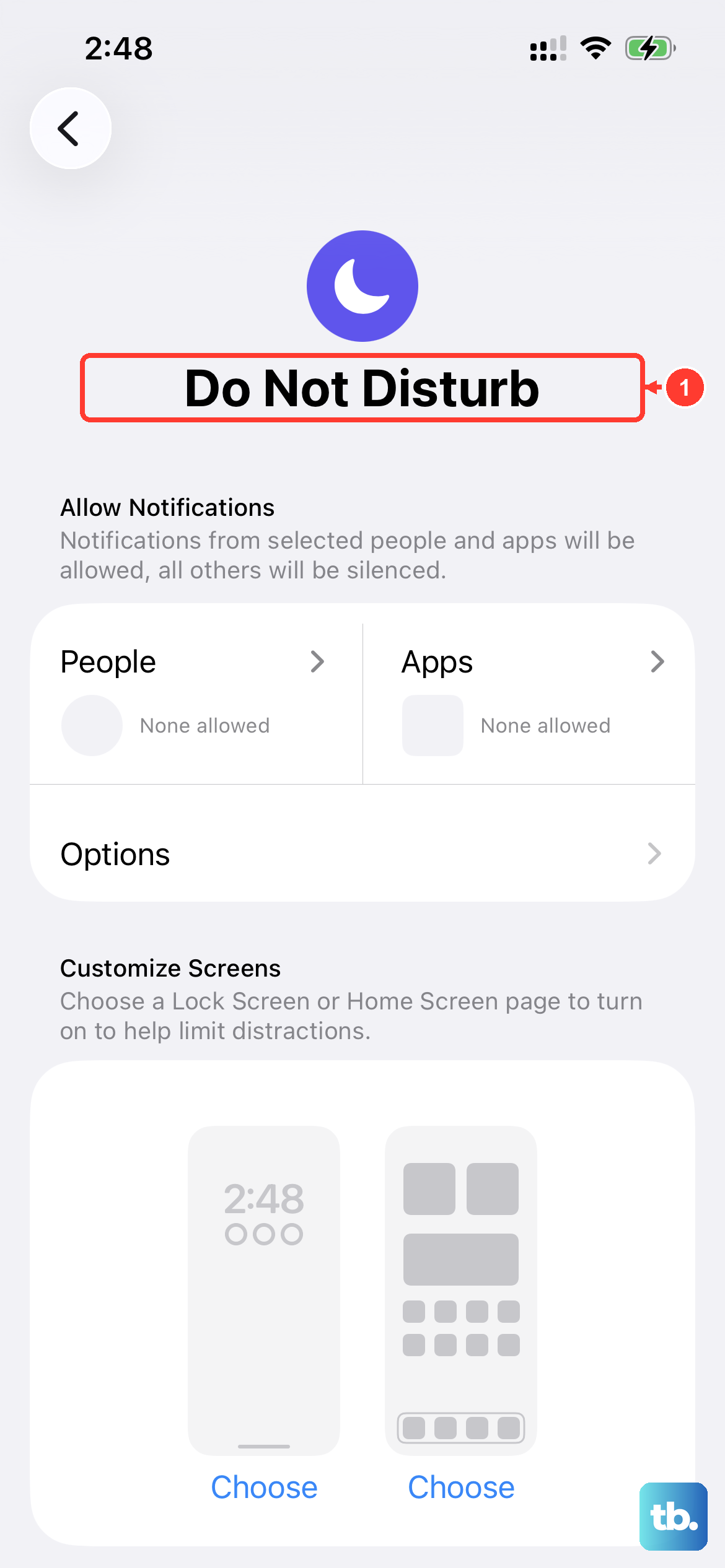
The most common reason for "no sound" is the simplest one, so start by raising the volume with the volume up button or from Control Center. A Focus such as Do Not Disturb can also silence audio without any obvious warning, which is easy to miss if you turned it on by accident.
To clear both possibilities, open Settings, tap Focus, tap Do Not Disturb, and make sure that Do Not Disturb is off.
Then open Settings, tap Sounds & Haptics, and drag the Ringtone and Alerts slider back and forth a few times to confirm the speaker responds. If you hear the slider tone, the speaker hardware is alive and the problem lies elsewhere.
Install the Latest Version of iOS
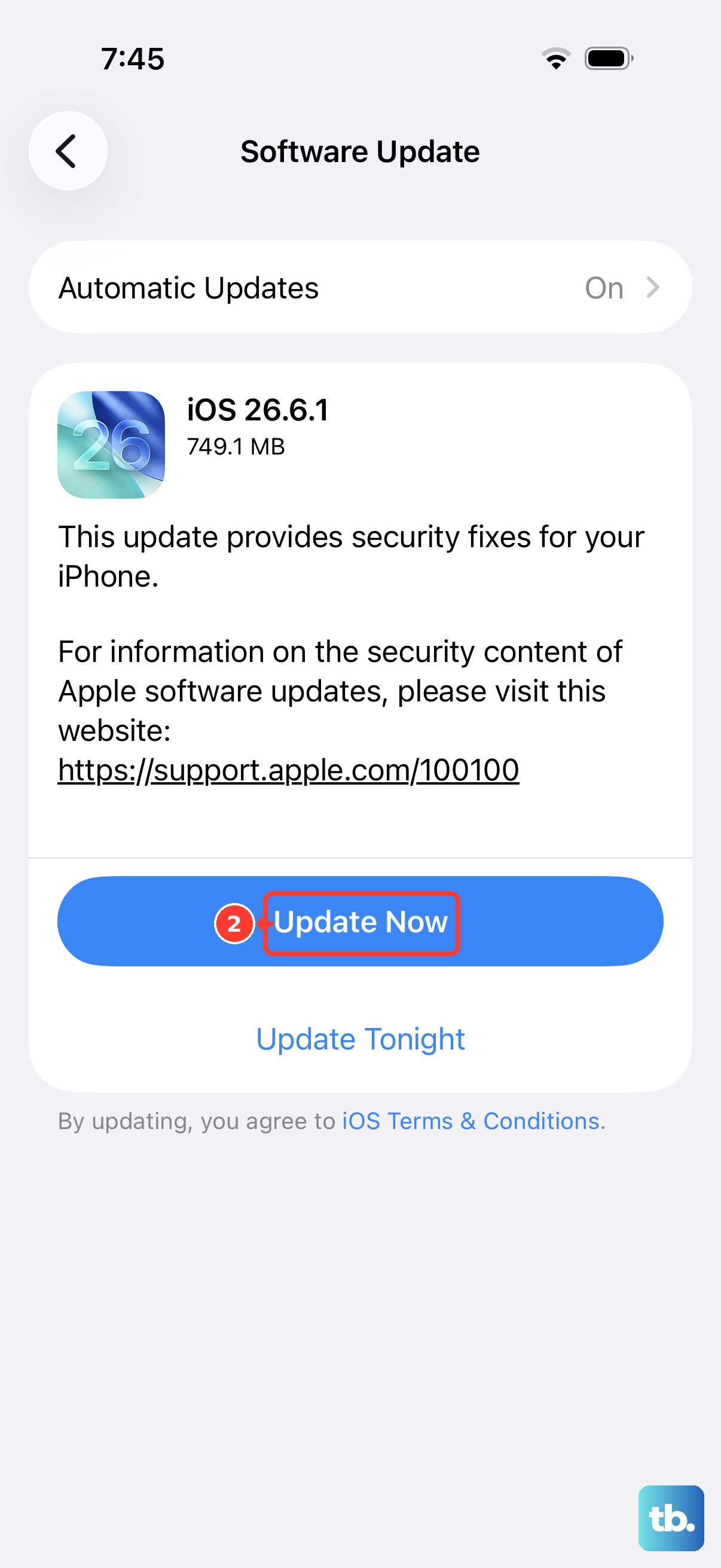
Apple's first headphone troubleshooting step is to make sure you are running the latest version of iOS, since audio and Bluetooth bugs are routinely patched in software updates. The iPhone 16 Pro is compatible with iOS 26, so there is no reason to stay on an older build.
Back up your iPhone first, as Apple recommends before any update.
Next, go to Settings > General > Software Update.
If an update is available, tap Download and Install.
Let the update finish completely and the phone reboot on its own before you test your audio again.
Restart the iPhone to Clear a Temporary Glitch
After updating, a normal restart clears the kind of temporary software state that can leave audio routing stuck. This is gentler than a force restart and is the right first move when the phone is still responsive.
Press and hold either volume button and the side button until the power-off slider appears.
Then drag the slider to turn the iPhone off.
Wait 30 seconds.
Press and hold the side button (on the right side of your iPhone) until you see the Apple logo.
Once it boots back up, play something and check whether the sound has returned through your speaker or headphones.
Check and Clean the USB-C Port and Your Wired Headphones
Because the iPhone 16 Pro has no 3.5mm jack, your wired headphones plug into the USB-C port, whether you are using USB-C EarPods or a USB-C-to-3.5mm adapter. Lint and pocket debris collect in that port and quietly block a solid connection.
Inspect the port for debris, and inspect the cable, connector, remote, and earbuds for damage.
Gently brush the openings, including the earbud meshes, with a small, soft-bristled brush, then firmly plug the headphones back in.
If your iPhone has a case, you might need to remove it to get a firm connection.
Swap In a Second Pair to Isolate the Headphones
If you can't hear any sound, or only one side of your headphones works, the fault may be in the headphones themselves rather than the phone. Testing with a known-good pair is the fastest way to find out.
Adjust the volume using the device buttons or Control Center, then test with a second pair of headphones.
If the second pair plays correctly, your original headphones likely need to be replaced; if both pairs fail, keep working through the steps below.
Re-Pair Bluetooth and Wireless Headphones
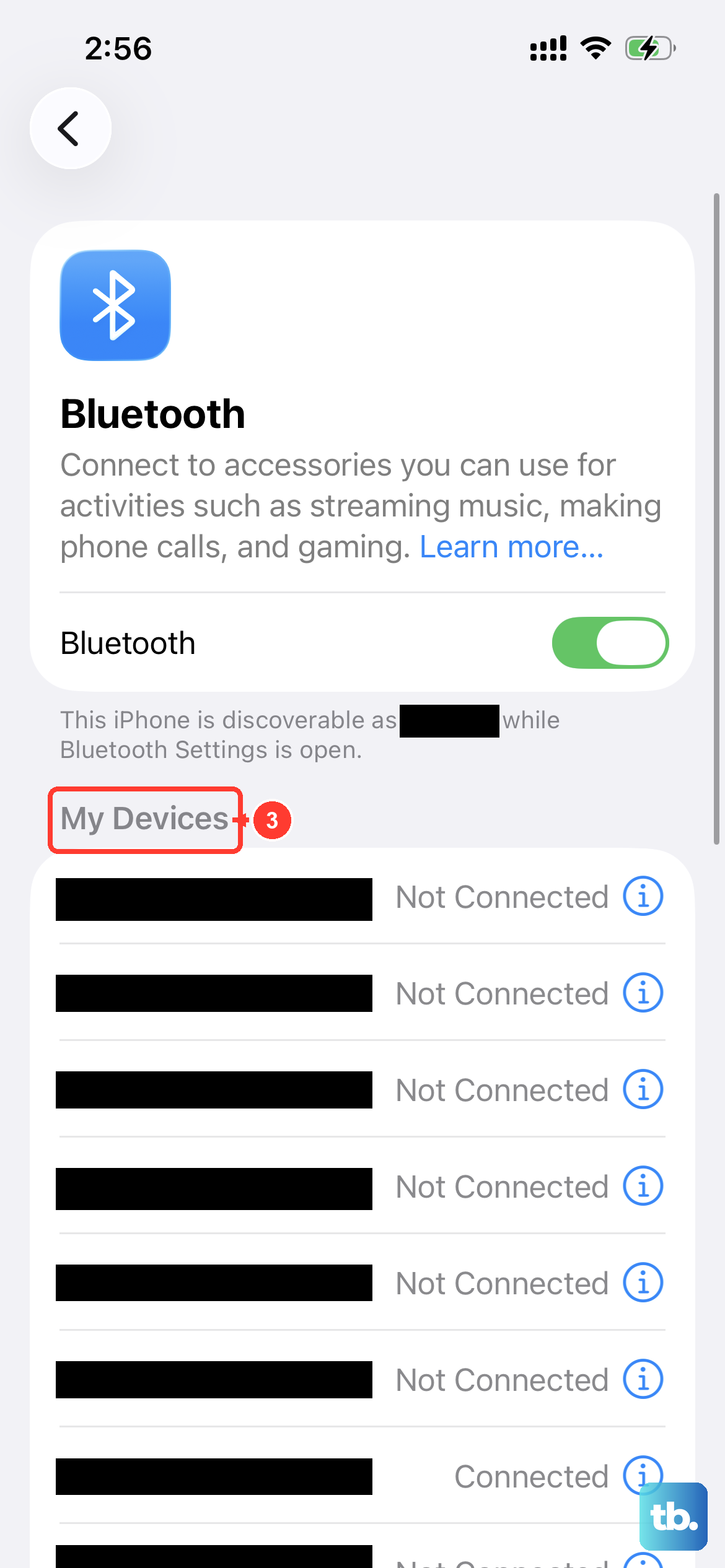
For wireless headphones, a stale or stuck Bluetooth pairing is a frequent culprit. Re-establishing the connection from scratch usually fixes audio that refuses to route to the accessory.
Go to Settings, then tap Bluetooth and turn on Bluetooth.
Look for the accessory under My Devices, consulting its manual to make it discoverable if needed, then tap its name.
If the connection is stuck, tap the info button next to the device and tap Forget this Device.
After that, pair the headphones again from the start.
Forgetting and re-adding the device clears the old pairing record so the iPhone can negotiate a fresh, clean connection.
Charge, Re-Pair, and Reset AirPods That Won't Connect
AirPods have their own connection quirks, and a dead charge level often masquerades as a connection failure. Walk through these checks in order before assuming the worst.
Put both AirPods in the charging case and make sure they're charging.
If you have not already, update your iPhone to the latest version of iOS.
On iPhone, go to Settings > Bluetooth and try to pair again.
If they still won't connect, reset your AirPods.
A reset returns the AirPods to a like-new state so they can pair freshly with your iPhone 16 Pro.
Confirm Whether the Built-In Speaker Itself Has a Problem
If audio also fails on the built-in speaker, the issue may be physical rather than tied to any one accessory. A blocked or dirty speaker opening can muffle or kill the sound entirely.
Remove all screen protectors, films, or cases, then check whether the speaker opening is blocked or dirty and clean it with a small, soft-bristled brush.
Test the Ringtone and Alerts slider again in Settings > Sounds & Haptics.
If you still get no sound, or the speaker button is dimmed, the device might need service.
Force Restart a Frozen or Unresponsive iPhone
If your iPhone has become frozen or unresponsive while you were troubleshooting, a force restart can revive it without erasing anything. Use the exact button sequence below for Face ID models like the iPhone 16 Pro.
- 1.Press and quickly release the volume up button.
- 2.Press and quickly release the volume down button.
- 3.Press and hold the side button until you see the Apple logo (this might take longer than 10 seconds).
Release the side button once the Apple logo appears and let the phone start up normally.
Erase Everything as a Last Resort and Contact Apple Support
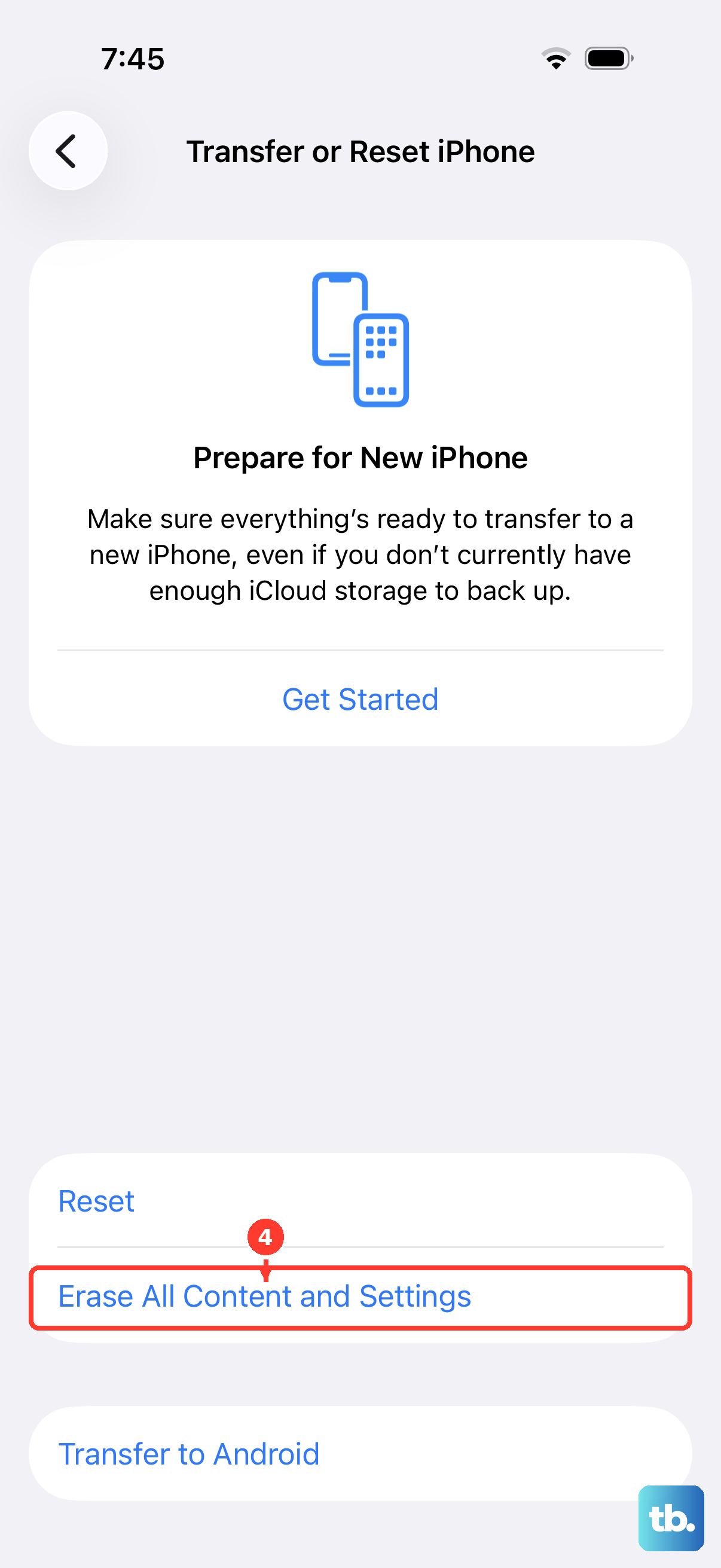
If audio still fails after every step above, a full erase returns the iPhone to factory settings and rules out a deep software fault. This is a final measure because it erases everything on the device, so a backup is essential before you begin.
Back up your iPhone.
Go to Settings > General > Transfer or Reset iPhone.
Tap Erase All Content and Settings, then tap Continue.
If the problem persists even after erasing, the fault is almost certainly hardware. At that point, contact Apple Support, as the device may need service.
Frequently Asked Questions
Does the iPhone 16 Pro have a headphone jack?
No. The iPhone 16 Pro has no 3.5mm headphone jack and no Lightning port; it uses a USB-C connector. To use wired headphones, you need USB-C headphones or EarPods (USB-C), or a USB-C-to-3.5mm headphone jack adapter. Otherwise, audio plays through the built-in speakers, AirPlay, or Bluetooth devices such as AirPods.
Why is sound only coming out of one side of my headphones?
One-sided audio usually points to the headphones rather than the phone. Adjust the volume using the device buttons or Control Center, then test with a second pair of headphones. If the second pair plays in both ears, your original headphones likely need to be replaced.
How do I force restart an iPhone 16 Pro?
Press and quickly release the volume up button, then press and quickly release the volume down button, then press and hold the side button until you see the Apple logo. This might take longer than 10 seconds, so keep holding until the logo appears.
Will erasing my iPhone fix the audio problem?
It can fix a stubborn software-based audio fault, but it is a last resort because it erases everything on the device. Back up first, then go to Settings > General > Transfer or Reset iPhone > Erase All Content and Settings > Continue. If the sound still fails after the erase, the issue is likely hardware and you should contact Apple Support.
How do I make sure a Focus isn't muting my audio?
Open Settings, tap Focus, tap Do Not Disturb, and make sure that Do Not Disturb is off. Then open Settings, tap Sounds & Haptics, and drag the Ringtone and Alerts slider back and forth a few times. If you hear the tone, your speaker is working and a Focus was likely silencing it.