You raise your iPhone 16 Pro to capture a moment, tap the shutter, and the result comes back soft, hazy, or out of focus instead of the razor-sharp shot you expected. It is frustrating when a phone with a 48MP Fusion main camera, a 48MP Ultra Wide, and a 5x Telephoto lens still hands you a blurry photo. The good news is that most blur on this model comes from something simple and fixable, not a broken lens. Work through the steps below in order, starting with the quickest and safest, and you will usually have a crisp camera again before you need to contact support.
Start With What Is Touching the Lens
Before you blame the camera itself, look at what is sitting on top of it. The official guidance is to remove any case, film, or accessory (such as a polarizer, extender, or magnifier) that might block the camera or flash, then test the camera again. A slightly misaligned case lip or a stray bit of screen film over the rear glass is enough to scatter light and soften every shot.
Magnets are a less obvious culprit. Apple notes that the lens-position sensors respond to magnetic fields, and if you place a magnet near these sensors the magnetic field will interfere with or temporarily disable them. The camera will keep taking photos using other means of stabilization, but without the benefit of optical image stabilization and closed-loop autofocus, which can leave shots blurry or out of focus. For best camera performance, avoid accessories that use magnets or magnetic metal near the rear camera. Pull off any magnetic mount, wallet, or grip near the back of the phone and try again.
Give the Lenses a Proper Wipe
Fingerprints, pocket lint, and skin oils build up on the rear glass faster than you think, and they are among the most common causes of soft photos. The official fix is direct. If the photo is blurry, clean the front and back camera lenses with a microfiber cloth. A dry microfiber cloth lifts smudges without leaving streaks or scratches.
Your iPhone 16 Pro can also catch this for you. On supported models, the iPhone detects if your lens is smudged and suggests you clean it for the clearest possible picture. This is the Lens Cleaning Hints feature, and you can manage it in Settings > Camera, where you can turn Lens Cleaning Hints off, or leave it on so the iPhone warns you when the glass needs attention.
Take Control of Focus
A photo that looks soft is very often a focus problem rather than a hardware fault, especially when the camera locked onto the background instead of your subject. You can correct this by hand. Tap the screen where you want to move the focus area, and the camera will refocus on that spot.
If you are shooting several frames of the same scene and the focus keeps drifting, lock it in place. Touch and hold the focus area until you see AE/AF Lock, then tap the screen to unlock the settings when you are done. While the focus area is on screen, you can drag up or down next to it to adjust exposure, which helps when a too-bright or too-dark frame is masking otherwise sharp detail.
When Close-Up Shots Turn Soft
Getting in tight for a close-up is one of the easiest ways to end up with blur, because moving too close pushes the subject past the camera's focusing range. The official advice for macro shots is simple. If the photo or video becomes blurry, you can back up or tap .5x to switch to the Ultra Wide camera. When you get very close, the iPhone automatically switches to the Ultra Wide camera for macro shots.
If the automatic switching itself is causing trouble, you have control over it. When you are within macro distance, a macro icon appears on screen, and you can tap it to turn off automatic macro switching for that shot. To disable the manual control entirely, go to Settings > Camera and turn off Macro Control.
Restart the Phone, or Force It If Frozen
Software hiccups can leave the Camera app misbehaving, and a clean restart clears them. The camera troubleshooting guidance includes restarting your iPhone as a standard step. For a normal restart, press and hold either volume button and the side button until the power-off slider appears, drag the slider, then wait 30 seconds for the device to turn off. Press and hold the side button until you see the Apple logo to turn it back on.
If the iPhone is frozen or the Camera app is completely unresponsive, use a force restart instead. The exact sequence for the iPhone 16 Pro is as follows.
- 1.Press and quickly release the volume up button.
- 2.Press and quickly release the volume down button.
- 3.Press and hold the side button.
- 4.When the Apple logo appears, release the side button.
Use the force restart only if the iPhone is frozen or unresponsive. For everyday glitches, the normal restart above is the right tool.
Install the Latest iOS
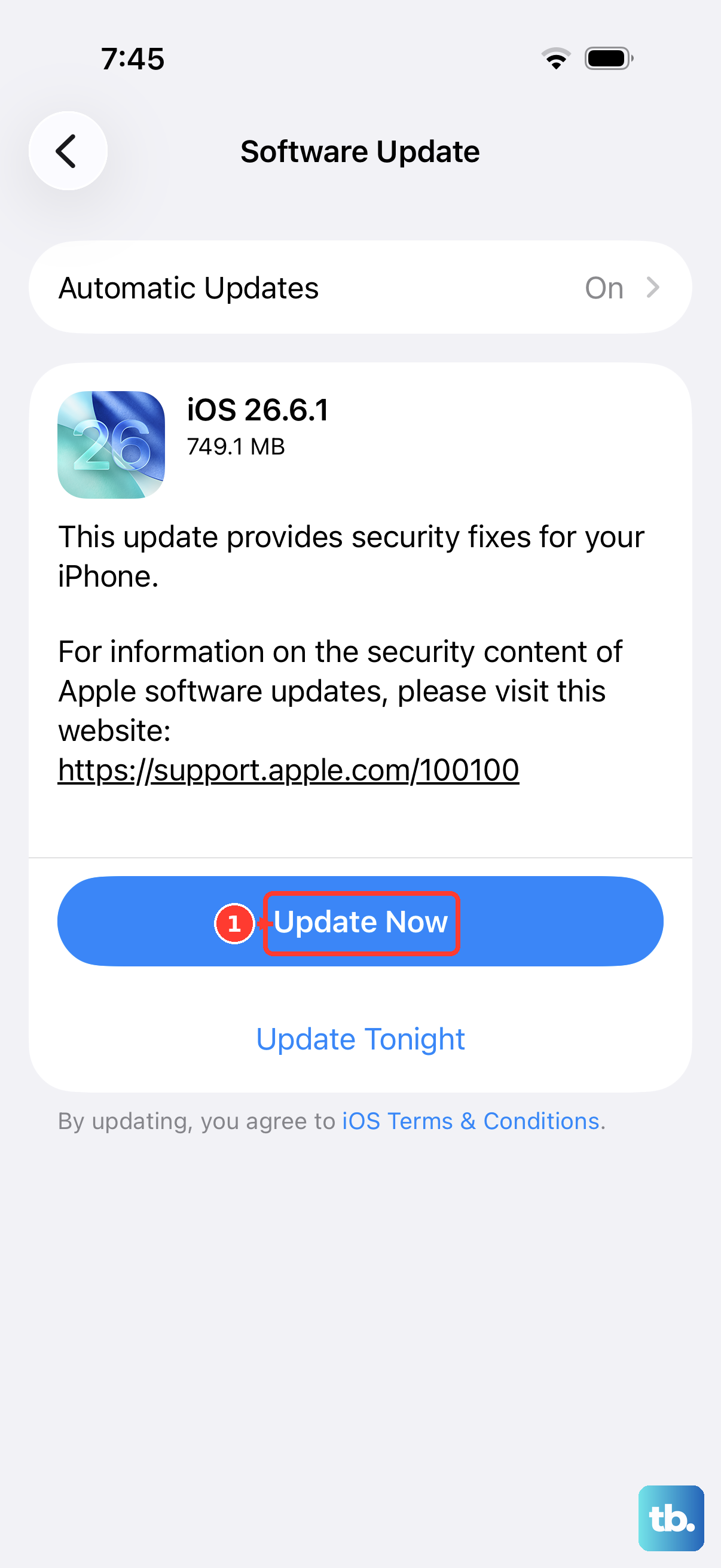
Camera bugs are sometimes fixed in software, so keeping the system current is part of the official fix list, which includes updating your iPhone to the latest version of iOS. Go to Settings > General > Software Update, where the installed version and any available update are shown. If an update is available, tap Download and Install and follow the onscreen instructions.
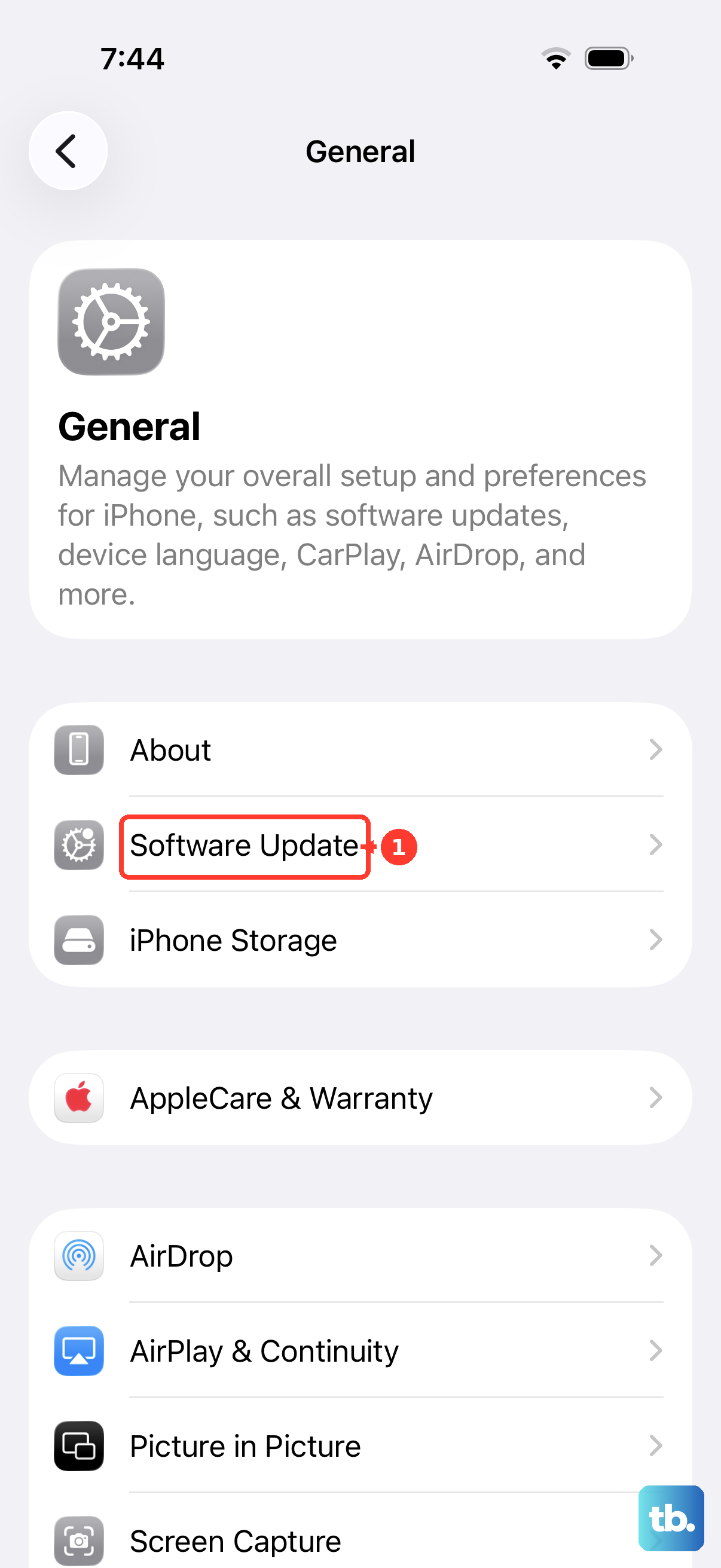
The iPhone 16 Pro is compatible with iOS 26, the current release. Updating is a low-risk step that can resolve focus and processing quirks introduced by an earlier build, since updates can include camera improvements along with bug and security fixes.
Reset the Software as a Last Resort
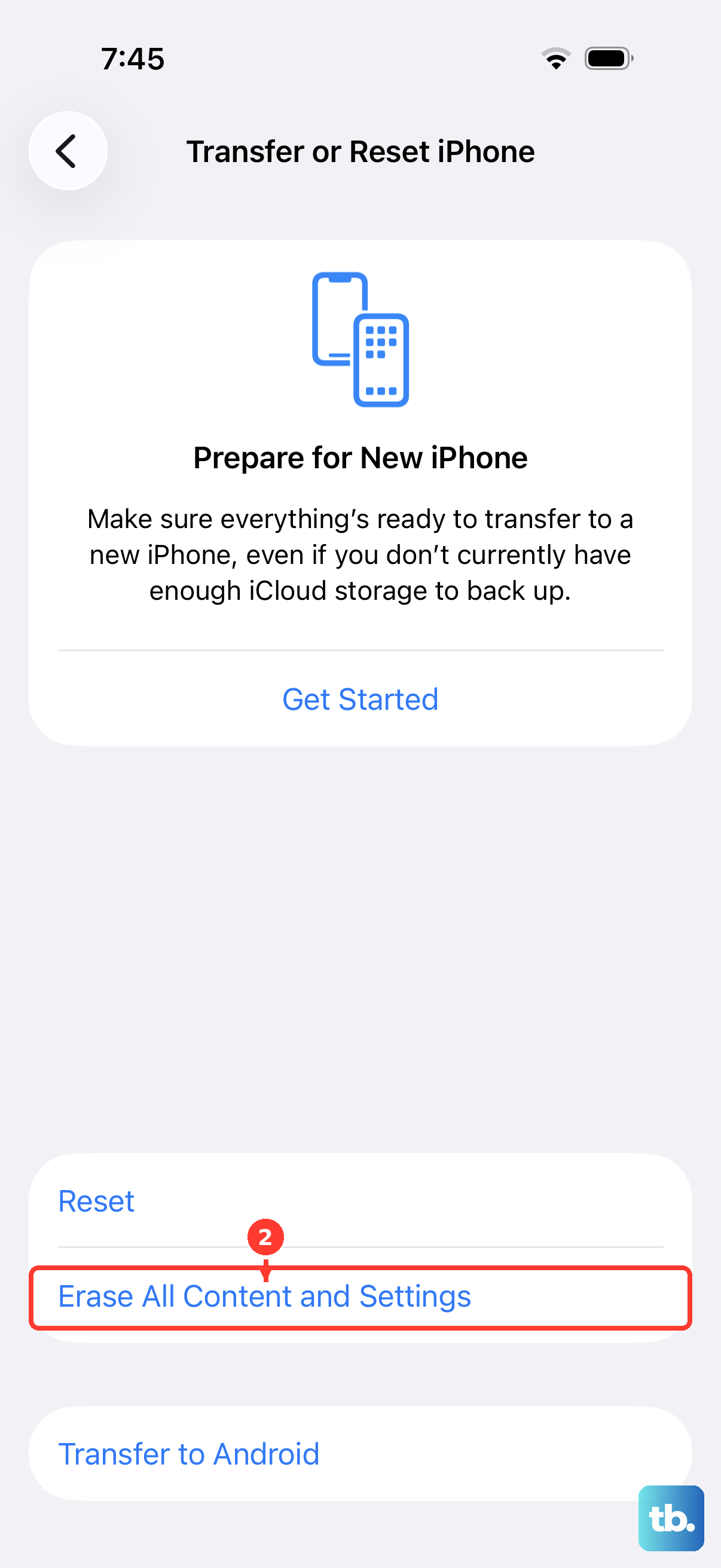
If a software glitch is still producing blur after every step above, erasing the iPhone and setting it up fresh is the final software remedy before service. This step removes all of your content and settings, so a current backup is essential. The official wording is clear. Create a backup, and you can restore content, settings, and apps from that backup to a new or newly erased iPhone.
Once you have a backup in hand, go to Settings > General > Transfer or Reset iPhone > Erase All Content and Settings > Continue, then enter your passcode and Apple Account password. This restores the iPhone to factory settings and removes all your data, which is why the backup must be current before you start. If you skip the backup, the erased content cannot be recovered.
When It Is Time to Get Service
If the camera still is not working properly after these steps, the official guidance states that you might need service. Persistent blur that survives a clean lens, manual focus, a restart, an update, and a reset can point to a hardware fault in the lens or the optical image stabilization.
To book a repair, use the Get Support path on Apple's support site or the Apple Support app. From there you can check your warranty or AppleCare coverage and arrange service, so a genuine hardware problem is handled by Apple rather than left to guesswork.
Frequently Asked Questions
Why are only my close-up photos blurry on the iPhone 16 Pro?
Close-up blur usually means you are too near the subject. Back up a little, or tap .5x to switch to the Ultra Wide camera, which the iPhone uses automatically for macro shots when you get very close. You can also tap the on-screen macro icon to turn off automatic macro switching, or turn off Macro Control in Settings > Camera.
Can my iPhone 16 Pro tell me when the lens is dirty?
Yes. On supported models the iPhone detects if your lens is smudged and suggests you clean it for the clearest possible picture, a feature called Lens Cleaning Hints. You can leave it on so the phone warns you, or turn it off, in Settings > Camera. Either way, wiping the front and back lenses with a microfiber cloth is the recommended fix.
Will updating iOS fix a blurry camera?
It can. Updating to the latest version of iOS is part of the official camera fix list because updates can include camera improvements along with bug and security fixes. Go to Settings > General > Software Update and tap Download and Install if an update is available.
Do I have to back up before erasing my iPhone to fix the camera?
Yes. Erase All Content and Settings restores the iPhone to factory settings and removes all your data, so you should create a backup first. With a current backup you can restore your content, settings, and apps afterward to a newly erased iPhone. Without a backup, the erased data cannot be recovered.
How do I know if my camera blur is a hardware problem?
If blur persists after cleaning the lens, focusing manually, restarting, updating iOS, and erasing the device, you might need service, since that pattern can indicate a lens or optical image stabilization fault. Use the Get Support path on Apple's support site or the Apple Support app to check your coverage and book a repair.