You reach for your iPhone 16 Pro, tap the screen, and nothing happens. The 6.3-inch Super Retina XDR display stays completely dark, no Apple logo, no charging icon, no response to touch. A black or unresponsive screen on this model is alarming, but it rarely means the phone is dead for good. Most of the time it is a drained battery, a frozen system, or a software hiccup that you can clear yourself in a few minutes. Work through the fixes below in order, starting with the safest options before you touch anything that erases data.
Start by ruling out a dead battery
A black screen is often nothing more than a fully drained battery, especially if you have not charged the phone in a while. Plug your iPhone 16 Pro into a charger and cable you know are working, then give it time before you panic. If it does not turn on right away, the official guidance is to charge your iPhone for one hour and then try again.
If you do see a low-charge battery image on the screen, that is a good sign, because the phone is alive but needs more power. In that case, charge your iPhone for 30 minutes or until it starts. Wait for the charging screen or the battery indicator to appear before you assume the hardware has failed.
Force restart a frozen iPhone 16 Pro
If the screen is black or frozen and will not respond to your touch, a force restart wakes most stuck iPhones. This is safe and does not erase any of your content, so it is the first thing to try once you know the battery has some charge. The iPhone 16 Pro uses the Face ID button sequence.
- 1.Press and quickly release the volume up button.
- 2.Press and quickly release the volume down button.
- 3.Press and hold the side button until you see the Apple logo (this might take longer than 10 seconds).
Release the side button as soon as the Apple logo appears. If the logo shows up and the phone boots normally, you are done. If nothing happens after a full attempt, repeat the sequence once more, making sure each volume press is quick and the side button is held long enough.
Check for a liquid problem if it also will not charge
If your iPhone got wet and now refuses to power on or charge, the system may be deliberately blocking charging to protect the connector. First, unplug the cable from the iPhone and from the adapter or accessory. Then tap your iPhone gently against your hand with the connector facing down to remove excess liquid, and leave your iPhone in a dry area with some airflow.
After at least 30 minutes, try charging again. If a liquid-detection alert returns, allow up to 24 hours for the phone to dry completely before charging once more. Crucially, do not rush this with shortcuts that can cause damage. Do not dry your iPhone using an external heat source or compressed air, and do not insert a foreign object, such as a cotton swab or a paper towel, into the connector.
Update iOS once the display responds
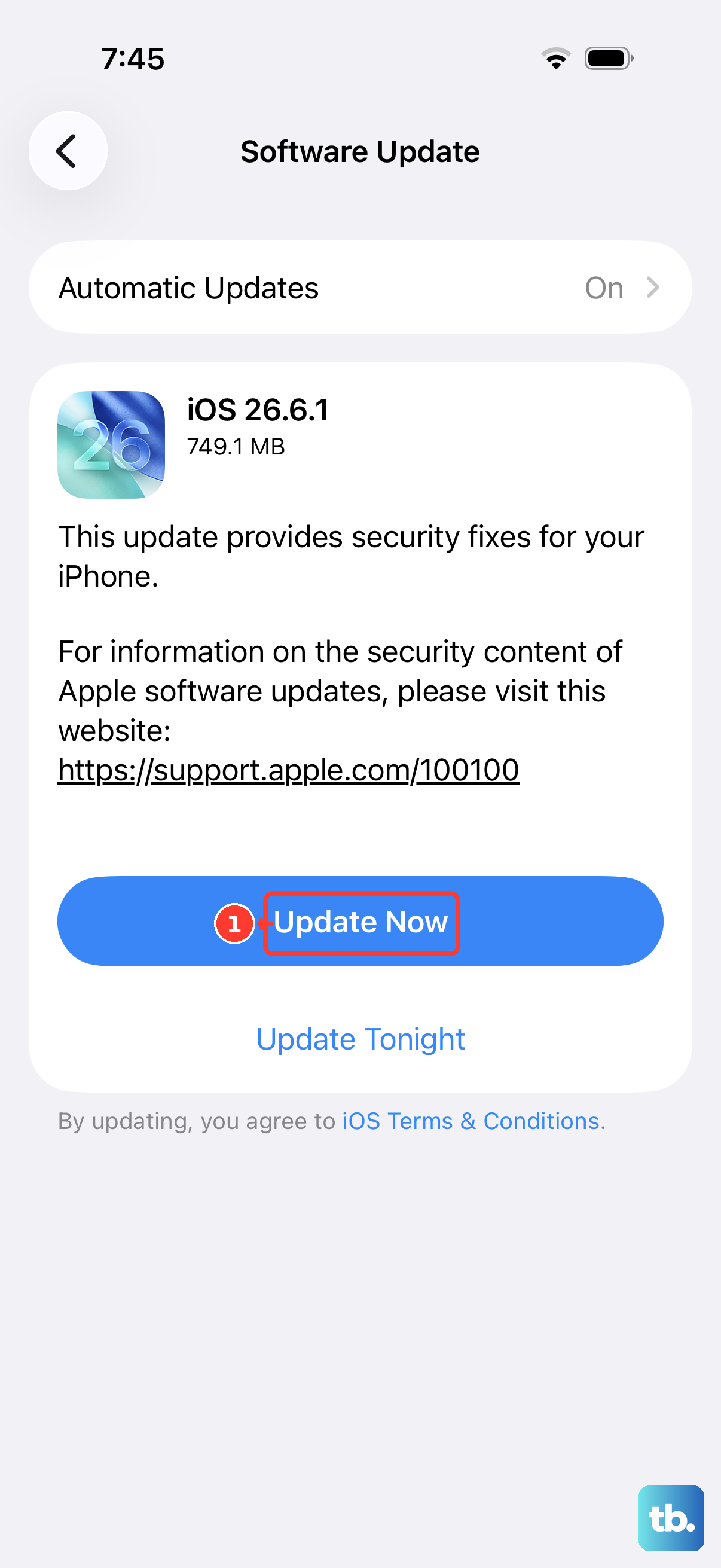
If the screen comes back but flickers, glitches, or goes dark intermittently, an outdated system can be the culprit. Installing the latest iOS often clears display and stability bugs. The iPhone 16 Pro is among the models compatible with iOS 26, so keeping it current is worthwhile.
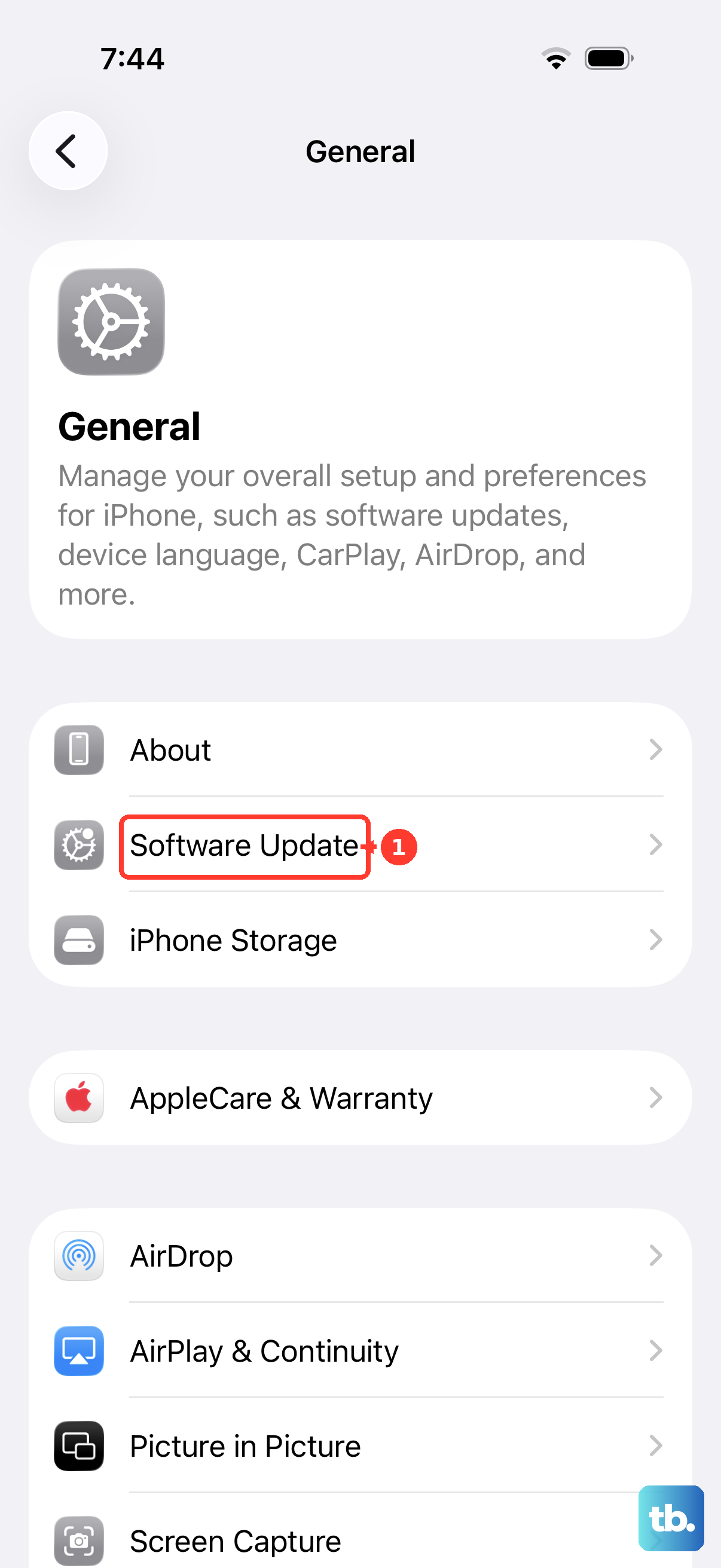
Go to Settings, then General, then Software Update. If an update is available, tap Download and Install, then follow the onscreen instructions. Keep the phone plugged into power and connected to Wi-Fi while it updates, and remember the device needs to be on for the update to run.
Put the iPhone in recovery mode with a computer
When the iPhone stays stuck on a black screen or hangs during startup and a force restart does not help, the next step involves a computer. You will need a separate Mac running Finder, or a Windows PC with the Apple Devices app (or iTunes if your PC lacks the Apple Devices app or your Mac uses macOS Mojave or earlier). Connect the phone with a USB-C cable.
With Finder or the Apple Devices app open and the phone connected, trigger recovery mode using the same button order as a force restart, but hold the side button longer.
- 1.Press and quickly release the volume up button.
- 2.Press and quickly release the volume down button.
- 3.Press and hold the side button until you see the Connect to computer screen.
Do not let go at the Apple logo this time, and keep holding until the Connect to computer screen appears. The computer will then offer you a choice to Update or Restore.
Choose Update before you choose Restore
In recovery mode, try Update first. The official guidance is clear about the difference, stating that Restore reinstalls iOS and erases all your data, and that if you have not tried updating yet, you should try updating first. Update reinstalls the system software and is positioned as the option to attempt before the erasing Restore path.
Let the download run without interruption. If the download takes more than 15 minutes and the device leaves the recovery screen, let the download finish, then repeat the recovery-mode button steps to bring the phone back to the Connect to computer screen and continue.
Erase all content and settings as an on-device last resort
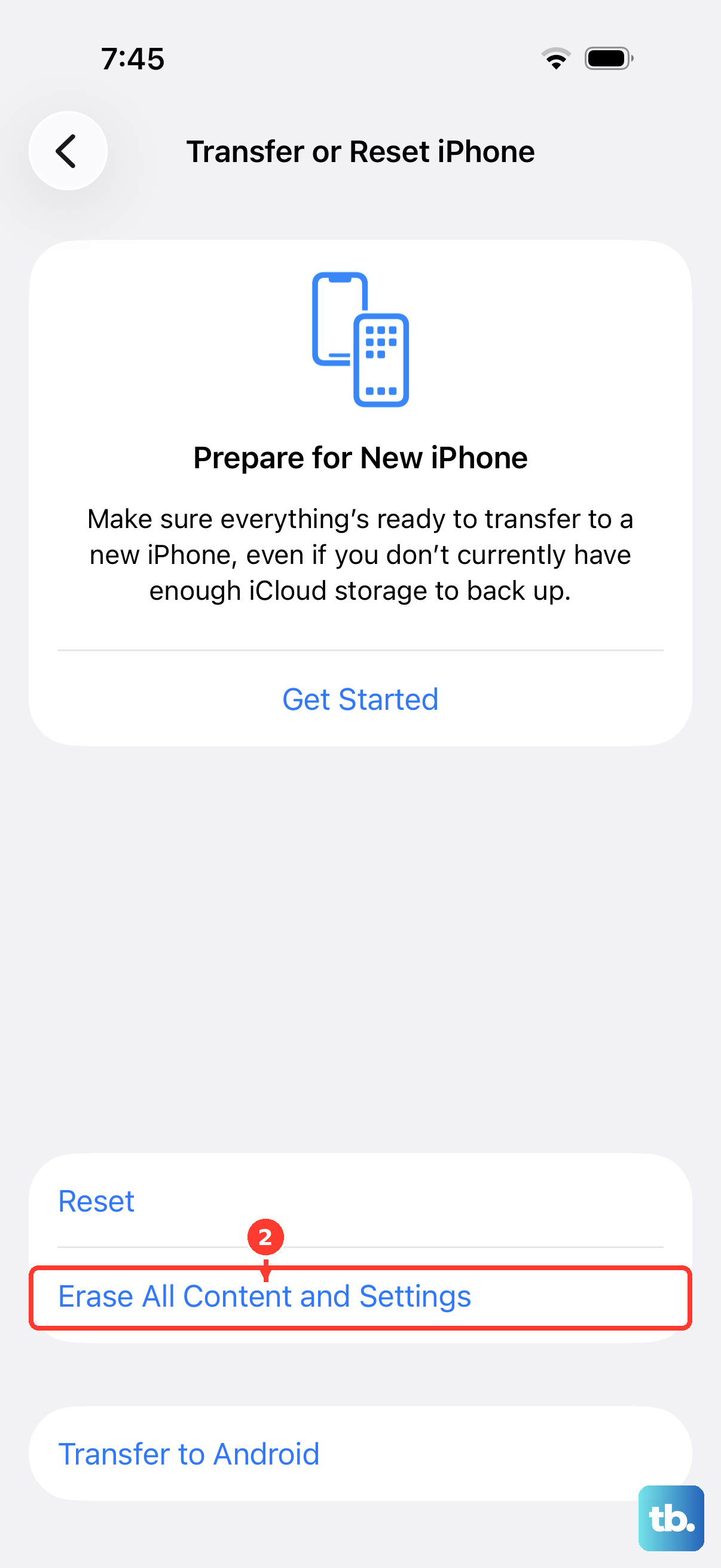
If the screen does respond but the black-screen problem keeps coming back, a full factory reset on the device itself is a stronger reset. This step erases everything, so it is only worth doing once the gentler fixes have failed, and only if you can navigate the screen. Back up your phone first, because this restores the iPhone to factory settings and removes photos, contacts, apps, and Apple Pay cards.
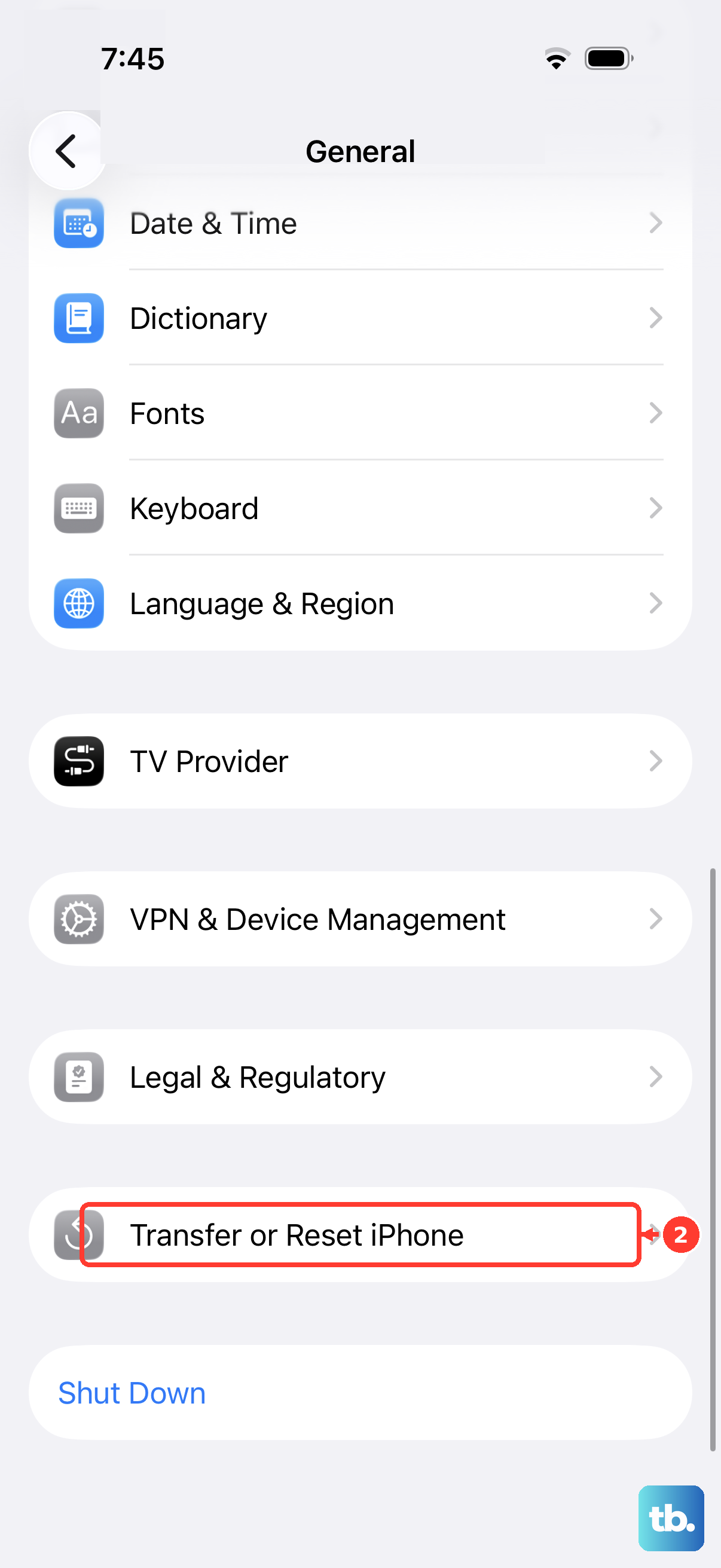
Go to Settings, then General, then Transfer or Reset iPhone, then Erase All Content and Settings. Enter your passcode or Apple Account password if asked, then tap Continue. The phone will warn you and ask whether you are sure you want to erase all data. Confirming wipes everything and returns the iPhone to factory settings.
Restore from a computer for a deeper reset
If the iPhone will not respond on its own at all, a restore from a computer is the deeper version of the reset above. Open Finder on a Mac or the Apple Devices app on a PC (or iTunes on older systems), connect the phone with USB, and trust the computer if you are prompted. Then select the device.
From there, click Restore and click Restore again to confirm. Your computer will erase your device and install the latest iOS. Because this wipes all data, back up first if you can, and plan to restore from a backup once the process finishes and the phone boots normally again.
When it is time to get the phone serviced
Some black screens are hardware failures that no software step can fix. If your iPhone 16 Pro still will not turn on or the display stays black after a force restart, a proper charge, and a restore from a computer, the issue likely needs repair. The official guidance is that you might need service.
Set up a repair through Apple official support, or contact Apple Support directly to arrange service. Have your phone details ready so the support process can move quickly toward a diagnosis or repair.
Frequently Asked Questions
Will a force restart erase my photos and data?
No. A force restart on the iPhone 16 Pro (volume up, volume down, then hold the side button until the Apple logo appears) simply reboots a frozen or black screen and does not erase your content. It is one of the safest first steps to try.
My iPhone got wet and now will not charge, so what should I do?
Unplug the cable from the phone and the adapter, tap the iPhone gently against your hand with the connector facing down, and leave it in a dry area with airflow. Try charging after at least 30 minutes, and allow up to 24 hours to fully dry. Do not use a heat source, compressed air, or insert cotton swabs or paper towels into the connector.
What is the difference between Update and Restore in recovery mode?
Restore reinstalls iOS and erases all your data, while Update is positioned as the option to try first. The official guidance says that if you have not tried updating yet, you should try updating first, so attempt Update before Restore to avoid wiping the phone unnecessarily.
How long should I charge before assuming the screen is broken?
If the phone does not turn on, charge it for one hour and then try again. If you see a low-charge battery image, charge for 30 minutes or until it starts. Wait for the charging screen to appear before concluding the hardware has failed.
The black screen keeps coming back even after a restore, so now what?
A black screen that returns after a force restart, a proper charge, and a restore from a computer usually points to a hardware problem that needs service. Set up a repair through Apple official support or contact Apple Support directly.