
When your iPhone 16 Pro won't download or install apps from the App Store, it can stop you from getting work done or just staying connected. The download might hang, show a spinning circle forever, or just fail with an error. I've found that on iOS 26, these issues are almost always caused by a few specific things you can fix yourself.
Let's go through the most effective solutions, starting with the quickest ones you should try first.
Check Your Internet Connection
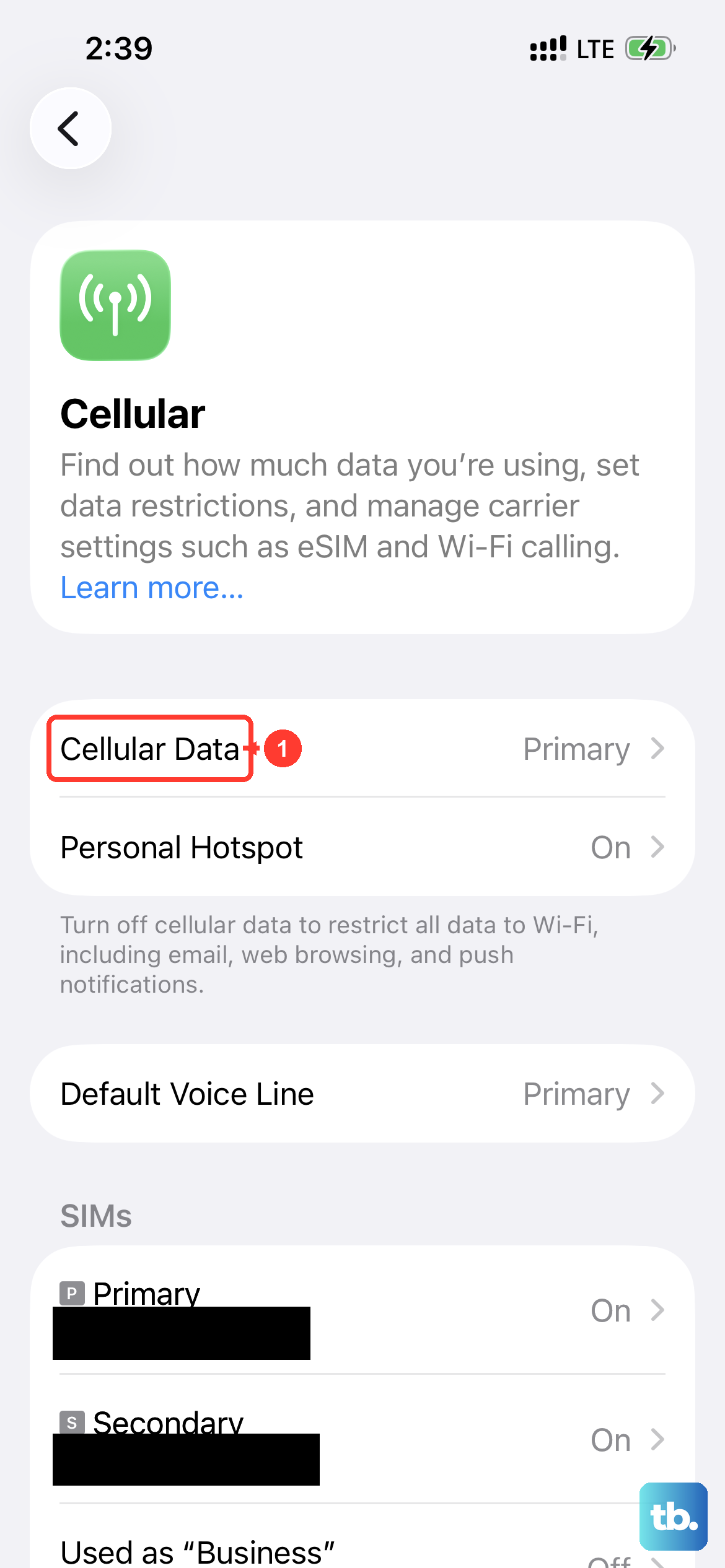
This is the most common culprit. The App Store needs a stable connection to verify your Apple ID and download app data. If you're on Wi-Fi, try switching to your cellular data for a moment to see if the download starts.
You can do this by opening the Control Center and tapping the cellular data icon. If the app downloads over cellular, the issue is likely with your Wi-Fi network. Sometimes, simply toggling Airplane Mode on and off in the Control Center can refresh all your network connections and get things moving again.
Force Restart Your iPhone 16 Pro
A quick restart can clear out temporary software glitches that are blocking the App Store. For your iPhone 16 Pro, the force restart sequence is a little different than older models.
Press and quickly release the Volume Up button, then press and quickly release the Volume Down button. Immediately after, press and hold the Side button. Keep holding it until you see the Apple logo appear, then let go. This doesn't erase any data, it just gives the system a fresh start.
Sign Out and Back Into the App Store
Problems with your Apple ID authentication can prevent downloads. A quick sign-out and sign-in can refresh this connection. Open the App Store, tap your profile icon in the top right, then tap your Apple ID at the top of the menu.
Choose Sign Out from the pop-up. Wait a few seconds, then go back and sign in again with your password. After you sign back in, try downloading your app one more time. This often resolves "Cannot Connect to App Store" type messages.
Check Your Date & Time Settings
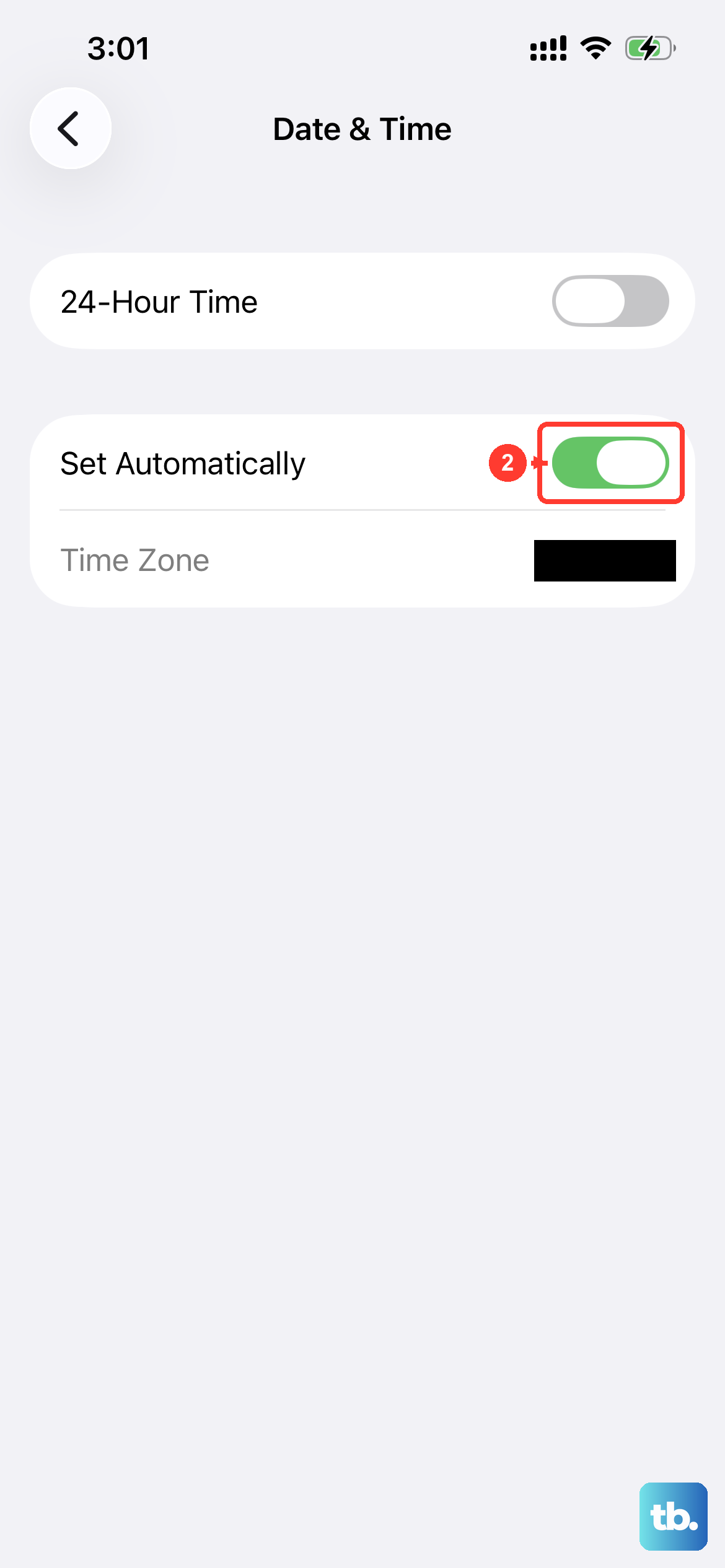
This might seem minor, but if your phone's date and time are wrong, it can break secure connections to Apple's servers, including the App Store. Your iPhone needs the correct time to validate security certificates.
Go to Settings > General > Date & Time. Make sure the switch for Set Automatically is turned on. If it's already on and you're having issues, try turning it off and then immediately back on to force a refresh.
Check Your Available Storage
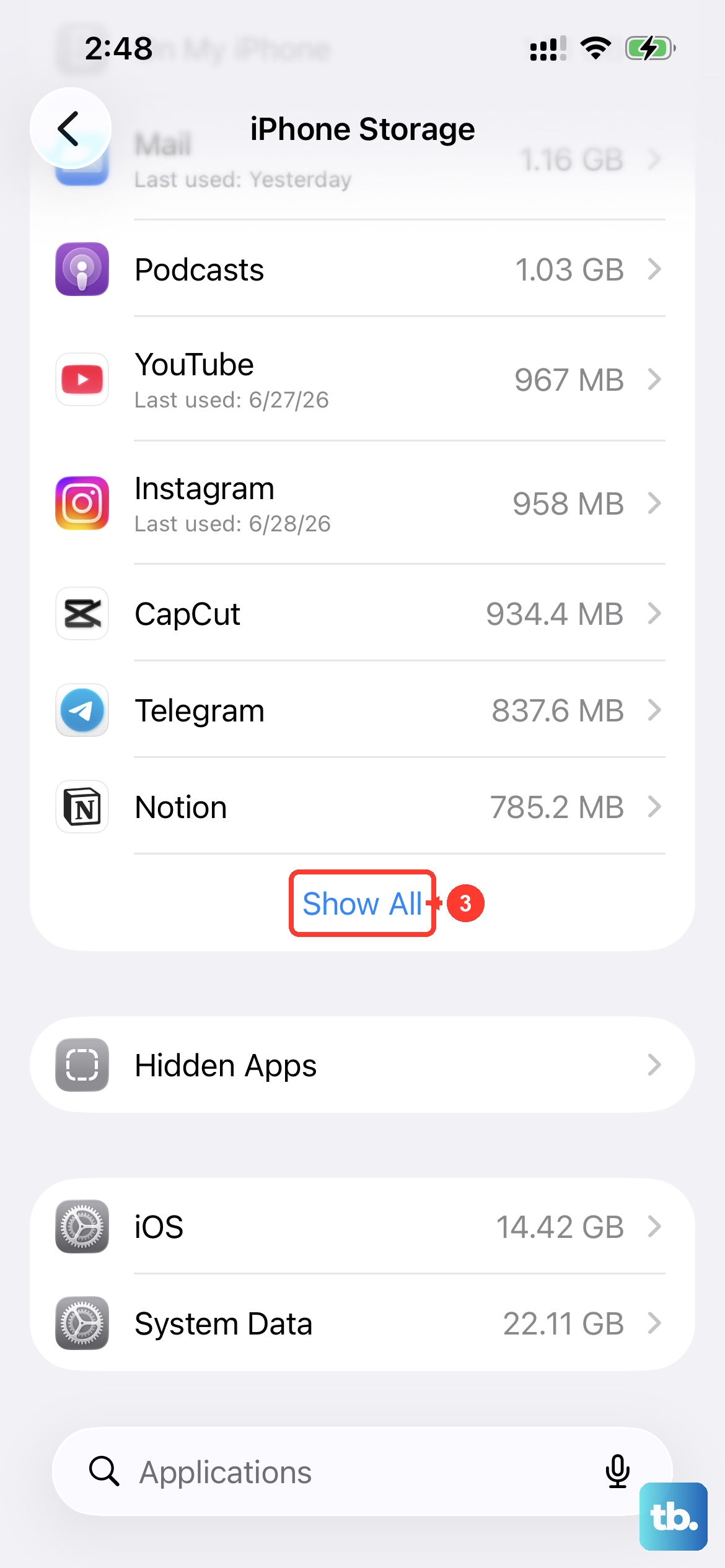
If your iPhone 16 Pro is completely out of space, it can't install new apps. You might see an error or the download will just stall. Go to Settings > General > iPhone Storage to see how much free space you have.
You'll need enough free space for the app itself, plus a little extra for the installation process. If you're low, you can offload unused apps (which keeps their documents and data) or delete old videos and photos. The system might also suggest automatic options to help you clear space.
Update iOS to the Latest Version
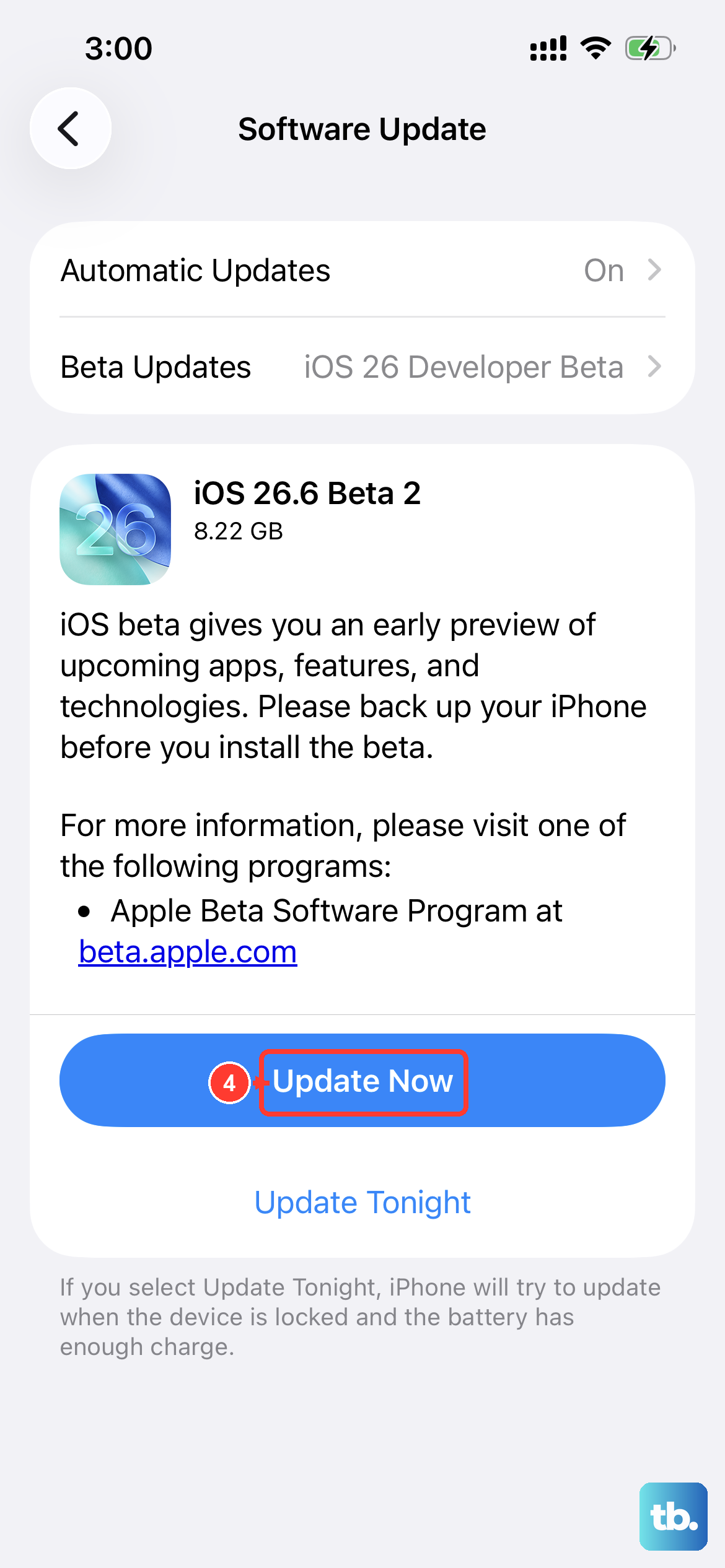
Running an outdated version of iOS 26 can sometimes cause compatibility issues with the App Store's backend. Apple frequently releases updates that include bug fixes for the App Store and installation processes.
Go to Settings > General > Software Update. If an update is available, tap to download and install it. It's best to do this while connected to Wi-Fi and with your phone plugged into power using a certified USB-C cable to ensure a smooth update.
Reset Your Network Settings
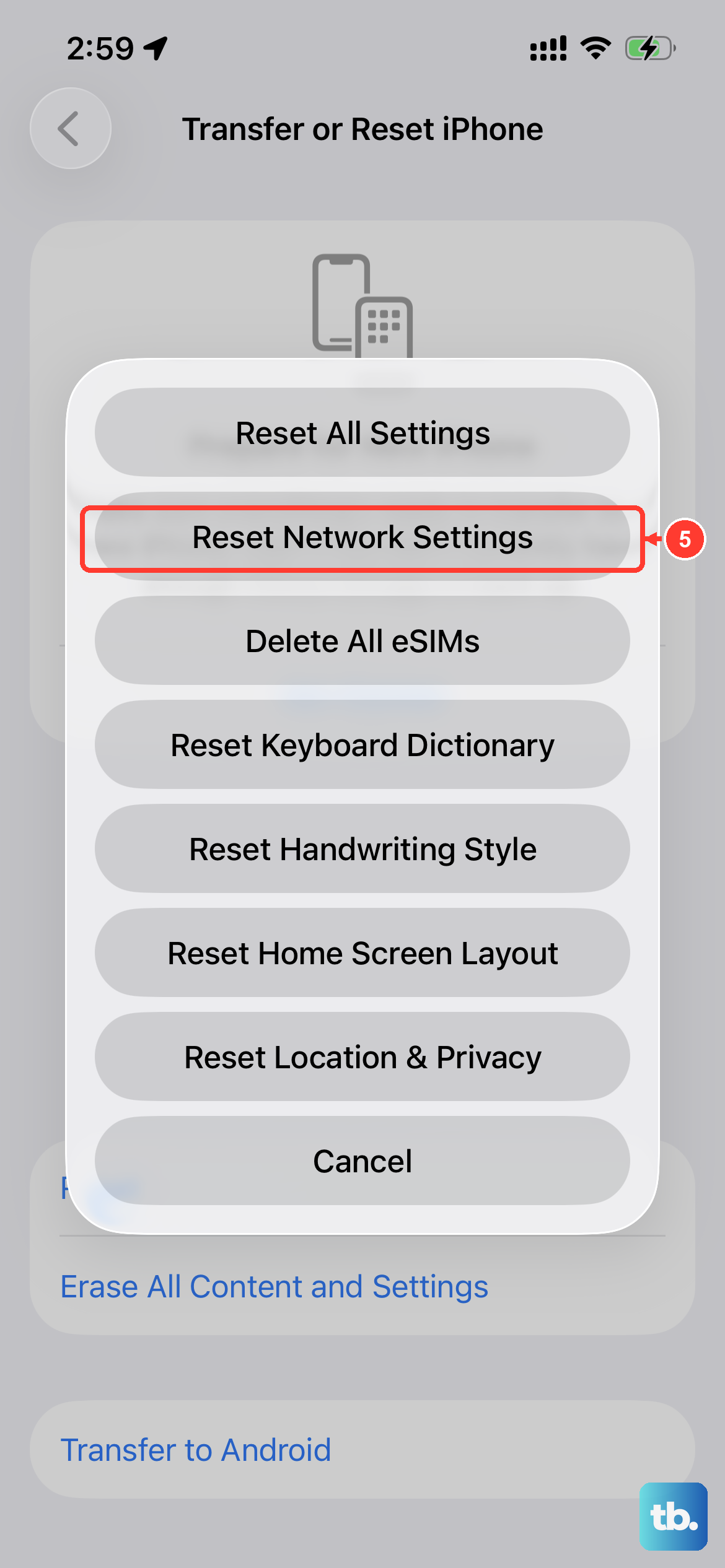
If the issue seems tied to your Wi-Fi or cellular connection, resetting your network settings can help. This clears all saved Wi-Fi passwords, VPN settings, and cellular preferences, so you'll need to re-join your Wi-Fi networks afterward.
Go to Settings > General > Transfer or Reset iPhone. Tap Reset, and then choose Reset Network Settings. Enter your passcode if prompted and confirm. Your iPhone will restart, and you can then try the App Store again on a fresh network connection.
Check Screen Time & Content Restrictions
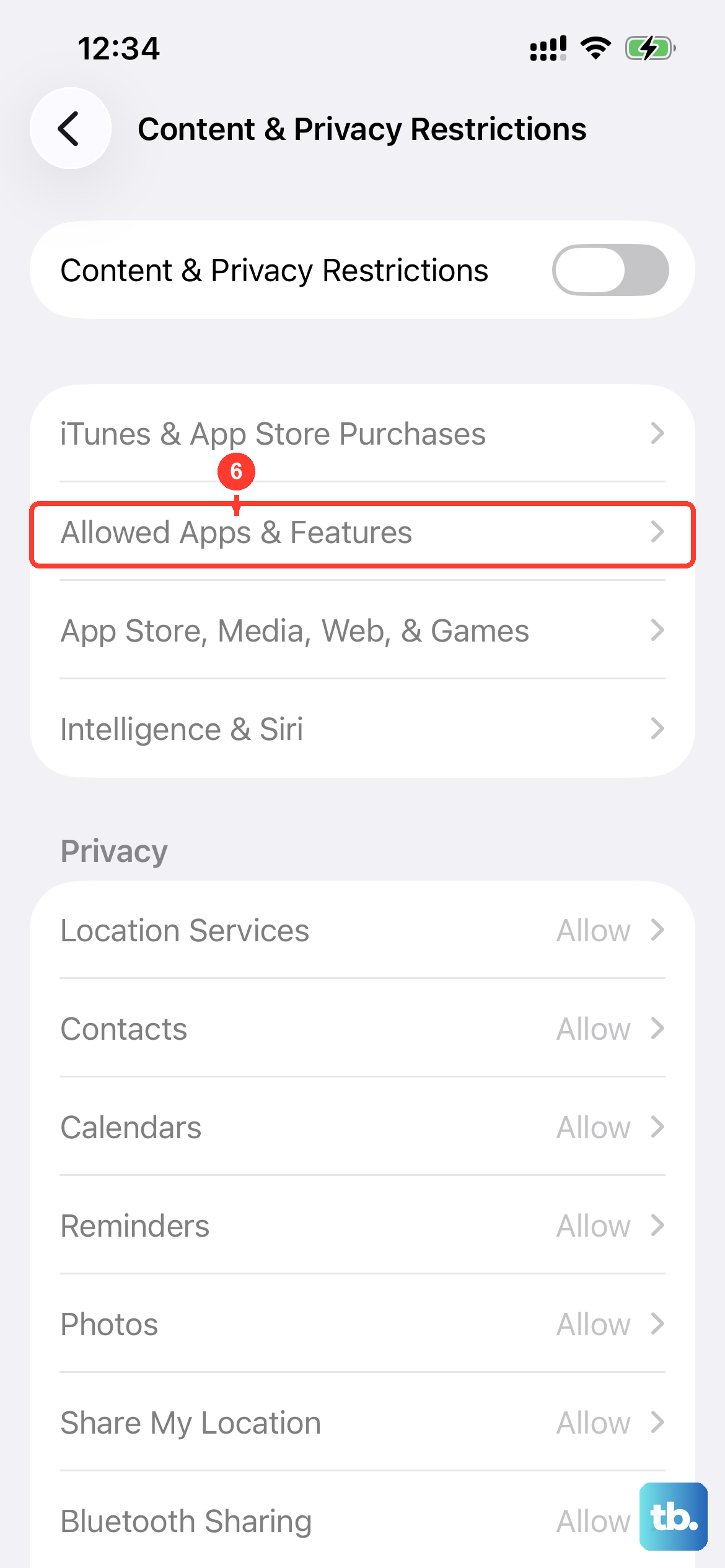
Screen Time restrictions can block app downloads and installations, especially if someone else set up the phone or if you enabled restrictions previously. This is a common thing to overlook.
Open Settings and tap Screen Time. Tap Content & Privacy Restrictions and enter your Screen Time passcode if you have one. Look for the iTunes & App Store Purchases section and tap Installing Apps. Make sure it is set to Allow.
Force Quit and Relaunch the App Store
If the App Store app itself is frozen or stuck, force quitting it can help. On your iPhone 16 Pro, swipe up from the bottom of the screen and hold in the middle until you see the app switcher. Swipe up on the App Store card to close it.
Wait a moment, then tap the App Store icon on your Home Screen to relaunch it. This gives the app a clean start and can clear up any temporary issues it was having with the download queue.
Update Your Payment Method
Even for free apps, the App Store requires a valid payment method on file for account verification. If your card has expired or there's a billing issue, it can block all downloads.
Open Settings and tap your name at the top. Tap Payment & Shipping. You might be asked to sign in with your Apple ID password. Here, you can check your current payment method, update an expired card, or even remove it and add it back again to refresh the link.