You typed out a reply on your iPhone 16, hit send, and instead of the message zipping off you got a red exclamation point and "Not Delivered." Maybe the blue iMessage bubbles refuse to turn blue, or your texts to an Android friend never land. Whatever the symptom, a phone that can't send a simple message is frustrating, and the good news is that most causes are small and fixable from the Settings app. Work through the steps below in order, starting with the quickest and safest, and you should be back to sending in minutes.
Check Your Connection and Resend the Message
Before changing any settings, confirm the basics. You need a cellular data or Wi-Fi connection to send an iMessage, RCS, or MMS, so glance at the signal indicator and make sure you actually have a connection.
If a single message failed with a red exclamation point, tap the red exclamation point next to the failed message.
Next, tap Try Again.
If it still won't go through, tap the red exclamation point again, then tap Send as Text Message.
Sending as a text message routes it over standard SMS instead of iMessage, which is handy when data is spotty. Keep in mind that standard messaging rates may apply when you do this.
Refresh the Cellular Signal With Airplane Mode
If you're on the edge of coverage, or several texts are stuck at once, a quick Airplane Mode cycle forces your iPhone 16 to drop and rebuild its connection to the carrier network. This clears up a surprising number of stuck-message situations.
Open Settings, turn on Airplane Mode, leave it on for at least 15 seconds, then turn it off again. Give the phone a moment to reconnect, then try resending.
Make Sure Cellular Data and Your Number Are Active
SMS and MMS messages travel over your cellular line, so if cellular is switched off, your texts have nowhere to go. The US iPhone 16 and iPhone 16 Plus use eSIM technology only and are not compatible with physical SIM cards, so rather than hunting for a SIM tray, you confirm your line right inside Settings.
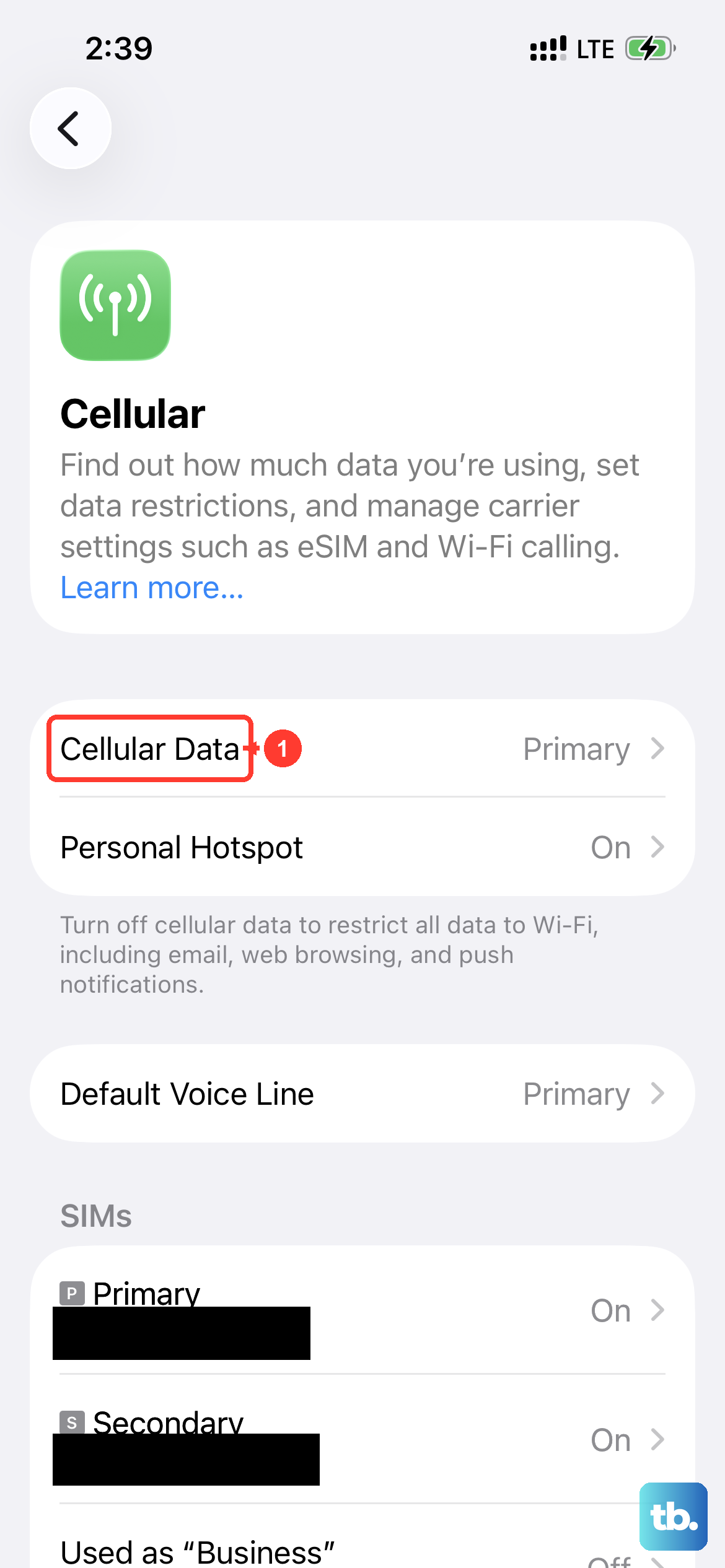
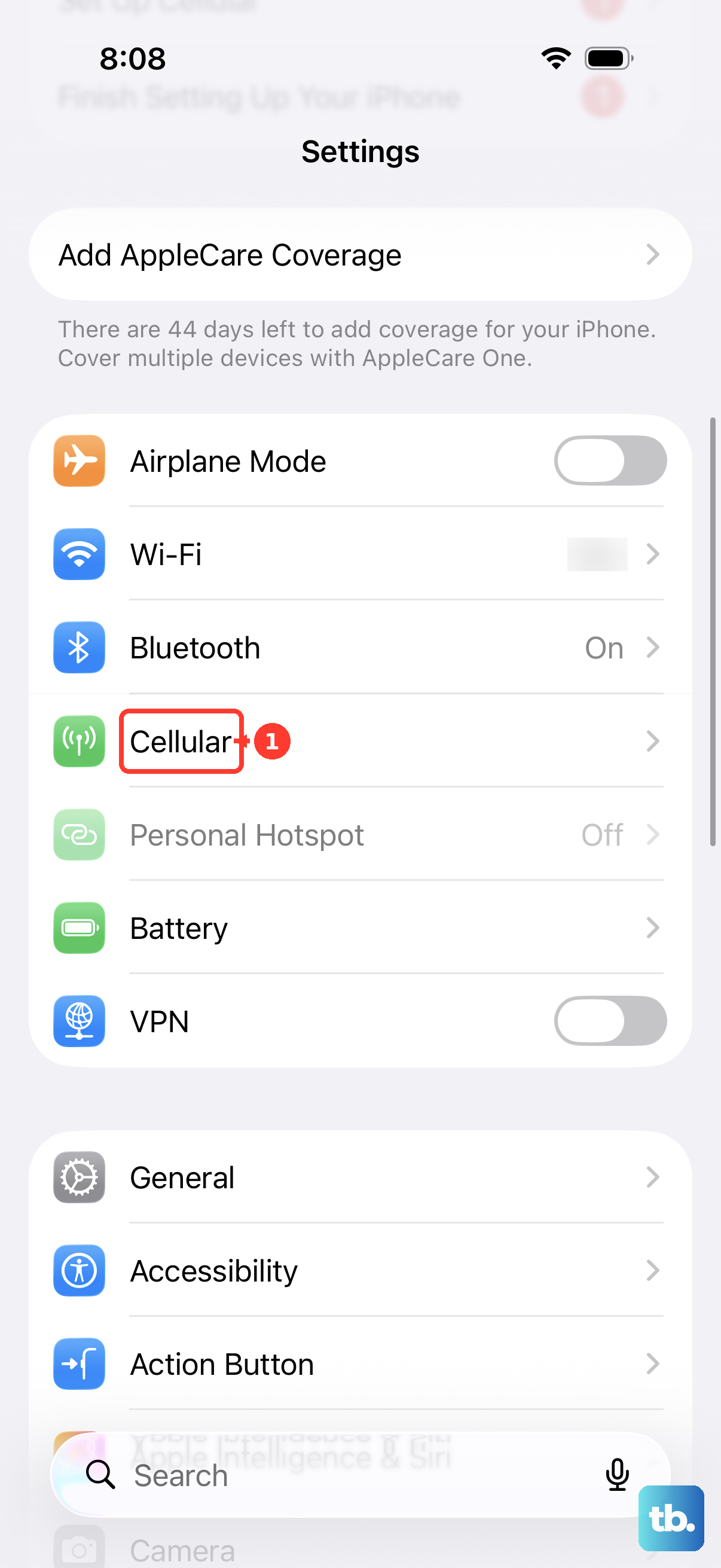
Go to Settings > Cellular and check that Cellular Data is turned on.
Then check that your phone number is selected and turned on. If your line appears inactive here, that alone can stop messages from sending.
Restart or Force Restart the iPhone 16
A standard restart clears temporary glitches in the Messages app and the cellular stack without touching any of your data. It's one of the most reliable fixes for an iPhone that has simply gotten confused.
Press and hold either volume button and the side button until the power-off slider appears.
Drag the slider, then wait 30 seconds for your device to turn off.
After that, press and hold the side button (on the right side of your iPhone) until you see the Apple logo.
If the Messages app is completely unresponsive, or the normal restart slider won't appear, a force restart gives the system a harder reboot. On a Face ID model like the iPhone 16, the button sequence is specific, so follow it exactly:
- 1.Press and quickly release the volume up button.
- 2.Press and quickly release the volume down button.
- 3.Press and hold the side button until the Apple logo appears, then release the side button.
A force restart does not erase anything; it simply forces the phone to power-cycle when a normal restart isn't possible.
Toggle iMessage Off and Back On
If it's specifically your blue-bubble iMessages that won't send, switching the iMessage service off and on again re-registers your device with Apple's messaging system. This often revives a stalled iMessage account.
Go to Settings > Apps > Messages, turn iMessage off, then turn it back on.
Afterward, open Settings > Apps > Messages > Send & Receive and choose the phone number or email address you want to use for sending and receiving.
Sort Out iMessage Activation
Sometimes the problem isn't sending at all but that iMessage and FaceTime never finished activating. Activation needs a working connection and a correct clock, and it can take time on the carrier's end.
First, make sure you're connected to cellular data or Wi-Fi.
Then confirm your time zone is correct at Settings > General > Date & Time, and check that you have the latest iOS installed.
Activation can take some time for your carrier to verify your phone number, so give it a while before assuming something is broken.
Clear a Duplicate or Inactive eSIM on iOS 26
On iOS 26, a duplicate or inactive line can quietly block iMessage activation. If you've moved or added an eSIM and iMessage won't register, removing the leftover line usually resolves it.
Go to Settings > Cellular and find the inactive or duplicate eSIM.
Now tap Delete eSIM to remove the inactive eSIM.
Go to Settings > Apps > Messages > Send & Receive and tap the displayed phone number to activate iMessage.
Only delete a line you're certain is inactive or a duplicate, since removing an active eSIM disconnects that number from your phone.
Turn On RCS for Texts to Android Phones
If your trouble is specifically with richer texts to non-Apple phones, such as higher-quality photos and typing indicators, RCS messaging is what handles those. Your iPhone 16 supports it, but it has to be switched on.
Go to Settings > Apps > Messages > RCS Messaging and turn it on.
RCS requires iOS 18 or later and a carrier that supports RCS on iPhone, so if the setting doesn't appear at all, RCS may not be available with your carrier or in your region yet.
Install a Carrier Settings Update
Carriers periodically push small updates that fine-tune how your phone talks to their network, including messaging. Installing a pending carrier settings update can restore texting after a network change on the carrier's side.
Connect to Wi-Fi, then go to Settings > General > About.
If a carrier settings update is available, you'll be prompted to install it.
You can also see your current carrier settings version listed next to Carrier on that screen.
Update to the Latest iOS
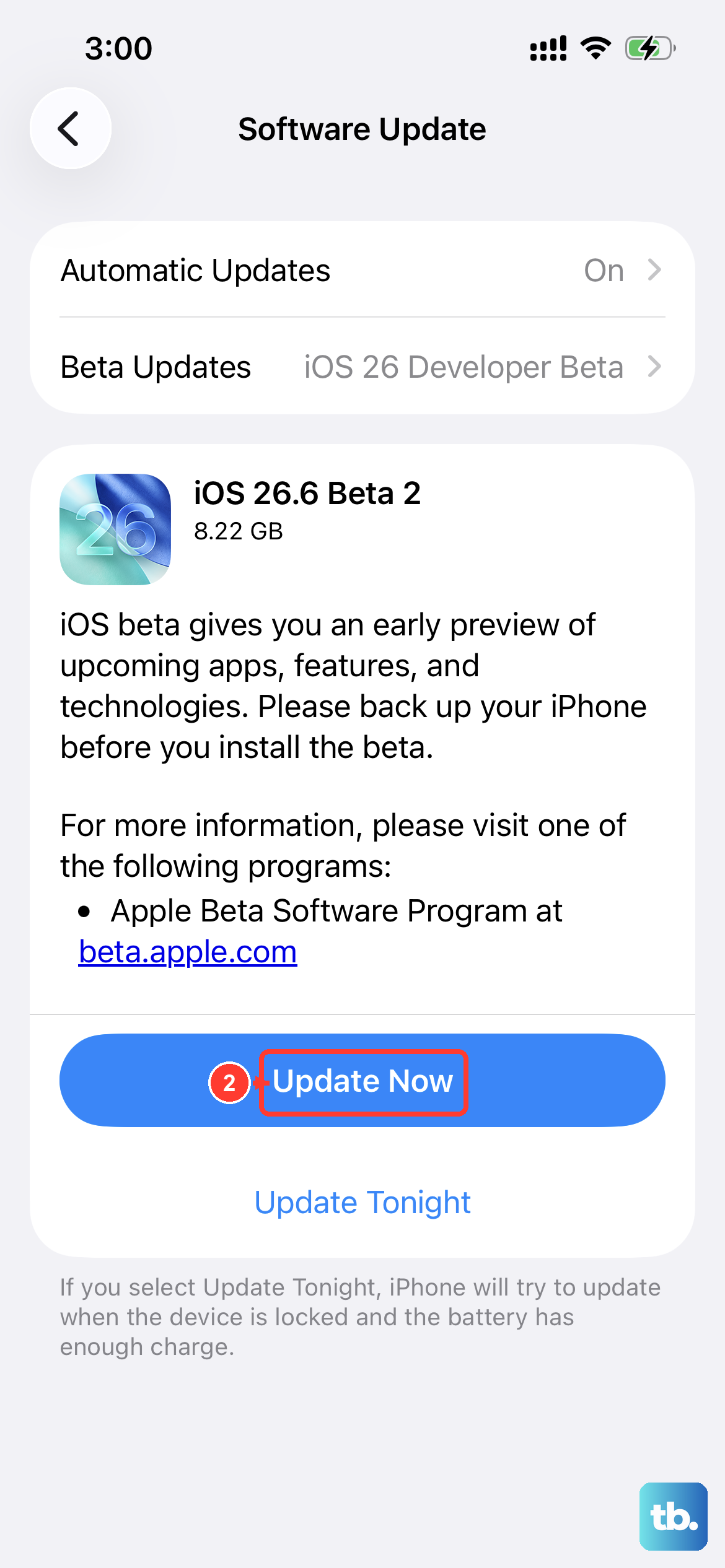
Messaging bugs are sometimes addressed in iOS updates, so running the current version is worth a quick check. Before you start, it's a good idea to back up your device.
Plug the iPhone into power and connect to Wi-Fi, then go to Settings > General > Software Update and tap Download and Install.
Follow the onscreen instructions to finish.
Reset Network Settings as a Last On-Device Step
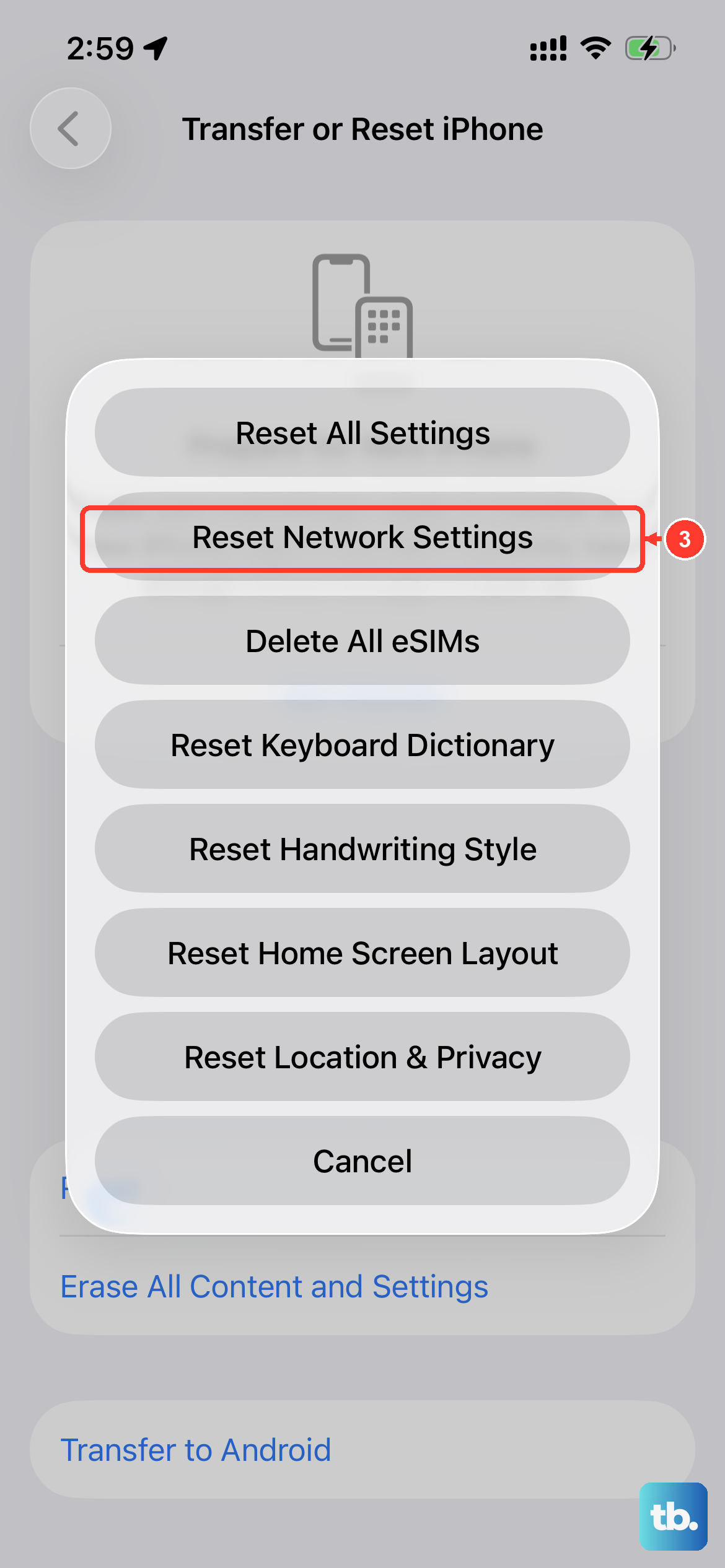
If nothing above has worked, resetting your network settings wipes any corrupted cellular or network configuration and rebuilds it from scratch. This is more disruptive than the earlier fixes, so save it for when you've exhausted the others.
Go to Settings > General > Transfer or Reset iPhone > Reset > Reset Network Settings.
This resets all Wi-Fi networks and passwords, cellular settings, and VPN and APN settings, and Wi-Fi is turned off and then back on.
Your photos, messages, and other personal content are not erased, but you'll need to rejoin your Wi-Fi networks afterward.
If a school or business set up your network, check with their IT team first, since you may need details to reconnect.
When to Bring In Apple or Your Carrier
Some causes live outside your phone, such as an account problem, a plan that isn't provisioned for messaging, a network outage, or a block on your line. If you've worked through every step and still can't send, it's time to reach out.
If you still can't send or receive iMessages specifically, contact Apple Support.
If you still can't send or receive SMS, MMS, or RCS messages, contact your wireless carrier so they can confirm your account is active, your plan is set up correctly, and there are no coverage outages or blocks affecting your line.
Frequently Asked Questions
Why does my iPhone 16 text fail with a red exclamation point?
That mark means the message wasn't delivered, usually because of a weak or missing connection. Check your network, then tap the red exclamation point and tap Try Again; if it still fails, tap it again and choose Send as Text Message, though standard messaging rates may apply.
Do I need to check a physical SIM if texts won't send on my iPhone 16?
No. The US iPhone 16 and iPhone 16 Plus use eSIM only and are not compatible with physical SIM cards. Instead of looking for a SIM tray, open Settings > Cellular and confirm your line is active and that your phone number is selected and turned on.
How do I make iMessage finish activating?
Make sure you're connected to cellular data or Wi-Fi, that your time zone is correct at Settings > General > Date & Time, and that you have the latest iOS installed. Activation can take some time for your carrier to verify your phone number, so allow a while before assuming something is broken.
Why can't I send rich texts to my friend's Android phone?
Those richer messages rely on RCS, which has to be enabled. Go to Settings > Apps > Messages > RCS Messaging and turn it on; note that RCS requires iOS 18 or later and a carrier that supports RCS on iPhone, and the setting won't appear if it isn't available in your region or with your carrier.
Will resetting network settings delete my photos or messages?
Resetting network settings does not erase your personal content like photos or texts. It clears all Wi-Fi networks and passwords, cellular settings, and VPN and APN settings, and turns Wi-Fi off and then back on, so you'll need to rejoin your Wi-Fi networks afterward.