You connected your laptop to your iPhone 15 expecting instant internet, but the hotspot either refuses to appear, shows up and then drops, or won't let any device join. Personal Hotspot on the iPhone 15 turns your cellular data into a Wi-Fi connection for your other gear, and when it stalls it usually comes down to a carrier setting, a password mismatch, or a software hiccup rather than broken hardware. The good news is that the iPhone 15 fully supports Personal Hotspot, including the Maximize Compatibility option, so the fix is almost always something you can do yourself in a few minutes.
Work through the steps below in order. The earliest fixes are the quickest and safest, and the more drastic options (like a network reset or a full erase) come last, only if everything before them fails.
Start With Your Carrier Plan and Cellular Data
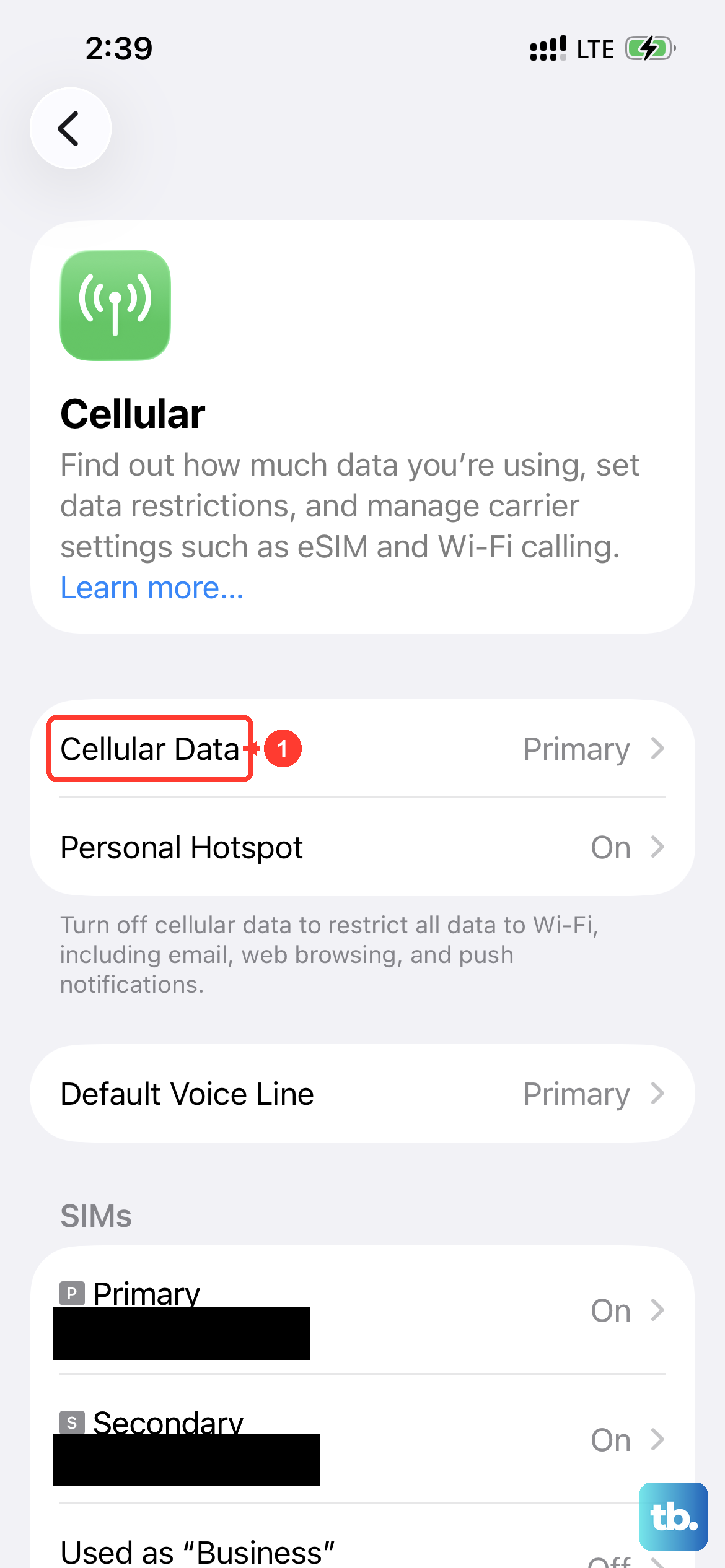
Before changing anything on the phone, it helps to know one rule that trips up a lot of iPhone 15 owners. According to the official guidance, Personal Hotspot only works if your wireless carrier has enabled it and your plan supports tethering. On some plans the feature simply isn't available until you ask the carrier to add it, so this is the first thing to rule out.
Also confirm cellular data is actually on, because Personal Hotspot is dimmed and unusable without it. Go to Settings > Cellular and make sure Cellular Data is turned on. If you still don't see Set Up Personal Hotspot listed even with cellular data on, that's a strong sign the plan side needs attention. In that case, contact your carrier about adding Personal Hotspot to your plan.
Switch the Hotspot On the Right Way
It sounds obvious, but the toggle has to be flipped before any device can find your iPhone 15. Open the Settings app, tap Personal Hotspot, then turn on Allow Others to Join. This is the master switch that makes your hotspot visible and joinable.
While you're on that screen, take note of the Wi-Fi network name and the Wi-Fi password shown there. Connecting devices look for that exact network name and will ask for that exact password, so having both in front of you saves a lot of guesswork at the other device.
Make Sure the Password Is Exactly Right
A surprising number of "won't connect" problems are really just a mistyped or invalid password. On the iPhone providing the hotspot, the password lives at Settings > Personal Hotspot > Wi-Fi Password. It must be at least eight characters long and use only ASCII characters, meaning uppercase and lowercase English letters, numbers 0 through 9, and some punctuation marks.
Check the password on the iPhone, then enter that exact password on the device trying to connect. Watch for easy mix-ups like a capital letter versus lowercase, the number zero versus the letter O, or a stray space. If the password on the iPhone is shorter than eight characters or uses unsupported characters, change it to something that meets the requirements and try again.
Power Both Devices Off and Back On
A clean restart clears temporary glitches on both ends of the connection, so restart the iPhone that provides Personal Hotspot and the other device that needs to join. On the iPhone 15, use this sequence:
- 1.Press and hold either volume button and the side button until the power-off slider appears.
- 2.Drag the slider to turn the iPhone off.
- 3.Wait 30 seconds for it to fully power down.
- 4.Press and hold the side button until you see the Apple logo to turn it back on.
Restart the connecting device too (your laptop, tablet, or other phone). Once both have come back up, turn the hotspot on again and retry the connection.
Turn On Maximize Compatibility for Stubborn Devices
If a specific device, especially an older one or a non-Apple device, just won't latch onto the hotspot, the iPhone 15 has a setting built for exactly this. Because the iPhone 15 is an "iPhone 12 model or later" device, it supports Maximize Compatibility. Open Settings, tap Personal Hotspot, and turn on Maximize Compatibility to help those harder-to-connect devices join.
One honest trade-off to know about. According to the official guidance, with this setting on, internet performance and Wi-Fi security might be reduced for connected devices. If turning it on fixes your connection, that's usually a worthwhile compromise; you can always switch it back off later if you no longer need it.
Install the Latest Version of iOS
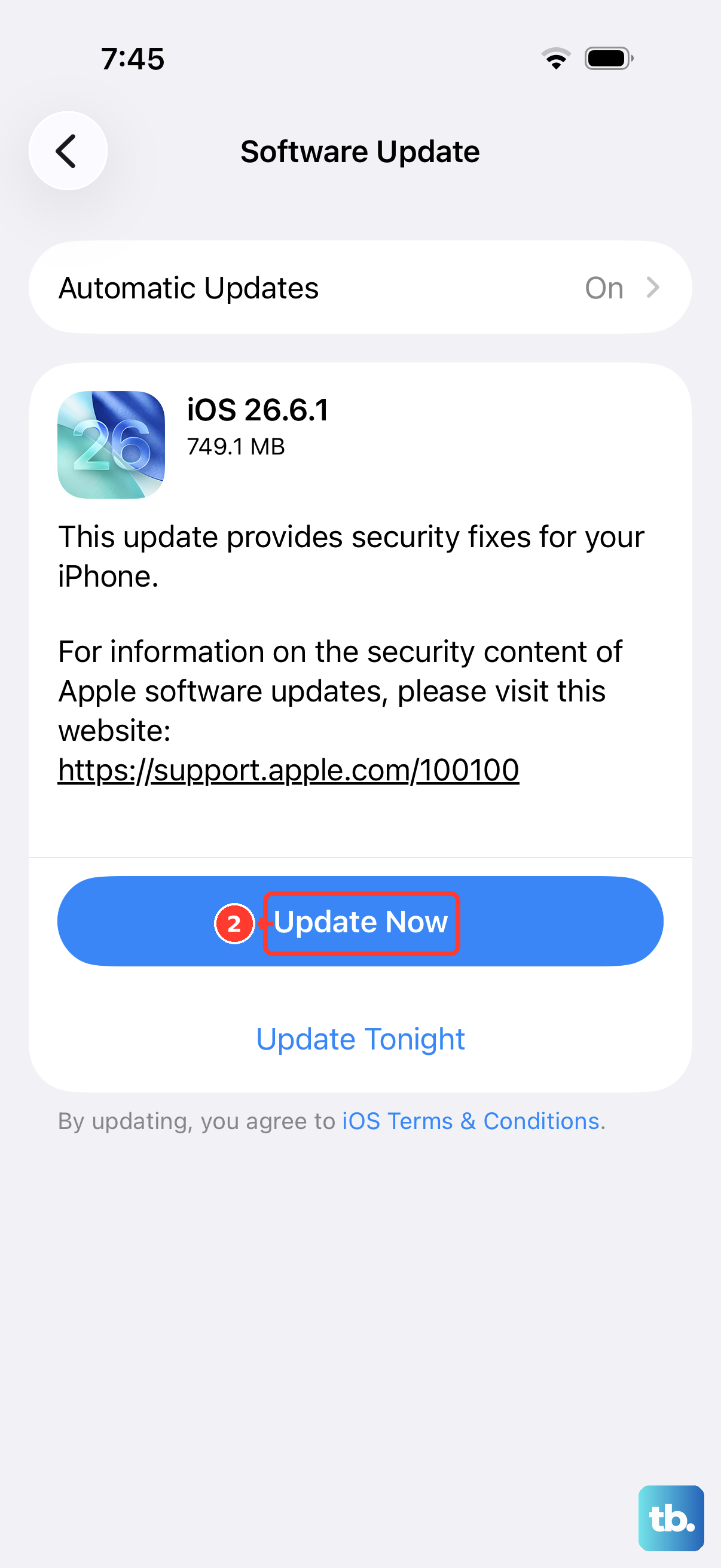
An out-of-date system can carry bugs that affect networking features like Personal Hotspot, so it's worth confirming your iPhone 15 is current. Go to Settings > General > Software Update. If an update is available, tap Download and Install and follow the onscreen instructions.
There's no special version number you need to chase here. The guidance is simply to install whatever the latest version of iOS is, so apply whatever the phone offers and then test the hotspot again.
Force Restart a Frozen iPhone
If your iPhone 15 has become unresponsive (the screen won't react and a normal restart isn't possible), a force restart can bring it back without affecting your data. The button sequence for the iPhone 15 is precise, so follow it exactly:
- 1.Press and quickly release the volume up button.
- 2.Press and quickly release the volume down button.
- 3.Press and hold the side button.
- 4.When the Apple logo appears, release the side button.
Once the phone has restarted, open Settings, turn Personal Hotspot back on, and check whether your devices can connect now.
Reset the Network Settings
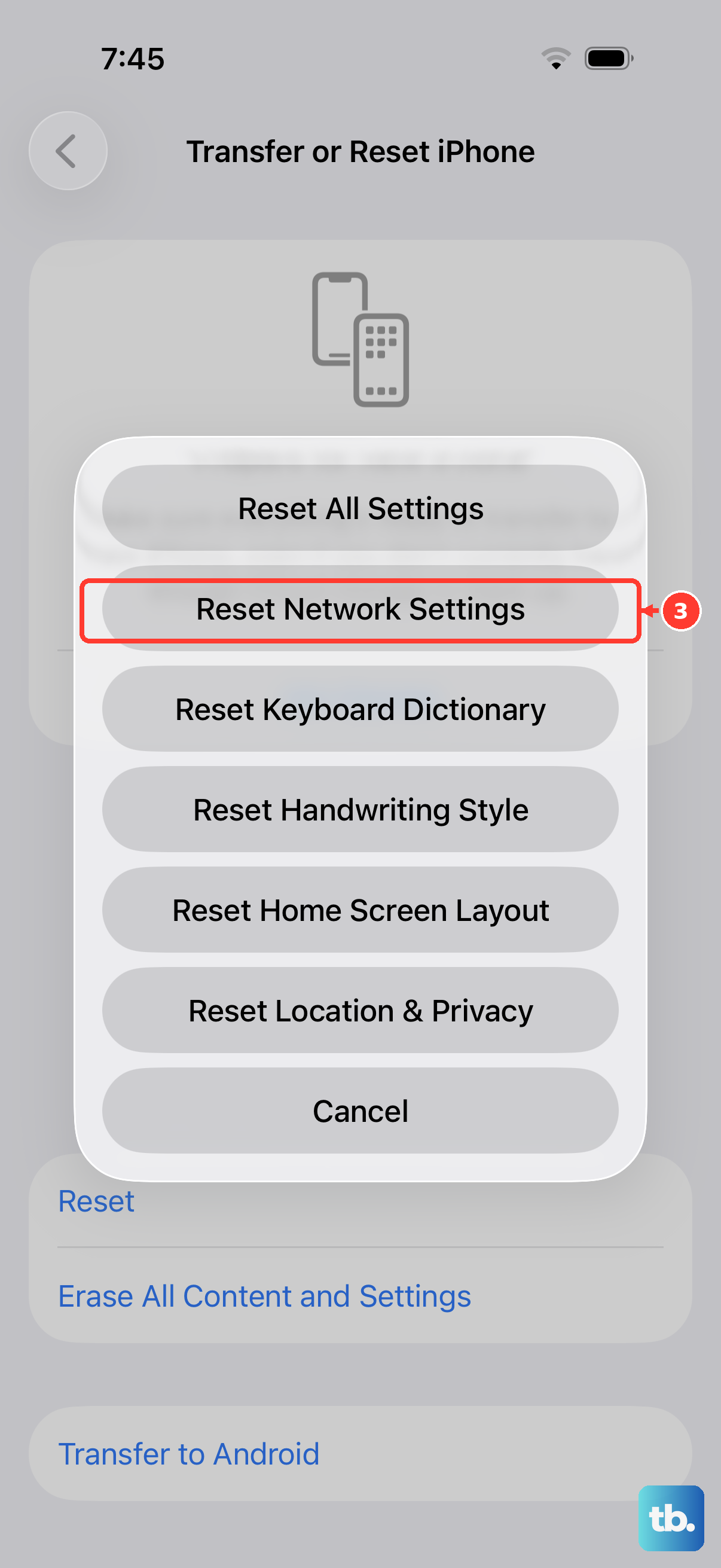
When the hotspot still misbehaves after the steps above, clearing out saved network configuration on the iPhone providing the hotspot often resolves deeper connection problems. On that iPhone, go to Settings > General > Transfer or Reset iPhone > Reset, then tap Reset Network Settings.
Be aware of what this affects. Resetting network settings clears the Wi-Fi networks and passwords, cellular settings, and VPN and APN settings you've used before, so you'll need to rejoin your usual Wi-Fi networks afterward. It does not erase your photos, apps, or personal content. After the reset, turn Personal Hotspot back on and test it.
Erase All Content and Settings as a Last Resort
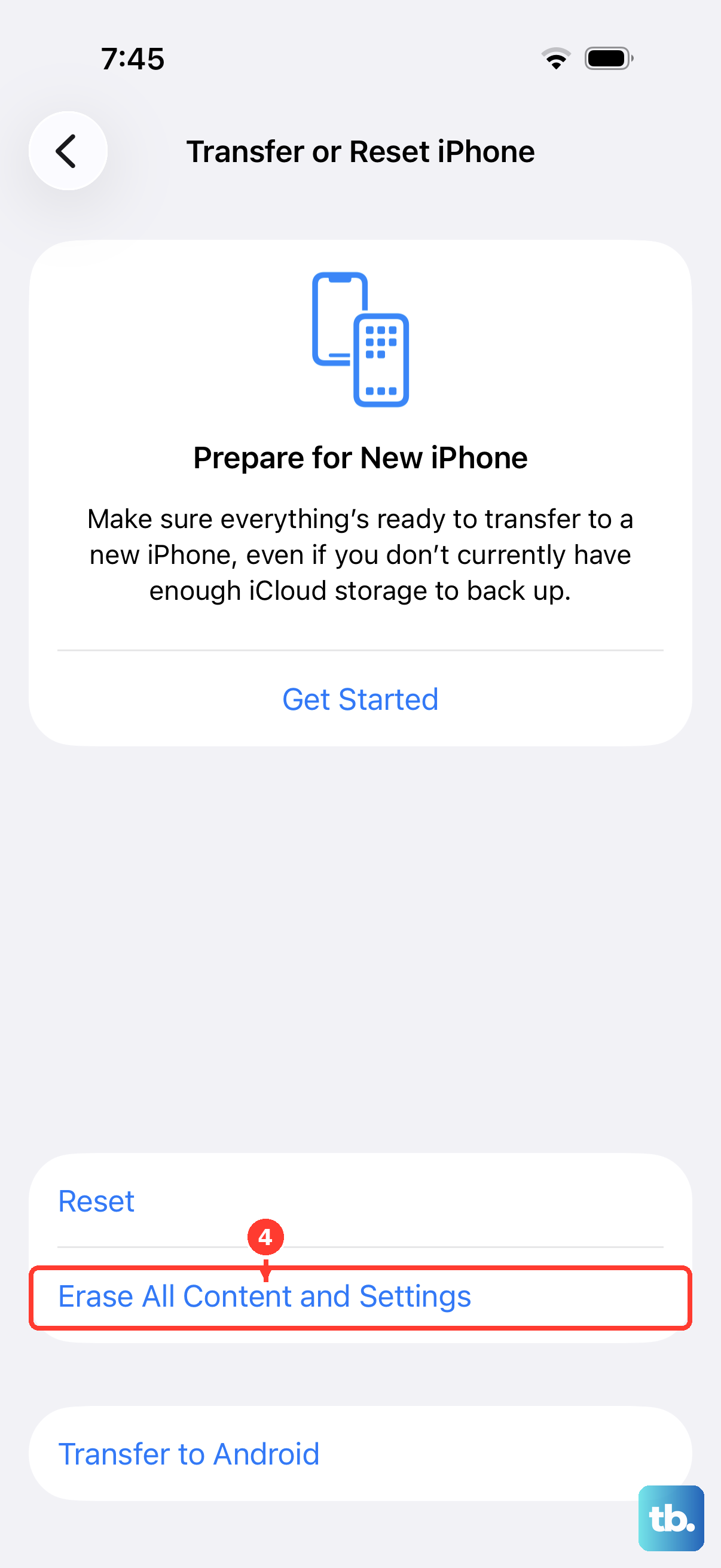
If nothing else has worked, a full factory reset is the most thorough software fix, but it is destructive, so treat it as a genuine last resort. Back up your iPhone first, because this step completely erases the device, removing all of your content and settings and restoring the iPhone 15 to factory settings.
When you're ready, go to Settings > General > Transfer or Reset iPhone > Erase All Content and Settings, and enter your passcode or Apple Account password if you're asked. If your iPhone uses an eSIM, you'll be given the choice to keep or erase it; if you erase the eSIM, you'll need to contact your carrier to reactivate your cellular plan.
When to Call Your Carrier or Apple Support
Some hotspot problems live outside the phone's settings entirely. If Personal Hotspot still won't appear or won't connect, contact your wireless carrier, since tethering has to be enabled on your plan for the feature to function at all. This is especially likely if Set Up Personal Hotspot never showed up in Settings > Cellular even with cellular data on.
If the issue clearly isn't the plan and persists through every step here, it may be a device-level fault. In that case, contact Apple Support for further help with your iPhone 15.
Frequently Asked Questions
Why is Personal Hotspot greyed out on my iPhone 15?
Personal Hotspot is dimmed and unavailable when cellular data is off, so first check Settings > Cellular and make sure Cellular Data is turned on. If it stays greyed out, or you don't see Set Up Personal Hotspot in Settings > Cellular at all, your plan may not include tethering. Contact your carrier about adding Personal Hotspot to your plan.
Why won't an older or non-Apple device join my hotspot?
The iPhone 15 includes a setting designed for this. Open Settings > Personal Hotspot and turn on Maximize Compatibility, which helps devices that struggle to connect. Just note that with it on, internet performance and Wi-Fi security might be reduced for connected devices.
What are the rules for the hotspot password?
On the iPhone, the password is at Settings > Personal Hotspot > Wi-Fi Password. It must be at least eight characters long and use only ASCII characters (uppercase and lowercase English letters, numbers 0 through 9, and some punctuation marks). Enter that exact password on the device trying to connect.
Will resetting network settings delete my photos or apps?
No. Reset Network Settings (at Settings > General > Transfer or Reset iPhone > Reset) only clears the Wi-Fi networks and passwords, cellular settings, and VPN and APN settings you've used before. Your photos, apps, and personal content stay in place, but you'll need to rejoin your saved Wi-Fi networks afterward.
What if I have an eSIM and I erase my iPhone 15?
During Erase All Content and Settings, if you have an eSIM you can choose to keep or erase it. If you choose to erase the eSIM, you'll need to contact your carrier to reactivate your cellular plan before your hotspot (or any cellular service) will work again.