
When your iPhone 14 won't send pictures, it's usually a quick network or settings hiccup. The photo might get stuck with a spinning wheel or fail with a "Not Delivered" alert. Let's run through the fixes, starting with the most common ones you can try right now.
Check Your Connection First
This is almost always the culprit. If you're on Wi-Fi, make sure the icon is in your status bar. Sometimes toggling it off and back on in Control Center can re-establish a better connection.
For cellular, glance at your signal strength. If it's low, try moving to a different spot. A picture needs a decent data connection to upload, whether it's an iMessage or a standard MMS text.
Restart Your iPhone 14
A simple restart clears out temporary glitches that can stall the Messages app. Just press and hold the side button and either volume button, slide to power off, wait 30 seconds, and turn it back on.
If the phone is unresponsive, you can force restart it. Quickly press and release the Volume Up button, then the Volume Down button, then press and hold the Side button until you see the Apple logo.
Verify iMessage is Active
If your messages are sending as green texts instead of blue bubbles, iMessage is off or having trouble. Go to Settings > Messages and toggle iMessage off, wait a moment, then turn it back on.
This forces your phone to re-register with Apple's servers. I've seen this fix the issue more times than I can count, especially after a software update.
Ensure MMS Messaging is Enabled
If you're texting someone who doesn't have an iPhone, your photo sends as an MMS. This setting needs to be on. Head to Settings > Messages and make sure "MMS Messaging" is enabled.
Also, check that "Send as SMS" is turned on below it. This allows the message to fall back to a regular text if iMessage fails, which can sometimes get a picture through.
Check Your Cellular Data Settings
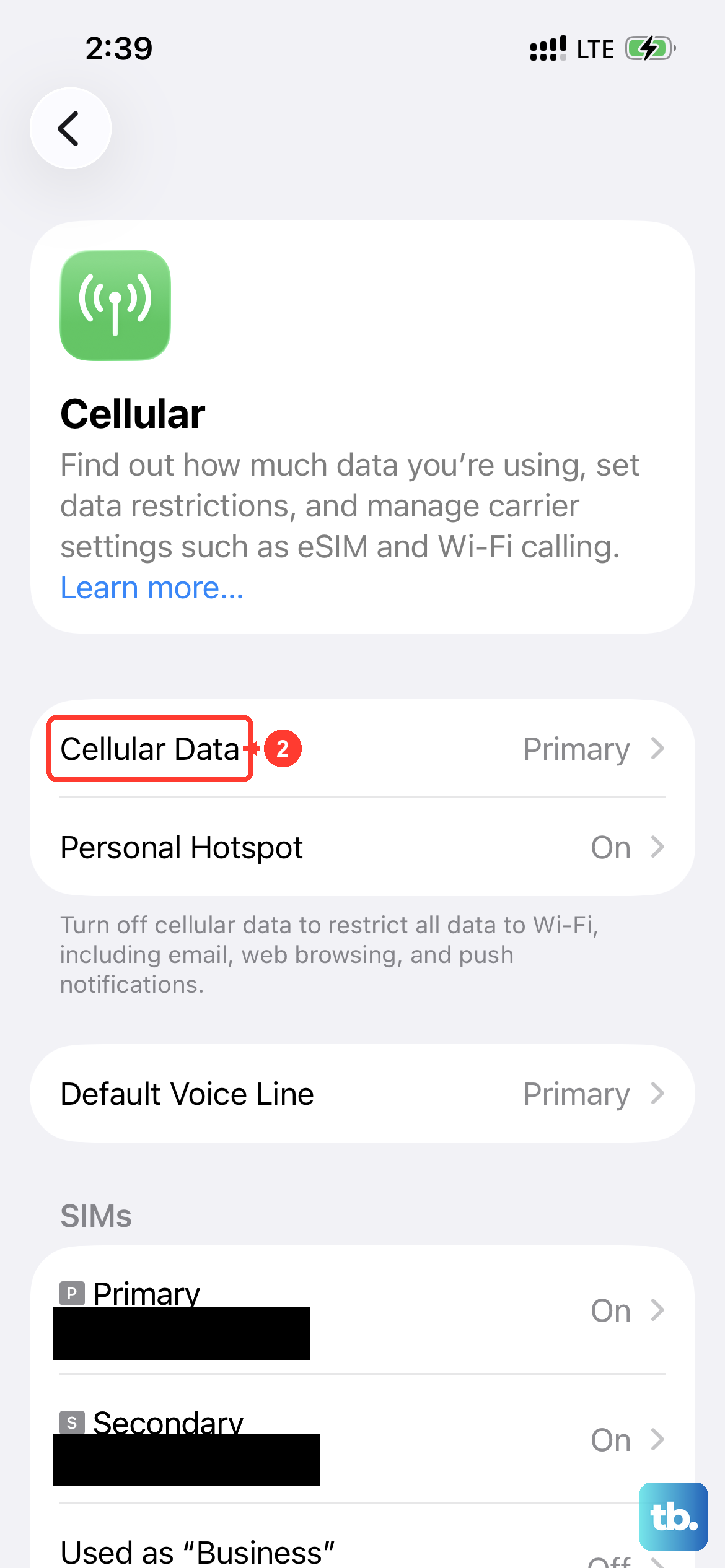
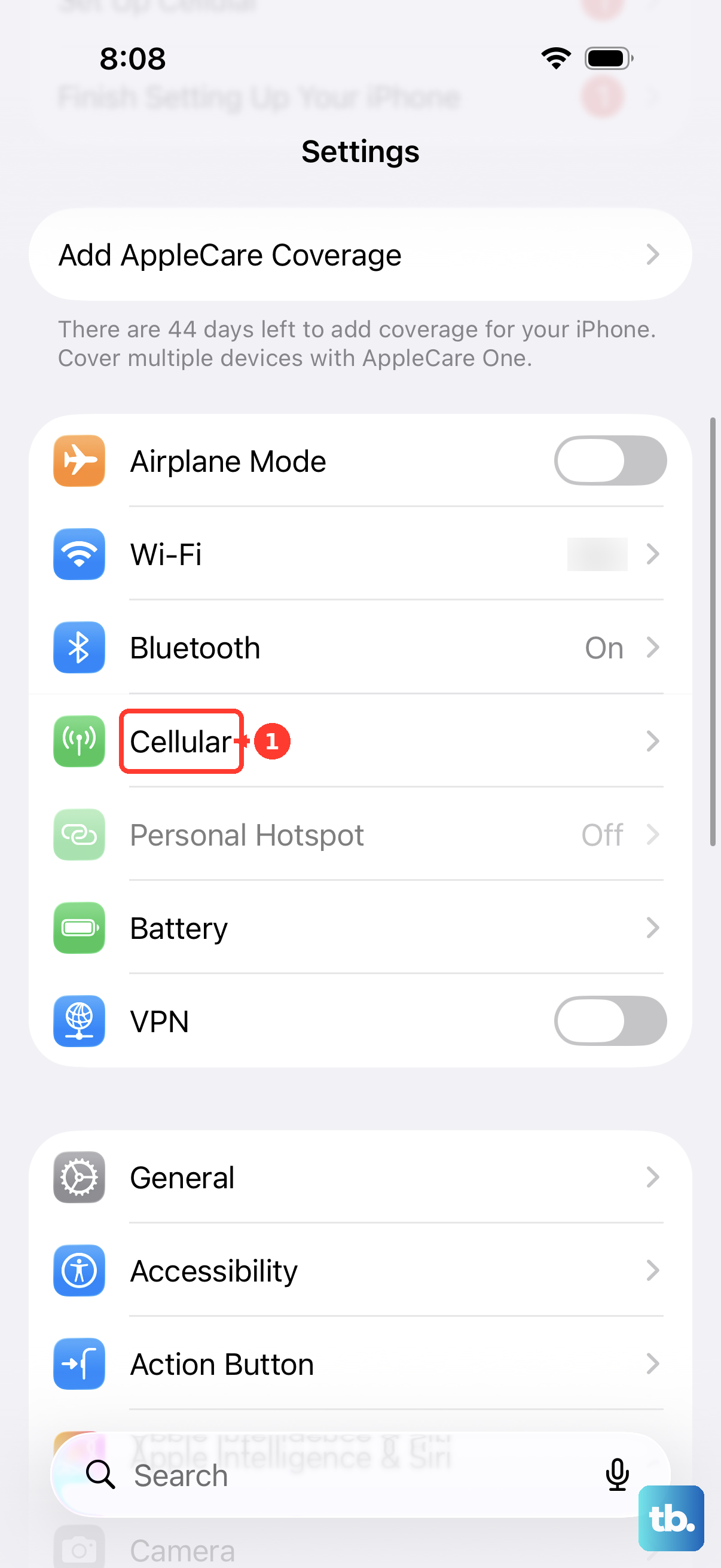
It sounds obvious, but always verify cellular data is on. Go to Settings > Cellular and ensure the main "Cellular Data" toggle is green.
While you're there, scroll down to the "Messages" app listing and make sure it's allowed to use cellular data. If it's off, your photos won't send unless you're on Wi-Fi.
Disable Low Data Mode
Low Data Mode, designed to save your data plan, can restrict background activity for apps like Messages. To check, go to Settings > Cellular > Cellular Data Options.
If "Low Data Mode" is on, turn it off. Also check Settings > Wi-Fi, tap the "i" next to your network, and make sure it's off there too for a full picture-sending data allowance.
Update Your Carrier Settings
These small updates from your phone provider can improve network connectivity for calls and data. Make sure you're connected to the internet, then go to Settings > General > About.
If an update is available, a prompt will appear on this screen. Just tap "Update" and it will install in seconds without a full iOS update.
Sign Out and Back Into Your Apple ID
This refreshes your core services, including iMessage. Go to Settings > [Your Name] at the very top. Scroll all the way down and tap "Sign Out".
You'll need your Apple ID password. After signing out, restart your iPhone 14, then go back to Settings to sign in again. This can resolve deeper account-related sending issues.
Check the Send & Receive Addresses
Your iMessage can be set to send from your phone number or an email address. If it's set wrong, things get confused. Go to Settings > Messages > Send & Receive.
Under "You can be reached by iMessage at," make sure your phone number is checked. Under "Start new conversations from," select your phone number. This ensures your photos are sent from your correct contact info.
Update to the Latest iOS
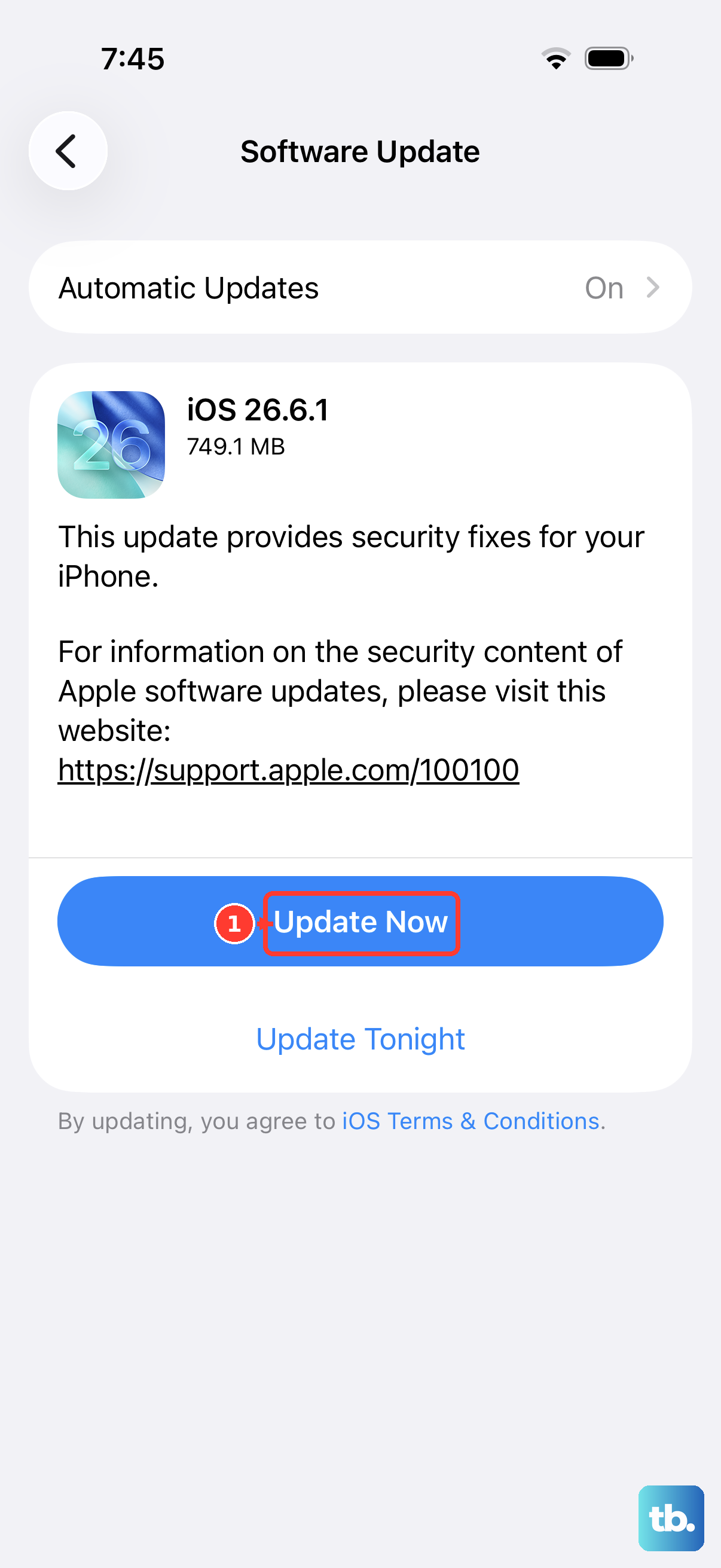
Software bugs can cause all sorts of problems, and Apple issues fixes in updates. Since you're on an iPhone 14 running a newer iOS, make sure you're current. Connect to Wi-Fi and plug in your charger.
Then go to Settings > General > Software Update. If an update is there, download and install it. This has resolved messaging issues for many users after major iOS releases.
Reset Network Settings
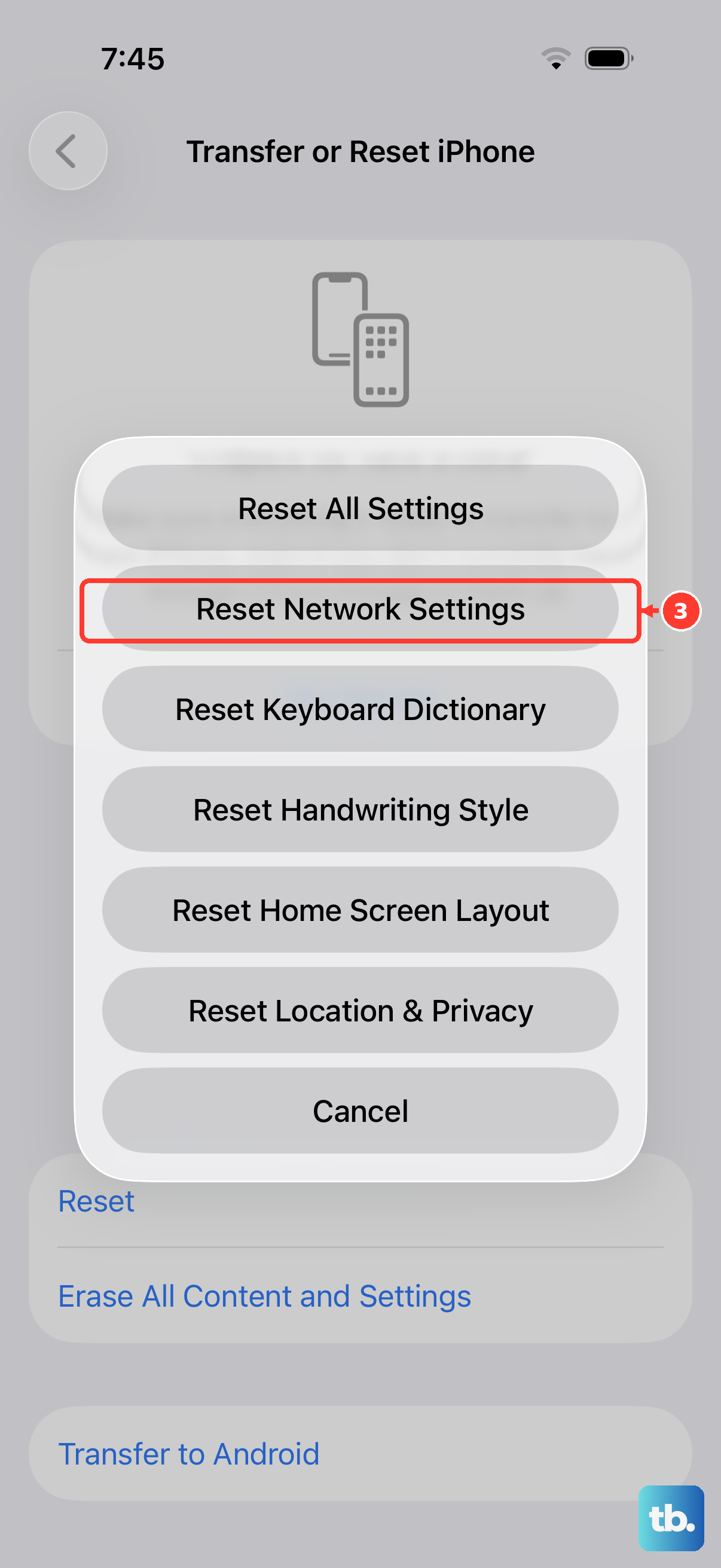
If you're still stuck, this is a stronger step. It clears all network configurations, including Wi-Fi passwords, VPN settings, and cellular preferences. Go to Settings > General > Transfer or Reset iPhone > Reset.
Tap "Reset Network Settings" and enter your passcode. Your iPhone 14 will reboot. Afterward, you'll need to re-join your Wi-Fi networks, but it often clears up persistent data problems.