
Seeing the "SIM Not Activated" message on your iPhone 14 can stop you in your tracks. It usually means your carrier hasn't fully set up the connection between your new SIM or eSIM and their network.
The quickest thing to try is a simple restart. Press and hold the side button and either volume button, then slide to power off. Wait a minute, then turn it back on. This can clear a temporary software glitch that's blocking the activation signal.
Check Your Activation Status with Your Carrier
If you just got a new SIM card or transferred service, it might not be active yet. This is the most common reason for this message. You'll need to contact your carrier directly, Verizon, AT&T, T-Mobile, or whoever you use.
They can check their system to see if the activation is pending or if there's a hiccup on their end. Sometimes, you just need to wait a bit longer for their system to fully process everything.
Toggle Airplane Mode
Switching airplane mode on and off forces your iPhone 14 to completely reset its connection to cellular networks. Swipe down from the top-right corner to open Control Center and tap the airplane icon.
Leave it on for about 30 seconds, then tap it again to turn it off. Watch for the signal bars to reappear in the top corner. I've seen this simple trick resolve a lot of temporary network handshake issues.
Reinsert Your Physical SIM Card
If your iPhone 14 uses a physical nano-SIM card, it might not be seated perfectly. You'll need the SIM ejector tool that came in the box, or a small paperclip. Turn the phone off first.
Find the SIM tray on the left side of the phone and gently push the tool into the small hole. Inspect the gold contacts on the SIM for any dirt or damage, then place it back in the tray firmly and reinsert it. Power the phone back on.
Update Your iPhone's Software
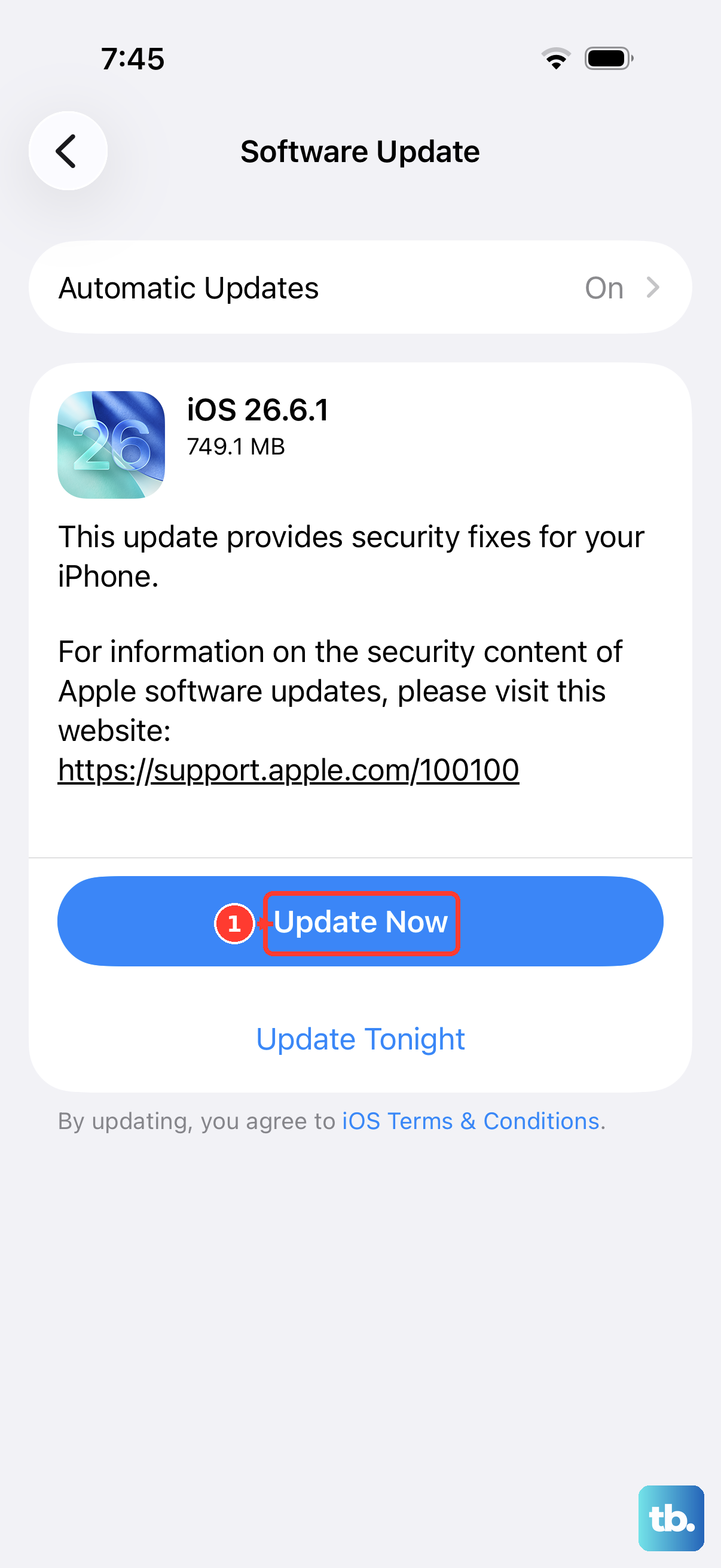
An outdated version of iOS can sometimes have bugs that interfere with carrier activation. Go to Settings > General > Software Update.
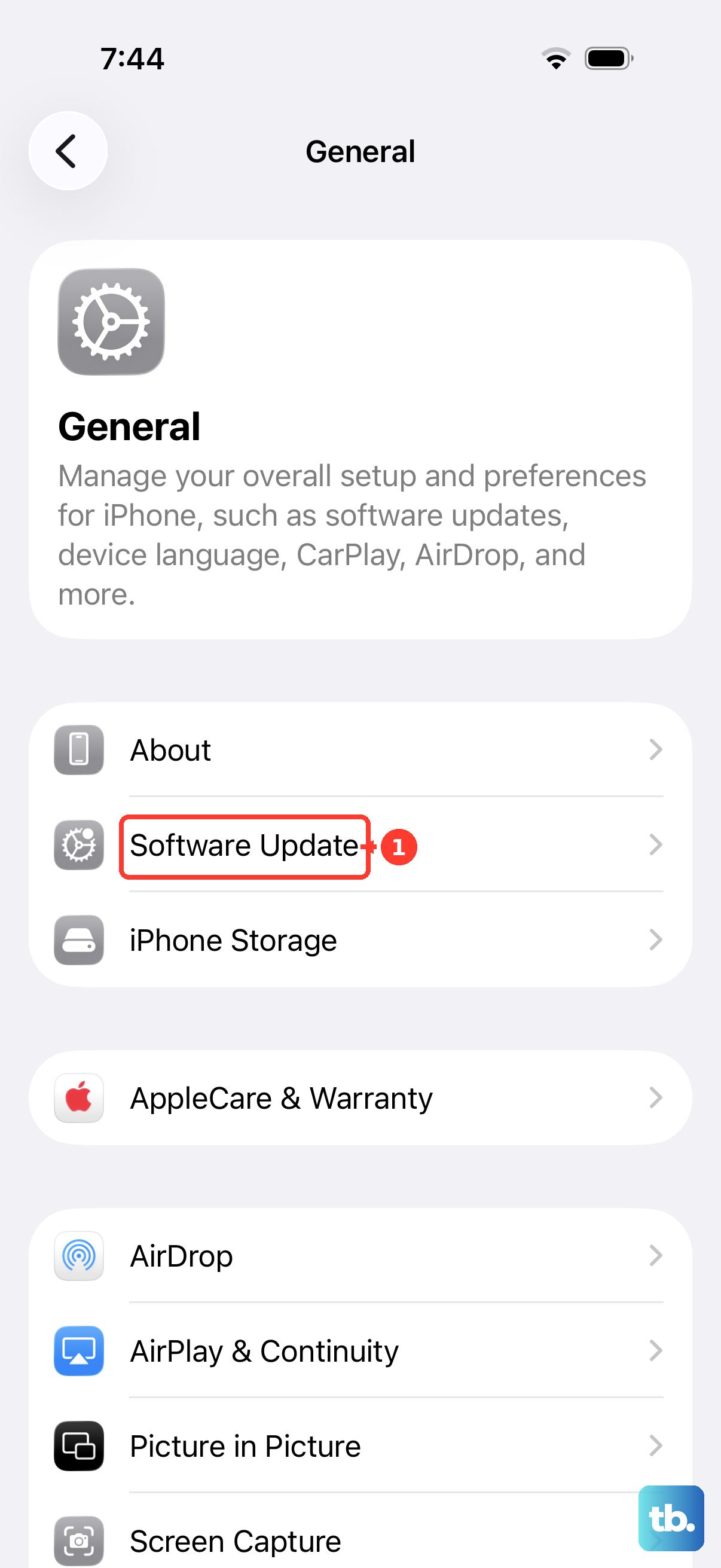
If an update is available, install it. Make sure your phone is connected to Wi-Fi and has plenty of battery life first. Software updates often include important carrier settings updates that are crucial for activation.
Reset Your Network Settings
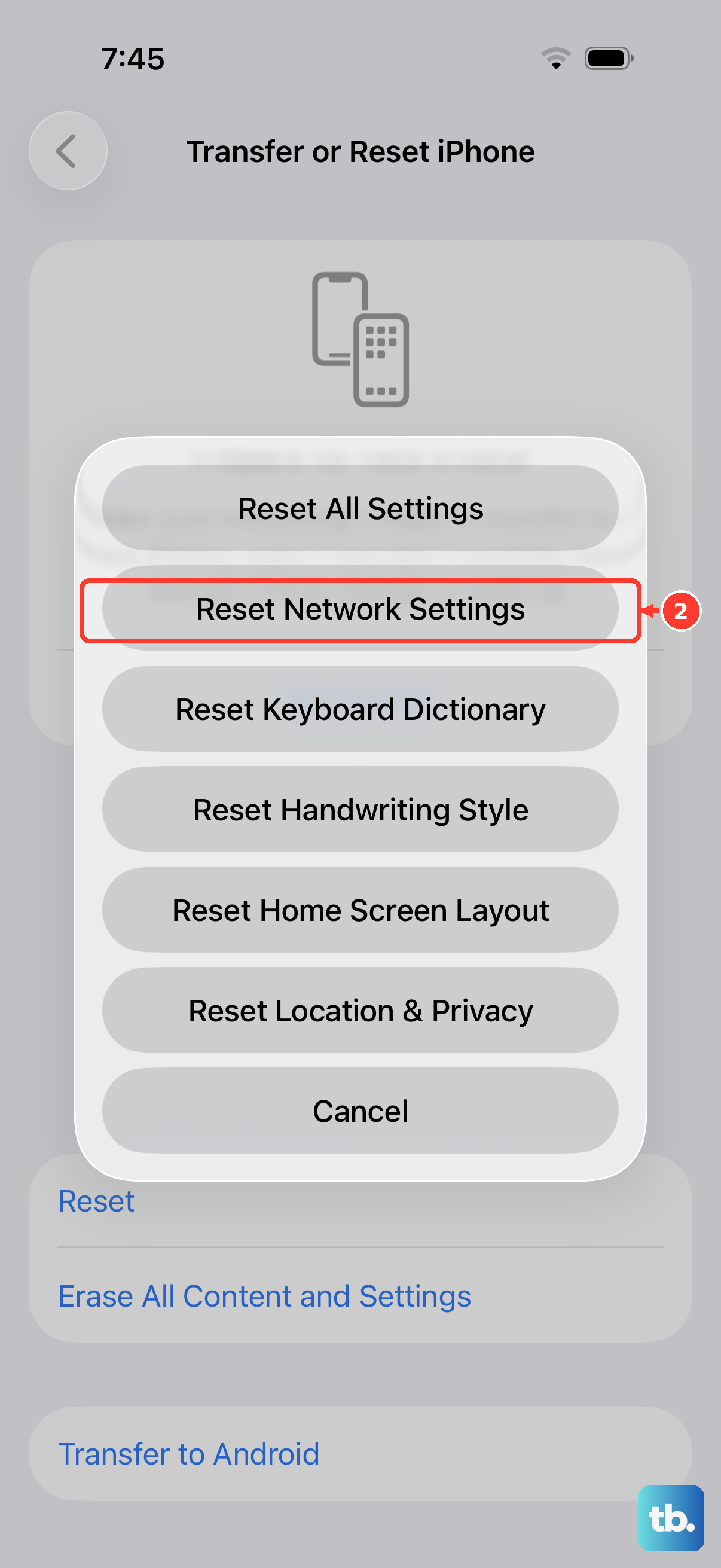
This will clear all your saved Wi-Fi passwords, Bluetooth pairings, and cellular network preferences, but it can fix deeper connection issues. Go to Settings > General > Transfer or Reset iPhone.
Tap Reset, then choose Reset Network Settings. Your iPhone 14 will restart. After it boots up, you'll need to reconnect to Wi-Fi, but it may successfully establish the cellular connection.
Try a Manual Network Selection
Your iPhone usually picks a network automatically, but you can try choosing your carrier manually. Go to Settings > Cellular. Tap Network Selection and turn off "Automatic".
After a moment, a list of available networks will appear. Select your carrier's name from the list. If it connects, you can turn automatic selection back on later.
Check for a Carrier Settings Update
These are small files that tell your iPhone how to work with your specific carrier's network. Sometimes they need a manual nudge. Go to Settings > General > About.
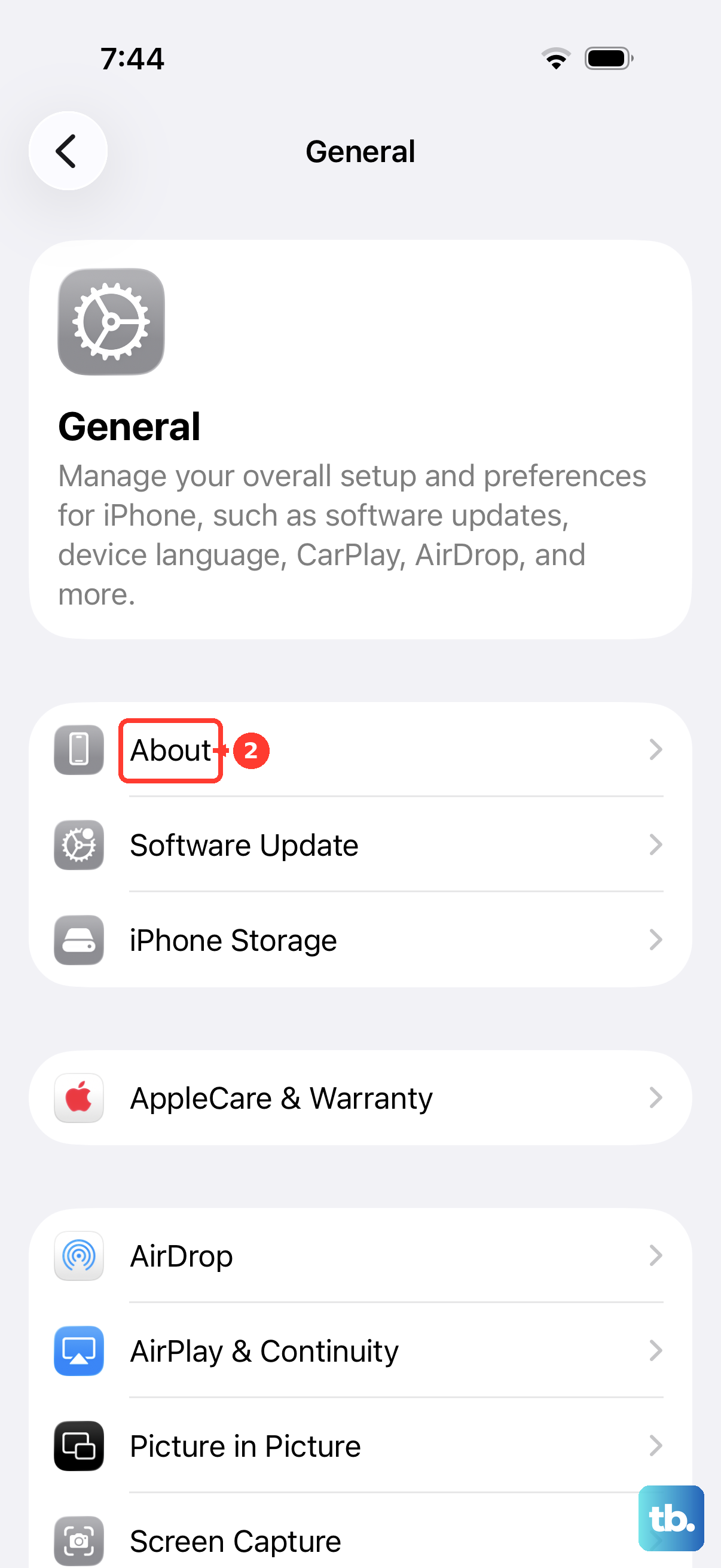
If a carrier settings update is available, a pop-up notification will appear on this screen. Just follow the prompts to install it. This process only takes a few seconds.
Contact Your Carrier for Further Help
If you've tried everything here, the next step is definitely another call to your carrier. They can run deeper diagnostics, check for account issues like an unpaid balance, or reprovision the SIM on their network.
They might also determine that the SIM card itself is faulty and offer to send you a replacement. For eSIM issues, they can often push a new activation QR code to your account.