
Seeing your iPhone 14 screen flicker or flash is incredibly distracting. It might look like subtle pulsing, rapid blinking, or even horizontal lines cutting across your display. This can be caused by a temporary software hiccup, a specific display setting, or, less commonly, a hardware issue. Let's get it sorted.
Force Restart Your iPhone 14
This is the first thing I'd try. A force restart clears out temporary glitches in the system memory that can affect the display. It's different from a normal shutdown. Quickly press and release the Volume Up button, then quickly press and release the Volume Down button. Finally, press and hold the Side button until you see the Apple logo appear, then let go.
Turn Off Auto-Brightness
The ambient light sensor on your iPhone 14 can sometimes get confused, especially in environments with flickering artificial light. When it tries to adjust the brightness too rapidly, it can cause the screen to flicker. Go to Settings > Accessibility > Display & Text Size and toggle off Auto-Brightness. After that, set your brightness manually using the Control Center.
Disable True Tone
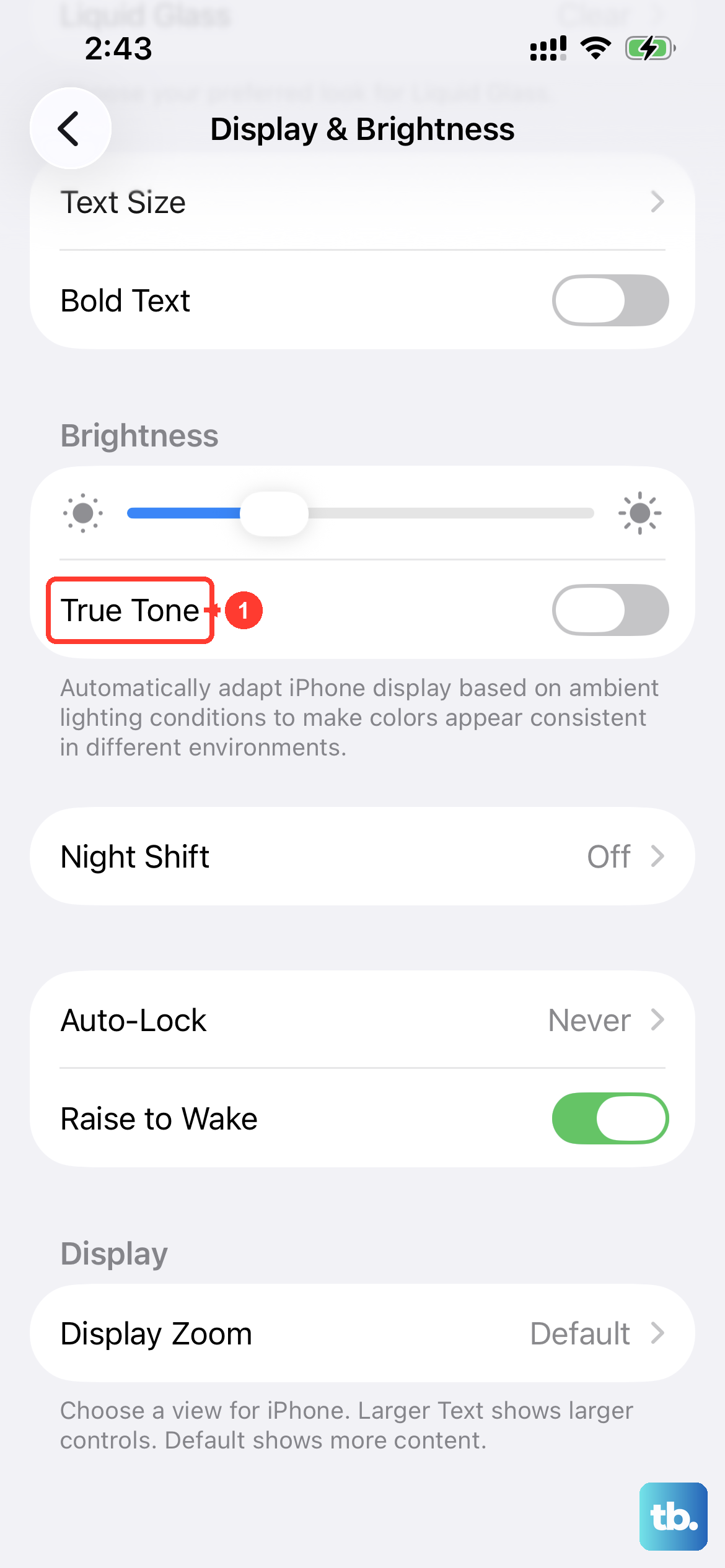
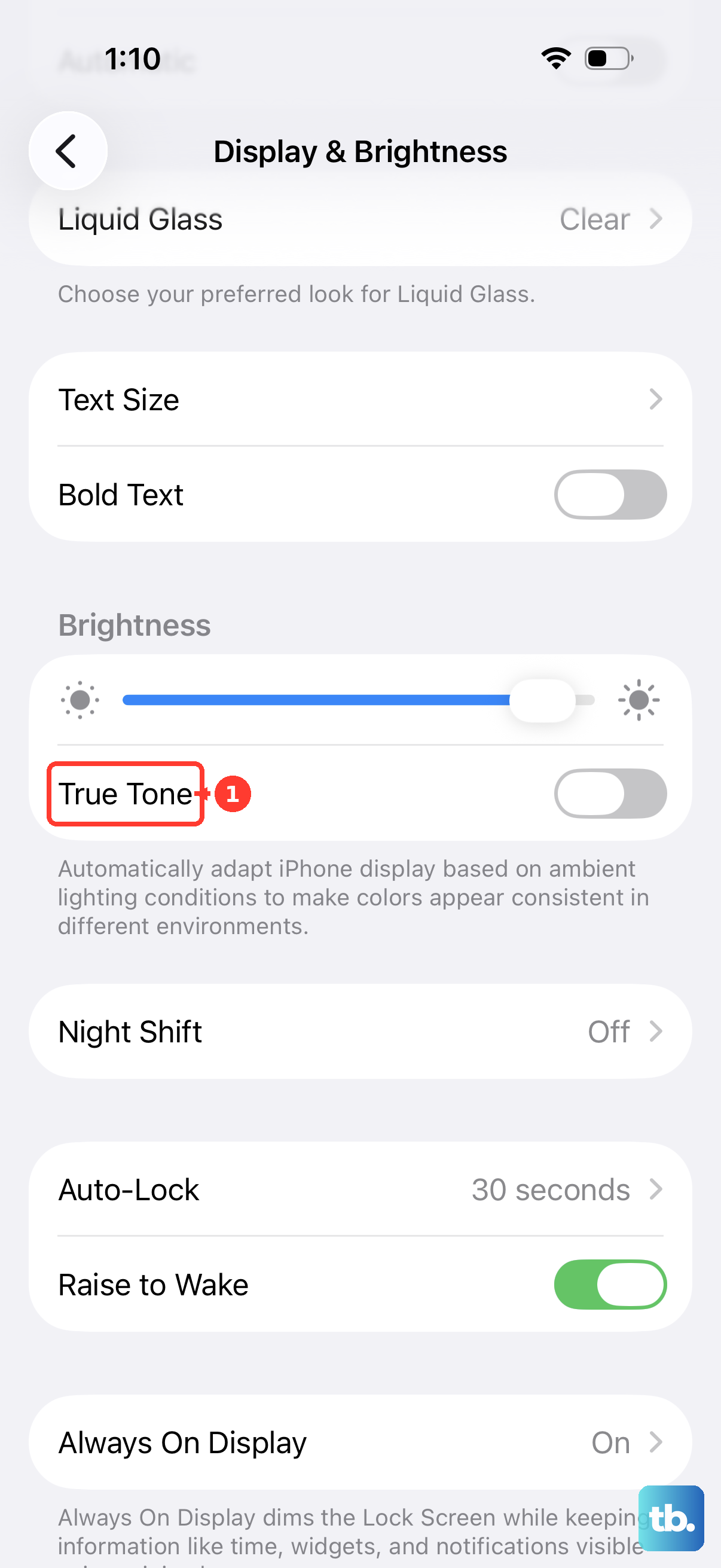
True Tone is a great feature that adjusts your screen's color temperature to match your surroundings. However, if the sensor responsible for it is acting up, it can introduce a subtle, pulsing flicker. You can test this by going to Settings > Display & Brightness and turning True Tone off. See if the flickering stops immediately.
Check for a Software Update
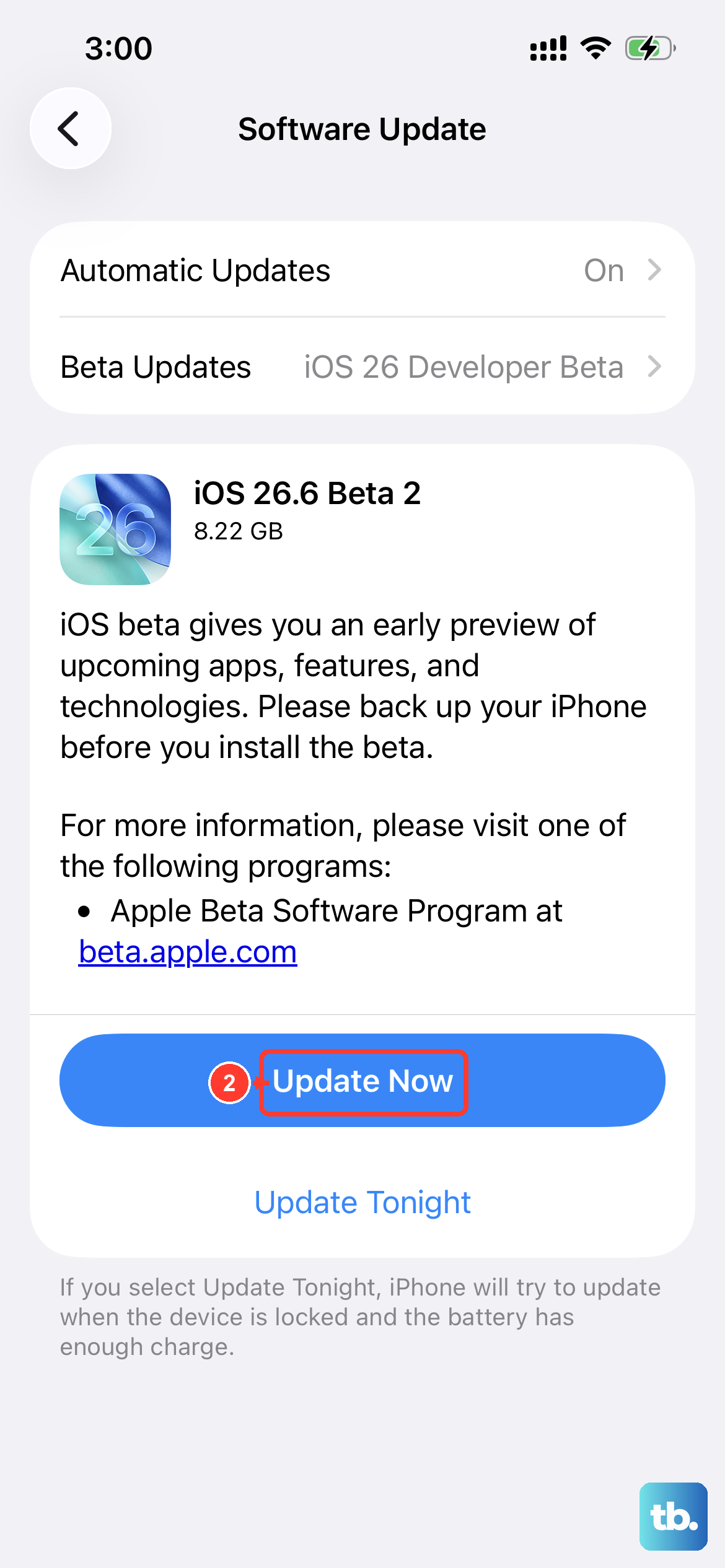
Apple has released iOS updates in the past that specifically addressed display anomalies, including flickering on OLED screens like the one in your iPhone 14. It's a good habit to stay current. Head to Settings > General > Software Update and install any available update. This has resolved display issues for many users after major updates like iOS 18.
Reset All Settings
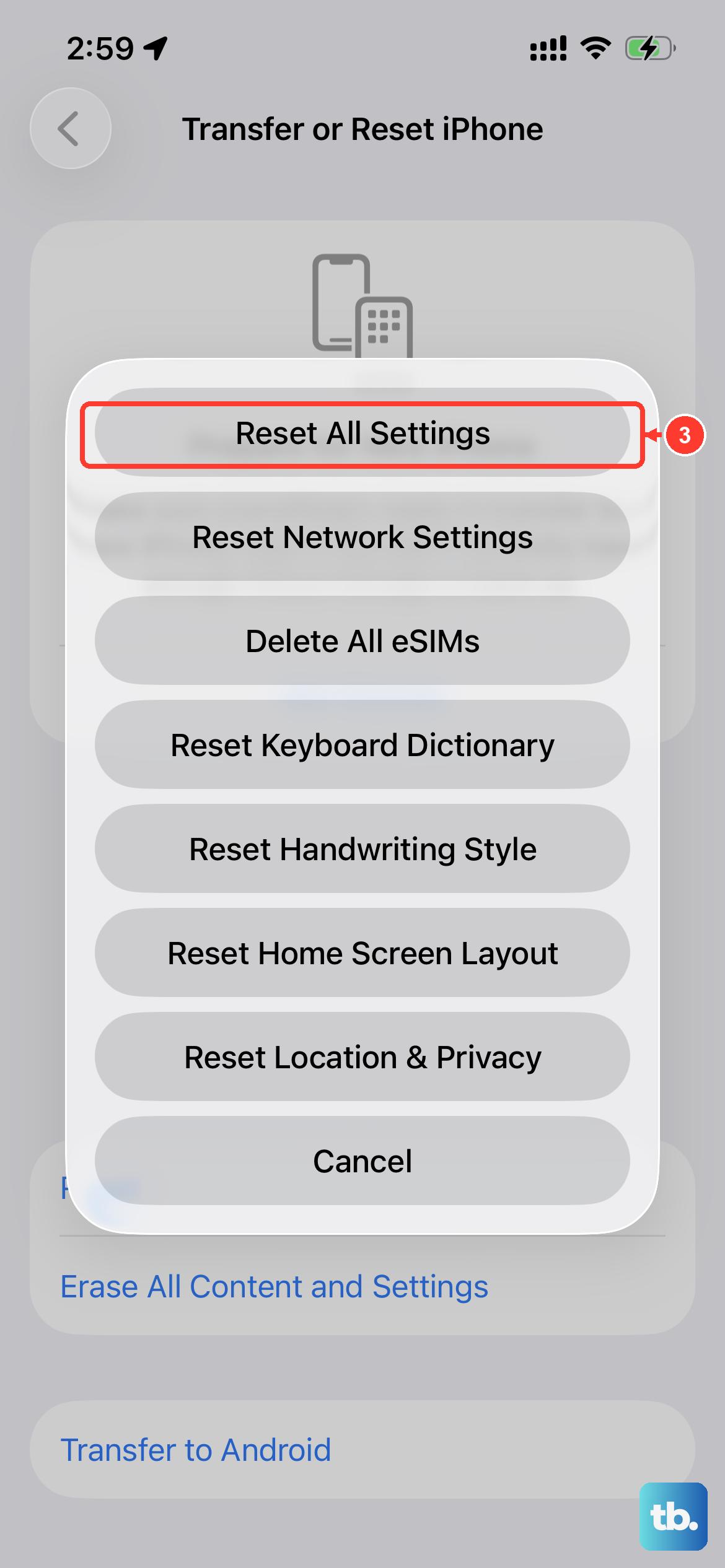
If the flickering seems tied to a specific configuration or setting you can't pinpoint, this is a powerful next step. Go to Settings > General > Transfer or Reset iPhone > Reset > Reset All Settings. This will return all your system preferences (like wallpaper, network settings, and privacy permissions) to their defaults without touching your personal data or apps. It often clears up persistent display glitches.
Inspect for Physical Damage
If the flickering started after you dropped your iPhone 14 or applied pressure to the screen, there could be an internal connection issue. Look closely at the display for any new cracks, spots where the image looks distorted, or areas that don't respond to touch. Internal damage to the display or a loose connector typically requires a professional repair.
Restore Your iPhone via a Computer
When all else fails, a full restore is the definitive test to see if it's a software or hardware problem. First, make sure you have a recent backup in iCloud or on your computer. Then, connect your iPhone 14 to a Mac or PC, open Finder or iTunes, and select Restore iPhone. This erases the device and installs a clean copy of iOS. If the flickering is gone on the fresh install, it was software. If it persists, the issue is with the hardware.