
If your iPhone 14 screen stays dark when you get a new message or app alert, start with notification settings, Focus, and any paired Apple Watch. Apple says notifications may go to either your Apple Watch or your iPhone by default, not both, depending on whether your iPhone is locked or unlocked.
The first thing I'd check is Focus mode. Swipe down from the top-right corner of your screen to open Control Center and look for the Focus icon (it looks like a crescent moon). If it's highlighted, tap it to turn it off. You can also go into Settings > Focus and make sure no Focus modes are active, or check the settings within each Focus to ensure they aren't blocking notifications from the apps you care about.
Check Notification Settings for the App
Open Settings > Notifications, then tap the app that's not alerting you, like Messages or Mail. Turn on Allow Notifications, then choose how and where you want alerts to appear.
Below that, you'll see the alert styles. For banners to appear on your lock screen and when you're using the phone, ensure "Lock Screen" and "Banners" are selected. The banner style can be set to temporary or persistent, depending on your preference.
Restart Your iPhone 14
A quick restart can clear out a temporary software hiccup that's preventing notifications from displaying. To restart your iPhone 14, press and hold the side button and either volume button until the power-off slider appears. Drag the slider, wait about 30 seconds for the phone to turn off, then hold the side button until the Apple logo appears.
Once it boots back up, have a friend send you a test text or email to see if the notification pops up as expected.
Check Do Not Disturb and Sleep Focus
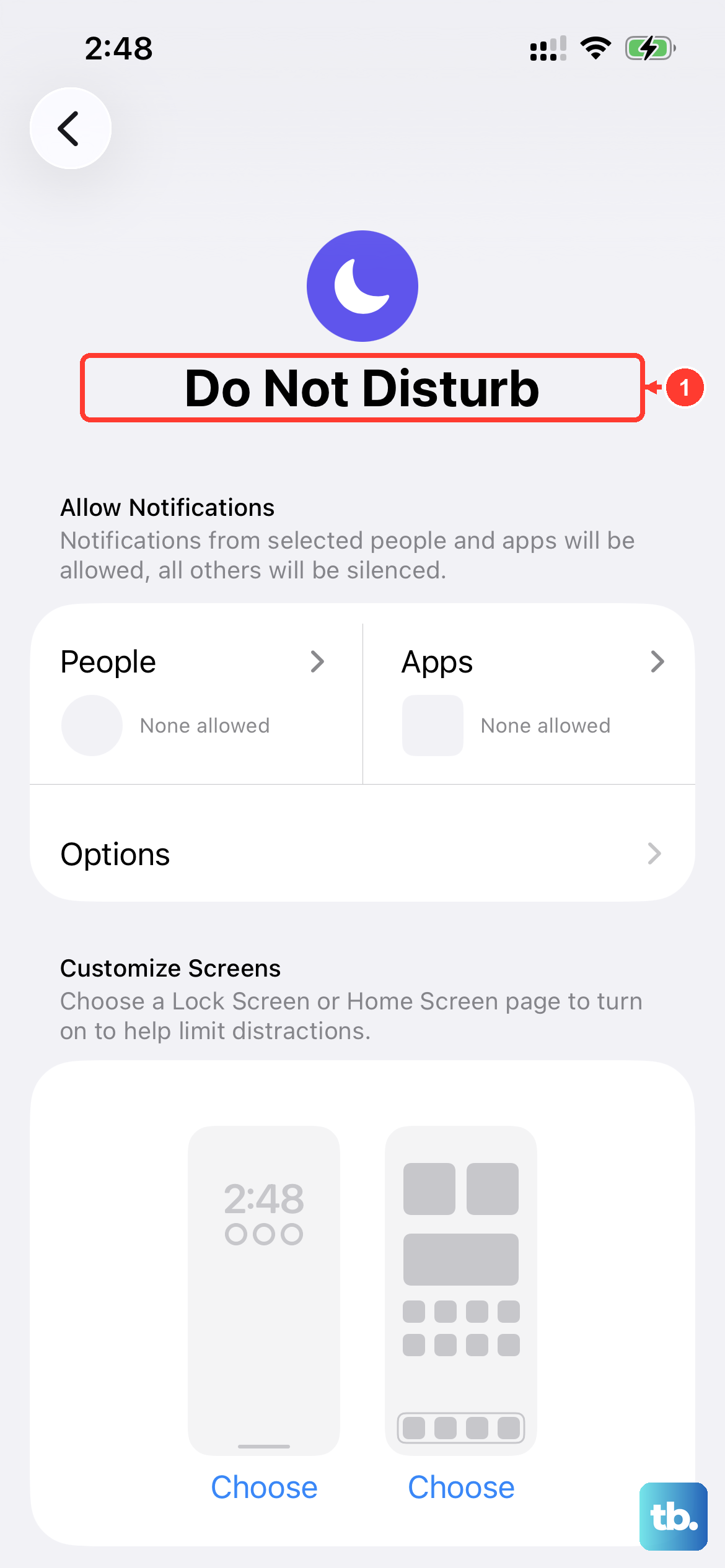
Do Not Disturb and the Sleep Focus are common culprits. Go to Settings > Focus. Tap on Do Not Disturb or Sleep to see their schedules.
You might have a schedule enabled that turns these on automatically at certain times. You can turn the schedule off or customize the options to allow notifications from specific people or apps even when the Focus is active.
Disable Attention Aware Features
Attention Aware Features can lower the volume of alerts when you're looking at your iPhone, but Apple does not describe it as a setting that blocks notification banners or stops the screen from waking for alerts. Check this setting only if the issue is quiet alerts, not missing notifications.
To test alert-volume behavior, go to Settings > Face ID & Passcode, enter your passcode, then turn off Attention Aware Features. If alerts sound normal again, you can leave it off or turn it back on knowing that it changes alert volume when you're looking at the device.
Update iOS
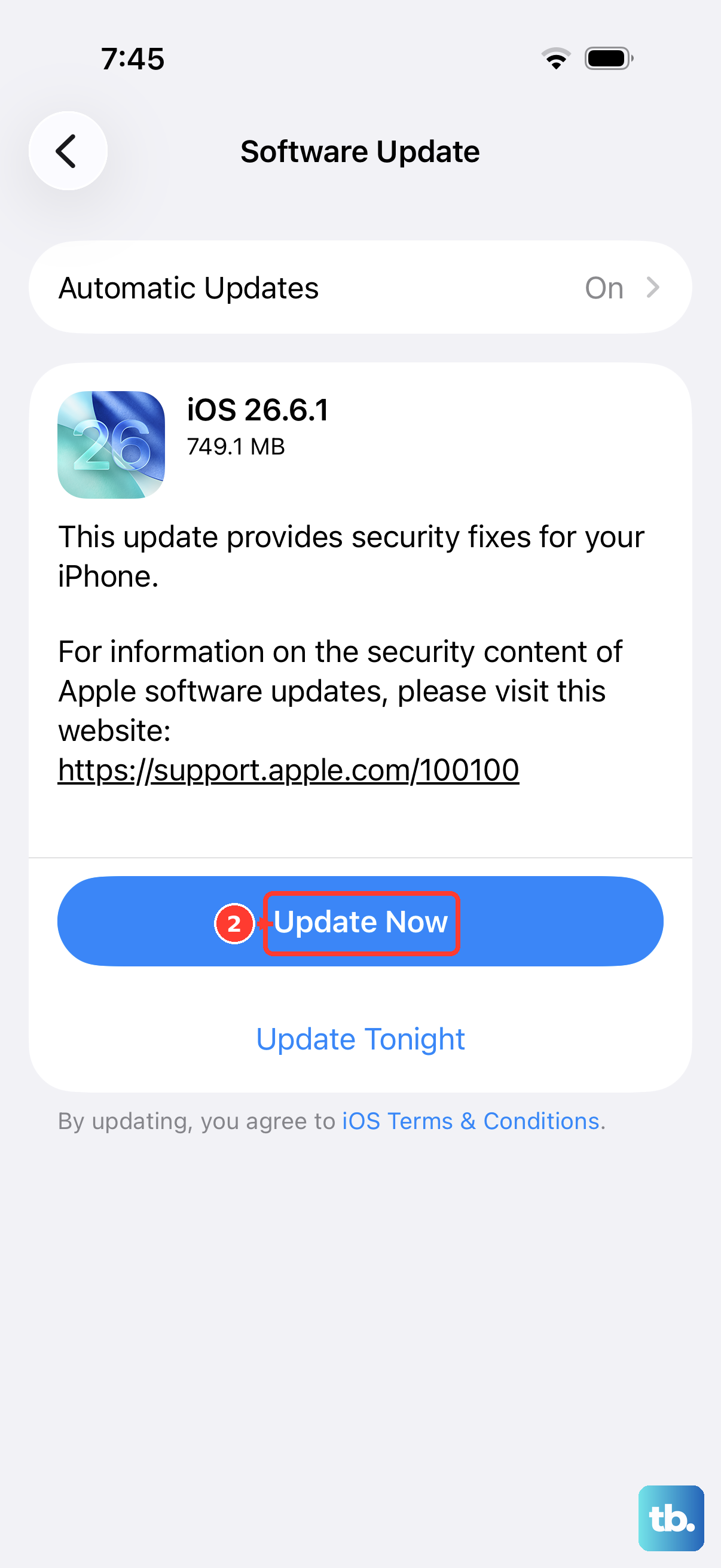
Software bugs can sometimes interfere with notification delivery. Apple often addresses these in point updates. To check, open Settings > General > Software Update.
If an update is available, I'd recommend installing it. It's a good idea to plug your phone into power and connect to Wi-Fi first. After the update completes, test your notifications again.
Reset All Settings
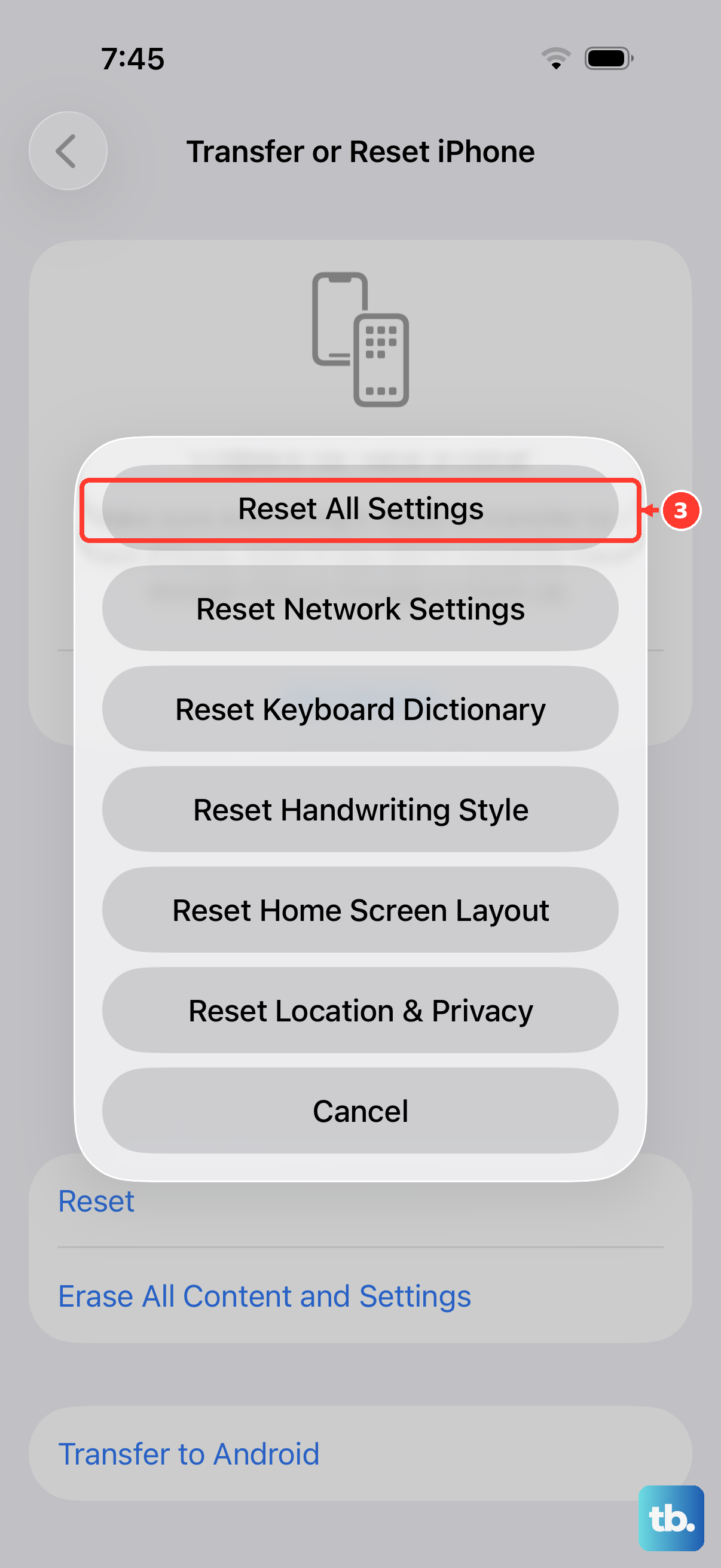
This is a more thorough step that returns iPhone settings to defaults without deleting your data or media. Apple says Reset All Settings removes or resets settings including network settings, the keyboard dictionary, location settings, privacy settings, and Apple Pay cards.
To do this, go to Settings > General > Transfer or Reset iPhone. Tap Reset, then choose Reset All Settings. Enter your passcode and confirm. After the restart, reconnect to any needed network and recheck Settings > Notifications for the apps that were not alerting you.
Check Notification Grouping
If you're seeing a single grouped notification but expecting individual ones, go to Settings > Notifications, then tap the app (like Messages) below Notification Style.
Tap on "Notification Grouping." You can choose between Automatic, By App, or Off. Setting it to "Off" will show every message as its own separate notification.
Review Scheduled Notification Summary
The Scheduled Summary is a feature that bundles non-urgent notifications and delivers them at set times you choose. If an app is in your summary, its notifications won't come through immediately.
Go to Settings > Notifications > Scheduled Summary. Here you can see the schedule and the list of apps included. You can toggle off the summary entirely or just remove specific apps from the summary list so they deliver notifications in real-time.
Ensure the App is Not Frozen
If the app itself is frozen or will not open, swipe up from the bottom of the screen and pause in the middle to open the App Switcher. Find the app and swipe it up to quit it.
Open the app again and test. Apple frames quitting and reopening as a fix for an app that is not responding; it is not a notification-delivery setting. If notifications are still missing, return to Settings > Notifications and the Focus checks above.
Check for Software Conflicts After an Update
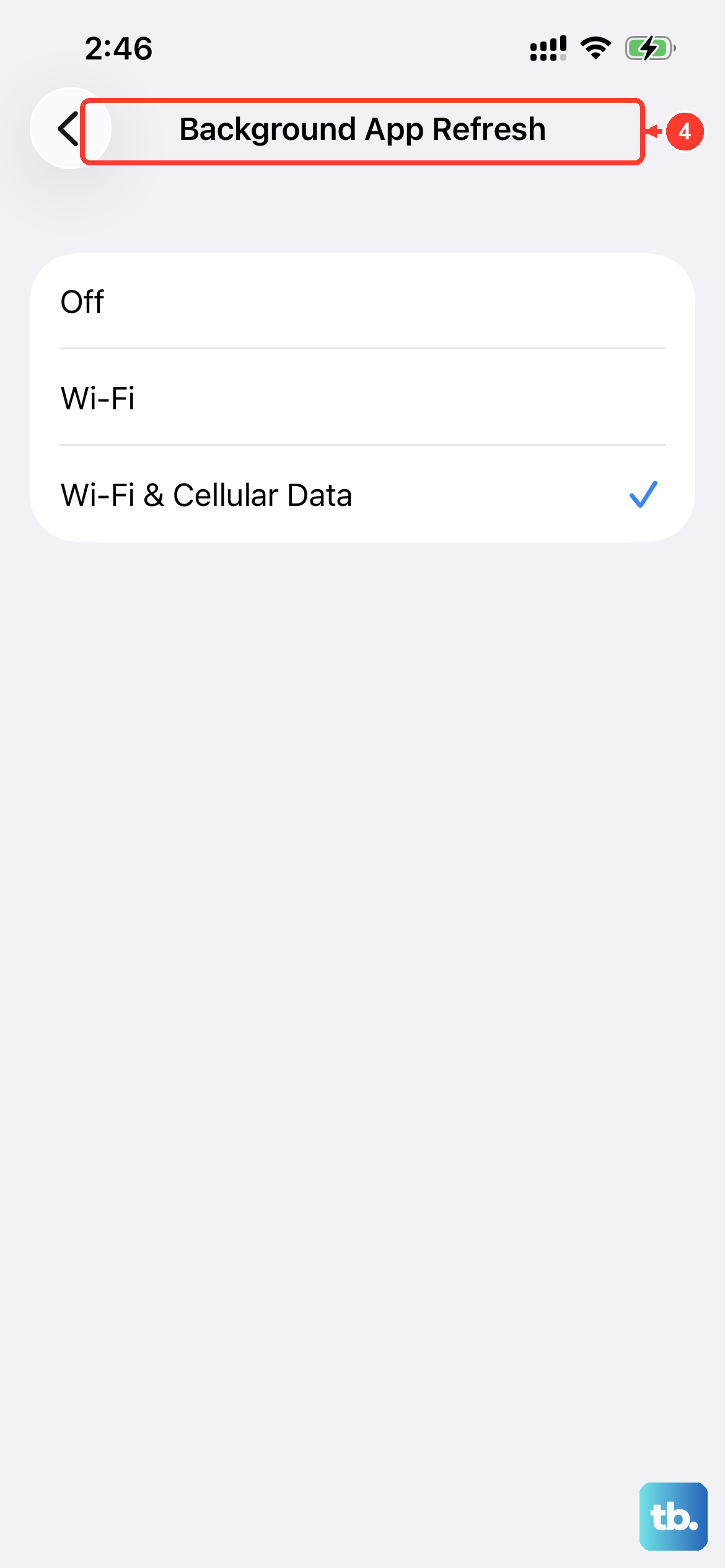
If a specific app is not updating content until you open it, check Background App Refresh after the notification and Focus checks above. Apple describes this setting as a way for suspended apps to check for updates and new content, not as a reset for notification delivery.
Go to Settings > General > Background App Refresh. Make sure Background App Refresh is on for Wi-Fi or Wi-Fi & Cellular Data, then make sure the affected app is allowed to refresh in the list.











