
Missing important calls on your iPhone 14 is a real headache. You're carrying it around, but it stays silent when someone tries to reach you. The good news is a simple setting or a minor software hiccup may be the cause, and you can check these yourself.
Check the Physical Ring/Silent Switch
Your iPhone 14 has a physical switch on the left side, above the volume buttons. Flip it back and forth. If you see an orange strip showing, your phone is in silent mode. You want no orange visible for the ringer to work.
It's easy to bump this switch when putting your phone in or out of a pocket or case. Check this first to make sure silent mode is off.
Turn Off Focus and Do Not Disturb
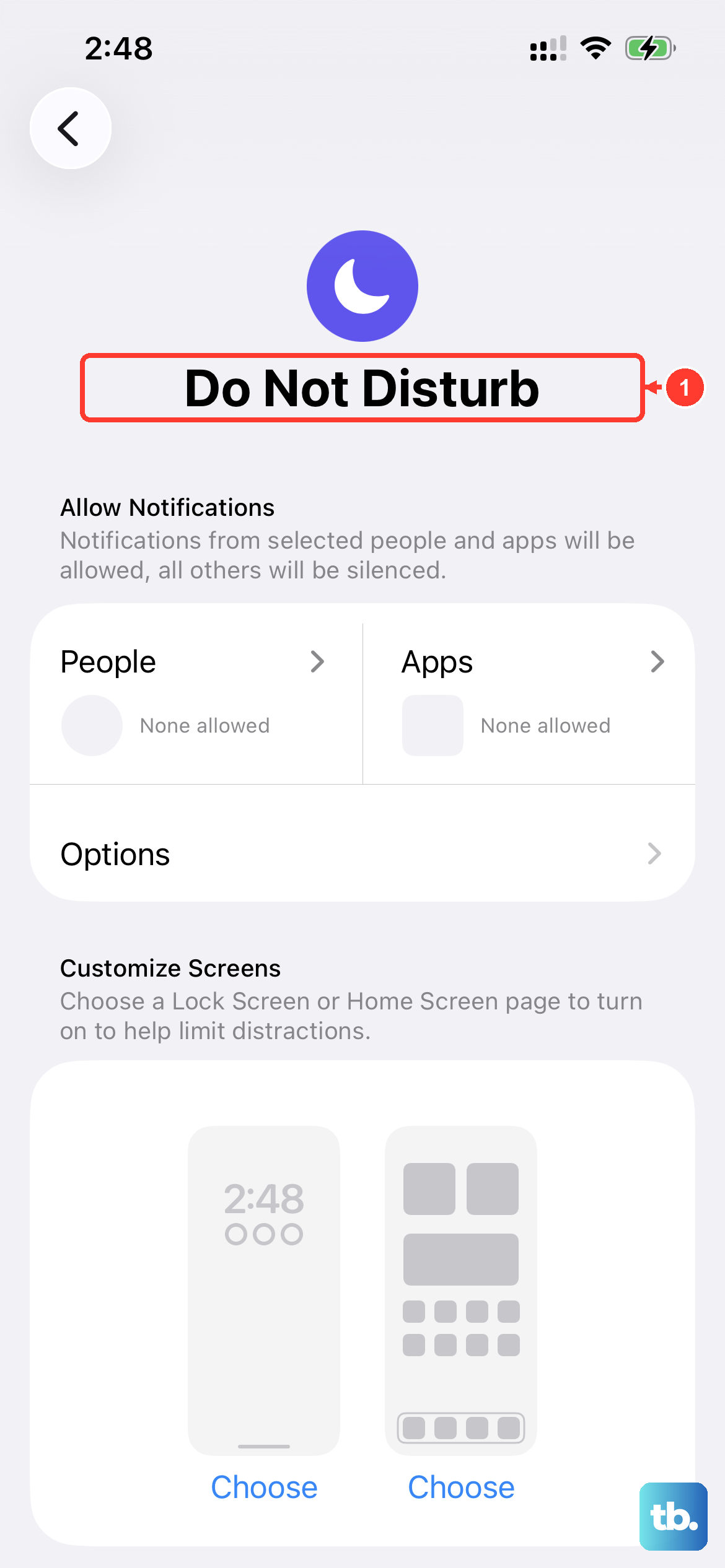
Focus modes, including Do Not Disturb, are designed to silence notifications. If one is active, calls may be silenced, depending on which people you've allowed. Swipe down from the top-right corner to open Control Center and look for a moon icon or a Focus name like "Work" or "Sleep."
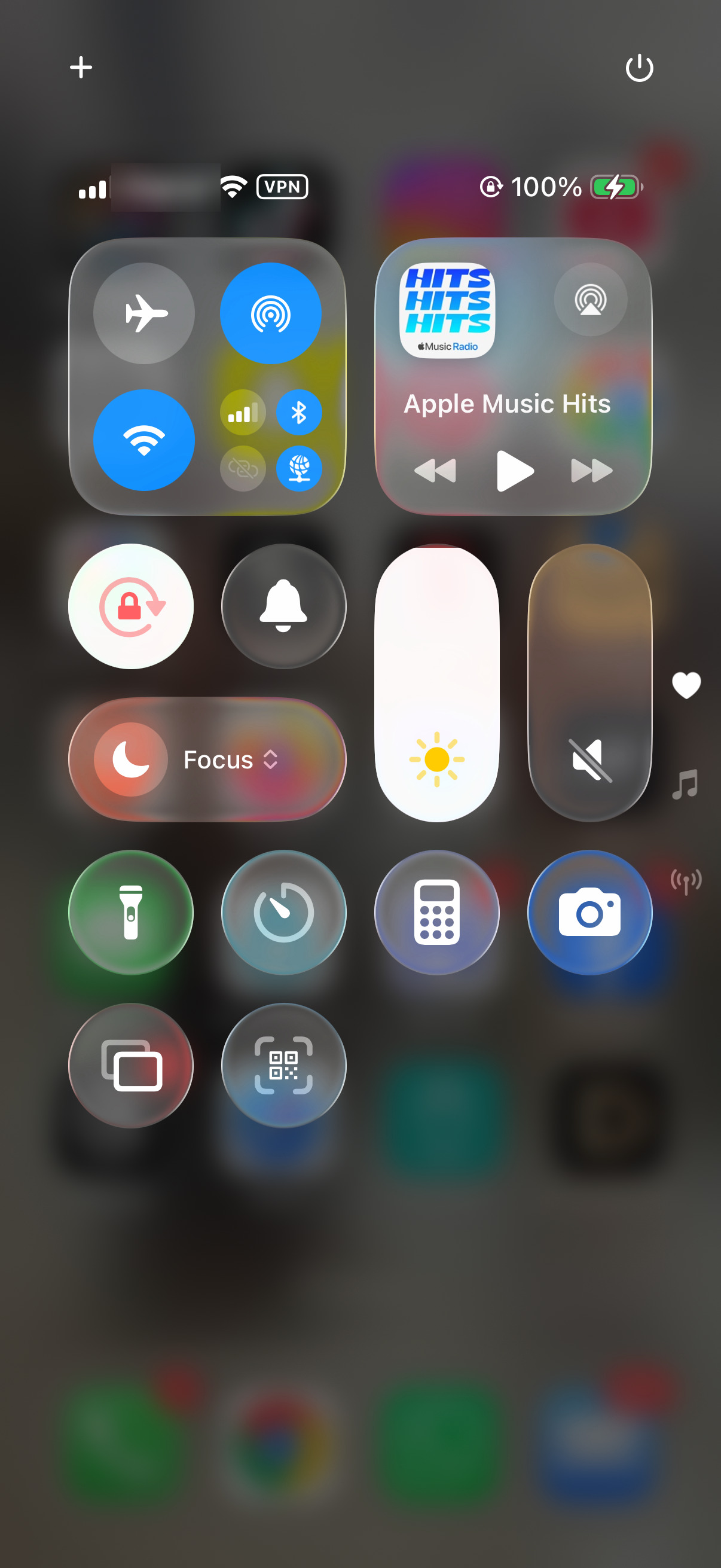
If you see one active, tap its icon on the Focus button to turn it off. You should also go to Settings > Focus, choose the active Focus, and check under Set a Schedule for schedules that could be silencing your phone at specific times.
Increase Your Ringer Volume
Your ringer volume is separate from your media volume. If "Change with Buttons" is on, use the side volume buttons to adjust the ringer when you're not playing media or on a call. You can also set it manually by going to Settings > Sounds & Haptics and dragging the "Ringtone and Alerts" slider to the right.
While you're there, tap on "Ringtone" and try selecting a different sound. Check whether you can hear the selected tone; if there's no sound when you adjust the ringer slider, the speaker may need service.
Disconnect From Bluetooth Accessories
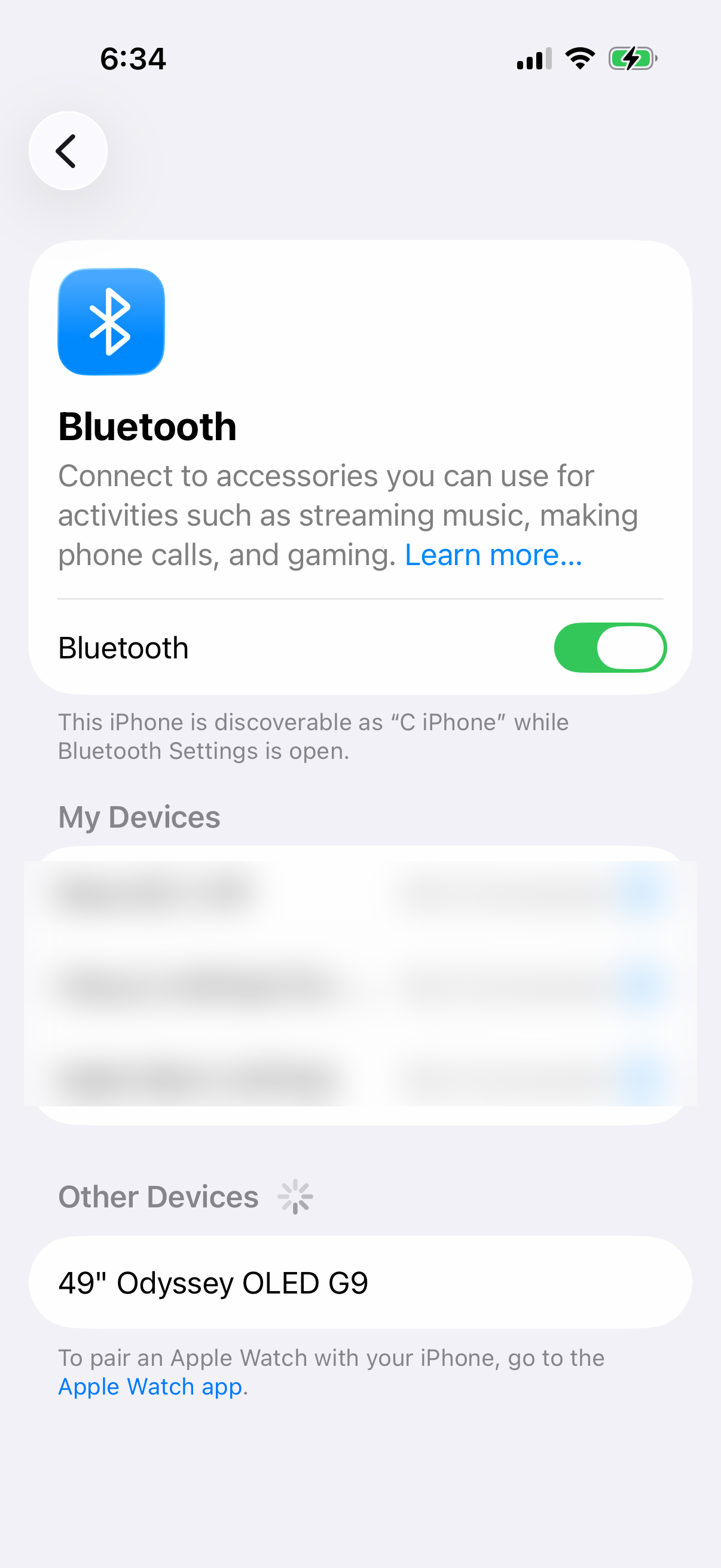
If your iPhone 14 is connected to AirPods, a car stereo, or a Bluetooth speaker, call audio may play through that accessory. Disconnect it and test an incoming call to check whether the accessory is affecting what you hear.
Go to Control Center and tap the Bluetooth icon to disconnect accessories, or go to Settings > Bluetooth and toggle Bluetooth off. See if your next call rings through the phone's speaker now.
Review Your Call Blocking and Silencing Settings
A couple of settings in the Phone app can silently filter calls. First, check Settings > Apps > Phone > Screen Unknown Callers. Select "Never" so unsaved numbers ring normally; "Ask Reason for Calling" screens them before ringing, and "Silence" sends them to voicemail without ringing.
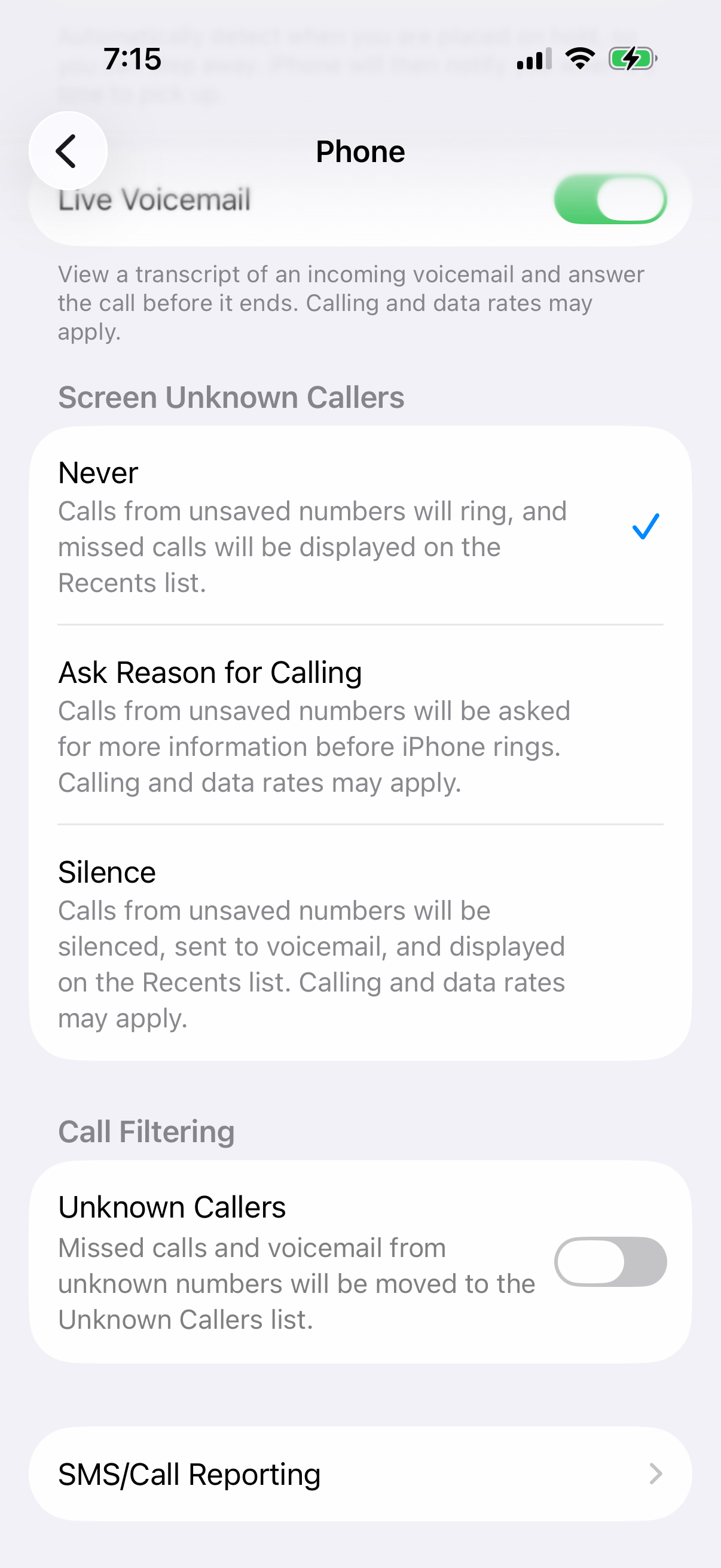
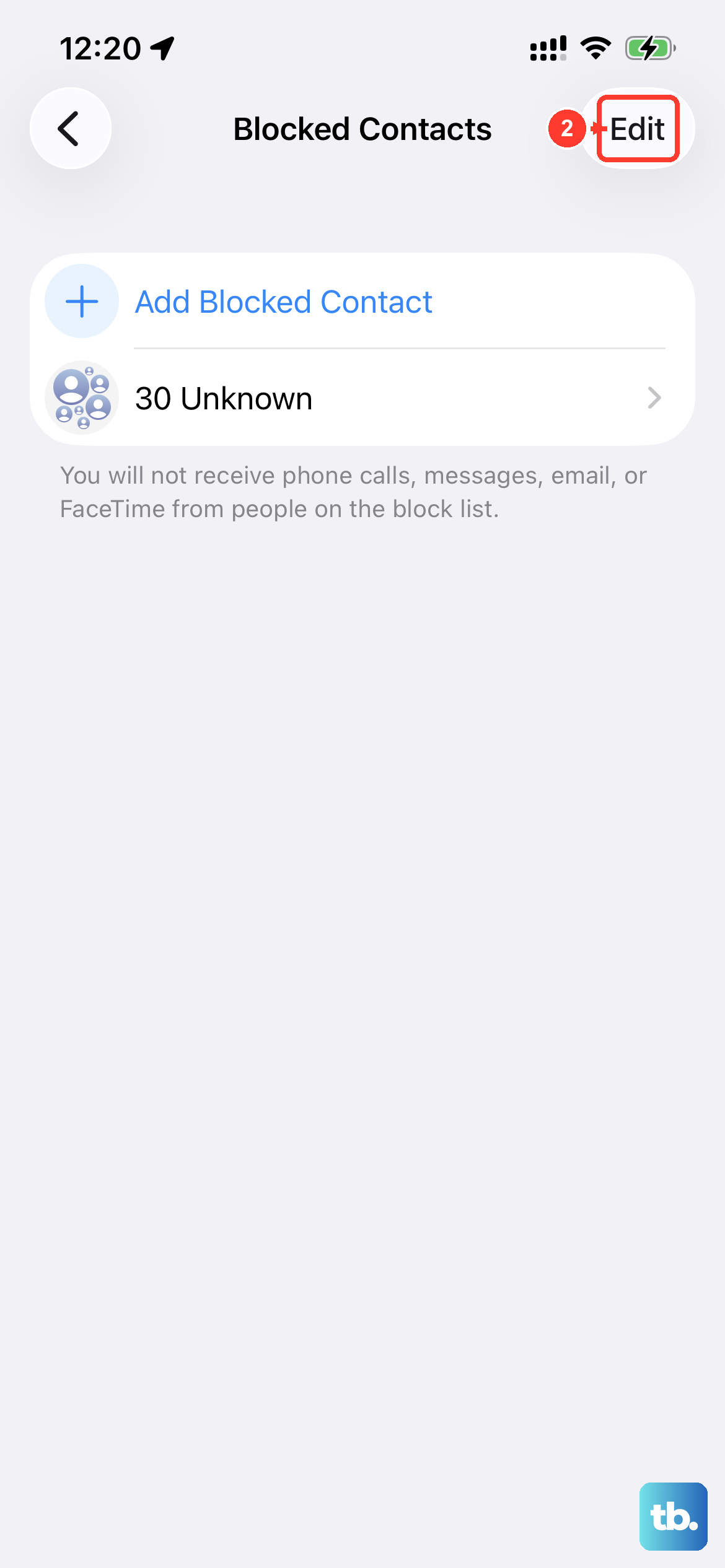
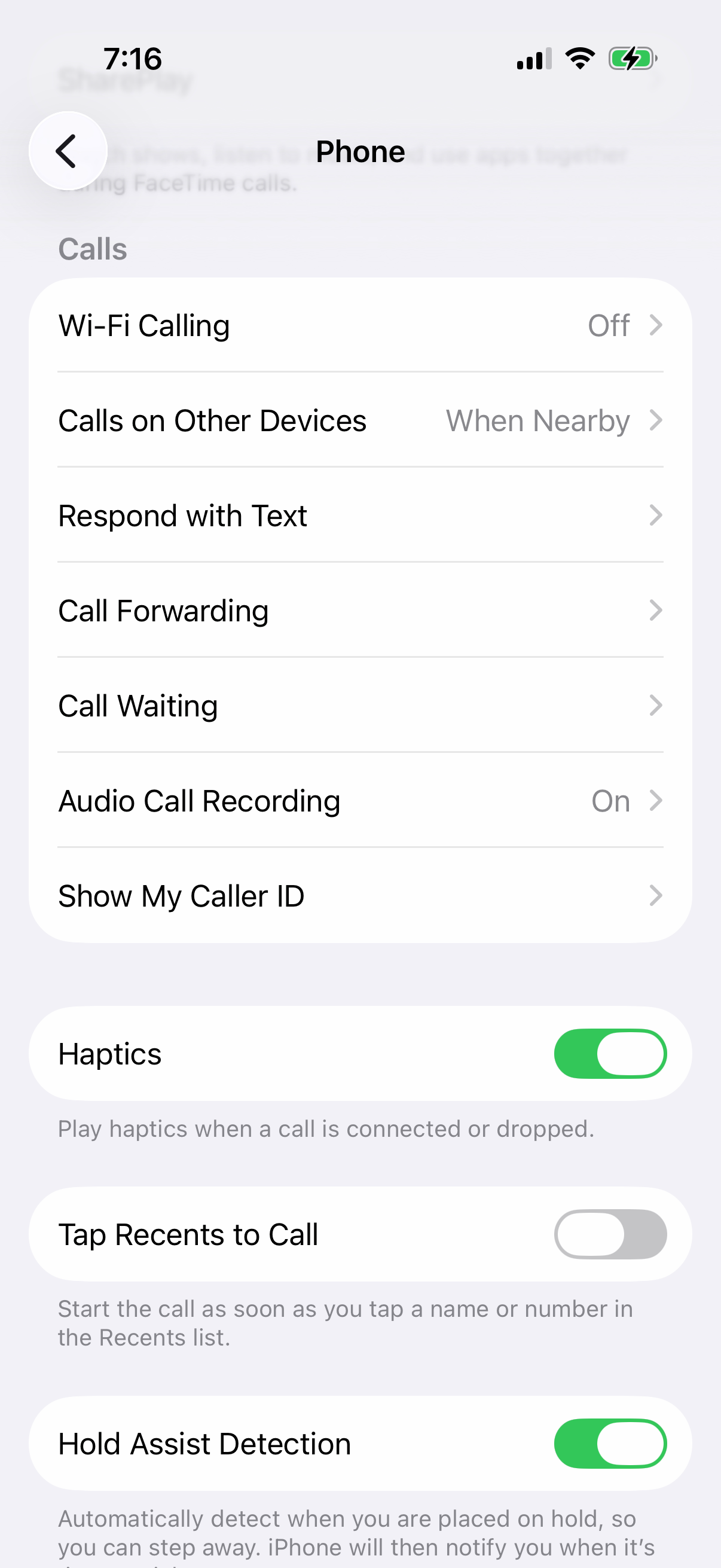
Also, look at Settings > Apps > Phone > Blocked Contacts to make sure you haven't accidentally blocked the person trying to call you. Finally, check Settings > Apps > Phone > Call Forwarding and make sure Call Forwarding is off to ensure calls aren't being sent to another number.
Restart Your iPhone 14
A simple restart clears out temporary glitches that can affect the ringer. To restart your iPhone 14, press and quickly release the Volume Up button, press and quickly release the Volume Down button, then press and hold the Side button until you see the Apple logo appear.
This force restart method is safe and doesn't delete any data. It's a good step to try after checking the basic settings.
Update iOS
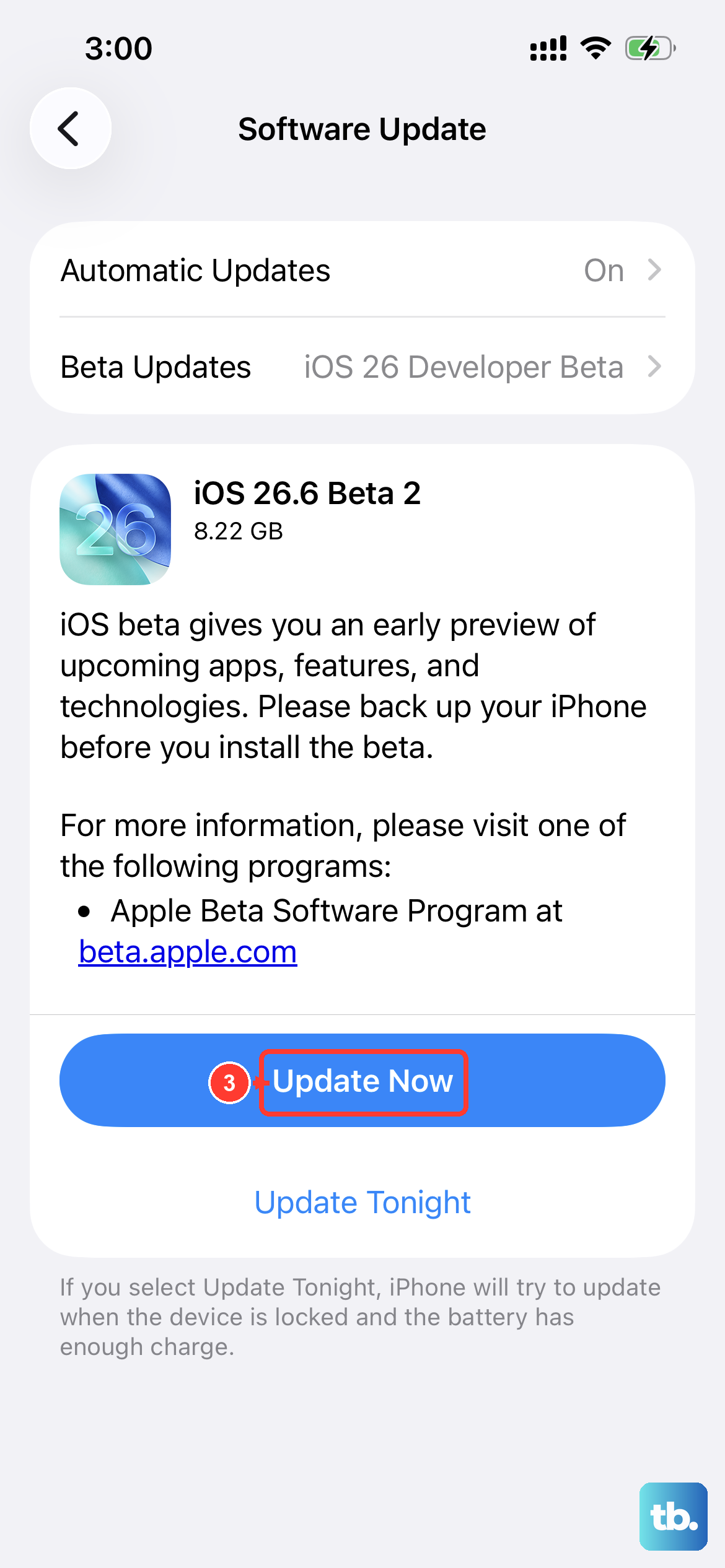
Software bugs can sometimes cause sound issues. Apple frequently releases updates with fixes. Connect to Wi-Fi, plug your phone in, and go to Settings > General > Software Update.
Tap Download and Install if an update is available. Back up your iPhone before updating, and keep it connected to power and Wi-Fi while installing the latest version of iOS.
Reset All Settings
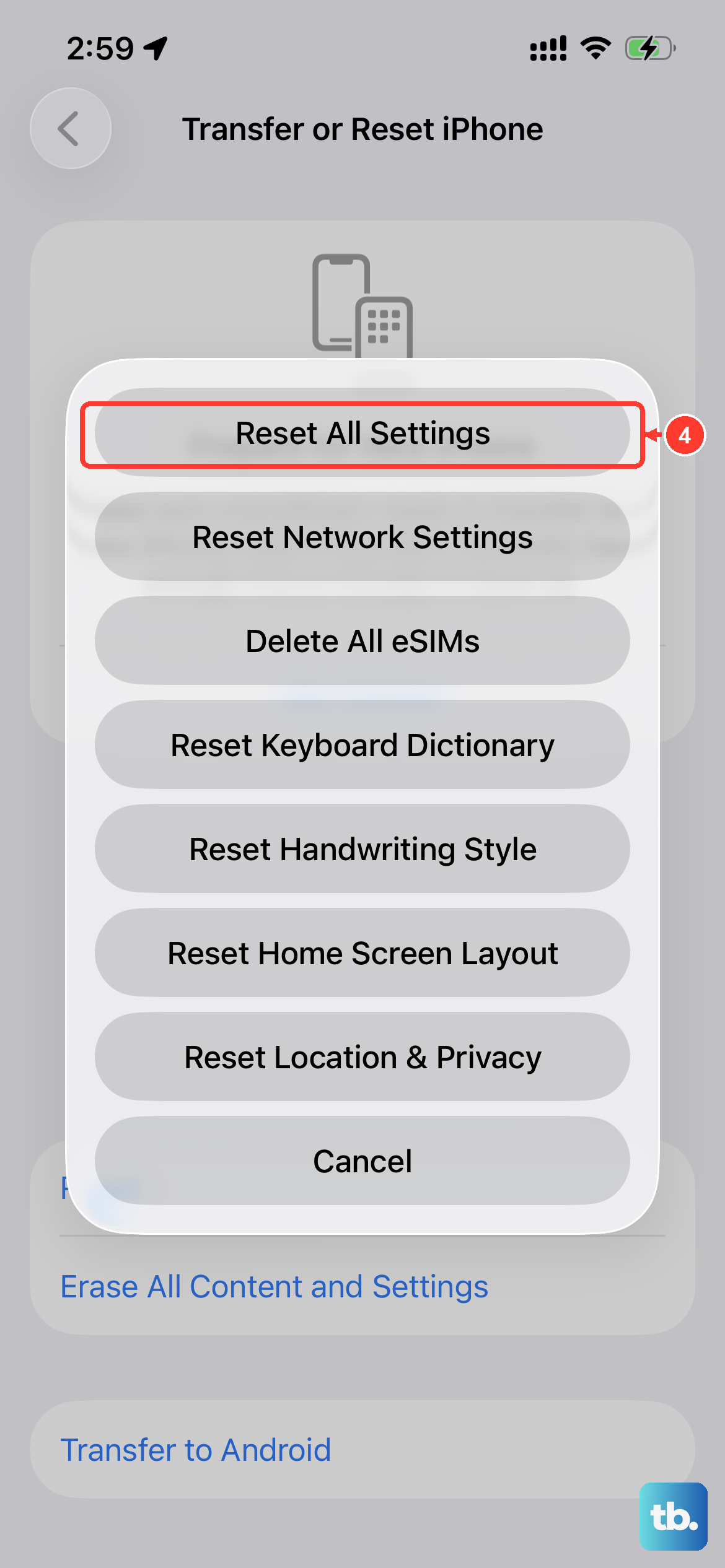
If the problem persists, a deeper reset can help. This will revert all your preferences, like Wi-Fi passwords, wallpaper, and privacy settings, back to default without touching your personal data.
Go to Settings > General > Transfer or Reset iPhone > Reset and choose "Reset All Settings." You'll need to enter your passcode. Afterward, you'll need to rejoin Wi-Fi, re-pair Bluetooth devices and any Apple Watch, and set up Face ID again.
Check for App-Specific Issues
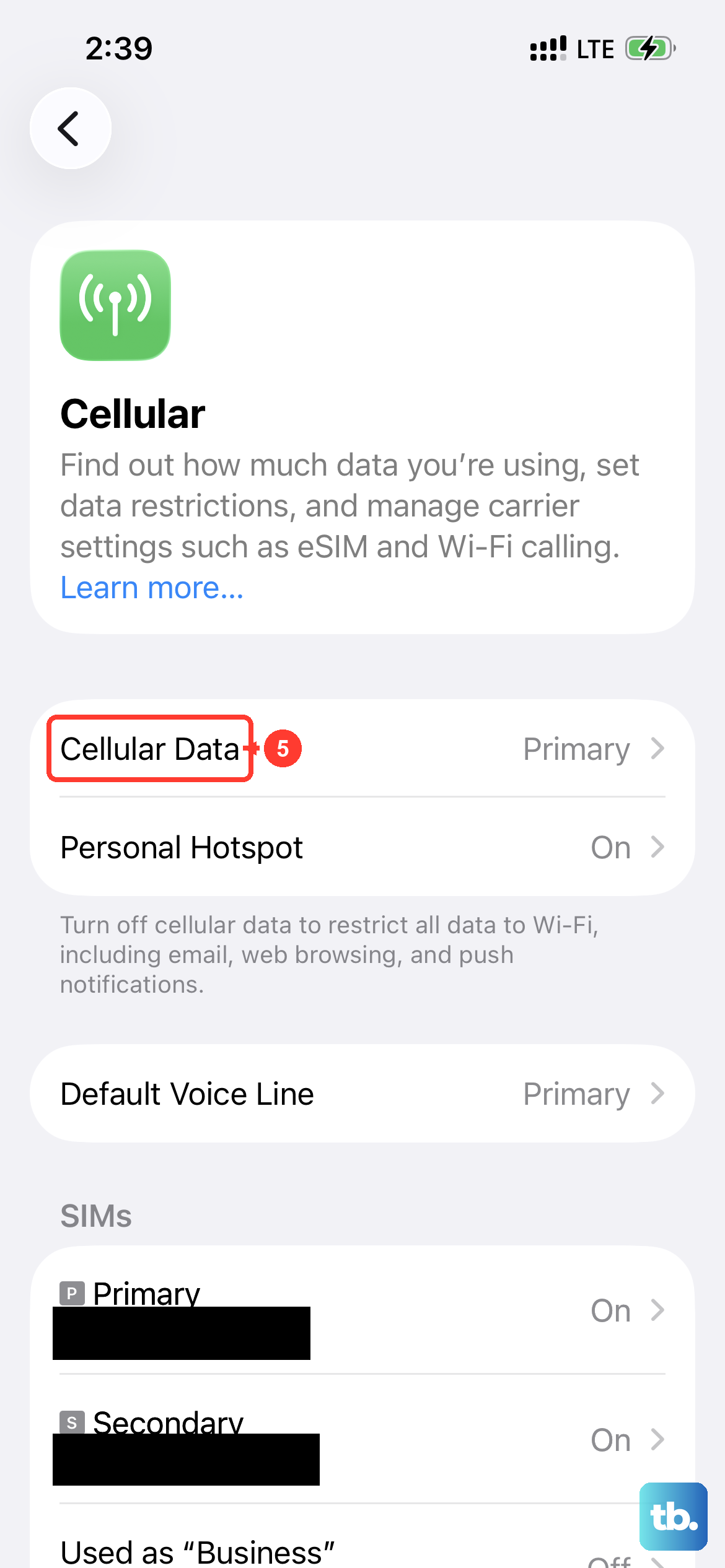
If your iPhone 14 rings for regular phone calls but not for calls from apps like WhatsApp, FaceTime, or Facebook Messenger, check that app's settings and connection. First, make sure the app is updated from the App Store.
Then, go to Settings > Notifications, tap the app, and make sure Allow Notifications is on. You can also try toggling your connection; switch between Wi-Fi and cellular data to see if one is more reliable for that app's calls.