You reach for the flashlight on your iPhone 14, tap the button in Control Center, and nothing happens. Maybe the icon looks greyed out, maybe the LED flickers and dies, or maybe the button has vanished entirely and you cannot find it anywhere.
A dead flashlight is one of those small failures that feels urgent right when you need light the most, but the good news is that on the iPhone 14 the cause is almost always something you can fix yourself in a minute or two. The same LED that powers your camera flash is the one that lights up as your flashlight, so most problems trace back to a software hiccup, a conflict with the Camera, or something physically in front of the lens.
The fixes below are ordered from the quickest and safest to the most involved, ending with the official repair path. Work through them in order and stop as soon as the light comes back on. These steps apply to the iPhone 14 and iPhone 14 Plus running iOS 26 (the current version the iPhone 14 supports) and to earlier iOS versions on the same model unless noted.
Confirm you are opening the flashlight control the right way
First rule out a missed gesture. The iPhone 14 has no Home button, so the swipe direction matters: you open Control Center by swiping down from the upper-right corner of the screen, not up from the bottom.
Once Control Center is open, tap the Flashlight button to turn it on. Tap it again to turn it off. You do not have to use Control Center at all; from the Lock Screen, press and hold the Flashlight button in the bottom-left corner.
You can also keep your hands free entirely and ask Siri by saying "Hey Siri, turn on my flashlight" or "Hey Siri, turn off my flashlight." If any of these methods works, the LED is fine and the issue was simply with how the control was being triggered.
Add the Flashlight button back if it disappeared
If you open Control Center and the Flashlight button is not there, it has likely been removed from your layout rather than broken. Adding it back takes a few seconds.
Open Settings, then tap Control Center. Tap Flashlight in the list of available controls.
The button will reappear in Control Center. Swipe down from the upper-right corner again and tap it to confirm the light now turns on.
Close the Camera and anything else using the flash
Because the LED flash doubles as the flashlight, it physically cannot do both jobs at the same time. If the Camera app is open and using the flash, the flashlight will not be available, and the button may appear unresponsive or greyed out.
Close the Camera app completely, along with any other app that might be using the flash. Then return to Control Center and tap the Flashlight button again. Clearing that conflict is often all it takes for the light to respond normally.
Take off any case or accessory blocking the flash
Sometimes the flashlight is working perfectly and you simply cannot see it. A thick case, a misaligned screen film, or a camera accessory can sit directly over the LED.
Remove any case, film, or accessory (such as a polarizer, extender, or magnifier) that might cover the camera or flash. With the lens clear, open Control Center and turn on the flashlight again to test the LED directly. Look at the back of the phone near the camera to confirm the light is actually emitting.
Let your iPhone cool down if it got too hot
If your iPhone 14 has been sitting in direct sun, charging hard, or running heavy tasks, it can overheat. When the device gets too hot, the camera flash and other camera features may be temporarily disabled, and you may see a temperature warning on screen.
This is a built-in protection, not a malfunction. To recover, turn off your device and move it to a cooler environment away from direct sunlight. Allow it to cool down. Once it has returned to a normal operating temperature, the flashlight should work again.
Restart your iPhone to clear a temporary glitch
A simple restart clears the kind of temporary software state that can leave the flashlight unresponsive. On the iPhone 14, follow the exact sequence below.
Press and hold either volume button and the side button until the power-off slider appears. Drag the slider, then wait 30 seconds for your device to turn off. To turn it back on, press and hold the side button (on the right side of your iPhone) until you see the Apple logo.
Once your iPhone has finished starting up, open Control Center and test the flashlight again.
Force restart if the screen is frozen or unresponsive
If your iPhone is frozen and will not respond to the standard restart, a force restart is the next step. This does not erase any of your data; it simply forces the device to reboot.
Use this precise three-button sequence on the iPhone 14.
- 1.Press and quickly release the volume up button.
- 2.Press and quickly release the volume down button.
- 3.Press and hold the side button until you see the Apple logo (this might take longer than 10 seconds).
When the phone restarts, check whether the flashlight responds in Control Center.
Update to the latest version of iOS
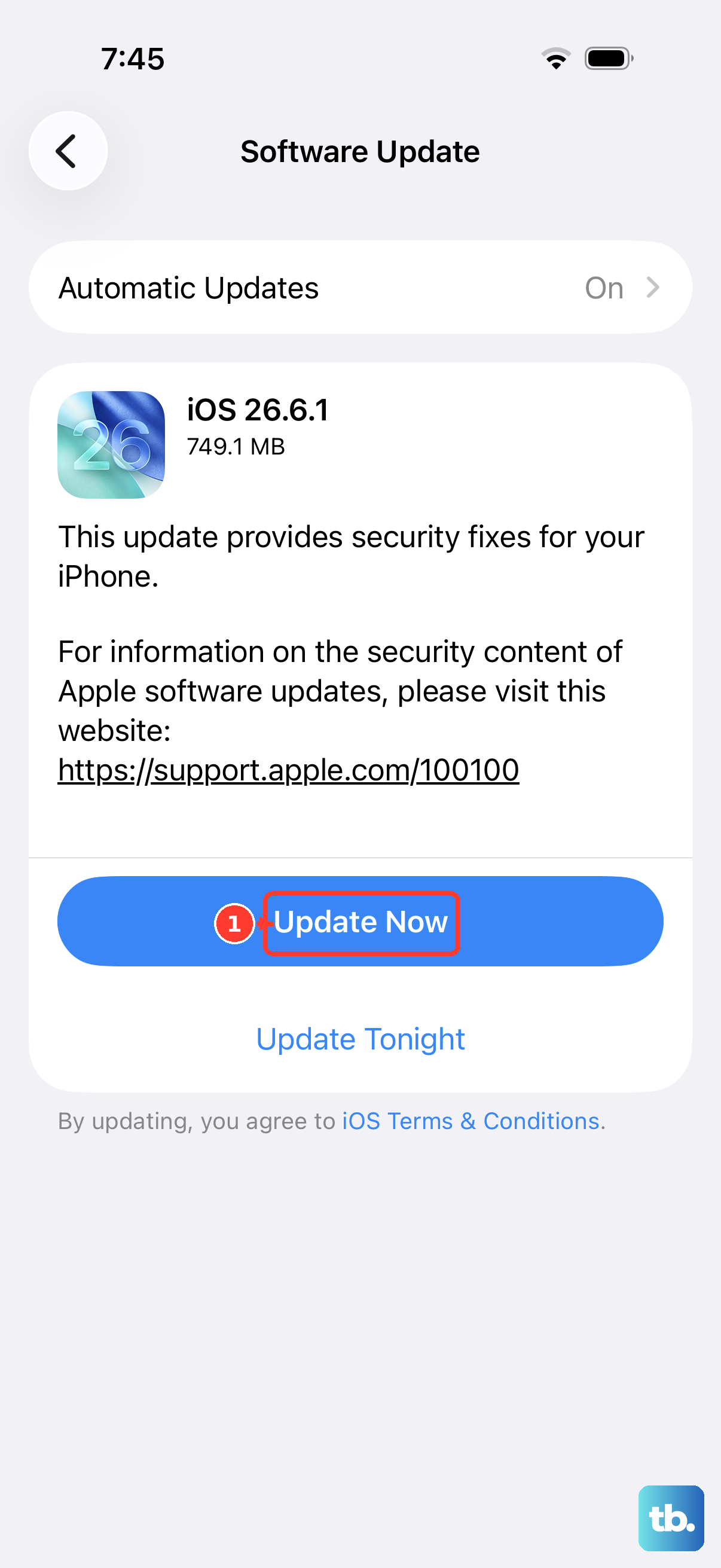
Running an outdated version of iOS can leave system bugs unpatched, and keeping the software current is a reliable way to clear them. The iPhone 14 is supported on iOS 26, so an update is available to you if you are behind.
Open Settings, then tap General. Tap Software Update.
If an update is available, tap Download and Install and follow the onscreen instructions. The screen shows your current iOS version and whether an update is waiting. After the update finishes, restart if prompted and test the flashlight.
Erase all content and settings as a last self-fix
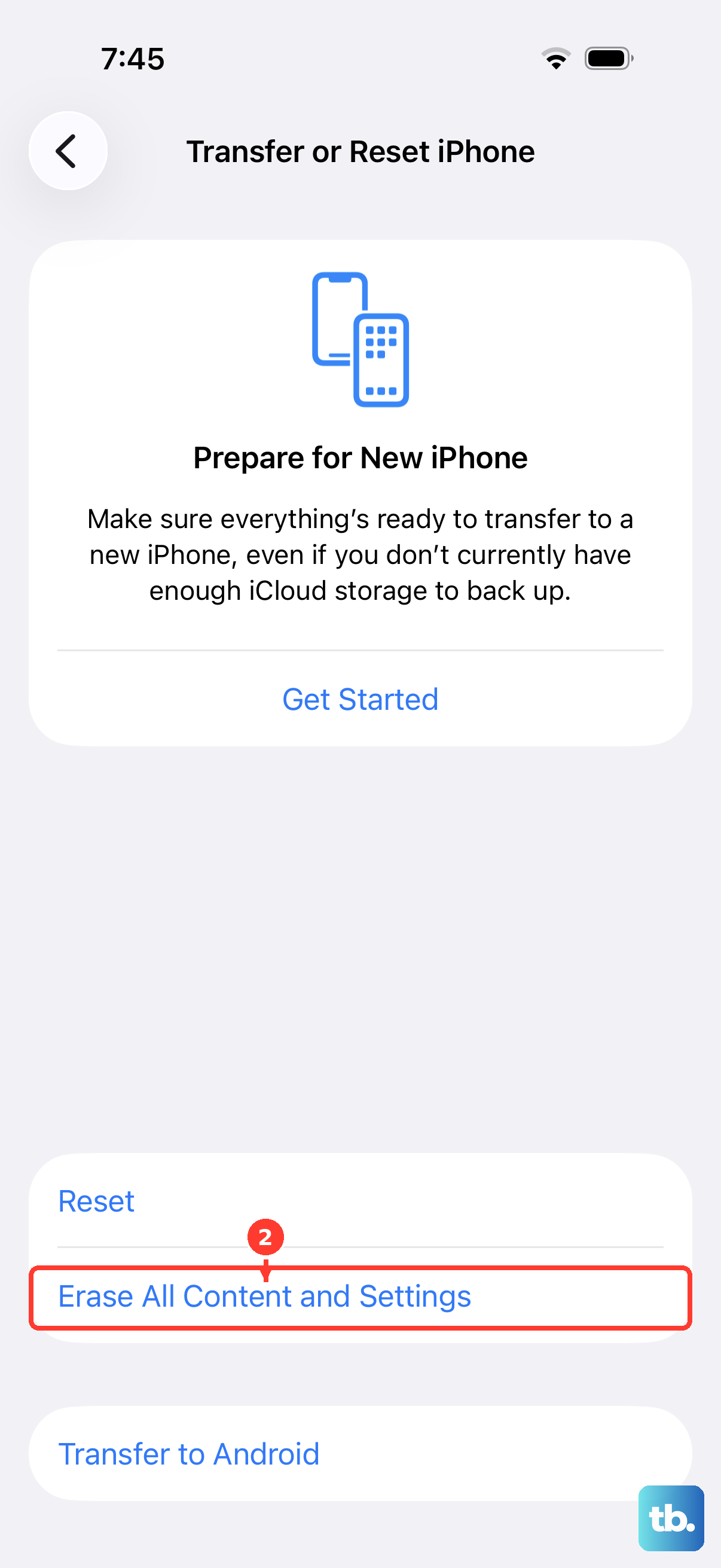
If nothing above has worked and you suspect a deeper software problem, erasing the iPhone and starting fresh is the final step you can take yourself. This is a destructive action: it deletes all of your data, so back up your iPhone first. You can restore your content, settings, and apps from that backup afterward.
Open Settings, then tap General. Tap Transfer or Reset iPhone. Tap Erase All Content and Settings.
Tap Continue, then choose to keep or delete your eSIM. Enter your device passcode and your Apple Account password.
Once the erase finishes and you set the phone back up (or restore from your backup), test the flashlight before assuming the problem is hardware.
When to contact Apple Support or book a repair
If the camera or flash still is not working properly after all of these steps, you might need service. At that point the issue is most likely hardware, and there is no setting left for you to change.
Reach out through the official channels to start a repair or contact a support representative. You can do this from the Apple Support app or the Apple Support website, which will walk you through setting up service for your iPhone 14.
Frequently Asked Questions
Why is my iPhone 14 flashlight button greyed out?
The most common reason is that the LED flash is already in use. Because the flash doubles as the flashlight, it cannot do both at once, so if the Camera app or another app is using the flash the button appears unavailable. Close those apps and try again. Overheating can also temporarily disable the flash until the phone cools down.
How do I adjust the flashlight brightness on my iPhone 14?
Open Control Center by swiping down from the upper-right corner, then press and hold the Flashlight button. A slider appears, and you can drag it up or down to make the light brighter or dimmer.
Can I turn the flashlight on without unlocking my iPhone 14?
Yes. From the Lock Screen, press and hold the Flashlight button in the bottom-left corner. You can also ask Siri to turn it on by saying "Hey Siri, turn on my flashlight" without unlocking the device.
Does erasing my iPhone fix a flashlight problem?
It can, if the cause is a software fault that survived a restart and an update. Erasing all content and settings clears the system back to a clean state, but it deletes your data, so back up first and restore afterward. If the flashlight still fails after a clean erase, the problem is likely hardware and you should contact support.
What should I do if my iPhone 14 overheats and the flash stops working?
When the iPhone gets too hot, the camera flash and other features may be temporarily disabled and you may see a temperature warning. Turn the device off, move it out of direct sunlight to a cooler spot, and let it return to a normal operating temperature. The flashlight should work again once it cools down.