You plugged your iPhone 14 into a charger expecting that quick top-up Apple advertises, but the battery is crawling upward instead of jumping. Maybe it barely moves in 30 minutes, or it stops cold partway up, or you keep wondering why your phone never seems to "fast charge" at all. The good news is that fast charging on the iPhone 14 depends on a few very specific conditions, and most slow-charging problems trace back to the charger, the cable, the port, or a setting you can check in minutes. Here is how to get your iPhone 14 (or iPhone 14 Plus) charging at full speed again, starting with the simplest, safest checks.
Make Sure Your Charger Can Actually Fast Charge
This is the single most common reason an iPhone 14 charges slowly, and it surprises a lot of owners. Fast charging is not automatic with just any charger plugged into the phone. Apple states the iPhone 14 reaches "up to 50% charge in around 30 minutes with 20W adapter or higher paired with USB-C charging cable."
To hit those speeds you need two things together: a power adapter that puts out at least 20W (Apple notes a 20W or higher adapter is required to fast charge iPhone 12 and later), plus the USB-C to Lightning cable. Remember that the iPhone 14 and 14 Plus do not include a power adapter in the box, so if you are using an old, low-wattage USB-A brick from a previous phone, it will charge slowly by design.
The fix is straightforward. Swap to a 20W-or-greater USB-C power adapter and the USB-C to Lightning cable. If you have only been using whatever cube was lying in a drawer, this one change alone often restores fast-charge speeds.
Plug Into the Wall and Inspect Every Connection
Where and how you plug in matters. The official charging guidance is to plug your device into a wall power outlet rather than a computer USB port or a weak accessory, which may not deliver enough power for fast charging.
Next, check your charging cable and USB adapter for signs of damage such as breakage, fraying, or bent prongs. A cable that looks fine but has an internal break is a frequent cause of slow or intermittent charging.
Finally, make sure there are firm connections between your charging cable, the USB wall adapter, and the wall outlet. A loose plug, a worn outlet, or a half-seated cable can all throttle charging, so press everything in snugly or try a different outlet.
Clear Debris Out of the Lightning Port
The iPhone 14 uses a Lightning connector, and that port collects pocket lint and dust over time. When debris packs into the port, the cable cannot seat fully, which can slow charging or stop it entirely.
Apple advises removing any debris from the charging port on the bottom of your device, then firmly plugging your charging cable back in and letting it charge. Look into the port in good light, and gently clear out any visible lint before testing again with a known-good cable.
What to Do If You See a "Charging Not Available" Alert
If you connect a Lightning cable and see a "Charging not available" message, your iPhone has detected liquid in the connector, on the cable, or on the accessory, and it has paused charging to protect the phone. This is a safety feature, not necessarily a broken phone.
Tap the iPhone gently against your hand with the connector facing down to remove excess liquid, then leave it in a dry area with some airflow. Try charging again after at least 30 minutes; full drying can take up to 24 hours.
There are several things you should never do here. Do not use an external heat source or compressed air, do not insert a foreign object such as a cotton swab or paper towel into the connector, and do not put your iPhone in a bag of rice. Each of those can push moisture deeper or damage the port.
Cool the Phone Down and Take the Case Off
Heat directly limits charging speed. Apple recommends charging your iPhone in environments between 32 and 95 degrees F (0 and 35 degrees C), and notes that if the battery gets too warm, software might limit charging above 80 percent to protect it.
If your iPhone tends to heat up while charging, remove your case, since a thick case can trap heat against the phone. Keep both the iPhone and the charger in a well-ventilated area rather than under a pillow or in direct sun.
If charging seems to stall while the phone feels hot, that may simply be thermal protection at work. Let it cool to room temperature and try again before assuming something is wrong.
When Pausing at 80% Is Completely Normal
If your iPhone 14 charges quickly up to about 80% and then noticeably slows or pauses, that is often not a fault at all. It is Optimized Battery Charging working as designed; it delays charging past 80 percent in certain situations to reduce long-term battery wear.
You can check or change this feature at Settings > Battery > Battery Health & Charging, where you can turn Optimized Battery Charging on or off. Note that the iPhone 14 does not have the 80-100% Charge Limit slider found on iPhone 15 and later, so this toggle is the relevant control on your model. If you want a full charge before a known pause point, leaving the phone connected usually lets it finish to 100% when it is ready.
Restart, Then Force Restart Your iPhone 14
A software hiccup can occasionally interfere with charging. Start with a normal restart of your iPhone, which clears many temporary glitches.
If the phone is unresponsive or still will not charge normally, perform a force restart. The iPhone 14 is a Face ID side-button model, so the sequence is:
- 1.Press and quickly release the volume up button.
- 2.Press and quickly release the volume down button.
- 3.Press and hold the side button until you see the Apple logo (this might take longer than 10 seconds).
Follow that order exactly. When the Apple logo appears, release the side button and let the phone boot, then test charging again.
Install the Latest iOS Version
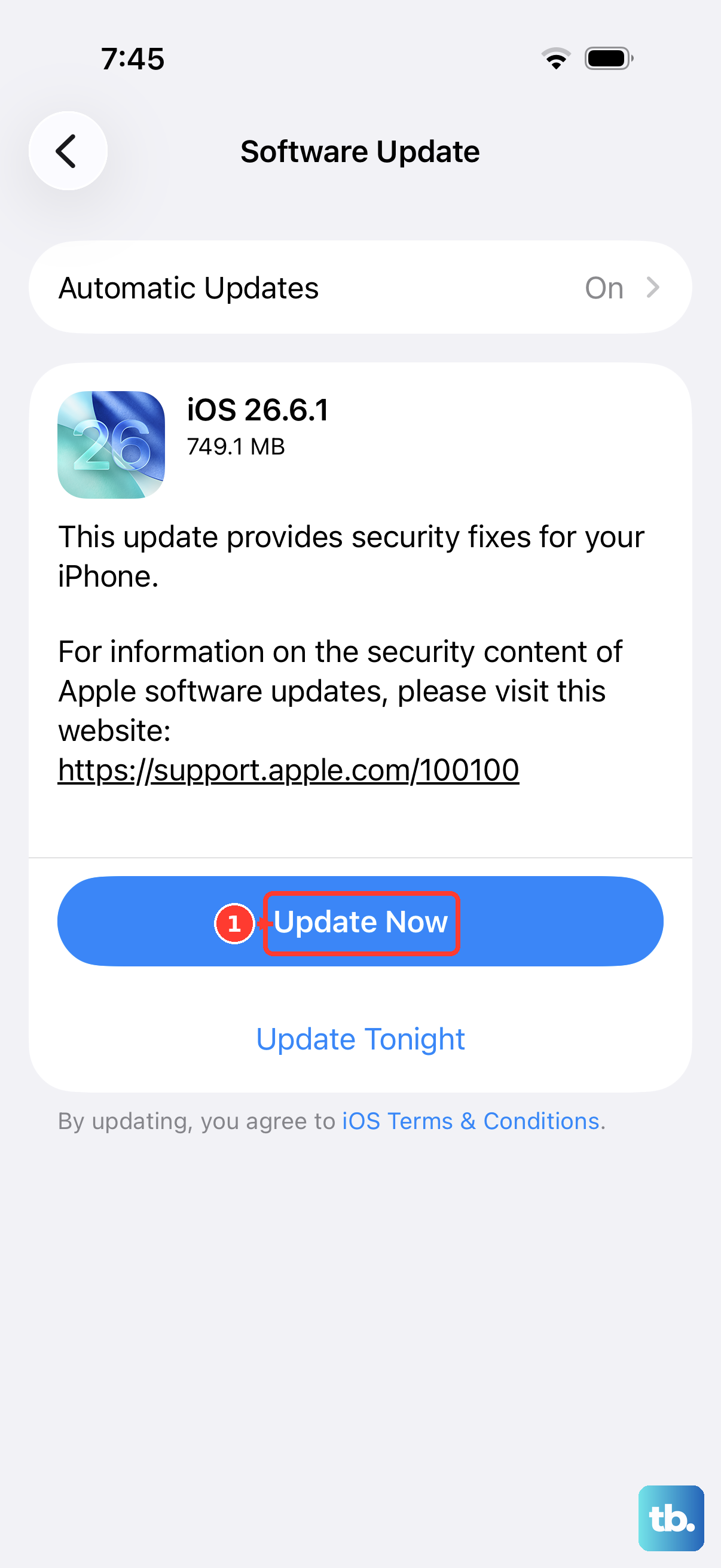
Keeping your software current is listed among the official charging troubleshooting steps. An up-to-date iOS can resolve odd charging behavior tied to system bugs.
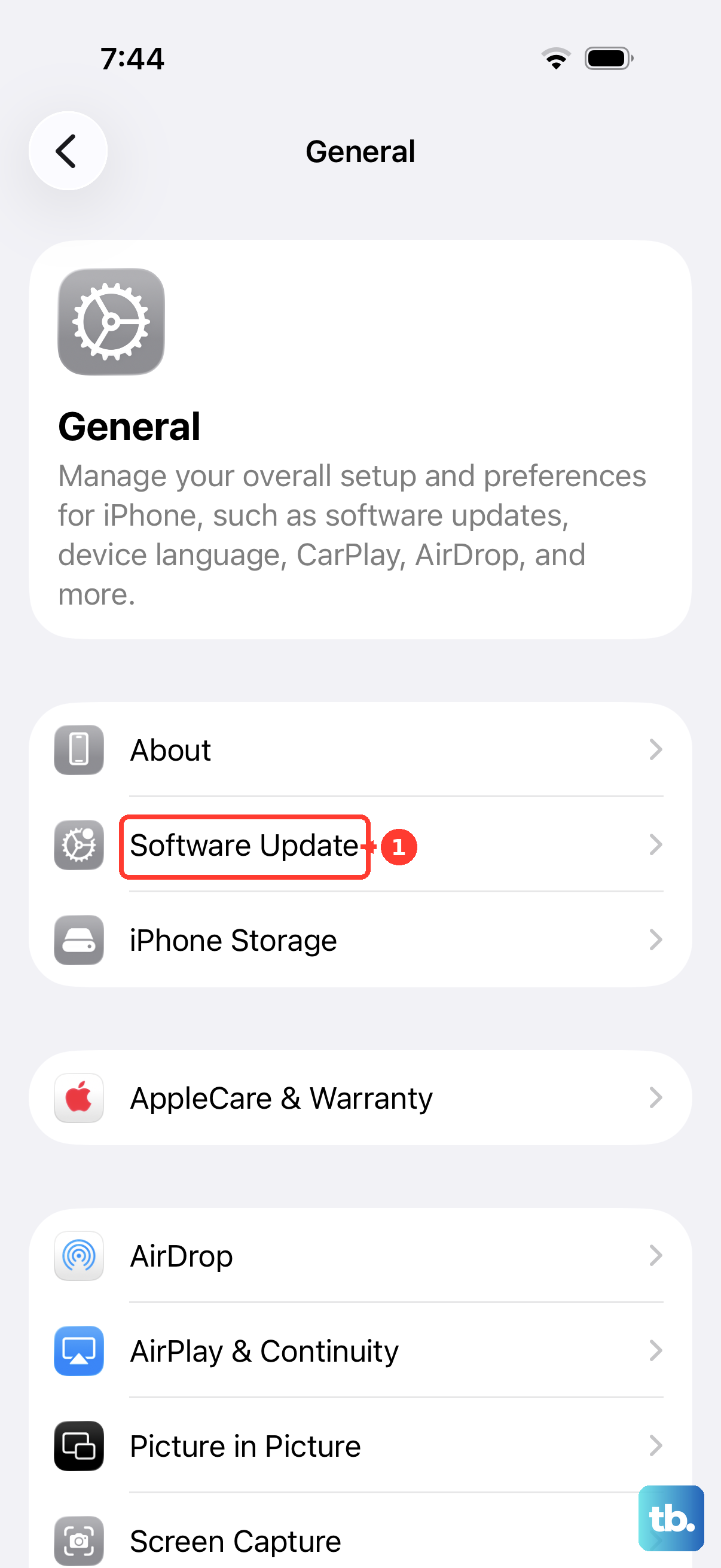
Back up your iPhone first, then go to Settings > General > Software Update. If an update is available, tap Download and Install and follow the onscreen instructions. As of mid-2026, iOS 26 is the current release, so check that you are running the newest version offered for your phone.
Give It a Full 30 Minutes Before You Worry
Sometimes the phone really is charging, just from a very low starting point. After you have checked the cable, adapter, and port, let your device charge for at least half an hour before drawing any conclusions.
A deeply drained iPhone can take several minutes to show any charge at all or to turn on. Leave it connected to a known-good 20W-or-greater wall charger and watch for the charging indicator on screen, rather than unplugging after a minute and assuming it is dead.
Erase as a Last Software Step, Then Reach Apple Support
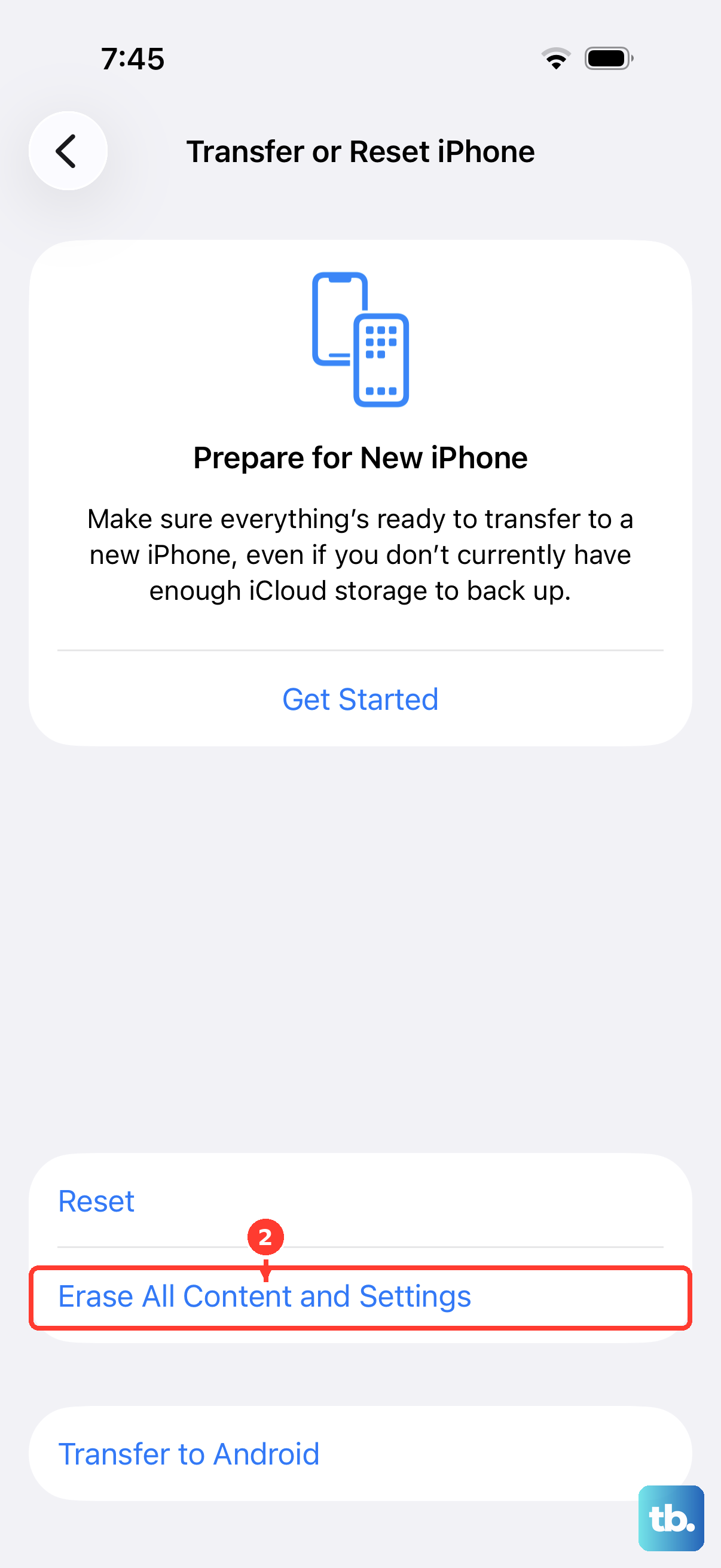
If charging still fails after everything above and you suspect a deeper software problem, erasing the phone is the final do-it-yourself step. Back up your data first, because this restores the iPhone to factory settings and removes your data.
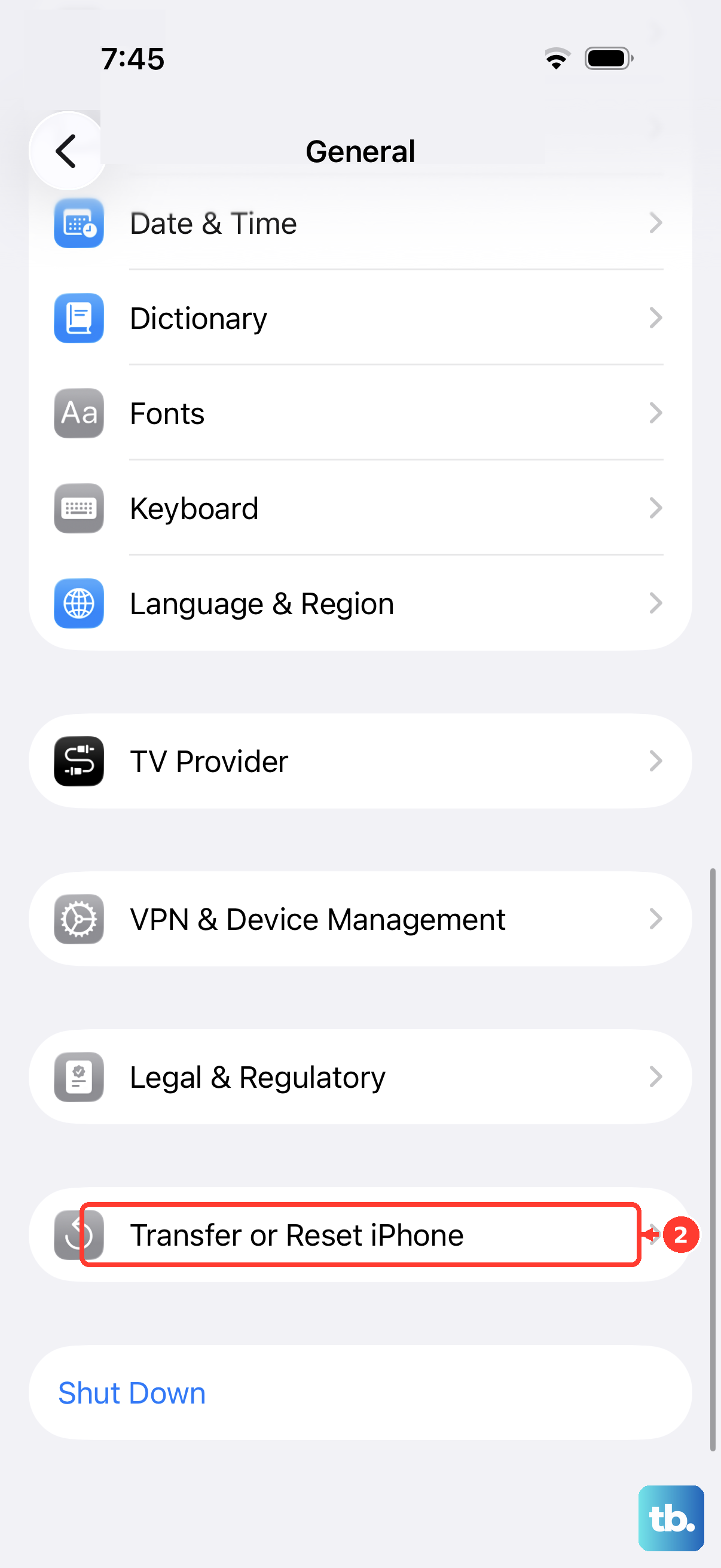
The path is Settings > General > Transfer or Reset iPhone > Erase All Content and Settings, after which you enter your passcode and Apple Account password to confirm. Only do this once you have a current backup, since the action cannot be undone.
If the iPhone still will not charge after being erased and set up again, the issue is likely hardware. At that point you might need service, so contact Apple Support or an Apple Authorized Service Provider, which you can book through the official support channel.
Frequently Asked Questions
Does the iPhone 14 actually support fast charging?
Yes. Apple confirms the iPhone 14 can reach up to 50% charge in around 30 minutes when you use a 20W adapter or higher paired with the USB-C charging cable. The speed varies with your settings and environmental factors.
Why does my iPhone 14 charge slowly with my old charger?
Fast charging requires a power adapter with at least 20W of output plus a USB-C to Lightning cable. The iPhone 14 and 14 Plus do not include a power adapter in the box, so an older low-watt or USB-A charger will charge the phone slowly.
Why does my iPhone stop charging at 80%?
That is usually Optimized Battery Charging, which intentionally delays charging past 80 percent in certain situations to reduce battery wear. You can review or toggle it at Settings > Battery > Battery Health & Charging. Heat can also cause software to limit charging above 80 percent until the phone cools.
Can I use rice to dry my iPhone if it shows "Charging not available"?
No. Do not put your iPhone in rice, and avoid external heat, compressed air, or inserting cotton swabs or paper towels into the connector. Instead, tap the phone gently with the connector facing down, leave it in a dry area with airflow, and try charging again after at least 30 minutes; full drying can take up to 24 hours.
What should I do if none of these fixes work?
If charging still fails after you have tried the steps and, as a last software measure, erased and restored the phone from a backup, the problem may be hardware. Contact Apple Support or an Apple Authorized Service Provider to arrange service.