
Seeing "Call Failed" on your iPhone 14 can stop you in your tracks. This usually means your phone is having trouble connecting to the cellular network properly. Weak signals, a software hiccup, or a simple setting can be the culprit.
Here are ten effective fixes for the iPhone 14 call failed error, starting with the quickest one you can try right now.
Toggle Airplane Mode On and Off
The fastest way to reset your cellular connection is with Airplane Mode. This clears temporary network glitches that can cause calls to drop or fail to connect.
Swipe down from the top-right corner of your screen to open Control Center. Tap the airplane icon to turn Airplane Mode on, wait about 15 seconds, then tap it again to turn it off. You should see your signal bars reappear.
Check Your Signal Strength
Weak cellular signal is the most common reason for call failures on any phone. Look at the signal bars in the top-right corner of your iPhone 14's screen.
If you have one bar or see "No Service," try moving to a different location. Going near a window or stepping outside can often make a big difference. I've found that buildings with thick walls can really block the iPhone 14's signal.
Restart Your iPhone 14
A simple restart can clear out minor software bugs that might be interfering with the phone app or cellular modem. It's a good second step if Airplane Mode didn't help.
Press and hold the Side button and either Volume button until the power-off slider appears. Slide it to power off, wait a full 30 seconds, then press the Side button again to turn it back on.
Check Focus and Do Not Disturb
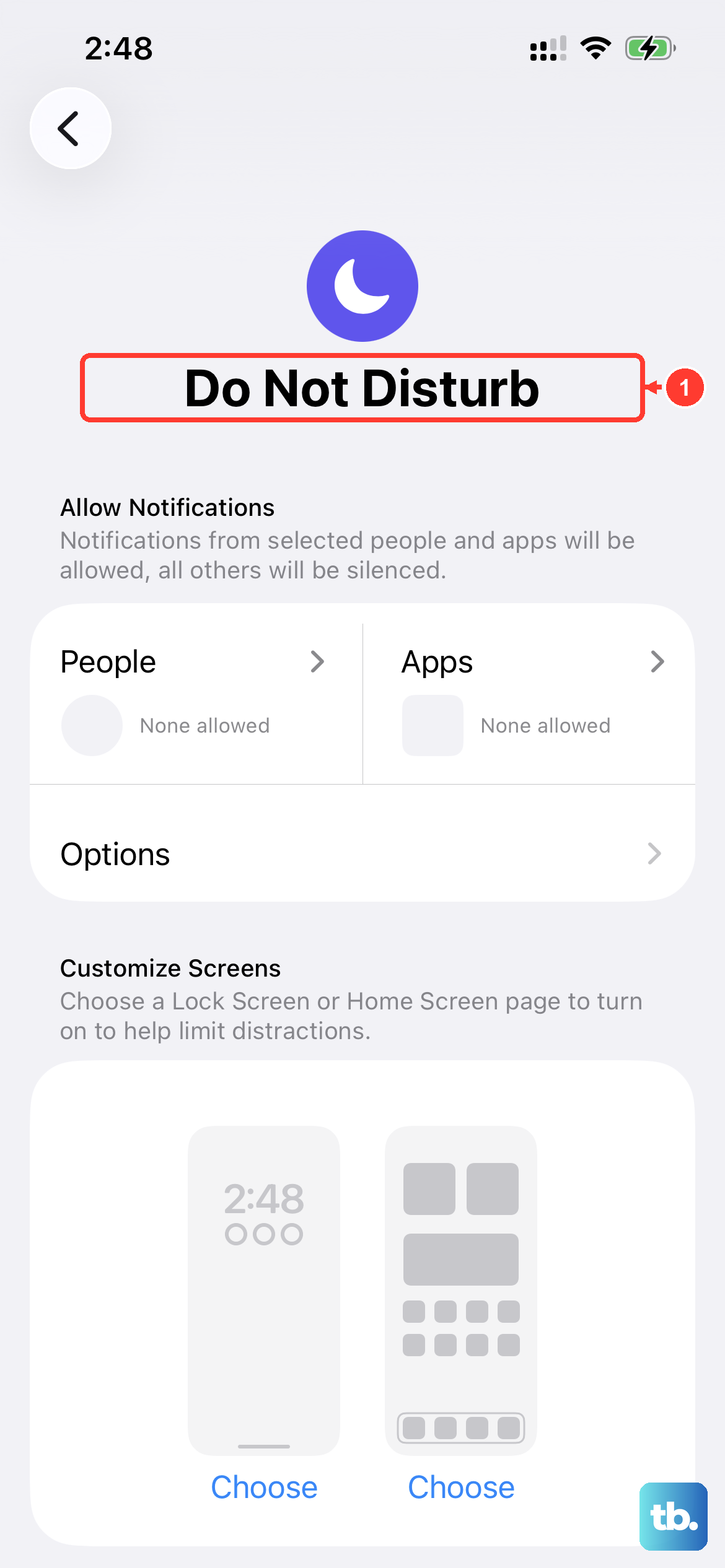
Your Focus modes or Do Not Disturb might be silently blocking calls. It's easy to forget you have one turned on.
Swipe down from the top-right to open Control Center and look for a Focus icon (like a moon or a person). If you see one active, tap it to turn it off. You can also go to Settings > Focus to see which ones are enabled.
Update Your Date and Time Settings
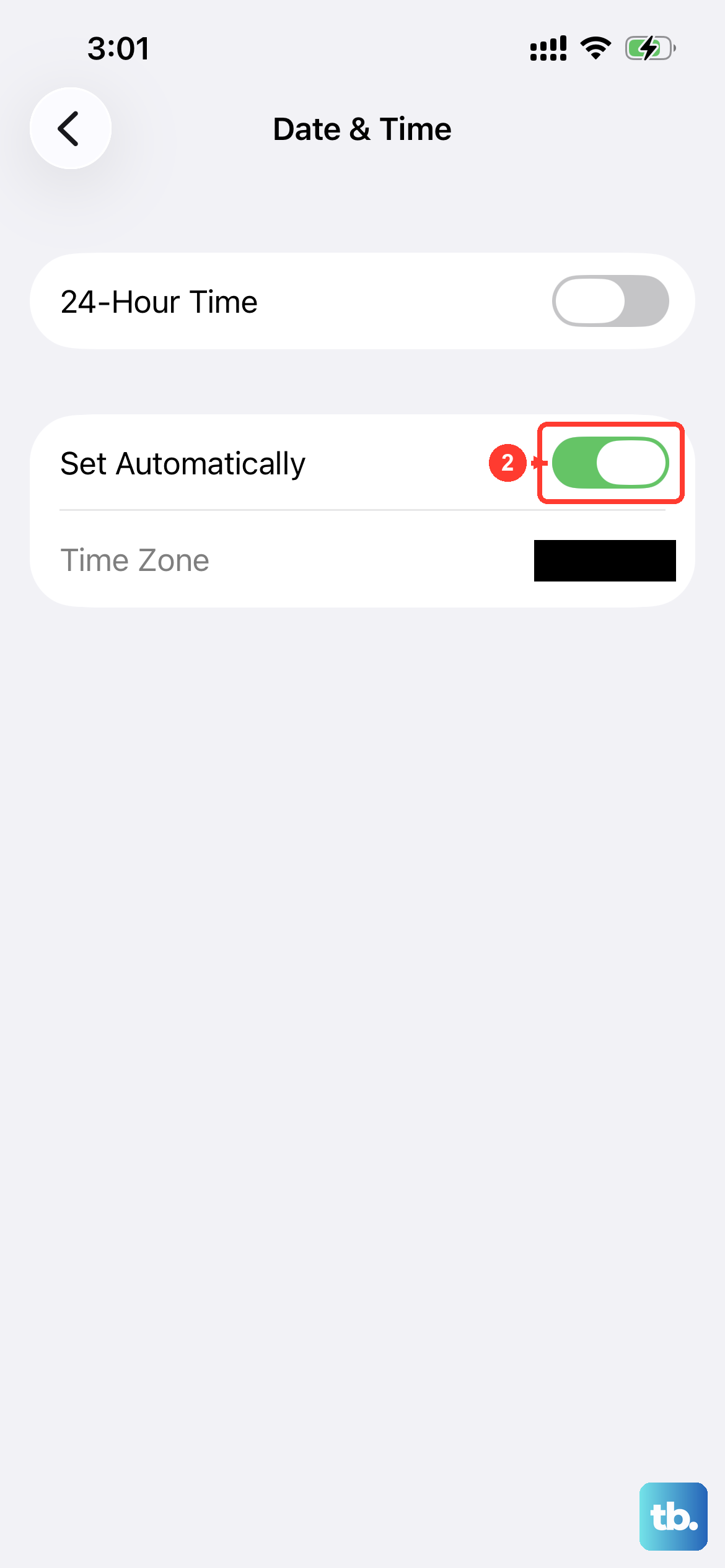
Believe it or not, an incorrect date or time can cause network authentication problems. Your carrier's network checks this, and if it's wrong, calls can fail.
Go to Settings > General > Date & Time. Make sure the switch for "Set Automatically" is turned on (green). This lets your iPhone 14 sync the correct time from the network.
Verify Your Cellular Data Settings
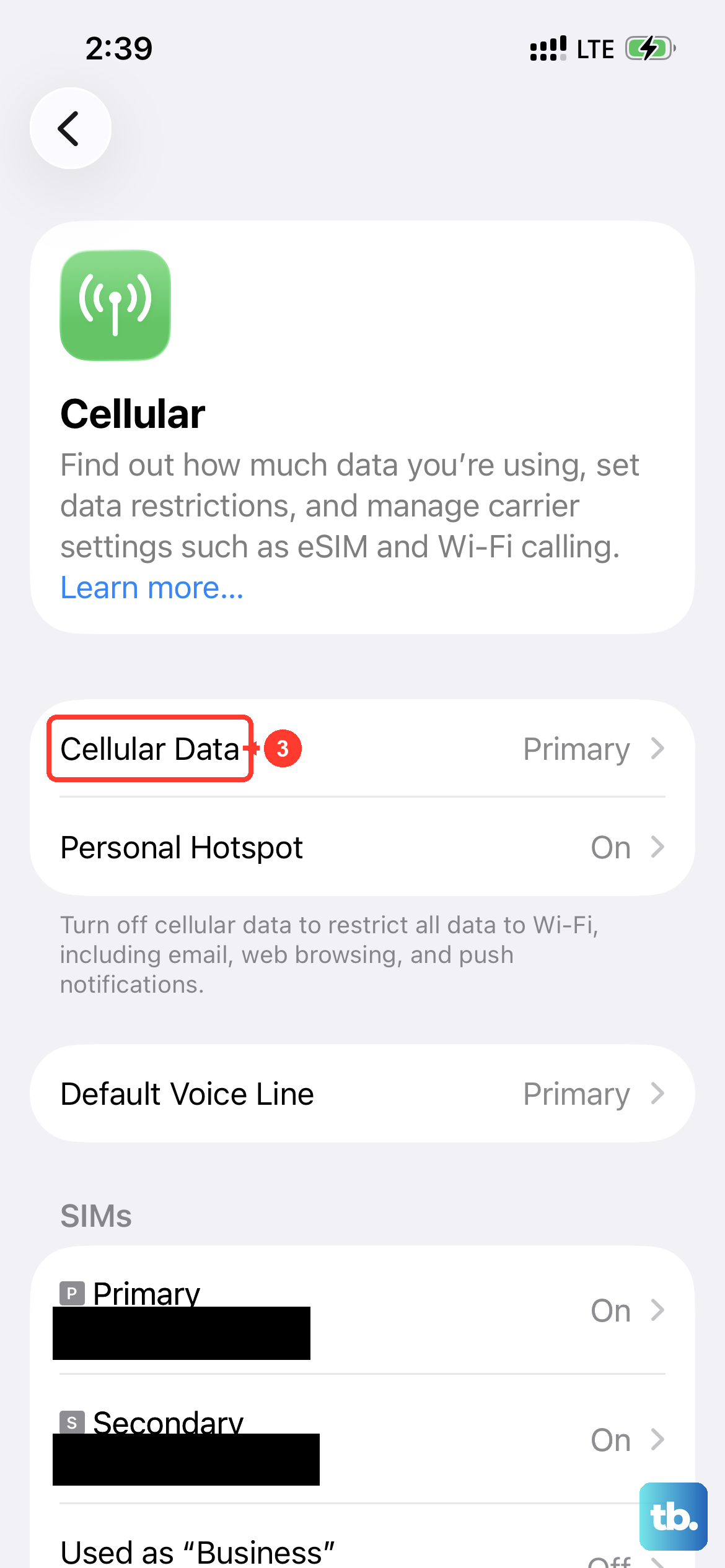
Make sure your cellular data is enabled, especially if you're trying to make a call while traveling. Some carriers require data for certain calling features.
Go to Settings > Cellular. Ensure "Cellular Data" is switched on. If you're traveling, you might also need to enable Data Roaming under Cellular > Cellular Data Options.
Update Your Carrier Settings
Apple and your carrier occasionally release small updates that improve network connectivity. These can fix calling issues without requiring a full iOS update.
Connect your iPhone 14 to Wi-Fi, then go to Settings > General > About. If a carrier settings update is available, a prompt will appear on this screen. Just follow the instructions to install it.
Check for a Software Update
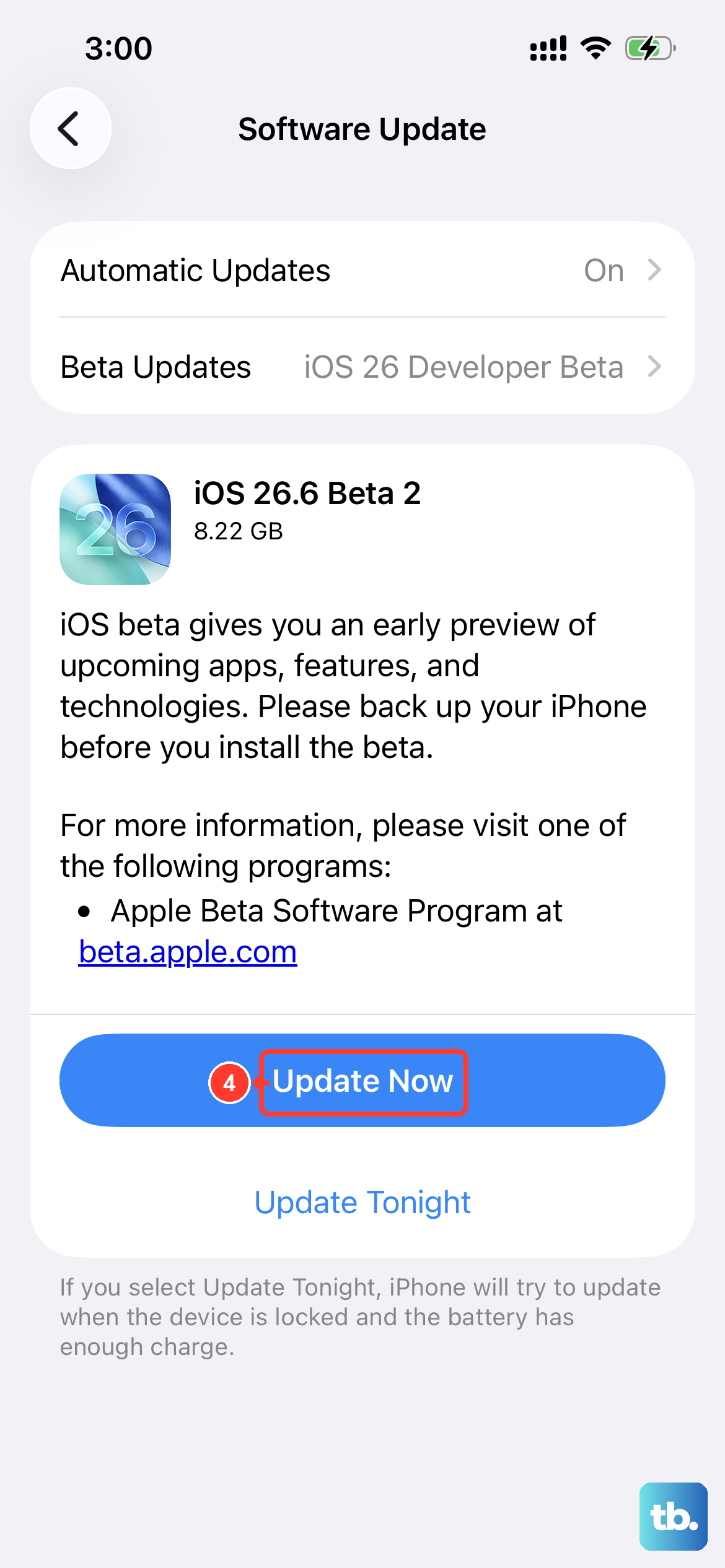
Since its release in 2022, the iPhone 14 has received several iOS updates that fix bugs. A known issue with calls after the iOS 18 update was addressed in a later patch.
Plug your phone in or make sure it has over 50% battery, connect to Wi-Fi, and go to Settings > General > Software Update. Download and install any available update. This often resolves persistent glitches.
Reset Your Network Settings
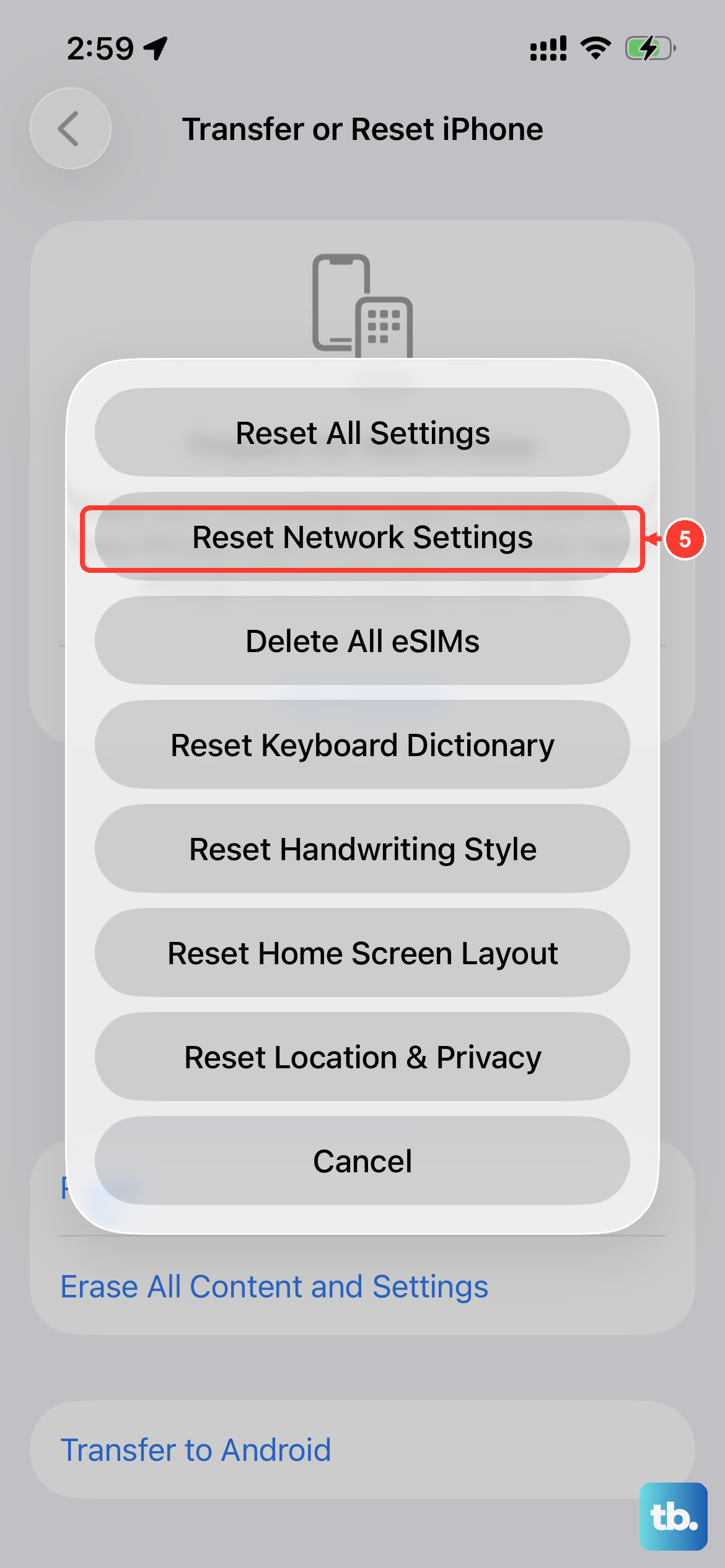
This is a more thorough step that clears all saved Wi-Fi passwords, Bluetooth connections, and cellular network configurations. It won't delete your photos or apps, but you will have to re-join Wi-Fi networks.
Go to Settings > General > Transfer or Reset iPhone. Tap "Reset," then choose "Reset Network Settings." You'll need to enter your passcode to confirm. Your iPhone 14 will restart and the network settings will be fresh.
Inspect Your SIM Card
A faulty, dirty, or loose SIM card can definitely cause call failures. The SIM tray on the iPhone 14 is on the left side of the device.
Use a paperclip or SIM eject tool to pop out the tray. Carefully remove the SIM card, inspect it for any visible damage or dirt, and then re-insert it firmly. Try the call again. If problems continue, your carrier can provide a replacement SIM.