
When your iPhone 14 won't let you install new apps, it can feel like you're locked out of your own device. Whether you're stuck on a spinning circle or getting an error message, the problem usually has a straightforward fix. Let's go through the most effective solutions to get your App Store working again.
I'd start with the quickest fix first. A simple restart can clear out temporary glitches that might be blocking the App Store. Just press and release the Volume Up button, press and release the Volume Down button, then press and hold the Side button until you see the Apple logo appear.
Check Your Internet Connection
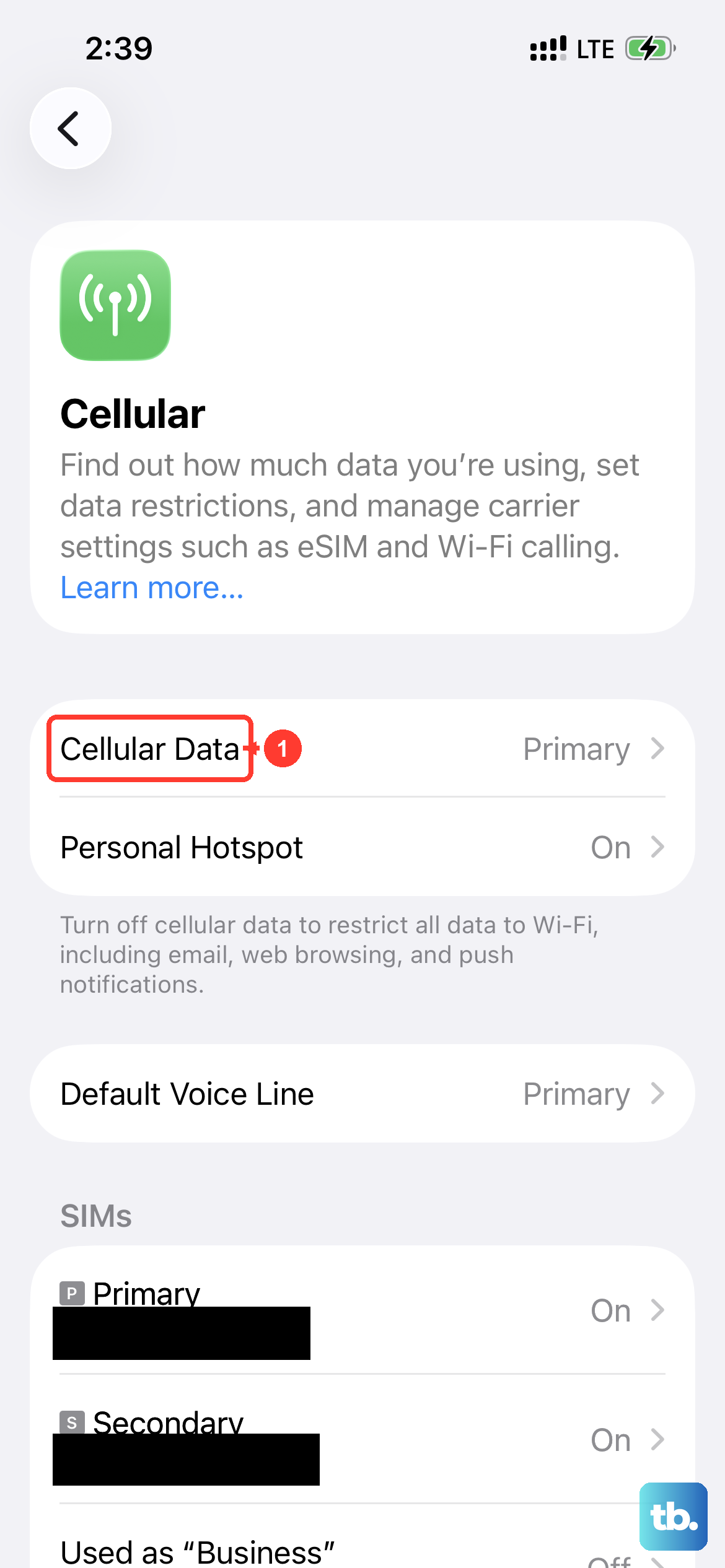
The App Store needs a solid connection to download anything. First, make sure you're connected to Wi-Fi or have a strong cellular signal. You can test this by opening Safari and trying to load a webpage.
If you're on Wi-Fi, try toggling it off and on in Settings > Wi-Fi. For cellular data, go to Settings > Cellular and ensure it's turned on. Some public Wi-Fi networks block the App Store, so switching to your cellular data for a quick test is a good idea.
Sign Out and Back Into Your Apple ID
This is one of the most reliable fixes for persistent App Store issues on the iPhone 14. A hiccup with your account authentication can stop downloads in their tracks.
To do this, open Settings and tap your name at the top. Scroll down and tap Sign Out. You'll be asked if you want to keep a copy of your data on the phone, which you can agree to. After signing out, restart your iPhone, then go back to Settings and sign in with your Apple ID and password again.
Check Your Date and Time Settings
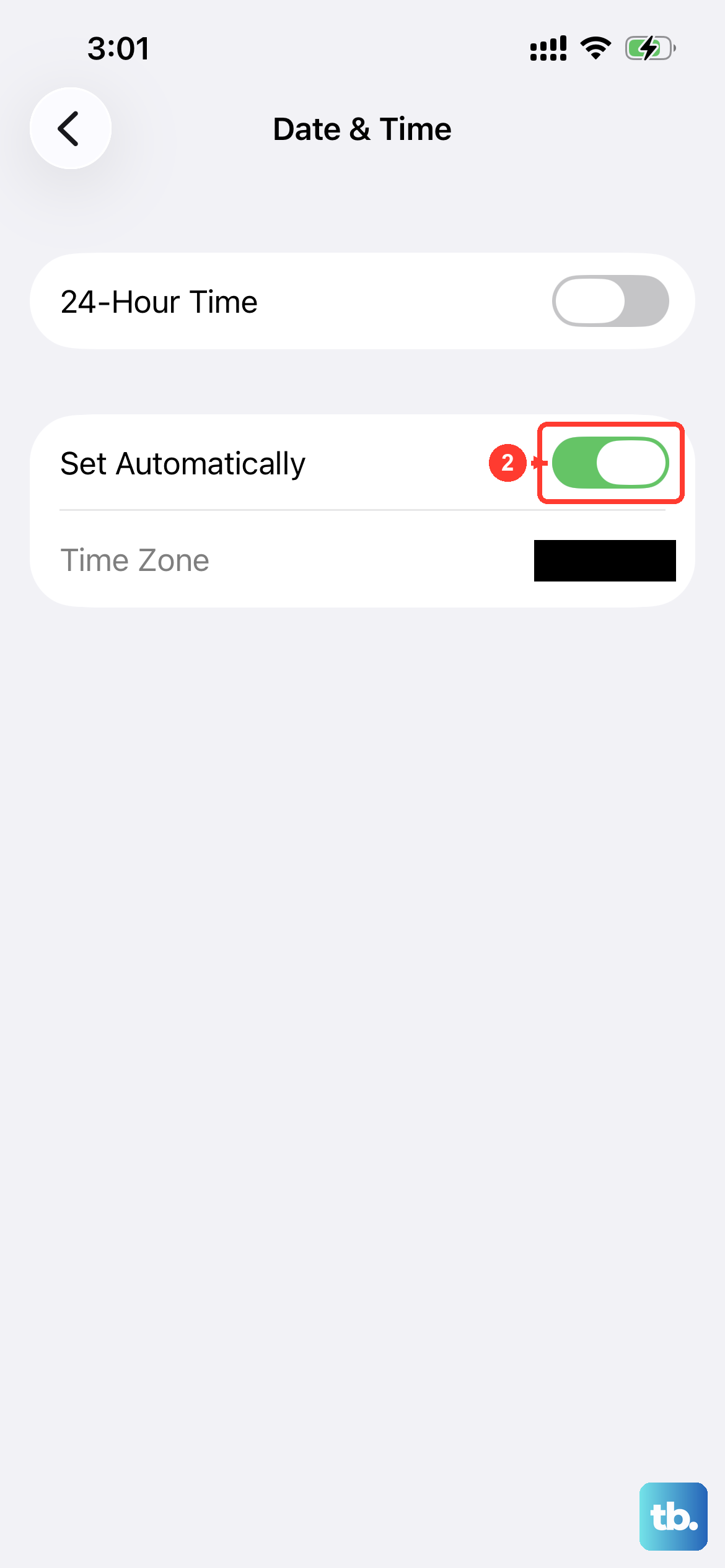
This might seem minor, but if your iPhone's clock is wrong, it can confuse the App Store's servers and prevent downloads. The fix is automatic and takes just a few seconds.
Go to Settings > General > Date & Time. Make sure the switch for Set Automatically is turned on and green. If it was already on, try turning it off and then immediately back on again to refresh the connection.
Check Your Available Storage
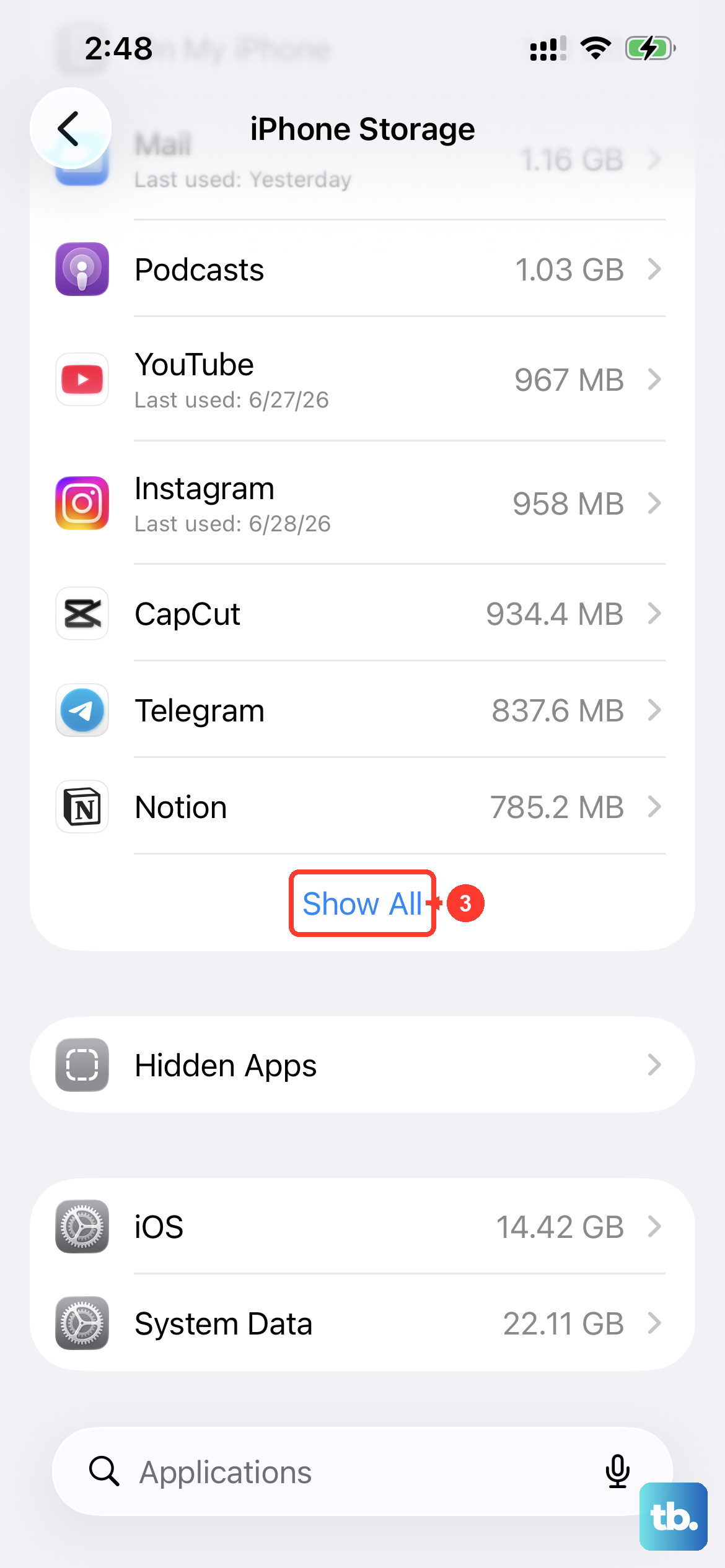
If your iPhone 14 is completely full, there's no room for new apps. The error message isn't always clear about this being the cause. It's worth checking your storage before moving on to more complex fixes.
Head to Settings > General > iPhone Storage. Here, you'll see a breakdown of what's using space. If you're critically low, you can offload unused apps (which removes the app but keeps its documents and data) or delete old videos and photos to free up room.
Update Your iOS Software
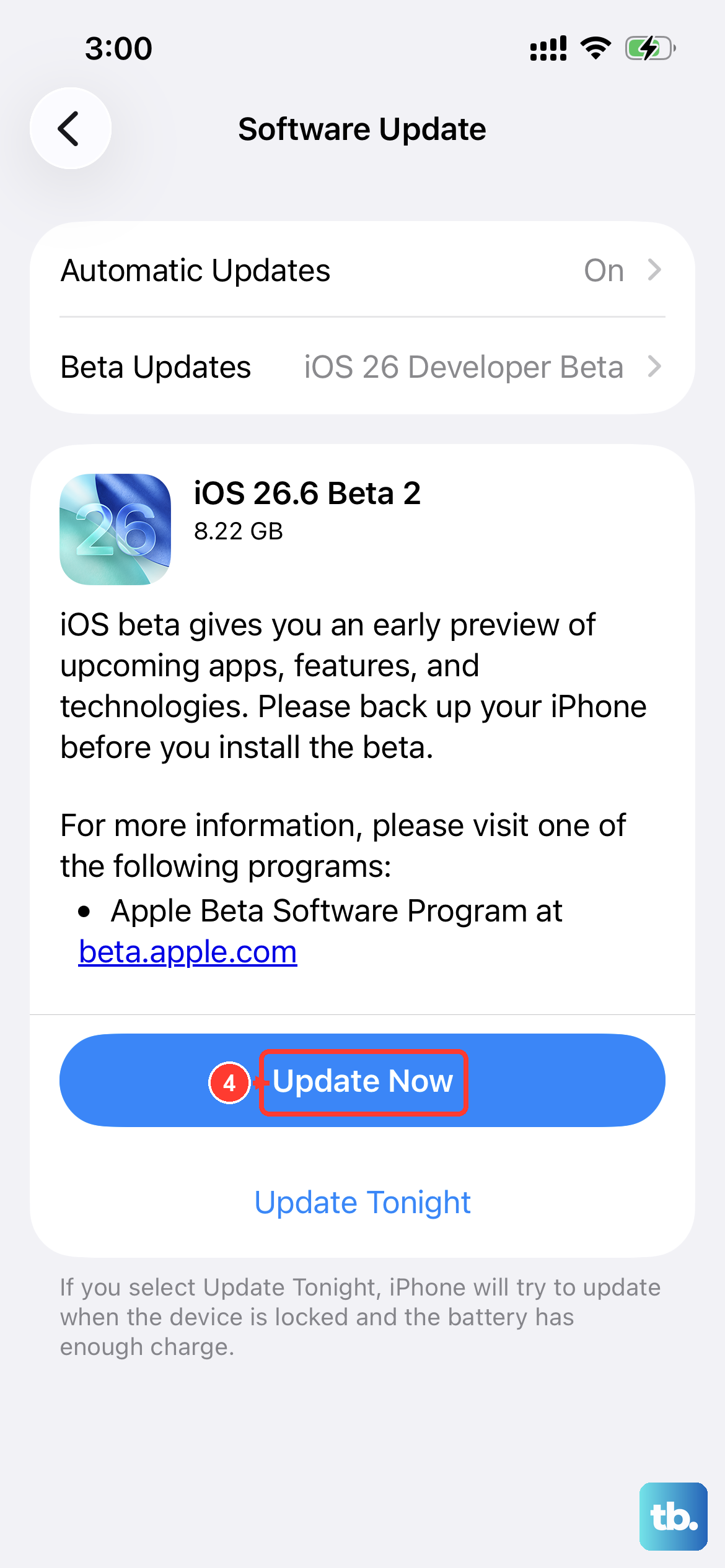
Running an outdated version of iOS can sometimes cause compatibility issues with the App Store. Apple frequently releases updates that include bug fixes for the App Store and system services.
To check, go to Settings > General > Software Update. If an update is available, tap Download and Install. Make sure your phone is connected to Wi-Fi and has sufficient battery life, or plug it into its Lightning charger during the update process.
Reset Your Network Settings
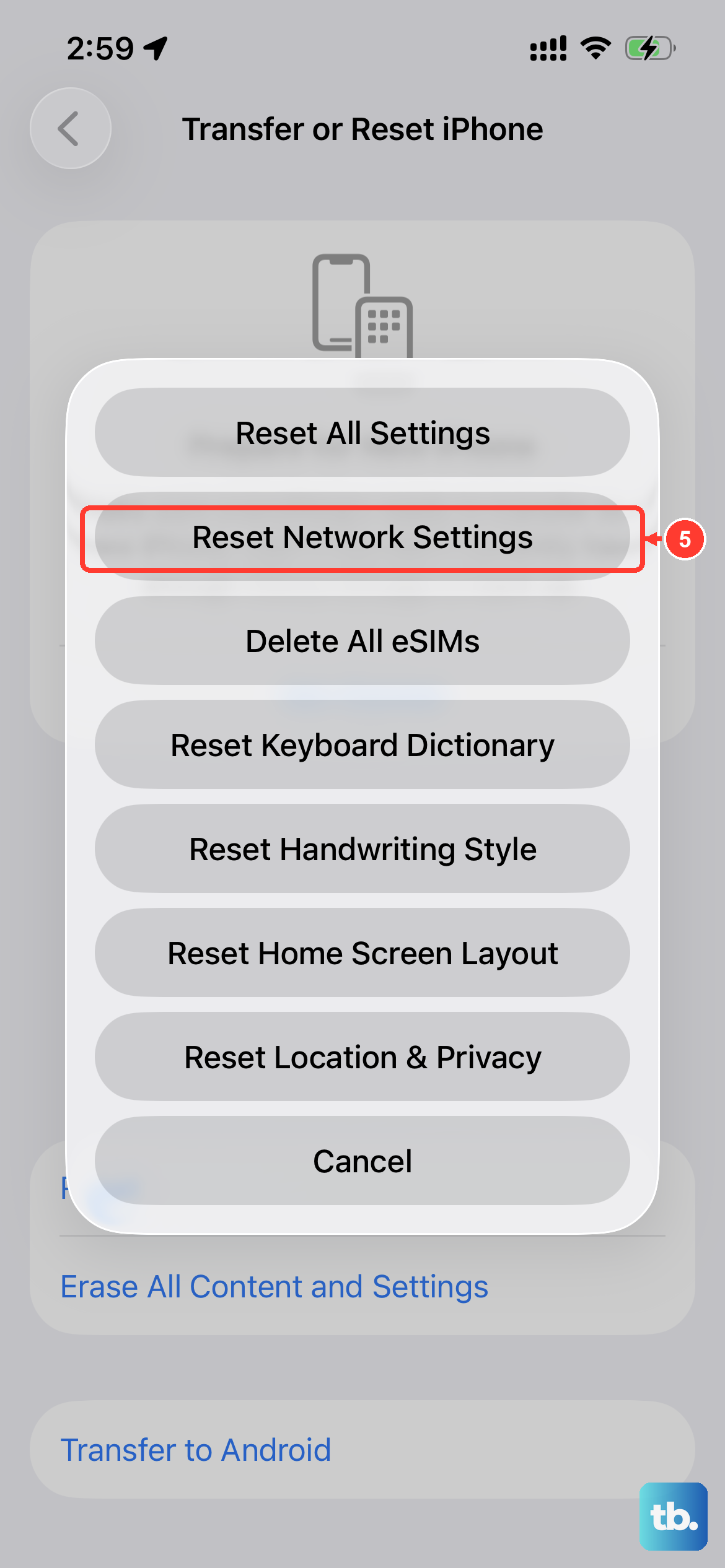
This step can resolve deeper connectivity problems that might be affecting the App Store. It will erase all your saved Wi-Fi passwords and cellular settings, so you'll need to re-enter them afterward.
Go to Settings > General > Transfer or Reset iPhone. Tap Reset and then choose Reset Network Settings. Your iPhone will restart. After it boots up, reconnect to your Wi-Fi network and try the App Store again.
Check Screen Time and Content Restrictions
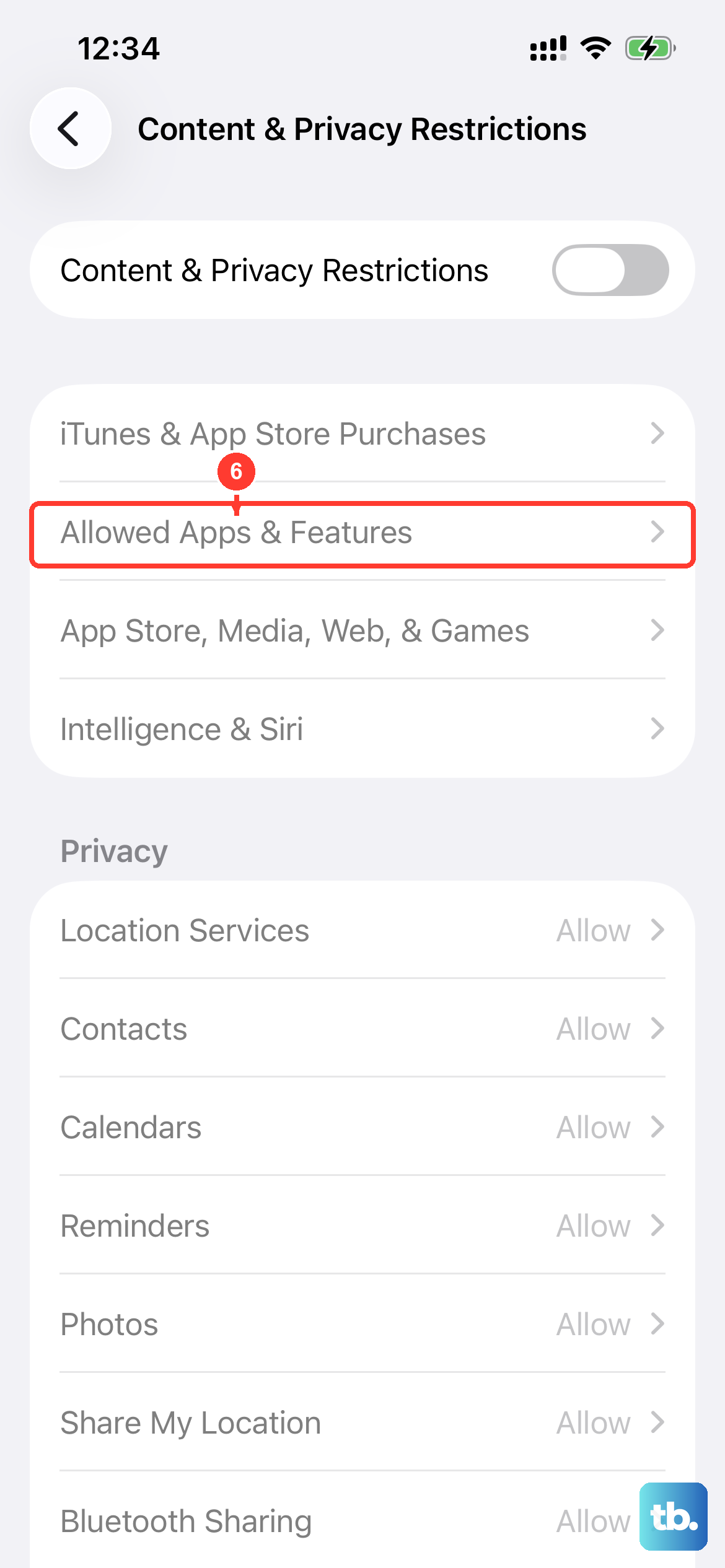
If you or someone else has set up Screen Time restrictions, it's possible that app downloads have been blocked entirely. This is a common oversight, especially on family-shared devices.
Open Settings > Screen Time. Tap Content & Privacy Restrictions and enter your Screen Time passcode if prompted. Scroll down to the iTunes & App Store Purchases section and tap Installing Apps. Make sure it is set to Allow.
Force Quit and Relaunch the App Store
Just like any other app, the App Store app itself can freeze or get stuck. Force quitting it gives it a fresh start. Swipe up from the bottom of the screen and pause in the middle to enter the app switcher.
Find the App Store card and swipe it up and off the top of the screen to close it. Wait a moment, then tap the App Store icon on your Home Screen to reopen it. This often clears up minor issues where an app is stuck "Waiting" or not responding.
Check for a Pending App Update or Payment
Sometimes, the App Store won't let you download new apps if there's an unpaid balance on your account or a pending update that requires your attention. Open the App Store and tap your profile icon in the top right corner.
Look to see if any app updates are pending. Also, if you see a message about billing or payment information, you may need to update your payment method in Settings > [Your Name] > Payment & Shipping.
Change Your DNS Settings
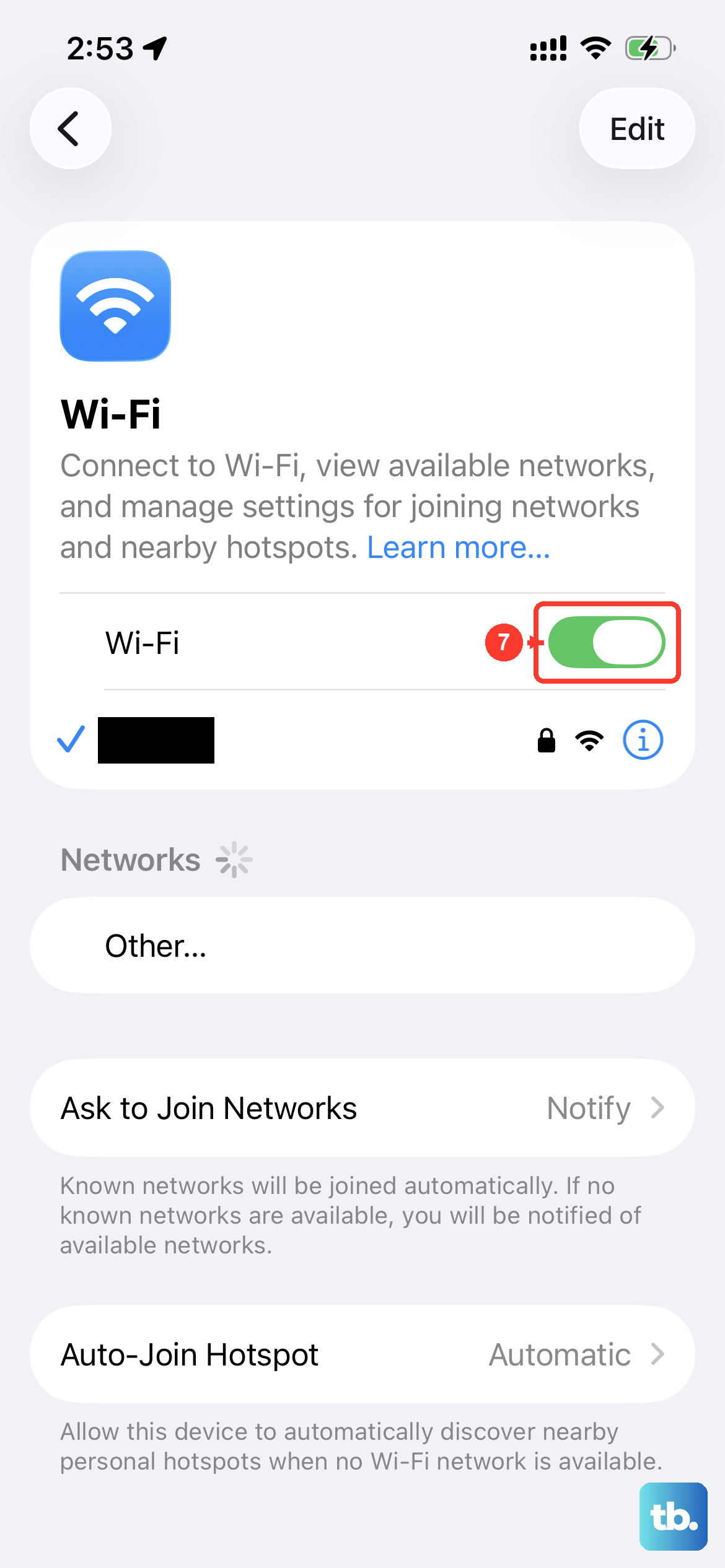
This is a less common fix, but it can help if your internet connection is fine but the App Store servers are having trouble resolving through your current network. You'll change your Wi-Fi's DNS to use a public server like Google's or Cloudflare's.
Go to Settings > Wi-Fi and tap the "i" icon next to your connected network. Tap Configure DNS and change it from Automatic to Manual. Tap Add Server and enter 8.8.8.8, then tap Add Server again and enter 8.8.4.4. Tap Save in the top right and try the App Store again.