
When your iPhone 13 stops responding to "Hey Siri," it feels like a core feature has just gone on strike. You're left tapping the screen or holding the side button, which defeats the whole hands-free purpose. The good news is this is almost always a software or settings hiccup that you can fix yourself.
Let's start with the most common and quickest solution. Go to Settings > Siri & Search and toggle the switch for "Listen for 'Hey Siri'" off and then back on. You'll be prompted to retrain Siri with your voice. This refreshes the voice model and clears out any minor glitches. I'd start with this one, as it solves the issue more often than not.
Confirm Siri's Core Settings Are Active
It sounds obvious, but sometimes settings get changed accidentally. Open Settings and tap on Siri & Search. You need to see two key options enabled here.
First, make sure "Listen for 'Hey Siri'" is turned on. Right below that, check "Allow Siri When Locked." If this is off, Siri won't respond unless your phone is already unlocked, which makes the voice command pretty useless.
Look for Features That Block Siri
Your iPhone 13 has an accessibility feature called Sound Recognition, designed to listen for things like doorbells or alarms. When it's active, it takes over the microphones and automatically disables "Hey Siri." To check, go to Settings > Accessibility > Sound Recognition and make sure it's switched off.
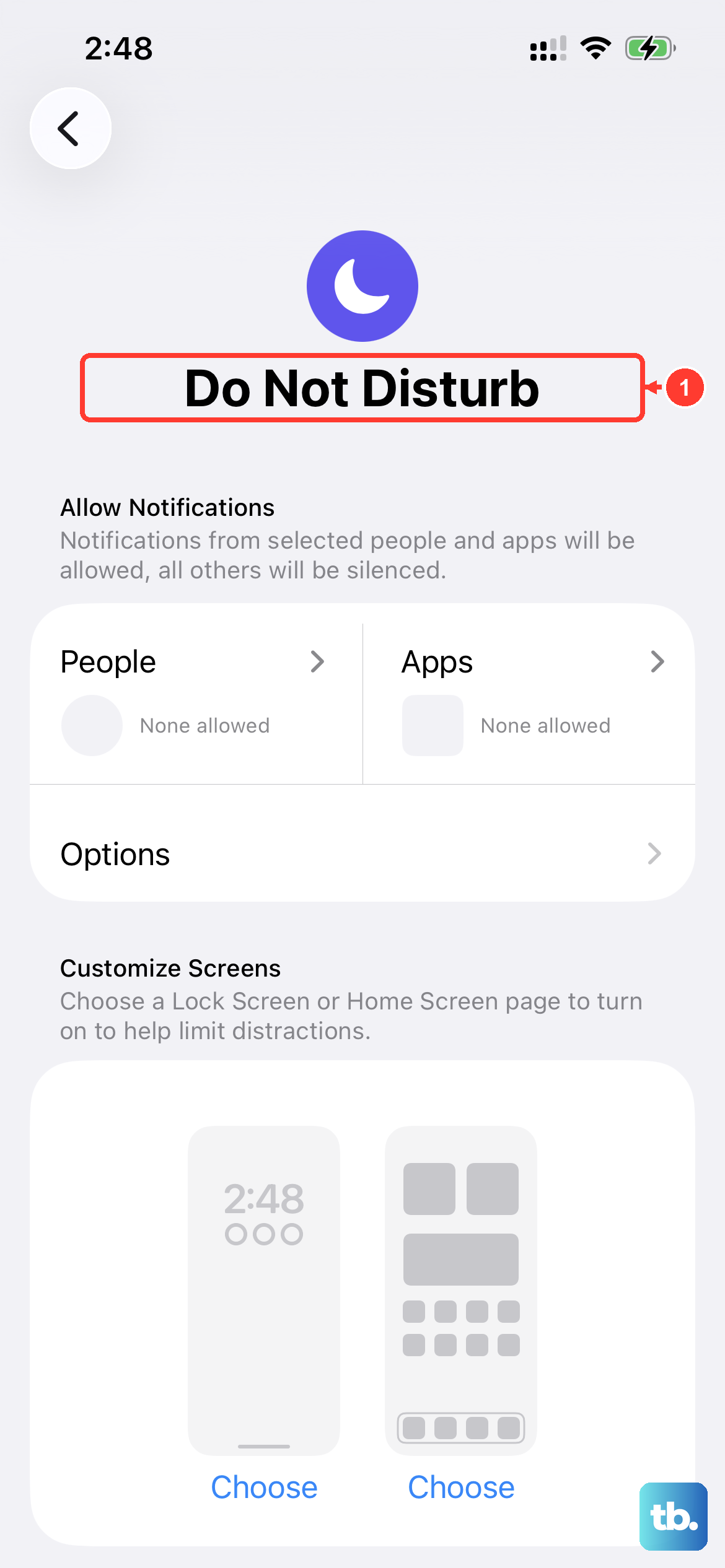
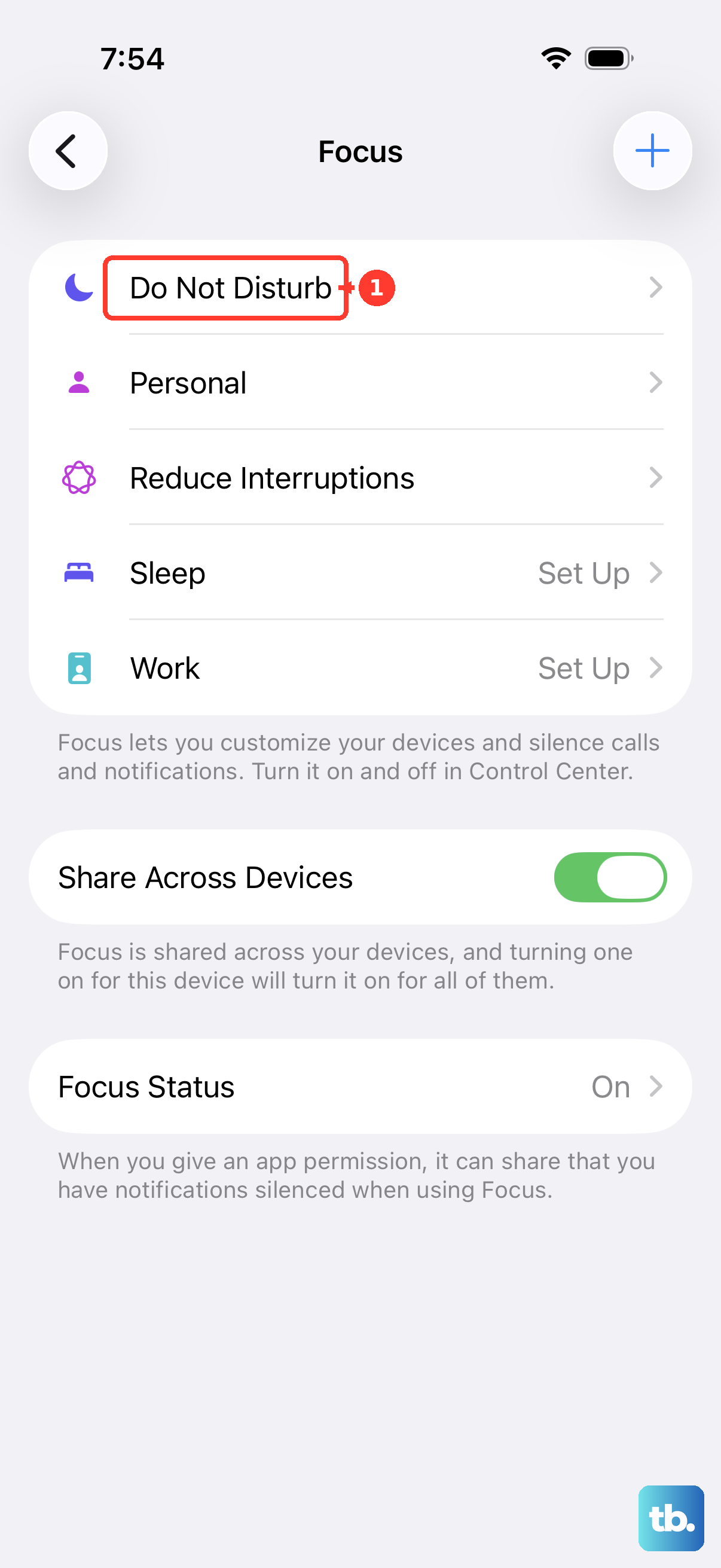
Also, pay attention to your Focus modes. While a standard Do Not Disturb focus shouldn't block Siri, a custom focus might have Siri explicitly silenced. Swipe down from the top-right corner to open Control Center and tap the Focus icon to see what's active. Try turning all Focus modes off temporarily to test.
Check Your Audio Output and Volume
If Siri hears you but you can't hear her, the problem is with output, not input. First, check your Ring/Silent switch on the left side of your iPhone 13. If you see an orange stripe, the phone is in silent mode.
You can change a setting to make Siri respond even when silent. Go to Settings > Siri & Search > Siri Responses. Tap "Always" under the "Spoken Responses" section. Also, just press the volume up button on the side a few times to ensure the media volume isn't all the way down.
Inspect the Microphones and Device Position
The iPhone 13 has multiple microphones. If they're blocked, Siri can't hear you. Check the small grilles at the bottom next to the Lightning port, the top near the rear camera, and the notch at the top of the screen. A phone case or a piece of debris could be covering one.
By default, Siri won't listen if your phone is placed face down. You can override this. Go to Settings > Accessibility > Siri and toggle on "Always Listen for 'Hey Siri.'" This ensures it works regardless of orientation.
Disconnect and Reconnect Bluetooth Devices
If you have AirPods or another Bluetooth headset connected, Siri might be trying to route the audio through them. Even if the headphones aren't in your ears, this can cause a conflict. The simplest test is to go to Settings > Bluetooth, tap the info icon (i) next to your connected device, and choose "Disconnect."
Try "Hey Siri" again with Bluetooth completely turned off. If it works, the issue is with the accessory. Reconnect it and test to see if the problem returns.
Perform a Force Restart on Your iPhone 13
A force restart is different from a normal power off. It clears the device's active memory without deleting any data and can fix a stuck process. For the iPhone 13, quickly press and release the Volume Up button, then quickly press and release the Volume Down button. Finally, press and hold the Side button until you see the Apple logo appear, then let go.
This takes about 10 seconds and is a great way to clear out any temporary software bugs affecting Siri's listening service.
Update to the Latest Version of iOS
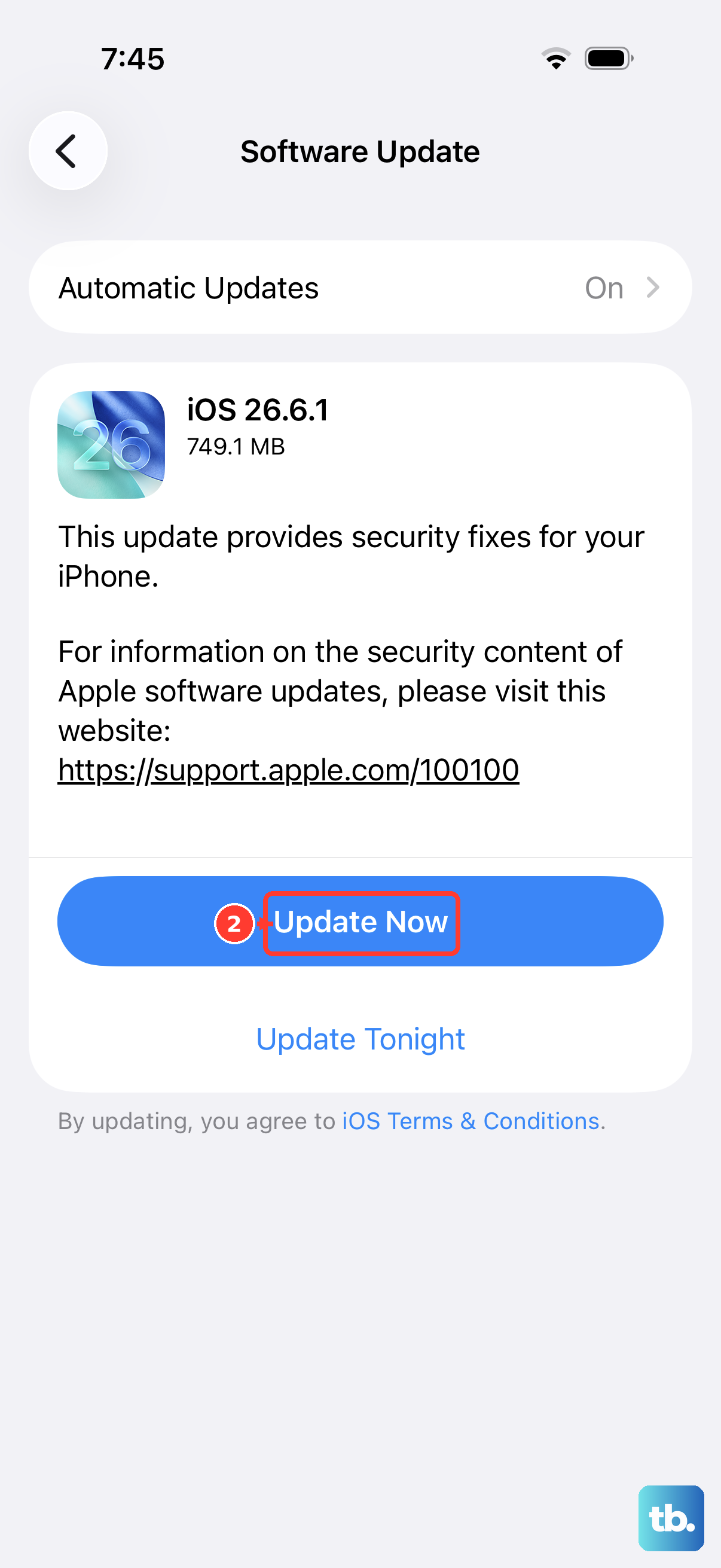
Apple frequently releases updates that include fixes for system services like Siri. Since your iPhone 13 can run iOS 26, it's important to stay current. Go to Settings > General > Software Update.
If an update is available, tap "Download and Install." Make sure your phone is plugged into power and connected to Wi-Fi first. An update can resolve underlying bugs that simpler restarts can't touch.
Reset All Settings on Your Device
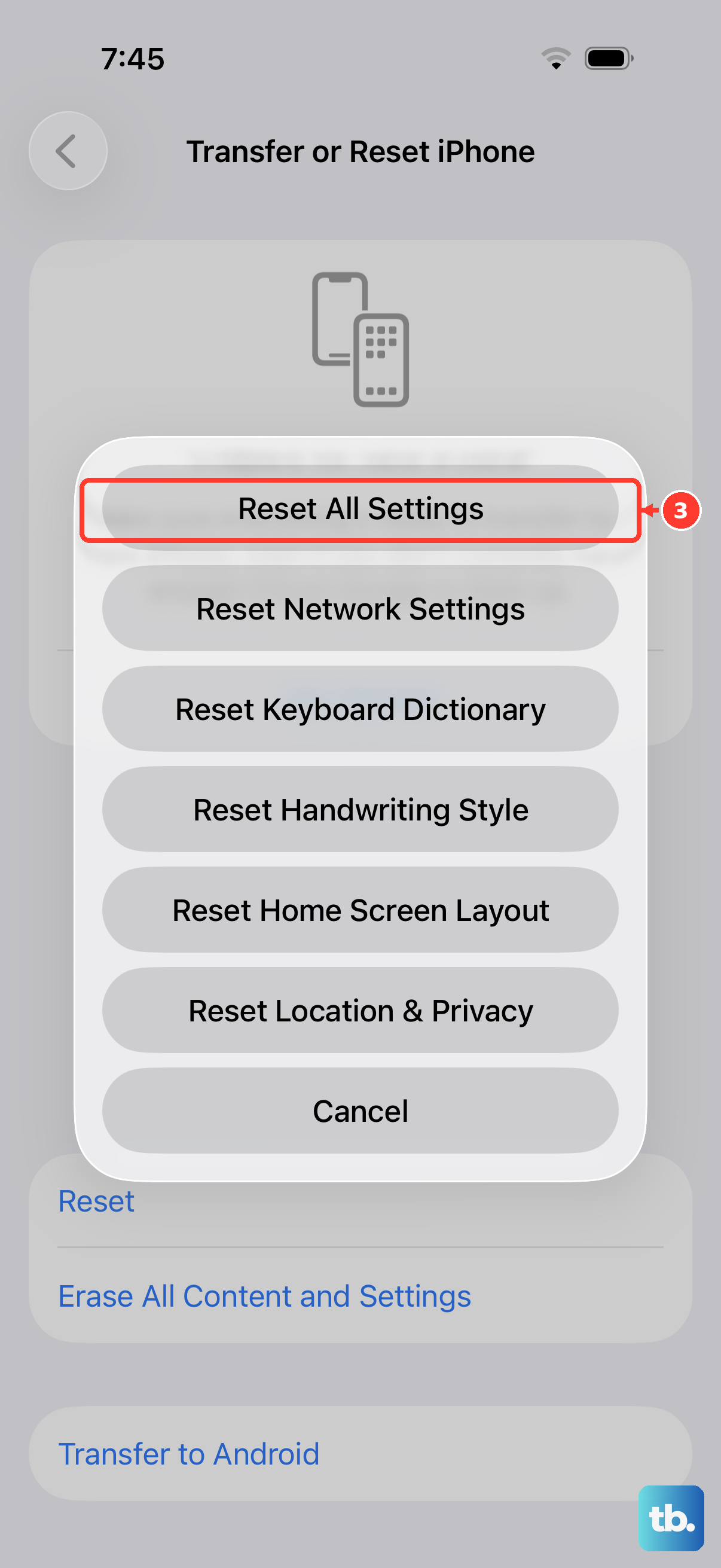
This is a more significant step, but it won't delete your photos, messages, or apps. It will reset all your preferences, like Wi-Fi passwords, wallpaper, and privacy permissions, back to factory defaults. It often clears up persistent glitches.
To do this, go to Settings > General > Transfer or Reset iPhone. Tap "Reset" at the bottom, then choose "Reset All Settings." You'll need to enter your passcode. After the phone reboots, you'll need to re-enable "Hey Siri" and retrain your voice.
Check for Network Connectivity Issues
While many "Hey Siri" commands are processed directly on your iPhone 13, some requests still require an internet connection. If you're asking for web search results, sports scores, or weather, Siri needs data.
Try asking a device-only command like "Hey Siri, set a timer for 5 minutes." If that works but "Hey Siri, what's the weather?" does not, your issue is likely network-related. Toggle Airplane mode on and off in Control Center or check your cellular and Wi-Fi connections.