
If videos on your iPhone 13 are stuttering, freezing, or just not playing smoothly, it can really ruin the experience. The good news is this is usually a software hiccup that you can fix yourself. I'd start by checking your storage and internet connection, as those are the most common culprits.
Free Up Storage Space on Your iPhone 13
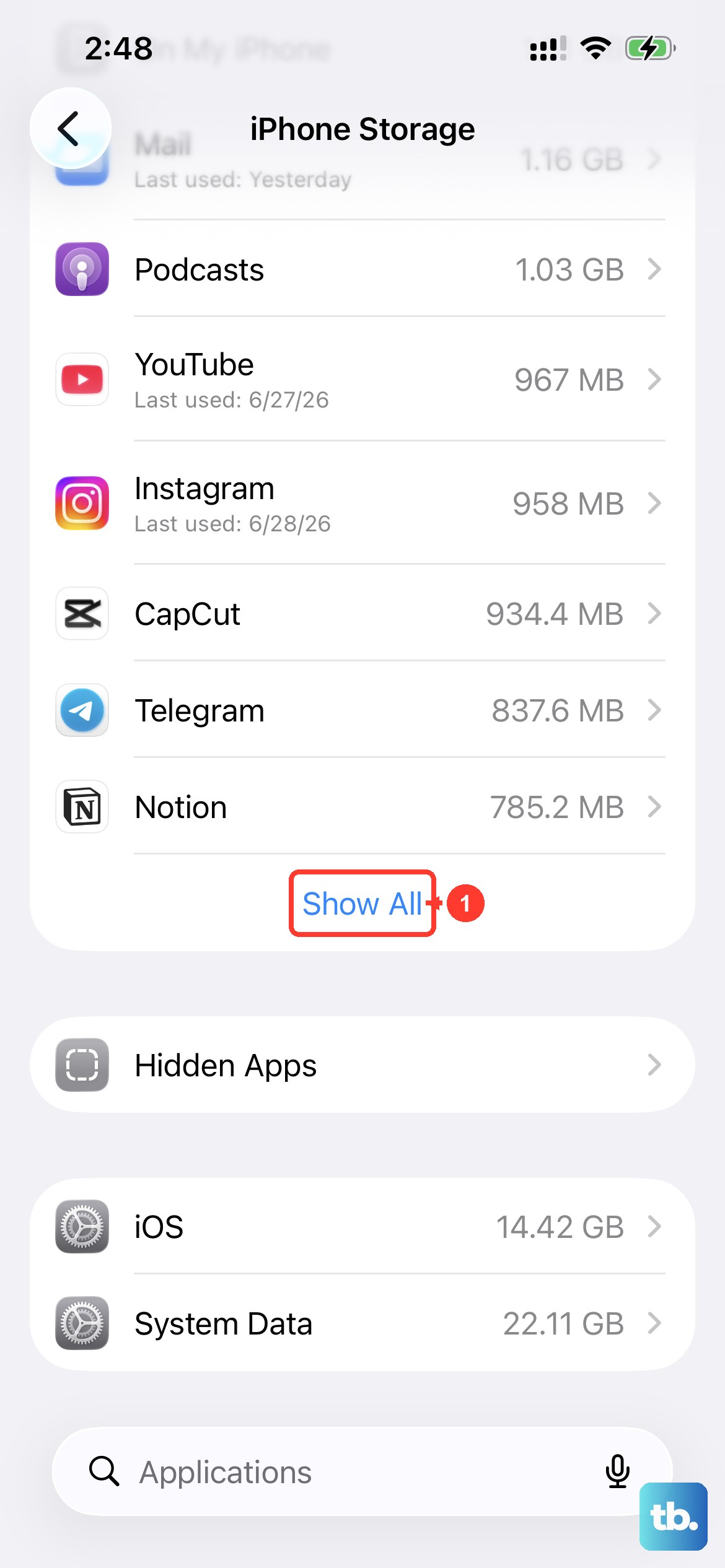
Your iPhone 13 needs breathing room to play videos smoothly, especially high-resolution 4K footage from its camera. When storage is critically low, the system struggles to cache video data, leading to dropped frames and lag. Head to Settings > General > iPhone Storage to see your available space.
If you're below 2-3GB of free space, it's time for a cleanup. You can offload unused apps, which removes the app but keeps its documents and data. For photos and videos, enabling iCloud Photos with the "Optimize iPhone Storage" option is a great way to keep your library accessible without filling your phone.
Check Your Internet Connection for Streaming
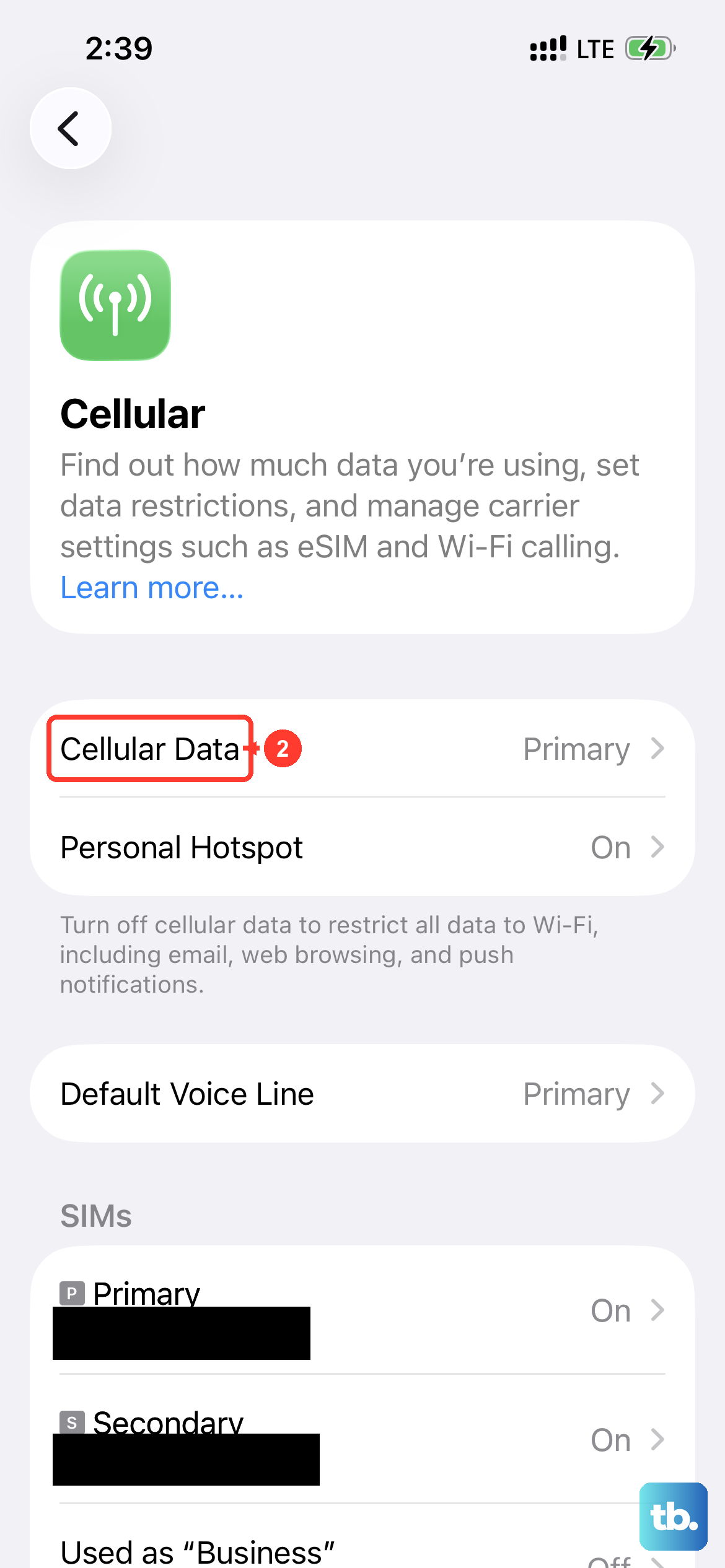
Buffering and lag during streaming is almost always a network issue. Even with a strong Wi-Fi signal, other devices on your network or ISP problems can cause slowdowns. Try switching to cellular data for a moment to see if the problem goes away.
If the lag disappears on cellular, the issue is with your Wi-Fi. A simple router restart can often clear this up. For a more permanent fix, try moving closer to your router or, if you're on iOS 18, check if a feature like Limit IP Address Tracking is interfering with certain streams.
Update to the Latest Version of iOS
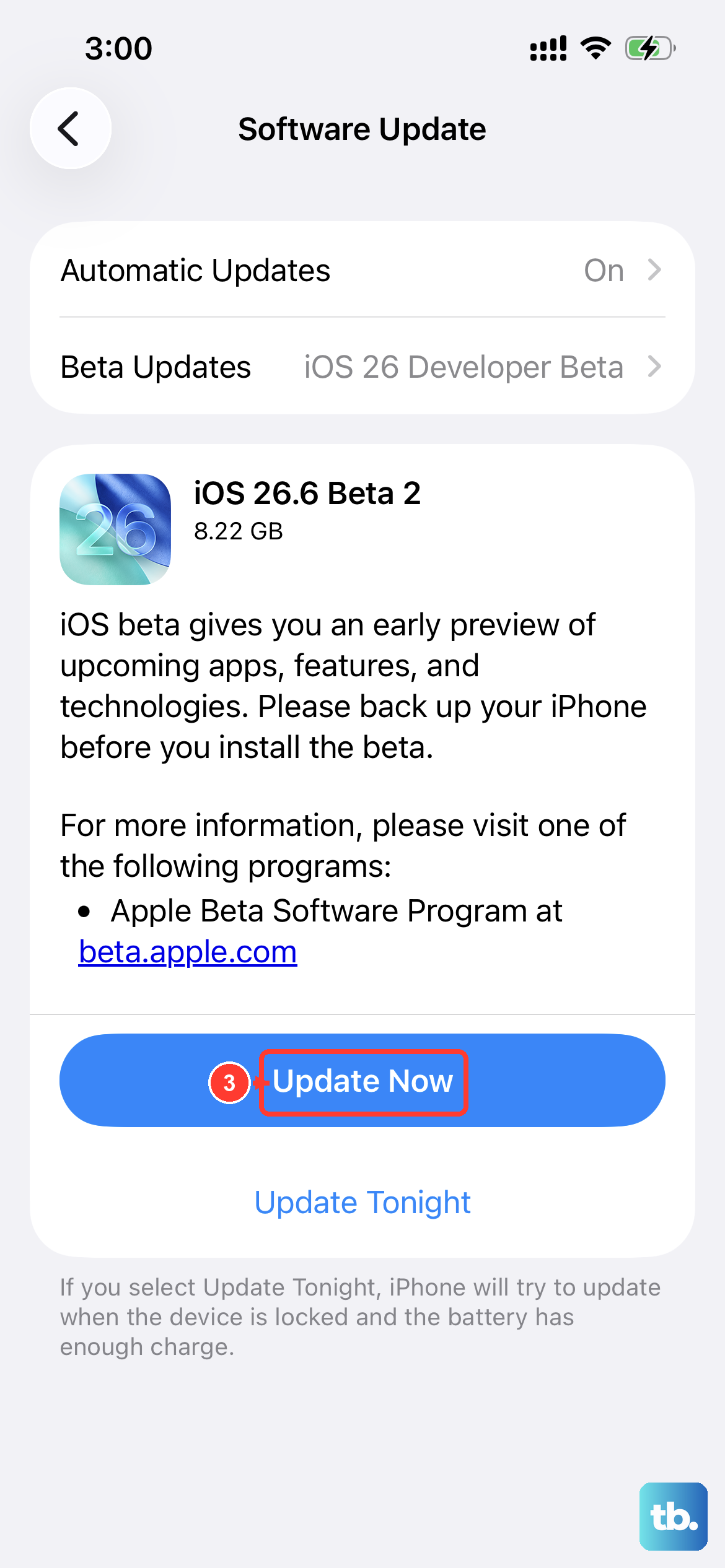
Apple releases iOS updates to fix bugs, including ones related to media playback and app compatibility. Since your iPhone 13 can run iOS 26, it's important to keep it updated. An outdated version might have a known glitch causing video lag in apps like YouTube, Netflix, or even the native Photos app.
Go to Settings > General > Software Update to check for and install any available updates. It's a good idea to plug your phone into power and connect to Wi-Fi before starting the update. I've seen minor playback issues get resolved with a simple point update more times than I can count.
Force Close and Update the Problem App
Sometimes the issue is isolated to a single app. The app itself might have a bug or corrupted temporary data. Start by swiping up from the bottom of the screen (or double-pressing the Side button on older gestures) to enter the app switcher, then swipe up on the video app's preview to close it completely.
After force closing it, open the App Store, tap your profile icon, and see if there's an update available for that specific app. Developers frequently push updates to address performance and playback problems. If an update just installed, try the force close step again, as the app may need a fresh launch.
Perform a Force Restart
This is different from a normal restart and clears your phone's active memory (RAM) more thoroughly. It can stop any background process that's interfering with video decoding. For the iPhone 13, quickly press and release the Volume Up button, then quickly press and release the Volume Down button.
Finally, press and hold the Side button. Keep holding it even when the "slide to power off" slider appears. Continue holding until you see the Apple logo, then release. This process takes about 10-15 seconds and won't delete any of your data.
Reset All Settings
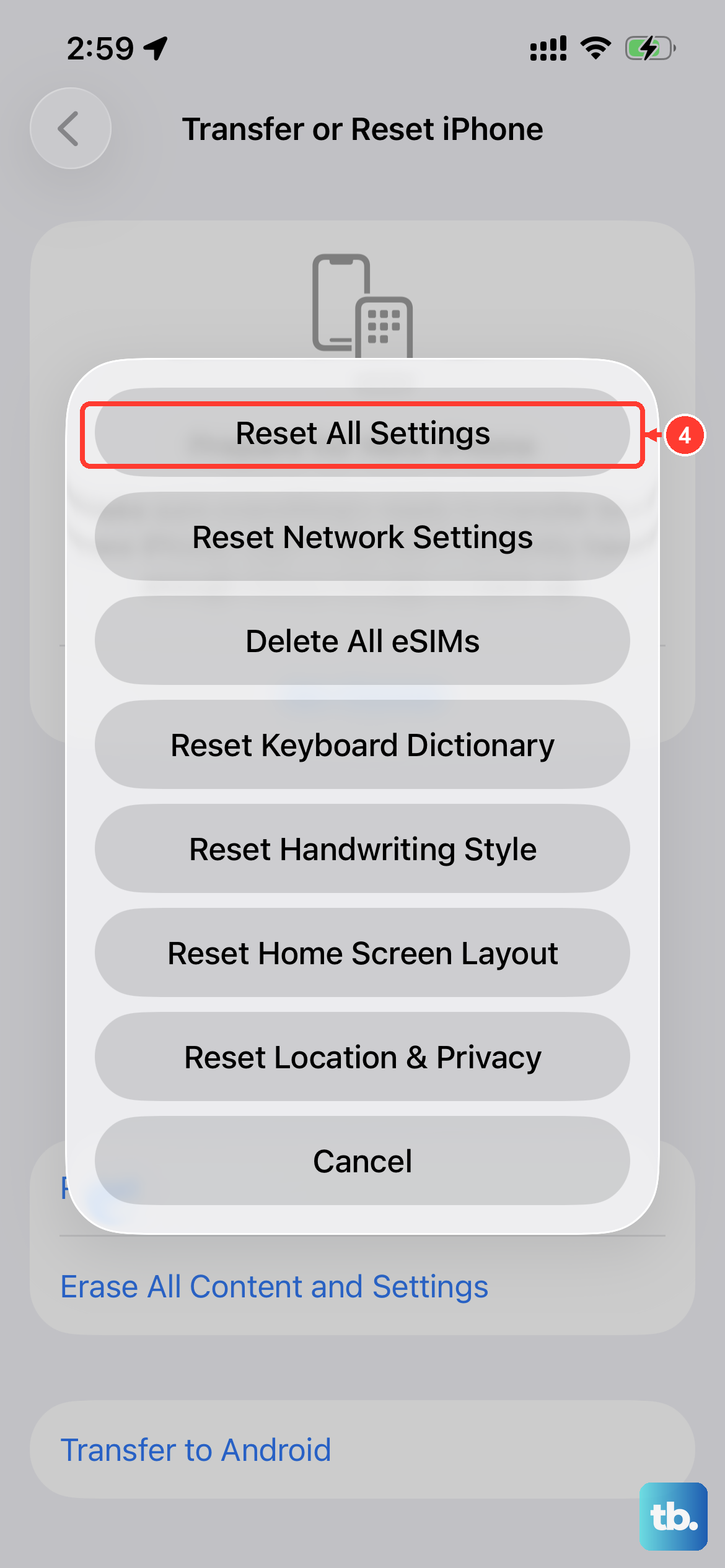
If lag persists everywhere, in every app and even in your saved videos, a deeper software reset might help. This will revert all your preferences (like Wi-Fi passwords, wallpaper, and privacy settings) back to default without touching your personal data, photos, or apps.
It can fix misconfigured system-level settings affecting performance. Go to Settings > General > Transfer or Reset iPhone. Tap Reset and then choose Reset All Settings. You'll need to enter your passcode and confirm. After your phone reboots, you'll have to reconnect to Wi-Fi and re-setup things like Face ID, but it often clears stubborn glitches.
Check Battery Health and Disable Low Power Mode
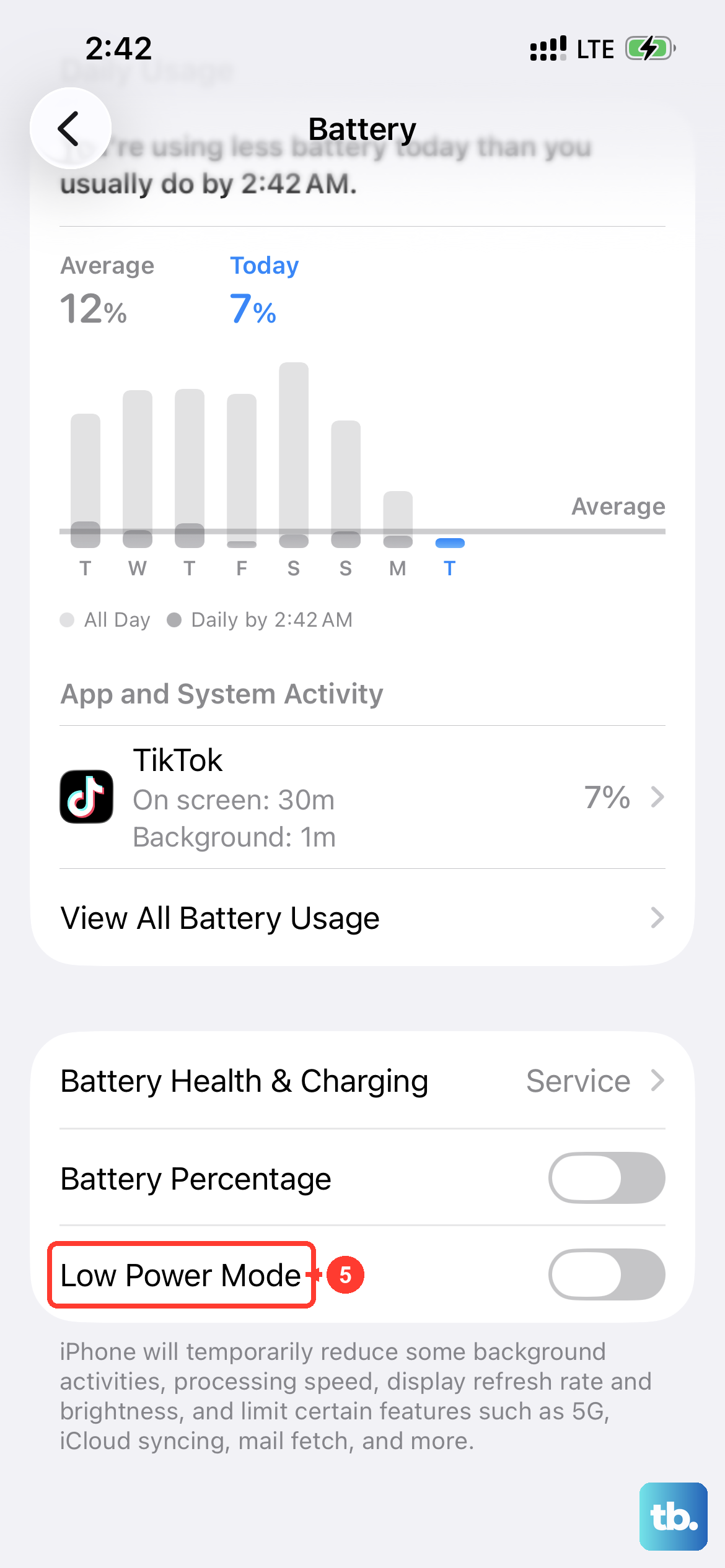
While less common, a severely degraded battery can cause the iPhone 13 to throttle performance to prevent unexpected shutdowns, which might affect video processing. Go to Settings > Battery > Battery Health & Charging to see its maximum capacity.
If it's significantly below 80%, a battery replacement could restore full performance. More immediately, make sure Low Power Mode is turned off. You can check in Control Center (the battery icon) or in Settings. Low Power Mode reduces background activity and can sometimes impact video playback smoothness.
Review Video Format and Camera Settings
If the lag is only happening with videos you recorded yourself, check your camera settings. Recording in a very high-resolution format like 4K at 60 frames per second creates enormous files. Playing them back requires more processing power and can sometimes cause stutter, especially if the phone is warm or storage is fragmented.
You can try changing your record setting to 4K at 30fps or 1080p for smoother editing and playback on the device itself. To check, go to Settings > Camera > Record Video. This doesn't mean there's a problem with your phone, just that the file is very demanding.