You pressed the power button expecting your home screen, but your iPhone 13 is frozen on the white Apple logo and won't move past it. Maybe it just finished an update, maybe it restarted on its own, or maybe it went dark and came back stuck. The good news is that a logo-stuck iPhone 13 is almost always a software hang rather than a dead phone, and there is a clear order of fixes to work through. Below are the official steps, starting with the safest and easiest, ending with the data-erasing and service options only if nothing else works.
Before you do anything drastic, it helps to know what your iPhone 13 can and cannot do here. Because it is in the "iPhone 8 and later" class with Face ID and no Home button, it uses a specific three-button force-restart sequence and connects to a computer over its Lightning port for recovery. Follow the sequences below exactly, because pressing the wrong combination of buttons can interrupt a recovery that is actually in progress.
First, Make Sure It Is Actually Stuck
An Apple logo on screen does not automatically mean your iPhone has failed. A normal update or a first boot can sit on the logo for a long stretch, and interrupting it can cause real problems. Look closely at the screen to see whether a progress bar is present and whether it is creeping forward.
Apple's guidance is to make sure that the progress bar on your iPhone screen hasn't moved for at least one hour before you treat the phone as stuck. If the bar is slowly advancing, leave it alone and let it finish. Only when the logo and progress bar have truly frozen for an hour should you move on to the steps below.
Give It Power Before You Give Up
A battery that is dead or nearly empty can keep an iPhone 13 from booting all the way past the logo, so a charge is one of the simplest things to rule out. Plug your iPhone into a charger and give it real time on power rather than a quick top-up.
According to Apple, if your iPhone doesn't turn on, charge it for one hour and then try again. If you see a low-battery indicator on the screen, charge it for 30 minutes or until it starts. Use a working cable and adapter, and if you can, swap to a different outlet so a faulty charger is not part of the problem.
Force Restart the iPhone 13
A force restart is the standard way to clear a software hang, and it does not erase any of your data. For the iPhone 13, the sequence is a quick tap of one volume button, then the other, then a long hold of the Side button.
- 1.Press and quickly release the Volume Up button.
- 2.Press and quickly release the Volume Down button.
- 3.Press and hold the Side button until you see the Apple logo (this might take longer than 10 seconds).
This is Apple's force-restart sequence for iPhone 8 and later, which includes the iPhone 13. Keep holding the Side button through the duration; it can take more than ten seconds, so do not let go too early. If the phone boots to your home screen, you are done.
Use Recovery Mode and Choose Update to Keep Your Data
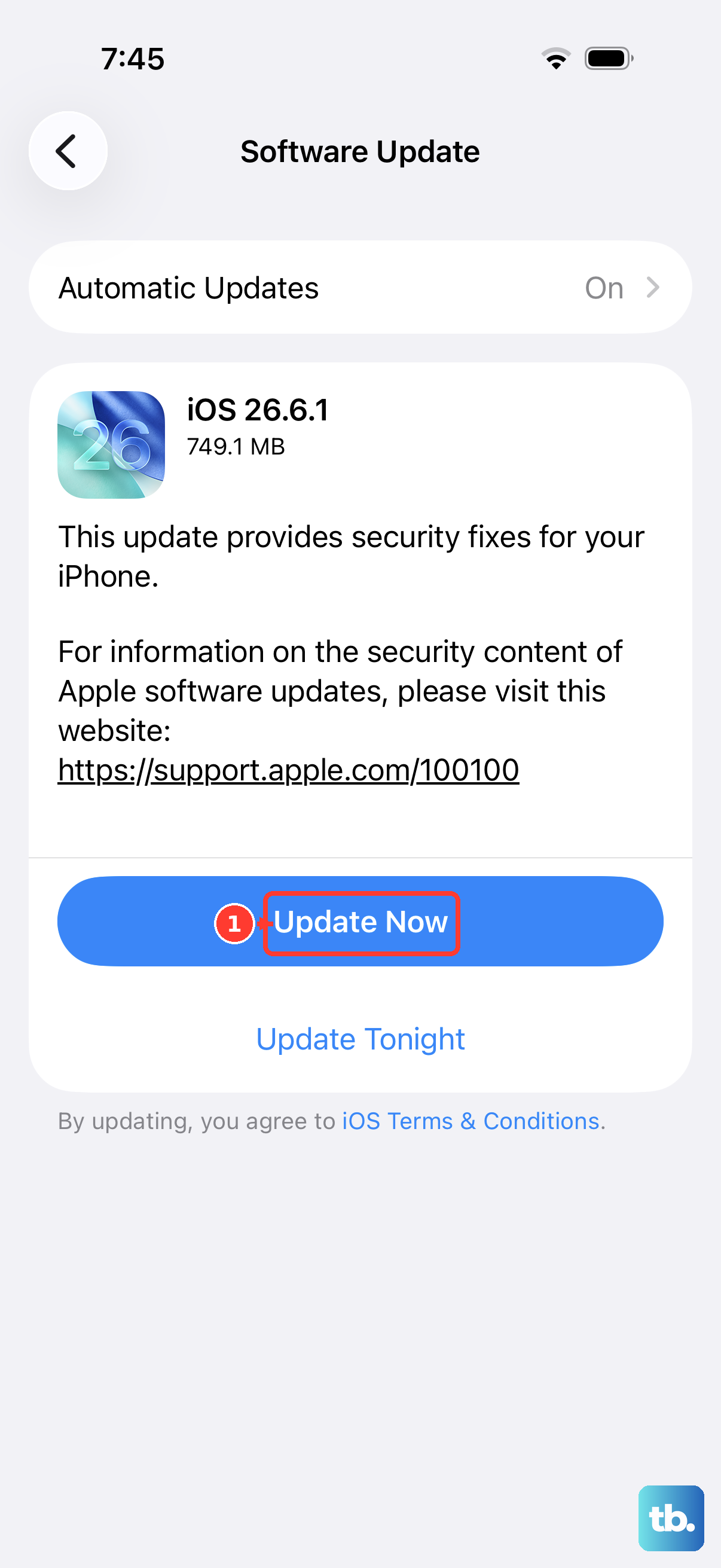
If a force restart does not break the logo loop, the next official step is recovery mode with a computer, which can reinstall iOS without wiping your phone. You will need a Mac with Finder (macOS Catalina 10.15 or later), or a PC with the Apple Devices app, or iTunes (on a Mac with macOS Mojave 10.14 or earlier, or a PC without the Apple Devices app).
Connect the iPhone 13 to the computer with a cable, then put the phone into recovery mode using these steps:
- 1.Press and release the Volume Up button.
- 2.Press and release the Volume Down button.
- 3.Press and hold the Side button.
- 4.Keep holding the Side button until you see the recovery mode screen.
On the computer, open Finder on a Mac, or the Apple Devices app or iTunes on a PC, and let it detect your iPhone. When you get the option to Update or Restore, choose Update. Apple states that this updates your device to the latest version of iOS without erasing it, while choosing Restore would erase the iPhone. Always pick Update first to protect your data.
If It Exits Recovery During the Download
Reinstalling iOS in recovery mode involves a download, and a long download can sometimes interrupt the process. Do not panic if the screen changes partway through, and do not unplug the phone.
Apple notes that if the download takes more than 15 minutes and your device exits the Connect to computer screen, you should let the download finish, then repeat the recovery-mode steps. In practice that means waiting for the download to complete, then re-entering recovery mode (Volume Up, Volume Down, hold the Side button until the recovery screen appears) and trying the Update again before you consider erasing anything.
Restore the iPhone as a Last DIY Step
If Update cannot fix the hang, the final software option you can do yourself is a Restore, and this one is destructive. A restore removes all information and settings from your iPhone, so treat it as a last resort and only after the steps above have failed. If you have a recent backup, you can use it to bring your data back afterward.
If you can still get into Settings before starting, turn off Find My at Settings > [your name] > Find My > Find My iPhone first. Then, with the phone connected and selected in Finder on a Mac (or the Apple Devices app or iTunes on a PC), click Restore [Device] and confirm. The computer will erase the device and install the latest iOS. Afterward, use a backup to recover your data, which is why having a recent backup matters so much before a restore.
When to Contact Apple Support for Service
Some logo-stuck situations are not software at all, and no amount of restarting or restoring will help. If recovery mode cannot update or restore your iPhone, if a button is stuck or not working, or if the phone still won't turn on, Apple says you might need service.
At that point, use Apple's Get service or Get Support flow to arrange a repair or get further help. Going through the official support path means a technician can check for a hardware fault and handle the device properly rather than guessing at the cause yourself.
Frequently Asked Questions
How long should I wait before deciding my iPhone 13 is stuck on the logo?
Check whether a progress bar is on screen and whether it is moving. Apple's guidance is to make sure the progress bar hasn't moved for at least one hour before you treat the iPhone as stuck. A normal update or first boot can sit on the logo for a long time, so do not interrupt a bar that is still advancing.
Will a force restart erase my data?
No. A force restart simply reboots the phone and does not remove your information. For the iPhone 13 you press and quickly release Volume Up, press and quickly release Volume Down, then press and hold the Side button until you see the Apple logo, which might take longer than 10 seconds.
What is the difference between Update and Restore in recovery mode?
In recovery mode you can choose either one. Update reinstalls the latest version of iOS without erasing your iPhone, so it keeps your data. Restore erases the iPhone, removing all information and settings, so you should only choose it after Update has failed and ideally with a backup ready.
Do I need iTunes, or can I use something else?
It depends on your computer. On a Mac running macOS Catalina 10.15 or later you use Finder. On a PC you use the Apple Devices app, or iTunes if you are on a Mac with macOS Mojave 10.14 or earlier or a PC without the Apple Devices app.
What if recovery mode still cannot fix it?
If recovery mode cannot update or restore the iPhone, a button is stuck or not working, or the phone still won't turn on, Apple says you might need service. Use Apple's Get service or Get Support flow to arrange a repair or get additional help.