Your iPhone 13 screen starts shimmering, the brightness jumps on its own, or faint lines and flicker creep across the display right when you are mid-message. It is unsettling, especially on a phone you rely on every day, but a flickering screen does not automatically mean the panel has failed. Plenty of the time the cause is a stray accessory, a software hiccup, or a brightness setting that is fighting the room you are sitting in.
If the fault comes and goes, an online online monitor test helps you reproduce it on demand with solid colors and gradient patterns.
The iPhone 13 has a 6.1-inch Super Retina XDR all-screen OLED display (2532-by-1170 pixels at 460 ppi), and Apple's display troubleshooting and accessibility settings all apply to it. This guide walks through the fixes in a sensible order, starting with the quick, no-risk checks and saving the reset and repair paths for the end. Work through them top to bottom and stop as soon as the flicker disappears.
Start With the Quick Physical Checks
Before you touch a single setting, rule out the simplest causes. A smudged, damp, or debris-covered screen can produce erratic display and touch behavior that looks a lot like flicker, and a tight case or screen protector can press against the edges of the panel.
Apple's screen-troubleshooting guidance is to make sure the screen is clean and free of any debris or water, then to remove any cases or screen protectors and check whether the display behaves normally again.
Wipe the screen with a soft, dry cloth and make sure it is clean and free of any debris or water.
Remove any case from the iPhone 13.
Peel off or reseat any screen protector.
Watch the display for a minute and see whether the flickering continues.
Unplug Accessories and Chargers
A faulty cable, charger, or connected accessory can feed interference into the display that shows up as flicker, especially while the phone is charging. Apple advises disconnecting any Lightning or USB-C accessories to see whether the behavior changes.
Pull out anything plugged into the iPhone 13, including the charging cable.
If the screen settles down once an accessory is removed, the accessory or its cable is the likely culprit. Try a different outlet, a different cable, or a different charger before plugging back in.
Let Auto-Brightness Match the Room
If your brightness keeps jumping up and down, that visible stepping can read as flicker. Auto-Brightness uses the ambient light sensor to raise and lower brightness smoothly as the lighting around you changes, which helps prevent abrupt brightness swings.
It is on by default, but it is worth confirming it has not been switched off.
Open Settings > Accessibility > Display & Text Size, scroll to Auto-Brightness, and make sure it is on.
Restart the iPhone 13
A normal restart clears temporary software glitches that can cause a flickering display, and it is the most effective low-effort fix on the list. On the iPhone 13, the restart uses the volume and side buttons rather than a Home button.
Press and hold either volume button and the side button until the power-off slider appears.
Drag the slider, then wait 30 seconds for your device to turn off.
Press and hold the side button (on the right side of your iPhone) until you see the Apple logo.
Force Restart a Frozen or Unresponsive Screen
If the display is flickering badly, frozen, or will not respond to the power-off slider, you need the forced restart instead. This is the official procedure for an unresponsive iPhone 13 (a Face ID model), and it does not erase any of your data.
- 1.Press and quickly release the volume up button.
- 2.Press and quickly release the volume down button.
- 3.Press and hold the side button until you see the Apple logo (this might take longer than 10 seconds).
Let go once the Apple logo appears and allow the phone to finish starting up before you judge whether the flicker is gone.
Install the Latest iOS Update
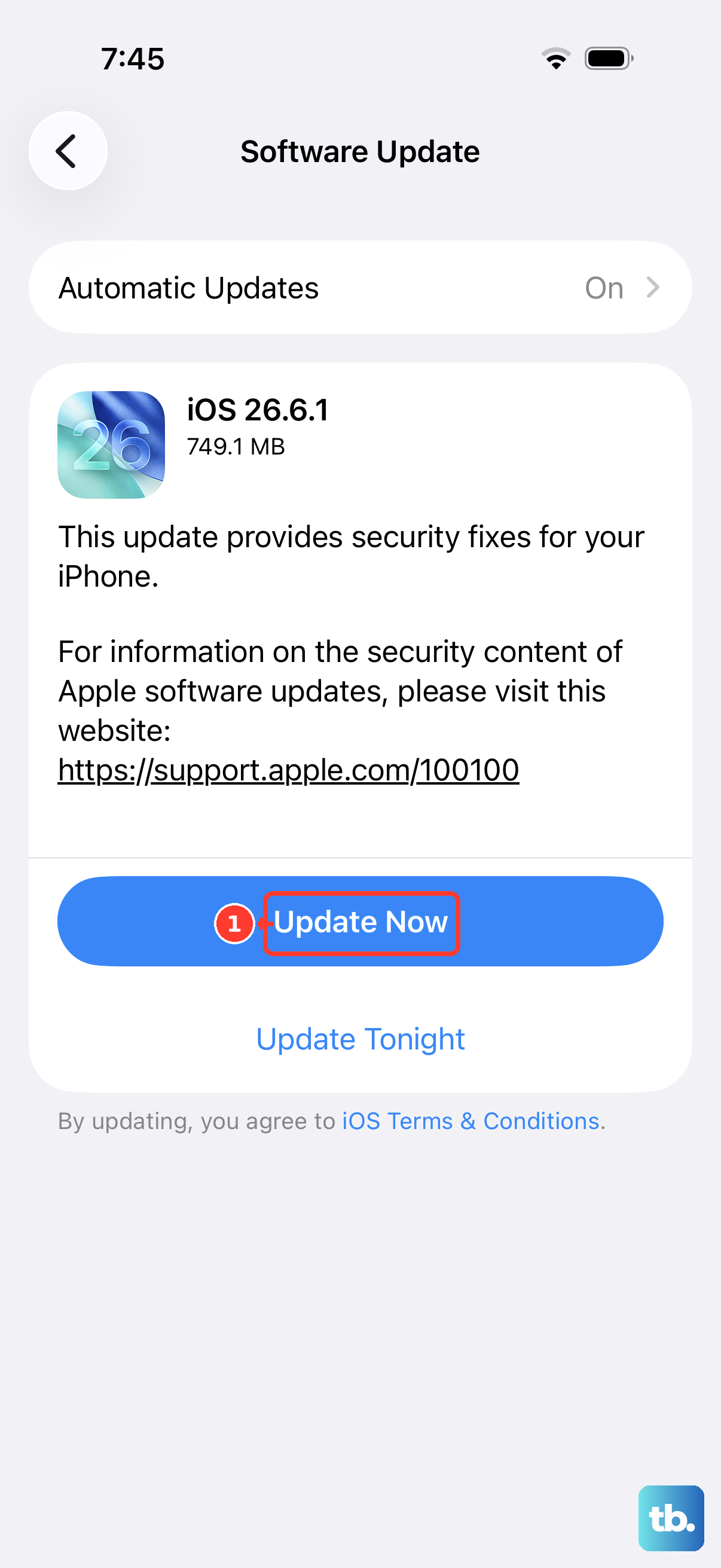
Software bugs can affect how the display renders, and Apple's updates regularly include fixes that resolve display issues. The iPhone 13 is supported through iOS 26, so keeping it on the latest version is worthwhile rather than staying on an older release.
Back up your iPhone first and keep it connected to power and Wi-Fi while it updates.
Then go to Settings > General > Software Update. The currently installed version of iOS is shown, along with whether an update is available.
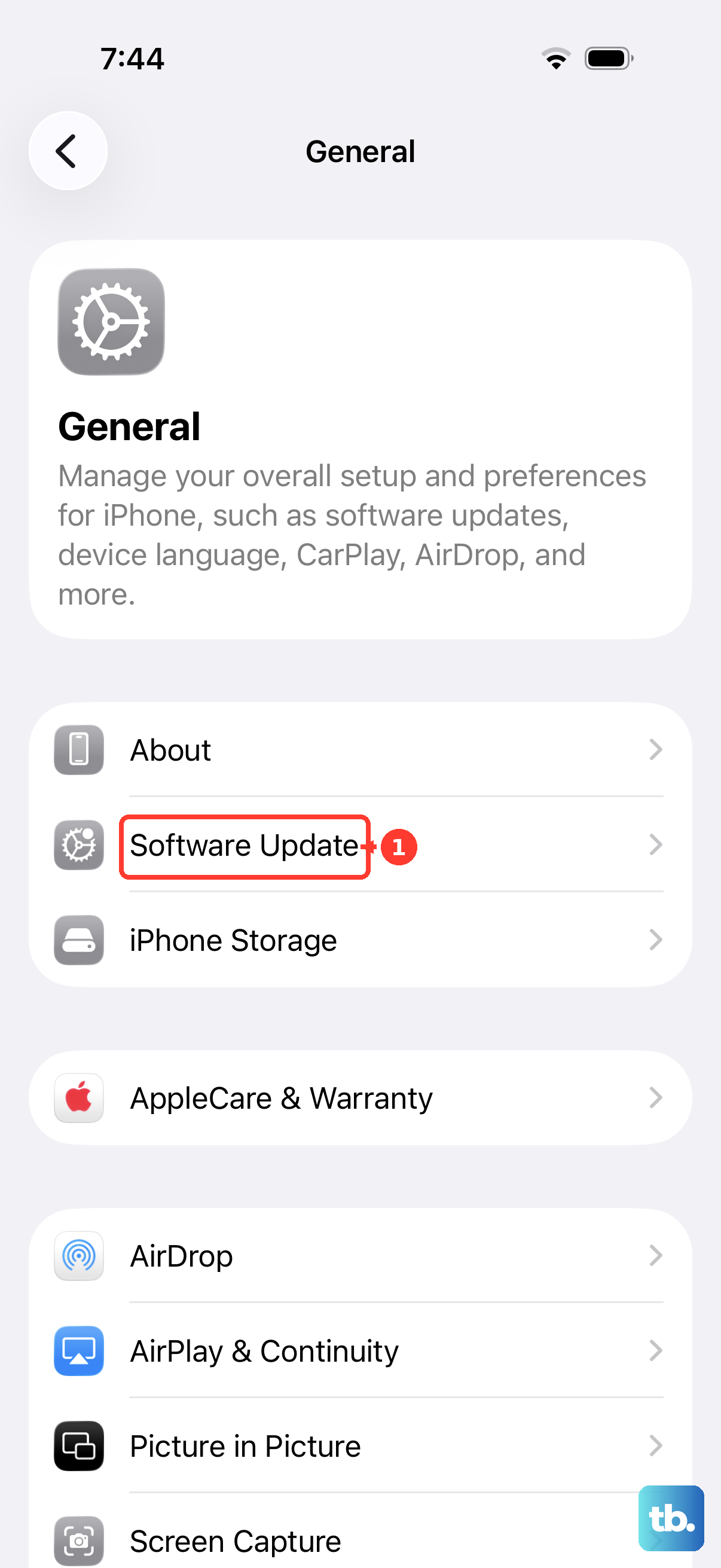
If an update is available, tap Download and Install, then follow the onscreen instructions.
Ease Onscreen Motion and Bright-Color Intensity
Some of what people read as flicker is actually heavy animation or very bright, high-contrast color shifting on screen. A handful of accessibility settings calm those effects, and they are all reversible if they do not help. Try them one at a time so you can tell which makes a difference.
Reduce Motion cuts down the system animation effects. Go to Settings > Accessibility, select Motion, then turn on Reduce Motion.
Reduce Transparency improves contrast by reducing transparency and blurs on some backgrounds. Go to Settings > Accessibility > Display & Text Size, then turn on Reduce Transparency.
Reduce White Point reduces the intensity of bright colors. In the same Settings > Accessibility > Display & Text Size screen, turn on Reduce White Point.
Erase All Content and Settings as a Last Software Step
If the flicker has survived every step above, a factory reset is the final software measure before you treat the problem as hardware. This restores the iPhone to factory settings and erases your data, so a backup is required first. Set the phone up as new afterward to test whether the flicker was software-related.
Create a backup before you begin, because everything on the device will be removed and the Hello screen will appear when the process is done.
Go to Settings > General > Transfer or Reset iPhone.
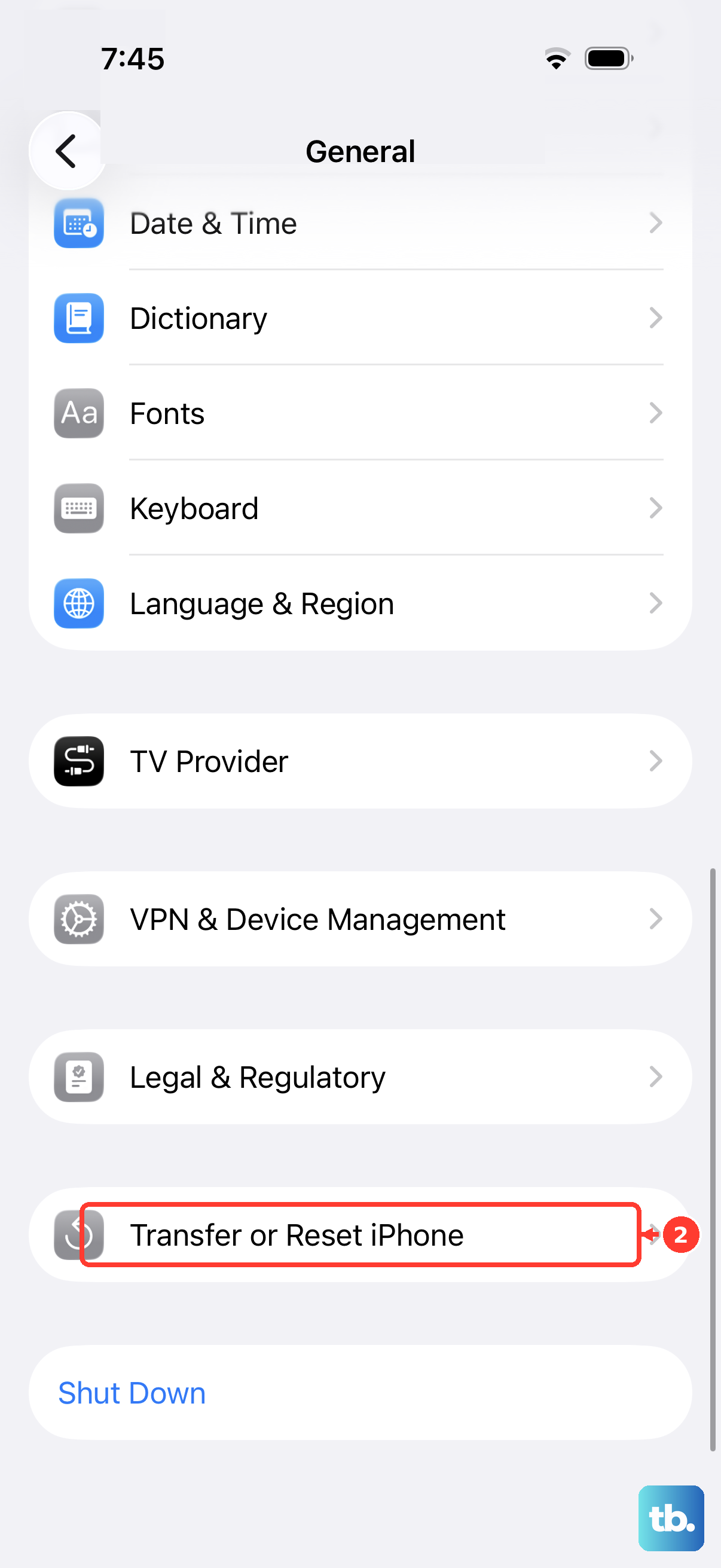
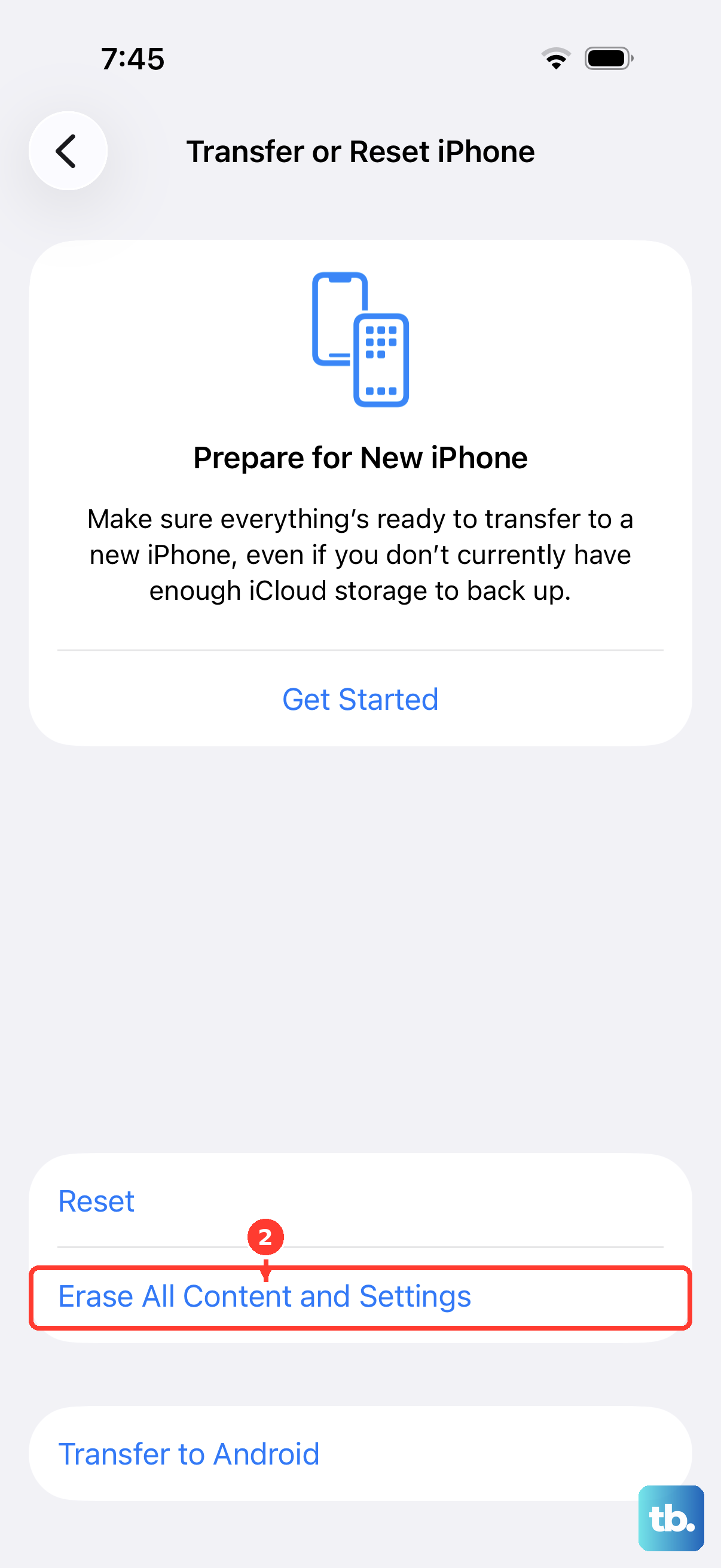
Tap Erase All Content and Settings, then tap Continue.
Choose to keep or delete your eSIM.
Enter your device passcode and your Apple Account password to confirm.
When to Set Up Service for the Display
If the display still flickers, shows lines, or does not work after all of the steps above, Apple says you might need to set up service. Persistent flicker or lines that survive a clean software setup typically point to a hardware or display issue rather than something you can fix at home.
Contact Apple Support to describe the issue and arrange a repair if the display needs service. Apple can confirm whether the panel is the cause and walk you through the options for getting it fixed.
A quick note before you assume the worst. iPhone and iOS have no Android-style Safe Mode to boot without third-party apps, so there is no app-isolation trick to try here. If the software steps and the reset did not resolve it, service is the correct next move.
Frequently Asked Questions
Does a flickering iPhone 13 screen always mean a hardware problem?
No. Flicker is often caused by a dirty or wet screen, a tight case or protector, a faulty accessory or charger, or a temporary software glitch that a restart clears. Persistent flicker or lines that remain after a restart, an iOS update, and a factory reset are what typically indicate a hardware or display issue that needs service.
Will a force restart erase my data?
No. A force restart on the iPhone 13 (press and quickly release volume up, press and quickly release volume down, then press and hold the side button until the Apple logo appears) simply reboots the phone and does not delete any content. Only Erase All Content and Settings wipes your data, which is why a backup is required before that step.
Should I turn Auto-Brightness on or off to stop flicker?
Auto-Brightness is on by default and uses the ambient light sensor to adjust brightness smoothly as lighting changes, which helps avoid abrupt brightness swings that can look like flicker. Confirm it is on under Settings > Accessibility > Display & Text Size, and leave it on unless you specifically want to control brightness manually.
Which iOS version should my iPhone 13 be on?
The iPhone 13 is supported through iOS 26, so you should keep it on the latest available version rather than an older release. Check Settings > General > Software Update, and if an update is available tap Download and Install after backing up and connecting to power and Wi-Fi.
How do I get the screen repaired if nothing works?
Contact Apple Support to describe the issue and arrange a repair. Apple can confirm whether the display needs service and walk you through the options for getting it fixed.