Your iPhone 13 has stopped dead. The screen won't respond to taps or swipes, the display is stuck on whatever was last open (or gone completely black), and pressing the buttons seems to do nothing at all. A frozen iPhone is unsettling, but in the large majority of cases it is a temporary software hang rather than a broken phone, and you can usually clear it in a few minutes without losing a single photo or message.
The fixes below are ordered the way you should actually try them, the gentlest and safest first, then the official Apple steps that involve a computer, and finally the erase-and-service path only as a last resort. Every step here follows Apple's published support guidance for the iPhone 13 family (iPhone 13, 13 mini, 13 Pro, and 13 Pro Max), all of which are Face ID models that support the current iOS. Work through them in order and stop as soon as your phone comes back to life.
Rule Out a Dead Battery Before Anything Else
Sometimes a screen that looks frozen is really just a phone with no power left to draw a single pixel. Before you assume the software has crashed, plug the iPhone into a power source using a cable and adapter you know are good, and let it charge.
Apple's guidance is to charge your iPhone for one hour and then try again. If a low-battery (charging) icon appears on the screen, that is a good sign; let it charge for 30 minutes or until it starts on its own. A deeply drained or stuck-charging battery can mimic a frozen display perfectly, so this quick test is worth doing first because it costs you nothing and risks nothing.
Force Restart the iPhone 13 to Clear the Hang
If the phone has power but the screen still won't respond, a force restart is the single most effective fix for a frozen iPhone, and it is the one Apple points to specifically. It works even when the screen is black or the buttons seem unresponsive, and it will not erase the content on your device.
The iPhone 13 is a Face ID model, so use this exact button sequence:
- 1.Press and quickly release the Volume Up button.
- 2.Press and quickly release the Volume Down button.
- 3.Press and hold the Side button until you see the Apple logo (this might take longer than 10 seconds).
Timing matters more than force here. Tap the two volume buttons in quick succession, then keep holding the Side button past the point where you might expect something to happen. When the Apple logo appears, let go and let the phone boot normally.
When One App Is the Real Culprit
If the freeze happened while you were inside a single app, the rest of the phone may be fine and only that app has locked up. In that case, force the app to close and then reopen it. This often clears the problem instantly without touching anything else.
If the same app keeps misbehaving after you reopen it, restart the iPhone and then check for an app update. Open the App Store, tap your profile icon, then tap App Updates and install anything pending for that app. If no app update is available, move on to updating iOS, since a software update can resolve app conflicts the developer can't fix on their own.
Do a Clean Restart Once the Phone Responds
After a freeze clears, a normal restart helps flush out whatever temporary glitch caused it. This is different from a force restart; it is the gentle, everyday way to power the phone off and on once the screen is responsive again.
- 1.Press and hold either volume button and the Side button until the power-off slider appears.
- 2.Drag the slider to turn the phone off.
- 3.Wait 30 seconds for it to power down completely.
- 4.Press and hold the Side button (on the right side of the iPhone) until the Apple logo appears.
Giving the phone a full 30 seconds before turning it back on lets it shut down cleanly rather than restarting while parts of the system are still running.
Install the Latest iOS to Stop Recurring Freezes
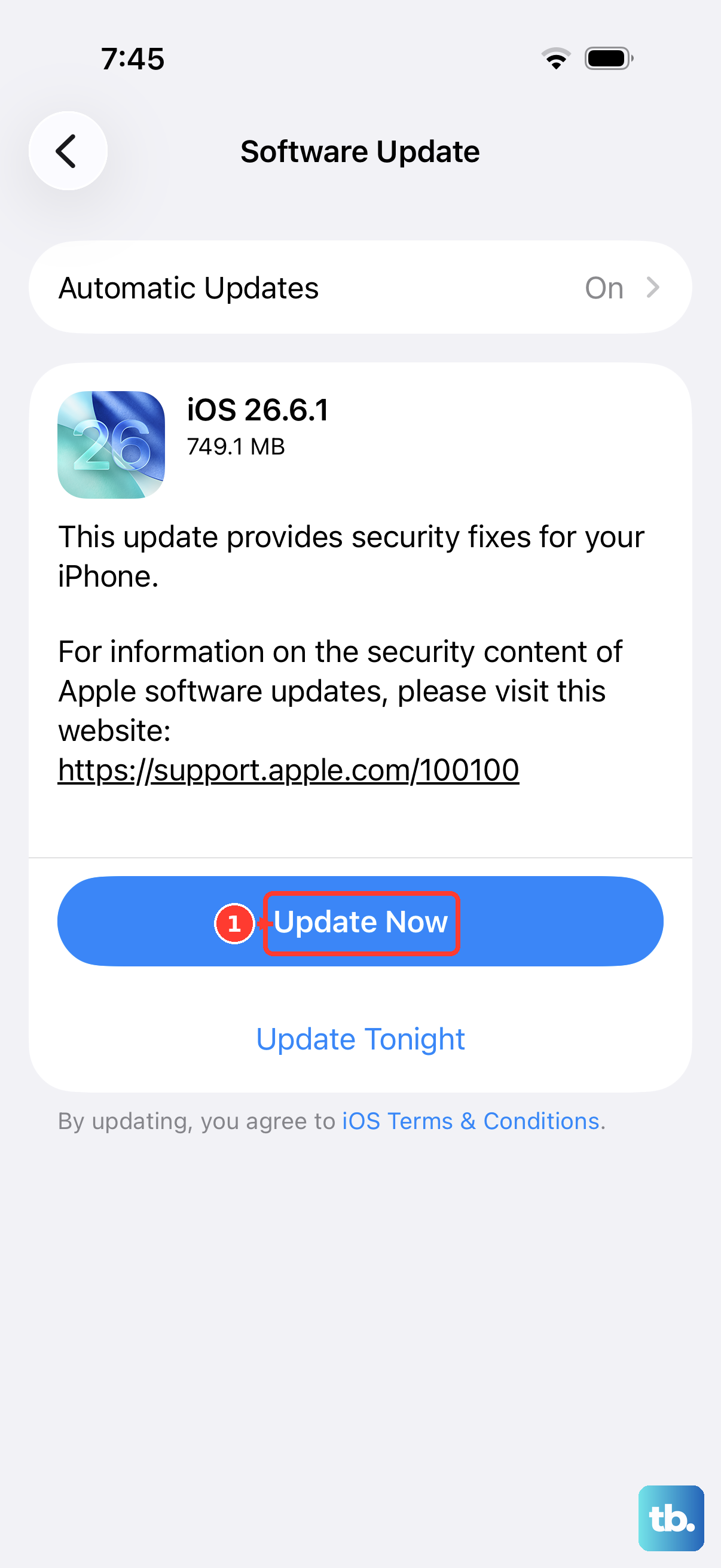
Outdated software is a common cause of freezing, and Apple regularly ships fixes for stability problems in iOS updates. The iPhone 13 supports iOS 26, so keeping it on the latest version available for your device is one of the most reliable ways to prevent the freeze from coming back.
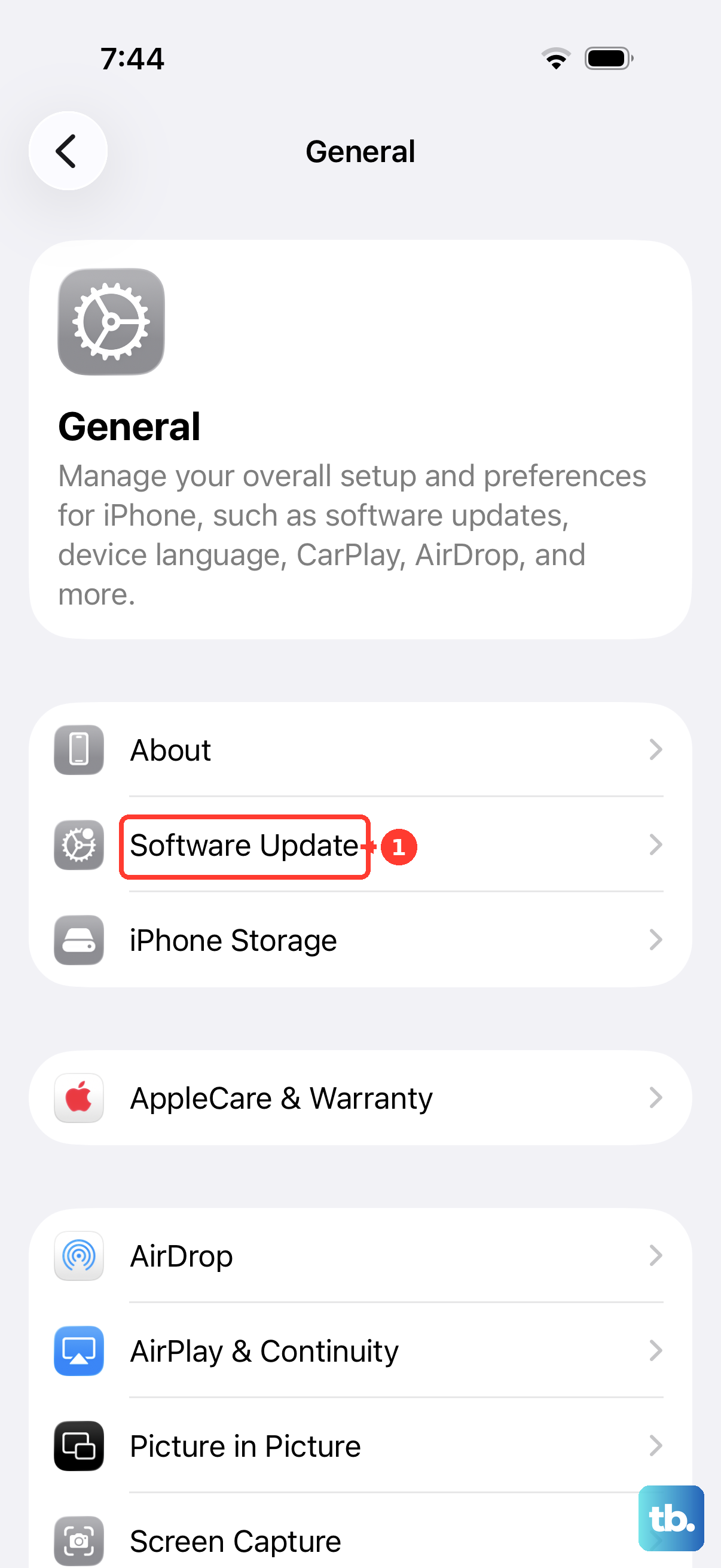
Plug the phone into power and connect to Wi-Fi first, then go to Settings > General > Software Update and tap Download and Install. Keeping the phone on power and connected to Wi-Fi lets the update finish without interruption.
If the Update Stalls or Won't Install
Sometimes the update itself gets stuck, often because the phone is low on storage or a partial download has gone bad. Keep the device on power and connected to Wi-Fi, then address the two most common blockers.
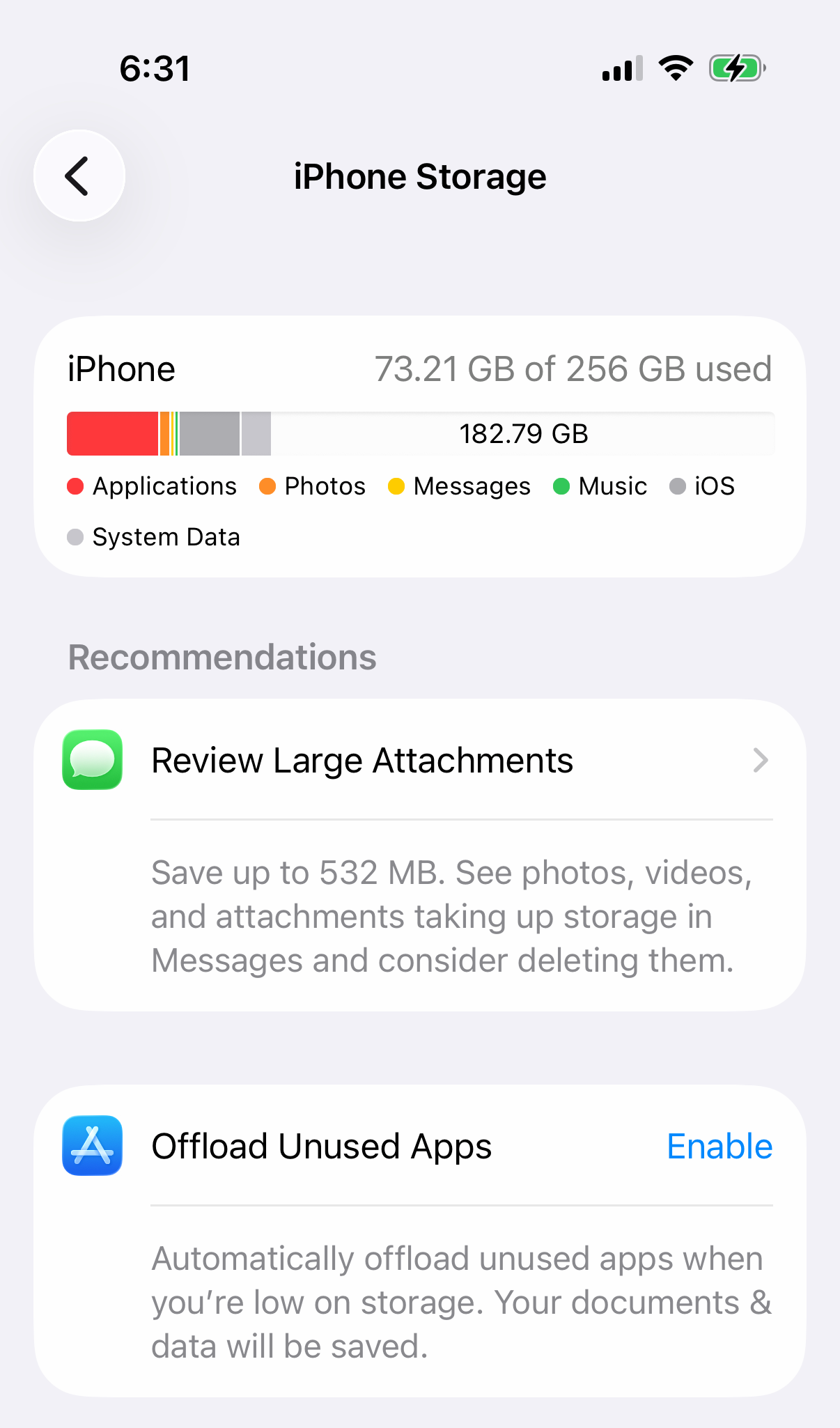
To free up space, go to Settings > General > iPhone Storage and review what's taking up room. To clear a stuck download, find the iOS update in that same Storage list, tap it, then tap Delete Update. Once it's removed, return to Settings > General > Software Update and download the update again from scratch.
Reinstall an App That Keeps Locking Up
If you have traced the freezing to one specific app and updates haven't helped, the cleanest fix is to remove the app entirely and start fresh. Delete the app, then redownload it from the App Store.
Before you do this, confirm you have already checked for both app updates and iOS updates, since a pending update may solve the problem without a reinstall. If reinstalling the app still doesn't stop the freezing, the issue likely sits with the app itself, and contacting the app's developer is the next step.
Recover and Restore Using a Computer
If the iPhone stays frozen no matter what you try, for example if it is stuck on the Apple logo, or a force restart simply doesn't help, the next step is recovery mode with a computer. Use Finder on a Mac (macOS Catalina or later), or the Apple Devices app or iTunes on a Windows PC.
Connect the iPhone to the computer, then enter recovery mode with this sequence:
- 1.Press and quickly release the Volume Up button.
- 2.Press and quickly release the Volume Down button.
- 3.Press and hold the Side button until you see the Connect to computer (recovery mode) screen.
When the recovery screen appears on the computer, choose Update first. Update reinstalls iOS without erasing your data, which is exactly what you want. Restore also reinstalls iOS, but it erases all your data, so only choose Restore if Update fails and you have a backup you are willing to fall back on.
Erase All Content and Settings, Then Contact Apple Support
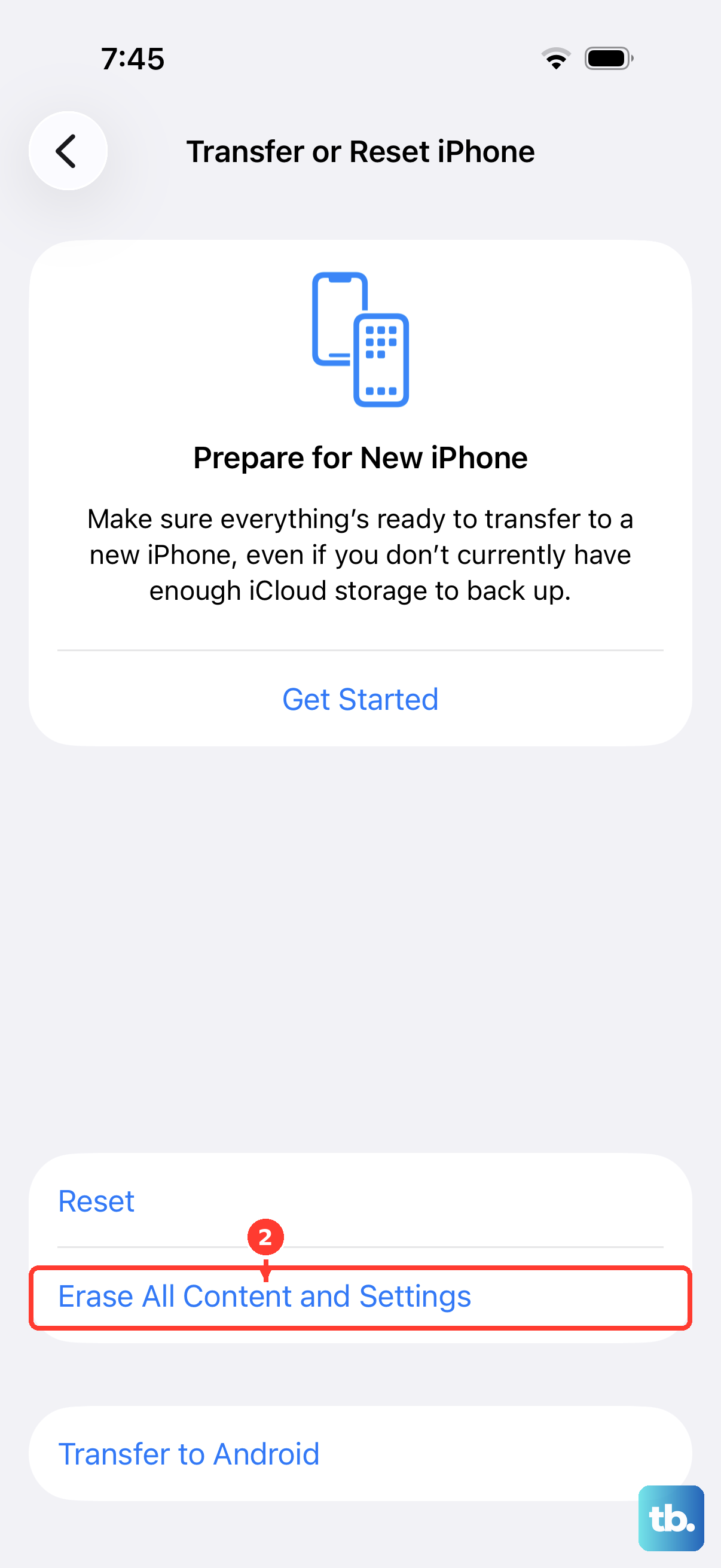
As a final software step, you can erase the phone completely and set it up fresh. This is destructive; it erases all content and settings on the phone, so back up your data first if the phone is responsive enough to allow it.
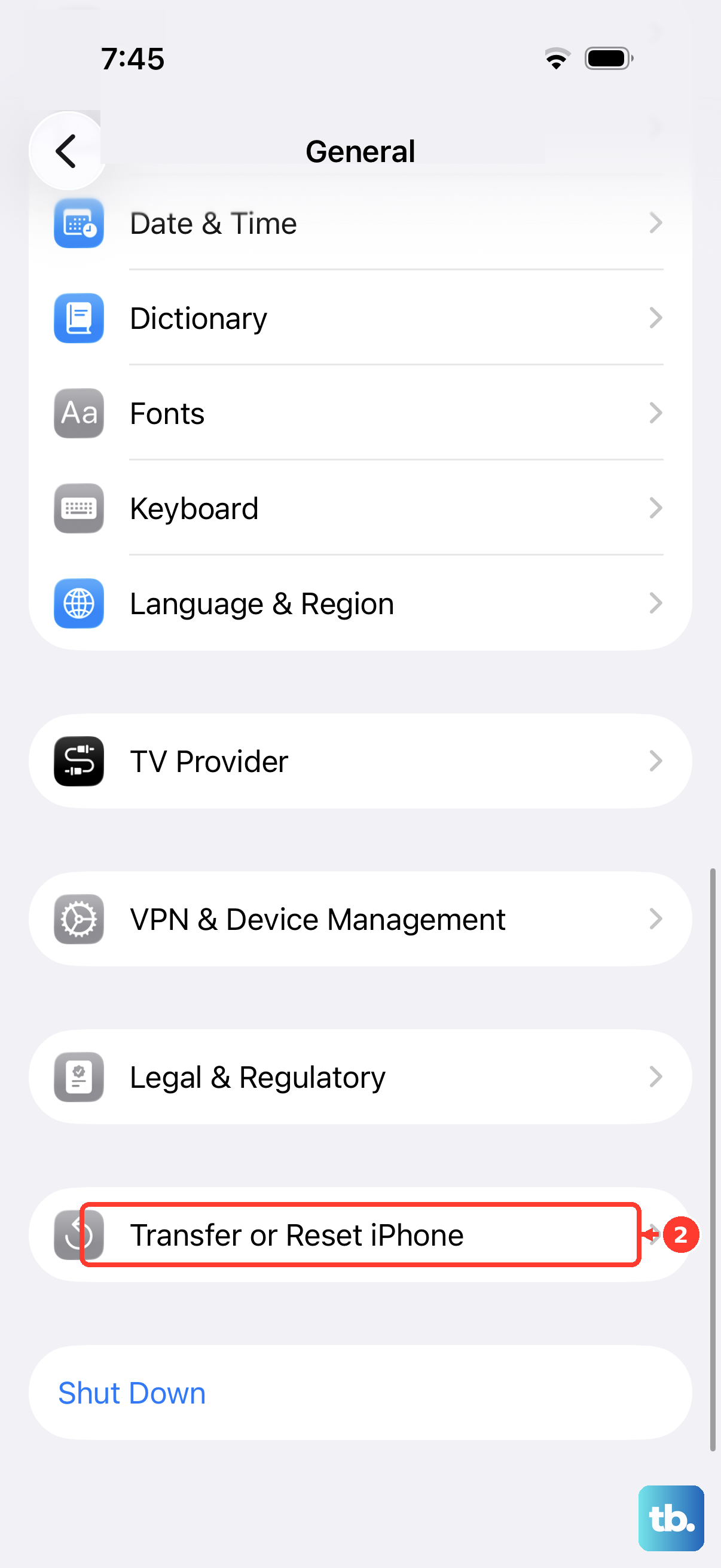
To do a factory reset, go to Settings > General > Transfer or Reset iPhone > Erase All Content and Settings, then tap Continue. Choose either Keep eSIM and Erase Data or Delete eSIM and Erase Data depending on whether you want to keep your cellular plan, then enter your device passcode followed by your Apple Account password to confirm.
If the iPhone still won't respond or turn on even after charging it, force restarting it, and working through these steps, the problem may be hardware rather than software. At that point, contact Apple Support to set up service, as the device may need repair.
Frequently Asked Questions
Will a force restart erase my photos and data?
No. A force restart won't erase the content on your device, and it works even if the screen is black or the buttons aren't responding. It simply forces the phone to power off and back on, leaving your photos, messages, and apps untouched.
What is the correct force restart sequence for an iPhone 13?
Press and quickly release the Volume Up button, press and quickly release the Volume Down button, then press and hold the Side button until you see the Apple logo. This might take longer than 10 seconds, so keep holding the Side button until the logo appears.
My iPhone 13 won't turn on at all, what should I do first?
Plug it into a power source with a known-good cable and adapter and charge it for one hour, then try again. If a low-battery (charging) icon appears, charge for 30 minutes or until the phone starts. A drained battery can look exactly like a frozen screen.
How do I get out of being stuck on the Apple logo?
If a force restart doesn't clear it, connect the iPhone to a computer using Finder on a Mac or the Apple Devices app or iTunes on a PC, then enter recovery mode and choose Update. Update reinstalls iOS without erasing your data, while Restore reinstalls iOS but erases everything.
When should I contact Apple Support about a frozen iPhone 13?
If the iPhone still won't respond or turn on after charging it, force restarting it, updating or restoring with a computer, and erasing it, the issue may be hardware. Contact Apple Support to set up service, as the device may need repair.