You tapped Settings > General > Software Update expecting to grab the newest iPadOS, and instead your iPad just sat there. Maybe the spinner never stopped, maybe it threw an "Unable to Check for Update" message, or maybe the download crept to a certain point and froze on the Apple logo. An iPad that refuses to update is almost always stuck on one of a few predictable snags, such as not enough free space, a flaky connection, a corrupted update file, or a device that needs a nudge to finish what it started.
The good news is that you rarely need anything destructive to fix it. The steps below run from the safest and simplest checks to the heavier interventions, so work through them in order and stop as soon as your update goes through. The most aggressive option, a full erase and restore, sits at the very end for a reason.
Make sure your iPad can actually run the latest iPadOS
Before you troubleshoot anything, confirm the update is even meant for your model. The latest software is iPadOS 26 (the current point release is iPadOS 26.5 as of June 2026), and it runs on a specific list of devices. That list includes iPad (8th, 9th, and 10th generation, plus iPad A16), iPad Air (3rd, 4th, and 5th generation, plus the 11-inch and 13-inch M2, M3, and M4 models), iPad mini (5th and 6th generation, plus A17 Pro), and the iPad Pro lineup (11-inch from 1st generation and 12.9-inch from 3rd generation onward, including the M-series Pro models).
Apple also lists the basic requirements for any update, which are a compatible device, a power source, an internet connection, and enough available storage. If your iPad is on the compatibility list, install the newest version available to you. If it is not on the list, the very latest iPadOS will not appear, and that is expected rather than a fault.
Get on Wi-Fi and keep the iPad plugged in
An update needs a steady internet connection, and a weak or busy one is a common reason a download stalls. Connect to a reliable Wi-Fi network for faster downloads, and avoid downloading other content at the same time so the update has room to work.
Power matters just as much. When you update over the air, keep your device connected to a power source for the whole process. If the battery runs out mid-update, plug the iPad back in and turn it on so the update can finish on its own.
Free up space when there is not enough room
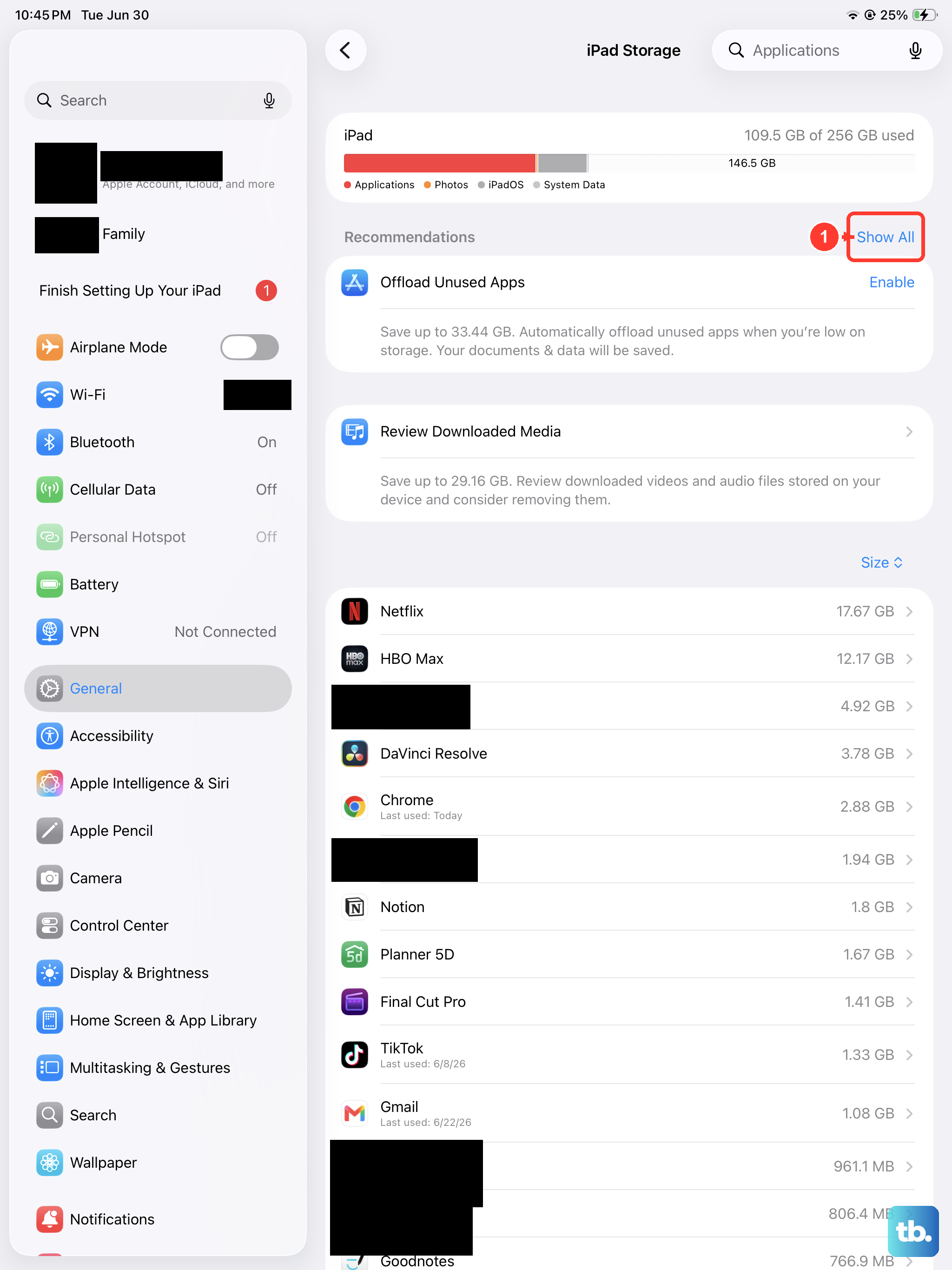
If the update reports that there is not enough space, your iPad needs storage cleared before it can proceed. Go to Settings > General > iPad Storage, then tap Enable next to Offload Unused Apps. This removes apps you can download again later without touching your personal data, which often frees enough room for the install.
You can also delete apps you no longer use manually from the same screen. Once the iPad has breathing room, head back to Software Update and try again.
Run the update the normal way one more time
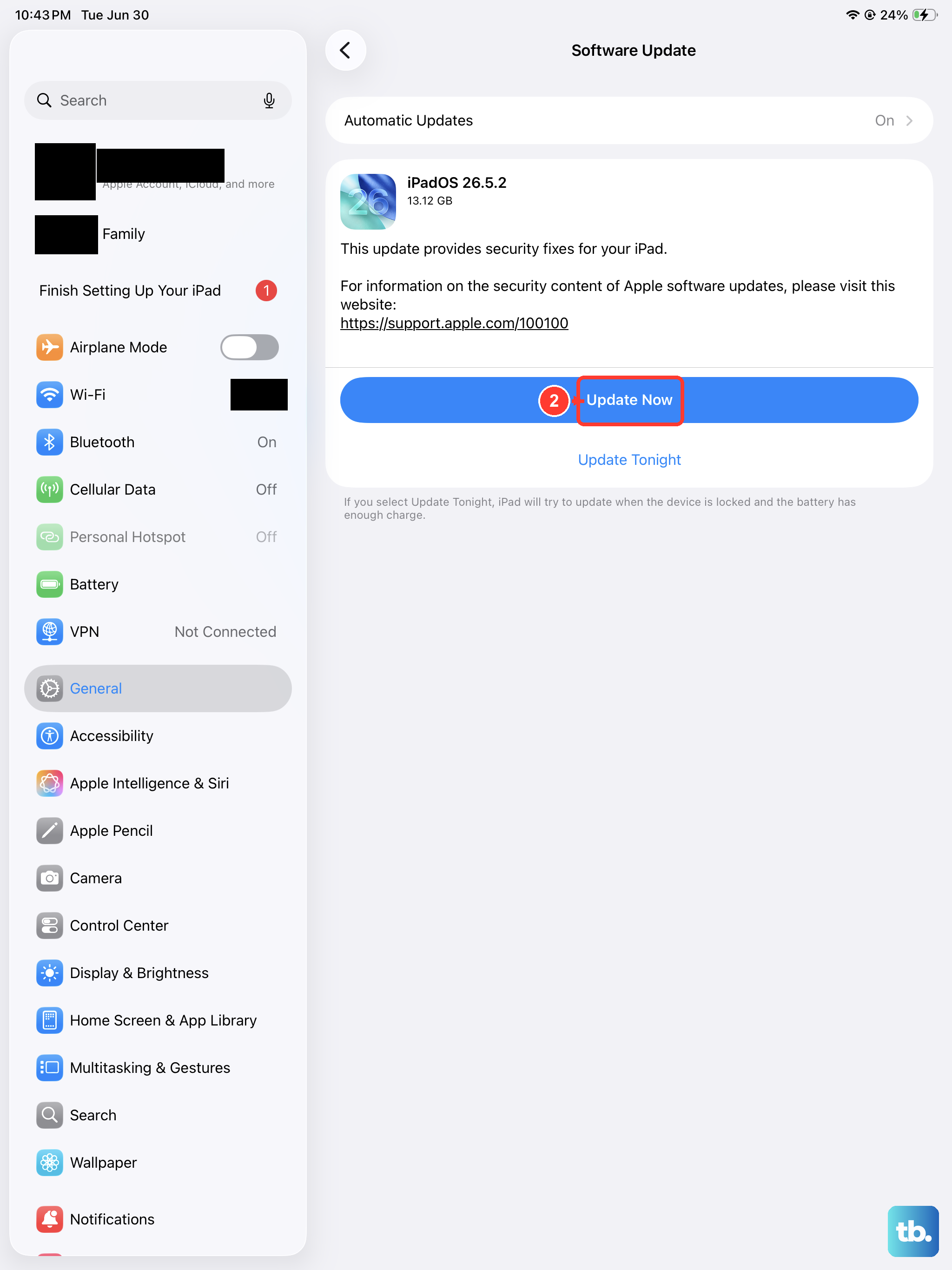
With connection, power, and space sorted, give the standard route another try. Go to Settings > General > Software Update. The screen shows your currently installed version and whether an update is available.
If one is waiting, tap Download and Install and follow the onscreen instructions. Updating to the latest iPadOS leaves your data and settings unchanged, so there is nothing to back up just to apply a normal update. To avoid this hassle in future, you can turn on Settings > General > Software Update > Automatic Updates and switch on Automatically Install and/or Automatically Download.
Force restart an iPad that froze during the update
Sometimes the install hangs and the screen goes black, freezes, or sticks on the Apple logo. A force restart clears that state without erasing anything, but the exact button sequence depends on whether your iPad has a Home button.
On an iPad without a Home button:
- 1.Press and quickly release the volume button closest to the top button.
- 2.Press and quickly release the volume button farthest from the top button.
- 3.Press and hold the top button until you see the Apple logo.
On an iPad with a Home button:
- 1.Press and hold both the Home button and the top button until you see the Apple logo.
Once the iPad restarts, return to Settings > General > Software Update and let it pick up where it left off.
Delete the stuck update file and download it again
If the update still refuses to install, the downloaded file itself may be corrupted. Removing it forces the iPad to fetch a clean copy.
- 1.Go to Settings > General > iPad Storage.
- 2.Find the update in the list of apps and tap it.
- 3.Tap Delete Update.
- 4.Go to Settings > General > Software Update and download the latest update again.
A fresh download often clears errors that no amount of retrying the old file would fix.
Switch networks when you see an Unable to message
Messages such as "Unable to Check for Update" or "Unable to Download" mean the iPad cannot reach or verify the update servers. This usually points at the network rather than the device.
Try the same network again first, then try a different network, such as another Wi-Fi connection. If switching networks does not help, move on to updating through a computer, and if it keeps failing, remove the update file and re-download it as described above before going further.
Update through a computer with a cable
When over-the-air updates simply will not take, a wired update from a computer is a strong fallback. Connect your iPad to the computer with a cable, then use the right tool for your system.
On a Mac running macOS 10.15 or later, select your iPad in the Finder sidebar, click General, then click Check for Update. On older macOS (10.14 or earlier) or on Windows, open iTunes, click the iPad button, click Summary, then click Check for Update. On current Windows versions, the Apple Devices app does the same job.
If the computer does not recognize your iPad, or the Apple logo stays on screen for several minutes with no progress bar, you can use recovery mode to reinstall iPadOS. In recovery mode, choosing Update reinstalls the software without erasing your data, while choosing Restore wipes the iPad, so back up first if you have to restore.
Erase and restore as a last resort, then contact Apple
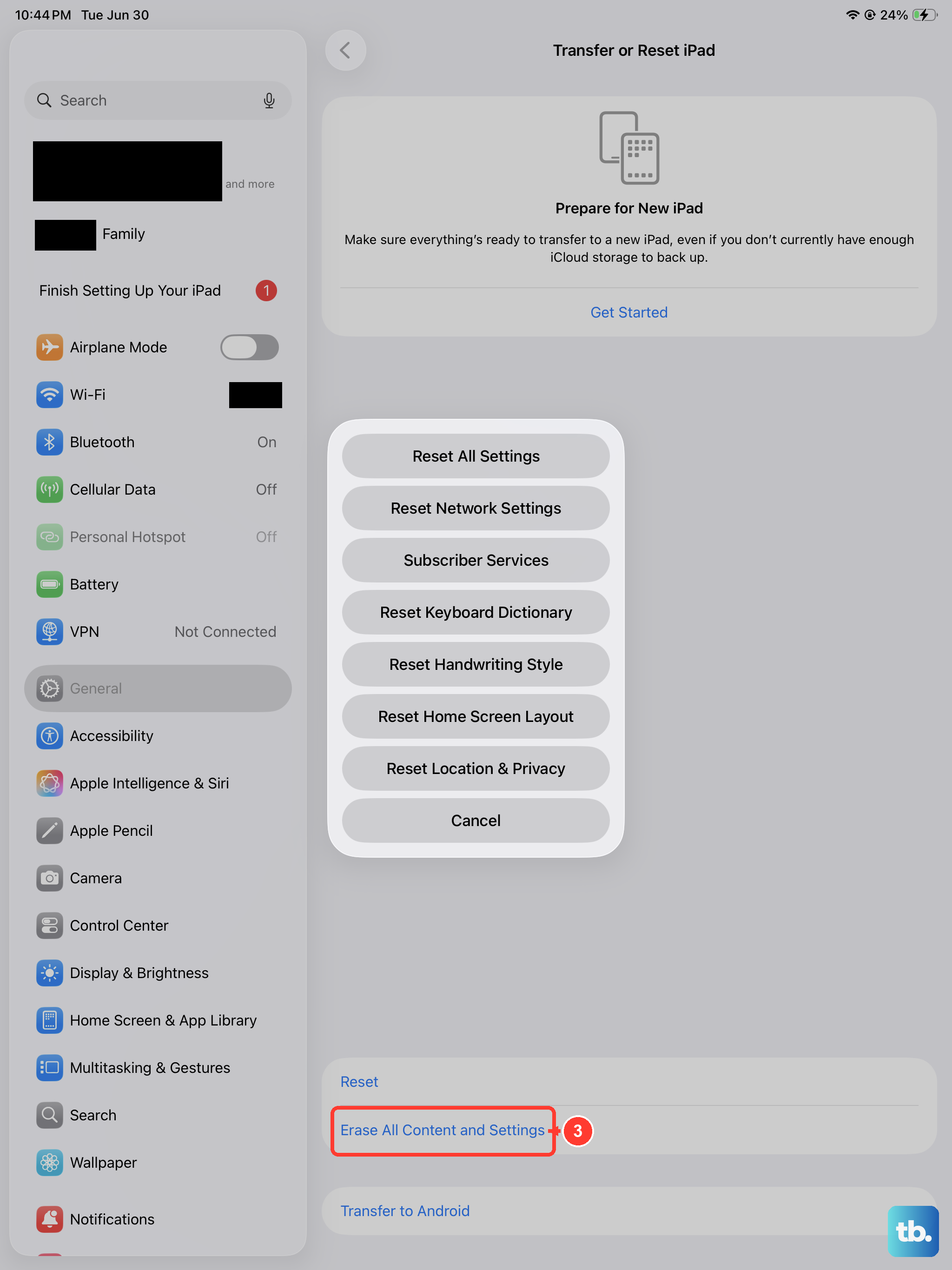
If nothing above works, a full erase and restore is the final option, and it is genuinely a last resort because it removes everything. Back up your iPad first, since this restores it to factory settings and removes all personal content and settings.
To erase, go to Settings > General > Transfer or Reset iPad > Erase All Content and Settings, enter your iPad passcode or Apple Account password if asked, then tap Continue to confirm. You can also restore the iPad through Finder or iTunes if you prefer the wired route.
If the update still fails even after a clean restore, the problem is beyond a routine fix. Contact Apple Support directly so a technician can look at your specific case.
Frequently Asked Questions
Will updating my iPad delete my photos and apps?
No. Updating to the latest iPadOS leaves your data and settings unchanged, so a normal Software Update does not remove your personal content. A backup only becomes essential if you reach the last-resort step of erasing and restoring the iPad, which does wipe everything.
What is the latest iPadOS version right now?
The latest software is iPadOS 26, with iPadOS 26.5 as the current point release as of June 2026. Your iPad must appear on Apple's iPadOS 26 compatibility list to install it.
How do I stop having to update manually every time?
Turn on automatic updates. Go to Settings > General > Software Update > Automatic Updates, then switch on Automatically Install and/or Automatically Download so future updates arrive without you starting them by hand.
Why does my iPad say there is not enough storage to update?
The update needs free space to install. Go to Settings > General > iPad Storage and tap Enable next to Offload Unused Apps, which clears app data you can re-download later without losing personal files. You can also delete unused apps manually.
What if my computer will not recognize my iPad during a wired update?
Use recovery mode. If the computer does not recognize the device, or the Apple logo stays on screen for several minutes with no progress bar, recovery mode lets you reinstall iPadOS through Finder or iTunes. Choosing Update keeps your data, while choosing Restore erases the iPad, so back up before restoring.