
It's a common snag on the iPad. You tap to send a photo, and it just sits there with a "Not Delivered" tag or a spinning wheel that never stops. The problem can be with your connection, the app, or even a setting you forgot about. Let's get it sorted.
Check Your Internet Connection First
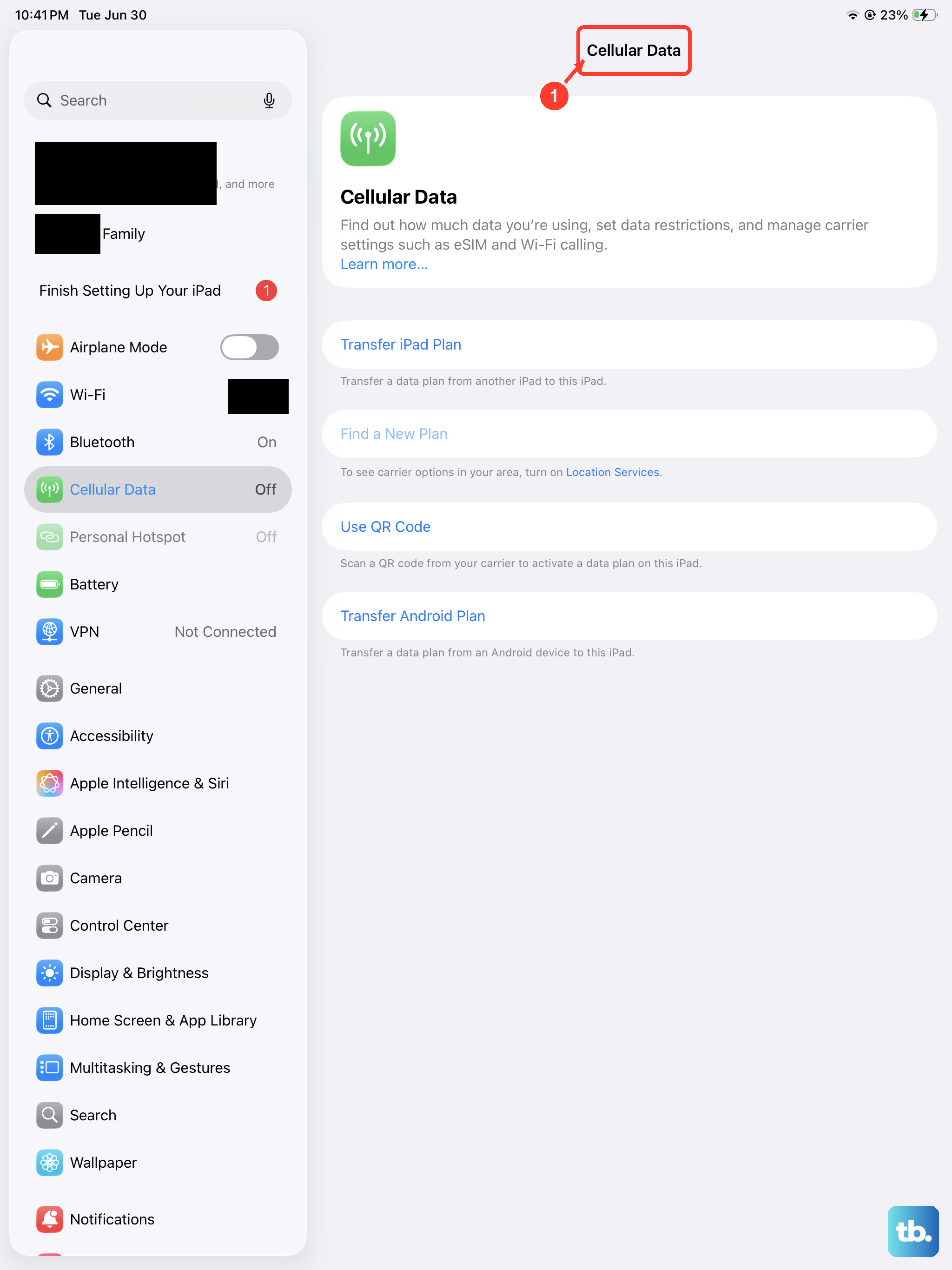
This is almost always the culprit. Photos, especially large ones, need a solid data connection to send. If you're on Wi-Fi, look for the Wi-Fi symbol in the top corner. If it's not there, or the signal is weak, that's your issue.
Head to Settings > Wi-Fi and make sure it's turned on. Try toggling it off and back on. If you're still stuck, restart your router by unplugging it for 30 seconds. For cellular models, ensure you have bars of service and that cellular data for Messages is enabled in Settings > Cellular.
Restart Your iPad
A normal restart can clear temporary app or network glitches. On an iPad without a Home button, press and hold either volume button and the Top button until the power-off slider appears. Drag the slider, wait 30 seconds, then press and hold the Top button until the Apple logo appears.
On an iPad with a Home button, press and hold the Top button until the power-off slider appears. Drag the slider, wait 30 seconds, then press and hold the Top button until the Apple logo appears. If the iPad is frozen or unresponsive, use Apple's force-restart steps instead.
Force Quit and Reopen the Messages App
If the Messages app itself is frozen, force quitting it can help. On an iPad without a Home button, swipe up from the bottom of the screen and pause in the middle to bring up the app switcher. Find the Messages app card and swipe it all the way up to close it.
On an iPad with a Home button, double-press the Home button to see your open apps, then swipe up on the Messages app. After a few seconds, tap the Messages icon to reopen it fresh and attempt the send again.
Verify iMessage is Active and Set Up Correctly
If your messages are sending as green text bubbles instead of blue iMessages, photos won't send over iMessage. Go to Settings > Apps > Messages and make sure the iMessage toggle is on. If it's already on, try turning it off, waiting a moment, and turning it back on to refresh the connection.
Also check your send and receive addresses. Go to Settings > Apps > Messages, tap Send & Receive, then choose the phone number or email address you want to use below You can receive iMessages to and reply from. If the address you use for iMessage is not selected, select it before trying the photo again.
Ensure MMS Messaging is Enabled
If the photo is going to a non-Apple phone and the conversation is green, your iPad is using SMS, MMS, or RCS messages forwarded from your iPhone, not a standalone iPad MMS switch. On the iPad, go to Settings > Apps > Messages, turn on iMessage, tap Send & Receive, and make sure the Apple Account shown there matches the iPhone that forwards your text messages.
On the iPhone, go to Settings > Apps > Messages > Text Message Forwarding and turn on your iPad. If green-bubble SMS, MMS, or RCS messages still fail, check with your carrier that the message type is supported by your plan.
Check Your Date and Time Settings
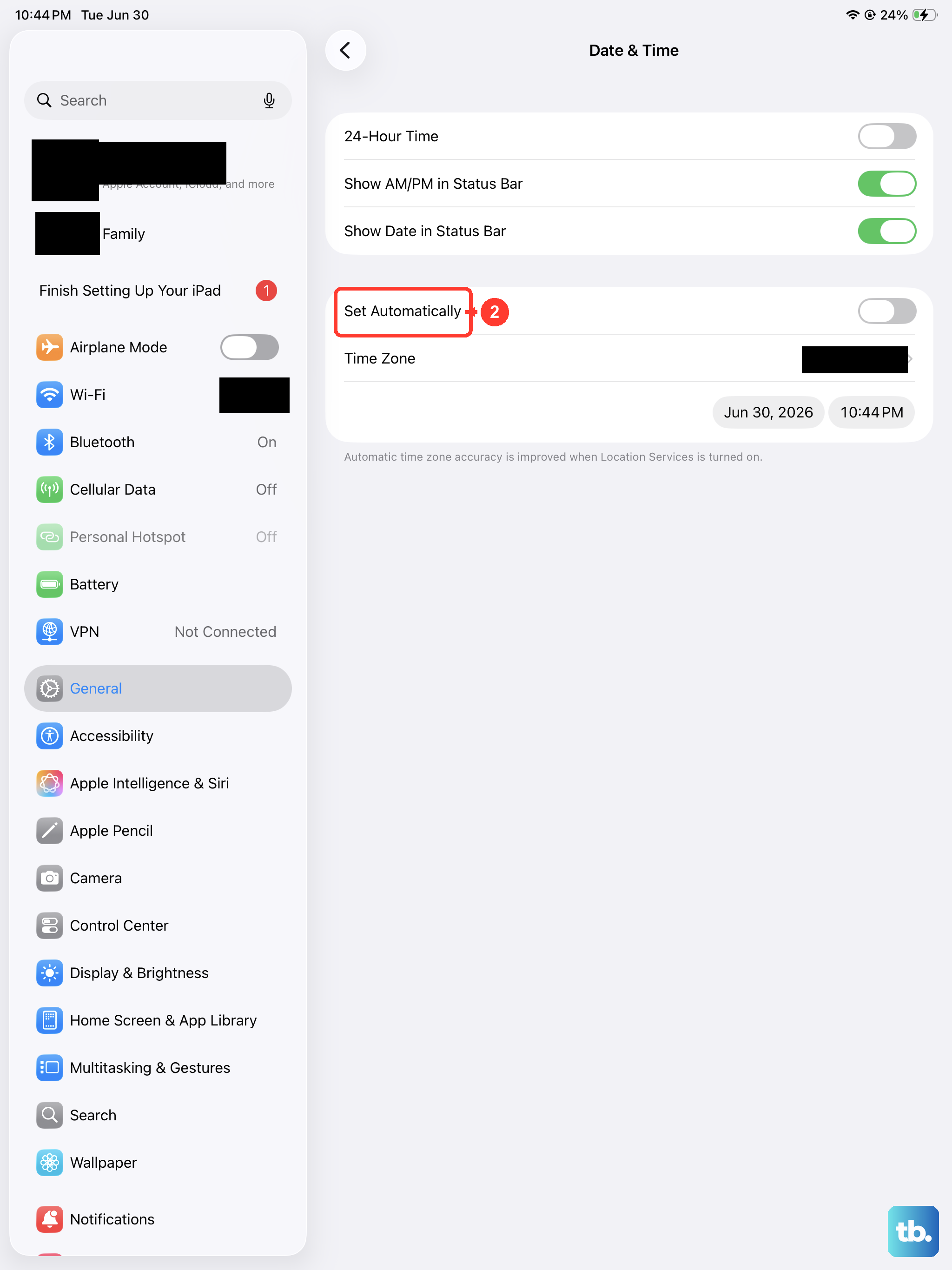
It sounds odd, but an incorrect date or time can mess with message delivery certificates. Go to Settings > General > Date & Time. The simplest fix is to make sure Set Automatically is enabled. This lets your iPad sync the correct time from the network.
If it's already on, try turning it off and then immediately back on. This forces a fresh sync and can resolve subtle authentication errors that are blocking your photo.
Toggle Airplane Mode
This is a quick way to reset all your iPad's wireless radios at once. Swipe down from the top-right corner to open Control Center and tap the airplane icon to turn on Airplane Mode. Wait about 15 seconds, then tap it again to turn it off.
Your iPad will reconnect to Wi-Fi and cellular networks. This often clears up transient network issues that weren't fixed by a simple Wi-Fi toggle.
Update Your Carrier Settings (Cellular Models)
If you have a cellular iPad, your carrier occasionally pushes small updates that improve network connectivity. To check, make sure your iPad is connected to the internet, then go to Settings > General > About.
If a carrier settings update is available, a pop-up notification will appear on this screen. Just follow the prompts to install it. This can resolve specific bugs related to sending multimedia messages.
Sign Out and Back Into Your Apple ID
Do not sign out of your entire Apple Account just to test Messages. Instead, check the Messages account Apple documents for iPad: go to Settings > Apps > Messages > Send & Receive and confirm the Apple Account shown there is the one you use for iMessage and, if you use Text Message Forwarding, the same one used on your iPhone.
If the wrong Apple Account appears in Send & Receive, tap it to sign out of Messages, then sign in with the correct Apple Account. After changing the Messages account, reopen Messages and try sending the photo again.
Update iPadOS
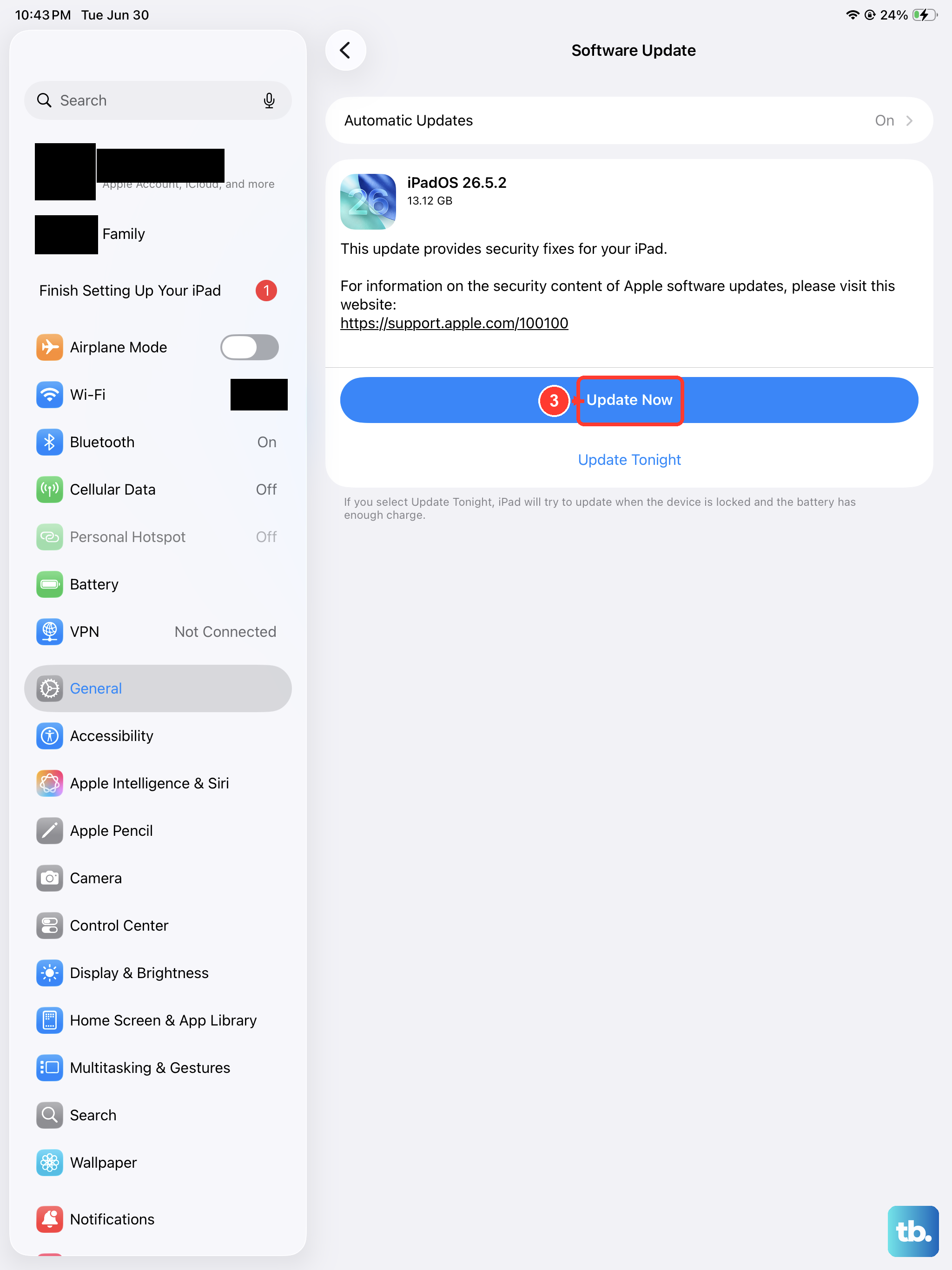
Software bugs in the system can cause all sorts of app problems, including sending photos. Apple frequently patches these in updates. Plug your iPad in and connect to Wi-Fi, then go to Settings > General > Software Update.
If an update is available, tap Download and Install. A major iPadOS update can take a while, but even a minor point update often contains important bug fixes for the Messages app and network services.
Reset Network Settings
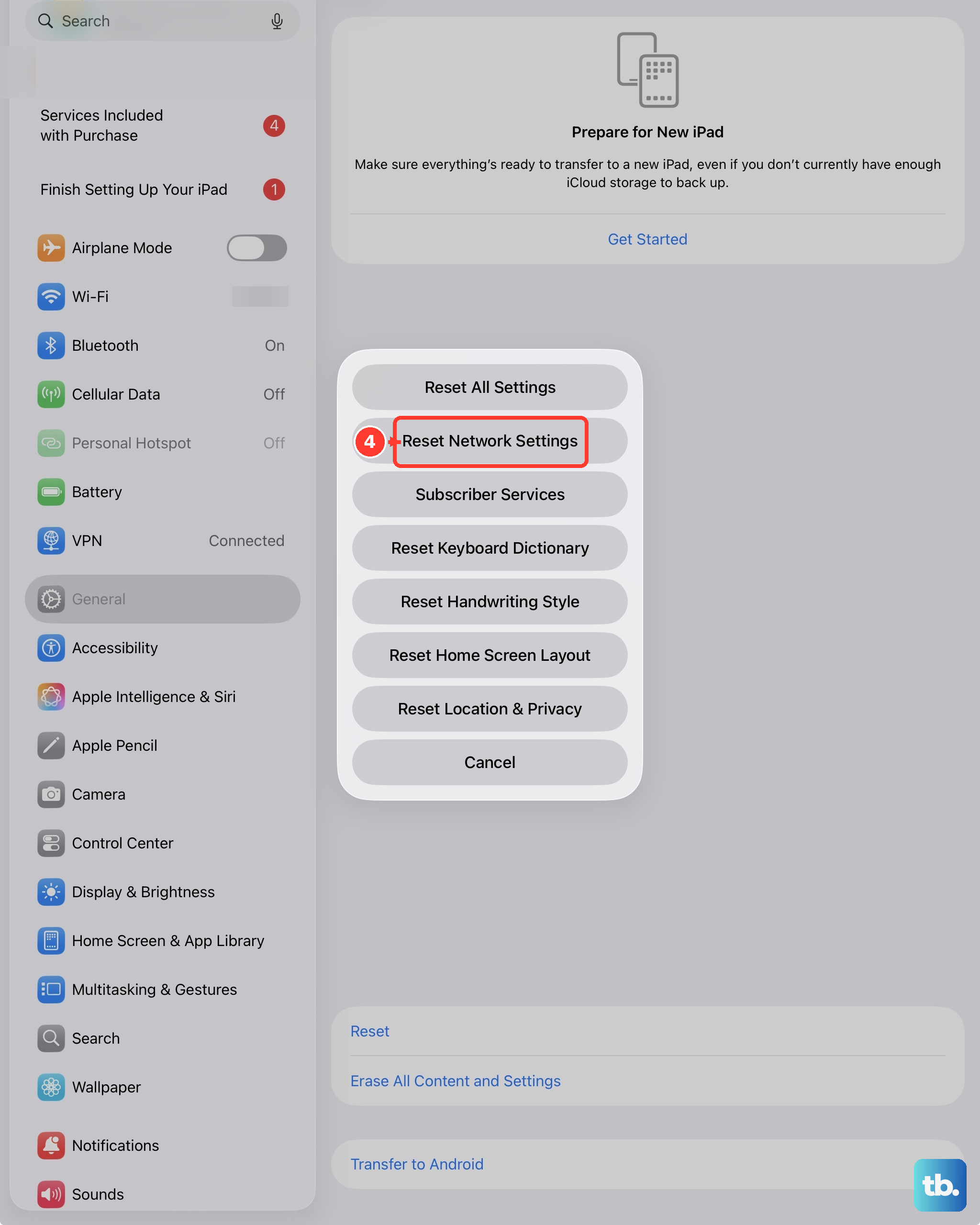
If other fixes fail, Apple says you can reset network settings from Settings > General > Transfer or Reset iPad > Reset > Reset Network Settings. This removes Wi-Fi networks and passwords, cellular settings, and VPN and APN settings. If a school or business manages your network, check with IT before resetting.
After the iPad restarts, rejoin your Wi-Fi network and try sending the photo again.