Your iPad's screen keeps blinking, shimmering, or pulsing, and it is hard to read, watch anything, or tap with confidence. Flicker on an iPad usually traces back to a temporary software state, a display or motion setting, a single misbehaving app, or, less often, the hardware itself. The good news is that most cases clear up with a few quick, safe steps long before you need a repair. Work through the fixes below in order, starting with the easiest and least risky, and stop as soon as the picture steadies.
It is worth viewing a few test patterns from a online monitor test before changing hardware. Faults that persist across every pattern point firmly at the display itself.
Start by ruling out the screen and what is touching it
Before you change a single setting, confirm the flicker is not coming from something physical. Make sure the screen is clean and free of any debris or water, remove any cases or screen protectors, and disconnect any Lightning or USB-C accessories. A pressing case, a poorly fitted protector, or a connected accessory can all create visual glitches that look like a display fault, so it is worth clearing them away first.
If the picture steadies once you remove a case, screen protector, or accessory, that item was the cause, and you can leave it off or replace it with a better-fitting one. If the flicker continues, move on to the software steps below, which start with the simplest restart and build up to a full reset only if you need it.
Turn the iPad off and back on
A normal restart clears the temporary software states behind many display glitches. Turn the iPad off, wait a moment, then turn it back on; the official Restart your iPad guidance shows the exact off and on steps for your particular model, since they vary slightly between iPads with and without a Home button. This single step resolves a surprising share of short-lived flicker, so it is always worth doing before anything more involved.
Force a restart when the screen is frozen or still flickering
If the display is frozen or keeps flickering after a normal restart, force restart it. The button sequence depends on whether your iPad has a Home button, and a force restart does not delete any of your data, so it is safe to use at any point.
On an iPad without a Home button (Face ID models, or those with Touch ID built into the top button):
- 1.Press and quickly release the volume button nearest to the top button.
- 2.Press and quickly release the volume button farthest from the top button.
- 3.Press and hold the top button, then when the Apple logo appears, release the top button.
On an iPad with a Home button, press and hold the top button and the Home button at the same time, then when the Apple logo appears, release both buttons.
Let Auto-Brightness settle the screen
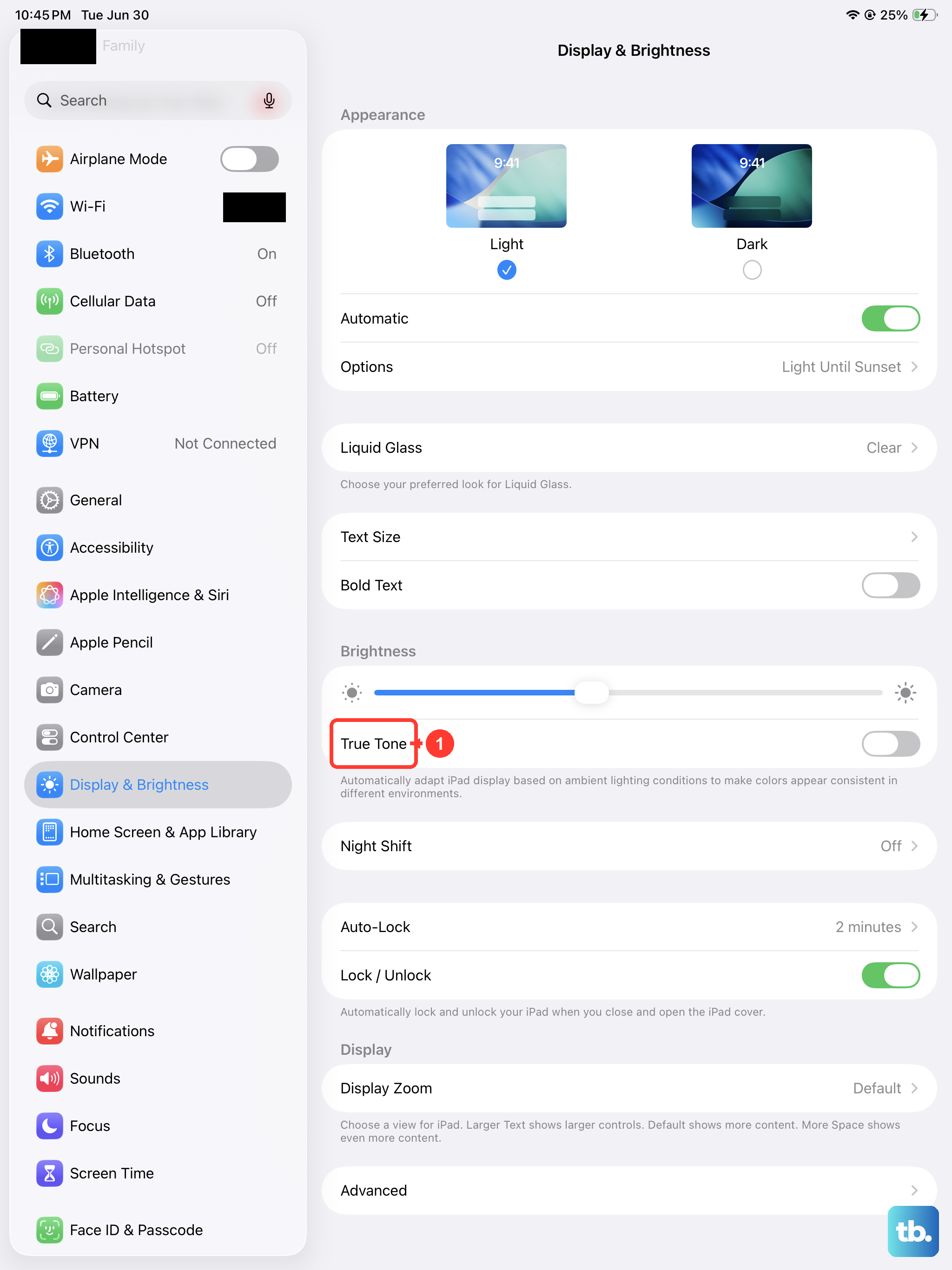
If the iPad brightens, dims, or flickers as the light around you changes, the brightness controls are a good place to look. Set brightness manually in Settings > Display & Brightness by dragging the slider, then turn on Auto-Brightness in Settings > Accessibility > Display & Text Size so the iPad adapts smoothly to the lighting around you instead of jumping between levels.
True Tone, also under Settings > Display & Brightness, adjusts the color balance to suit the room. Toggling these settings on or off helps you tell whether a changing image is just normal adaptation rather than a genuine fault, which narrows down what you are dealing with.
Calm the motion, transparency, and bright colors
Some flicker and shimmer come from interface animation and transparency effects rather than the panel itself. In Settings > Accessibility > Display & Text Size, turn on Reduce Transparency, which improves contrast by reducing transparency and blurs on some backgrounds, and try Increase Contrast. You can also turn on Reduce White Point, which reduces the intensity of bright colors.
For animation, go to Settings > Accessibility > Motion and turn on Reduce Motion to cut the parallax and movement in the interface. Together these settings remove the most common motion and transparency driven shimmer, and they are easy to switch back if they make no difference.
Install the latest version of iPadOS
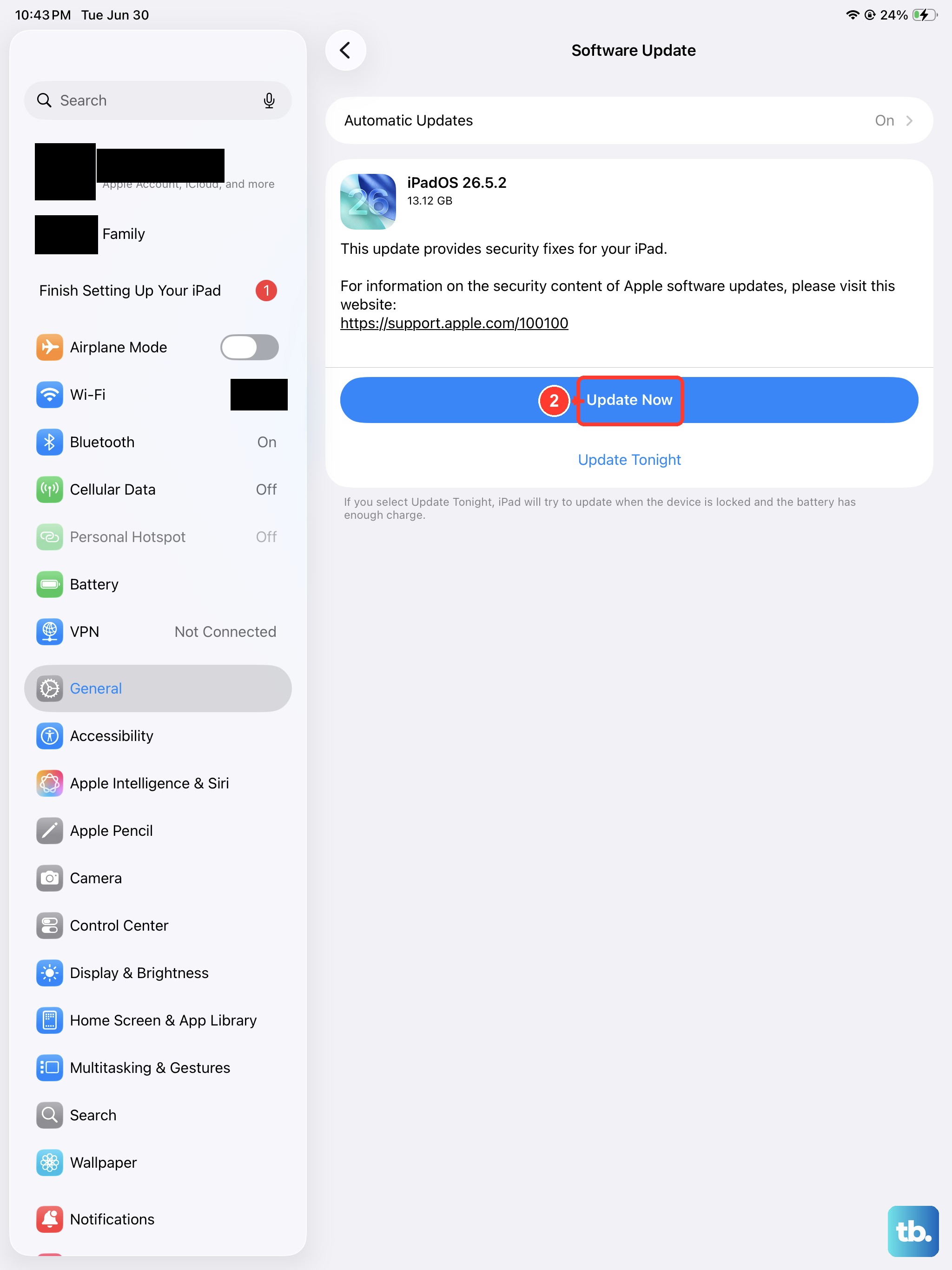
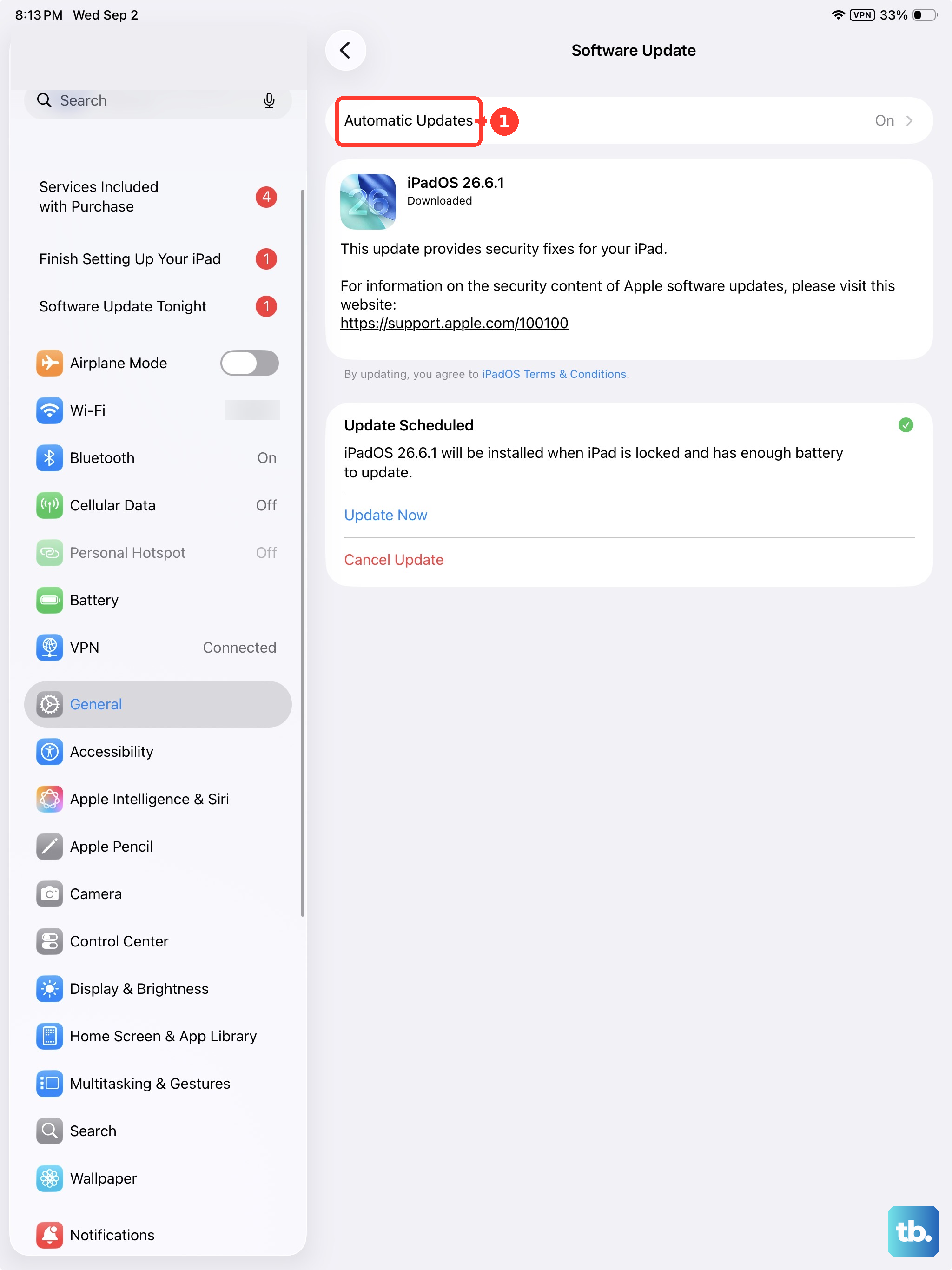
iPadOS updates include bug fixes and improvements, so an out-of-date system can be behind a stubborn flicker. Go to Settings > General > Software Update and download and install anything that is offered. To stay current without thinking about it, turn on automatic updates so the iPad updates overnight while it is charging and connected to Wi-Fi, which keeps you on the most stable release available.
Remove an app that started the flicker
The iPad has no Android-style safe mode for testing third-party software, so the official way to rule out one bad app is to delete it. If the flicker began after you installed a particular app, touch and hold that app on the Home Screen, tap Remove App, then tap Delete App, then tap Delete.
Watch the screen for a while with the app gone. If the flicker stops, that app was the problem, and you can reinstall it later to see whether an updated version behaves itself. If the flicker carries on, the app was not the cause and you can move to the next check.
Check whether the display is a genuine Apple part
A previously replaced, non-genuine display can cause display problems that look like flicker. To check your iPad's display history, go to Settings > General > About and look at the Parts and Service History section.
If you see an "Unknown Part" message there, the iPad's display may not be a genuine Apple component. That points to a hardware and service path rather than a settings change, so the steps below cover how to get it looked at properly.
Erase the iPad as your final self-service step
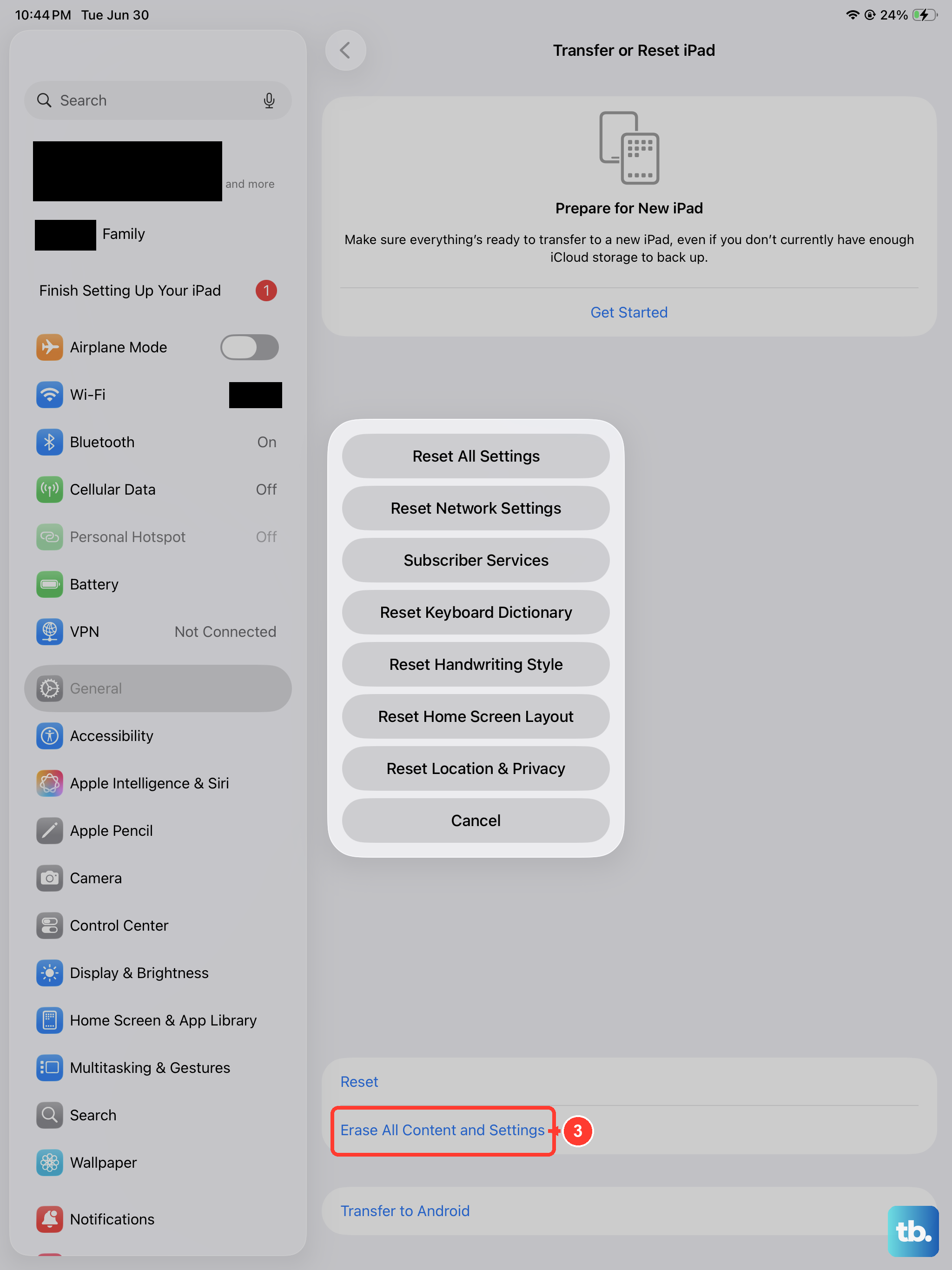
If the software steps above have not stopped the flicker, a full reset is the last thing to try on your own. If you would rather not lose anything first, you can reset settings only. Go to Settings > General > Transfer or Reset iPad > Reset, which returns settings such as network, keyboard dictionary, location, privacy, and Apple Pay cards to defaults, with no data or media deleted.
To go further, back up the iPad first, because erasing deletes your data. Then go to Settings > General > Transfer or Reset iPad > Erase All Content and Settings, enter your passcode or Apple Account password if prompted, and tap Continue; the iPad is then restored to factory settings. Use this only after the gentler steps, since it returns the device to a clean state and you will need to set it up again afterward.
When to book a repair or contact Apple Support
If the screen still flickers after every step above, it most likely needs service. Through Apple's service and repair options for iPad you can book a visit at a Genius Bar or an Apple Authorized Service Provider, or arrange to mail the iPad in for a display repair, whether the device is in or out of warranty. Apple Support can also confirm the fastest route for your model and location.
Keep your coverage in mind before you go. The Apple Limited Warranty covers manufacturing defects for one year, but it does not cover accidental damage, so a cracked or dropped iPad may carry a repair cost.
Frequently Asked Questions
Why does my iPad screen flicker?
Flicker usually comes from a temporary software glitch, a brightness or motion setting, a single misbehaving app, or a hardware issue such as a non-genuine display. The fixes above move from the quickest, safest software steps to the hardware checks, so working through them in order helps point you to the cause.
Does the iPad have a Safe Mode for testing apps?
No. iPadOS has no Android-style safe mode. To rule out a single app, delete the one you installed most recently by touching and holding it on the Home Screen, tapping Remove App, then Delete App, then Delete, and reinstall it later if it was not the cause.
Will erasing my iPad stop the flicker?
Erasing can fix flicker caused by software, but it deletes your data, so back up first. Go to Settings > General > Transfer or Reset iPad > Erase All Content and Settings to restore factory settings. If the flicker is caused by hardware, an erase will not help and you will need service.
Is a flickering screen covered by warranty?
The Apple Limited Warranty covers manufacturing defects for one year, but it does not cover accidental damage. If the flicker comes from a manufacturing fault within that period, repair may be covered; damage from a drop or spill generally is not.