
Your iPad Pro M5 is sitting there with a Wi-Fi connection that either won't connect, keeps dropping, or moves at a crawl. This is one of the more frustrating iPad annoyances, but it's almost always fixable without calling Apple or swapping hardware. Whether you're on the 11-inch or the 13-inch model running iPadOS 18, these steps should get you back online.
Quick Fix: Toggle Wi‑Fi and Force Restart
Start with the easiest thing. Open Control Center by swiping down from the top‑right corner, tap the Wi‑Fi icon to turn it off, wait a few seconds, then tap it back on. That forces the iPad to re‑scan and reconnect, and it often clears up a flaky connection right there.
If that doesn't work, do a force restart. Press and quickly release the Volume Up button, then press and quickly release the Volume Down button, then press and hold the Top button until the Apple logo appears. This clears out temporary software glitches that love to mess with wireless radios, and it won't erase any of your data.
Turn Airplane Mode On and Off
Flipping Airplane Mode kills all wireless radios, Wi‑Fi, Bluetooth, cellular (on cellular models), and forces them to reconnect fresh. Swipe into Control Center, tap the Airplane icon, leave it on for about 15 seconds, then tap it off again. Sometimes that's all it takes to shake loose a stuck connection.
Forget the Network and Rejoin
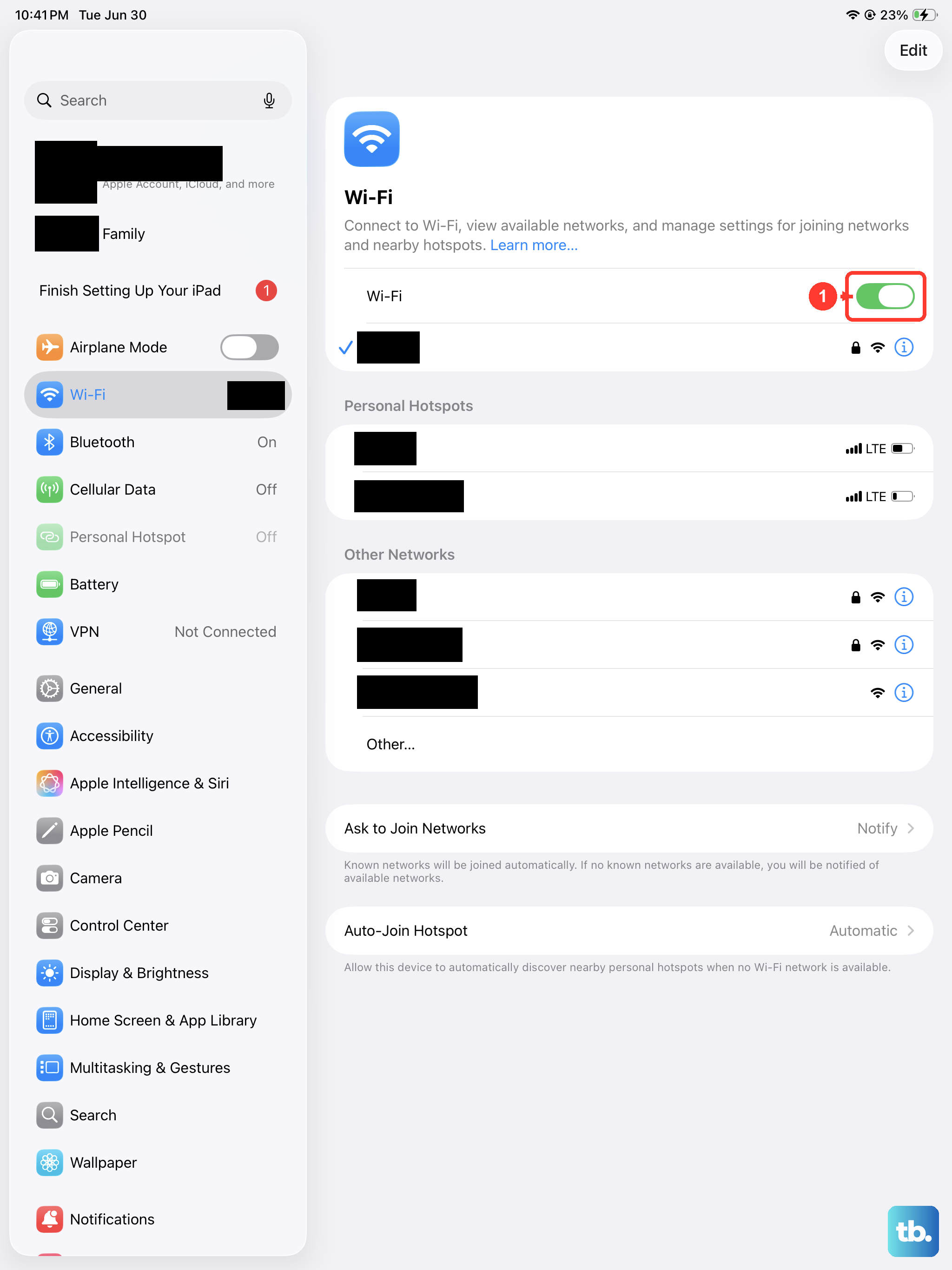
Your iPad might be holding onto old or corrupted network credentials. Go to Settings > Wi‑Fi, tap the blue “i” next to your network name, then tap Forget This Network. After that, select the network again from the list and type in the password fresh. This is especially useful if you recently changed your router's password or if the iPad keeps saying “Unable to join.”
Check Your Wi‑Fi Password and Network Name
It sounds basic, but verify you're selecting the right network. If a neighbor has a similar SSID, your iPad might try to join theirs. And Wi‑Fi passwords are case‑sensitive, a typo or Caps Lock accidentally turned on will fail every time. Double‑check by asking someone else who's successfully connected.
Turn Off Bluetooth Temporarily
Bluetooth and Wi‑Fi both use the 2.4GHz band, and on some networks they can interfere with each other. Swipe into Control Center and tap the Bluetooth icon to turn it off, then try connecting to Wi‑Fi. If the connection sticks, you've identified the conflict, though it's rare on the iPad Pro M5.
Check Date and Time Settings
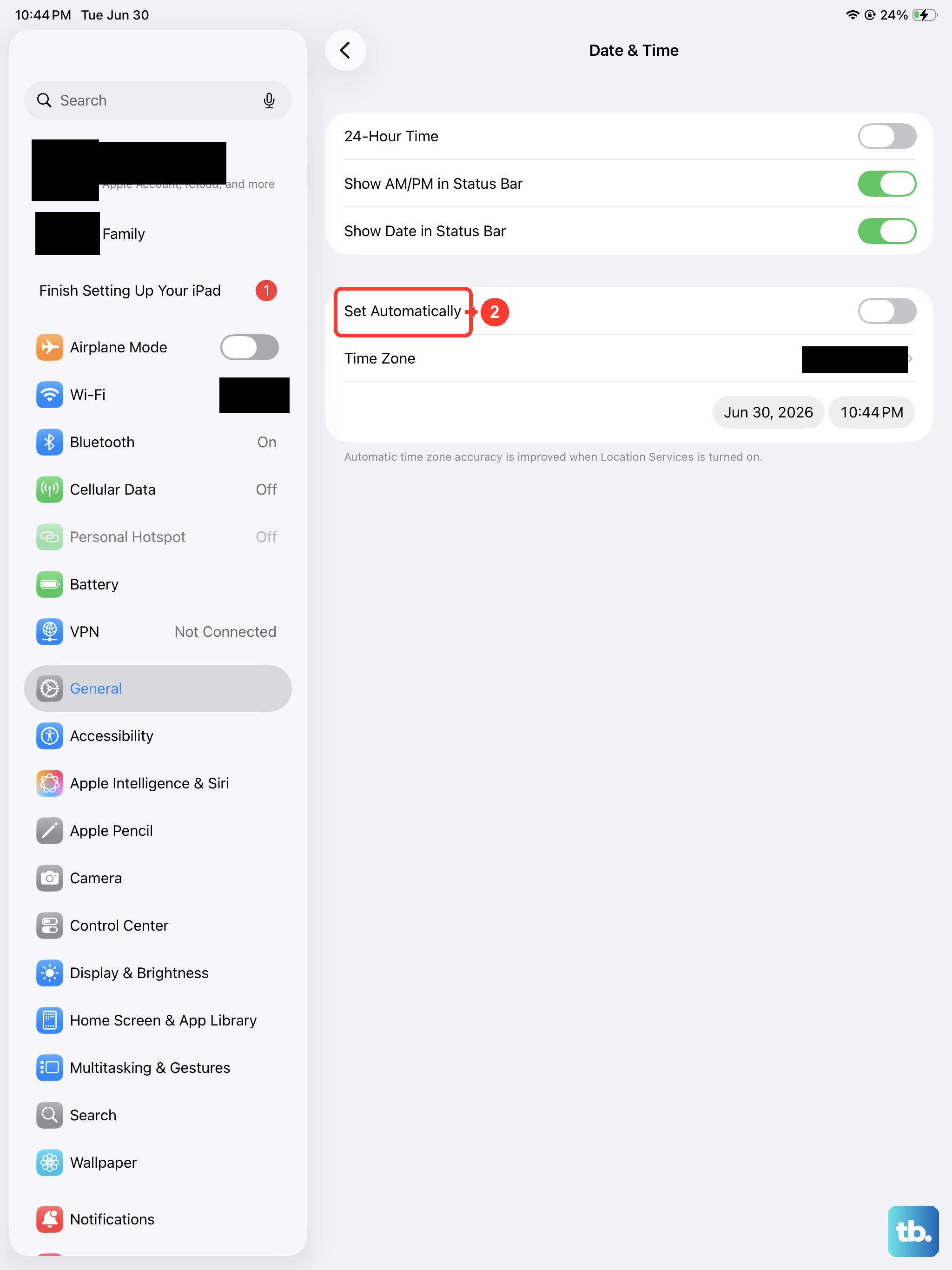
This one catches people off guard. If your iPad's date and time are wrong, Wi‑Fi authentication can fail because security certificates won't validate. Go to Settings > General > Date & Time and make sure Set Automatically is toggled on. If it's already on, try toggling it off, wait a moment, then turn it back on.
Update iPadOS
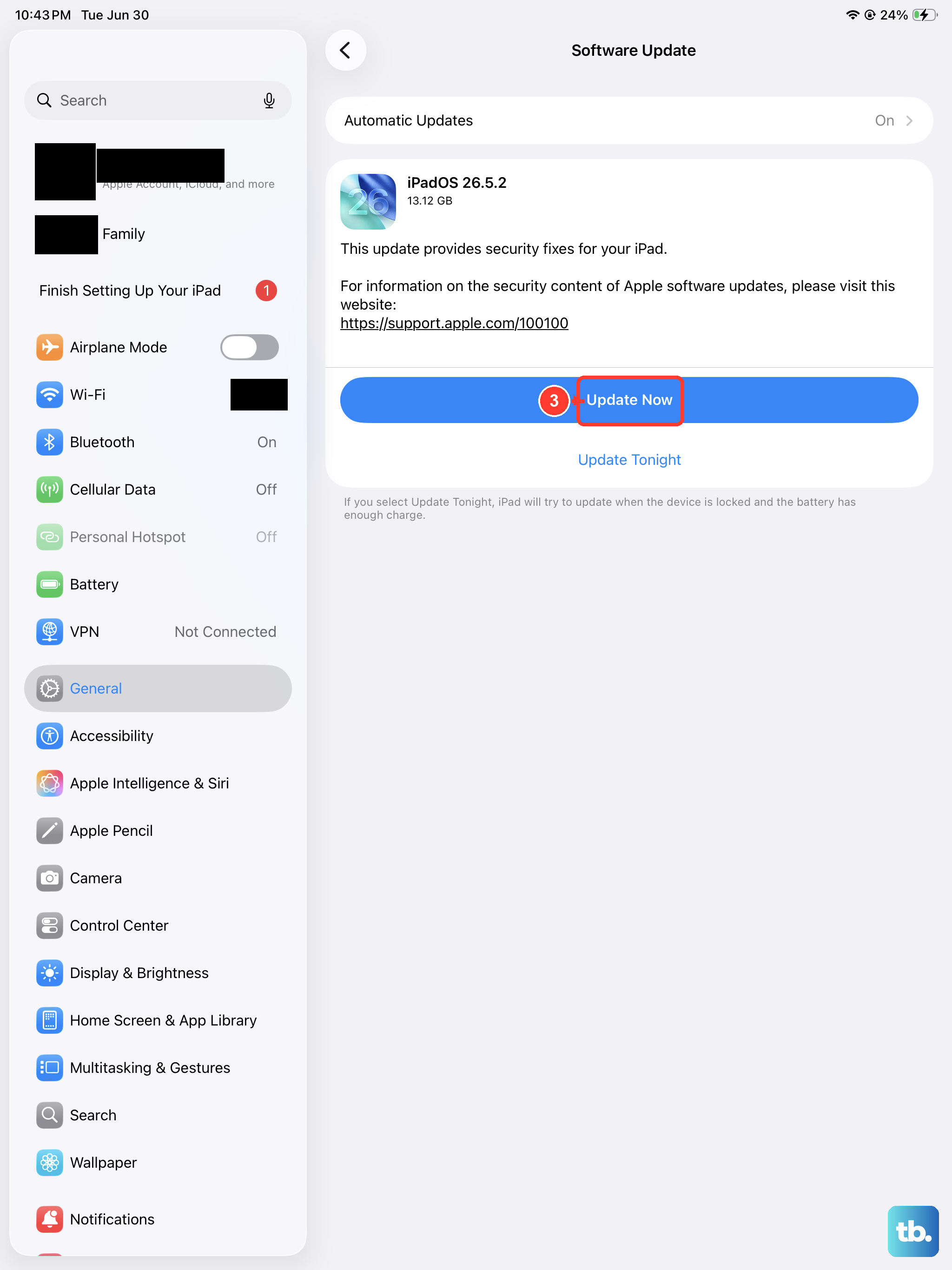
Apple regularly pushes patches that address Wi‑Fi stability issues. Go to Settings > General > Software Update. If there's a pending update, download and install it. A software glitch specific to an earlier build of iPadOS 18 might be the only thing standing between you and a solid connection.
Reset Network Settings
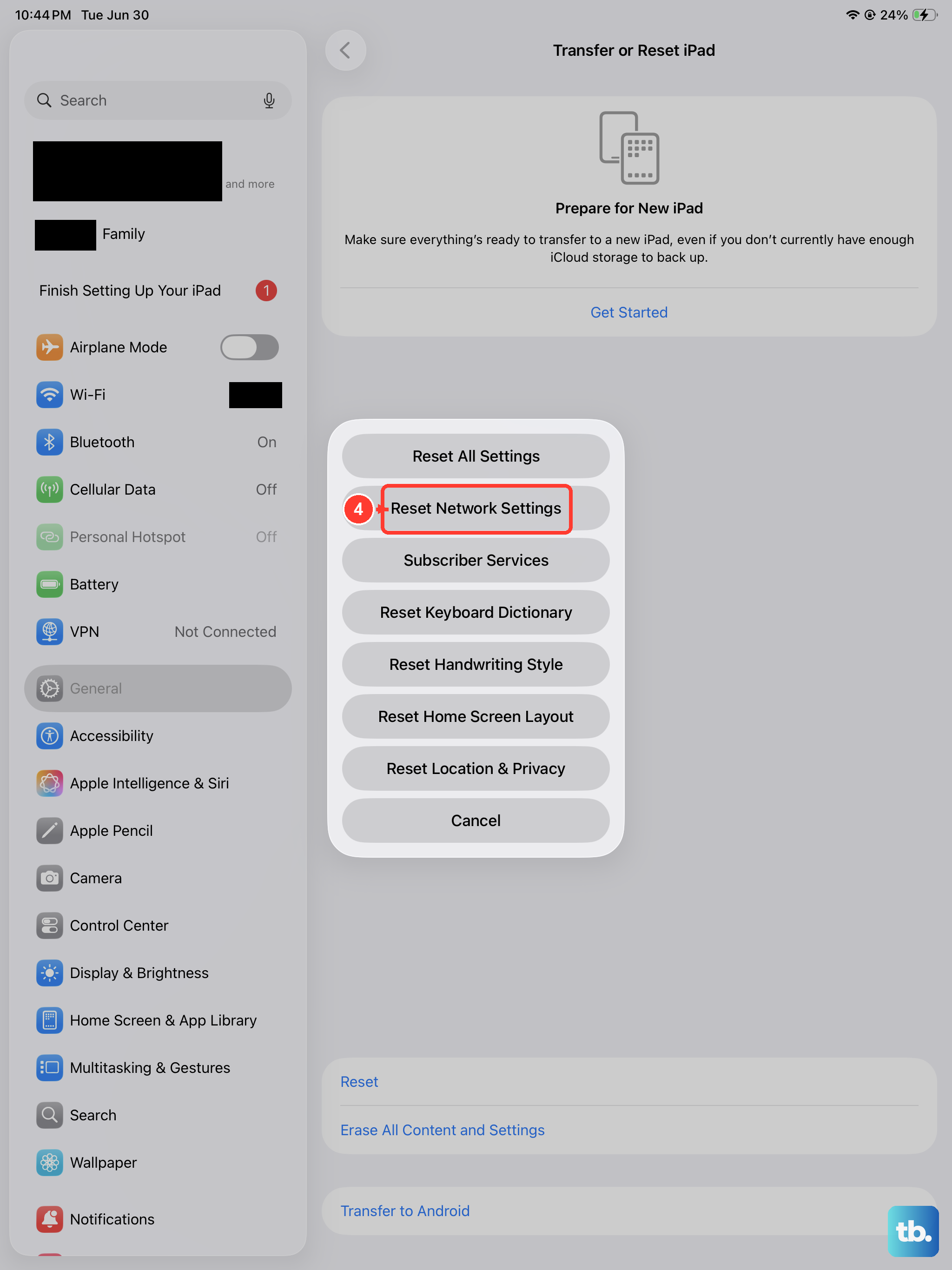
If you've tried the simpler fixes and Wi‑Fi still won't behave, a network settings reset can clear out deeper configuration problems. Head to Settings > General > Transfer or Reset iPad > Reset > Reset Network Settings. This wipes all saved Wi‑Fi networks, Bluetooth pairings, and VPN configs, so you'll need to re‑enter your Wi‑Fi password afterward. It won't touch your photos, apps, or other data.
Restart Your Router
Don't overlook the router itself. Unplug it from power, wait a full 60 seconds, then plug it back in. If other devices in your house are also struggling with Wi‑Fi, the router was almost certainly the culprit. While you're at it, check if the router's firmware needs an update, older firmware can have compatibility hiccups with newer iPadOS versions.
Turn Off VPN and Network Profiles
VPNs, ad‑blocking DNS profiles, and configuration profiles installed from work or school can interfere with Wi‑Fi negotiation. Go to Settings > General > VPN & Device Management and temporarily disable any active VPN or remove profiles you don't need. If Wi‑Fi starts working, you've found the conflict.
Factory Reset (Last Resort)
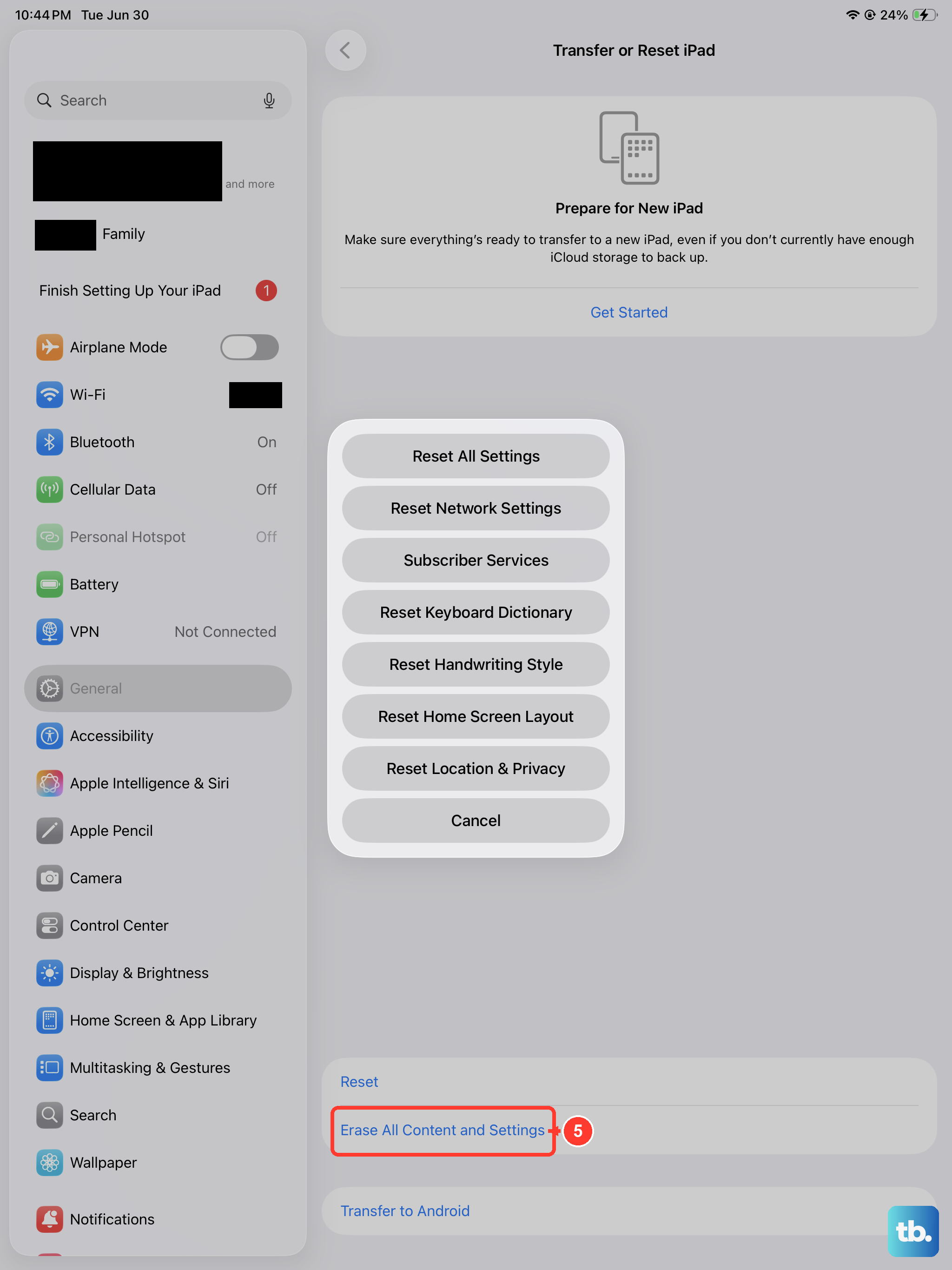
If absolutely nothing else has worked, a factory reset will bring your iPad Pro M5 back to its default state. Back up everything first, this erases all content and settings. Go to Settings > General > Transfer or Reset iPad > Erase All Content and Settings. After the reset, set up as new and test Wi‑Fi before restoring from a backup. If Wi‑Fi still fails after a factory reset, you may be dealing with a hardware issue with the Wi‑Fi antenna. In that case, it's time to book an appointment with Apple Support or an authorized repair shop.