
When "Hey Siri" goes quiet on your iPad Pro M5, it can be a real hassle. You're left tapping the screen when you'd rather just speak. Let's walk through the fixes for this issue on the 11-inch or 13-inch model running iPadOS 18.
Check Your Basic Siri Settings
First, make sure Siri is actually turned on. This sounds obvious, but settings sometimes reset after an update.
Go to Settings > Apple Intelligence & Siri (or just Siri & Search in older iPadOS builds). Make sure Listen for "Hey Siri" is toggled on. Also enable Allow Siri When Locked if you want hands-free use with the iPad asleep.
If those were already on, toggle Listen for "Hey Siri" off and back on. This can nudge the voice recognition engine awake again.
Interference: Do Not Disturb and Sound Recognition
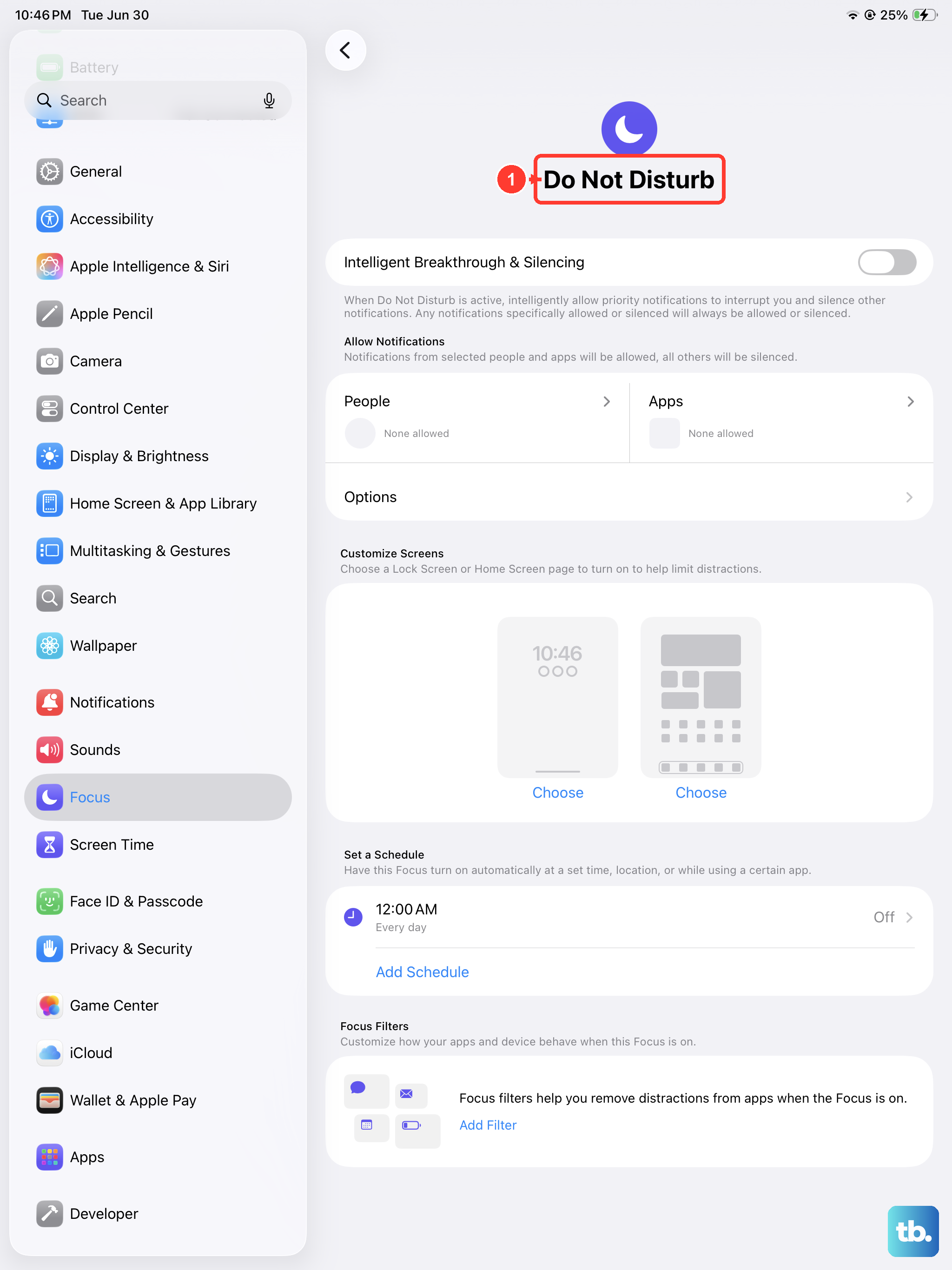
Your iPad Pro M5 has a few settings that can silently block Siri from listening.
Do Not Disturb or any Focus mode can prevent Siri from responding when the screen is off. Swipe down from the top-right corner to open Control Center. Tap Focus and make sure it's off, or check that Siri is allowed in your active Focus configuration under Settings > Focus.
Sound Recognition, an accessibility feature, is a common culprit. When enabled, it takes over audio processing and disables "Hey Siri." Go to Settings > Accessibility > Sound Recognition and turn it off.
Bluetooth Accessories
Connected Bluetooth devices can sometimes hog the microphone or confuse Siri. Try disconnecting your AirPods, keyboard, or any audio device. Test Siri with nothing paired. If it works, reconnect devices one by one to find the troublemaker.
Audio and Volume: Can You Hear Siri?
If Siri seems to respond but you don't hear anything, check your volume. Make sure the iPad isn't muted and the volume is turned up. Press the volume buttons on the left edge of the iPad.
You can also force Siri to speak even when silent mode is on. Go to Settings > Apple Intelligence & Siri > Siri Responses. Choose Always under "Spoken Responses" to ensure you hear Siri's replies.
Device Position and the Microphone
By default, Siri won't listen when your iPad is lying face down on a table or covered. That's a privacy feature. You can change it: go to Settings > Accessibility > Siri and toggle Always Listen for "Hey Siri" on.
The iPad Pro M5 has multiple microphones, but they can get blocked. Check that your case or screen protector isn't covering the microphone ports (located on the top edge and near the rear camera bump). Clean any visible dust gently with a soft, dry brush. Avoid liquids or sharp objects.
Retrain Siri to Recognize Your Voice
If Siri struggles to hear you specifically, teaching it your voice again can help. Go to Settings > Apple Intelligence & Siri. Turn off Listen for "Hey Siri", wait a few seconds, then turn it back on. Follow the on-screen prompts to repeat several phrases. Speak naturally but clearly. This setup is stored per device, so it's worth redoing if you've changed your voice (sore throat, new location with background noise).
Restart or Force Restart
A simple restart clears temporary glitches. Hold the Top button and either volume button until the Power Off slider appears, then slide to power off. Wait 30 seconds and turn it back on with the Top button.
If the iPad is unresponsive or Siri still won't work, force restart it. This won't erase data: press and quickly release the Volume Up button, then press and quickly release the Volume Down button, then press and hold the Top button until the Apple logo appears. Let go when you see the logo.
Update iPadOS
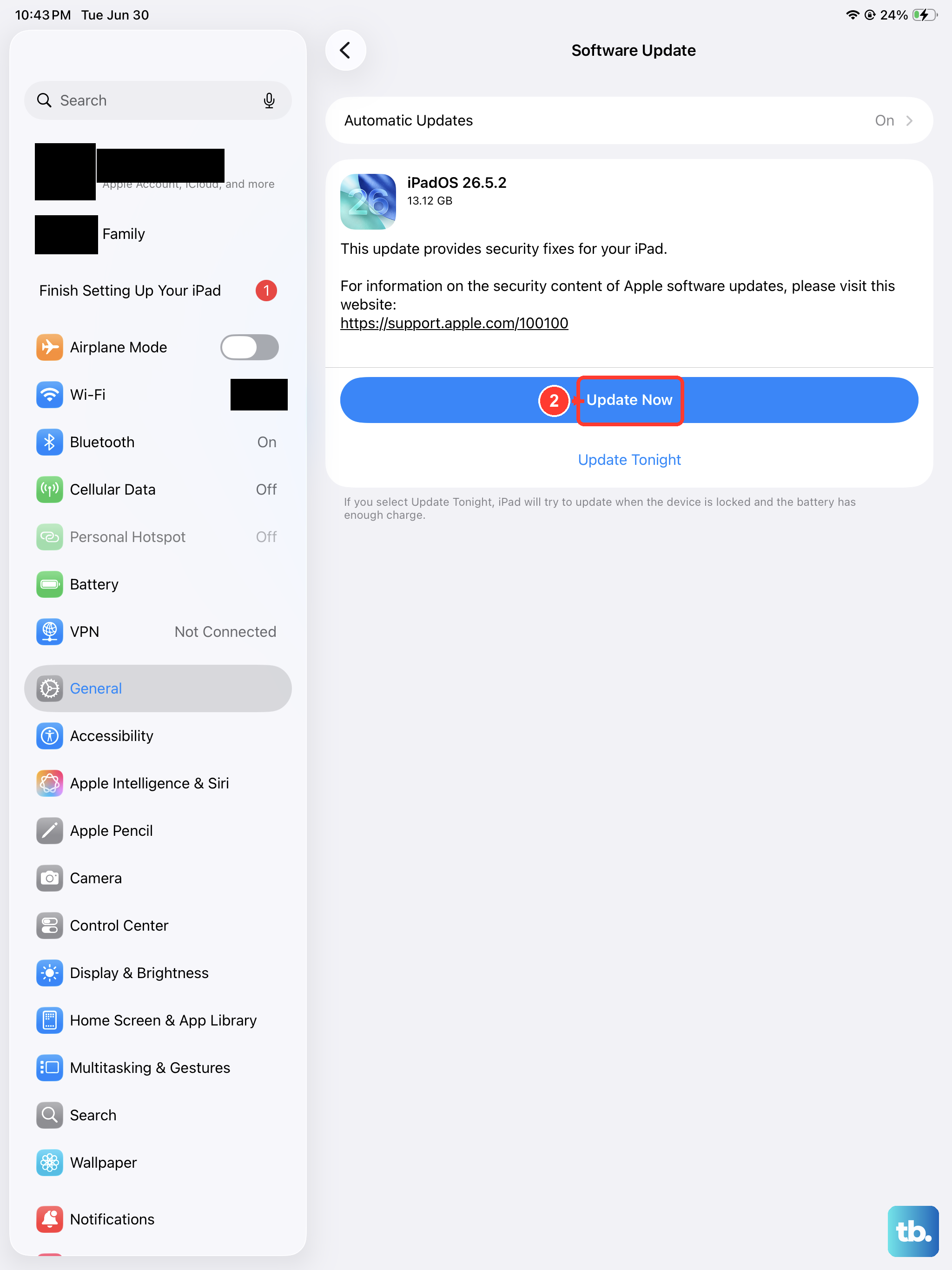
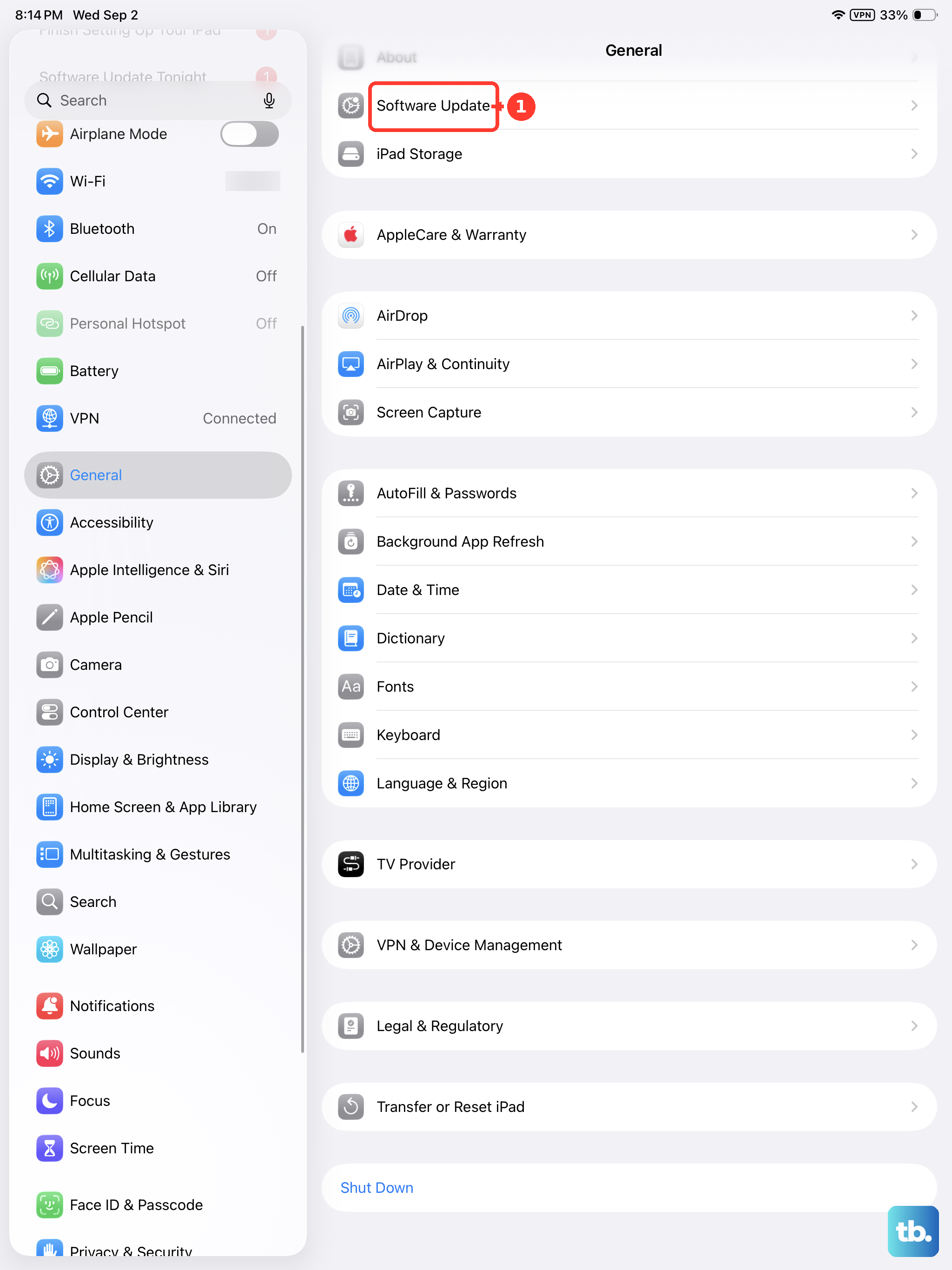
Apple frequently releases updates that fix Siri bugs and speech recognition improvements. Go to Settings > General > Software Update. If an update is available, download and install it. The iPad Pro M5 shipped with iPadOS 18, so make sure you're on the latest point release (like 18.3 or higher).
Check Internet Connection
While iPadOS 18 supports on-device Siri for many offline requests, web searches, weather, and more still need an internet connection. Make sure your Wi-Fi is on and working. Open Safari and load a page to confirm. If you're having connection issues, toggle Airplane Mode on and off, or forget and rejoin your network.
Reset All Settings (Without Losing Data)
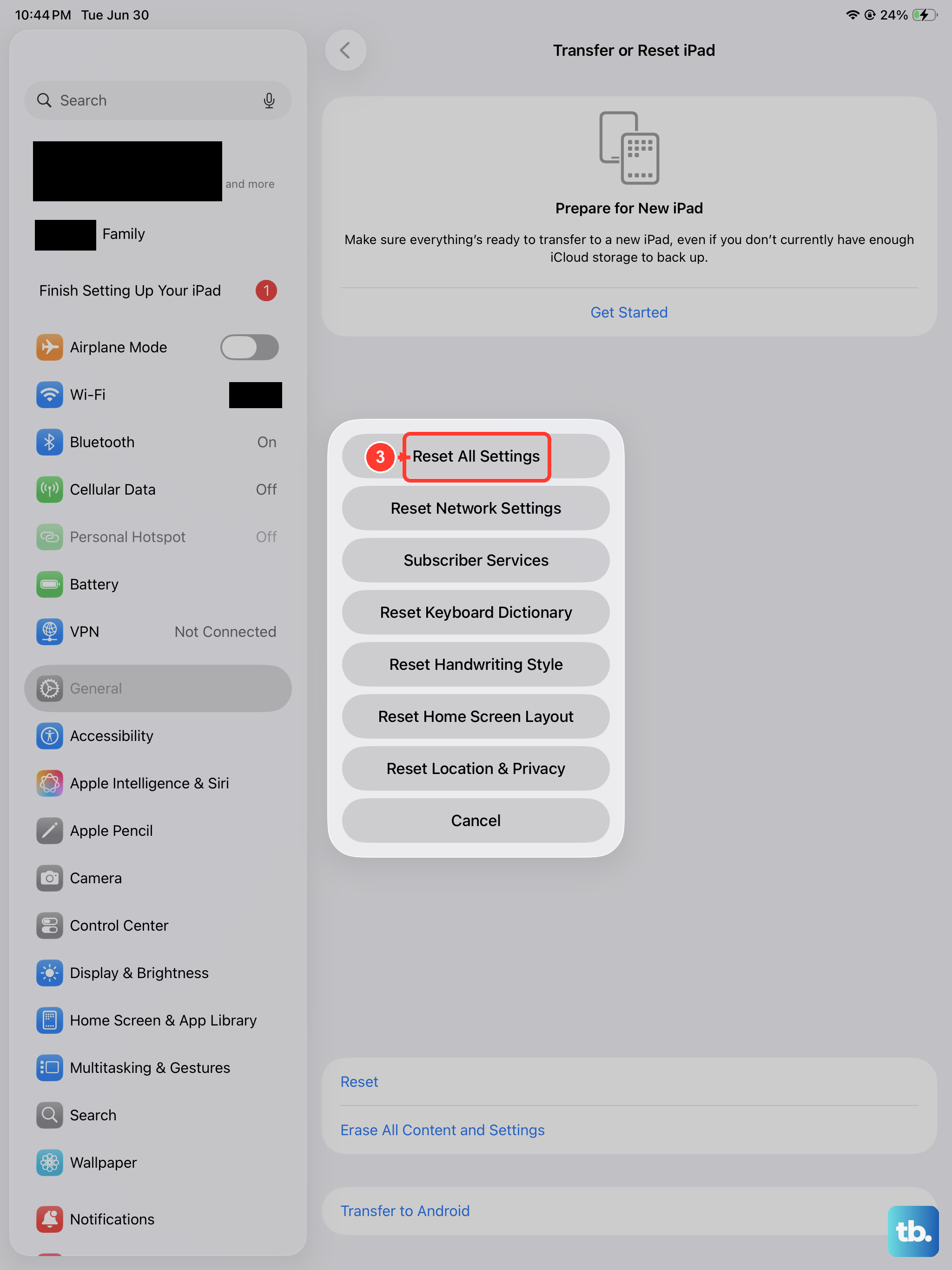
If nothing else has worked, a full settings reset can fix corrupted configurations without touching your photos or apps. Go to Settings > General > Transfer or Reset iPad > Reset > Reset All Settings. You'll need to re-enter Wi-Fi passwords and reconfigure your Siri preferences, but your data stays intact. Test Siri after the iPad reboots.