
Running out of storage on an iPad Pro M5 is a real speed bump, especially when you're in the middle of editing a video or downloading a new game. The good news is you can usually free up a significant chunk of space without deleting anything essential. Here's how to clear things up on iPadOS 18.
Check the Storage Screen
Go to Settings > General > iPad Storage. This gives you a complete breakdown of what's taking up space, sorted by app size. Wait a few seconds for the bar graph and list to load fully. This single screen tells you exactly where to start hunting.
Offload Unused Apps
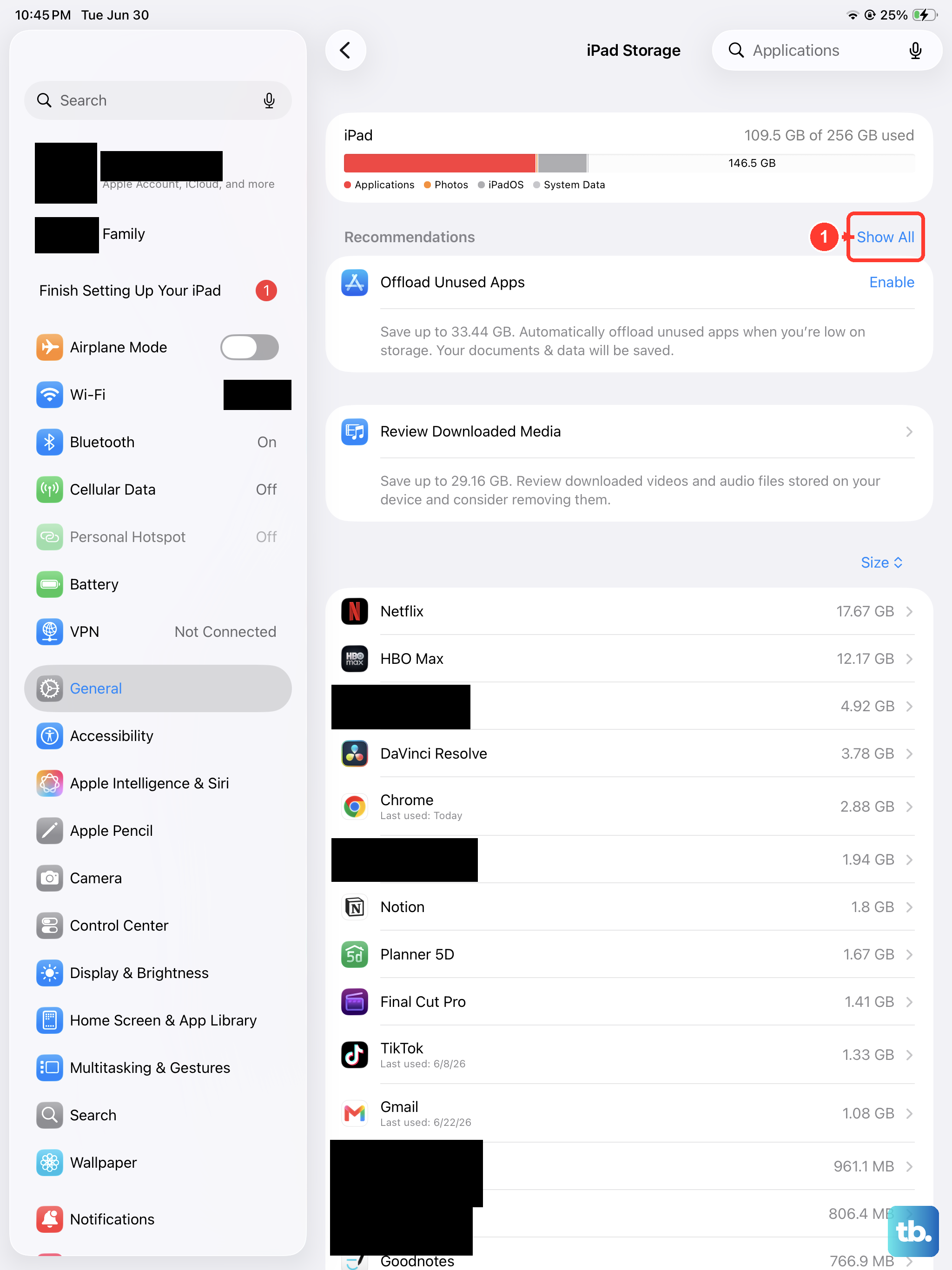
Still in the iPad Storage screen, look for the option to Offload Unused Apps and enable it. Your iPad will automatically remove apps you haven't touched in a while, but it keeps all their documents and settings intact. Tap the app icon later and it re-downloads instantly, right where you left off.
Clear Out Old Messages
Messages can quietly eat up gigabytes with photos, videos, and Memoji stickers you forgot about. Tap on Messages in the iPad Storage list to see a breakdown of attachments. You can swipe left on old conversations or tap Edit to delete large attachments in bulk. Set messages to auto-delete after 30 days by going to Settings > Apps > Messages > Keep Messages.
Delete and Reinstall Large Apps
Some apps build up massive caches over time, especially social media, streaming, and editing apps. In the iPad Storage list, check apps like Instagram, TikTok, Netflix, or your video editor of choice. If the "Documents & Data" section is way bigger than the app itself, tap the app and select Delete App, then reinstall it fresh from the App Store. This flushes the cache while keeping your login info safe with iCloud Keychain.
Optimize Photos and Videos
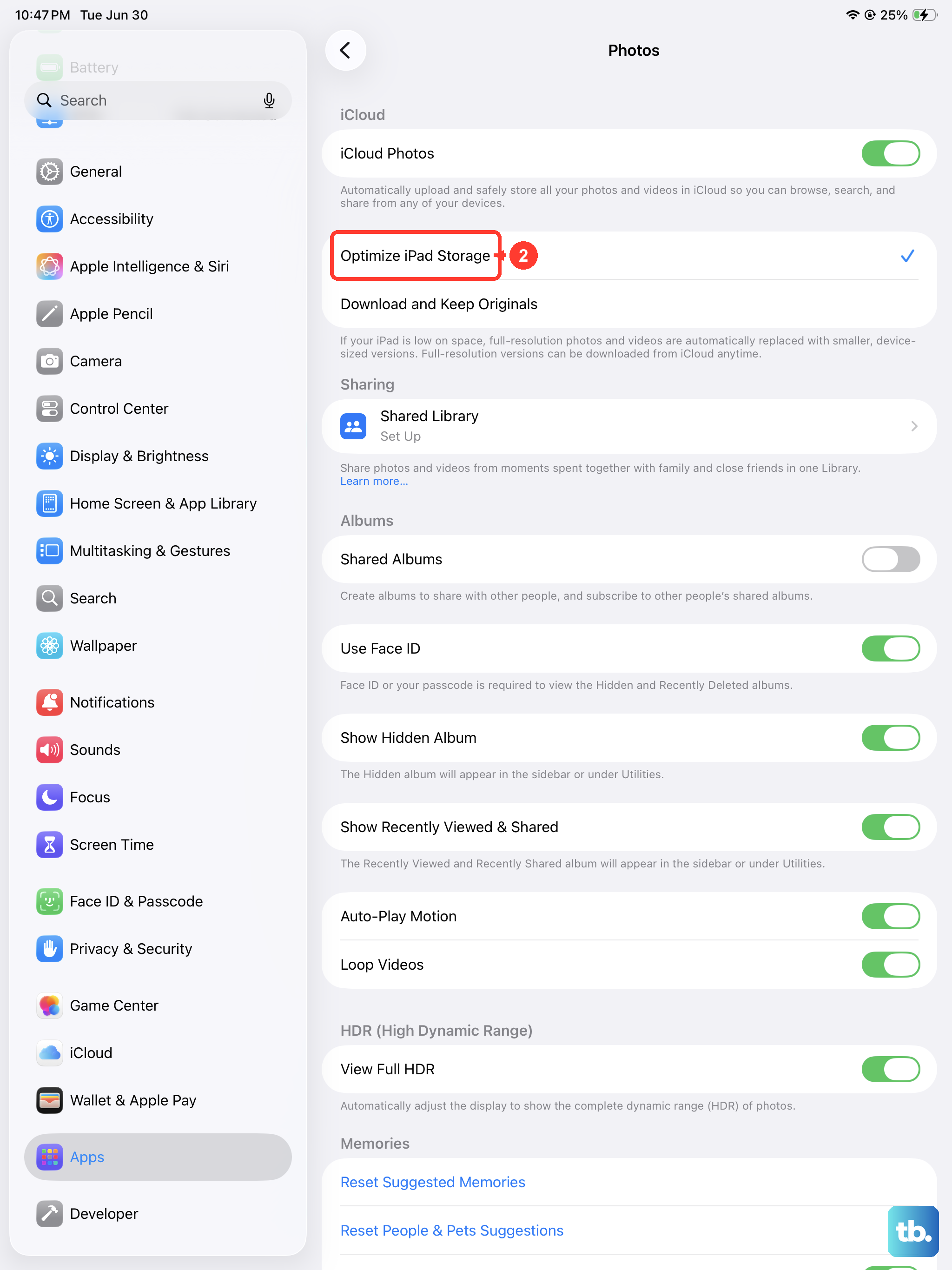
Photos and videos are usually the biggest storage hogs on any iPad Pro. Go to Settings > Apps > Photos and enable Optimize iPad Storage. This keeps full-resolution originals in iCloud and stores smaller versions on your device. Head to the Photos app, check the Recently Deleted album, and tap Delete All to permanently clear those files out.
Clear Safari Website Data
If you do a lot of browsing on your iPad Pro, Safari's caches can pile up quickly. Go to Settings > Apps > Safari > Clear History and Website Data. This removes cached pages, cookies, and browsing history without touching your saved passwords. It usually frees up a decent amount of space with no downsides.
Remove Downloaded Media in Streaming Apps
Apps like Netflix, Spotify, Apple TV+, and Disney+ store downloaded episodes and playlists locally. Open each app, go to the downloads section, and delete anything you've already finished watching or listening to. In Spotify, that's Settings > Storage > Remove all downloads. In Netflix, go to My Downloads and swipe away completed shows.
Clean Up the Files App
The Files app can turn into a dumping ground for old downloads, cached cloud files, and temporary renders. Open Files and tap Browse at the bottom. Check the Downloads folder and any cloud service folders you don't fully sync. Swipe left on files you no longer need and tap Delete to toss them out.
Check for System Data Bloat
After an iPadOS update, the System Data category in iPad Storage can sometimes spike unexpectedly. If you see it sitting at 10GB or more, try restarting your iPad Pro first. If that doesn't shrink it, plug your iPad into a Mac or PC and do a backup and restore through the Finder or iTunes. This forces a clean rebuild of temporary system files.
Use iCloud Storage Wisely
If you're constantly fighting for space, an iCloud+ upgrade is a practical solution. With iCloud Photos, Messages in iCloud, and iCloud Backup enabled, your local storage extends into the cloud. Go to Settings > [Your Name] > iCloud > Manage Account Storage to check your usage and pick an upgrade that fits your workflow.