
When your iPad Pro M5 suddenly goes quiet, it can feel like the device is broken. But in most cases, the fix is simpler than you think. Whether you're getting no sound at all, low volume, or distorted audio, these steps should get your speakers working again.
A browser based speaker test helps narrow this down fast. If test tones play clearly, the speakers work and the problem lives in an app or setting.
Check the Side Switch and Volume
The iPad Pro M5 has a physical side switch above the volume buttons. By default it mutes the device, but it can also lock rotation. Swipe it to make sure it's not showing an orange indicator. If you see orange, flick it the other way.
Now press the Volume Up button while playing audio. Then open Control Center (swipe down from top-right corner) and check the volume slider isn't all the way down. Sometimes the volume gets stuck at zero after connecting external speakers.
Make Sure Audio Isn't Going to Bluetooth
Your iPad might be sending sound to a connected pair of AirPods, a speaker, or even a TV. Open Control Center and tap the AirPlay icon in the music box. If it shows something other than "iPad", tap that device and select your iPad instead.
You can also go to Settings > Bluetooth and turn Bluetooth off entirely. If sound comes back, a previously paired device was stealing the audio. Disconnect it from the Bluetooth list so it doesn't auto-connect.
Clean the Speaker Grills
The iPad Pro M5 has four speaker grills two on top and two on bottom. Dust and pocket lint can block them over time. Grab a soft, dry toothbrush or a clean paintbrush and gently brush across the grills. Don't use compressed air, as it can push debris further in.
Hold the iPad up to a bright light to see if any gunk is lodged in the speaker holes. If you see stubborn debris, a dry cotton swab can help. Never stick anything sharp in there the speaker mesh is delicate.
Turn Off Do Not Disturb and Focus Modes
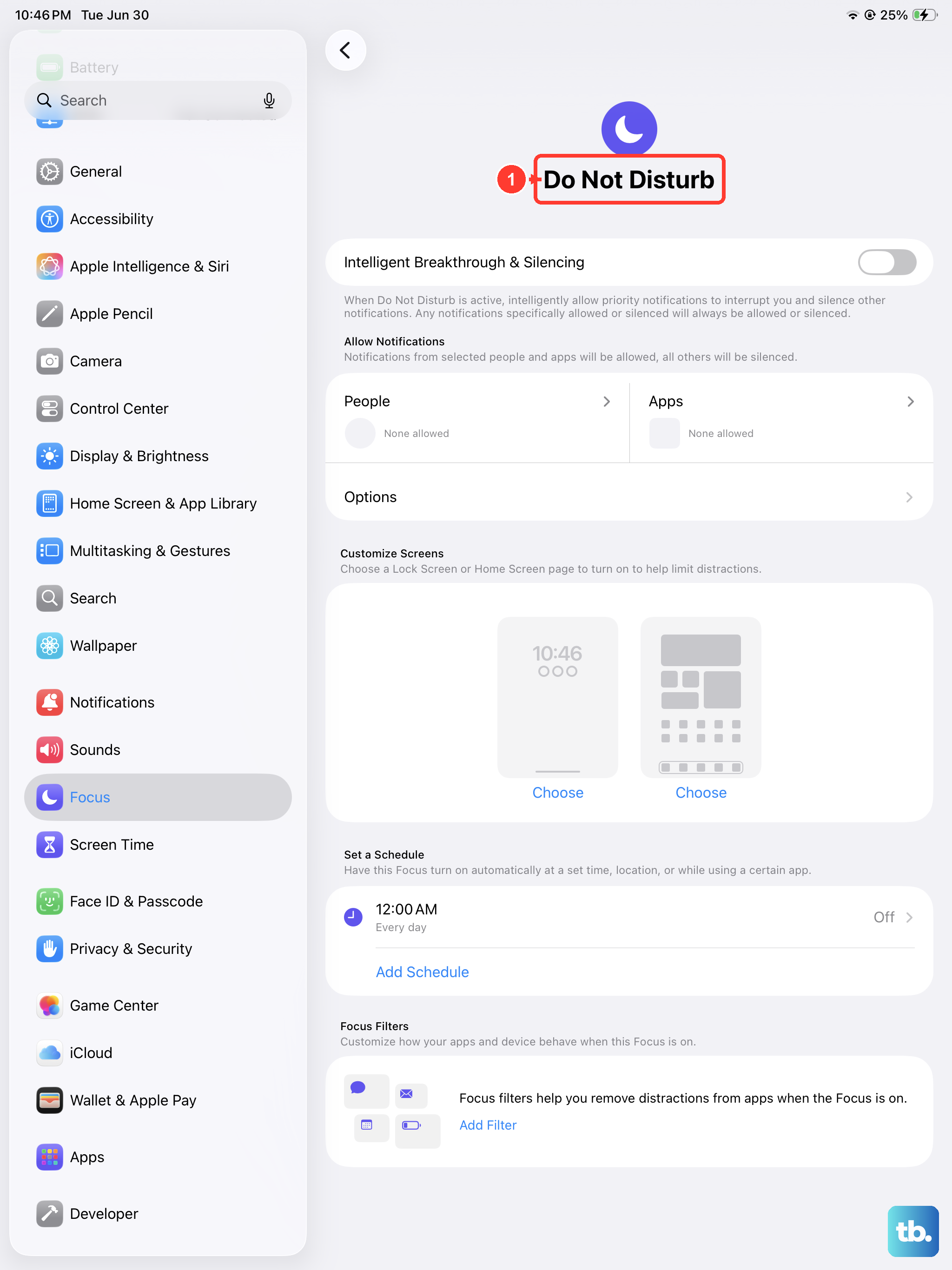
Sometimes Do Not Disturb or a Focus mode can suppress sound notifications without you realizing. Swipe down from top-right to open Control Center and check if the crescent moon icon is highlighted. Tap it to turn it off.
You can also go to Settings > Focus and make sure no active mode is silencing alerts. Even if you don't use Focus, a scheduled or automated one might have kicked in by accident.
Force Restart the iPad
A simple restart often clears temporary glitches, but if your screen is also unresponsive, a force restart works without unlocking. Press and quickly release the Volume Up button, then press and quickly release the Volume Down button, then press and hold the Top button until the Apple logo appears. Release when you see the logo.
This doesn't erase any data. It just forces the system to reload, which can fix audio issues caused by a stuck background process.
Update iPadOS
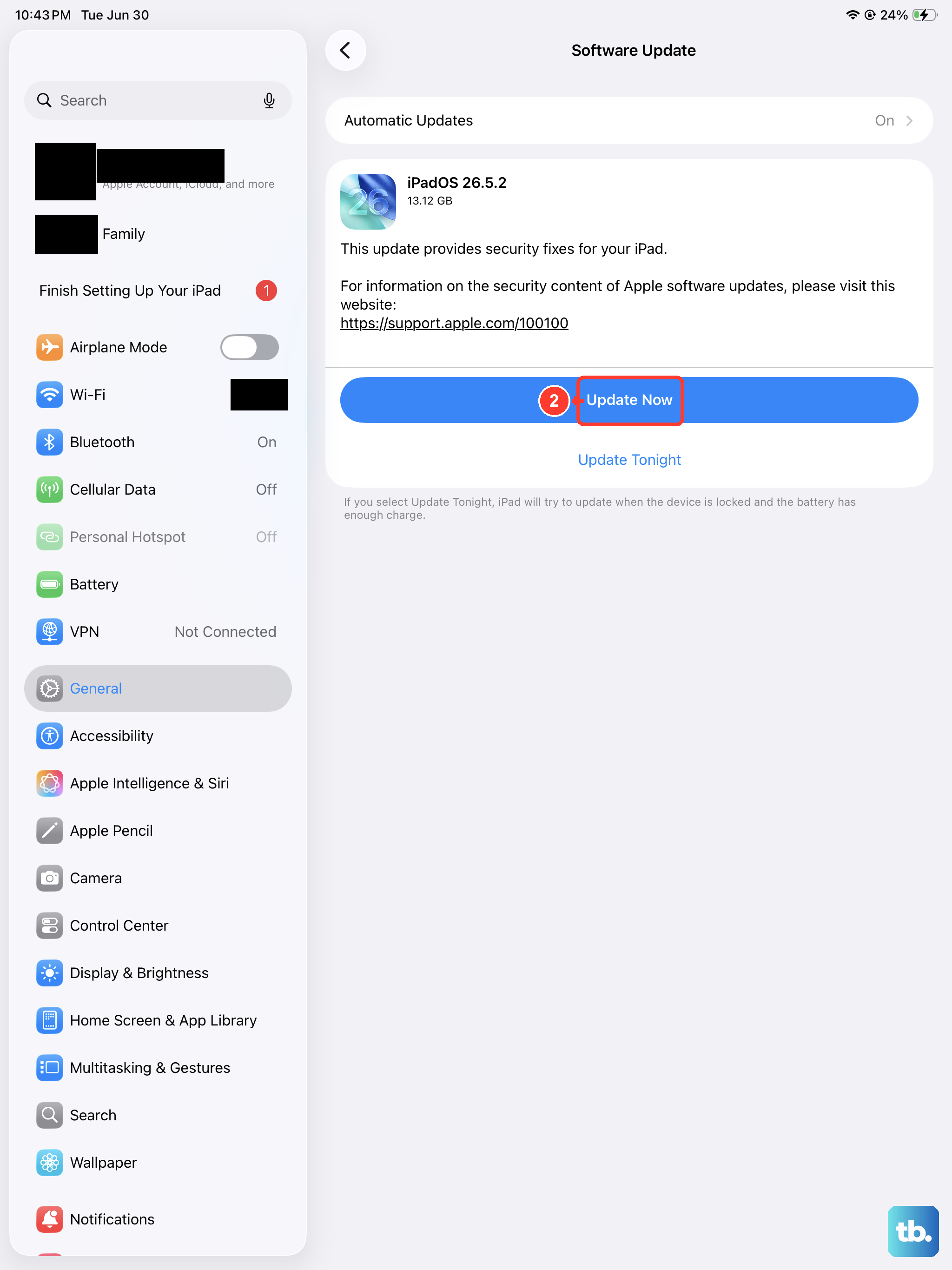
Apple regularly releases software updates that patch audio bugs. Go to Settings > General > Software Update. If an update is available, download and install it overnight. Plugging into power helps prevent interruptions.
After the update, test the speakers again. I've seen a few M5 users report that iPadOS 18.2 fixed intermittent crackling sound that started after a previous update.
Check Individual App Volume
Some apps have their own volume sliders or mute settings. For example, YouTube, Spotify, and Netflix each have in-app volume controls. Open the app you're having trouble with and check if it's muted inside the app.
Also go to Settings > Sounds and look for any per-app sound settings. iPadOS allows you to route specific apps to different audio outputs, so make sure nothing is accidentally set to "No Sound" or sent to a missing device.
Reset All Settings
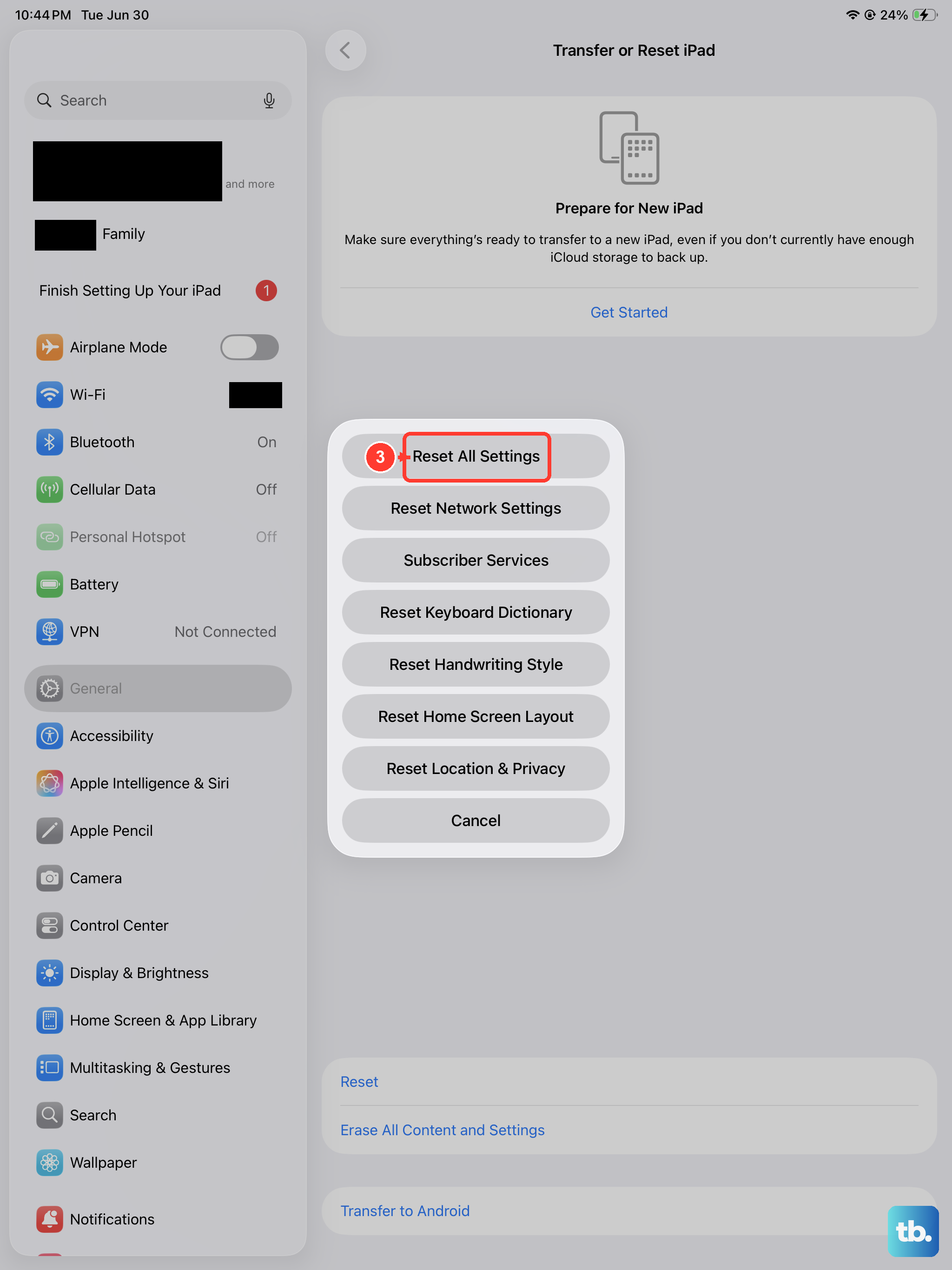
If the problem continues but only affects certain apps or system sounds, resetting all settings can clear out corrupted preferences without deleting your photos, messages, or apps. Go to Settings > General > Transfer or Reset iPad > Reset > Reset All Settings.
The iPad will reboot and you'll need to re-enter Wi-Fi passwords and adjust a few preferences, but your personal data stays intact. For many people, this fixes lingering sound issues that nothing else could touch.
Factory Reset as a Last Resort
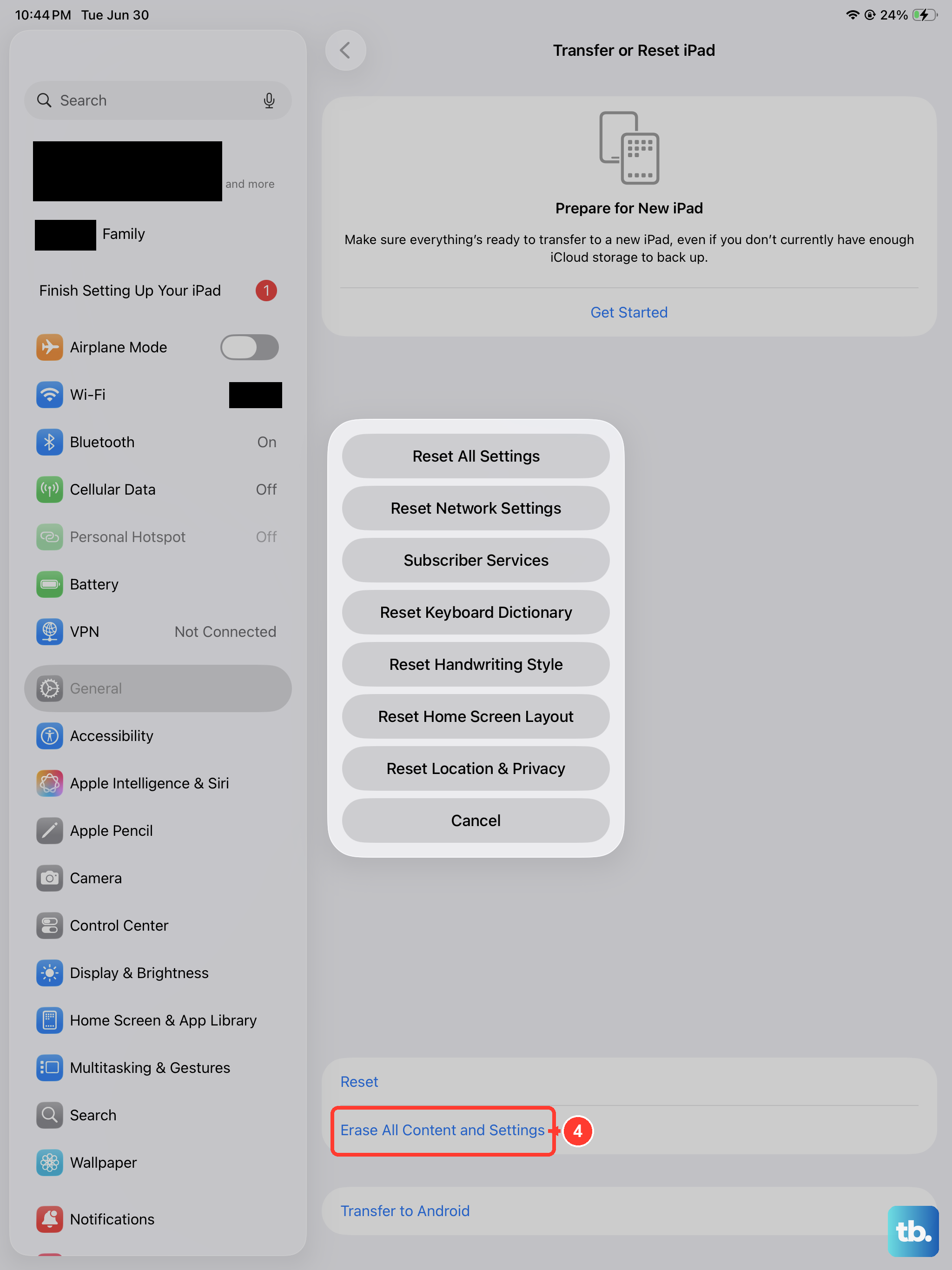
A factory reset removes everything from your iPad and restores it to out-of-box condition. Back up your data first either to iCloud or a computer. Then go to Settings > General > Transfer or Reset iPad > Erase All Content and Settings.
After the reset, set up your iPad as new (don't restore a backup yet). If sound works perfectly now, the problem was caused by a corrupted setting or third-party app in your backup. You can then try restoring your backup and see if the issue returns. If it does, you'll know to rebuild from scratch.