
Screen flickering on a brand new iPad Pro M5 is frustrating, especially when you're trying to work or watch something. The display might flash, show horizontal lines, or stutter intermittently. It usually comes down to a software glitch, a misbehaving app, or in some cases, a hardware issue. Here's how to figure out which one it is.
Force Restart the iPad Pro M5
If the screen is acting erratically, a force restart clears out temporary system glitches without erasing anything. The sequence matters on these newer iPads. Press and quickly release the Volume Up button, then press and quickly release the Volume Down button, then press and hold the Top button until the Apple logo appears. Hold the Top button through the logo until the iPad fully boots up. Don't let go as soon as you see the Apple.
Turn Off ProMotion and True Tone
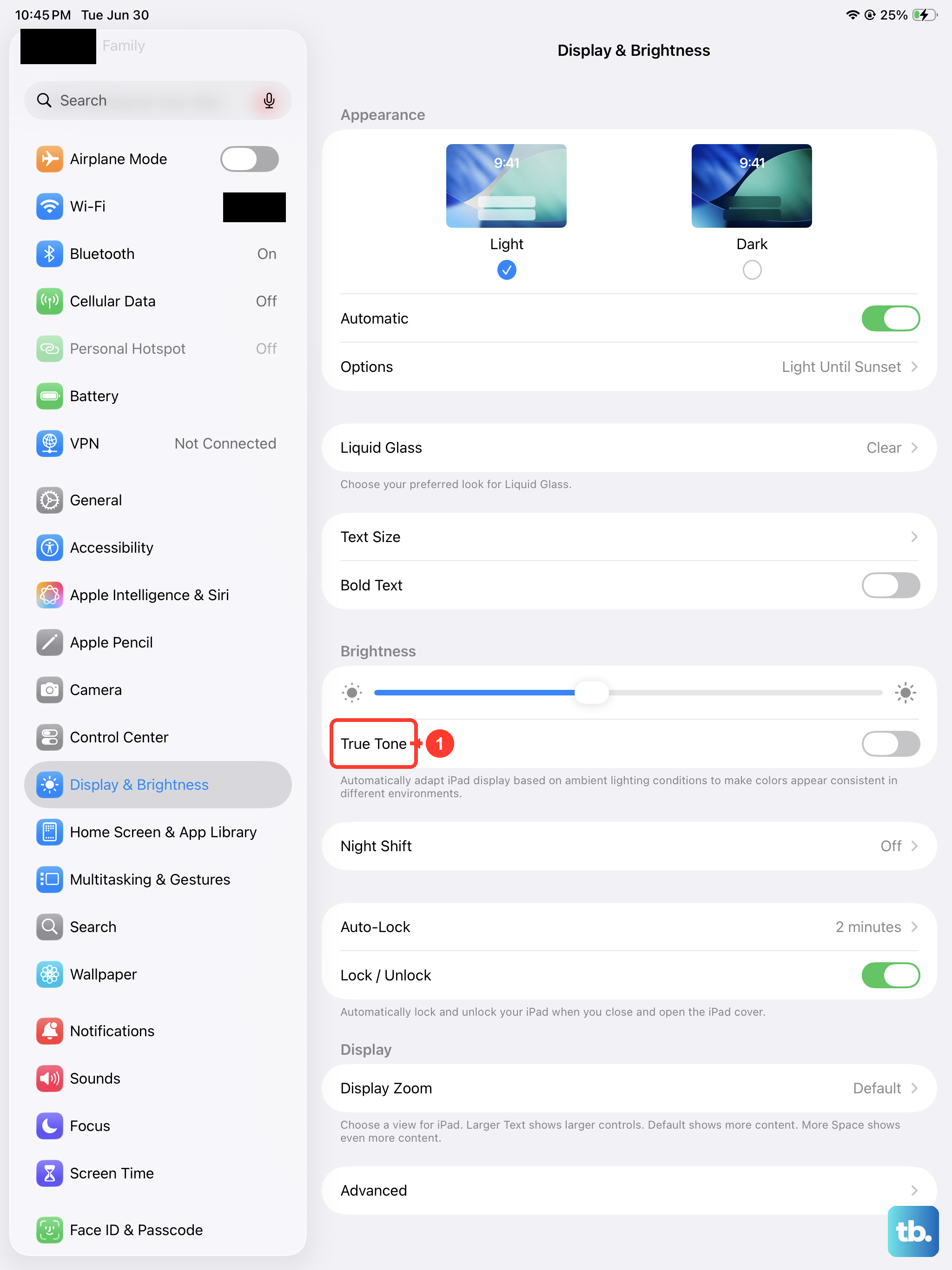
The iPad Pro M5 has a 120Hz ProMotion display that dynamically adjusts its refresh rate. Some apps or animations don't sync well with the variable refresh rate, causing a flickering or stuttering effect. Go to Settings > Accessibility > Motion and toggle on Limit Frame Rate. This locks the screen to 60Hz. If the flickering stops, the issue was tied to ProMotion. While you're at it, head to Settings > Display & Brightness and toggle off True Tone. A glitchy ambient light sensor can also cause subtle brightness flickers.
Check for iPadOS 18 Updates
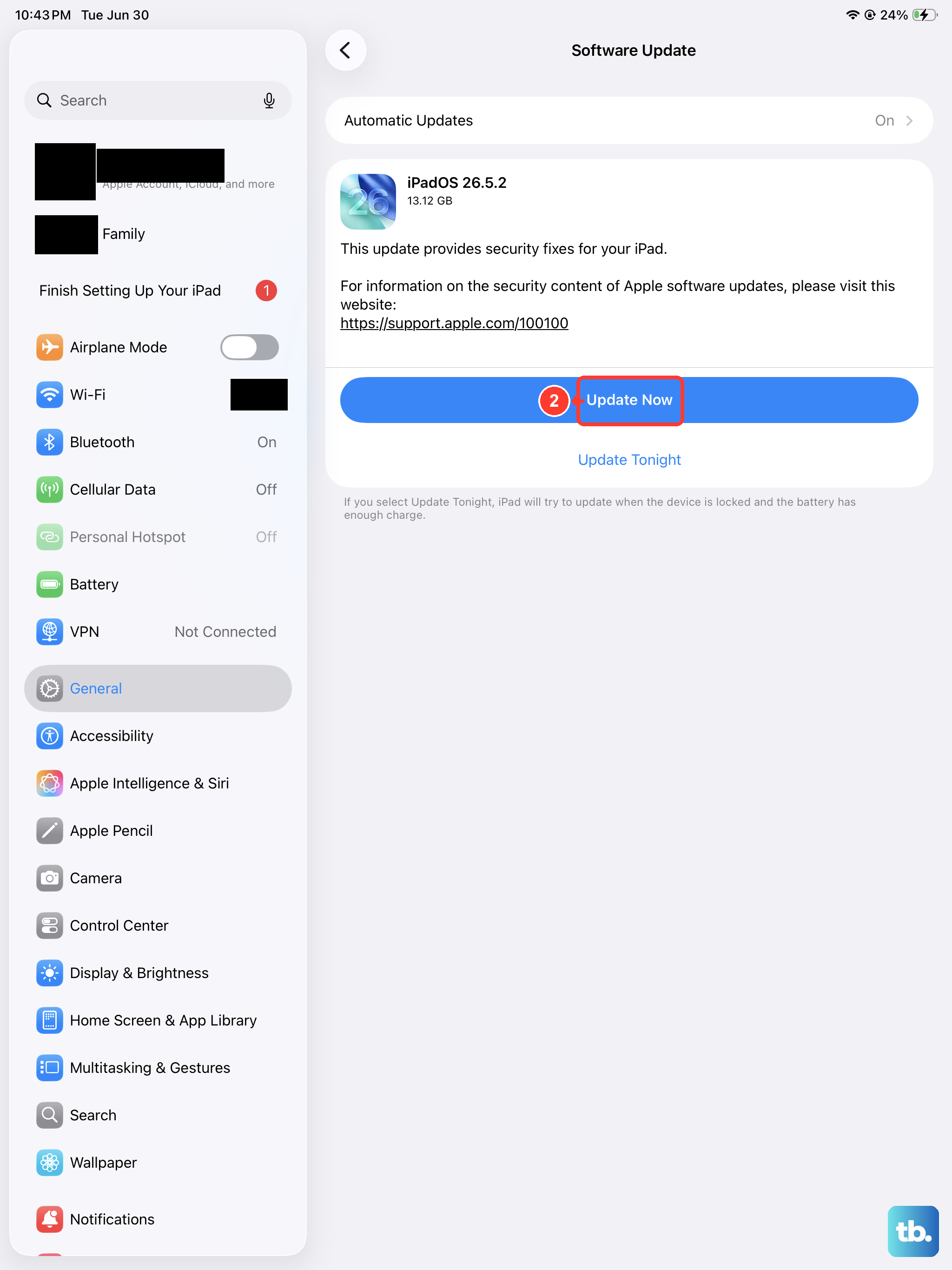
Display bugs are common in early operating system builds, and iPadOS 18 is no exception. Apple frequently pushes patches for screen-related issues, especially on new hardware like the M5. Open Settings > General > Software Update and install any available update. If you're running a beta version, revert to the stable release. Beta software is one of the most common causes of unexplained screen flickering on a working display.
Disable Auto-Brightness and Reduce White Point
Auto-brightness relies on the ambient light sensor, and if the sensor data gets corrupted, the screen can flicker as it constantly adjusts. Go to Settings > Accessibility > Display & Text Size and toggle off Auto-Brightness. While you're in that same menu, make sure Reduce White Point is also disabled. This setting can interact with brightness controls and occasionally produce a strobe-like effect on OLED displays.
Close Misbehaving Background Apps
A single rogue app can hog system resources and cause erratic display behavior. Swipe up from the bottom of the screen and pause to open the App Switcher. Swipe up on each app card to close everything out. If the flickering stops immediately, an app was the cause. Relaunch them one at a time to identify the specific culprit, then check the App Store for an update for that app or delete it entirely.
Reset All Settings
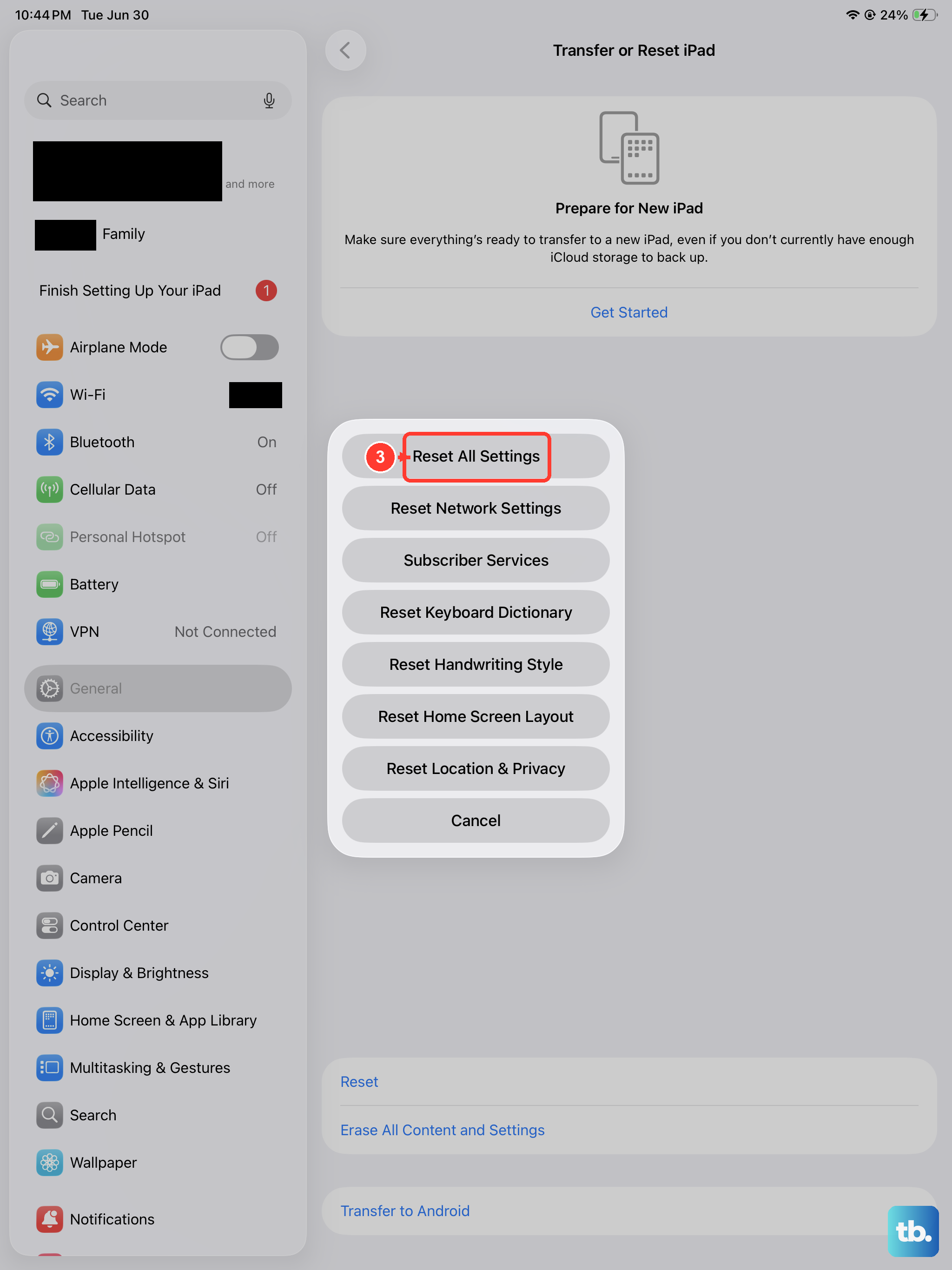
If the flickering persists but seems random, your system settings might have a conflict that a restart doesn't fix. Go to Settings > General > Transfer or Reset iPad > Reset > Reset All Settings. This clears things like Wi-Fi passwords, wallpaper, and display preferences, but it doesn't touch your photos, documents, or apps. It's a safe middle ground that often clears up weird display configuration errors.
Check for Physical Damage
The iPad Pro M5 is incredibly thin, which makes its display vulnerable to pressure or impact. If the flickering started shortly after a drop, or if you notice hairline cracks or color distortion, the display panel itself might be damaged. Look closely at the screen for any bright spots or areas where the color looks off. Physical damage isn't something software can fix, and the display will need to be serviced.
Erase and Restore the iPad
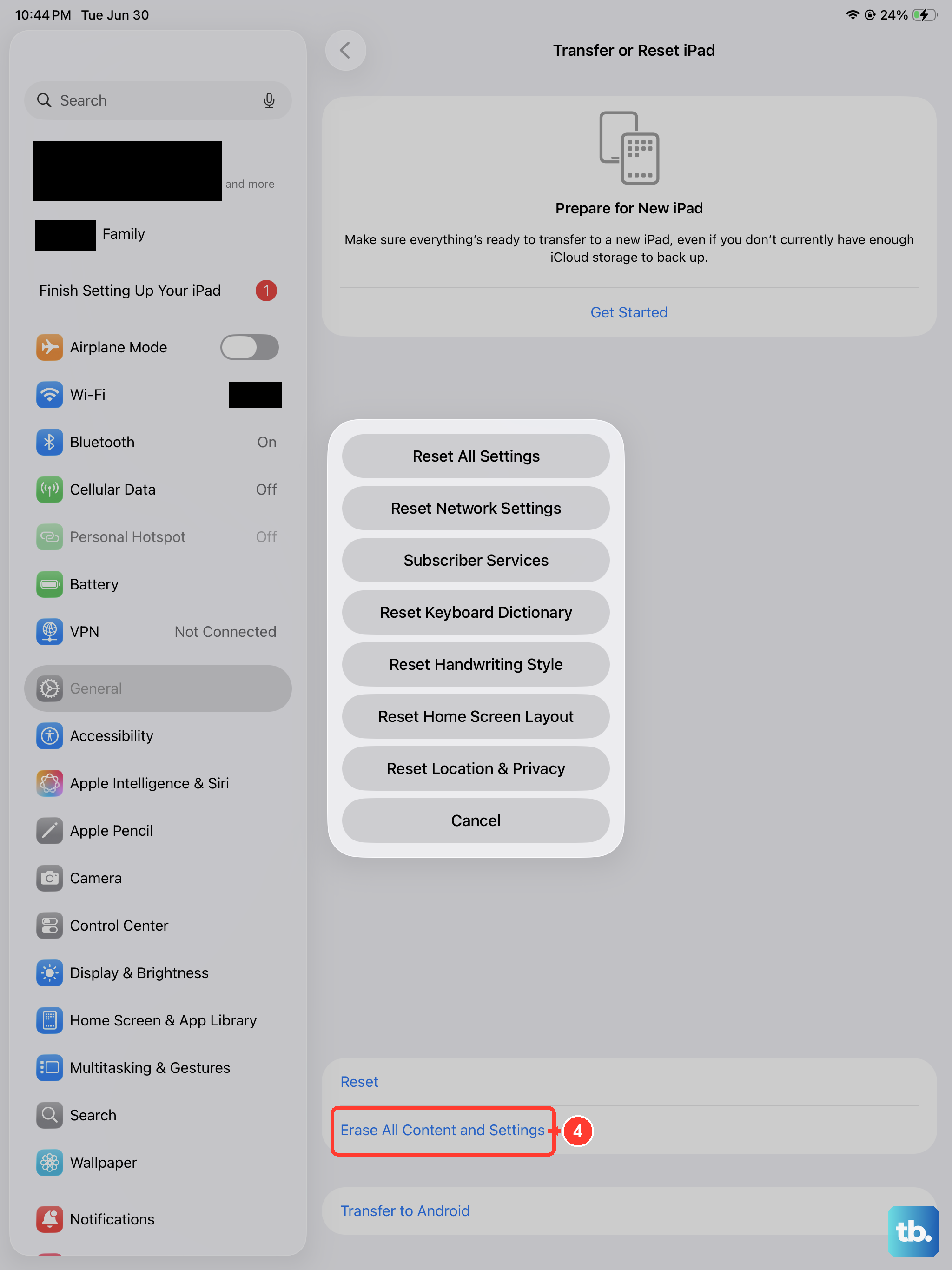
This is the definitive way to tell if the problem is software or hardware. Back up your data to iCloud or a computer first. Then go to Settings > General > Transfer or Reset iPad > Erase All Content and Settings. Set it up as a new iPad without restoring from a backup. If the screen flickers on a completely fresh install of iPadOS, the issue is hardware-related. If it doesn't flicker, a backup, app, or setting was causing the problem, and you can slowly reintroduce your data.