
You tilt your iPad Pro M5 to watch a video in landscape, and nothing happens. The screen stays stuck in portrait, or maybe it's locked in sideways orientation when you want it upright. Screen rotation issues on the iPad Pro M5 usually come down to a simple lock toggle or a quick software reset, but there are a few other things to check.
Check the Rotation Lock in Control Center
This is the most common culprit. iPadOS has a rotation lock that you can toggle directly from Control Center. Swipe down from the top-right corner of the screen.
Look for the lock icon with a circular arrow around it. If it's highlighted or showing a lock symbol next to it, rotation is locked. Tap it to unlock. Try tilting your iPad again, the screen should now rotate.
Try a Force Restart
Sometimes the rotation sensor or the software controlling it just gets confused by a glitch. A force restart clears that out without losing any data.
Press and quickly release the Volume Up button, then press and quickly release the Volume Down button, then press and hold the Top button until the Apple logo appears. It usually takes about 10 seconds of holding the Top button. Let go when you see the logo, and your iPad will reboot normally.
After it restarts, test rotation in a few apps like Photos or Safari to see if the issue is gone.
Check If the Problem Is App-Specific
Not every iPad app supports both portrait and landscape orientations. If rotation works fine in Safari but refuses to work in, say, a reading app or a game, the app itself might be locked to one orientation.
Open the App Store and check if there's an update for that app. Developers often add orientation support in updates. If the app hasn't been updated in years, it may never support rotation. Try a different app that you know supports both orientations to confirm it's the app and not your iPad.
Update iPadOS
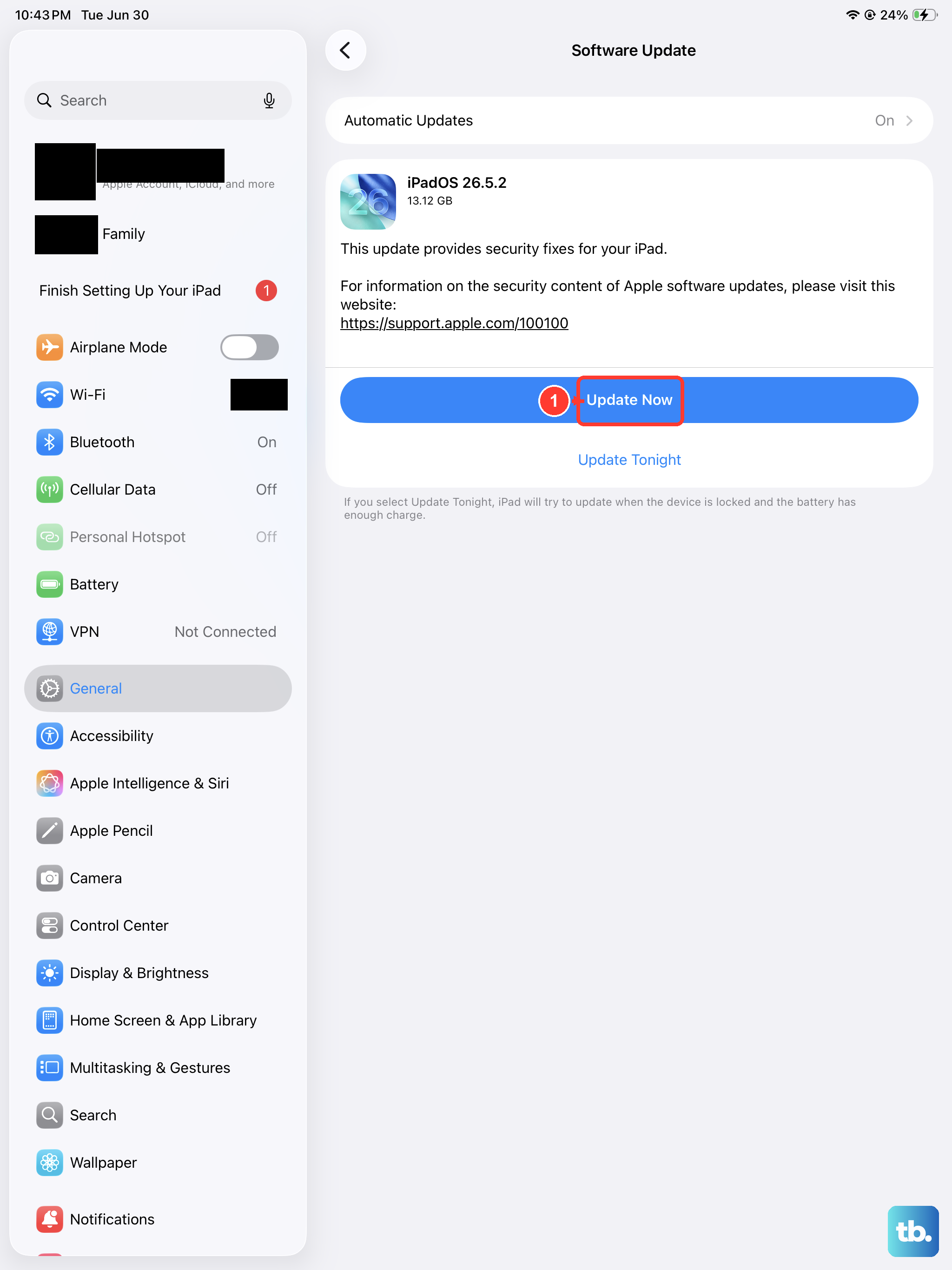
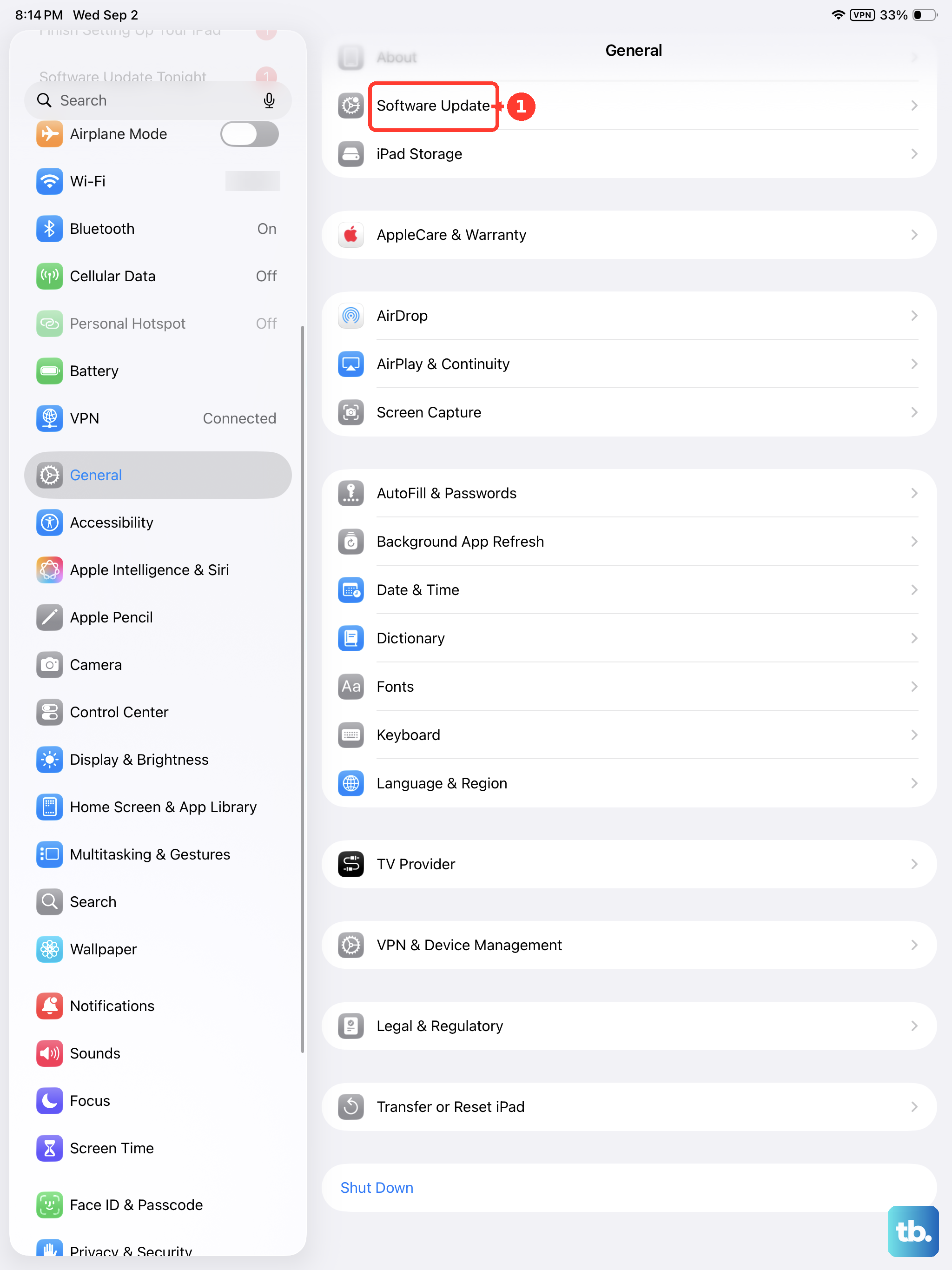
iPadOS 18 has had a few bug-fix updates since launch, and some of them addressed sensor-related issues. To check for updates, go to Settings > General > Software Update.
If an update is available, tap Download and Install. Let your iPad update and restart. Once it's back up, test rotation again.
Reset All Settings
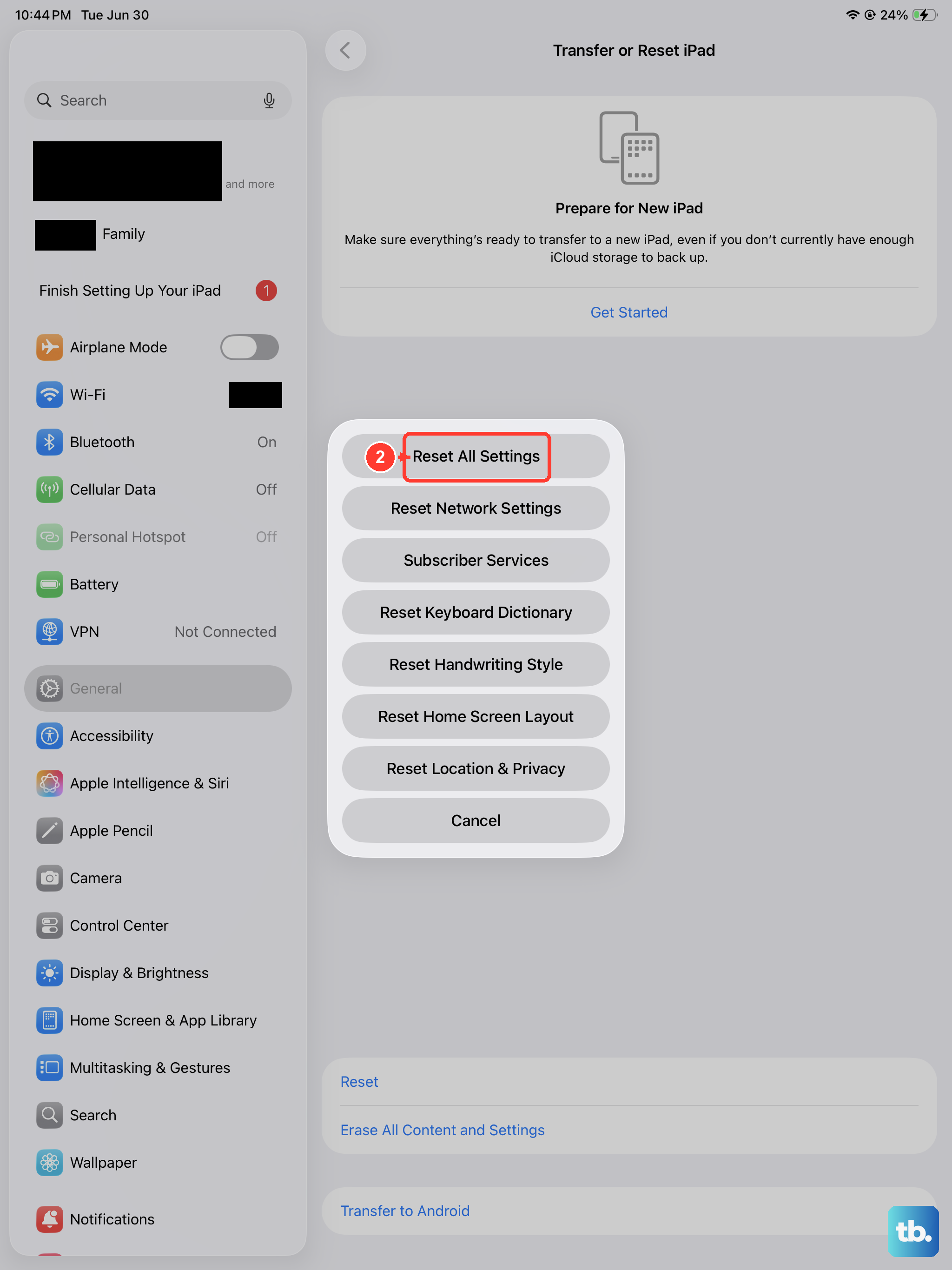
If rotation still won't work after checking the lock and updating, a settings reset can sometimes fix deeper configuration hiccups. This won't delete your photos, apps, or data, but it will reset things like Wi-Fi passwords, wallpapers, and accessibility settings.
Go to Settings > General > Transfer or Reset iPad > Reset > Reset All Settings. Confirm the action. Your iPad will restart with default settings. Set up your Wi-Fi and test rotation.
Check for Physical Obstructions or Sensors
The iPad Pro M5 uses internal sensors (accelerometer and gyroscope) to detect orientation. A thick case, magnetic accessory, or debris near the top of the device can interfere. Remove any case or accessory and try rotating the iPad while holding it with the screen facing you.
Also make sure nothing is pressing against the side buttons, sometimes a tight case can hold a button down, which might confuse the system.
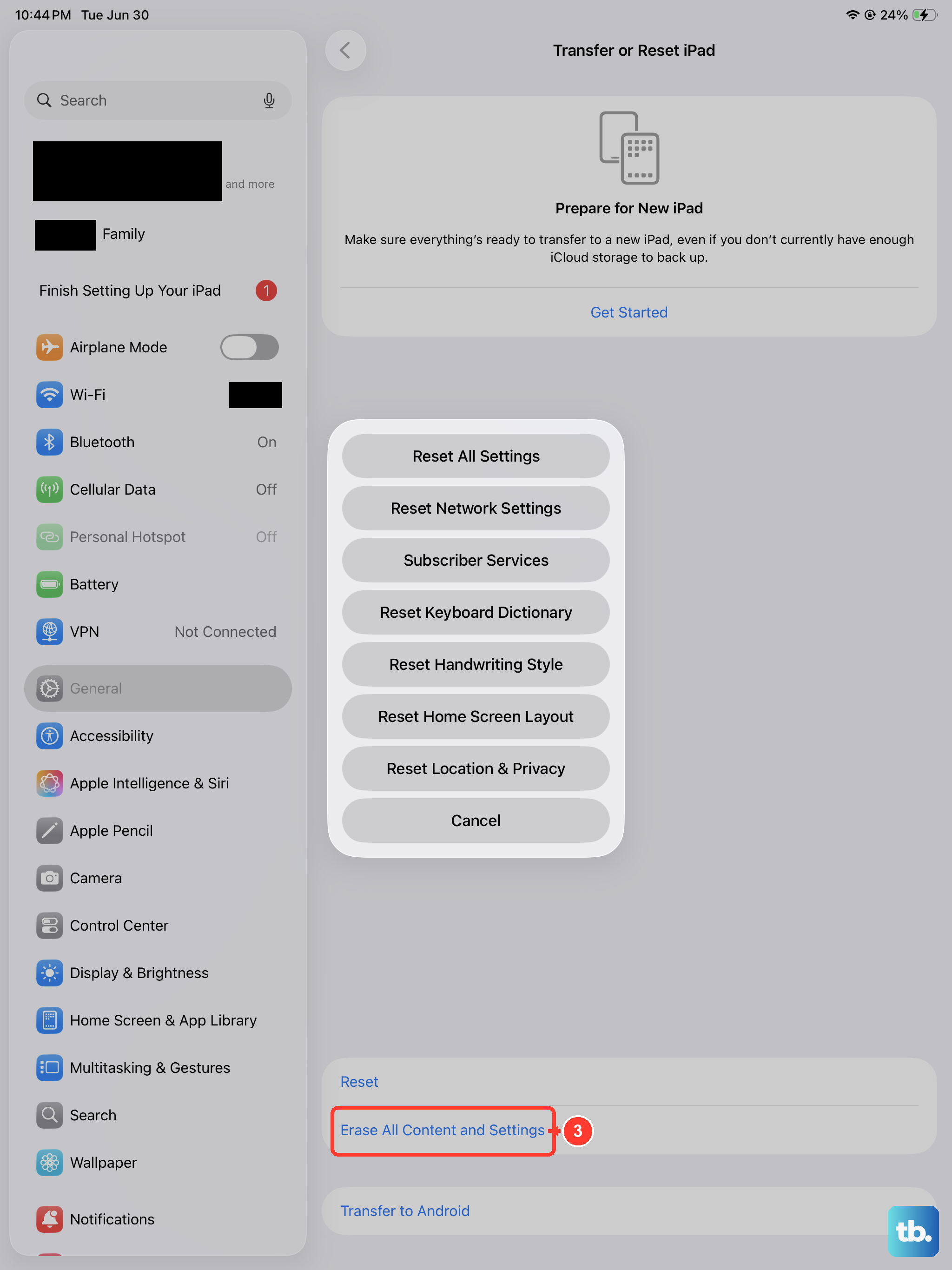
If you've tried everything and rotation still won't work, the last option is to erase and restore your iPad. That sets the software back to a completely clean state. You can do this from Settings > General > Transfer or Reset iPad > Erase All Content and Settings. Make sure you have a backup first, because this wipes everything.