You went to install the latest iPadOS on your iPad Pro (M4), and instead of a smooth update you are stuck. Maybe the download bar freezes, the install never finishes, the screen warns there is not enough storage, or Software Update keeps spinning and tells you nothing. It is frustrating on a tablet this powerful, but the fix is almost always something simple you can do yourself in a few minutes.
One quick clarification before the steps. Apple's only M4 iPad Pro is the model released in 2024, sold in 11-inch and 13-inch sizes, and there is no separate "iPad Pro 2026 (M4)" in Apple's lineup. If you own an M4 iPad Pro, the guidance below is the right guidance for your hardware. Because this is a tablet with Face ID and no Home button, the force-restart move uses the volume buttons and the top button, which matters later, so follow that sequence exactly when you reach it.
Start with Wi-Fi and a steady power source
An iPadOS update is a download first, so it needs a working internet connection to arrive at all. Join a stable Wi-Fi network, and try not to stream video or download other large files at the same time, since competing traffic can stall the update.
Keep the iPad plugged into power while it works. You can keep using your iPad Pro during the download, and it will notify you when the update is ready to install. If the update simply was not progressing, a solid Wi-Fi connection plus power resolves it more often than people expect.
Make room for the download
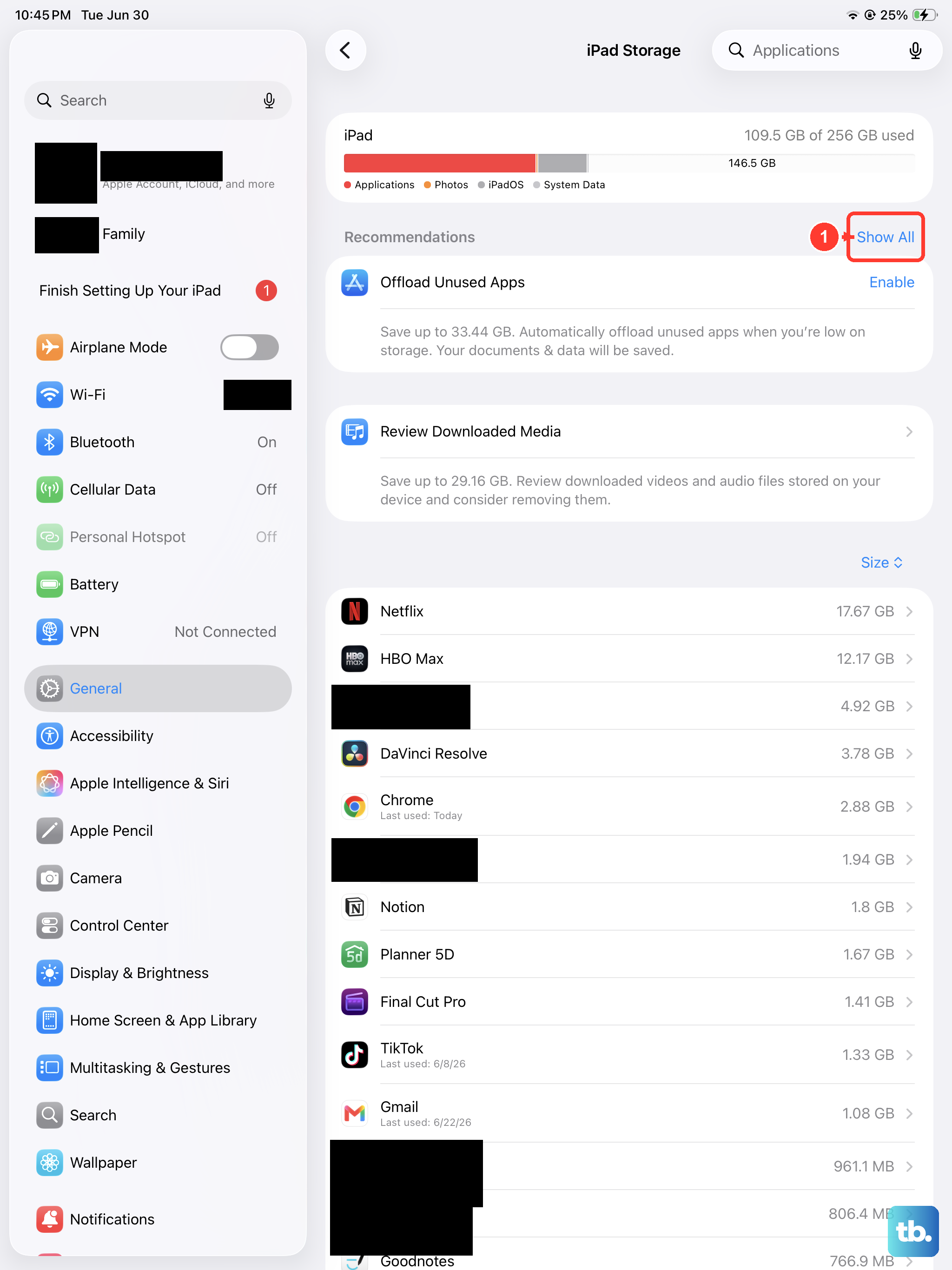
If your iPad Pro is short on free space, the update cannot download, and you will often see a storage warning. Clearing room is usually all it takes to let the install move forward.
Open Settings > General > iPad Storage.
Tap Enable next to Offload Unused Apps, which frees space while keeping your documents and data.
Or manually delete apps you do not use.
Return to the update and try again.
Offloading is the gentler option because it removes the app but leaves your data, so reinstalling later puts things back the way they were.
Protect your data before you go deeper
Updating to the latest iPadOS normally leaves your data and settings unchanged. Even so, before you move on to the more involved steps, make a backup so your information is safe if you ever have to erase the device.
The easiest route is iCloud. Go to Settings > [your name] > iCloud > iCloud Backup > Back Up Now, and stay on Wi-Fi until it finishes. You can also back up to a computer using Finder. A current backup is what turns a worst-case "erase and restore" into a minor inconvenience rather than a real loss.
Try the over-the-air update again
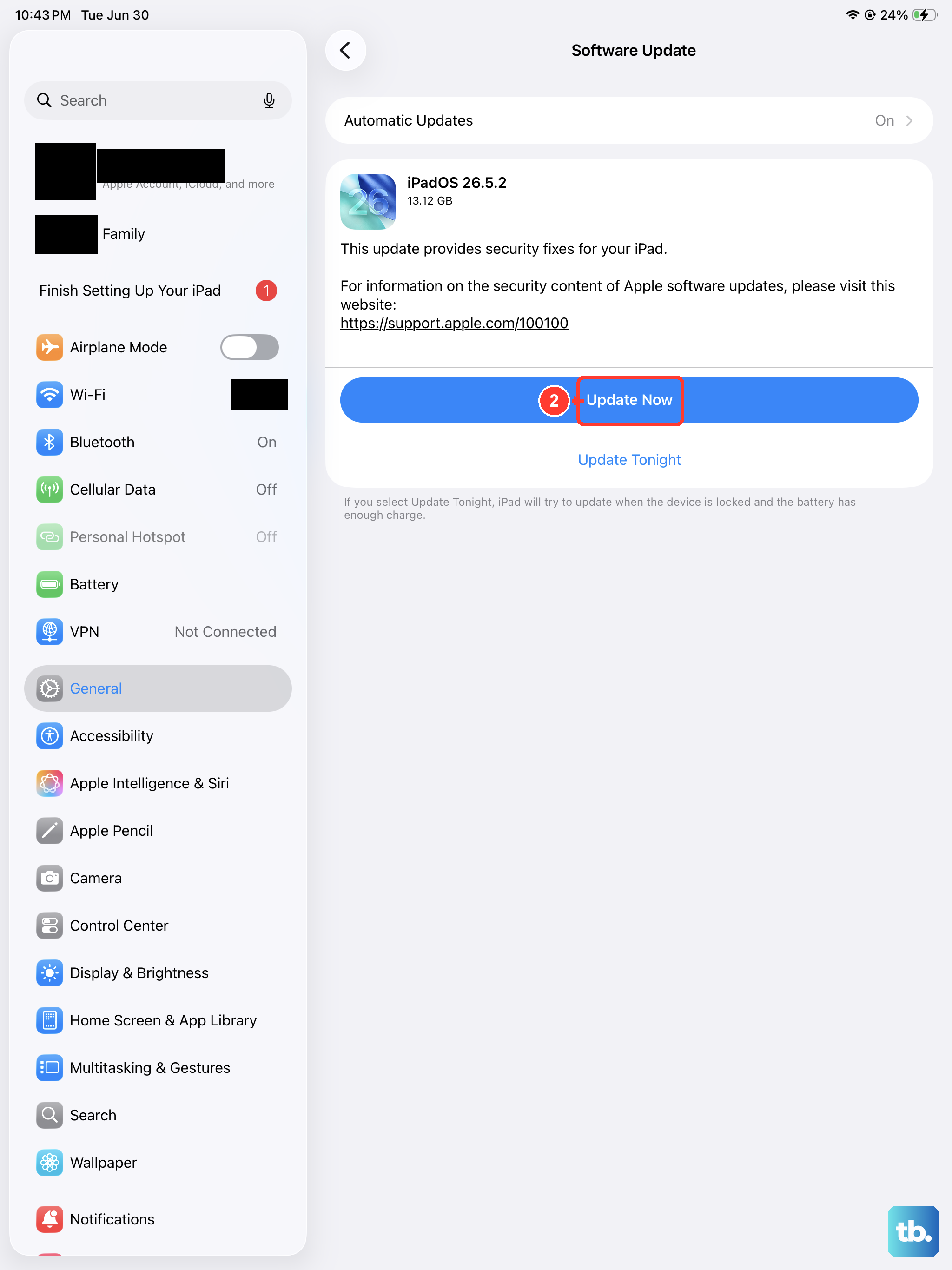
With Wi-Fi, power, storage, and a backup sorted, return to the Software Update screen and run it again. This path shows the iPadOS version currently installed and whether an update is available.
Go to Settings > General > Software Update.
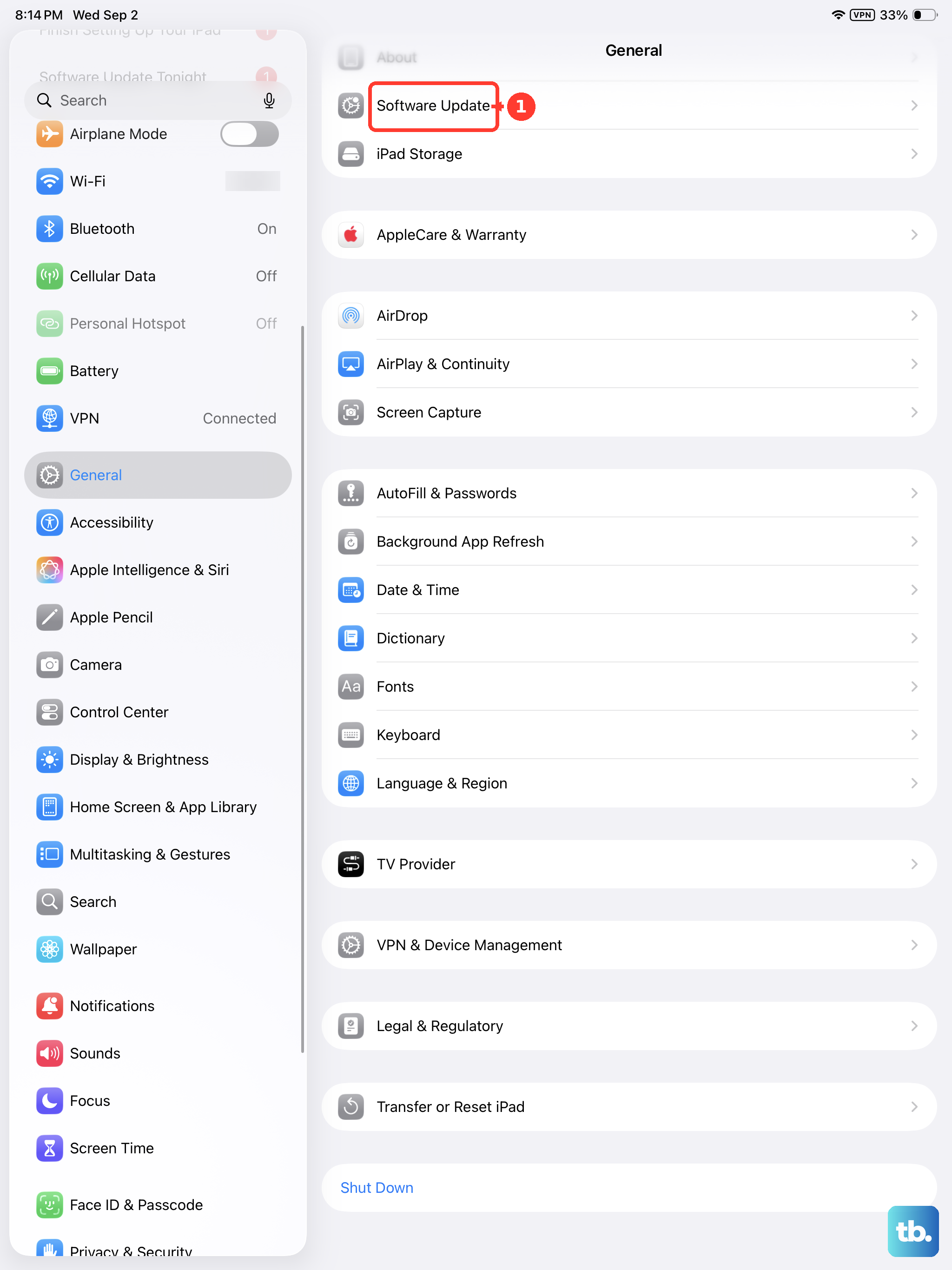
Check the installed version and any available update shown there.
If an update is available, tap Download and Install.
Follow the onscreen instructions to complete it.
The iPad Pro (M4), in both the 11-inch and 13-inch sizes, is supported by iPadOS 26, so a current update should appear here when one is available for your device.
Clear a stuck or failed download
Sometimes an update partially downloads, then gets stuck or fails, and retrying never seems to finish. Deleting that half-finished file and fetching a fresh copy often clears the jam.
Open Settings > General > iPad Storage.
Find the update in the list of apps and items.
Tap it, then tap Delete Update.
Go back to Settings > General > Software Update and download the update again.
Because you are only removing a downloaded installer, not your personal data, this is a safe step to try whenever the progress bar refuses to move.
Force restart a frozen iPad Pro
If the iPad is frozen or the update simply will not proceed, a force restart can break the logjam without touching your data. On an iPad with no Home button, including the iPad Pro (M4), the sequence uses the volume buttons and the top button, so follow it precisely.
Press and quickly release the volume button nearest to the top button, then press and quickly release the volume button farthest from the top button, then press and hold the top button until the Apple logo appears and release the top button.
Once it boots back up, return to Settings > General > Software Update and try the update one more time. A force restart clears temporary glitches that block an install.
Switch to a computer to push the update
When the over-the-air update still will not go through, updating from a computer is a reliable alternative. It is worth trying when the update never appears on the iPad or the same problem keeps coming back.
Connect the iPad Pro to a computer with a cable.
On a Mac, open Finder. On Windows, open the Apple Devices app. On older macOS or Windows, use iTunes.
Select your iPad.
Choose to update from there and follow the prompts.
This routes the update through your computer's connection and software, which can succeed even when the iPad cannot finish the job on its own.
Reinstall iPadOS through recovery mode
If the computer does not recognize the iPad, or the device is stuck (for example an Apple logo with no progress bar, or a recovery-mode screen), recovery mode is the next move. The important part is which option you pick.
Connect the iPad with a cable and open Finder on a Mac, the Apple Devices app on Windows, or iTunes on older systems. When you see the option to Restore or Update, choose Update. Updating reinstalls iPadOS while trying to keep your data, so always try Update before Restore, since Restore erases everything.
Erase, restore, and call in Apple as a last resort
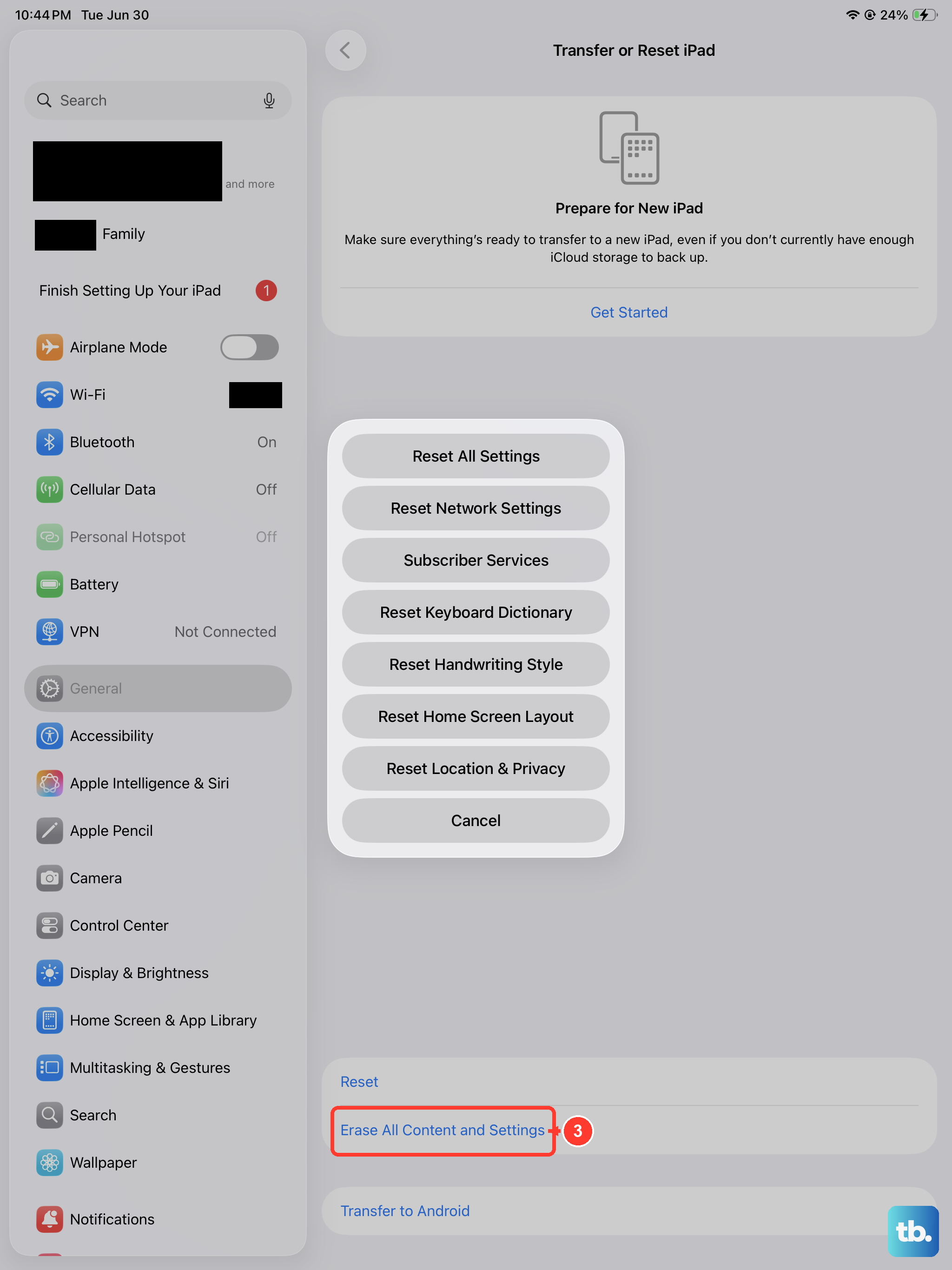
If nothing above works, the final step is to erase the iPad and restore from the backup you made earlier. This removes all of your data, so it is genuinely a last resort, and the backup is what makes it recoverable.
On the iPad, go to Settings > General > Transfer or Reset iPad > Erase All Content and Settings. If asked, enter your iPad passcode or Apple Account password, then tap Continue. This securely removes your personal information, content, and settings and restores factory settings, which is exactly why backing up first matters. Alternatively, in recovery mode you can choose Restore; both options erase all of your data, so restore from your backup afterward.
If you cannot update or restore even with recovery mode, or the buttons themselves are broken, the iPad may need service. At that point, contact Apple Support to arrange help.
Keep future updates from getting stuck
Once your iPad Pro is current again, you can make the next update far less likely to stall. Turn on automatic updates so the work happens quietly in the background while you are not using the device.
Go to Settings > General > Software Update > Automatic Updates, then turn on Automatically Install. With this on, your iPad installs updates overnight while it is charging and on Wi-Fi, which is exactly the condition where updates are most likely to complete without trouble.
Frequently Asked Questions
Will updating my iPad Pro (M4) erase my data?
No. Updating to the latest iPadOS normally leaves your data and settings unchanged. A backup is still worth making in case you later have to erase the device as a troubleshooting step, but a standard update does not wipe your content.
Is there an "iPad Pro 2026 (M4)" I should be updating?
There is no separate iPad Pro 2026 (M4). Apple's only M4 iPad Pro is the 2024 model, available in 11-inch and 13-inch sizes, and these fixes apply to that hardware running iPadOS.
How do I force restart an iPad Pro (M4) if it freezes during an update?
Press and quickly release the volume button nearest to the top button, then press and quickly release the volume button farthest from the top button, then press and hold the top button until the Apple logo appears and release the top button. The iPad Pro has Face ID and no Home button, so this is the correct sequence.
What should I do if recovery mode cannot fix it?
If you cannot update or restore even with recovery mode, or the buttons are broken, the iPad may need service. Contact Apple Support to arrange help rather than continuing to retry the same steps.
How do I avoid this problem next time?
Turn on automatic updates at Settings > General > Software Update > Automatic Updates, then enable Automatically Install. Your iPad will install updates overnight while charging and on Wi-Fi, which is the most reliable condition for an update to finish.