You reached for your iPad Pro to shoot 4K video, install an update, or save a large project file, and instead you got a "Storage Almost Full" alert. On an iPad Pro (M4) that can sting, because even the 256GB model fills faster than you expect once high-resolution photos, large video clips, and heavy creative apps pile up. The good news is that iPadOS 26 gives this exact model a complete set of built-in storage tools, so you can usually reclaim plenty of room in a few minutes without deleting anything you actually care about.
This guide covers the Apple iPad Pro 11-inch (M4) and iPad Pro 13-inch (M4), the M4-chip models that originally launched in 2024 and ship in 256GB, 512GB, 1TB, and 2TB capacities. (Worth noting up front, "iPad Pro 2026 (M4)" is not an official Apple product name, so the steps below simply apply to the M4 iPad Pro running iPadOS 26.) Work through the fixes in order, starting with the safest, and stop as soon as you have the space you need.
Find out what is actually filling the drive
Before you delete a single thing, see where your space has gone so you remove the right items instead of guessing. Open Settings > General > iPad Storage. Available storage is shown at the top, followed by a color-coded bar and a list of every app along with how much space each one uses.
This screen also shows personalized Recommendations tailored to your iPad. Reading the list first tells you whether photos, apps, or browser data are the real culprit, which saves you from wiping things that barely move the needle.
Let the iPad recommend and automate the cleanup
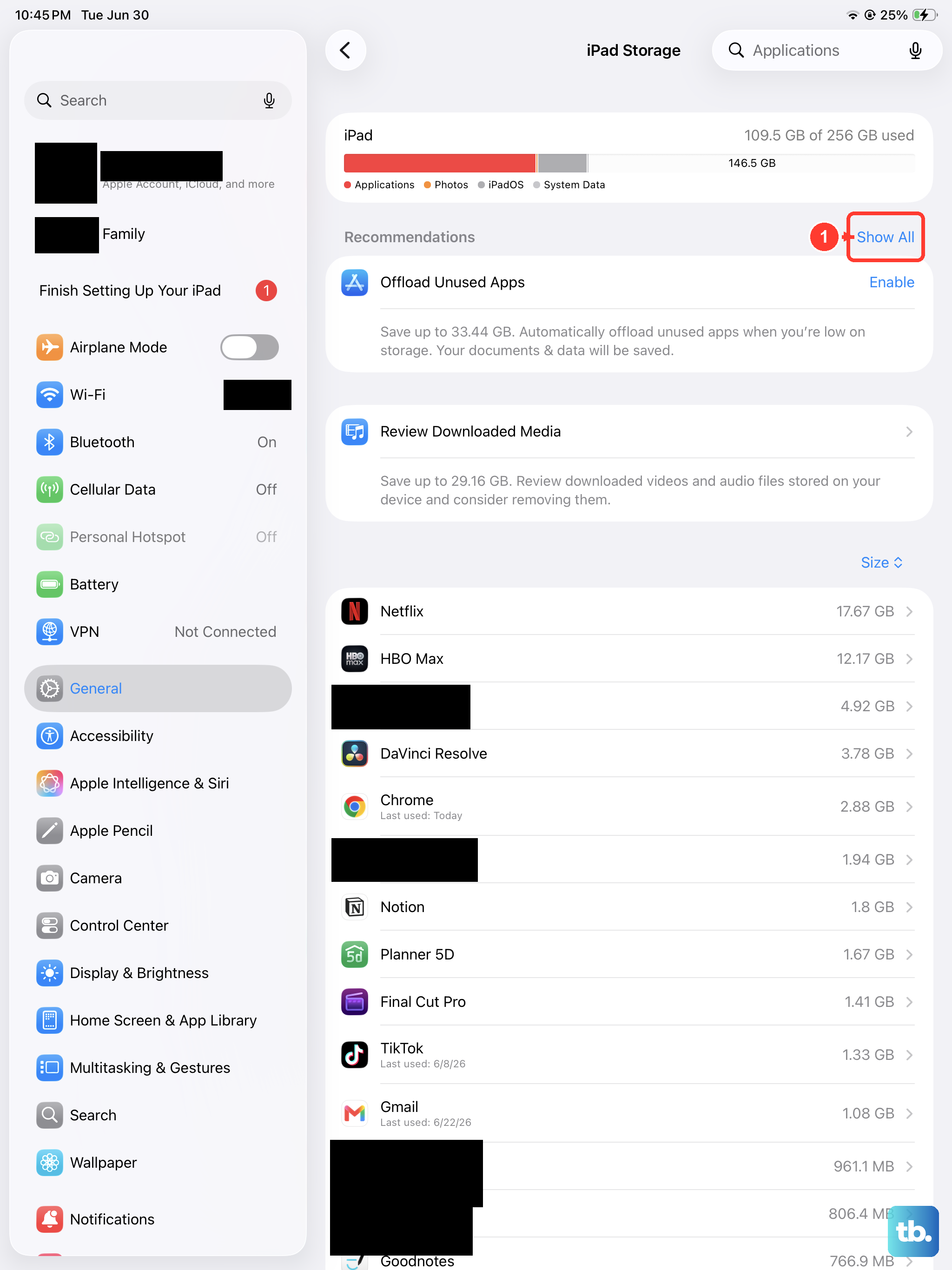
Still in Settings > General > iPad Storage, act on the Recommendations listed near the top; these are Apple's suggestions for the quickest wins on your specific device. They often surface large items you had forgotten about and let you clear them with a single tap.
To keep space free automatically going forward, go to Settings > Apps > App Store and turn on Offload Unused Apps. When storage runs low, the iPad removes apps you have not been using while keeping their documents and data. The icon stays on the Home Screen with a small cloud symbol, and the app reinstalls when you tap it.
Clear out the apps taking the most space
If one or two apps dominate the list, deal with them directly. In Settings > General > iPad Storage, tap a large app and you will see two choices.
- 1.Tap Offload App to free up the app while keeping its documents and data, so reinstalling later restores everything.
- 2.Tap Delete App to remove the app and all of its data when you no longer need it.
Offloading is the safer first move because nothing you created inside the app is lost. Reserve Delete App for apps you are certain you are finished with.
Move your photo library into iCloud
Photos and videos are usually the single biggest space user on an iPad Pro, especially at this model's high capture resolutions. Go to Settings > [your name] > iCloud > Photos and make sure Optimize iPad Storage is selected. It is on by default, and it keeps your full-resolution originals in iCloud while lighter, space-saving versions stay on the iPad.
Avoid switching to Download and Keep Originals unless you specifically need every original stored locally, because that setting turns optimization off and uses far more on-device space.
Flush Safari's stored cache and site data
Everyday browsing builds up history, cookies, and cached files that quietly consume storage over time. To clear all of it, go to Settings > Apps > Safari, then tap Clear History and Website Data.
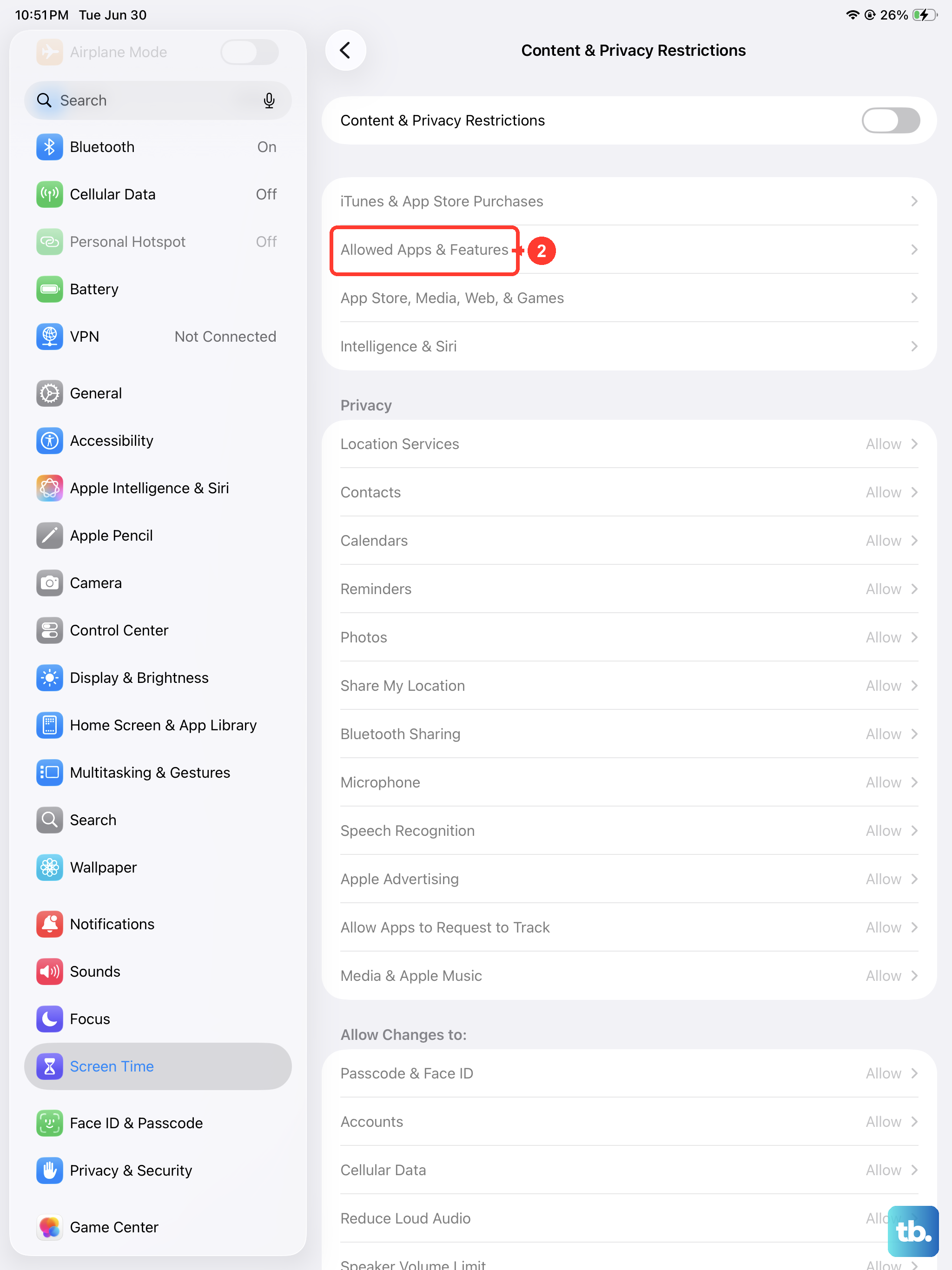
If you would rather keep your browsing history, you can remove only the stored site data instead. Go to Settings > Apps > Safari > Advanced > Website Data, then tap Remove All Website Data. If the clear button appears gray, there is nothing left to clear, or Content & Privacy Restrictions are set.
Free up iCloud so files can leave the iPad
Offloading photos and files to the cloud only helps if your iCloud account has room. Open Settings > [your name] > iCloud > Manage Account Storage (or Storage) to see what is using your iCloud space and to trim oversized backups you no longer need.
If you are out of cloud space, tap Change Storage Plan to upgrade to iCloud+ for more room, which lets device files and your photo library move off the iPad. You can also review and manage the same iCloud storage from a browser at iCloud.com.
Install the latest iPadOS update
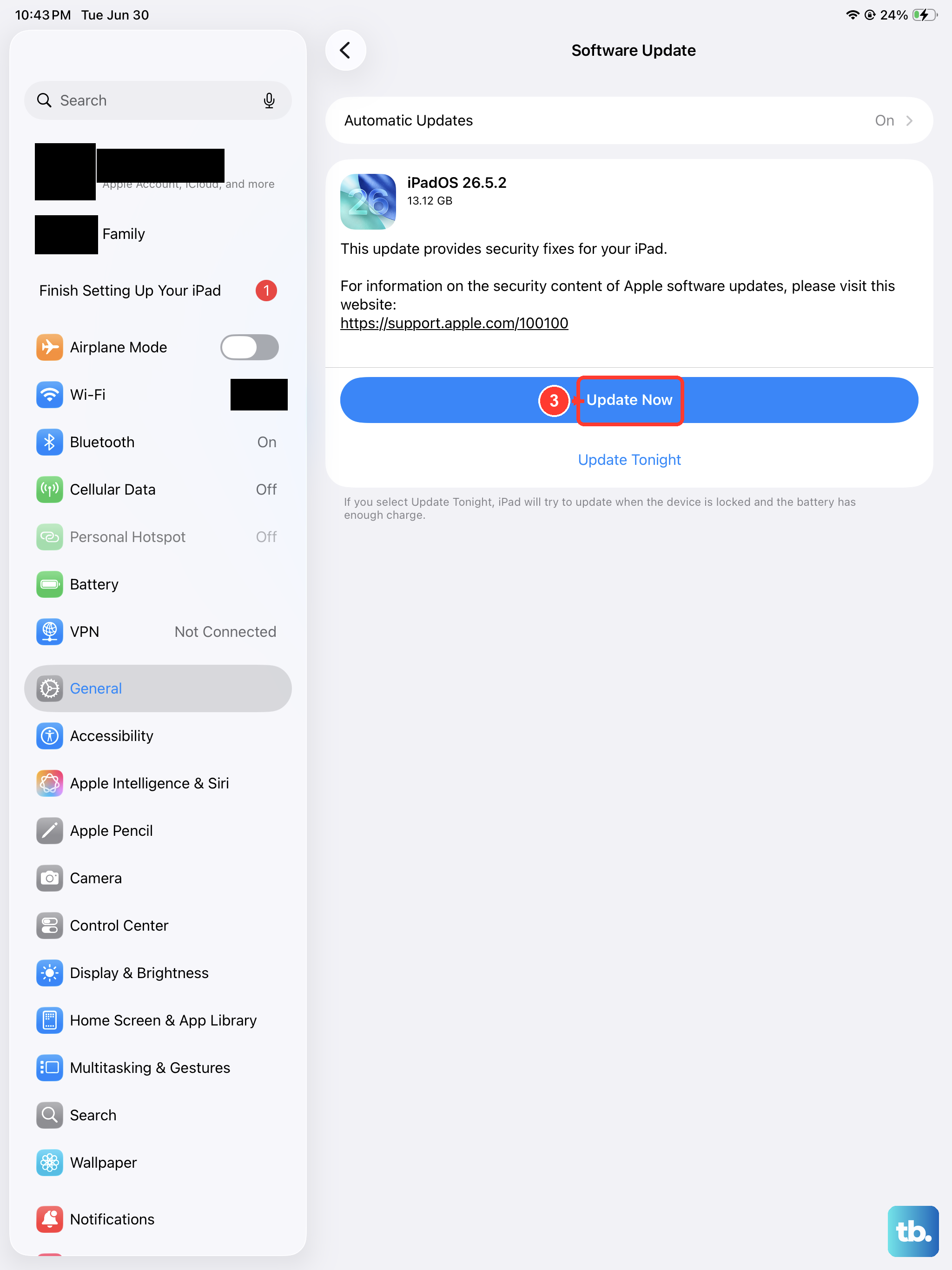
A stuck or inaccurate storage reading is sometimes a software glitch rather than genuinely full storage. Go to Settings > General > Software Update and, if an update is available, tap Download and Install.
Updating to the current iPadOS 26 release can resolve storage-reporting issues, and your data and settings remain unchanged when you update, so there is no risk to what you have stored.
Force restart a frozen iPad without losing data
If your iPad Pro becomes unresponsive while you are clearing space, a force restart can bring it back. Because the M4 iPad Pro has no Home button, the sequence uses the volume and top buttons in a precise order.
- 1.Press and quickly release the volume button nearest to the top button.
- 2.Press and quickly release the volume button farthest from the top button.
- 3.Press and hold the top button.
- 4.When the Apple logo appears, release the top button.
This restart does not erase any of your data; it simply forces the iPad to reboot.
Back up and erase as a last resort
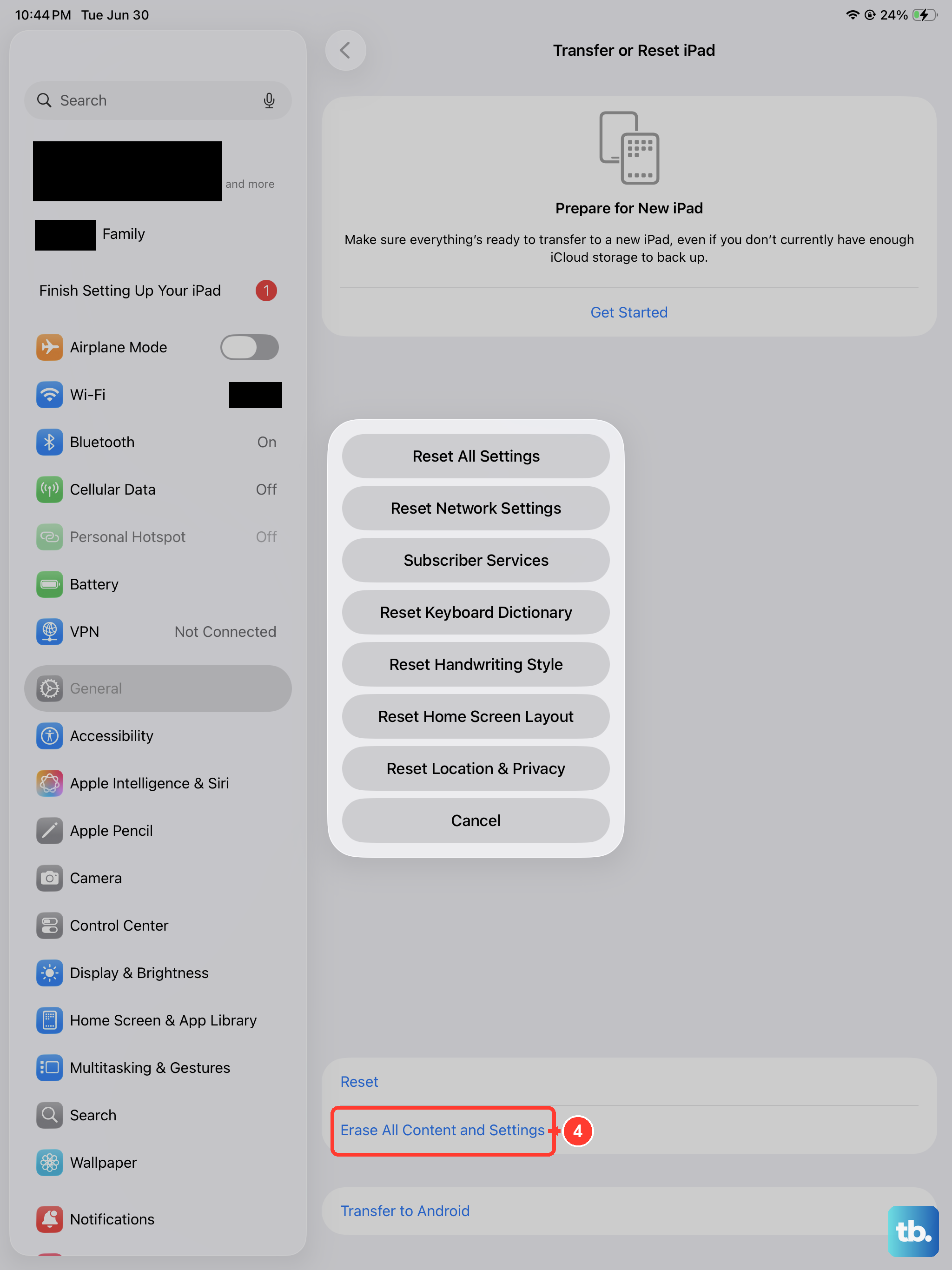
If storage stays stubbornly full after everything above, a clean erase and restore is the final option, but only once you have a complete backup. Back up the iPad first to iCloud, or over USB-C to a Mac using Finder, or to a Windows PC using the Apple Devices app.
With your backup confirmed, go to Settings > General > Transfer or Reset iPad > Erase All Content and Settings, then enter your passcode or Apple Account password to confirm. Be aware that this restores the iPad to factory settings and erases all content and data, so do not skip the backup step.
When to call in Apple Support
If the iPad still reports full storage after these steps, or shows an unusually large "System Data" or "Other" category that refuses to shrink, it is time for a closer look. Contact Apple Support through the Apple Support app or support.apple.com/contact, or book a Genius Bar appointment for hands-on diagnosis.
The exact size of System Data varies from device to device, so there is no single "normal" number; what matters is whether it keeps growing or simply will not clear. Support can check for an underlying issue that the on-device tools cannot resolve.
Frequently Asked Questions
Does offloading an app delete my files?
No. Offloading removes the app itself but keeps its documents and data, and the icon stays on the Home Screen with a cloud symbol. Tapping it reinstalls the app and restores your data. Choosing Delete App, by contrast, removes the app and all of its data.
Will Optimize iPad Storage lower the quality of my photos?
Your full-resolution originals stay safe in iCloud, and only lighter, space-saving versions are kept on the iPad. When you need an original, it downloads on demand. The feature is on by default, and selecting Download and Keep Originals is what turns it off.
Do I lose anything when I update iPadOS?
No. When you update through Settings > General > Software Update and tap Download and Install, your data and settings remain unchanged. Updating can also clear up storage-reporting glitches that make the iPad look fuller than it is.
What does Erase All Content and Settings do?
It restores your iPad Pro to factory settings and erases all content and data, and you confirm with your passcode or Apple Account password. Always back up first to iCloud, a Mac with Finder, or a Windows PC with the Apple Devices app before using it.
My iPad Pro is an M4 model, so why does the title say 2026?
"iPad Pro 2026 (M4)" is not an official Apple name. The M4 iPad Pro (11-inch and 13-inch) launched in 2024 and runs iPadOS 26, and every storage step here applies to that exact device no matter which model-year label you have seen.